Guide · 2 · Create a Campaign
Create purchase verification popups
You can create purchase verification popups that encourage purchases and let you run a prize draw among the users who bought.
Click Create popup in Popup management, select Live Purchase Raffle as the popup type, and fill in the items below on the Basic settings tab.
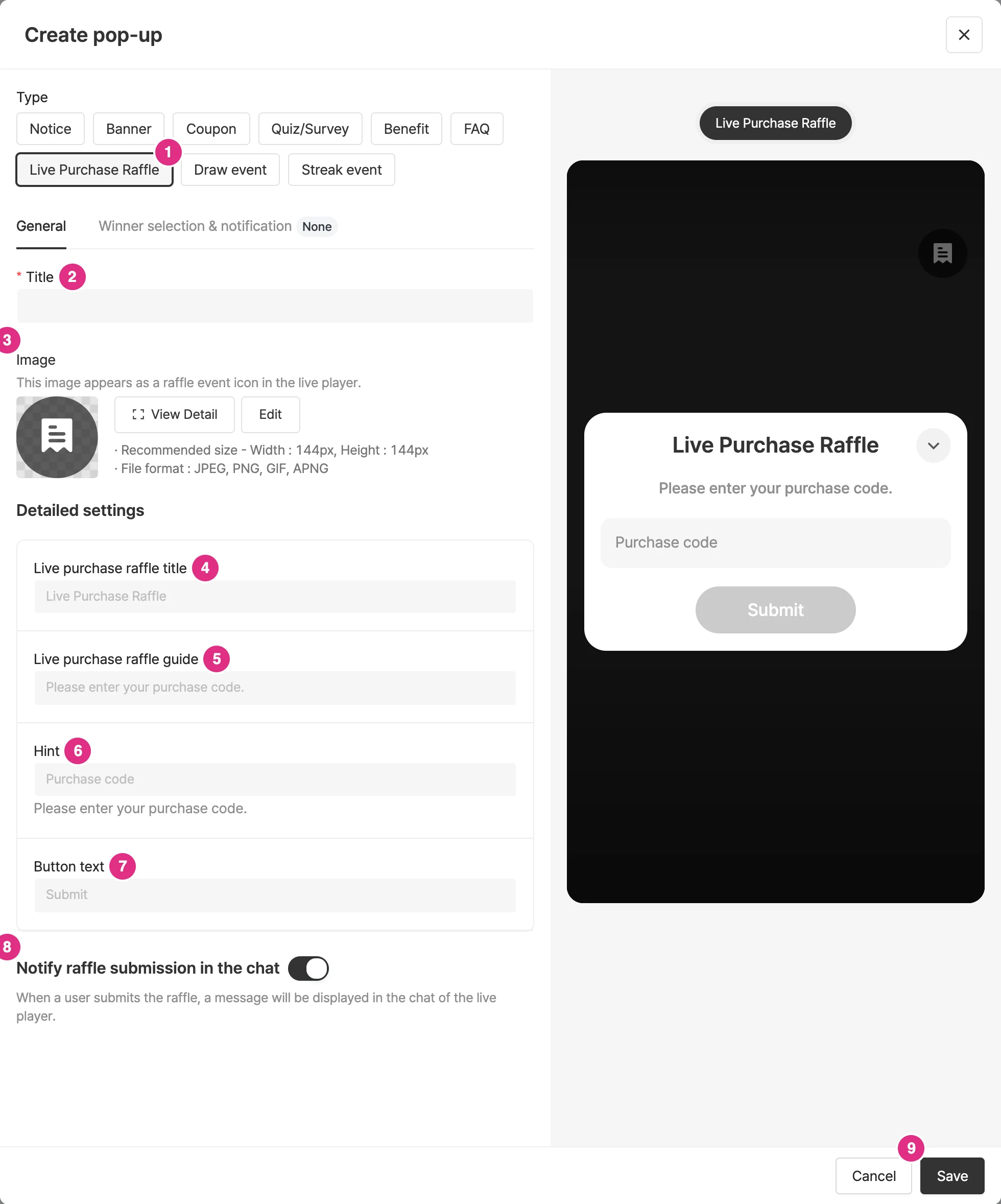
- Type: Select Live Purchase Raffle.
- Title: Required / a title for management.
- Image: the image shown as the purchase verification icon in the live player.
- Purchase verification title: the title shown in the purchase verification modal.
- Purchase verification message: the message shown in the purchase verification modal.
- Hint: The hint text shown in the input field of the purchase verification modal. Below the hint, the example text "Enter an example order number. e.g., 202407290033380002" is shown.
- Button text: the button text in the purchase verification modal.
- Chat notification: a message appears in the chat when purchase verification is completed.
- Click Save to create the popup.
In the Winner selection & notification tab, set the winner filter and the winner notification modal.
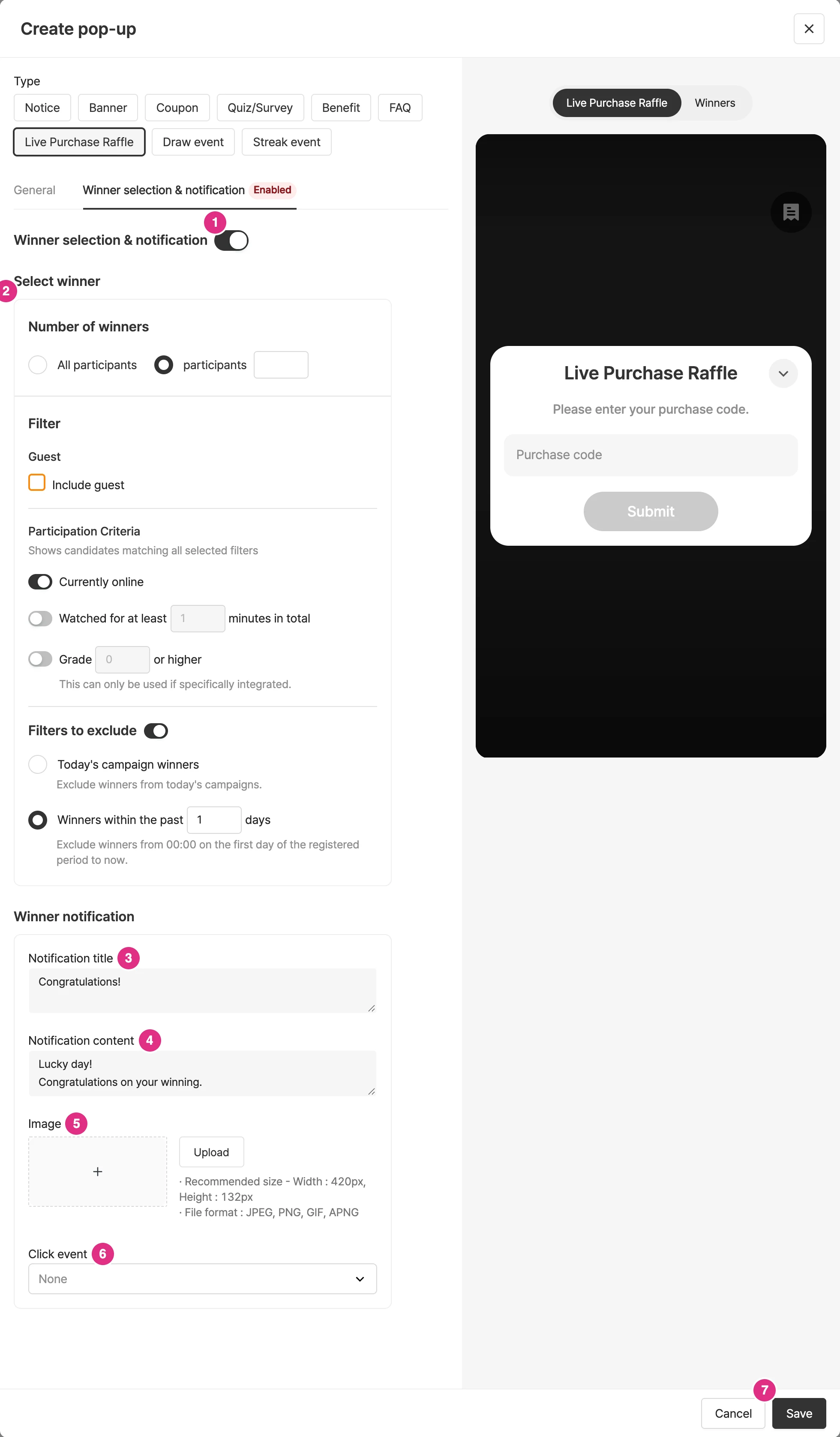
- Winner selection & notification: Turn the toggle on to select and notify winners.
- Winner selection: Set the number of winners, filters, and exclusions.
- Number of winners: set how many participants to choose.
- Include filter: Winners are selected from candidates who meet all the selected filters. You can use the Currently watching filter and the Cumulative watch time filter (based on the cumulative watch time within the campaign; even if a viewer leaves and returns, their earlier watch time in the same campaign is added up. However, viewers who enter using "security mode" may not be counted in cumulative watch time.).
- Grade filter: available only with a separate integration.
- Include guests as winners: set whether to include guests.
- Exclude filter: Select winners while excluding certain participants. Winners of today's campaigns excludes the winners of all events (including quizzes, events, and surveys) held in today's campaigns, and Exclude winners from campaigns within N days excludes all winners from 00:00 on the first day of the entered period until now.
- Notification title: Set the title of the winner notification modal.
- Notification content: Set the content of the winner notification modal.
- Image: You can register an image.
- Click event: You can set a click event for the image.
- Click Save to create the popup.
Set up the purchase verification popup
Add it to the campaign. You can add it from the console or the campaign details.
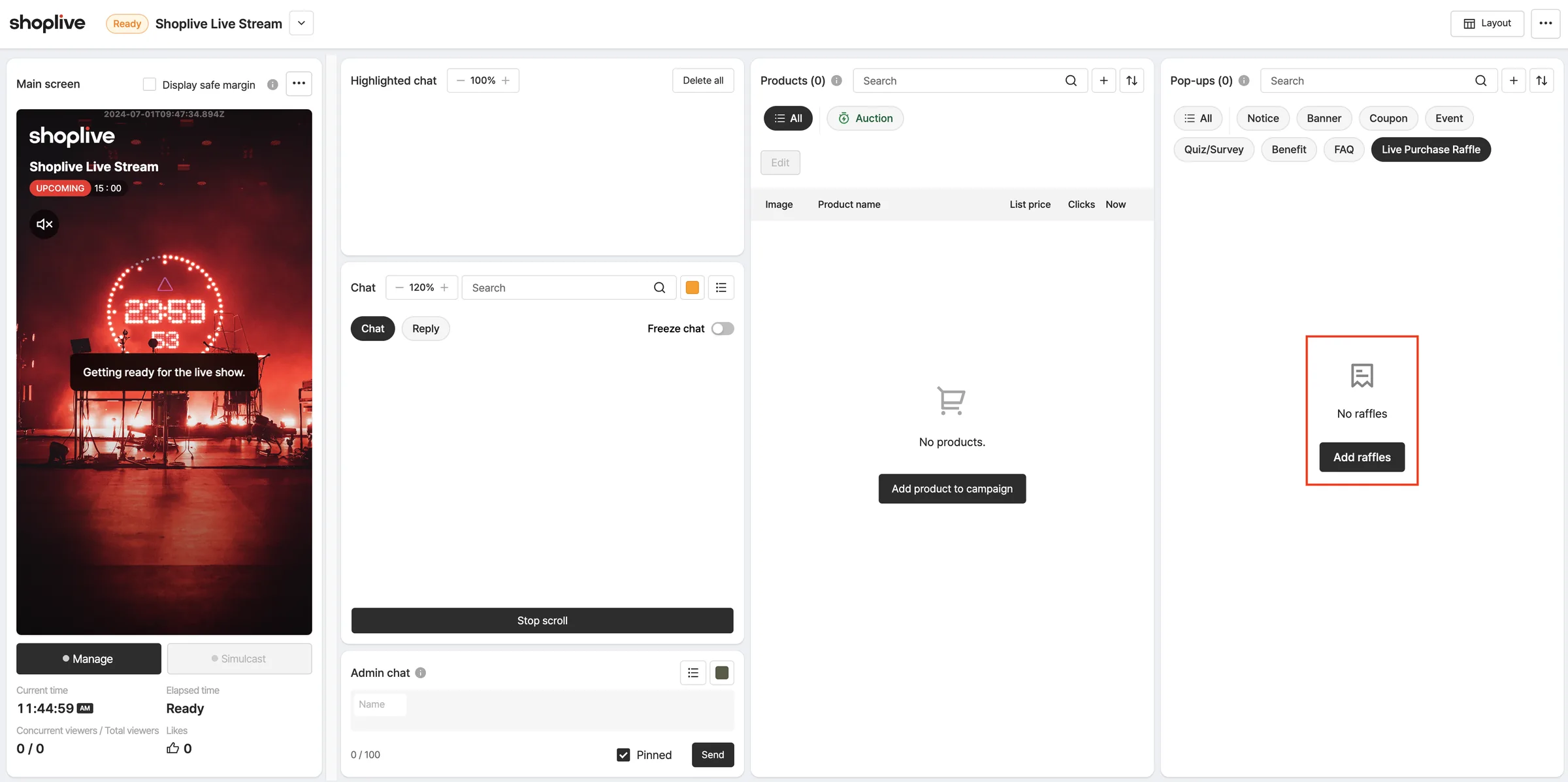
To start purchase verification and announce winners during a broadcast, see Purchase verification popups.