Guide · 2 · Create a Campaign
Create prize draw popups
You can create prize draws that capture viewers’ interest and participation during the broadcast.
Click Create popup in Popup management, select Draw event as the popup type, and fill in the items below.
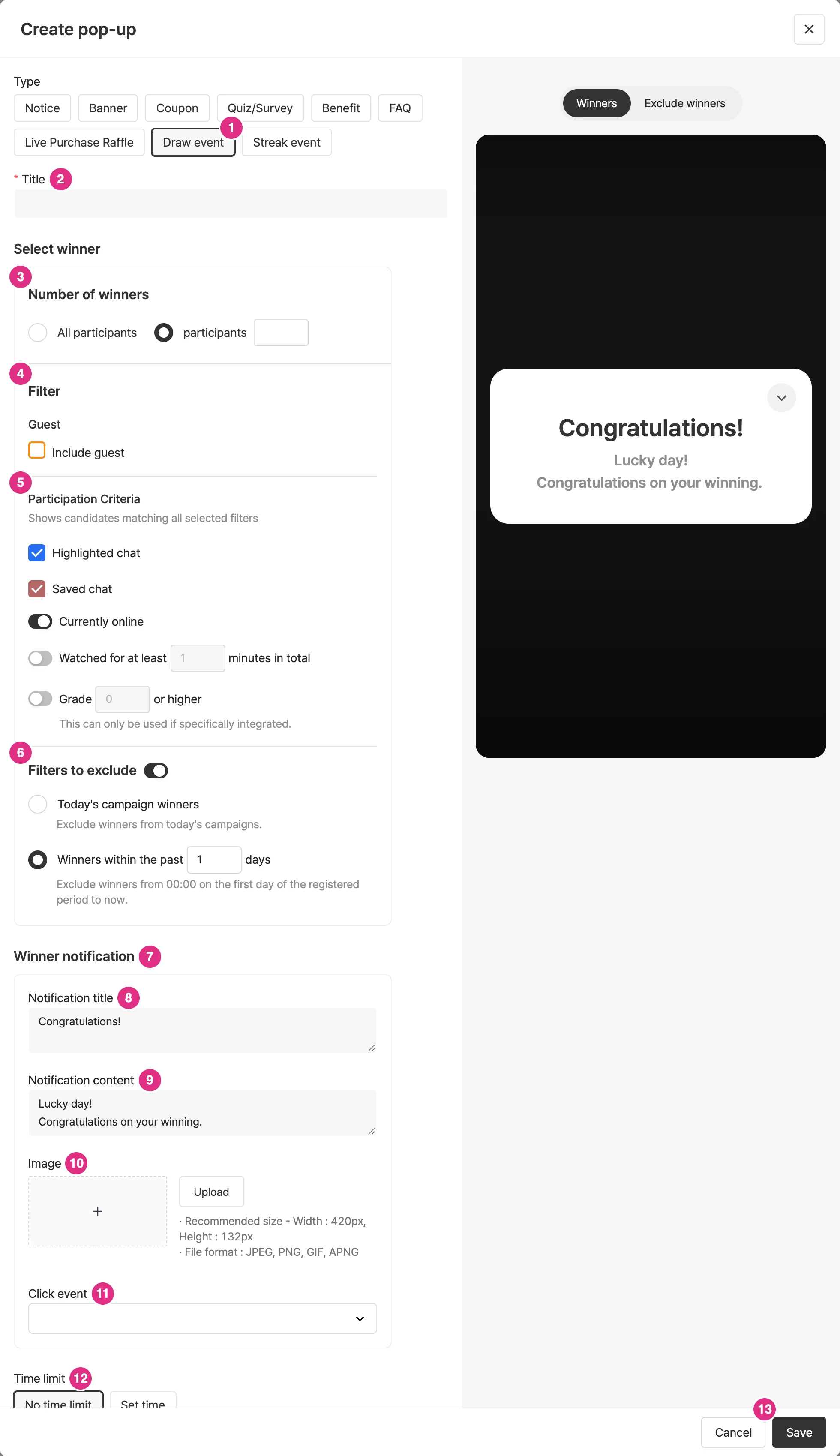
- Type: Select Draw event.
- Title: Required.
- Number of winners: Specify all participants or how many of the participants to select. (Up to 100)
- Filter: Set the conditions that narrow down winner candidates.
- Include guests as winners: set whether to include guests.
- Include anonymous members: includes users who are logged in but haven’t entered a display name.
- Include anonymous guests: includes users who aren’t logged in and haven’t entered a display name. If they win, they’re notified only by a popup on the viewing screen.
- Participation criteria: Winners are selected from candidates who meet all the selected filters.
- Chat filter: Includes cases that match either of two options: saved as a highlighted chat, or saved as a saved chat.
- Currently watching filter
- Cumulative watch time filter (Watched for minutes or more): Based on the cumulative watch time within the campaign. You can set up to 600 minutes. Even if a viewer leaves and returns, their earlier watch time in the same campaign is added up. However, viewers who enter using "security mode" may not be counted in cumulative watch time.
- Membership level filter (Level or higher): The level filter is available only with a separate integration.
- Exclude: Select winners while excluding certain participants.
- Exclude winners of all of today’s broadcasts: excludes winners of all events (including quizzes, events, surveys and purchase verification) in today’s broadcasts.
- Exclude winners within a number of days: excludes all winners from midnight on the first day of the period entered up to now.
- Winner announcement: set the title and message of the announcement modal.
- Notification title: The title of the notification modal.
- Notification content: The content of the notification modal. You can enter text and also register an image.
- Image: Register an image in the notification modal.
- Click event: You can set a click event for the image.
- Time limit: You can set how long the winner notification popup stays on screen.
- Click Save to create the popup.
Set up the prize draw popup
Add a prize draw popup to the campaign. You can add it from the console or the campaign details.
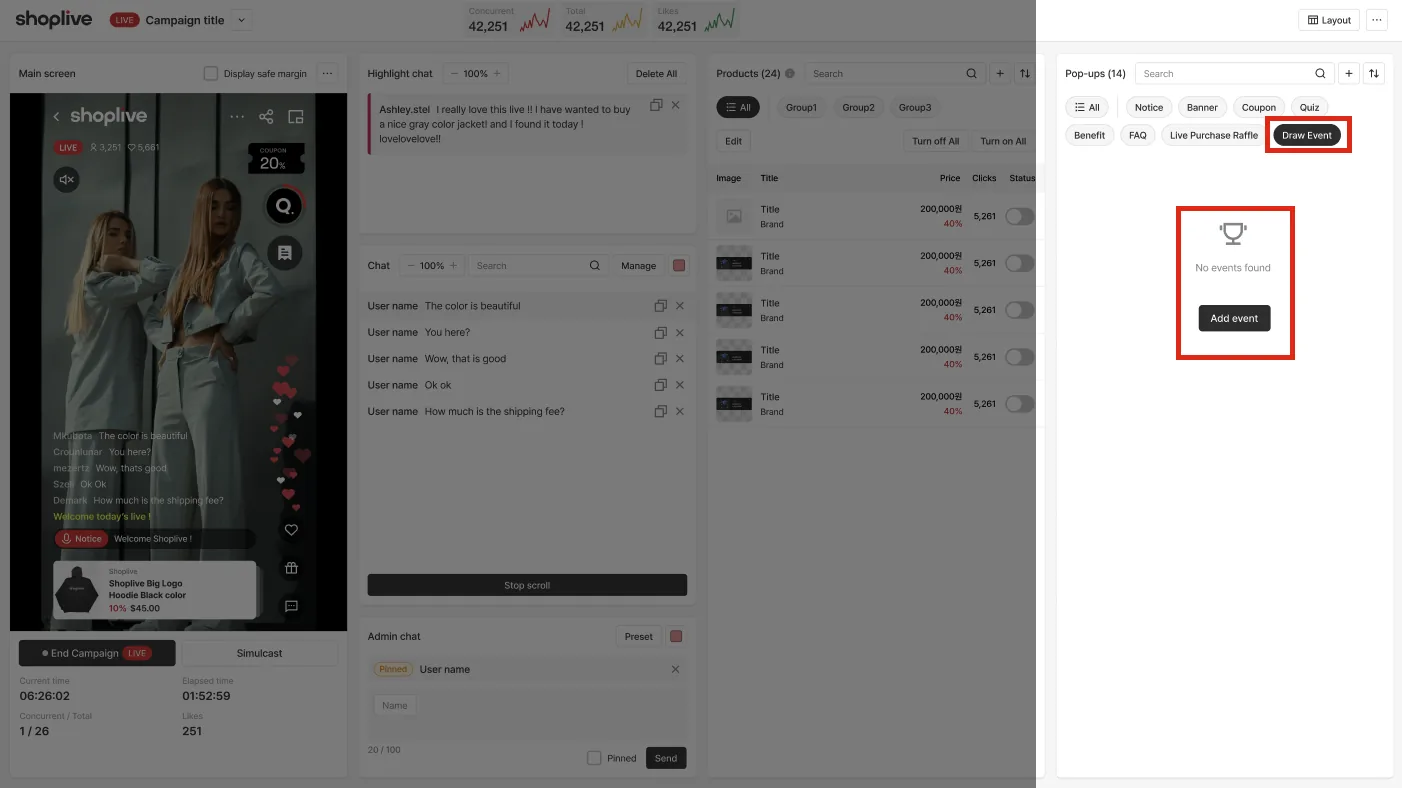
To start the prize draw and announce winners during a broadcast, see Prize draw popups.