Manage Chat
You can use the following chat management features while running a broadcast.
- Chat search
- Chat highlights
- Save chat
- Mute (block) users
- Delete specific chats
- Operator replies
- Change chat colors
Chat management screen
Chat messages appear in real time, and loading of new messages pauses when you scroll the chat history. Select the Start scrolling button to load new chats.
Above the chat history, use the Stop scrolling/Start scrolling buttons to pause or resume chat loading yourself. If the chat connection drops, reconnect with the Retry connection button.
The check icon to the right of a user’s nickname in their chat indicates a logged-in user. Guest users don’t have the icon.
Chat search
Use the search box to find the chat you want. Click the Start scrolling button to load chat messages again.
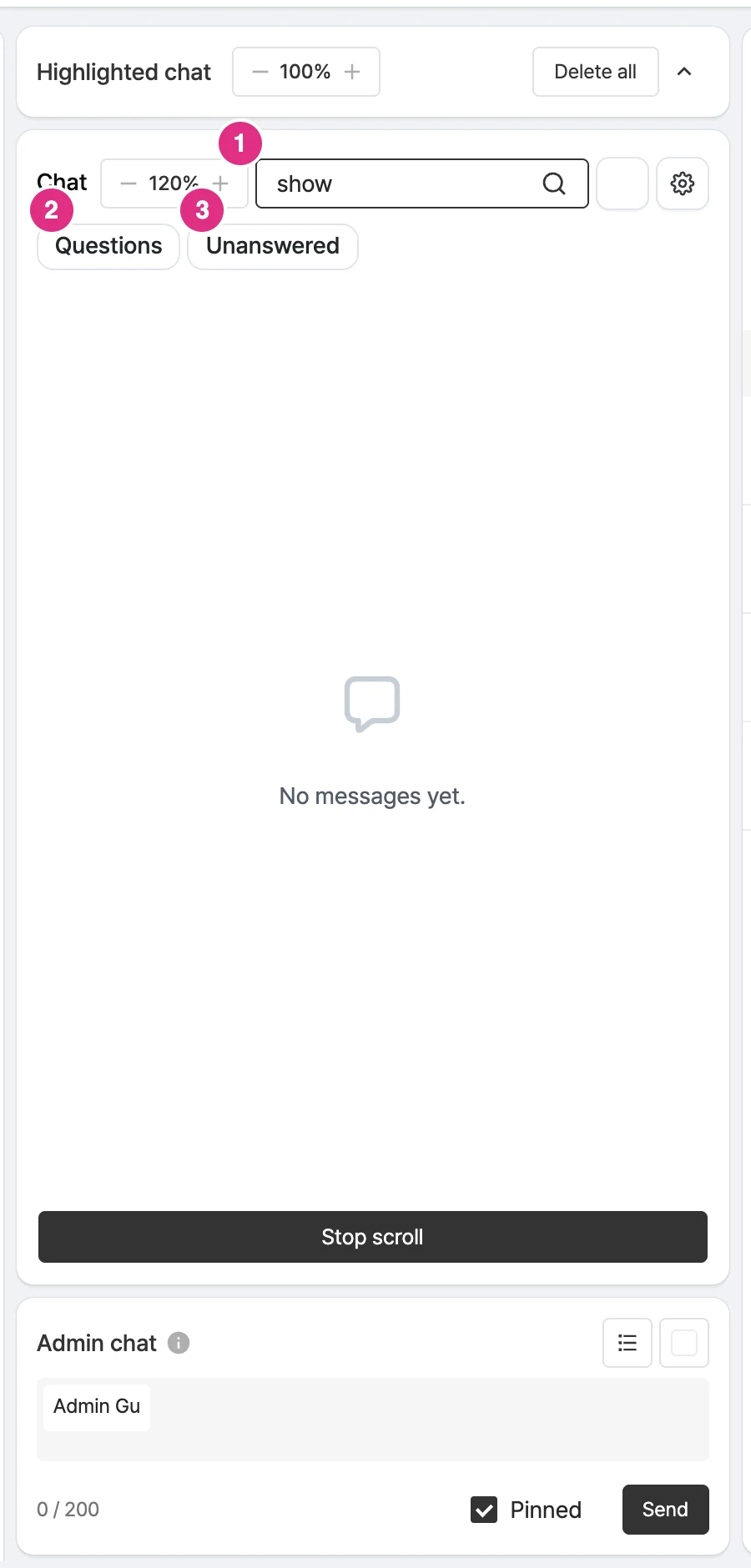
- Search box: Shows only the chats that contain the keyword.
- Questions: Shows only question chats.
- Unanswered: Shows only chats that have not been answered.
Select the filter chips Questions or Unanswered to see only matching chats, and click Reset to clear the filter.
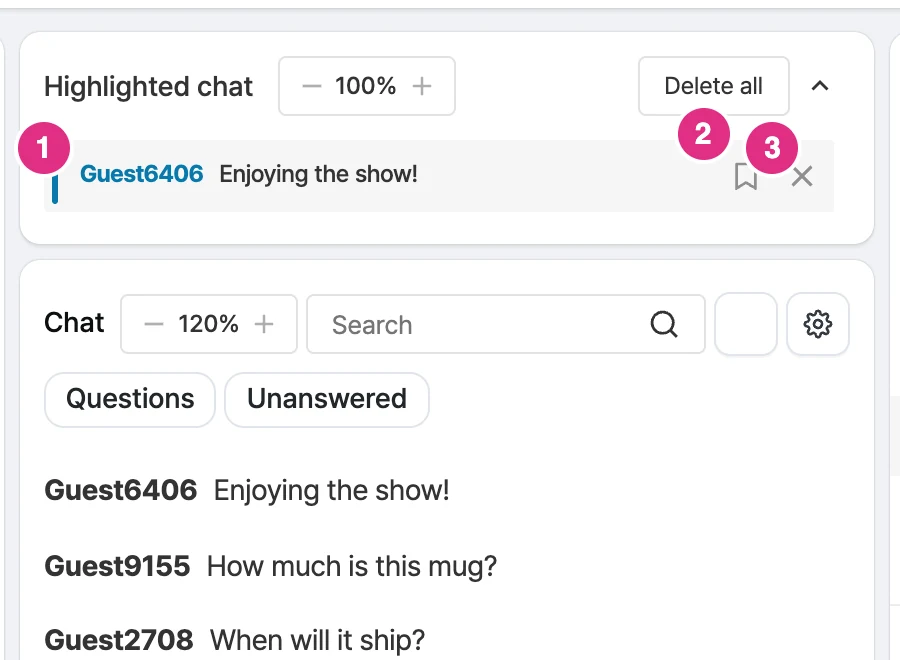
Highlight user messages
You can highlight a user’s message to show it on the host’s prompter screen. Use the copy button on the right of the highlighted chat area to copy and save the message, and the X button to delete it. You can also delete all at once with the Delete all button.
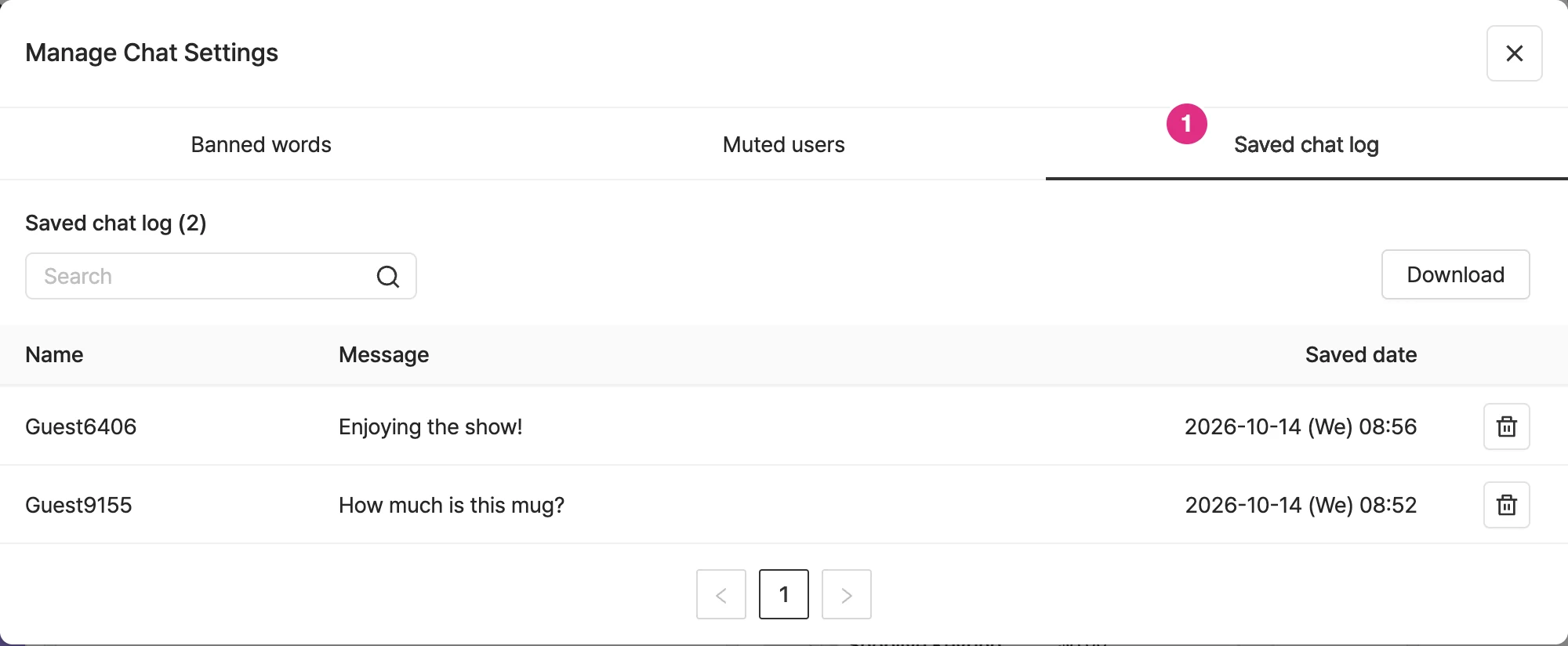
Save user messages
Selecting the copy button on the right of a user message copies and saves the chat at the same time. You can manage saved messages on the saved chats screen.
Mute (block) users
Hovering over a chat shows a block icon; click it to block the user. All chats from muted users are visible only to those users. You can unblock in the chat settings management.
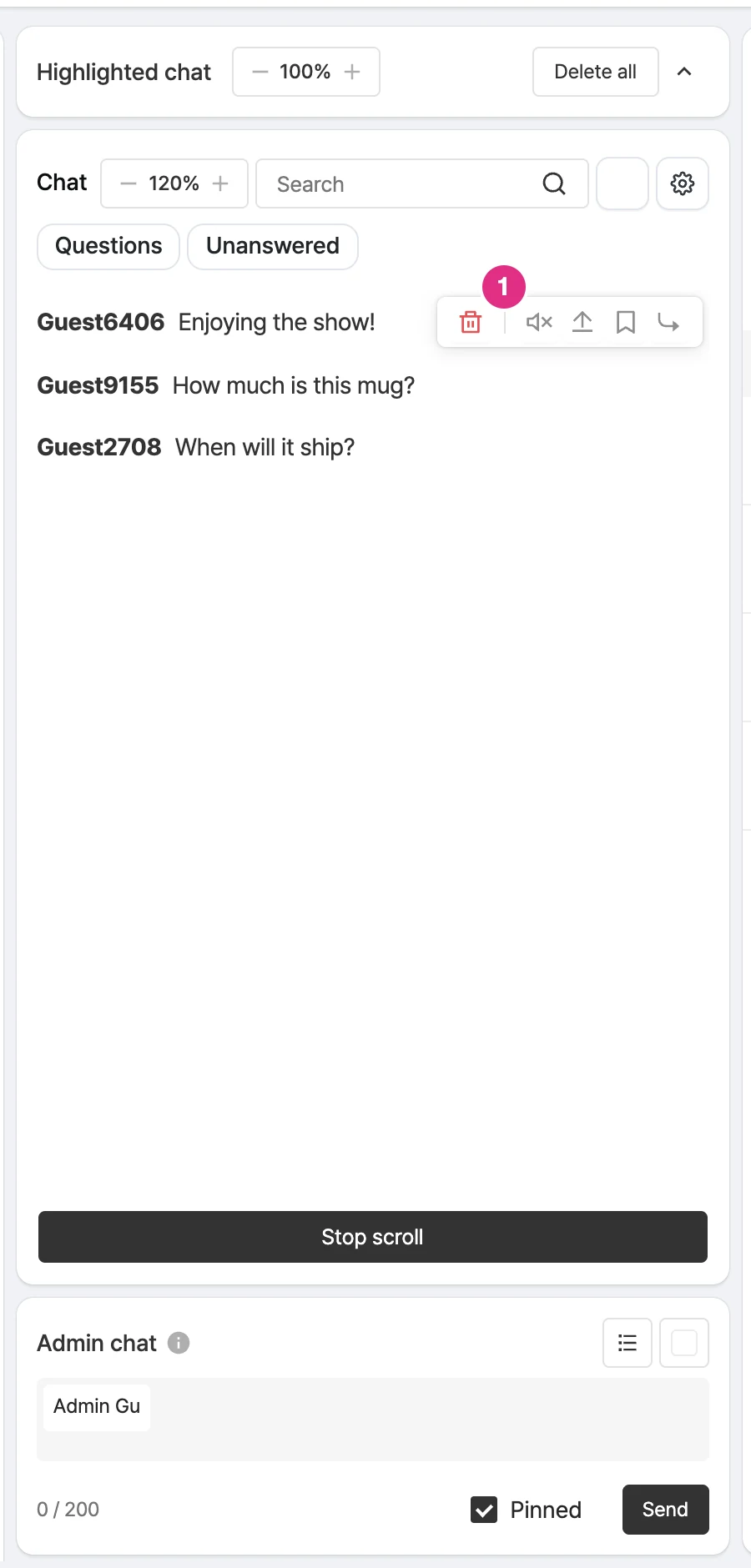
- Block icon: Mutes the author of the chat.
Adjust chat font size
Use the button to the left of the search box to adjust the chat font size.
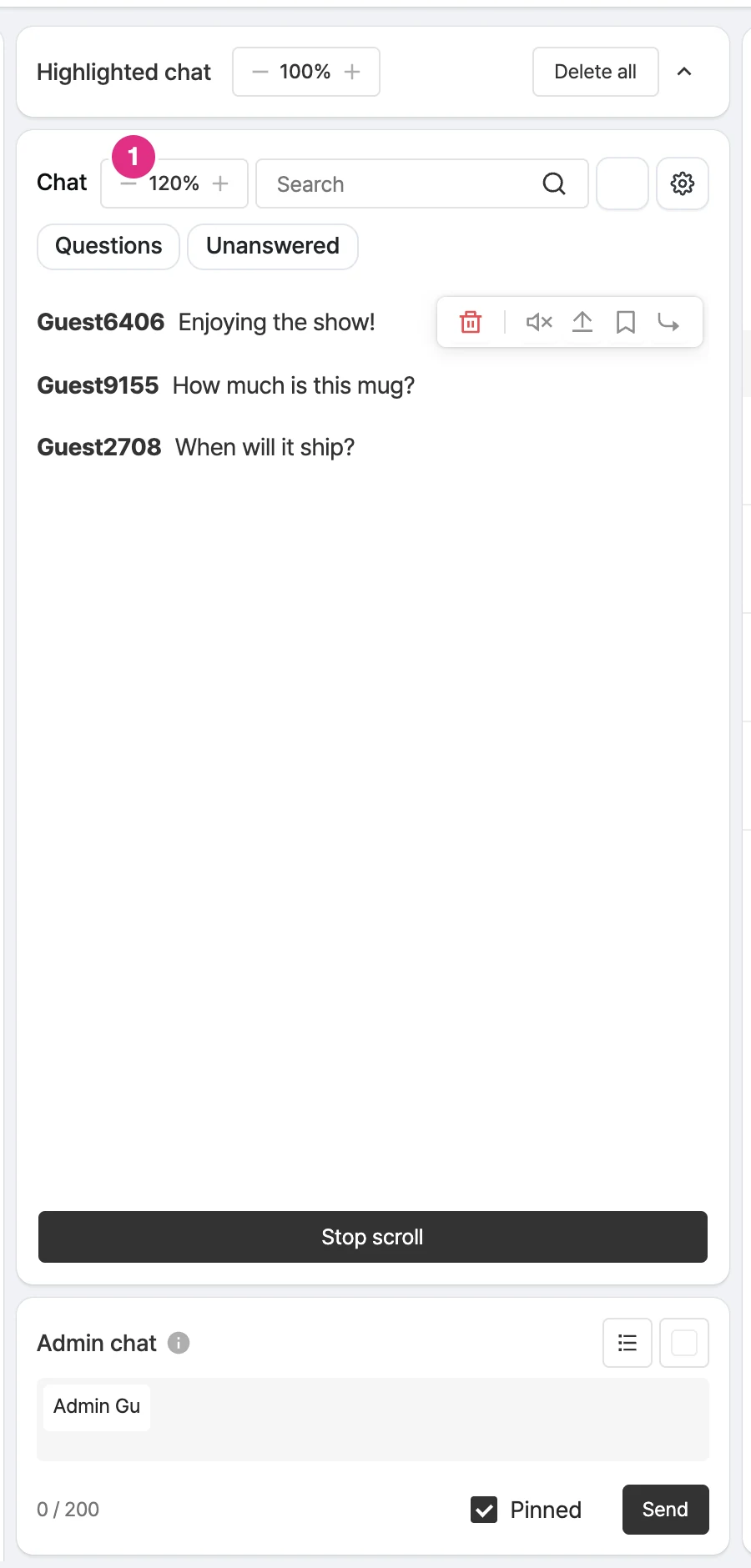
- Font size buttons: Adjust the chat text size.
Delete specific chats
Hover over the chat you want to delete and click the delete icon to delete it from the player and console. Check Block this user in the delete window to block the viewer as well.
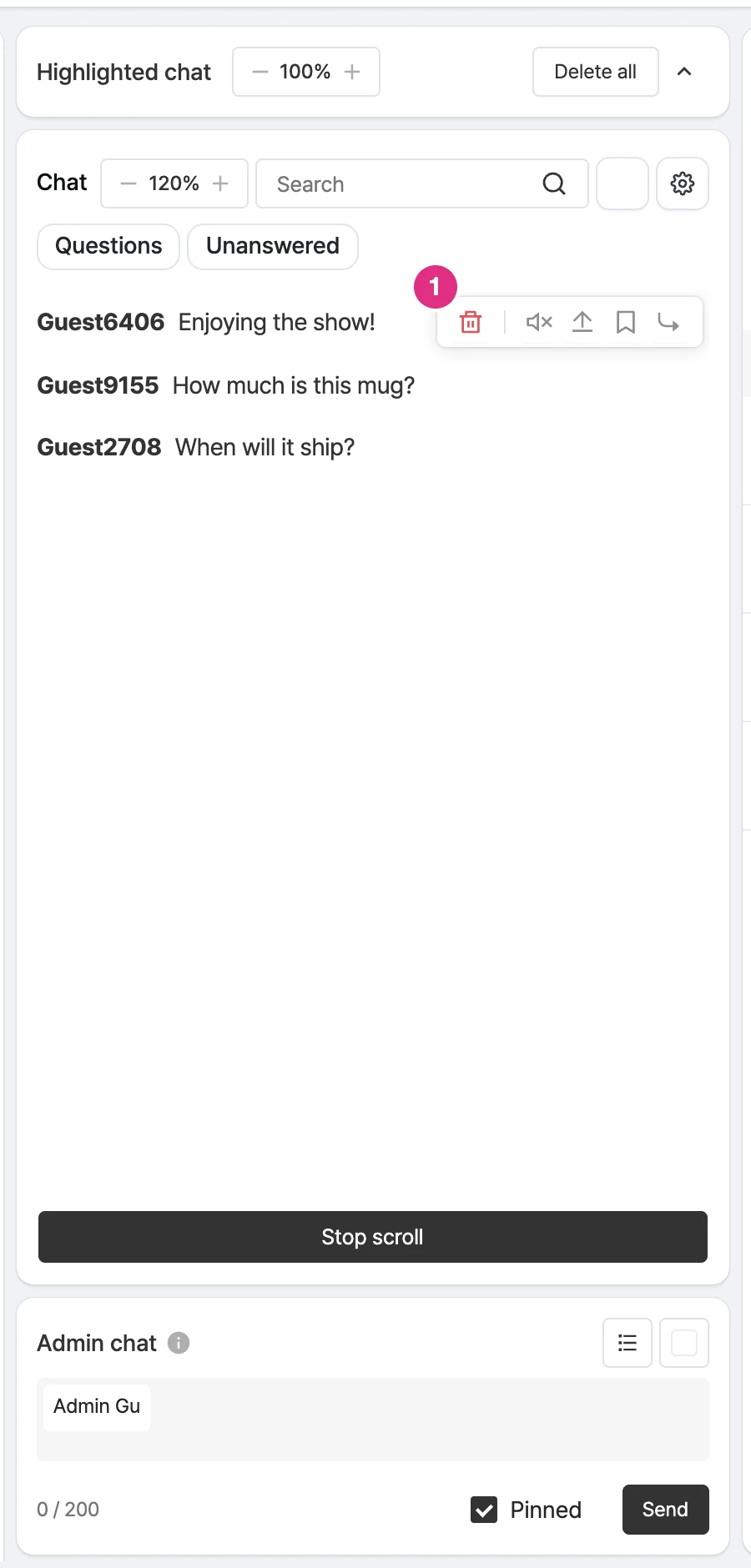
- Delete icon: Deletes the chat from the player and the console.
Operator replies
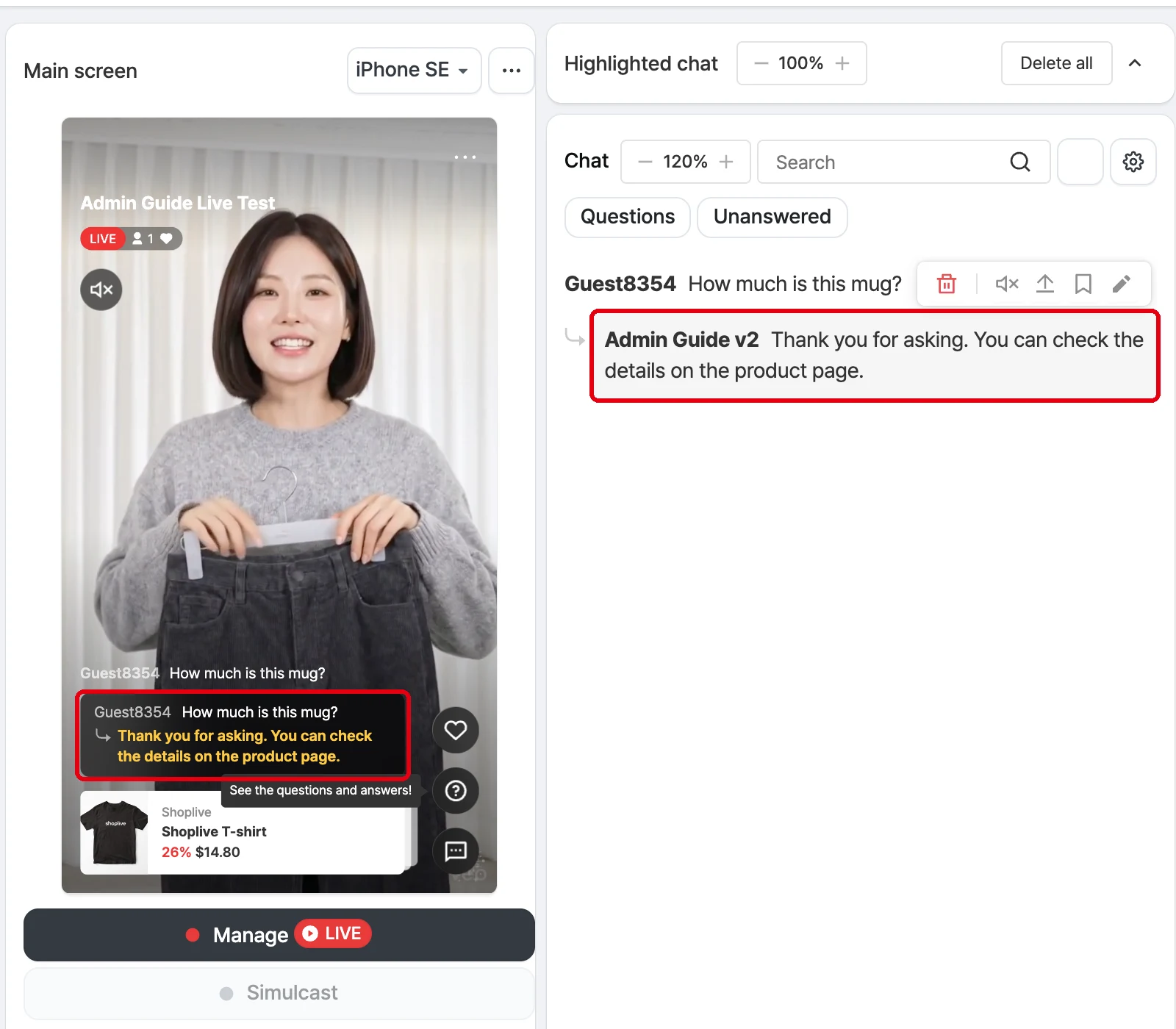
Hover over the chat you want to reply to and click the reply icon.
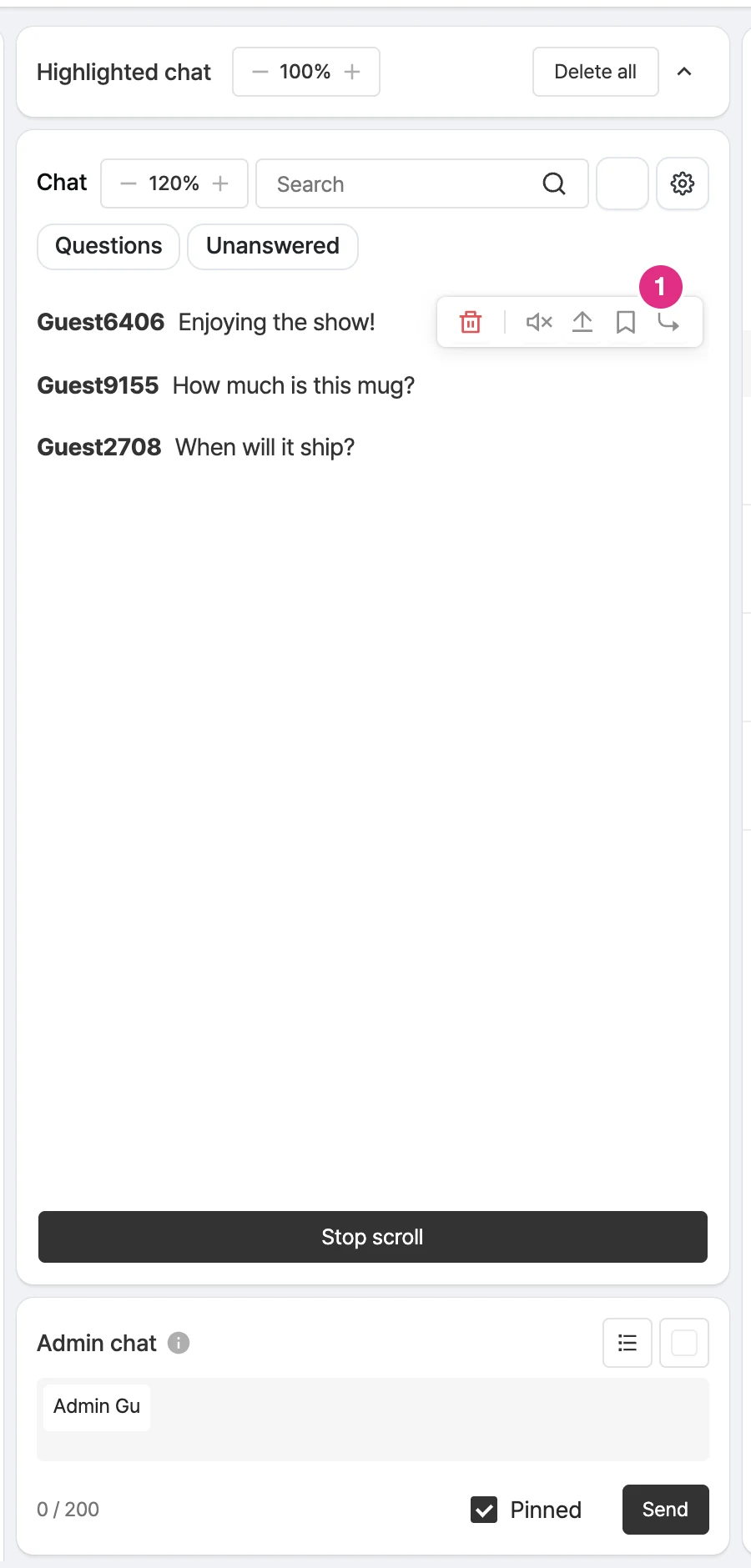
- Reply icon: Writes a host reply to the chat.
When the input box appears, enter your reply and click the ‘Send’ button. You can edit the reply later.
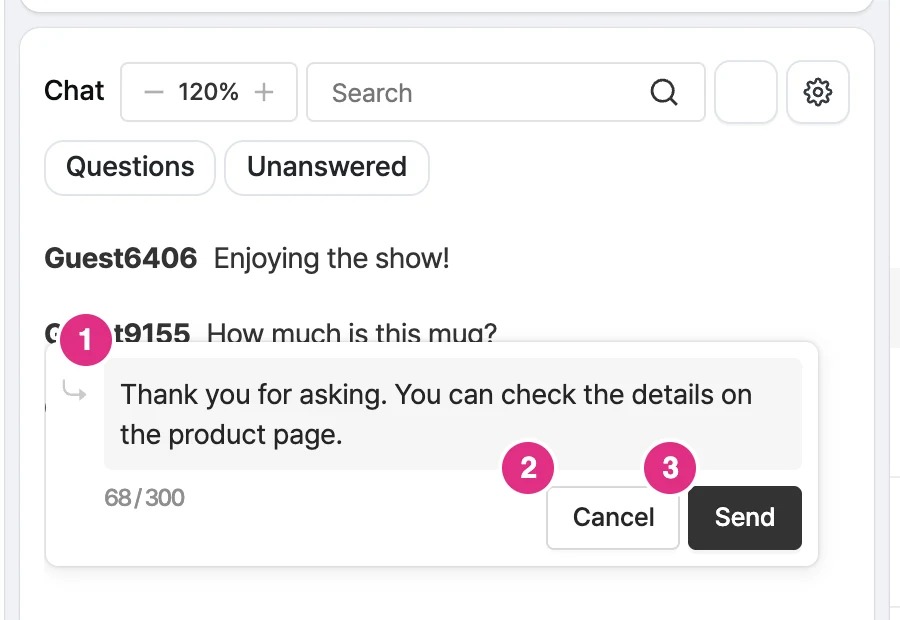
- Input box: Enter the reply (up to 300 characters).
- Cancel: Cancels the reply.
- Send: Sends the reply.
When you enter a reply, a notification popup appears at the bottom of the player.
Change user chat color
You can change the chat colors in the console. User chat and operator chat colors are set separately. Enter a color code directly or choose a color, and the confirmation Change to this color? appears; confirm to apply it.
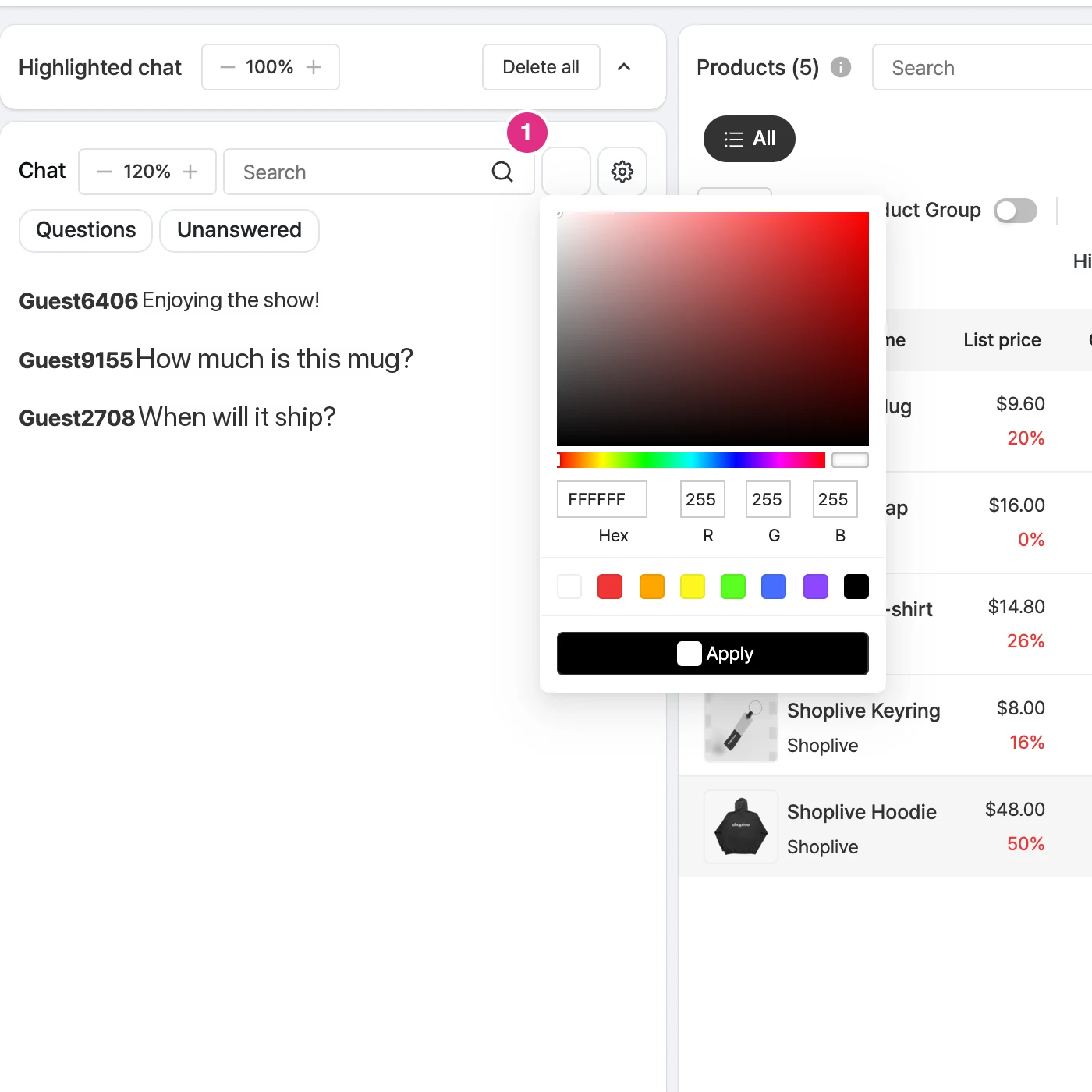
- Change user chat color button: Opens the color picker.
Freeze chat
You can disable chat for player users or re-enable it.
Hidden chats
The Hidden chats tab shows messages hidden by the AI moderator, banned words, chat blocks and so on, with the reason (spam, flood prevention, phone number detection, attempts to trade off-platform, etc.). Hidden chats can be unhidden with Restore chat.
User activity notifications
On the User activity notifications tab, you can turn add-to-cart and purchase complete notifications on or off.
Chat management modal
In the chat management modal, you can manage three tabs: Banned words, Blocked users (unmute) and Saved chats.
Purchase confirmation overlay
You can use the purchase confirmation overlay button in the chat area.
Manage operator chat and pinned chat
Operators can manage chat with the following features.
Operator chat
Manage operator chat in the operator chat box below the user chat history. Enter your message and click "Send" with the ‘Pin’ checkbox at the bottom unchecked to send an operator chat. You can see how it looks in real time in the preview and the chat history.
The operator name used in operator chat can be changed in Campaign details > Operator display name.
If you don’t enter an operator display name, the seller name is used for seller campaigns and your company name for others.
Operator chats can be up to 200 characters by default (your company setting takes precedence), and the character count is shown in the input box.
Pinned operator chat
You can use pinned operator chat during the broadcast. Enter what you want and select the Send button, and the operator display name and pinned chat appear in the player.
Delete a pinned chat with the X button.
Operator chat presets
Click the menu button at the top right of the operator chat input to show the list of operator chat presets.
Enter messages in this list in advance and load and send them when you need them.
Change the color of pinned operator chat
You can set and change the color of pinned operator chat directly in the admin console. Enter a color code directly or choose a color. The selected color is applied to operator chat messages immediately.