Create a Campaign
Campaign list
When you log in with an admin account, you go to the campaign list page. There you can see past, ongoing and upcoming campaigns.
The campaign list shows the Visibility column and tags, and you can use the calendar view, filters and bookmarks.
Add a campaign
To add a new campaign, click the Add campaign button at the top right of the campaign list.
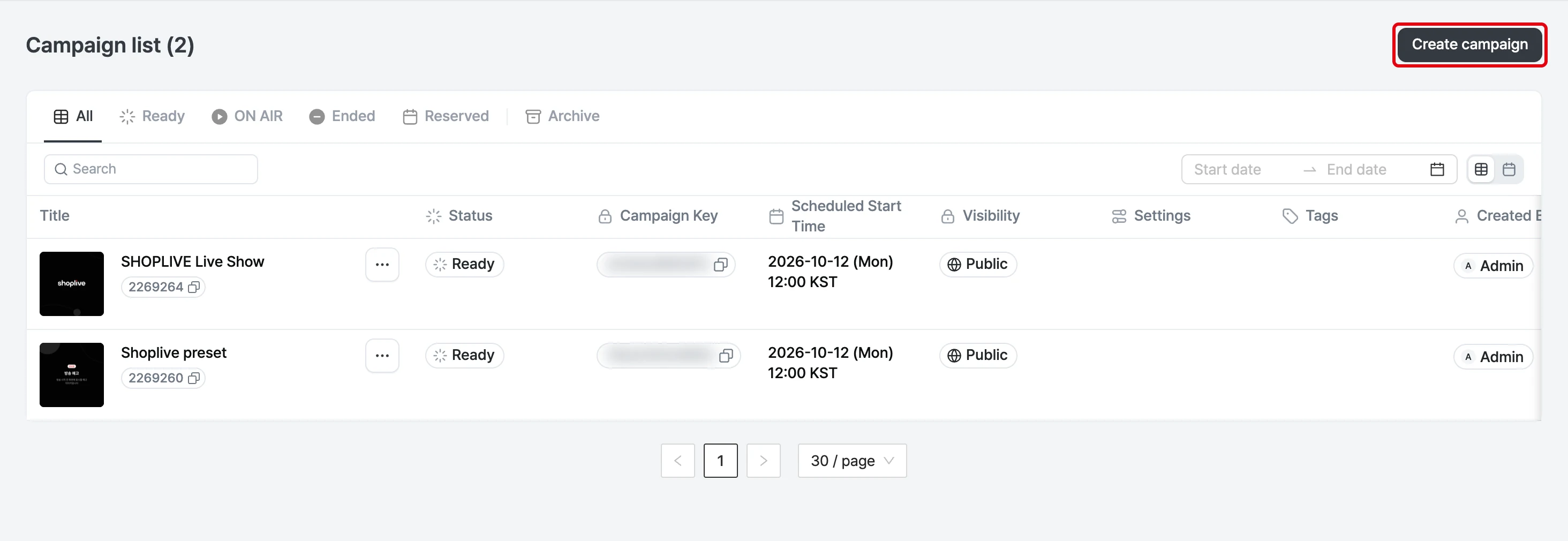
Add a new campaign
To add a new campaign, click the Add campaign button at the top right of the campaign list.
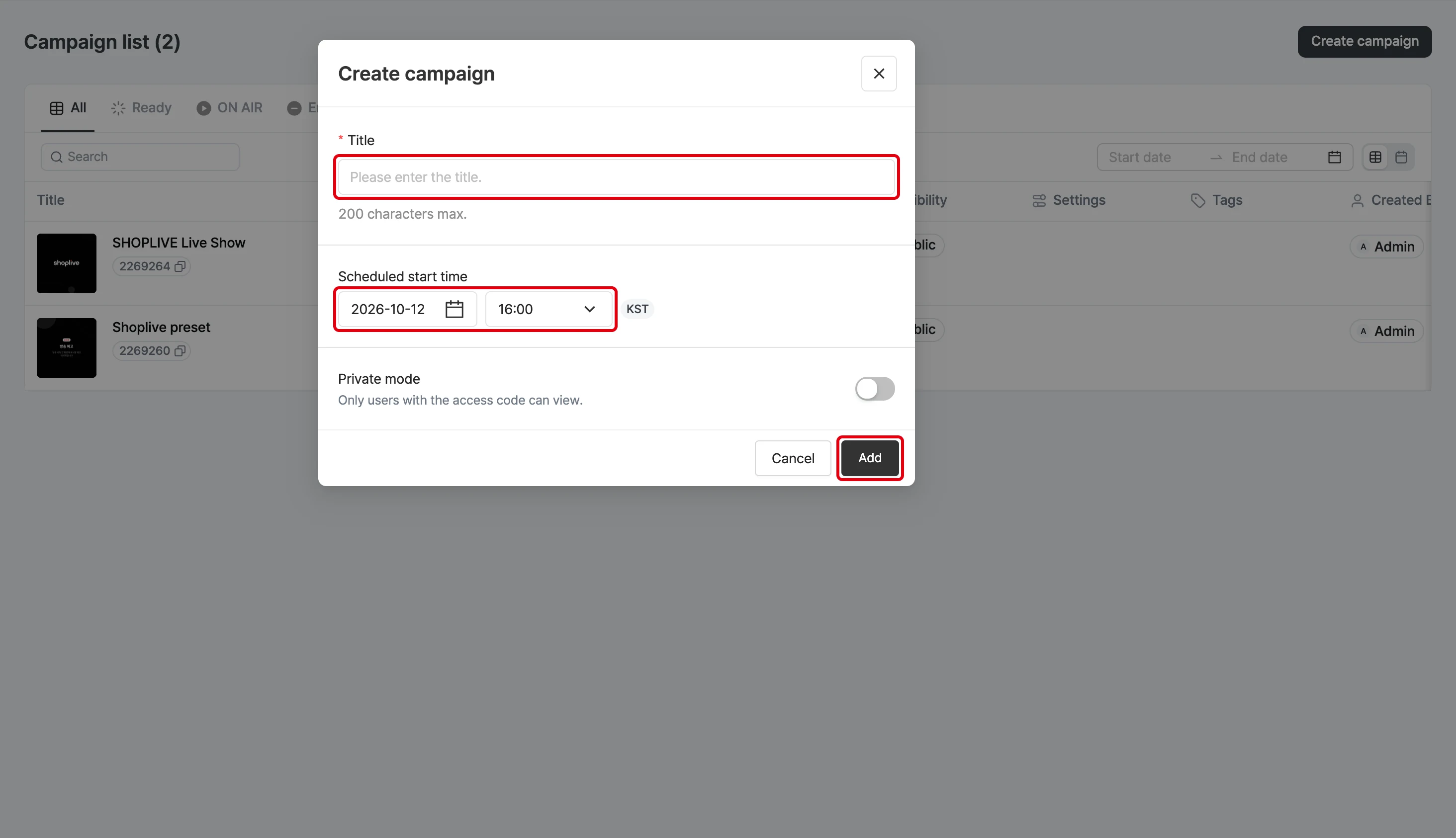
On the add campaign screen, enter the required campaign title and scheduled time to create the campaign.
Enter the campaign title and scheduled time, then click Add to create the campaign.
The scheduled time is selected in 10-minute steps and shown with the time zone.
The add campaign screen has an Auto start switch, which appears only when creating a rerun or a campaign based on media.
How do I edit campaign information after creating it?
All campaign settings are made on the campaign details page. Click a title in the campaign list to go to its details page. You can also use the menu button on the right of each campaign to jump to the console, prompter, Data Insights or the viewer page, or copy the campaign with the copy button. Note that if you copy a campaign, product edits made in the copy are also reflected in the original campaign.
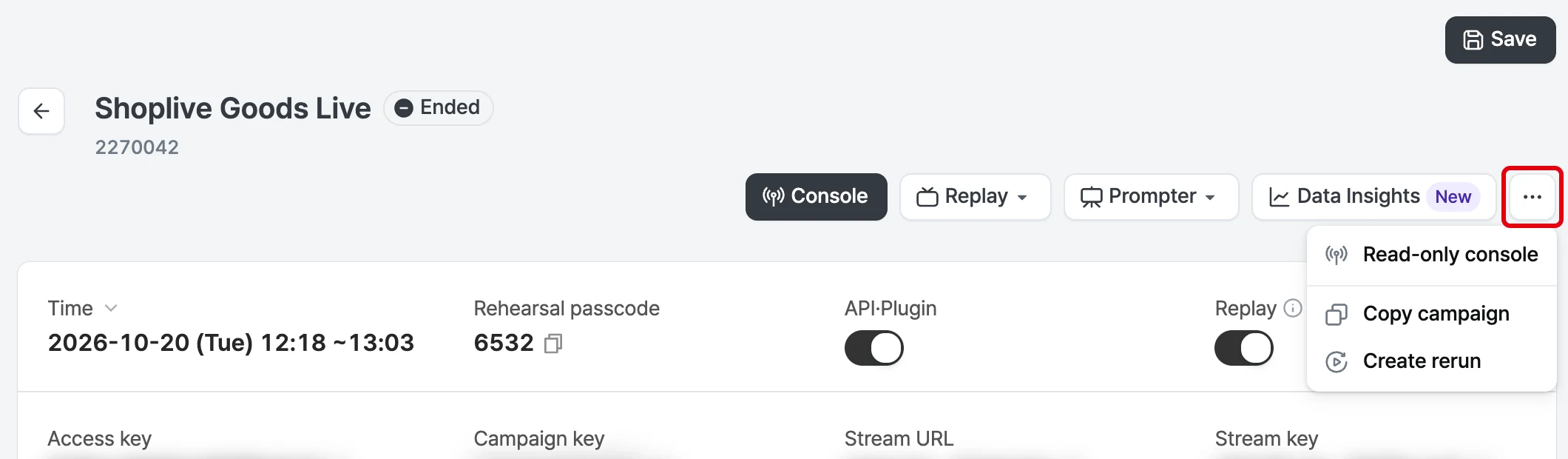
The More menu in the campaign details offers Create rerun·Archive·Unarchive·Delete campaign·Read-only console·Mobile prompter·Replay·Regenerate highlight clips and more. Open the More menu with the ⋯ button at the top right of the campaign details. The screen below is an example of an ended campaign, which shows Read-only console, Copy campaign, and Create rerun.
Private mode
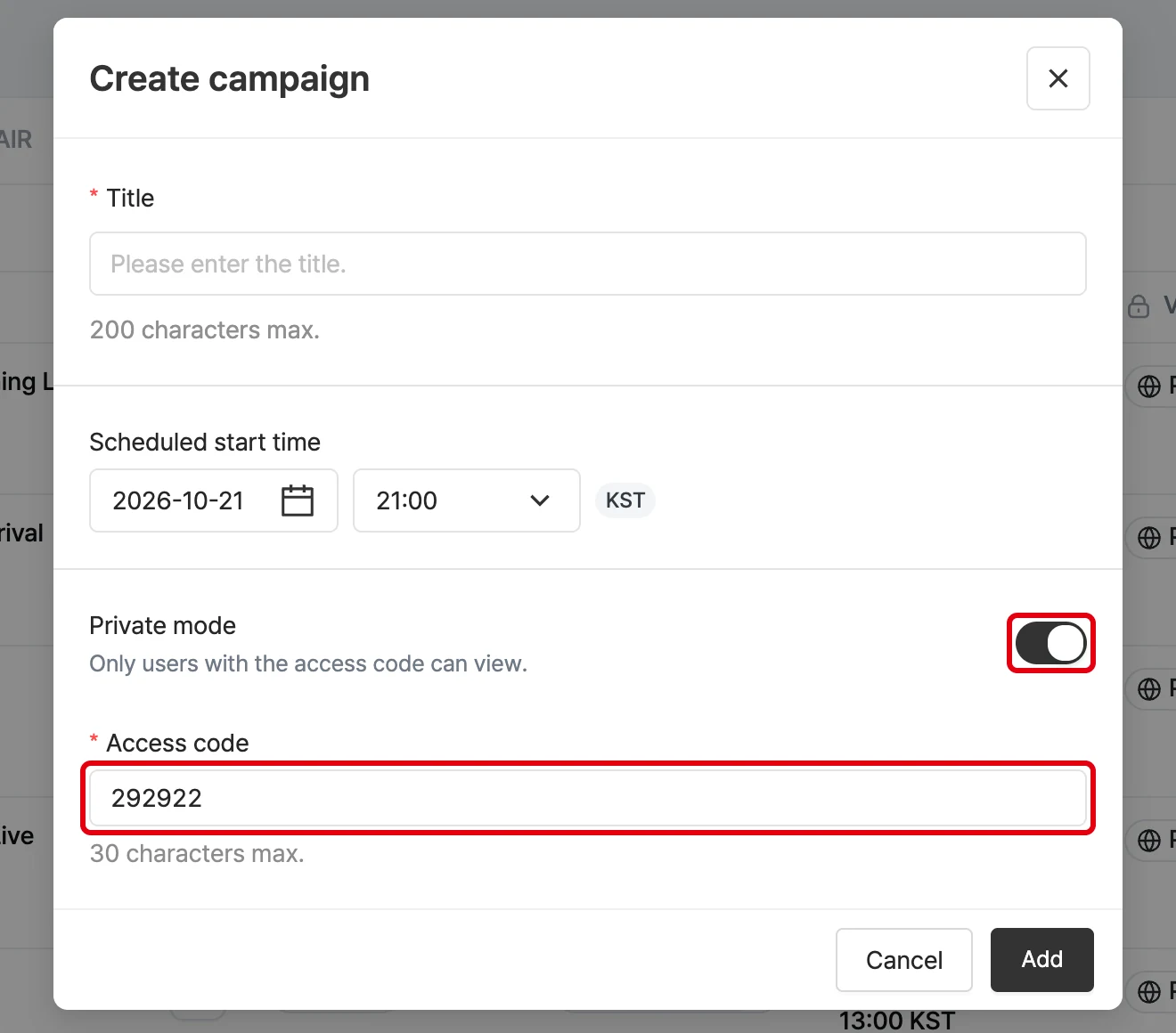
A private campaign is one that only users who enter the access code can join.
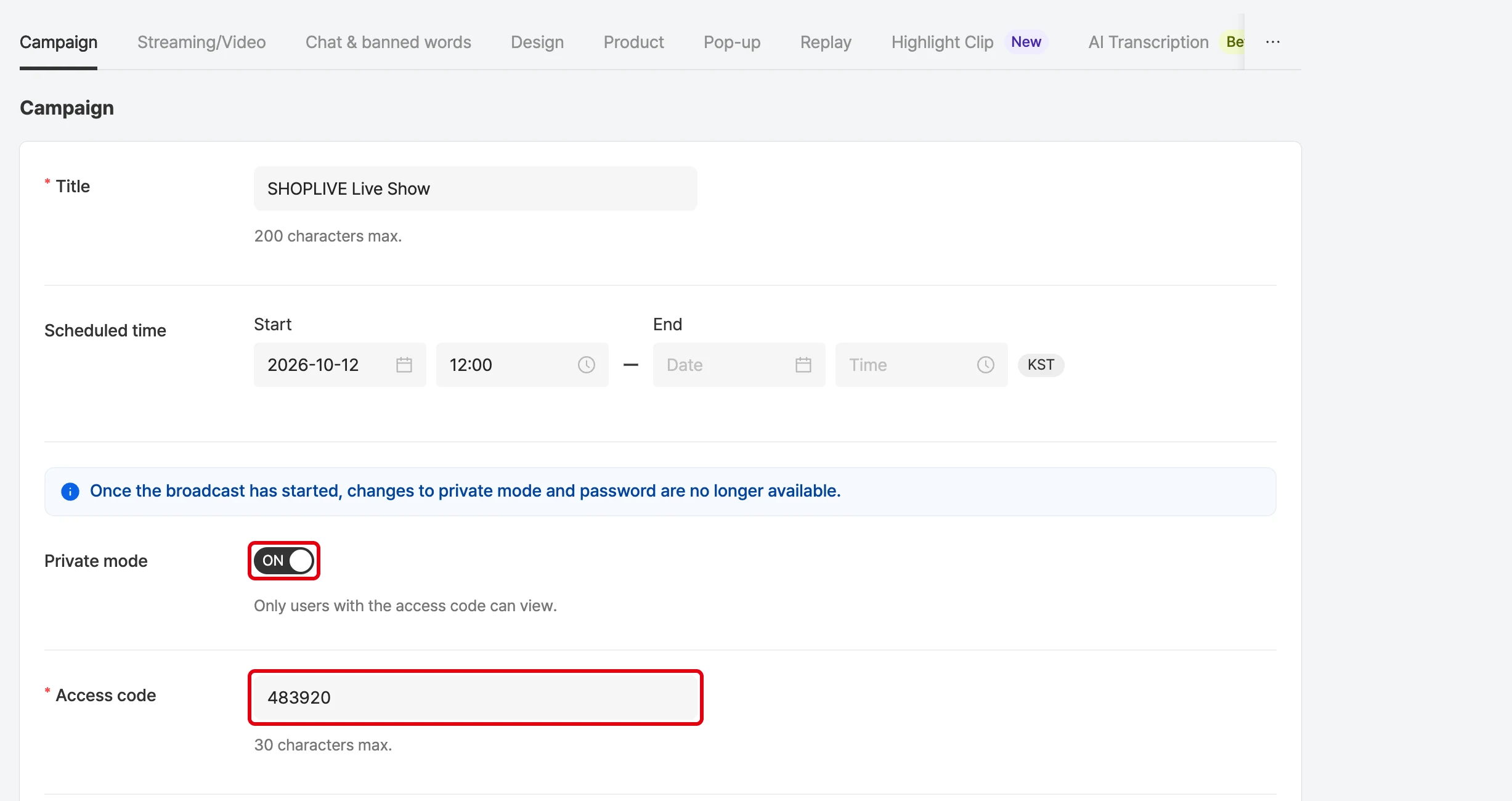
Turn on Private mode in the Create campaign window to show the Access code field. The access code is required and can be up to 30 characters. A random value is already filled in, so you can use it as is or change it.
Can I change a private-mode campaign to a regular one after creating it?
You can edit private mode and the access code while the broadcast is ready or ended. Once the broadcast starts (on air or ending), they can’t be changed. The Admin shows the messages ‘Private mode and the password can’t be changed once the broadcast starts.’ and ‘Private mode and the entry code can’t be changed during the broadcast.’
Campaign design settings
Set the logo
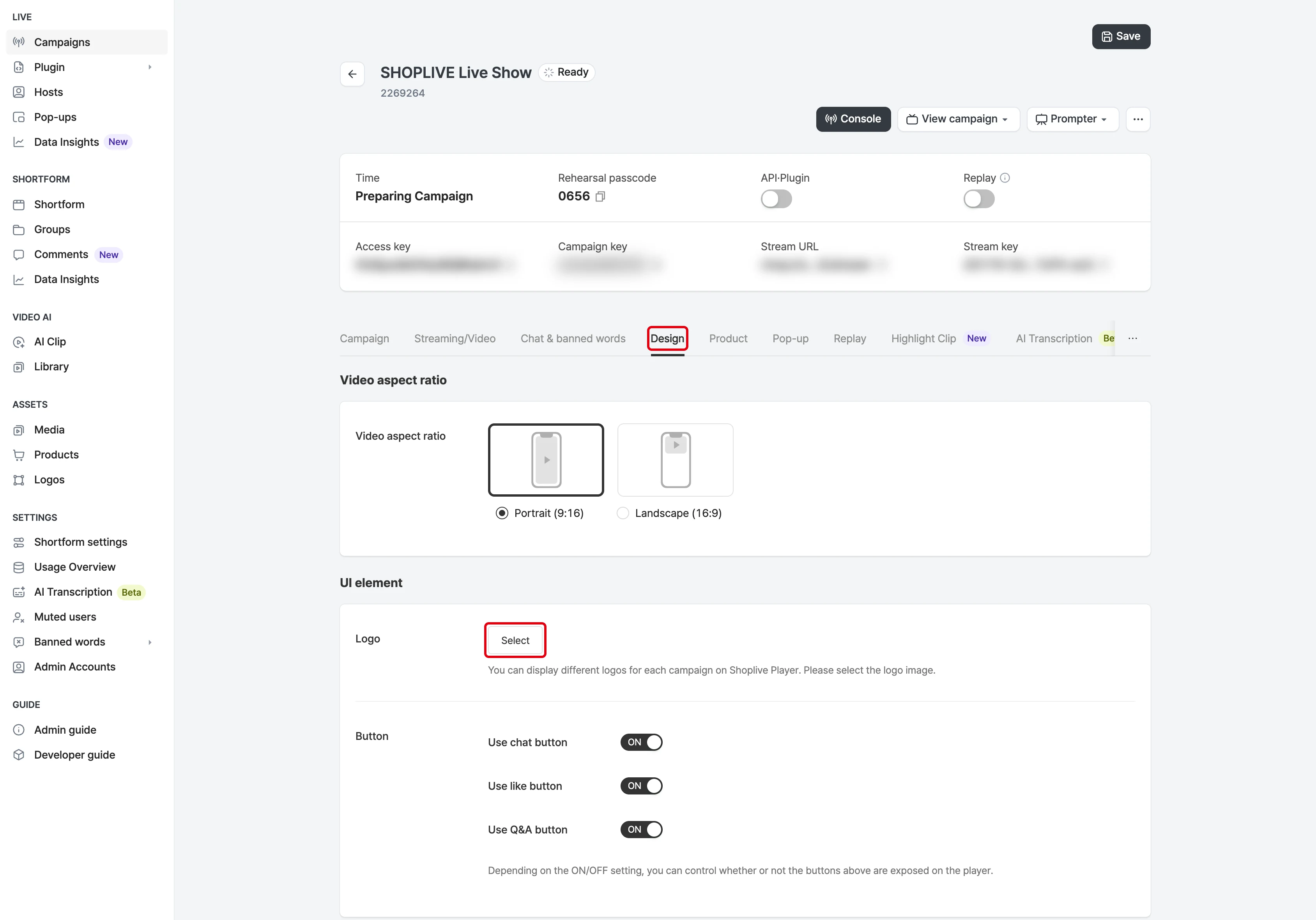
In Shoplive, you can freely set the logo used in each campaign. Register several versions of the logo through the Logo menu on the left of the Shoplive Admin, then set the logo you want for each campaign. After adding logos, go to the Design tab of the campaign information to apply one.
FAQ
Where does the logo appear?
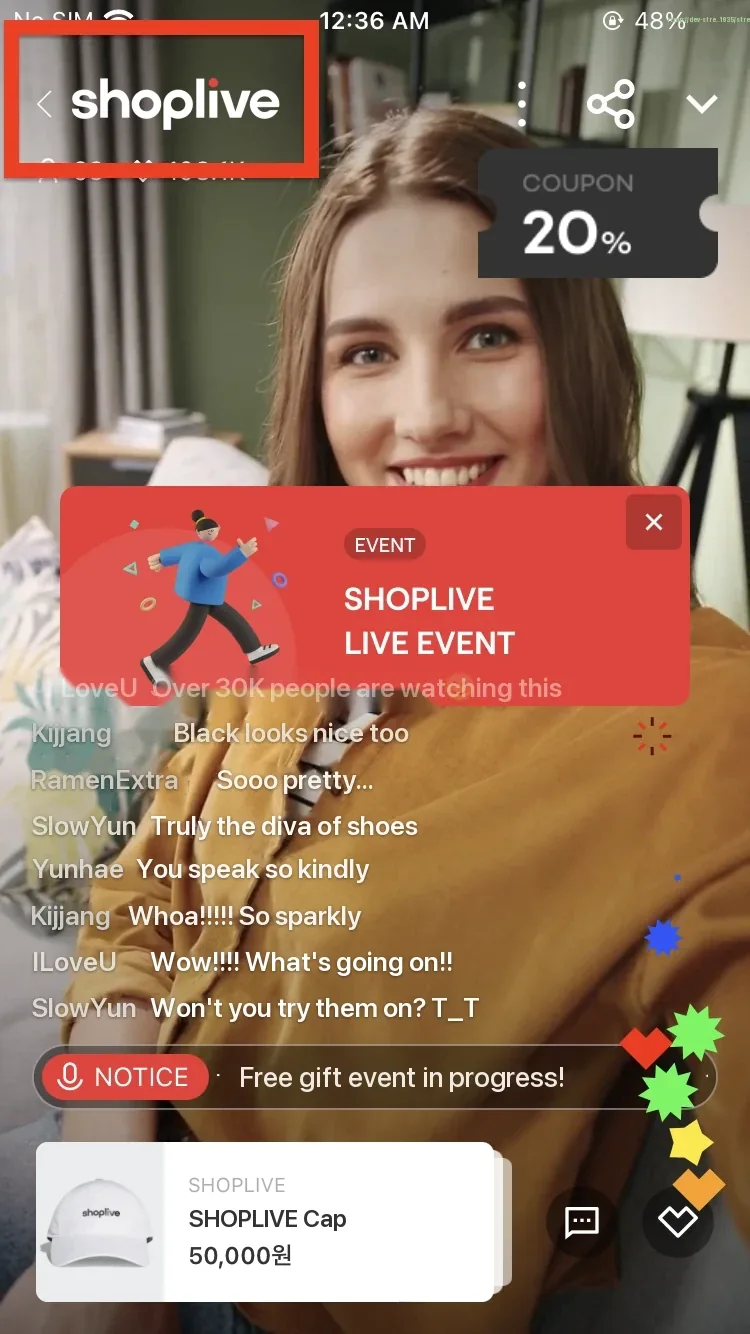
The logo appears at the top left of the player.
When making the logo image, refer to the recommended sizes below.
- Recommended size: 144px – 630px wide, 144px tall
- File formats: JPEG, PNG, GIF, APNG
- Default upload size: 10MB
The logo must have a transparent background to display well in the player.
You can also register an animated GIF or PNG for a moving logo, so feel free to use one.
Can I set a brand logo rather than my store’s logo?
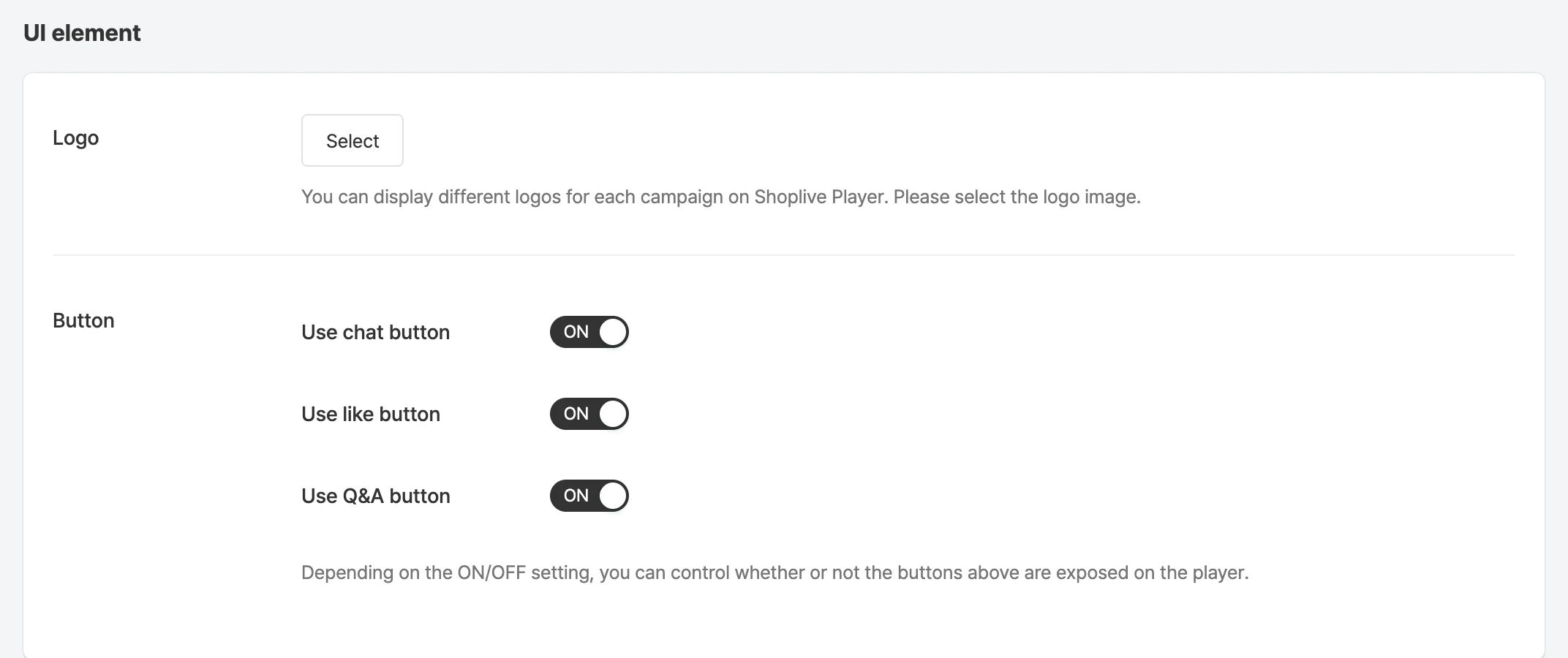
You can register a brand logo through Brand in the UI elements and show it in the player.
Set campaign images
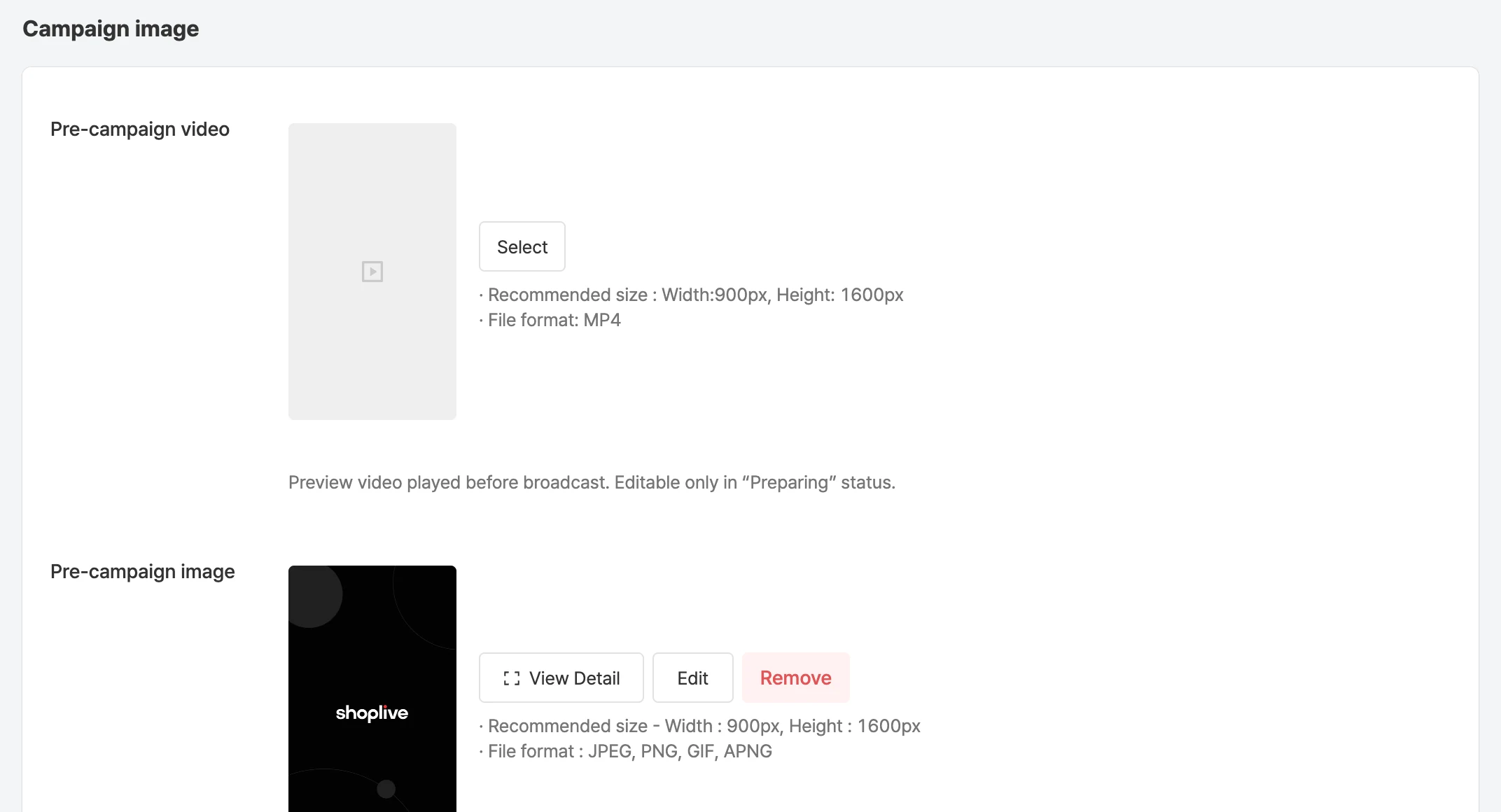
Go to the Design tab of the campaign information and set the videos or images the campaign needs.
See below for details on each image.
| Feature | Description |
|---|---|
| Upcoming broadcast video | A video played on screen while the broadcast is "Ready" and hasn’t started yet. (Optional) If you don’t add one, your company’s default image is shown. |
| Upcoming broadcast image | An image shown on screen while the broadcast is "Ready" and hasn’t started yet. If an upcoming broadcast video is registered, the video plays instead. If you don’t add one, your company’s default image is shown. |
| Live background image | A background image shown on screen when the resolution changes during the broadcast or the video stream isn’t smooth. If you don’t add one, your company’s default image is shown. |
| Image after the broadcast ends | An image shown on screen after the broadcast ends. In After the broadcast ends, you can choose either Image or Upcoming broadcasts. If you don’t add one, your company’s default image is shown. |
| IE unsupported image | An image shown to users who visit with Internet Explorer. The Shoplive player doesn’t work in IE due to technical issues. |