Prepare Products
Create products
Add individual products
Create and add individual products
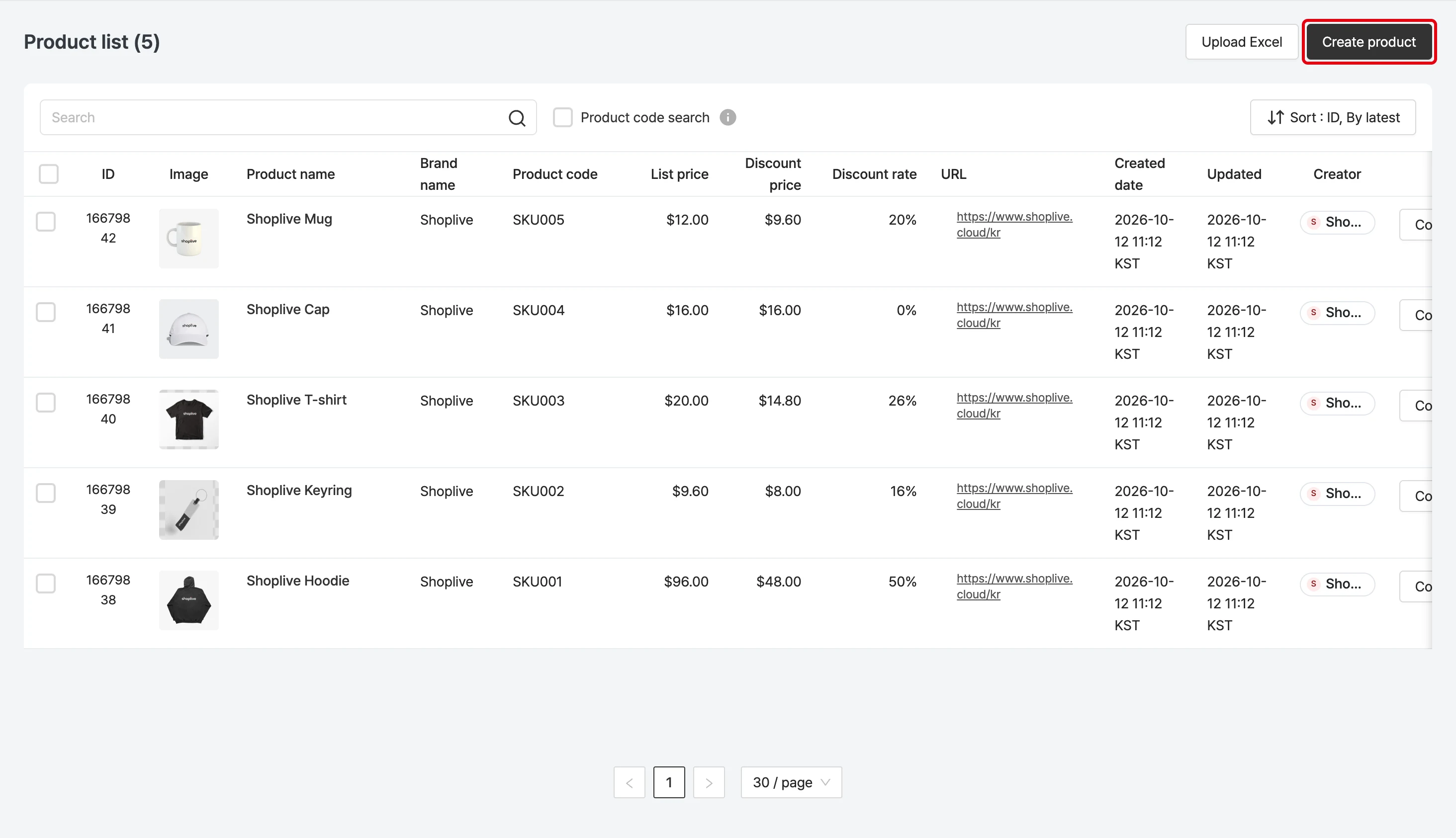
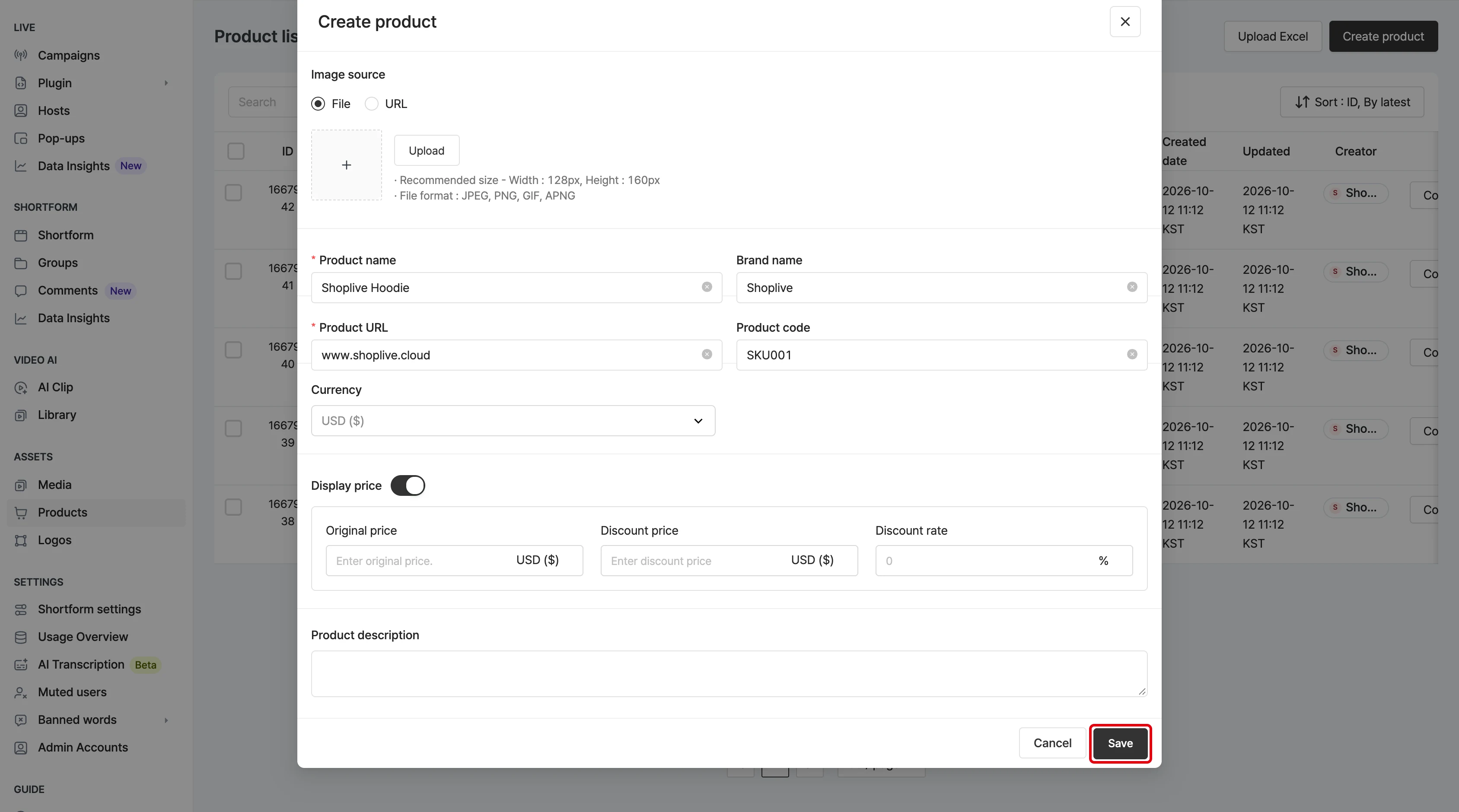
To create a product to add to the campaign, click Create product, enter the product information and save. The product is created and can then be added in the campaign information.
On the create product screen, you can choose the Sales status (On sale / Almost sold out / Sold out) and set the Additional price and Price type. In the product list, you can search by product code (several codes at once) and sort by Newest / Oldest.
Bulk Excel upload
Upload an Excel file of product information in bulk
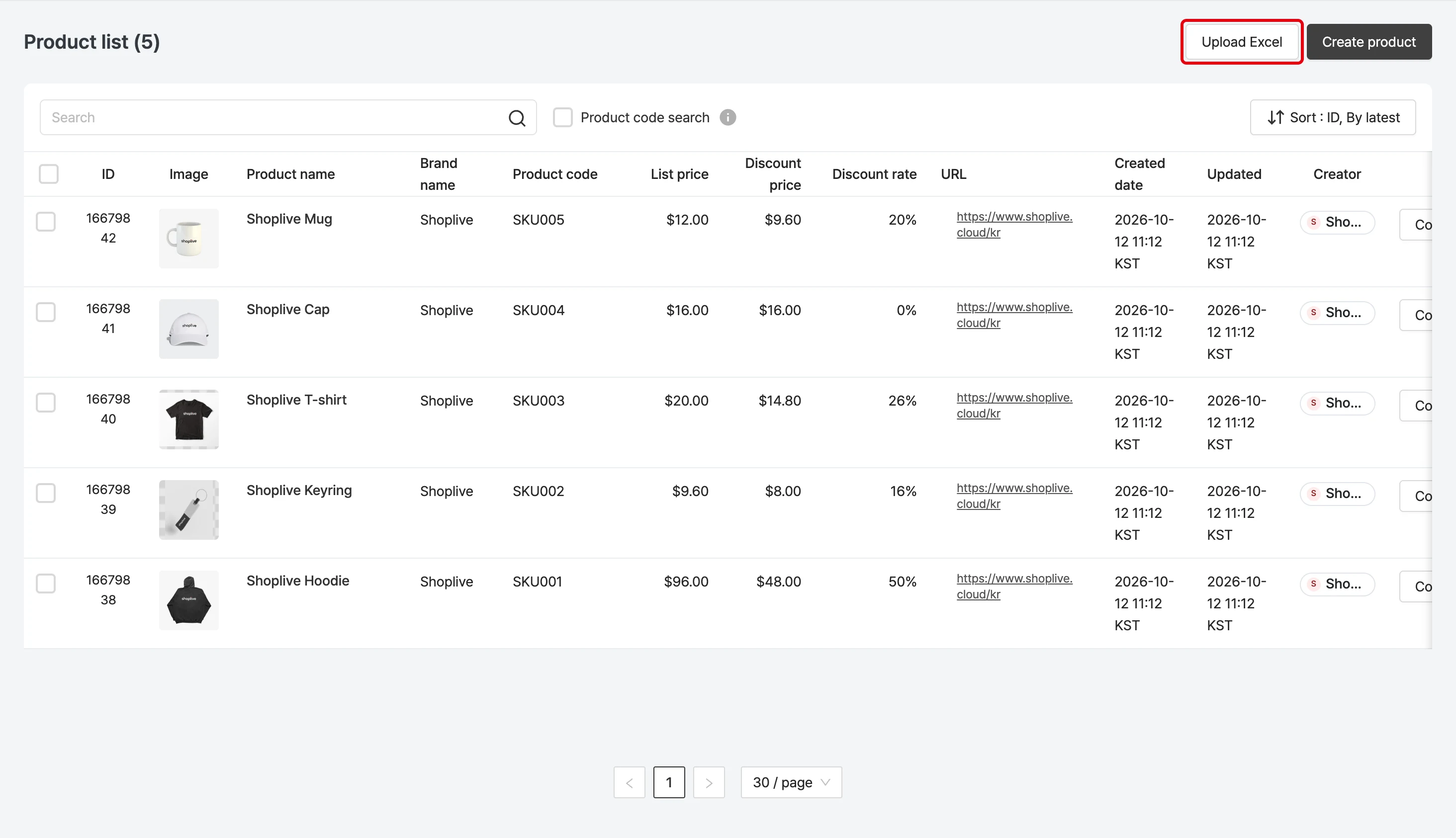
You can use Excel upload to add products in bulk. Download the Excel template, enter the product information in each column, then upload the Excel file to add the products.
You can upload up to 500 products at a time, and CSV files can be uploaded as well as Excel files.
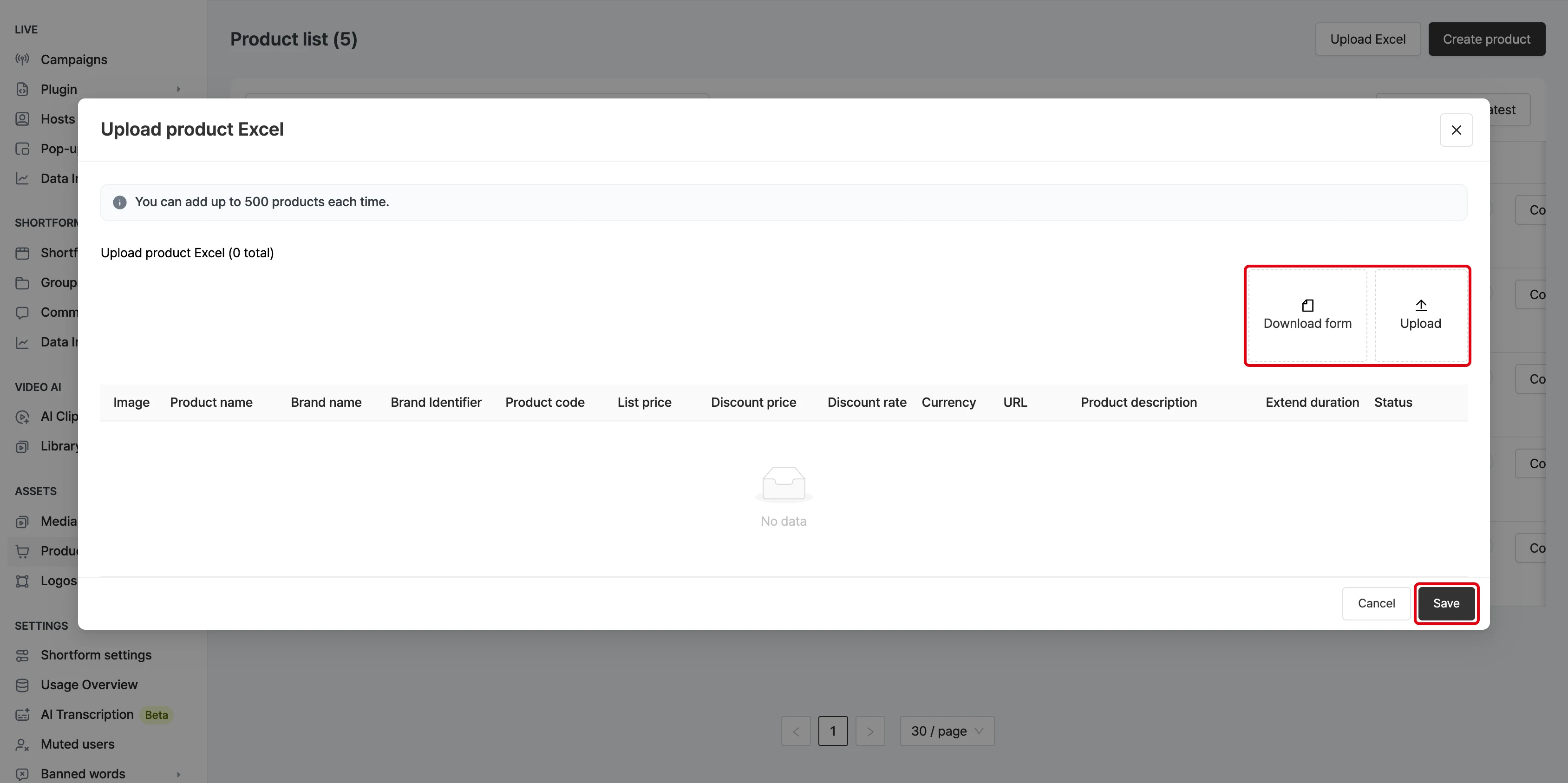
The information to enter in the Excel template is as follows.
| Column | Description | Required |
|---|---|---|
| IMAGE | Product image URL | - |
| TITLE | Product title | Required |
| BRAND | The product’s brand | - |
| PRODUCT CODE | The product’s unique SKU | - |
| LIST PRICE | The product’s regular price | Required |
| DISCOUNT PRICE | The product’s discounted price | - |
| DISCOUNT RATE | The product’s discount rate (calculated automatically if empty) | - |
| URL | URL of the product detail page | Required |
| DESCRIPTION | Product description | - |
Can I edit products with an Excel upload?
When you upload an Excel file, products already registered with the same URL and SKU are updated with the newly uploaded information.
Create auction products
Ask the Shoplive team to use the auction feature. See below for how to create auction products.
Add products to the campaign
Add the auction products you created to the campaign.
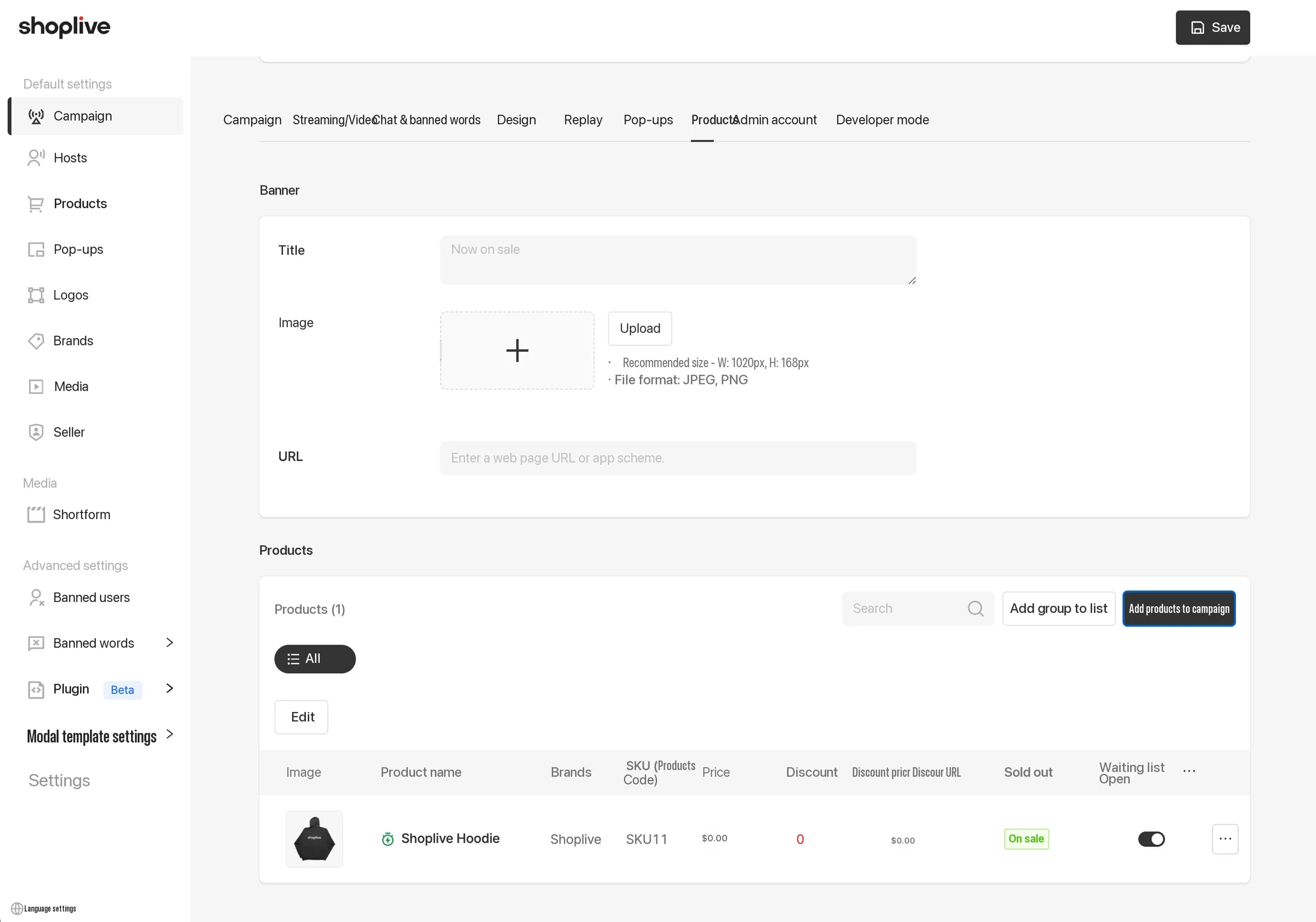
Manage products introduced in the broadcast
You can add products you’ve already registered through the product management menu at the bottom of the campaign details page.
Add products to introduce in the broadcast
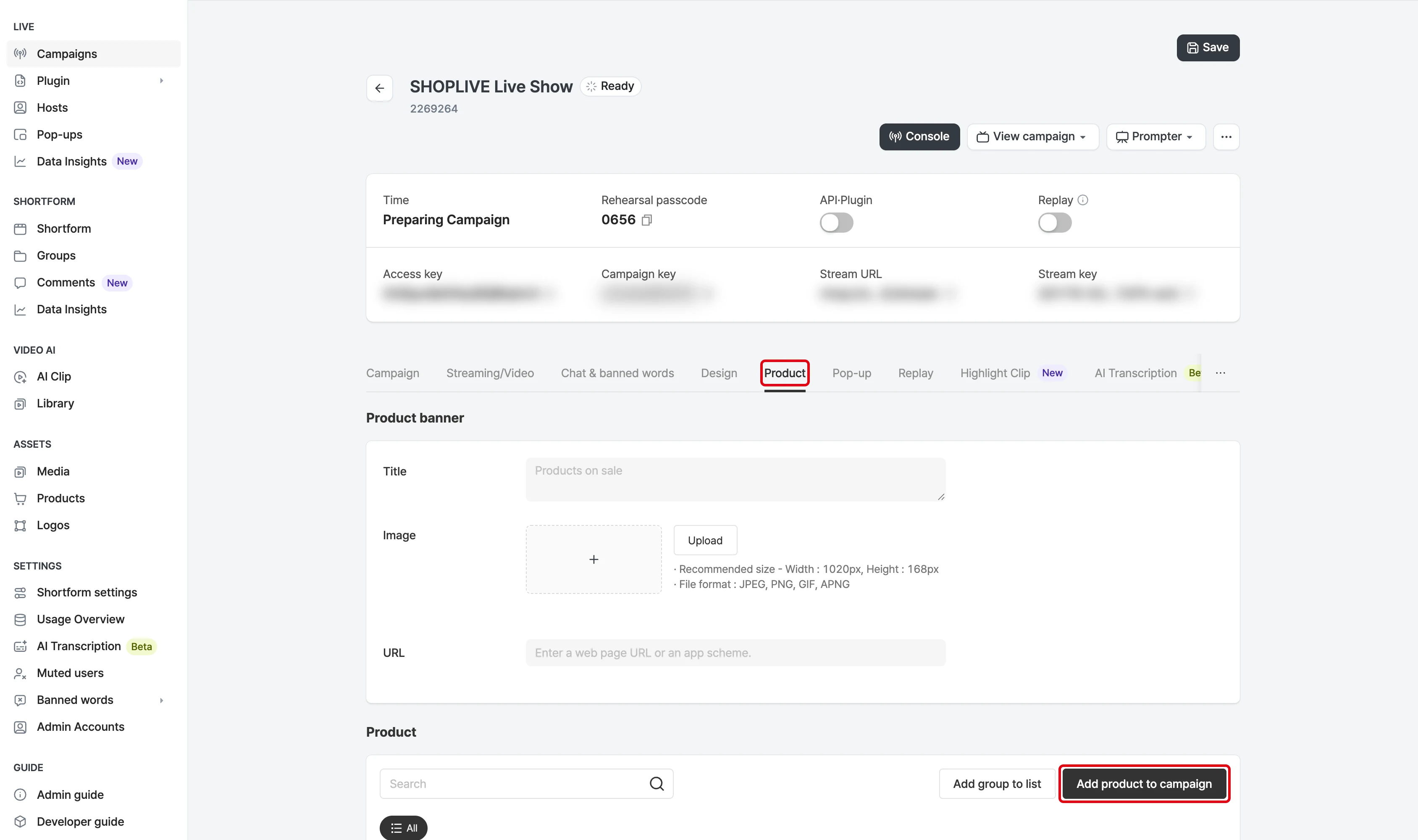
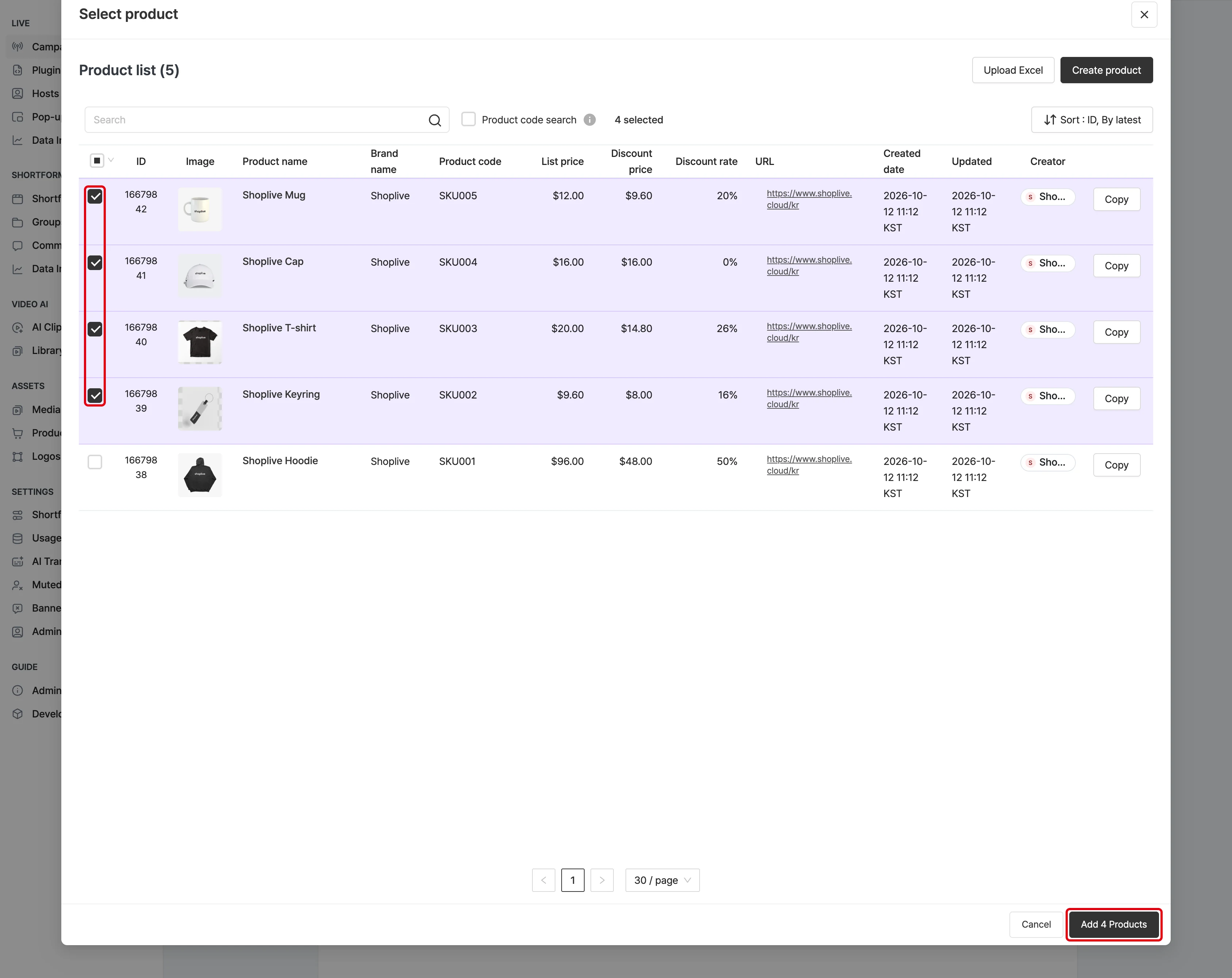
You can add the products to sell in the broadcast individually or by Excel upload. Click Add products to campaign in the product list at the bottom of the campaign details to add registered products to a specific campaign.
I don’t see the products.
Create products before registering them to a campaign. (Go to the create products guide)
Products already added to the campaign aren’t shown either.
The product list shows sales status badges (On sale / Almost sold out / Sold out) and a Show list while waiting item.
Remove products from the campaign
Remove products registered to the campaign with Remove from campaign.
Edit product order
Click the Edit button to edit the order.
Change product order
Product groups
What are product groups for?
Product groups let you quickly switch the products introduced in a broadcast to NOW (the product being introduced now).
Create product groups
You can group products and show them in the player.
Create and edit product groups
Product groups can be created in the product details or the console.
Product groups you create appear in the player and can be seen in every broadcast state.
However, for themes that don’t show products while the broadcast is ready, product groups aren’t shown either.
1. Create a product group with the Add group to list button in the product menu of the product details.
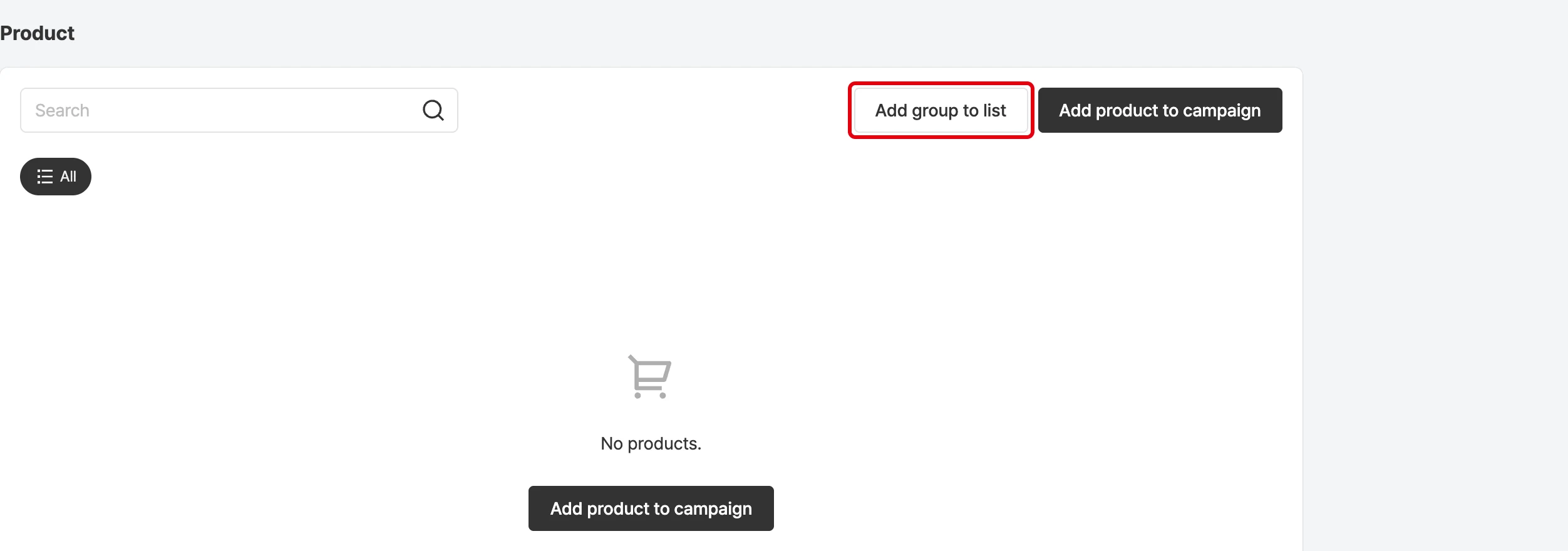
2. Set the group name and choose the products to include in the group.
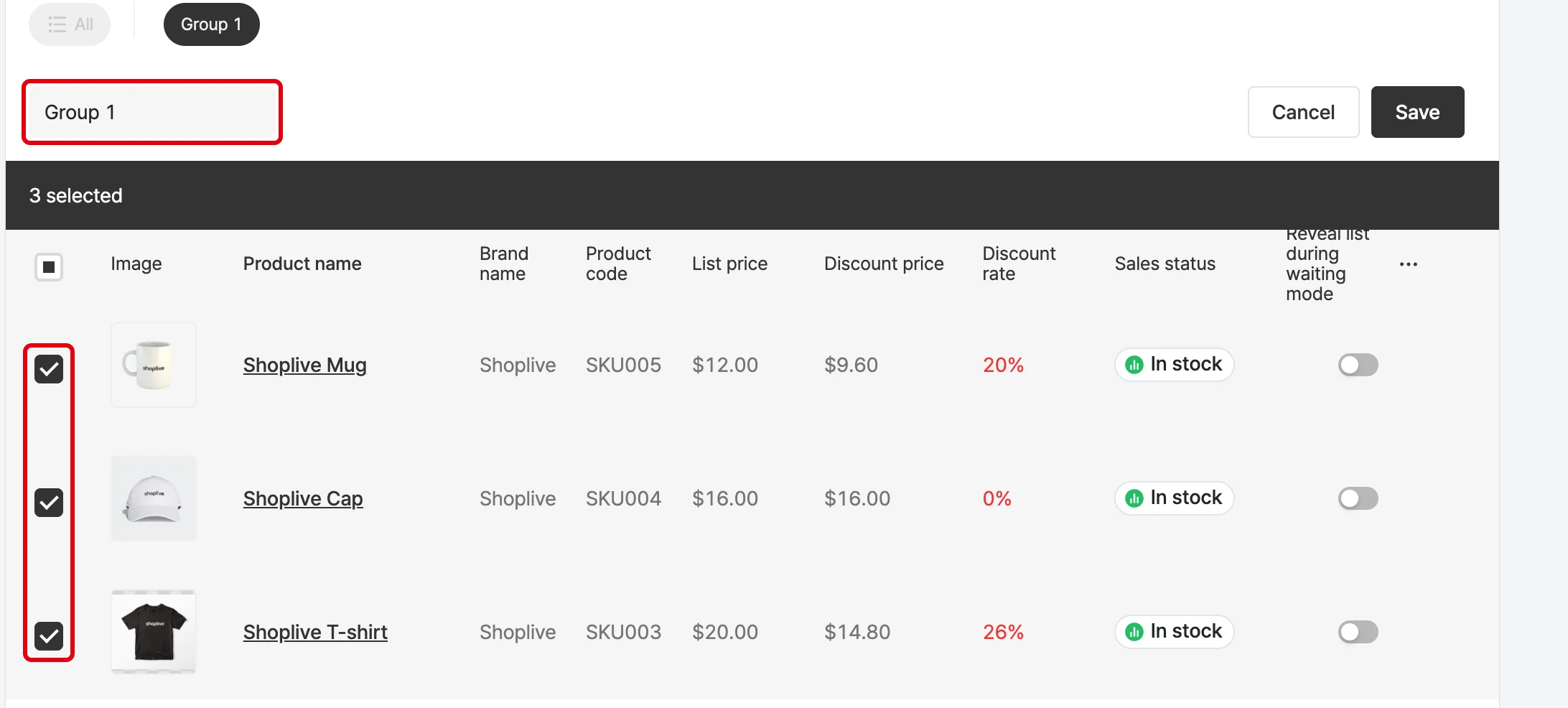
- Once the group is created, use the edit button to reorder product groups by drag and drop. You can also turn product group display ON/OFF.
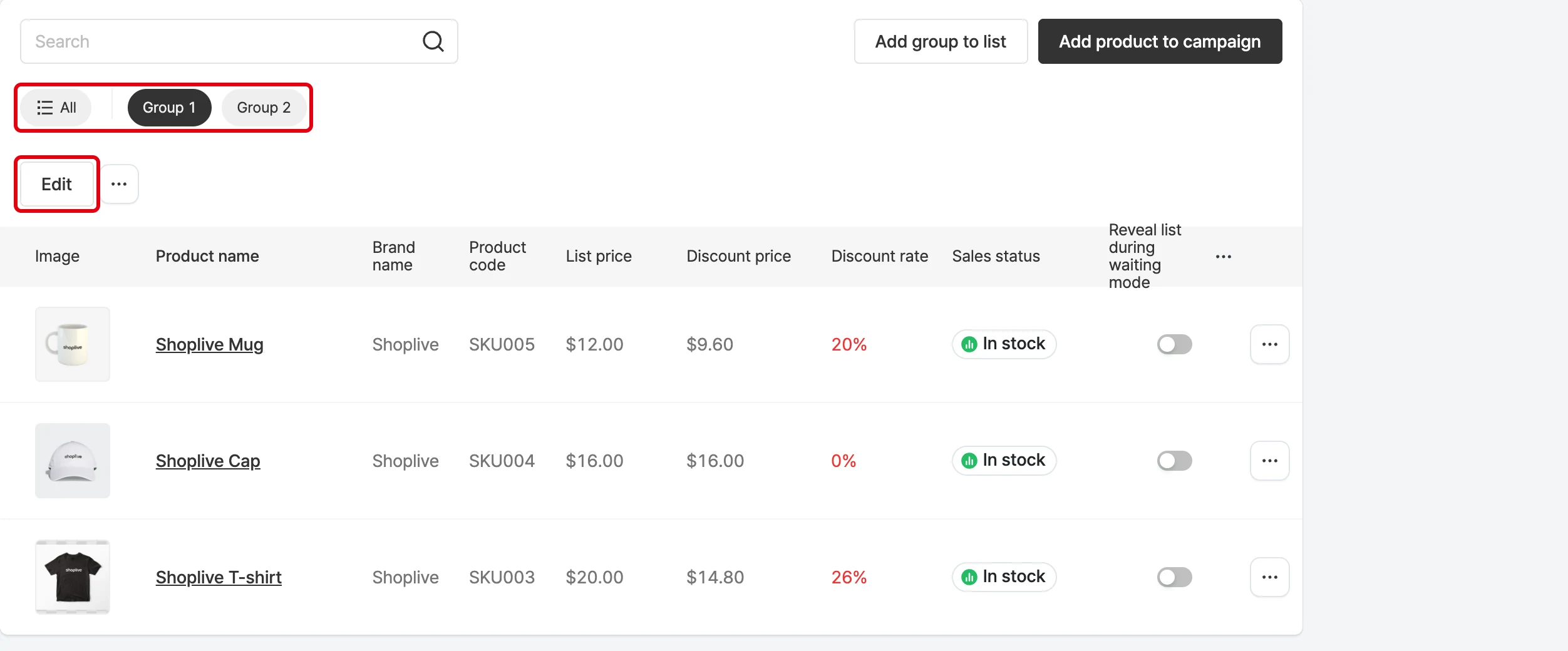
- You can create and order product groups the same way in the campaign console.
- Product group display is set with the Show product groups switch.
- The product list has an All tab, and items within a group tab can be reordered only in Edit mode.
- You can delete a product group with the Delete group menu.