Prepare Popups
Create banner, notice and coupon popups
Common
You can create and use notices, banners, coupons, events and many other kinds of popups.
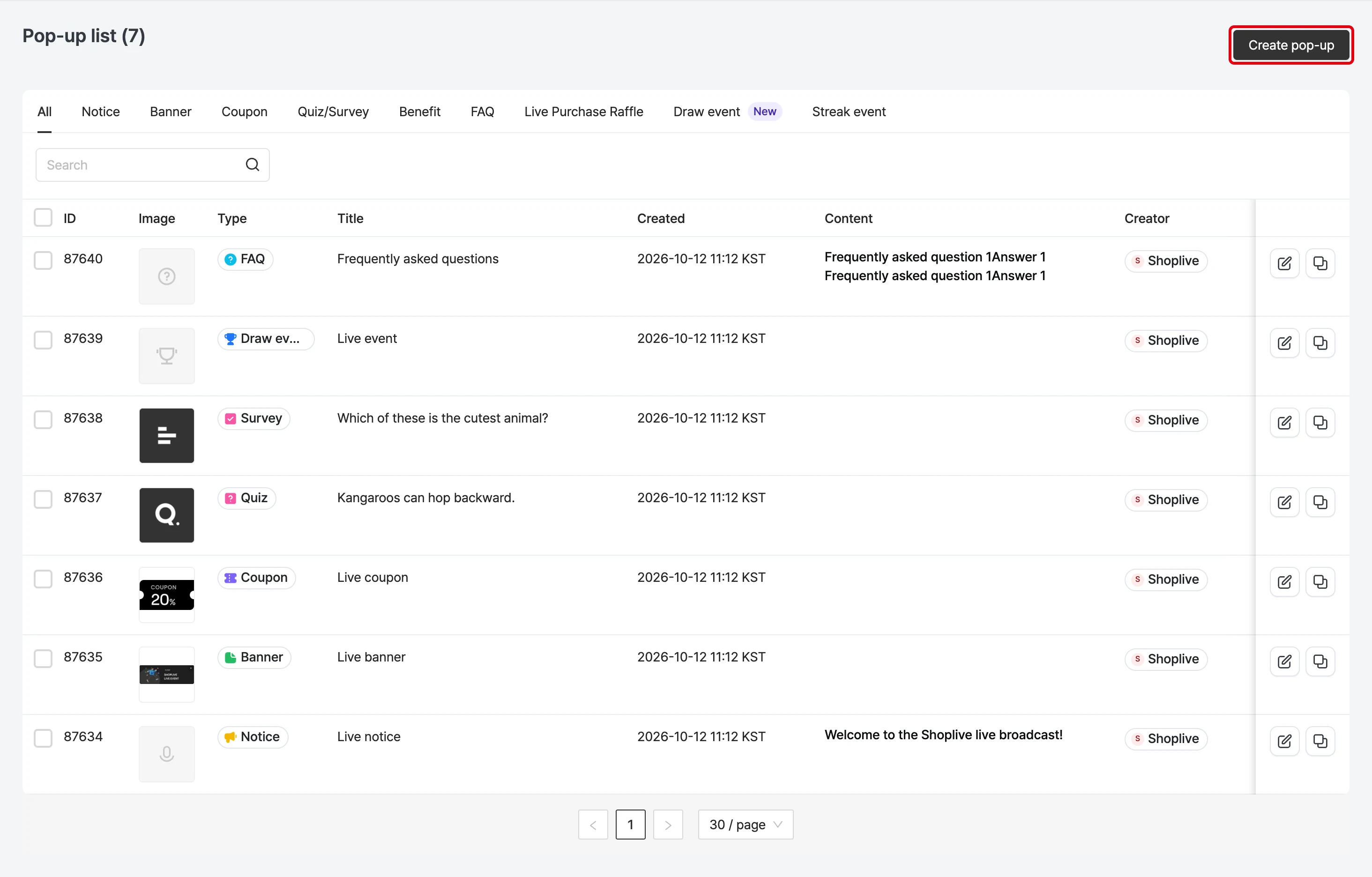
- Click the Create popup button on the Popups management page.
Notice
Select Notice as the popup type, fill in the items below, and save.
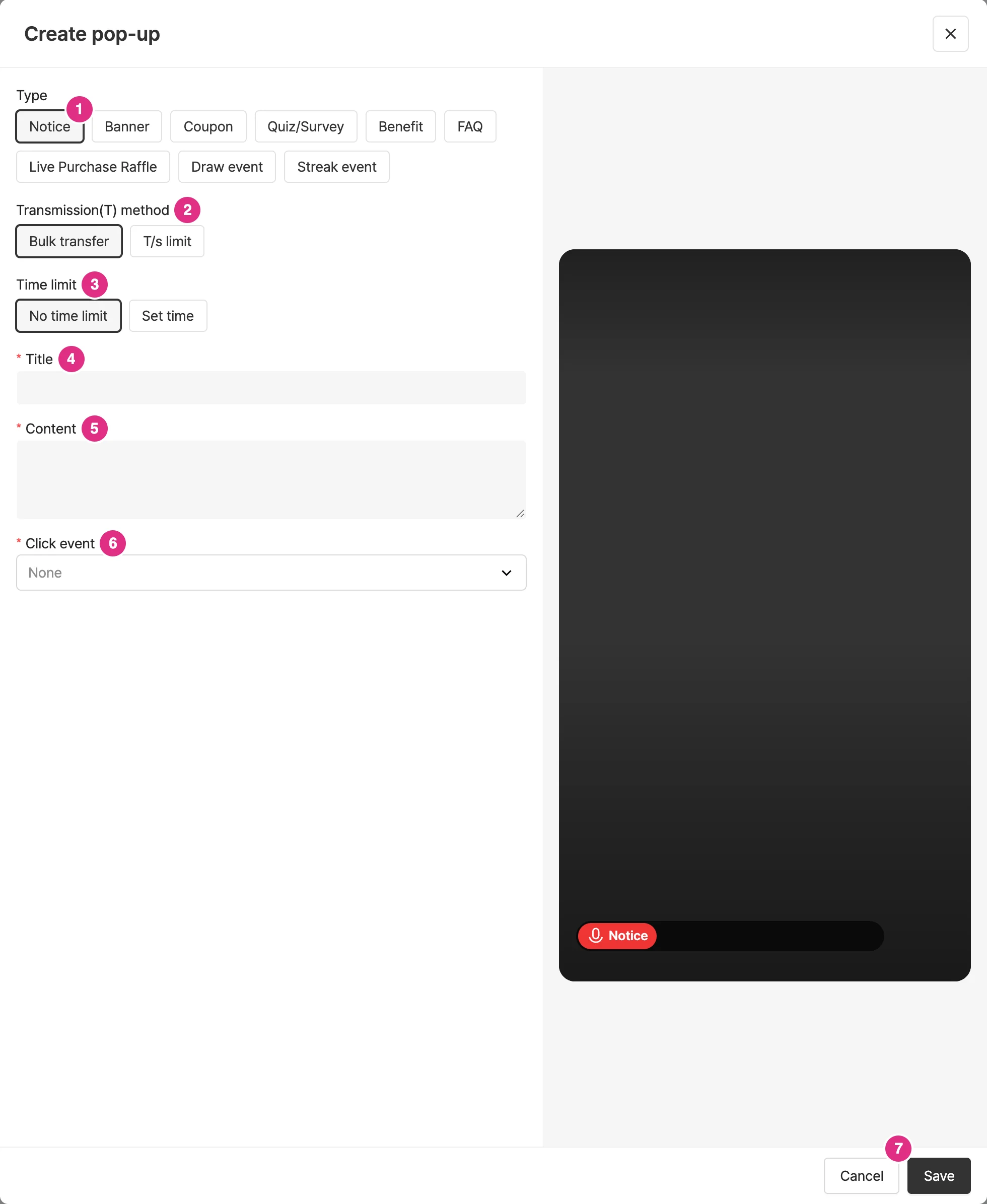
- Type: Select Notice.
- Transmission(T) method: Select Bulk transfer or T/s limit. For details, see Sending method below.
- Time limit: Select No time limit or Set time. For details, see Time limit below.
- Title: Required.
- Content: Required. Enter the content to show as the notice.
- Click event: Required. Select what happens when a viewer clicks the popup. For details, see Click events below.
- Click Save to create the popup.
Banner
Select Banner as the popup type, fill in the items below, and save.
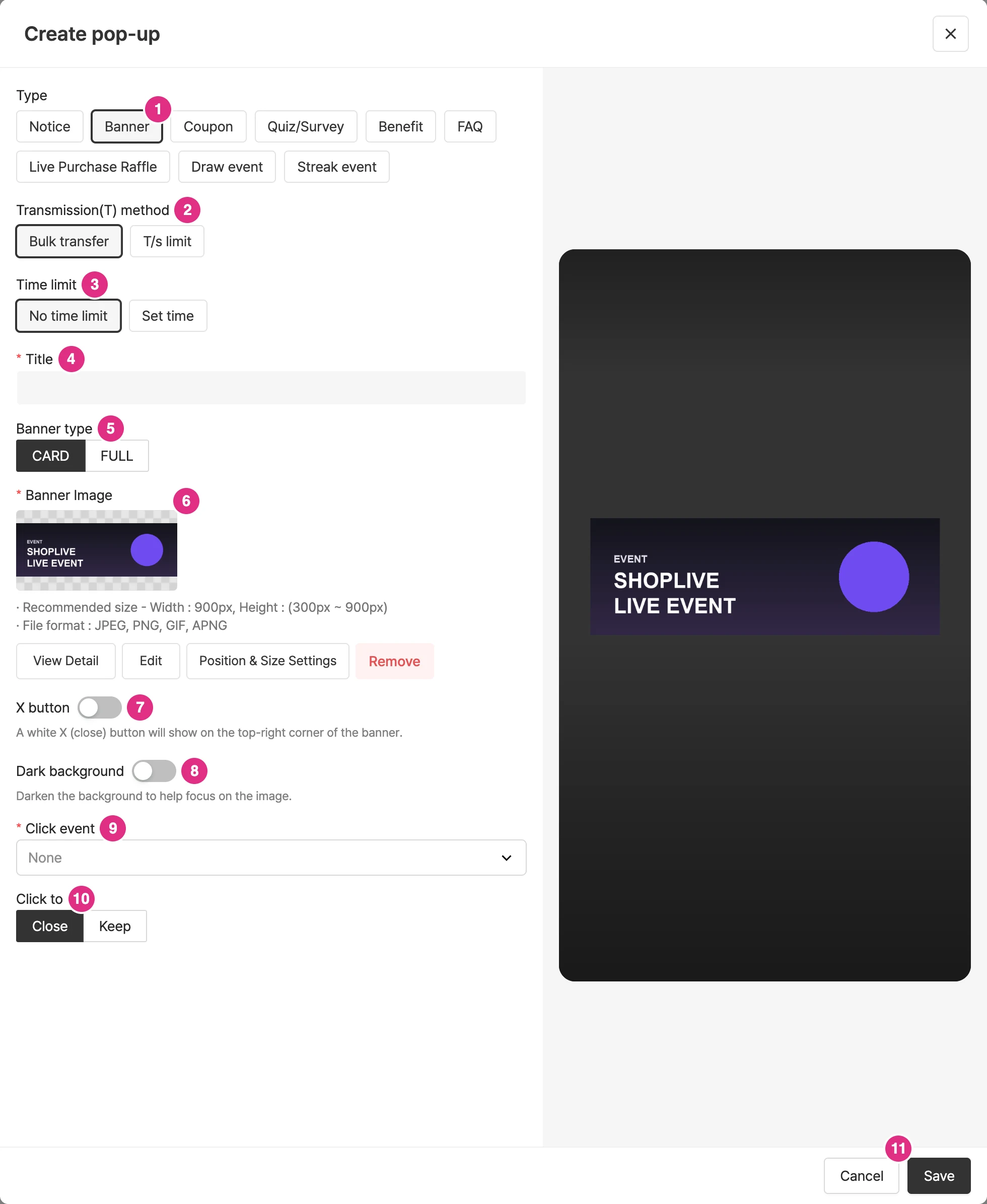
- Type: Select Banner.
- Transmission(T) method: See Sending method.
- Time limit: See Time limit.
- Title: Required.
- Banner type: Select CARD to show the banner as a card, or FULL to fill the whole screen with the banner.
- Banner Image: Required. Make card banners 900px wide and 300–900px tall, and full-screen banners 900x1600. Card banners can also use a movable banner image.
- X button: Turn the toggle on to show an X (close) button on the top-right of the banner.
- Dark background: Turn the toggle on to darken the background while the banner popup is shown.
- Click event: See Click events.
- Click to: Set whether the popup closes or stays after the banner is clicked.
- Click Save to create the popup.
Coupon
Coupons are divided into instant-download coupons and watch-time coupons depending on how they’re issued.
Use instant-download coupons
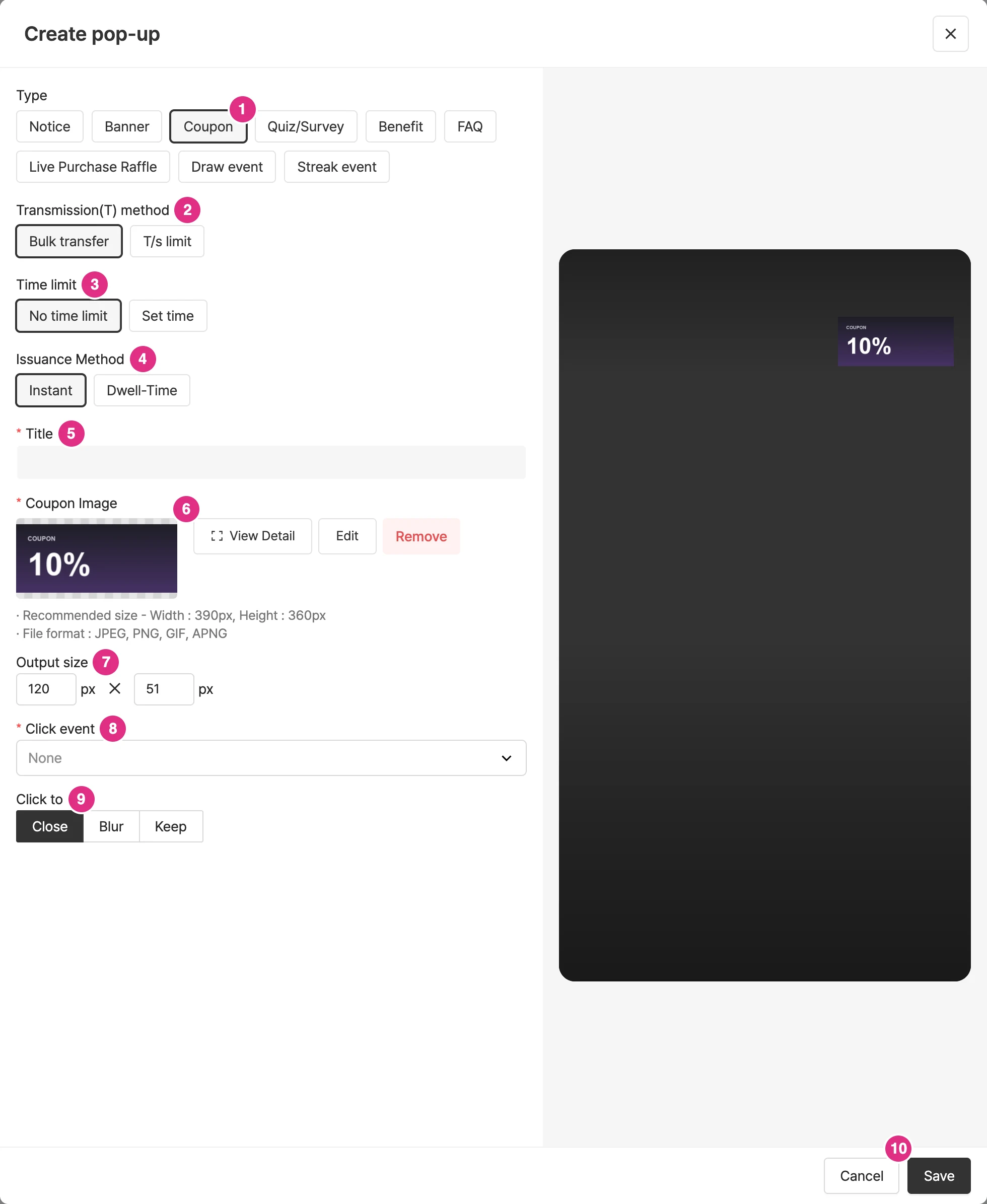
- Type: Select Coupon.
- Transmission(T) method: See Sending method.
- Time limit: See Time limit.
- Issuance Method: Select Instant.
- Title: Enter the coupon title. Required.
- Coupon Image: Required. The recommended size is 390px wide and 360px tall.
- Output size: Shown after you upload an image. Enter the width (px), and the height is calculated automatically from the image ratio.
- Click event: See Click events.
- Click to: After the coupon is shown and clicked, choose Close, Blur, or Keep.
- Click Save to create the popup.
Use watch-time coupons
A watch-time coupon can be downloaded only after the viewer meets the set watch time.
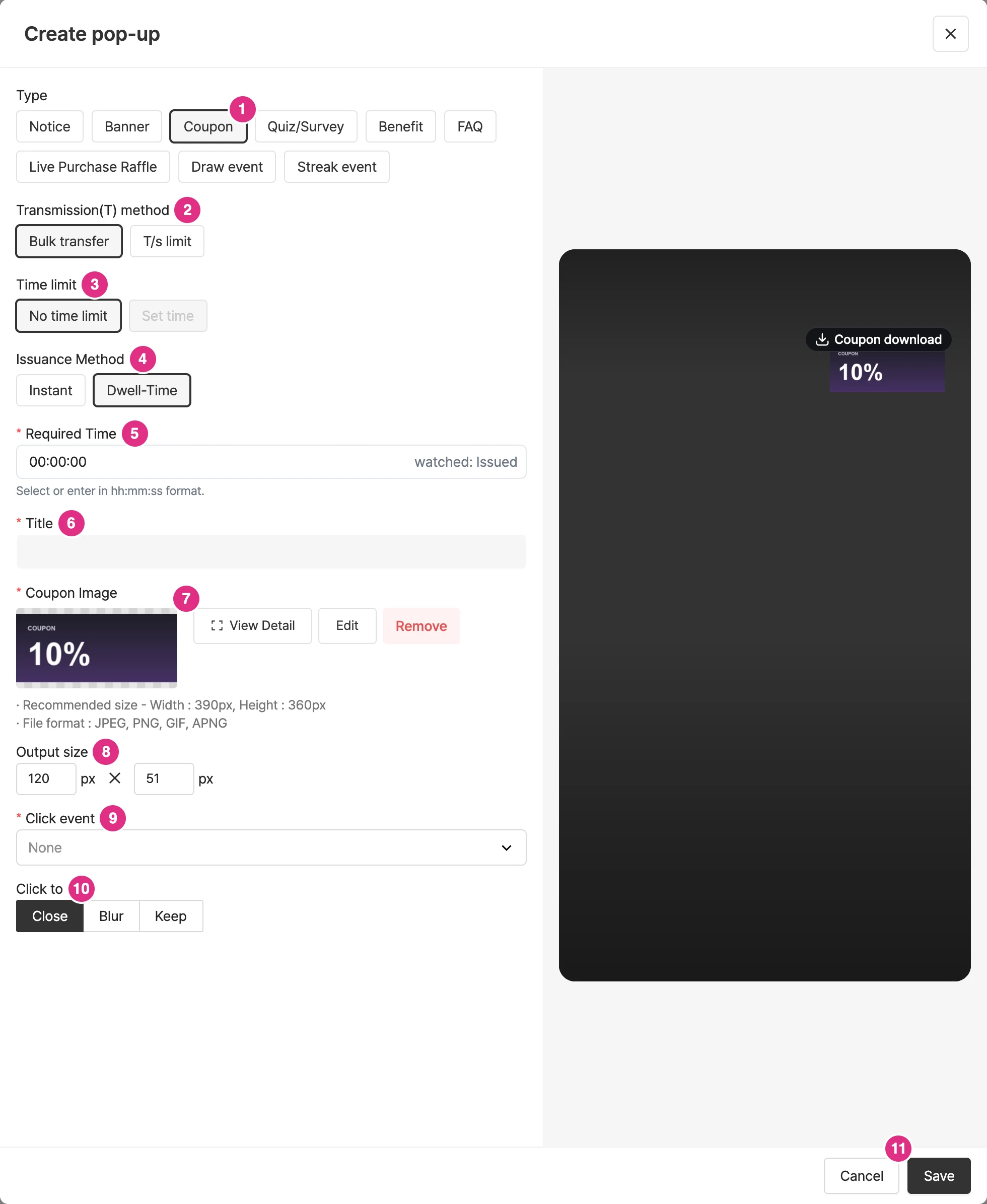
- Type: Select Coupon.
- Transmission(T) method: See Sending method.
- Time limit: Set time cannot be used with dwell-time coupons.
- Issuance Method: Select Dwell-Time.
- Required Time: You can set up to 23:59:59. The coupon download button is activated automatically once the set time has passed.
- Title: Required.
- Coupon Image: Required.
- Output size: Same as for instant-download coupons.
- Click event: See Click events.
- Click to: Choose Close, Blur, or Keep.
- Click Save to create the popup.
- Watch-time coupons don’t apply in replays.
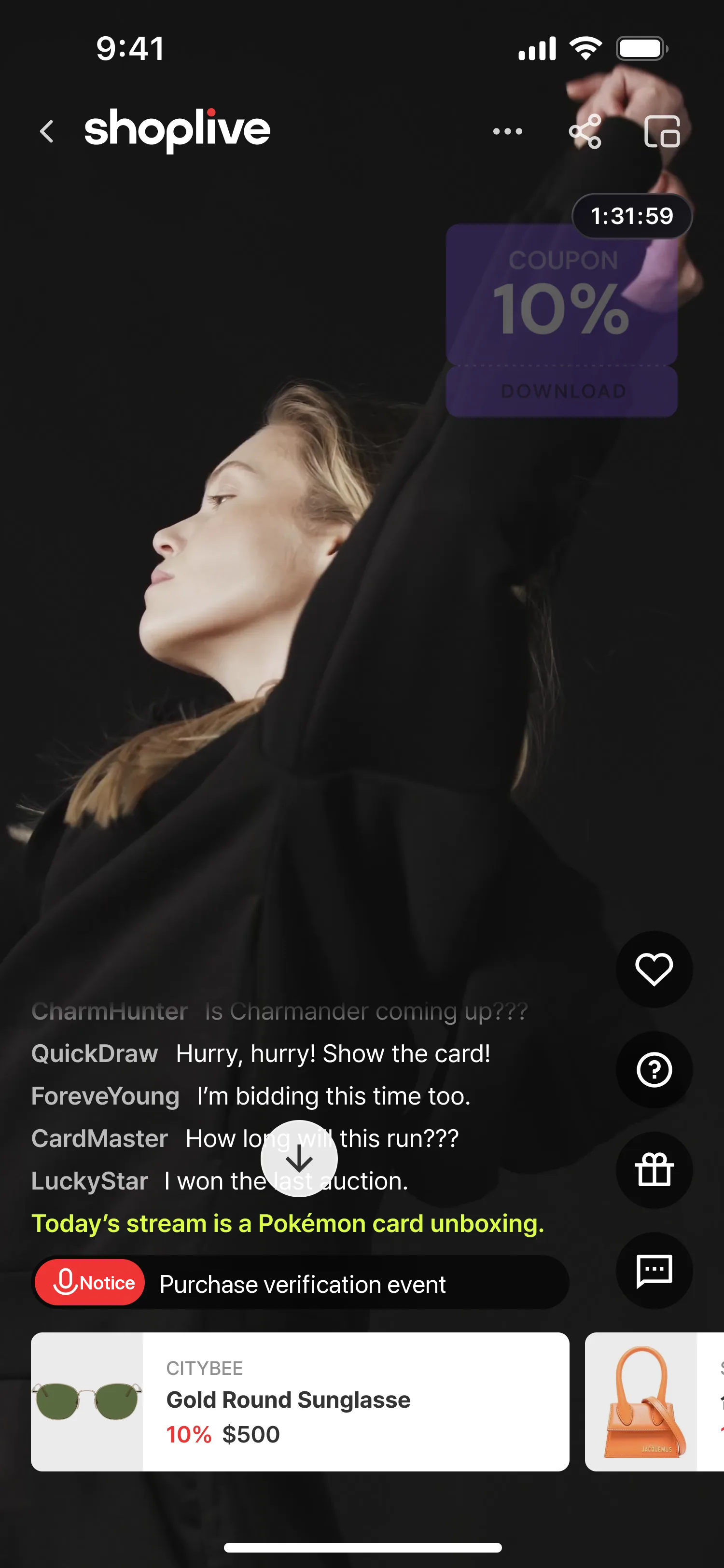
A watch-time coupon appears in the player like this.
Sending method
Depending on the sending method, you can send all at once or set a limit on the number sent per second.
What is the difference between "Send all at once" and "Limit per second"?
When many coupons are sent and many people download them at once, the server can be overloaded. To prevent this when you expect a traffic spike, you can set a limit on how many are sent per second.
Time limit
You can set the time limit to No limit or Set time.
The time can be set from a minimum of 2 seconds, and up to 999 seconds for quiz popups.
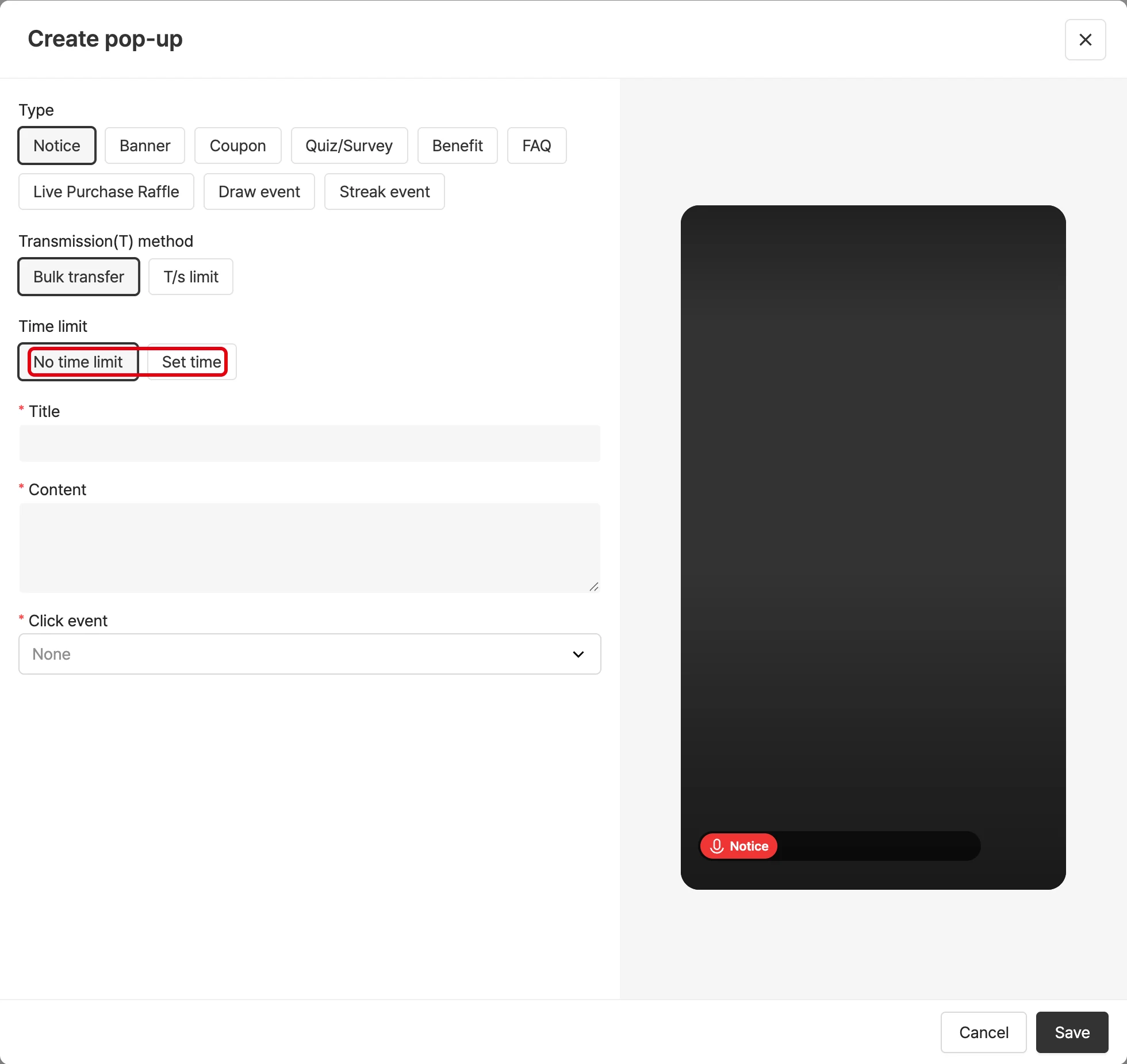
What is the difference between the duration settings "No limit" and "Set time"?
No limit: shown until the operator deactivates the popup Set time: the popup deactivates automatically at the set time
Replay policy
In Replay policy, choose how the popup behaves in replays: Keep, Show expired notice on click or Hide.
Click events
For notice, banner and coupon popups, you can set the event that happens when a viewer clicks the popup.
| Feature | Description |
|---|---|
| No event | Nothing happens on click. |
| Link | Goes to the set URL. |
| Link (open in new window) | Opens the set URL in a new window. |
| Link (new window + PIP) | Available only for card banners and coupon popups. |
| Copy to clipboard | Available only for coupon popups. |
| Coupon download | Passes the coupon code through messageCallback. (Integration on your side is required.) |
| Custom | You can pass any PAYLOAD you like in JSON format. |
| More popup - image | An image popup appears at the bottom. |
| Open bottom sheet | A window describing event benefits opens as a bottom sheet from the bottom. You can add content and images to describe events and benefits. |
Making the most of popups
Shoplive popups can be used in many ways regardless of their type. For example,
- Set a banner popup’s click event to a link to send viewers to a coupon or promotion page.
- Set a coupon popup’s image to information you want shown at all times, such as product information, and show it at the top right of the player.
Create quiz popups
See the link below for how to create quiz popups.
Popup image guide
Make the images used in popups according to the guide below.
Create benefit popups
Shoplive provides benefit banners that make it easy to present a broadcast’s various benefits.
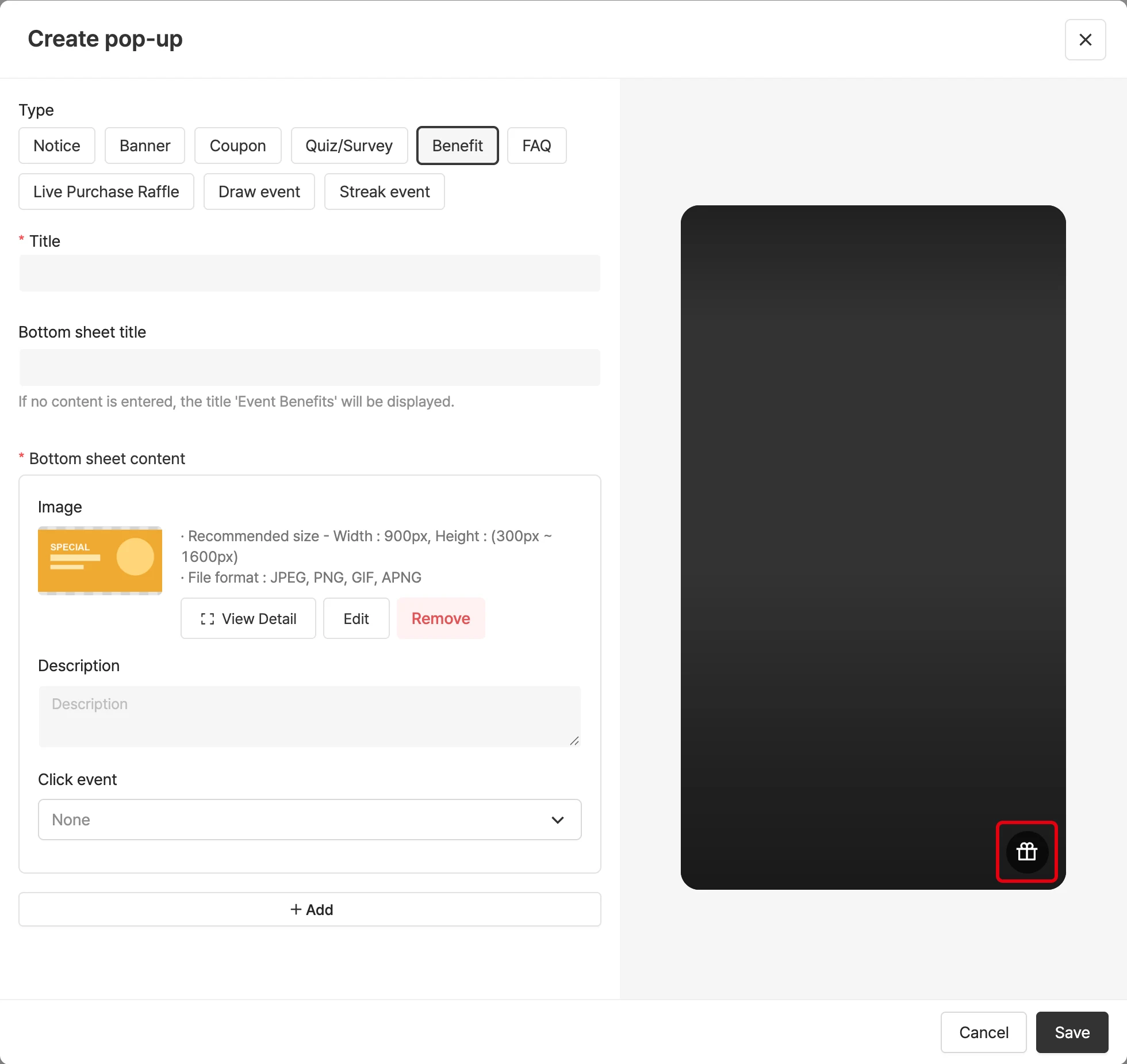
Click Create popup in Popup management, select Benefit as the popup type, and fill in the items below.
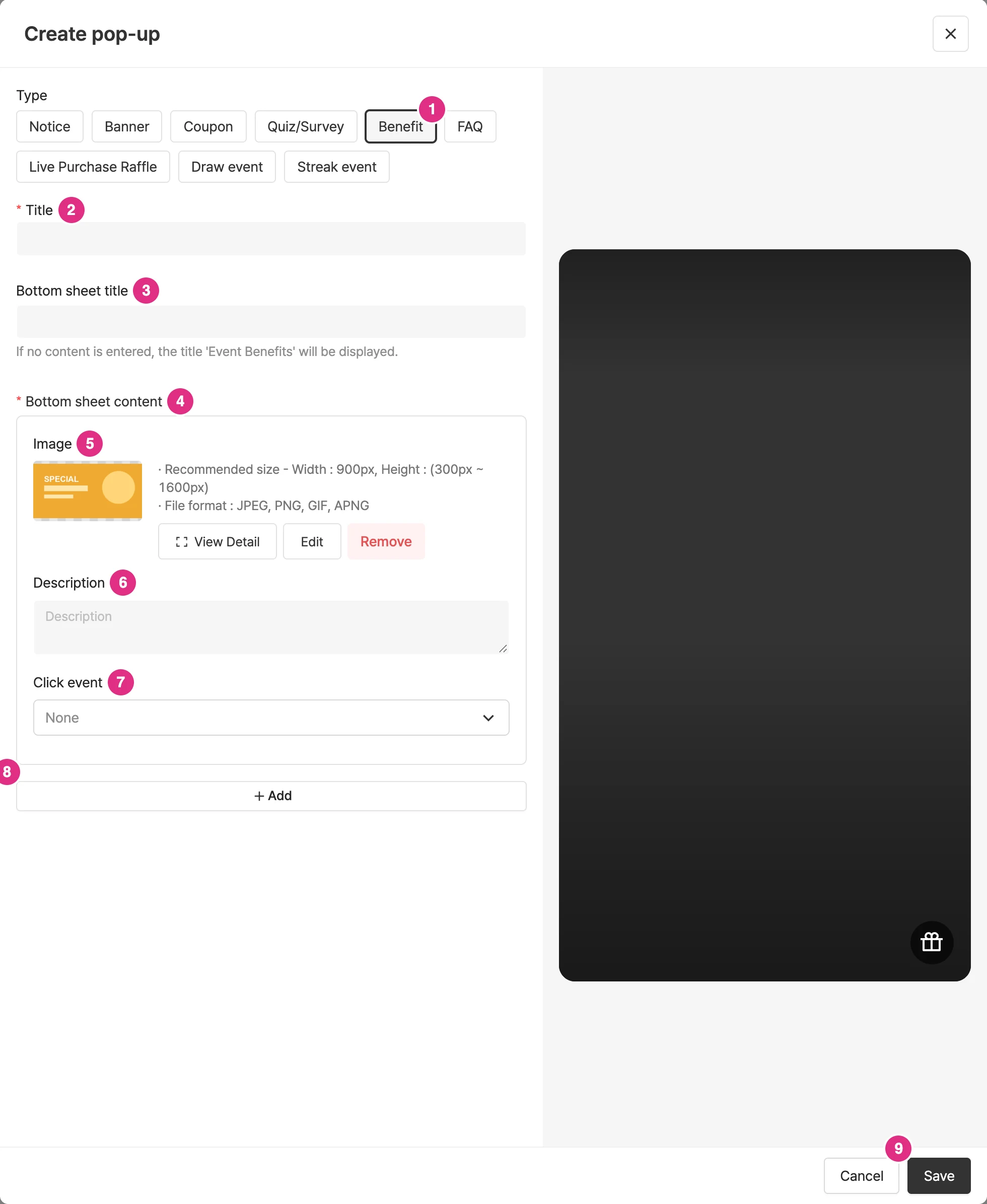
- Type: Select Benefit.
- Title: Required.
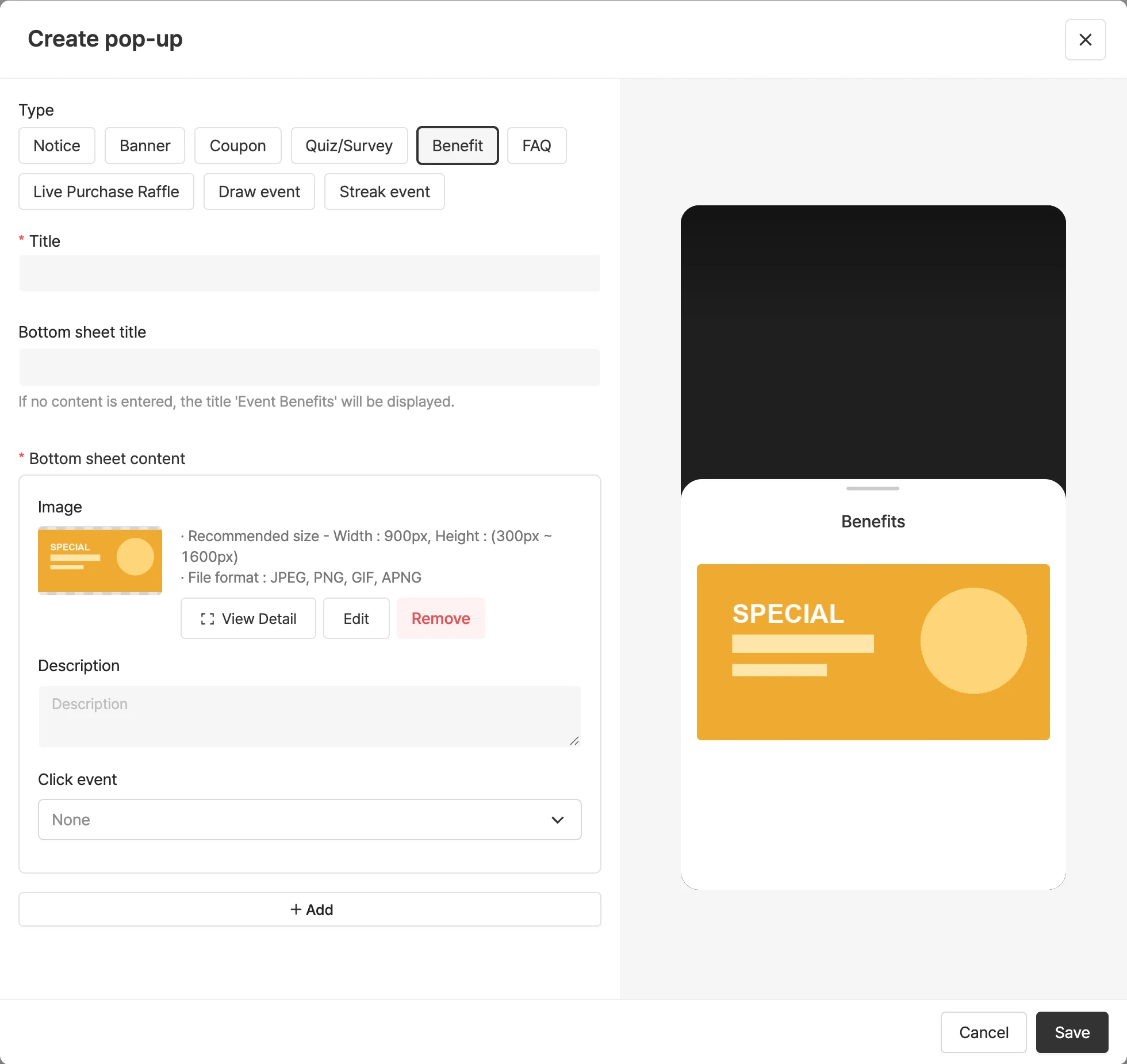
- Bottom sheet title: The title shown in the bottom sheet. If you leave it empty, the title "Event benefits" is shown automatically. The bottom sheet title can be up to 22 characters.
- Bottom sheet content: Required. Each content entry needs at least one of an image or a description.
- Image: Make each image 900x1600 (height 300–1600), and keep the file size at 2MB or less.
- Description: Enter the description for each entry.
- Click event: You can set a click event for each entry. You can choose Open bottom sheet as the click event.
- Add: To register more content, click Add and add the content.
- Click Save to create the popup.
Before saving, click the Benefit banner icon in the preview on the right to check the content.
Create FAQ popups
Shoplive provides FAQ popups you can use in broadcasts.
Create a popup
Click Create popup in Popup management, select FAQ as the popup type, and fill in the items below.
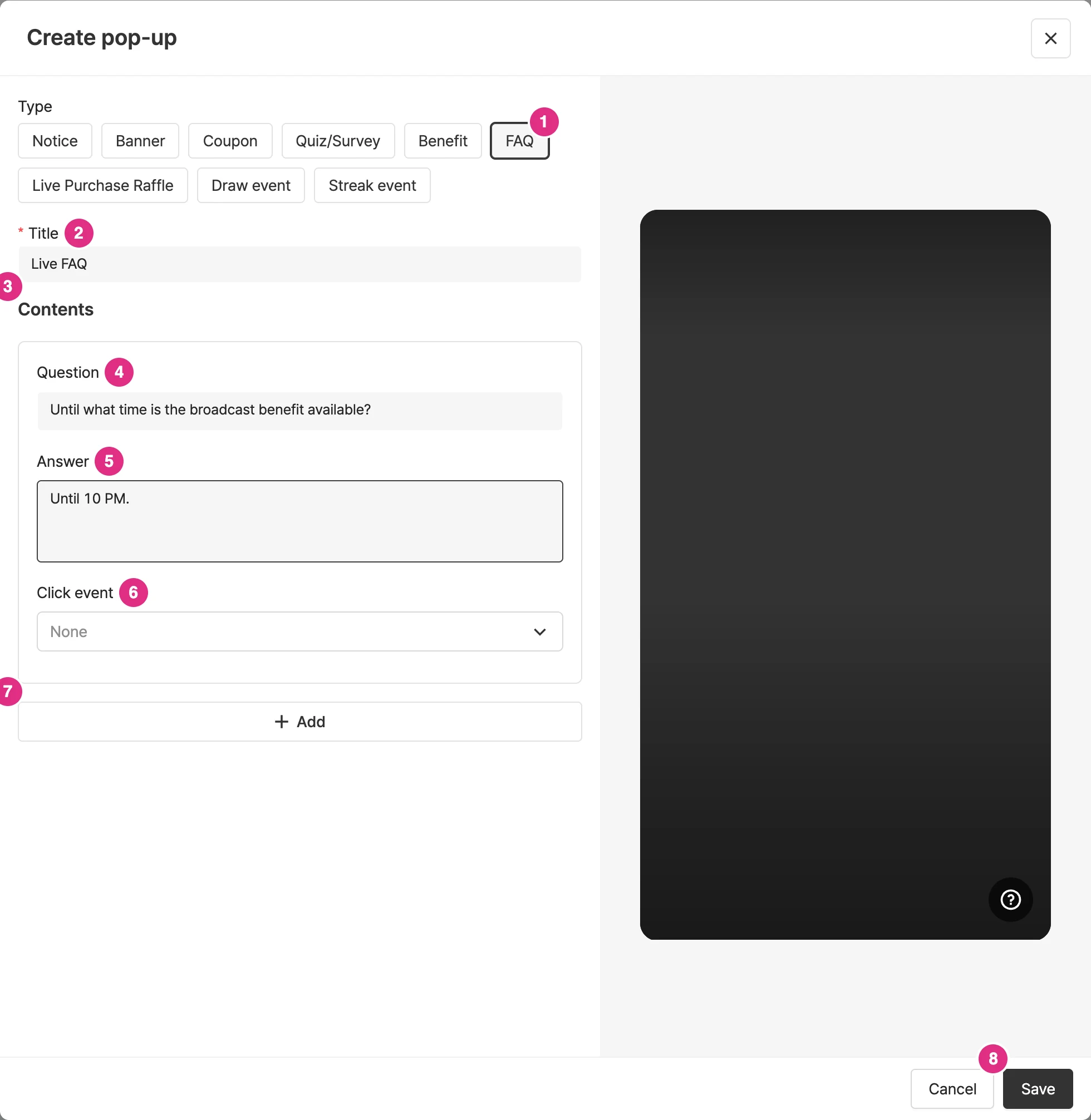
- Type: Select FAQ.
- Title: Required.
- Content: The area where you enter questions and answers. You can register up to 20 questions and answers.
- Question: Enter the FAQ question.
- Answer: Enter the answer to the question. Make FAQ answer images 900x1920.
- Click event: You can set a click event for each answer. For details, see Click events below.
- Add: Click Add to register multiple questions and answers.
- Click Save to create the popup.
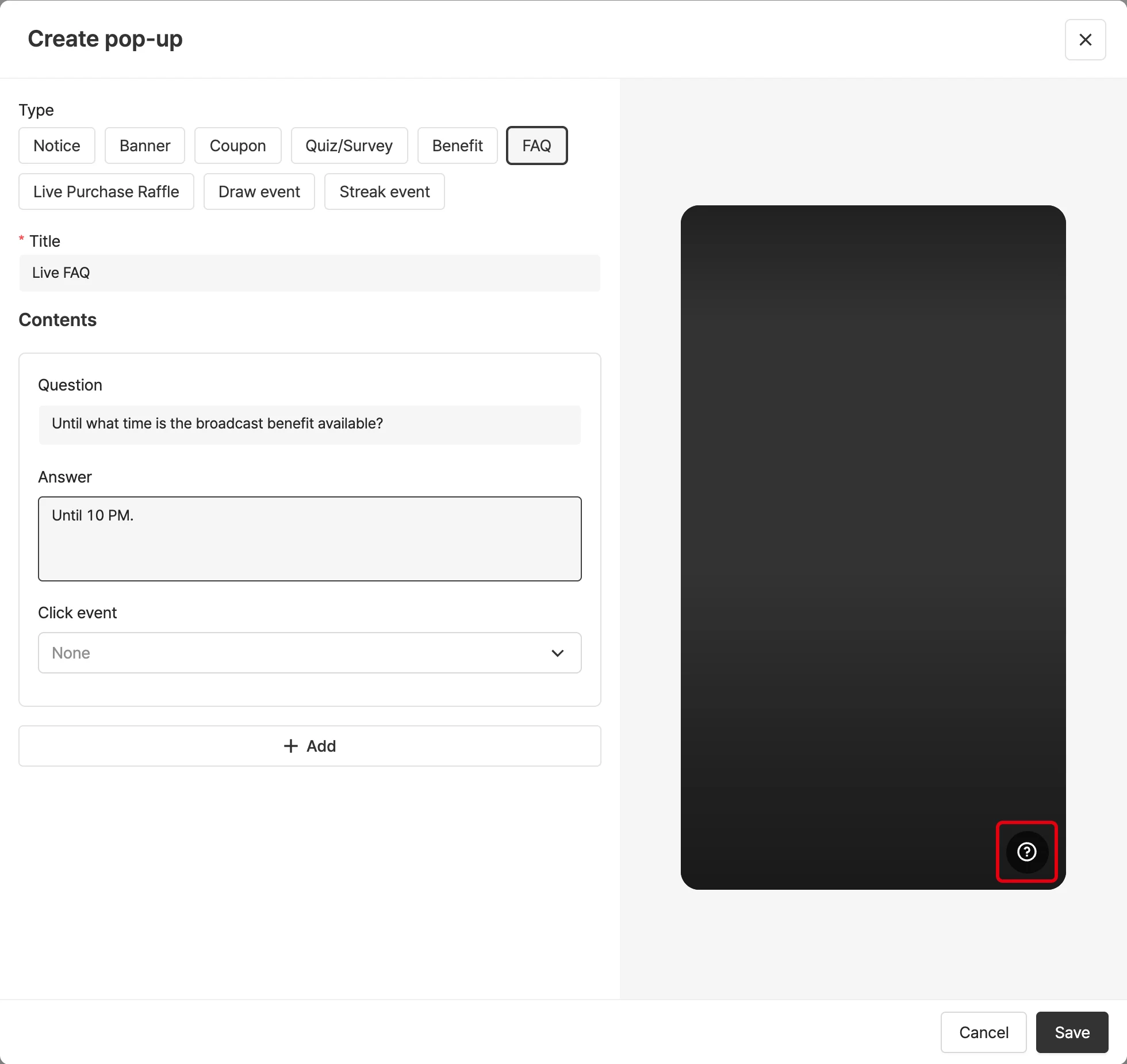
Click the icon in the preview on the right to see how it appears on the player.
Click events
You can set a click event for each answer.
| Feature | Description |
|---|---|
| No event | Nothing happens on click. |
| Link | Goes to the set URL. |
| Link (open in new window) | Opens the set URL in a new window. |
| Coupon download | Passes the coupon code through messageCallback. (Integration on your side is required.) |
| Custom | You can pass any PAYLOAD you like in JSON format. |
| More popup - image | An image popup appears at the bottom. |
| Open bottom sheet | A window describing event benefits opens as a bottom sheet from the bottom. |
For the More image click event, you can enter button text of up to 20 characters; the default text is ‘Learn more’. Make FAQ answer images 900x1920.
Create quiz popups
With Shoplive’s quiz and survey features, you can run broadcasts where viewers take part.
Use the features by following the guide below.
Create quiz/survey popups
In the Create popup window, select Quiz/Survey and fill in the items below.
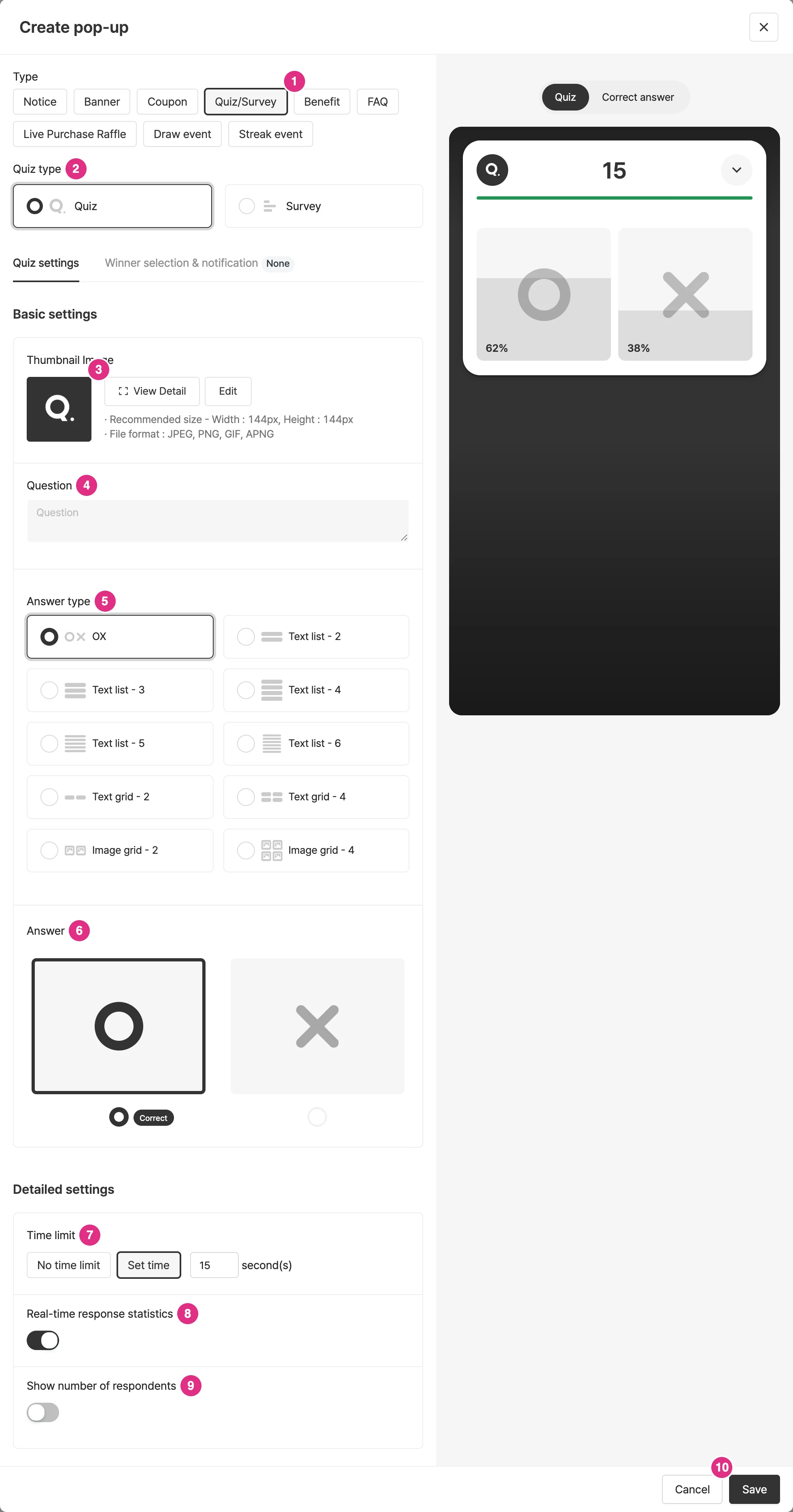
- Type: Select Quiz/Survey.
- Quiz type: Select Quiz or Survey. Depending on the type, you may be required to set a correct answer.
- Thumbnail image: Add the thumbnail image shown above the question in the quiz popup.
- Question: Enter the question. The question you enter is shown to viewers when the quiz starts.
- Answer type: Select the answer type you want from OX, text list, text grid, and image grid.
- Answer: Select the correct answer for a quiz. Survey types do not need a correct answer.
- Time limit: Choose whether the question stays on screen or closes automatically after a set time. (Default: stays for 15 seconds)
- Real-time response statistics: Choose whether to show real-time answer figures for each viewer selection. When you turn the toggle on, the real-time answer figures of quiz participants appear on the options in the quiz popup.
- Show number of respondents: Choose whether to show the number of respondents for each option. When you turn the toggle on, the number of viewers who took part appears on the options in the quiz popup.
- If you need to select winners, set that in the Winner selection & notification tab. Click Save to create the popup.
What is the difference between a quiz and a survey?
If you set the type to Quiz, you must choose a correct answer.
If you set the type to Survey, you don’t have to choose a correct answer.
Is a thumbnail image required for quiz popups?
No, you don’t have to upload one. If you don’t set a thumbnail image for the quiz popup, the Shoplive default image is shown. To upload a new image, delete the existing one first.
| Choice type | How it’s displayed | How users take part |
|---|---|---|
| OX | Choices shown as O / X | Choose O or X |
| Text list | Text choices shown as a list | Choose one of the text list choices |
| Text grid | Text choices shown as a grid | Choose one of the text grid choices |
| Image grid | Image choices shown as a grid | Choose one of the image grid choices |
Ten types are available depending on the number of choices.
They are OX, text list (2–5 choices), text grid (2, 4 or 6 choices) and image grid (2 or 4 choices).
Questions and choices can be up to 200 characters, and choices are recommended to be within 40 characters.
Some types, such as the 6-choice text grid, are recommended to be within 10 characters.
What is the difference between the “No limit” and “Set time” durations?
- No limit: the question ends only when the operator clicks [Close quiz] in the console at the moment they choose, after which the answer can be revealed.
- Set time: the question ends automatically when the time set for the quiz passes, after which the answer can be revealed.
Choosing and announcing winners
In the Winner selection & notification tab, set whether to select winners and the winner notification popup.
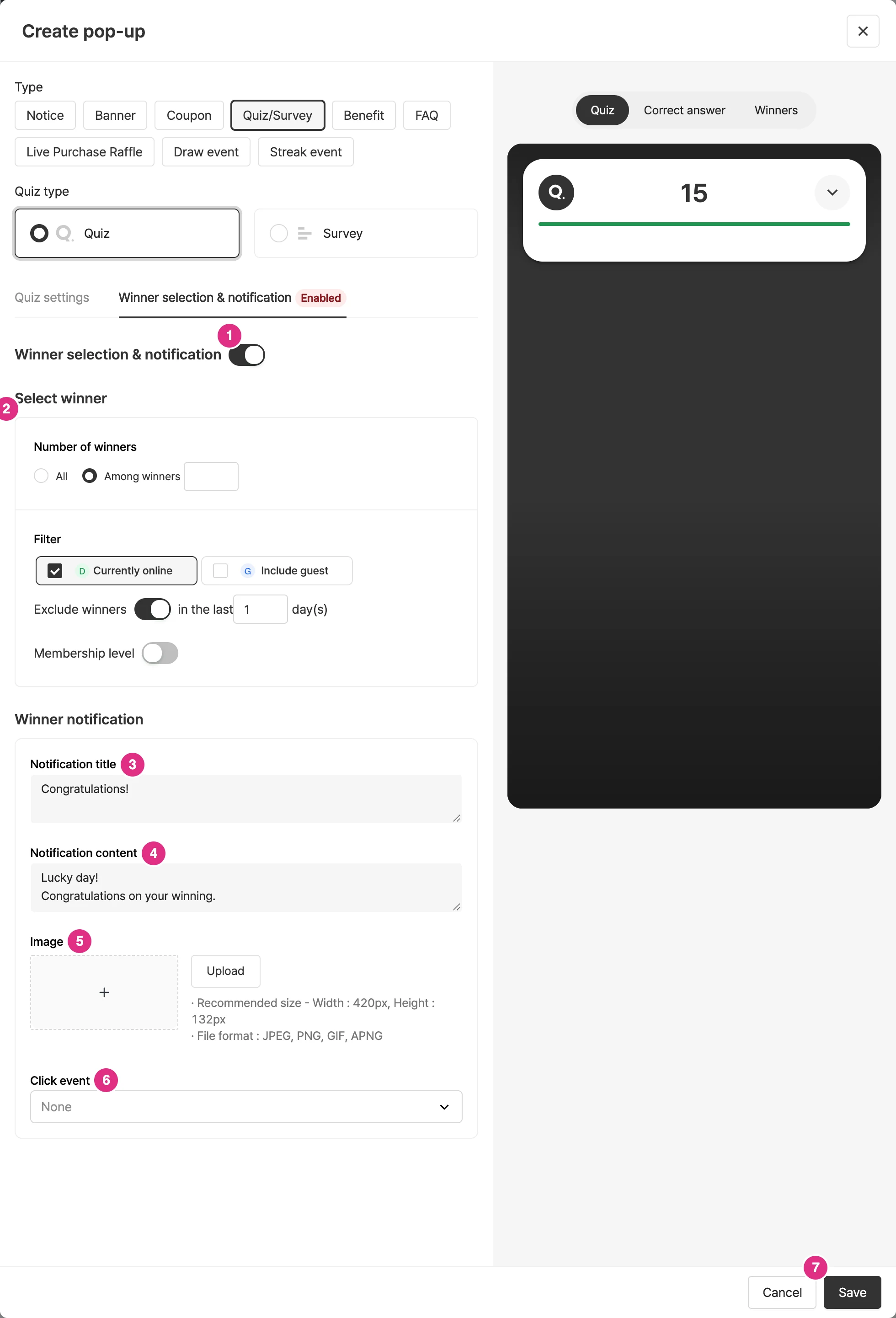
- Winner selection & notification: Turn the toggle on to select and notify winners. If you do not turn it on, the quiz result screen is shown to both correct and incorrect respondents.
- Winner selection: Set the number of winners, filters, excluding previous winners (N days), and membership level. For details, see Winner selection below.
- Notification title: The title of the popup shown to winners.
- Notification content: The content of the popup shown to winners.
- Image: You can add an image to the content.
- Click event: You can set a click event for the image.
- Save: When all settings are done, click Save.
Winners can also be selected in survey popups. Set the popup shown to survey winners in the same way.
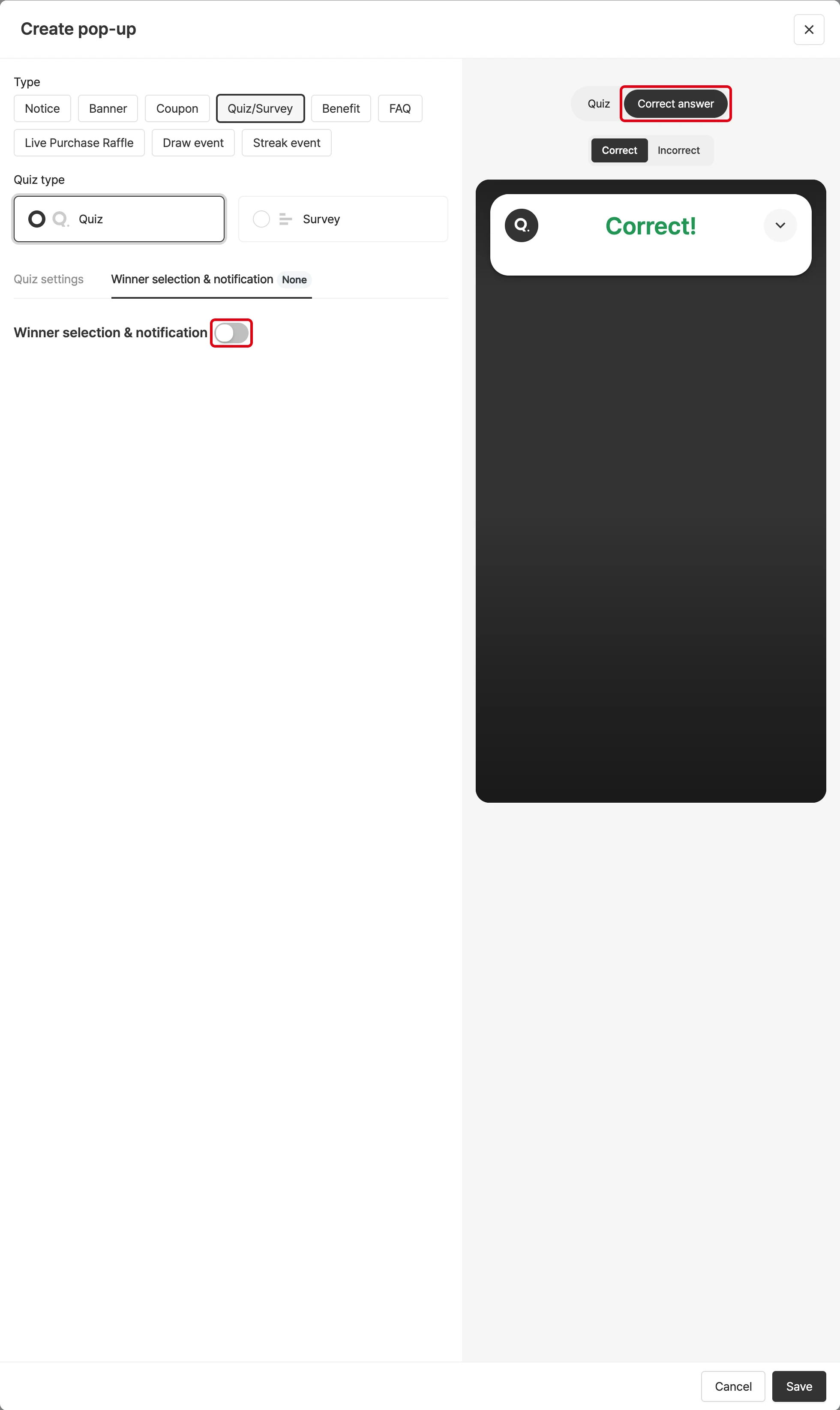
Don’t choose winners
If the ‘Choose and announce winners’ toggle is off, a quiz result screen is shown to those who answered correctly and incorrectly.
Choose winners
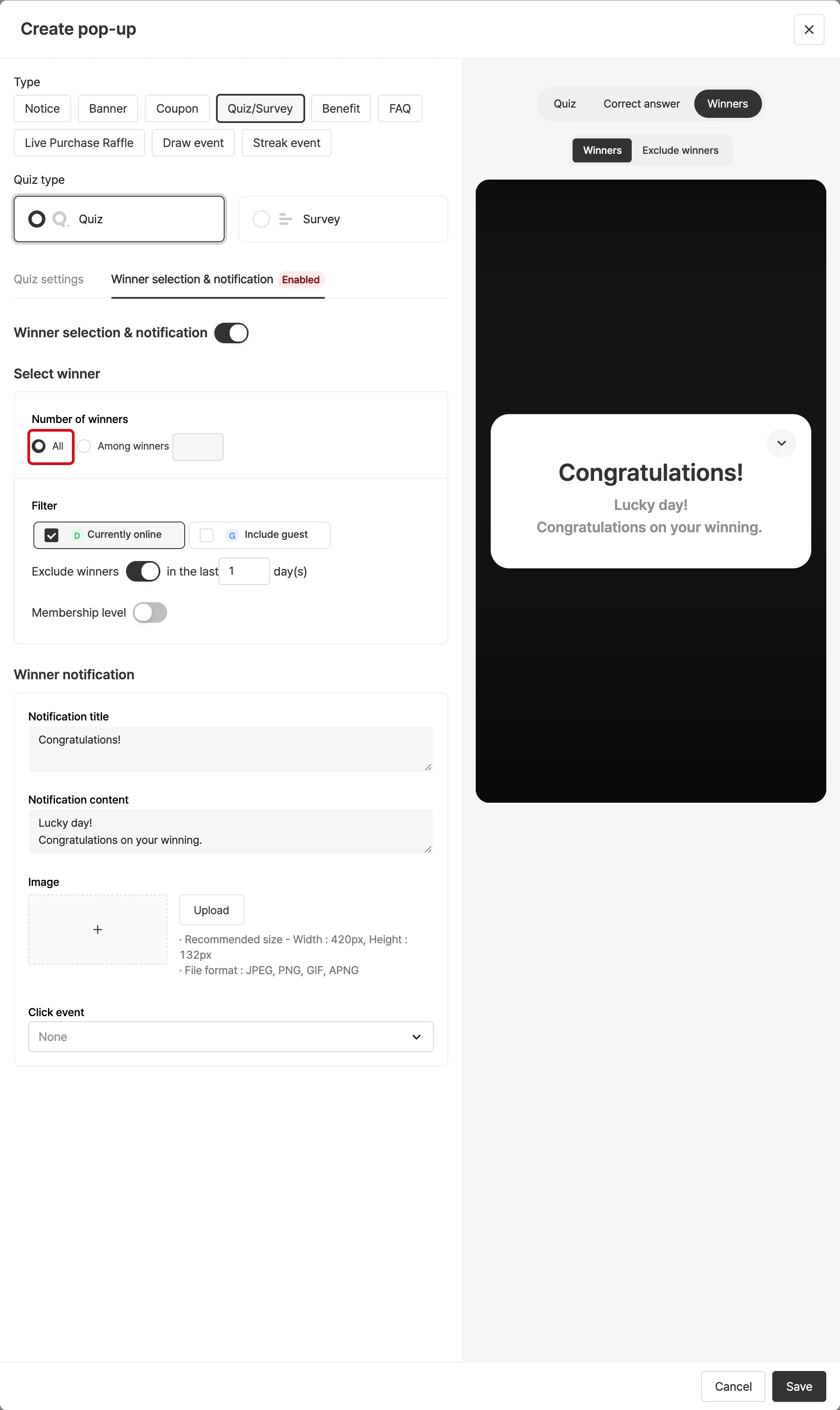
All correct answers
Turn on the ‘Choose and announce winners’ toggle to choose winners from those who answered the quiz correctly. If you select All correct answers, a winner popup is shown to everyone who answered correctly and the winner list is shown to those who didn’t.
Some of the correct answers
If you set the number of winners in Winner selection, that number of winners is selected from the correct respondents. Winners see the winner notification popup, and non-winners see the winner list.
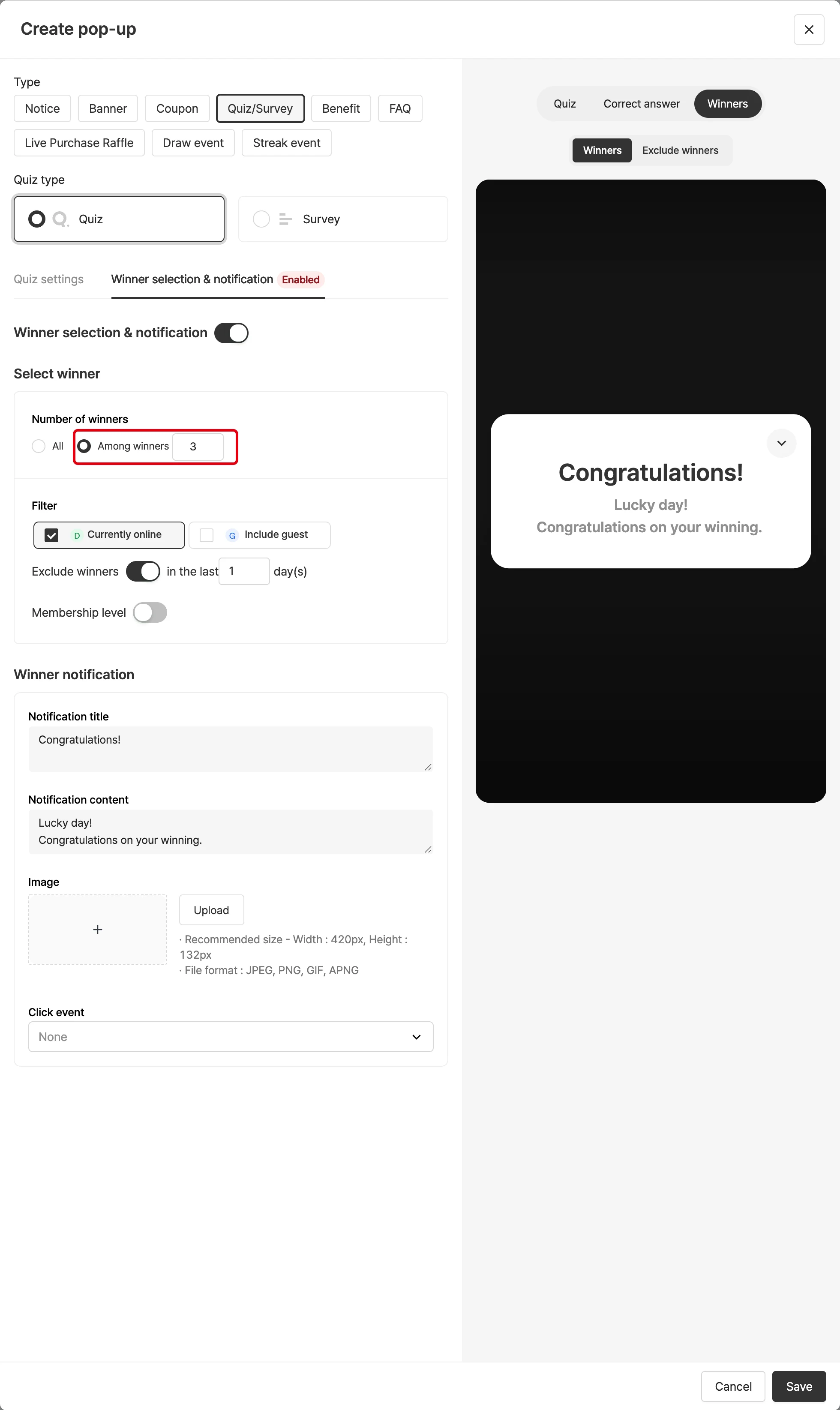
How are winners chosen?
- Winners can’t be chosen by the operator; the system selects them automatically.
- All correct answers: everyone who answered correctly is a winner, and a winner announcement screen is shown.
- n of the correct answers: n users who answered correctly are chosen at random, and a winner list screen is shown.
Eligibility and draw filters
For surveys, you can choose all participants or N participants as winners; for quizzes, all correct answers or N of them. The draw supports these filters: user grade, include guests, currently connected, and exclude previous winners (N days).
Winner list and notice for incorrect answers
The winner list popup shows up to 20 people, and the list can be downloaded. Choose how to announce to non-winners: None or Winner list. You can also set the title, message and image shown to those who answered incorrectly.
Create prize draw popups
You can create prize draws that capture viewers’ interest and participation during the broadcast.
Create a prize draw popup
Click Create popup in Popup management, select Draw event as the popup type, and fill in the items below.
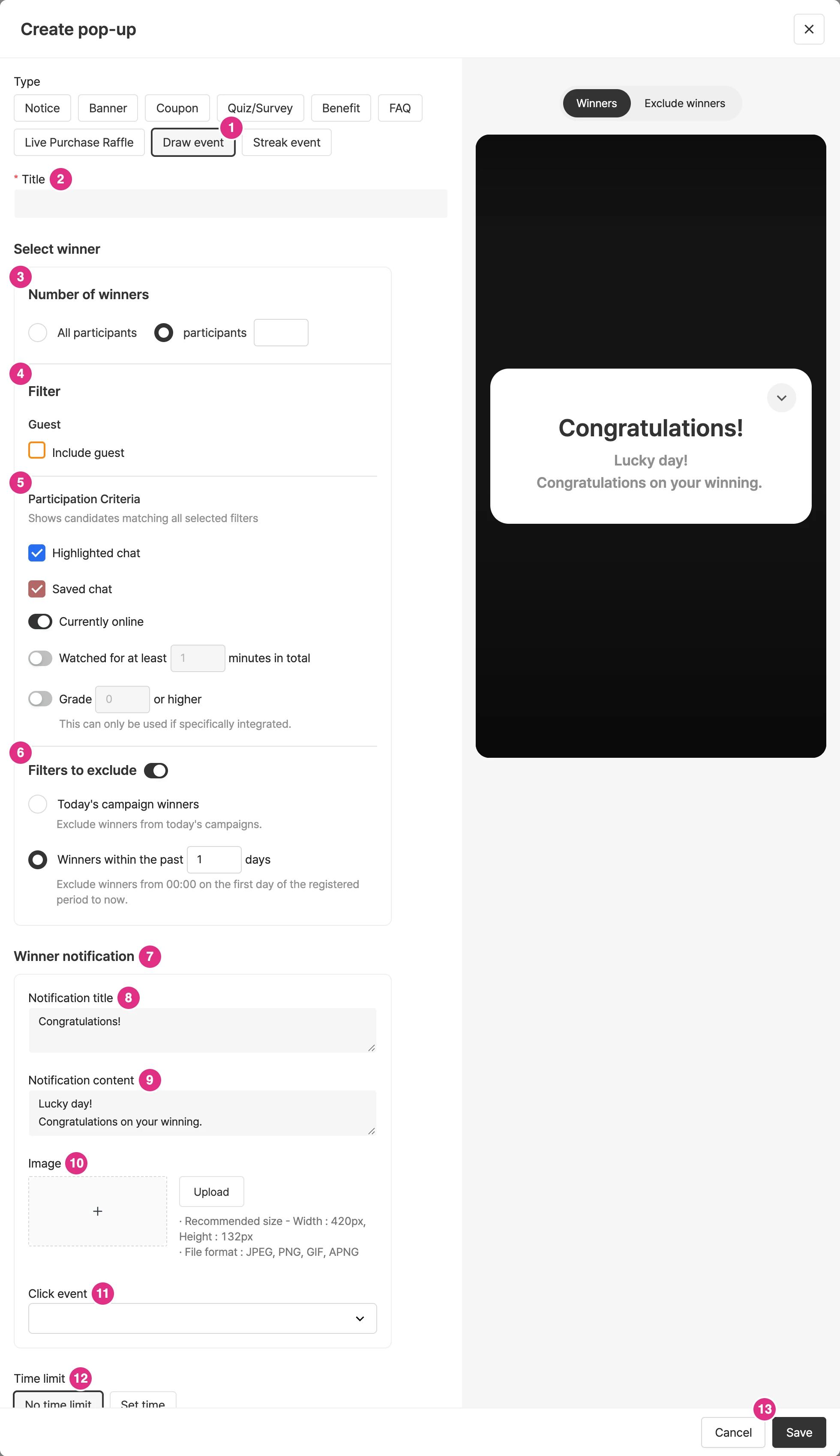
- Type: Select Draw event.
- Title: Required.
- Number of winners: Specify all participants or how many of the participants to select. (Up to 100)
- Filter: Set the conditions that narrow down winner candidates.
- Include guests as winners: set whether to include guests.
- Include anonymous members: includes users who are logged in but haven’t entered a display name.
- Include anonymous guests: includes users who aren’t logged in and haven’t entered a display name. If they win, they’re notified only by a popup on the viewing screen.
- Participation criteria: Winners are selected from candidates who meet all the selected filters.
- Chat filter: Includes cases that match either of two options: saved as a highlighted chat, or saved as a saved chat.
- Currently watching filter
- Cumulative watch time filter (Watched for minutes or more): Based on the cumulative watch time within the campaign. You can set up to 600 minutes. Even if a viewer leaves and returns, their earlier watch time in the same campaign is added up. However, viewers who enter using "security mode" may not be counted in cumulative watch time.
- Membership level filter (Level or higher): The level filter is available only with a separate integration.
- Exclude: Select winners while excluding certain participants.
- Exclude winners of all of today’s broadcasts: excludes winners of all events (including quizzes, events, surveys and purchase verification) in today’s broadcasts.
- Exclude winners within a number of days: excludes all winners from midnight on the first day of the period entered up to now.
- Winner announcement: set the title and message of the announcement modal.
- Notification title: The title of the notification modal.
- Notification content: The content of the notification modal. You can enter text and also register an image.
- Image: Register an image in the notification modal.
- Click event: You can set a click event for the image.
- Time limit: You can set how long the winner notification popup stays on screen.
- Click Save to create the popup.
Set up the prize draw popup
Add a prize draw popup to the campaign. You can add it from the console or the campaign details.
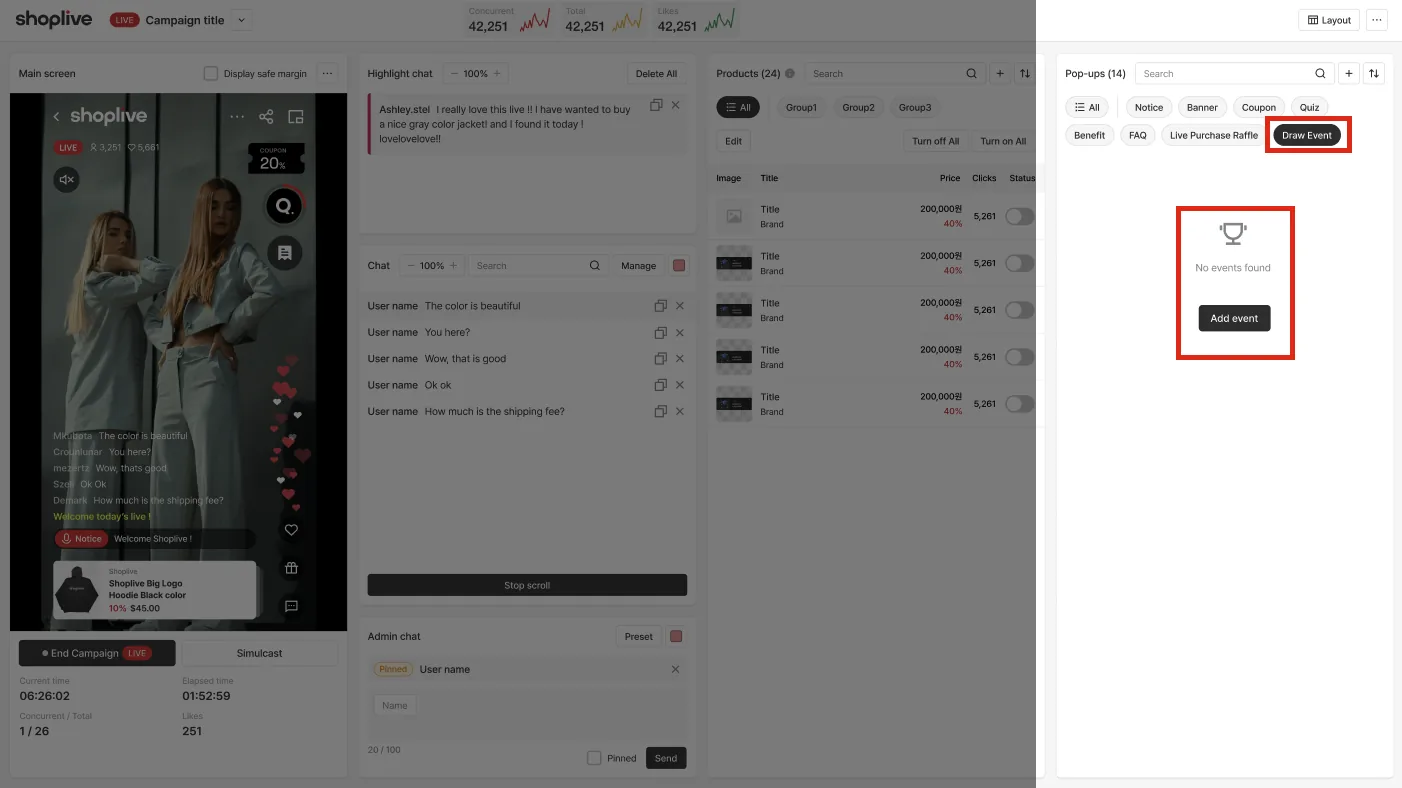
To start the prize draw and announce winners during a broadcast, see Prize draw popups.
Create purchase verification popups
You can create purchase verification popups that encourage purchases and let you run a prize draw among the users who bought.
Create a purchase verification popup
Click Create popup in Popup management, select Live Purchase Raffle as the popup type, and fill in the items below on the Basic settings tab.
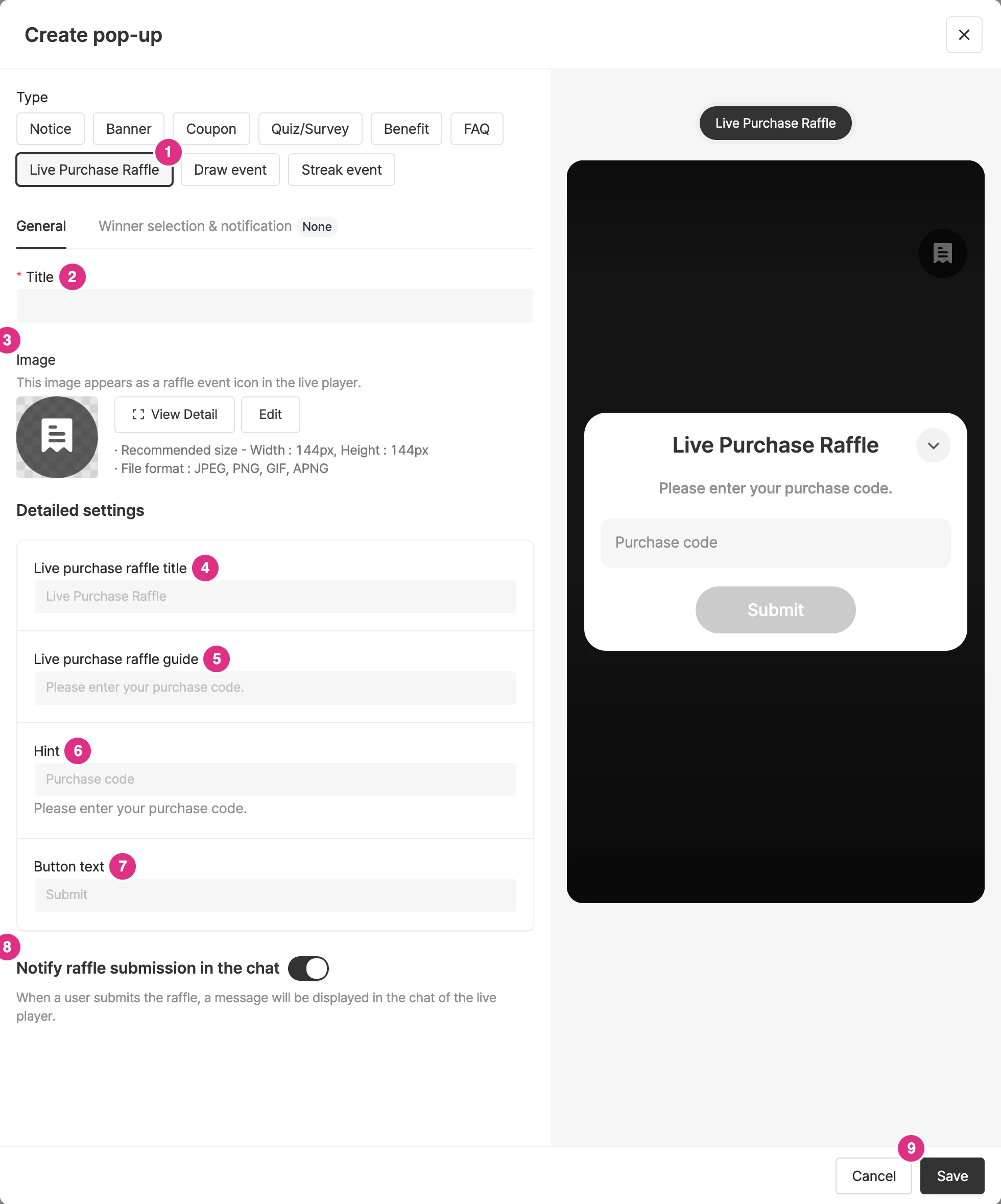
- Type: Select Live Purchase Raffle.
- Title: Required / a title for management.
- Image: the image shown as the purchase verification icon in the live player.
- Purchase verification title: the title shown in the purchase verification modal.
- Purchase verification message: the message shown in the purchase verification modal.
- Hint: The hint text shown in the input field of the purchase verification modal. Below the hint, the example text "Enter an example order number. e.g., 202407290033380002" is shown.
- Button text: the button text in the purchase verification modal.
- Chat notification: a message appears in the chat when purchase verification is completed.
- Click Save to create the popup.
In the Winner selection & notification tab, set the winner filter and the winner notification modal.
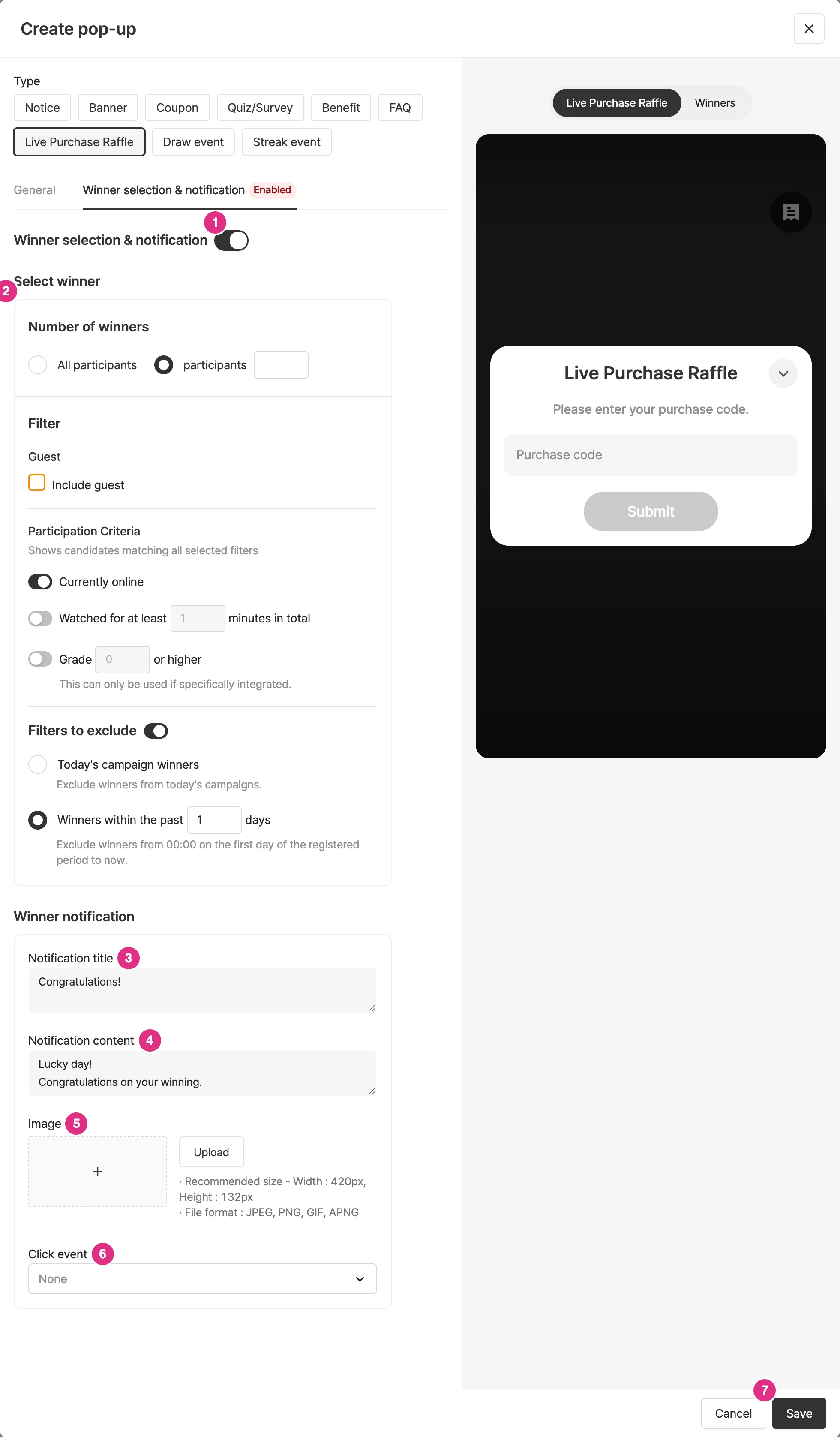
- Winner selection & notification: Turn the toggle on to select and notify winners.
- Winner selection: Set the number of winners, filters, and exclusions.
- Number of winners: set how many participants to choose.
- Include filter: Winners are selected from candidates who meet all the selected filters. You can use the Currently watching filter and the Cumulative watch time filter (based on the cumulative watch time within the campaign; even if a viewer leaves and returns, their earlier watch time in the same campaign is added up. However, viewers who enter using "security mode" may not be counted in cumulative watch time.).
- Grade filter: available only with a separate integration.
- Include guests as winners: set whether to include guests.
- Exclude filter: Select winners while excluding certain participants. Winners of today's campaigns excludes the winners of all events (including quizzes, events, and surveys) held in today's campaigns, and Exclude winners from campaigns within N days excludes all winners from 00:00 on the first day of the entered period until now.
- Notification title: Set the title of the winner notification modal.
- Notification content: Set the content of the winner notification modal.
- Image: You can register an image.
- Click event: You can set a click event for the image.
- Click Save to create the popup.
Set up the purchase verification popup
Add it to the campaign. You can add it from the console or the campaign details.
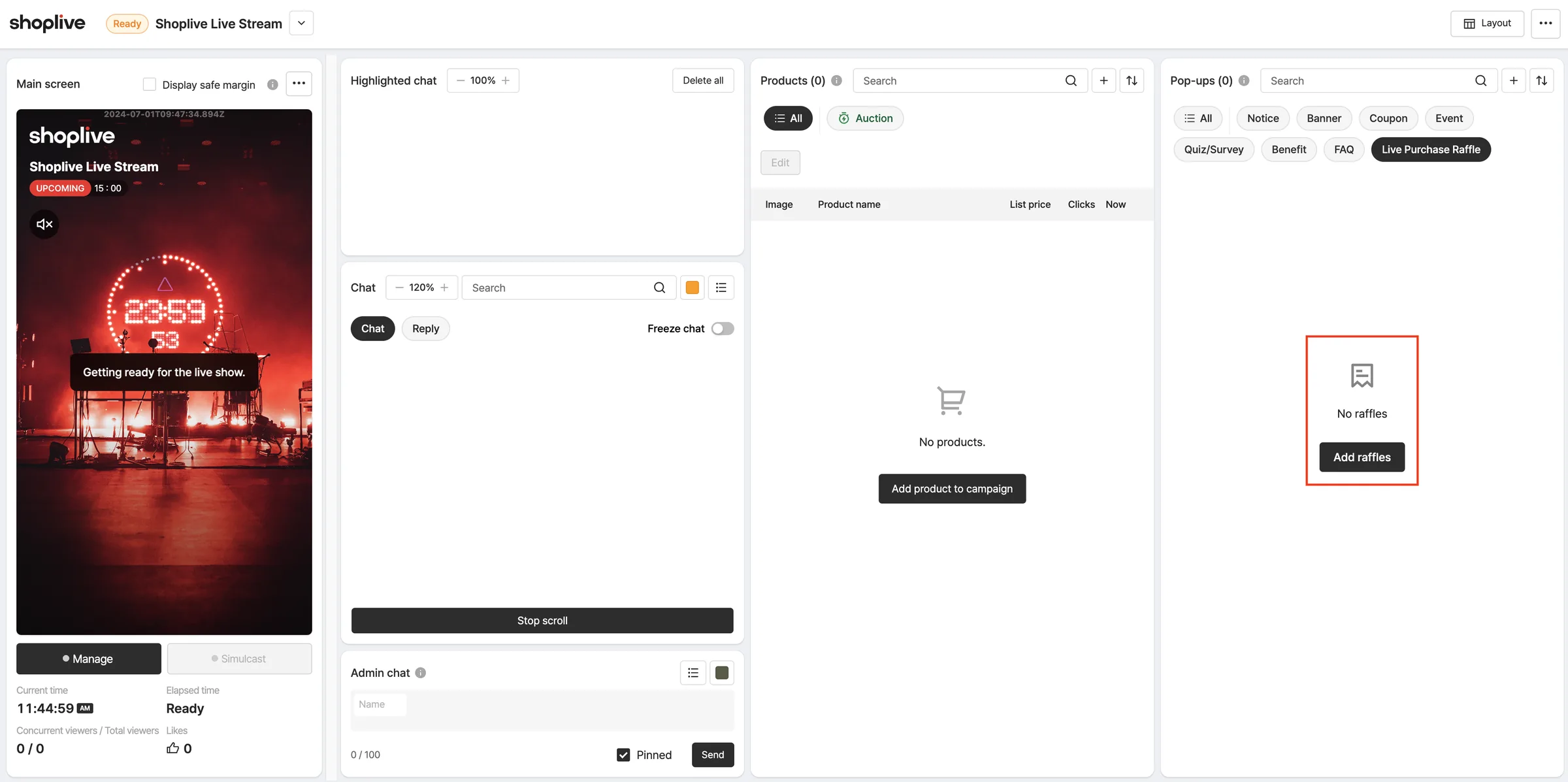
To start purchase verification and announce winners during a broadcast, see Purchase verification popups.
Create Streak event popups
A popup that gathers a viewer's attendance across multiple broadcasts into a stamp board. The list of linked broadcasts becomes the round structure.
Create a Streak event popup
Select Streak event as the type in Popups > Create popup and fill in the items below. Configure it on the left of the edit screen, and preview the stamp board that viewers see on the right. (e.g., 1/2 checked in)
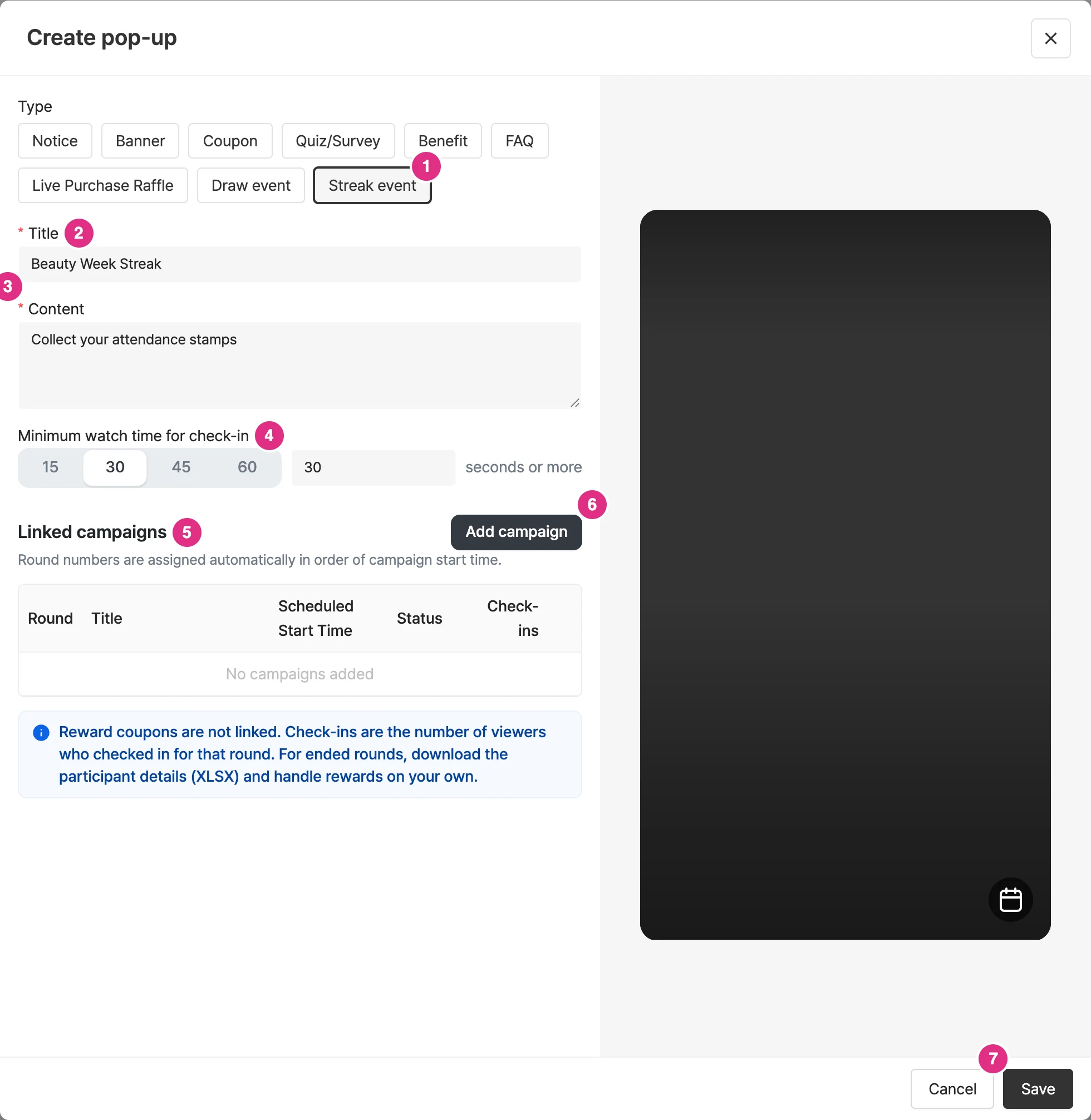
- Type: Select Streak event. Once created, it cannot be changed to another popup type.
- Title *: The event name shown at the top of the viewer's stamp board. (e.g., Beauty Week Streak)
- Content *: The guide text shown below the title. (e.g., Collect your attendance stamps)
- Minimum watch time for check-in: Choose a preset (15/30/45/60 seconds) or enter a number of seconds directly. The check-in button is activated only after viewers watch for at least this long.
- Linked campaigns: The list of broadcasts this Streak event is linked to. It forms the round structure.
- Create campaign: Add the broadcasts to link. For details, see Link broadcasts below.
- Click Save to create the popup.
Link broadcasts (create rounds)
1Click the add campaign button in the linked campaigns area to open the broadcast selection window.
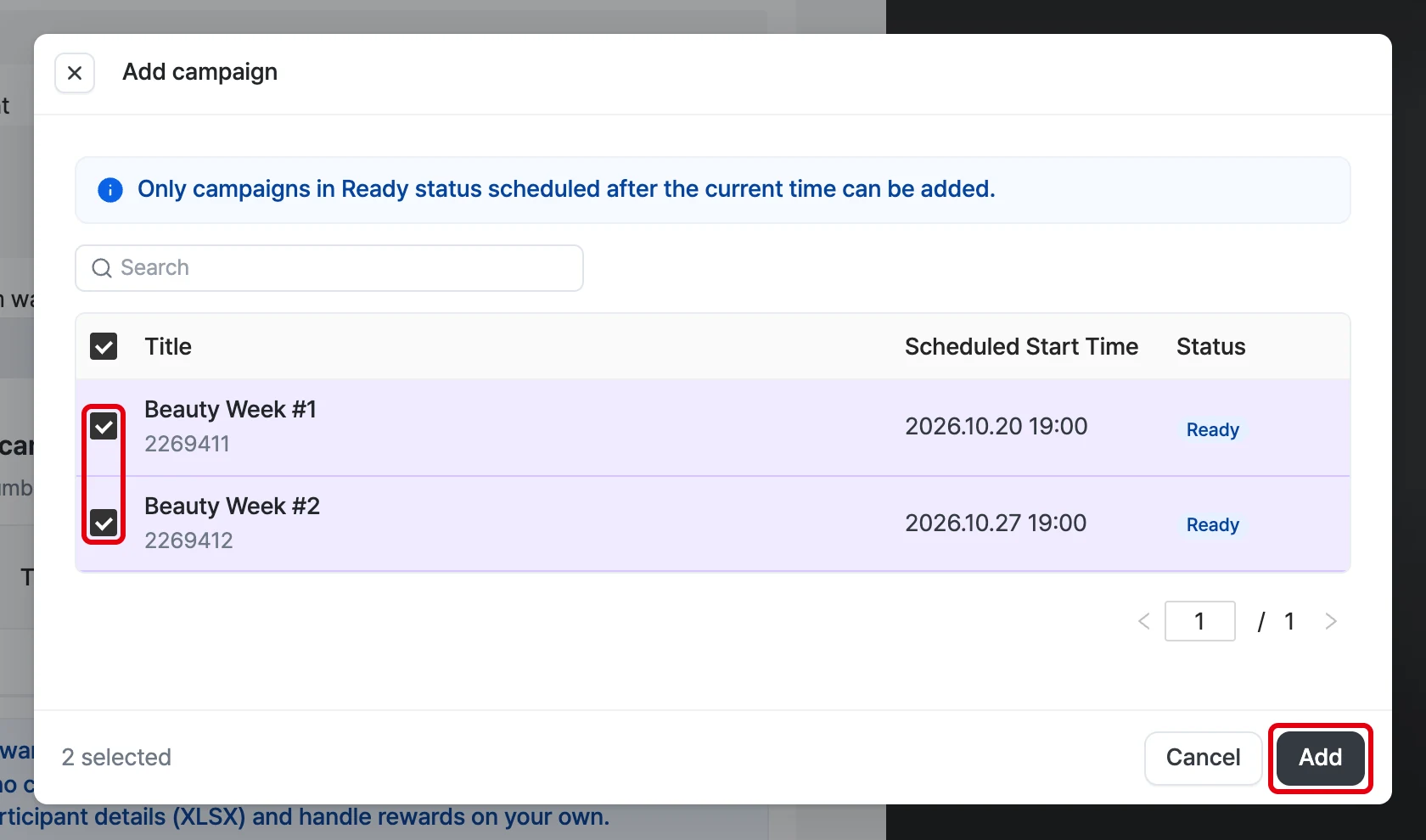
- Only broadcasts in Ready status scheduled after the current time are listed. Broadcasts that have already started or ended do not appear.
- After searching, you can select multiple broadcasts with the checkboxes and add them at once.
- Only one Streak event can be linked to a single broadcast.
2Click Add to reflect them in the round list, then click Save to apply the changes. The added broadcast enters as round 3 (Ready), and the preview stamp board updates to 2/3 checked in.
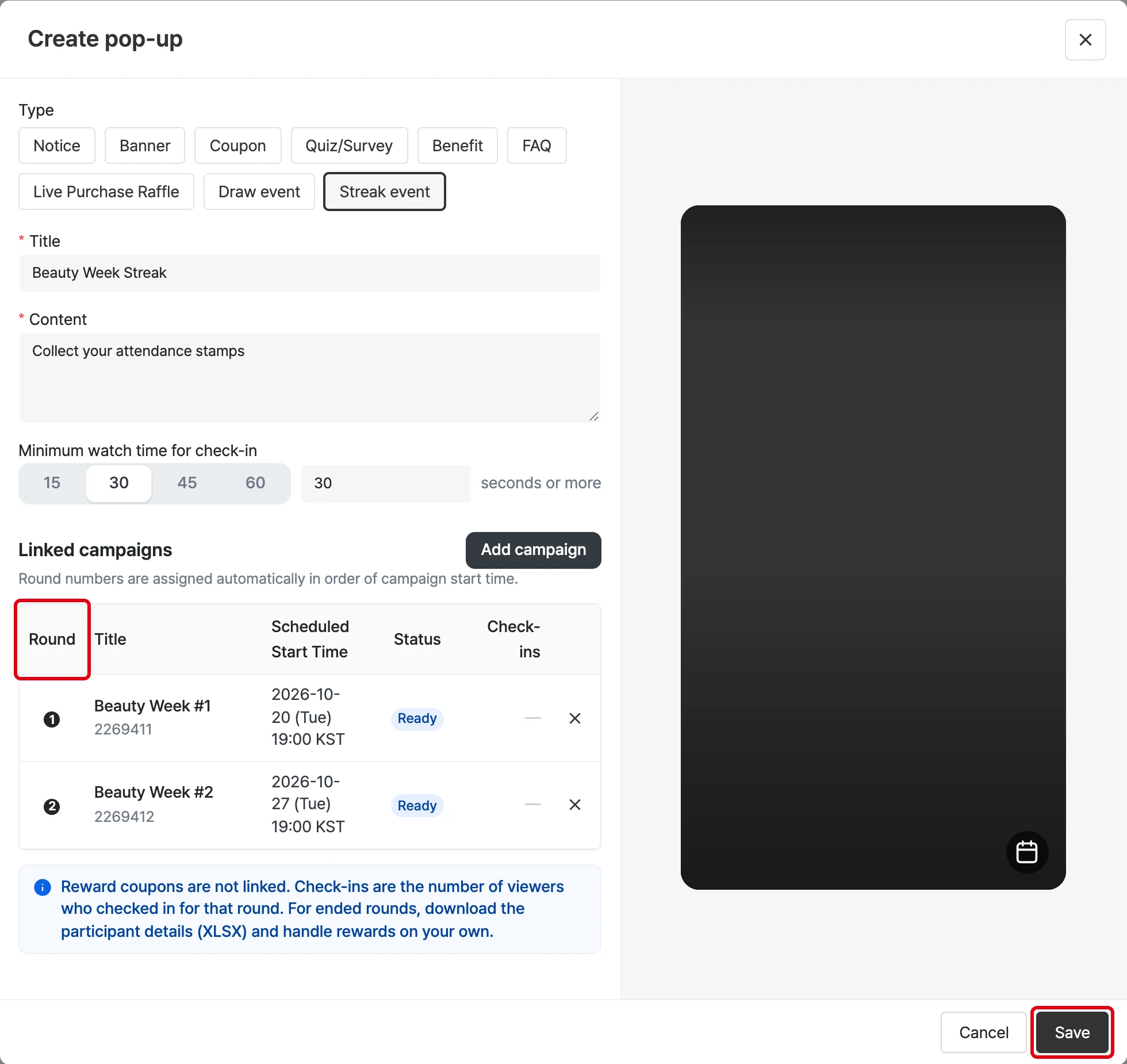
Round number rules
- Rounds are assigned automatically in order of broadcast start (scheduled) time. You do not need to set the order yourself.
- When a broadcast schedule changes, round numbers are recalculated automatically to match the scheduled order.
- The round numbers on the viewer's stamp board and on this screen are always the same.
Unlink
- Use the ✕ on the right of the round list to remove a broadcast.
- Only broadcasts that have not started (Ready) can be removed. Rounds that have already started or ended hold check-in records and cannot be removed.
To show the Streak event popup during a broadcast, check attendance and download the list, and handle rewards, see Streak event popups.
Streak event FAQ 🤔
Why can't I add or remove a broadcast that has already started?
- Round numbers follow broadcast time order, so if a round were inserted or removed among past broadcasts, the round number of viewers who were already told they were at "round 3" would change. To prevent this, only broadcasts that have not started can be changed.
What happens to the rounds if I change a broadcast schedule?
- Among broadcasts that have not started, round numbers are recalculated in scheduled time order. A broadcast never moves to a number earlier than a round that is already live or ended.
If I change the minimum watch time later, what happens to check-ins already made?
- Check-ins already recorded are not affected. The new criterion applies to check-ins made after the change.
Can I delete a Streak event popup?
- If a round that is live or ended is linked, deletion is restricted to preserve check-in records.
Can I link two Streak events to the same broadcast?
- No. Each broadcast can have only one Streak event.
Can guest (not logged in) viewers participate?
- No. Check-ins accumulate across broadcasts, so viewers must be identified. The Streak event popup is not shown to guests at all, only to logged-in viewers.
Add popups
Shoplive provides notice, coupon, banner, prize draw, quiz/survey, benefit, FAQ, purchase verification, and Streak event popups. From the Popup management menu at the bottom of the broadcast detail page, you can add popups that have already been created.
Add popups to the campaign
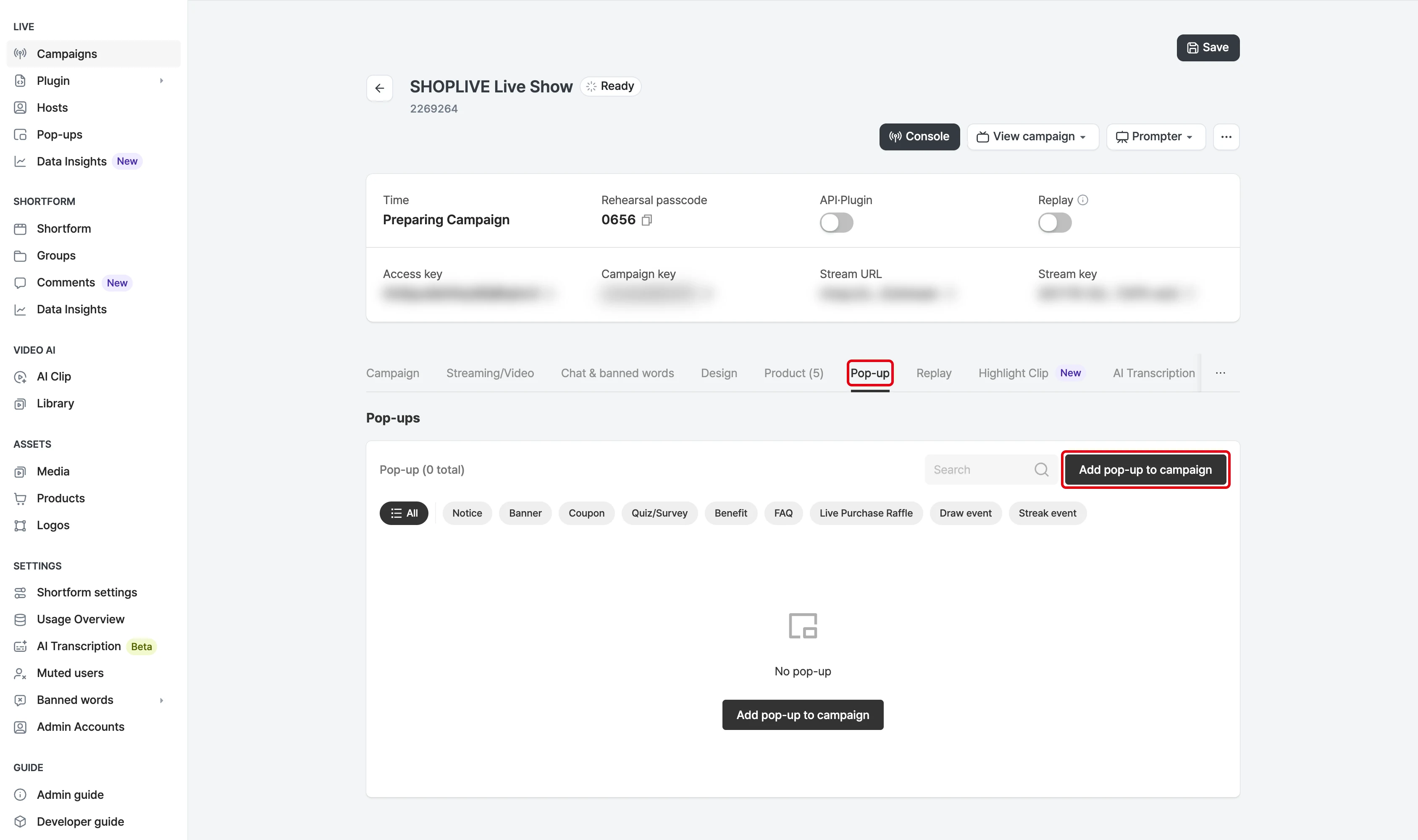
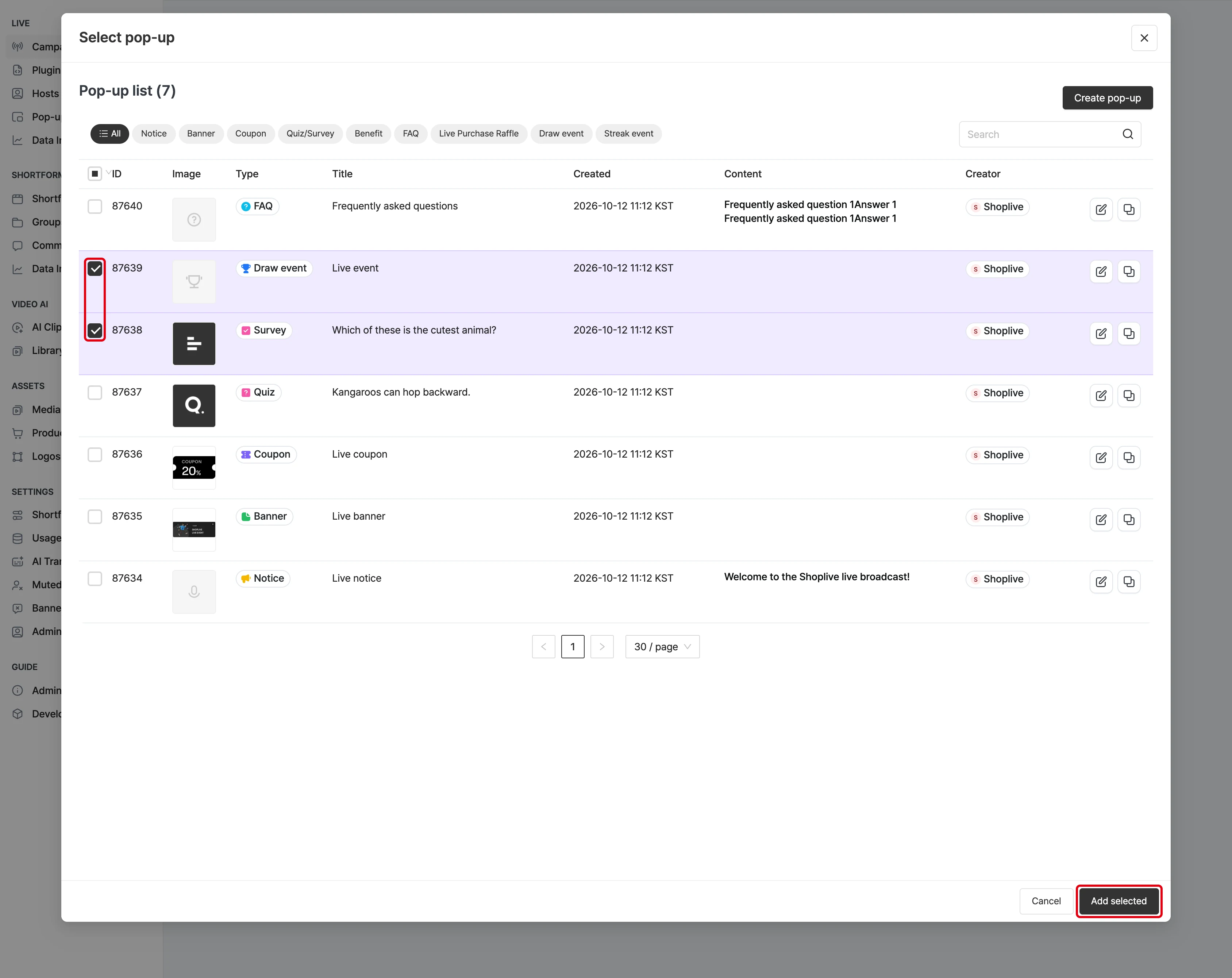
Select the Add popup button to see the popups that can be added to the campaign. Popups already in the campaign don’t appear in the list. Select the popups to add from the list, then add them to the campaign with the Add selected popups button.
The popup tab title in the campaign details shows the number of registered popups, and the popup list is sorted by activation order.
Remove popups from the campaign
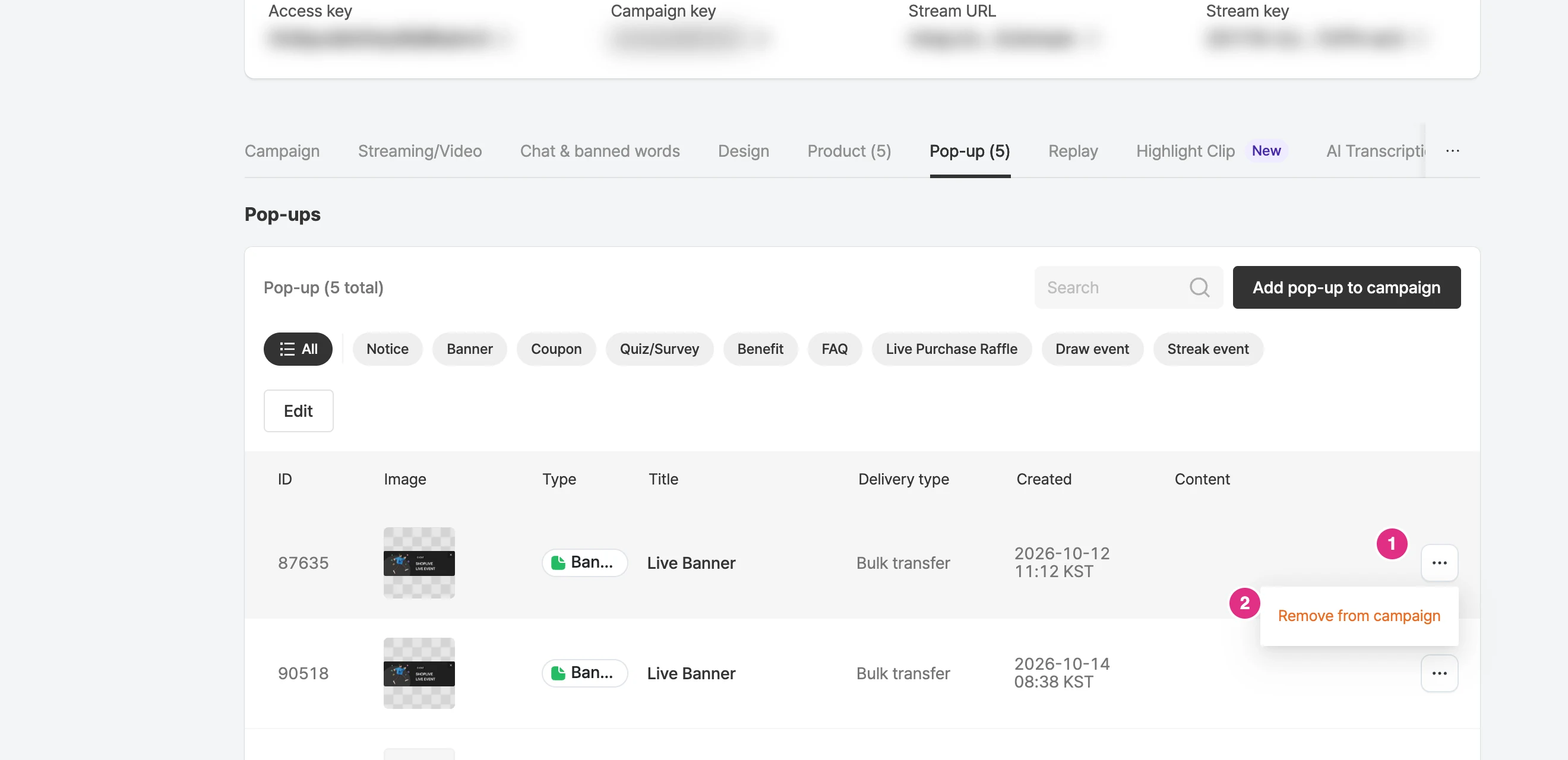
Remove popups you won’t use with the Remove button in the list.
Does removing a popup from a broadcast delete it?
Even if you remove a popup from a broadcast, it stays in your company’s full popup list, and you can add it back to a broadcast at any time.
However, popups registered to a broadcast can’t be deleted.