Simulcast to Social Media
Shoplive supports live streaming over RTMP (Real-Time Messaging Protocol).
You can simulcast to any platform that provides RTMP information (a stream key).
Social media simulcast guide
1Find the Stream URL/Key of the platform you’ll simulcast to (Facebook, YouTube, etc.).
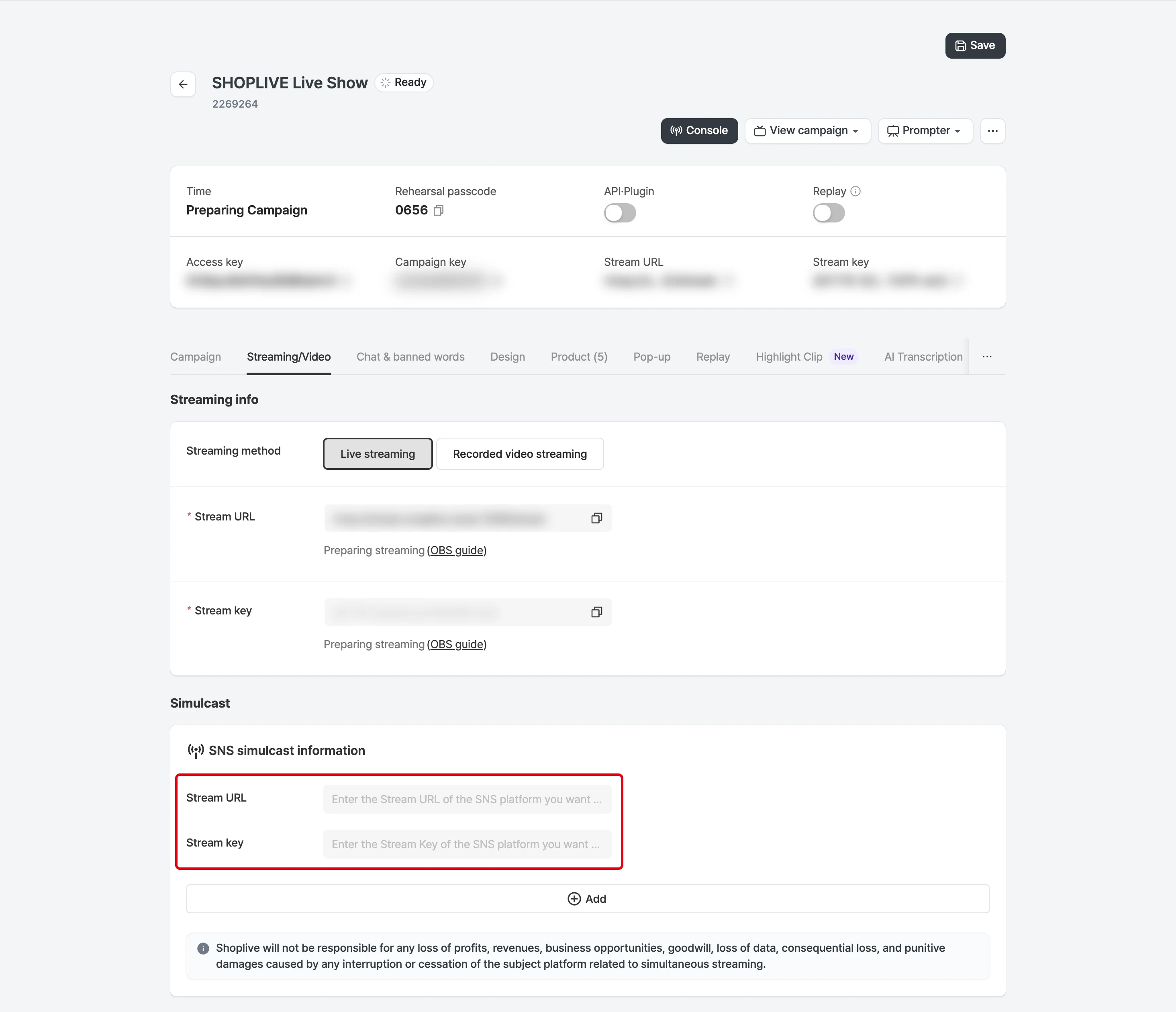
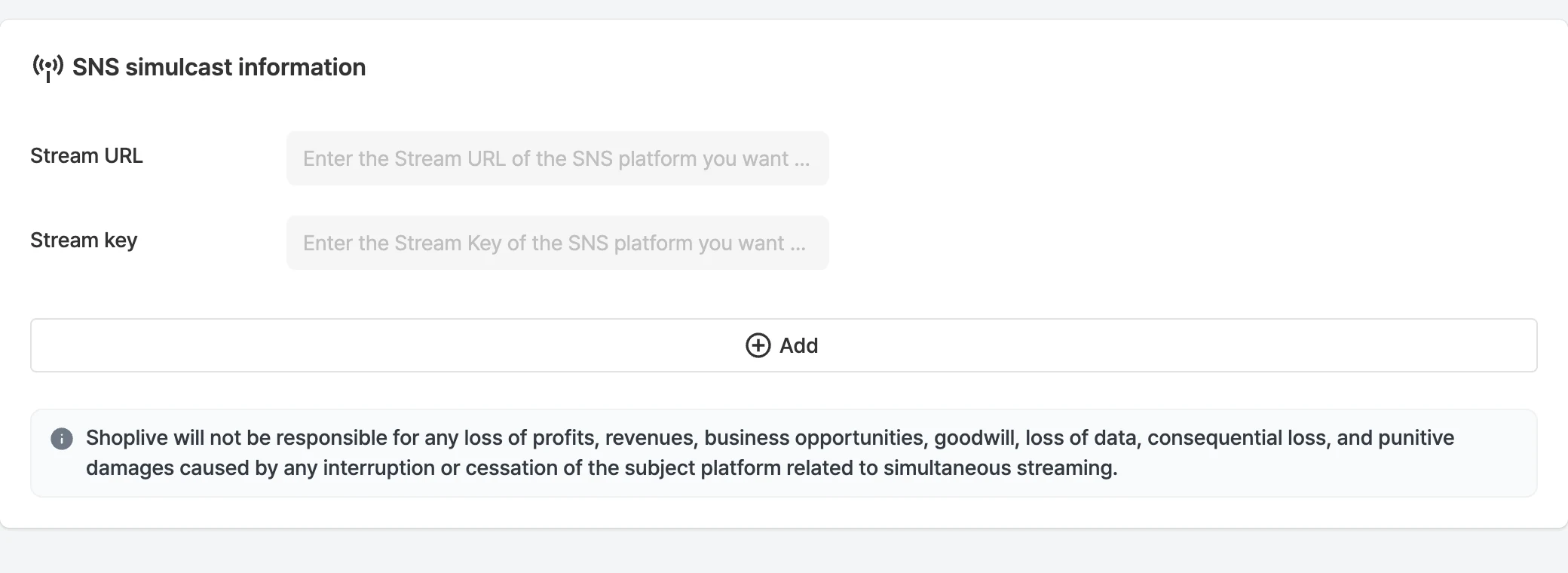
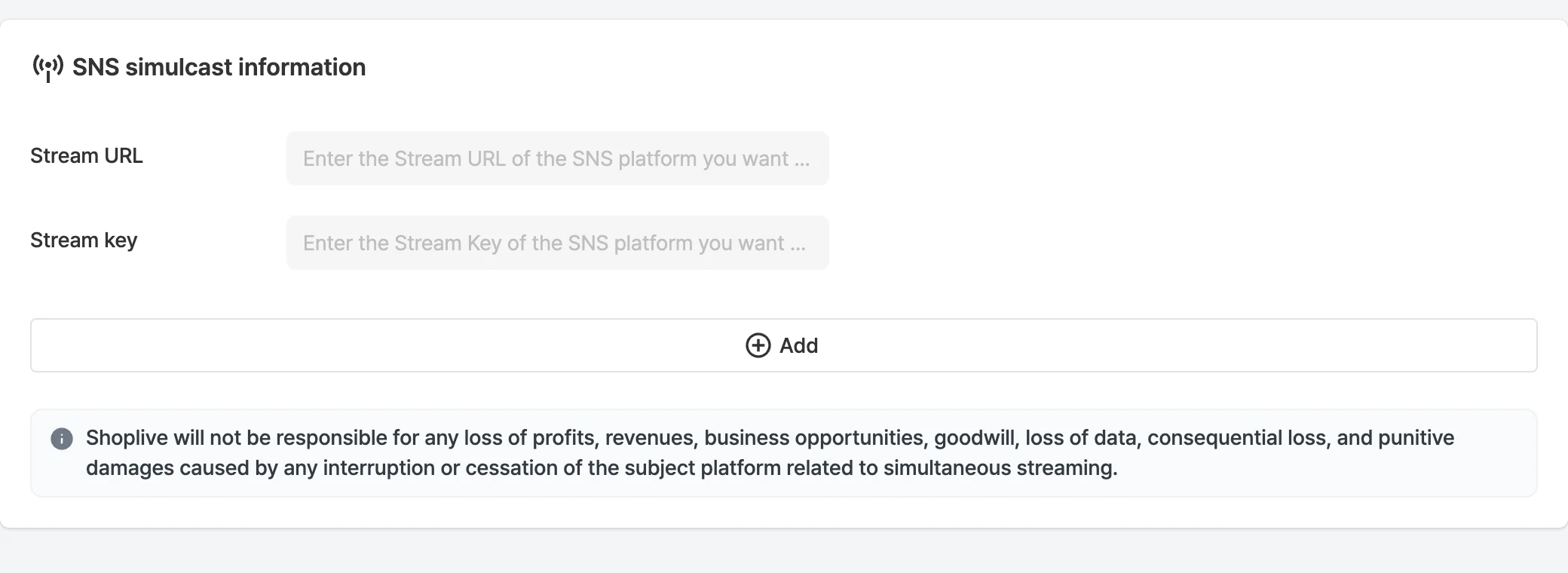
2In campaign details > Streaming/video tab, enter the Stream URL and Stream key as a pair in Social media streaming and save. If you stream to several channels, add entries with the Add button and delete them individually (a confirmation appears when deleting). While a simulcast is running, the social media streaming area is disabled.
3After the live broadcast starts, click the Start simulcast button in the campaign console.
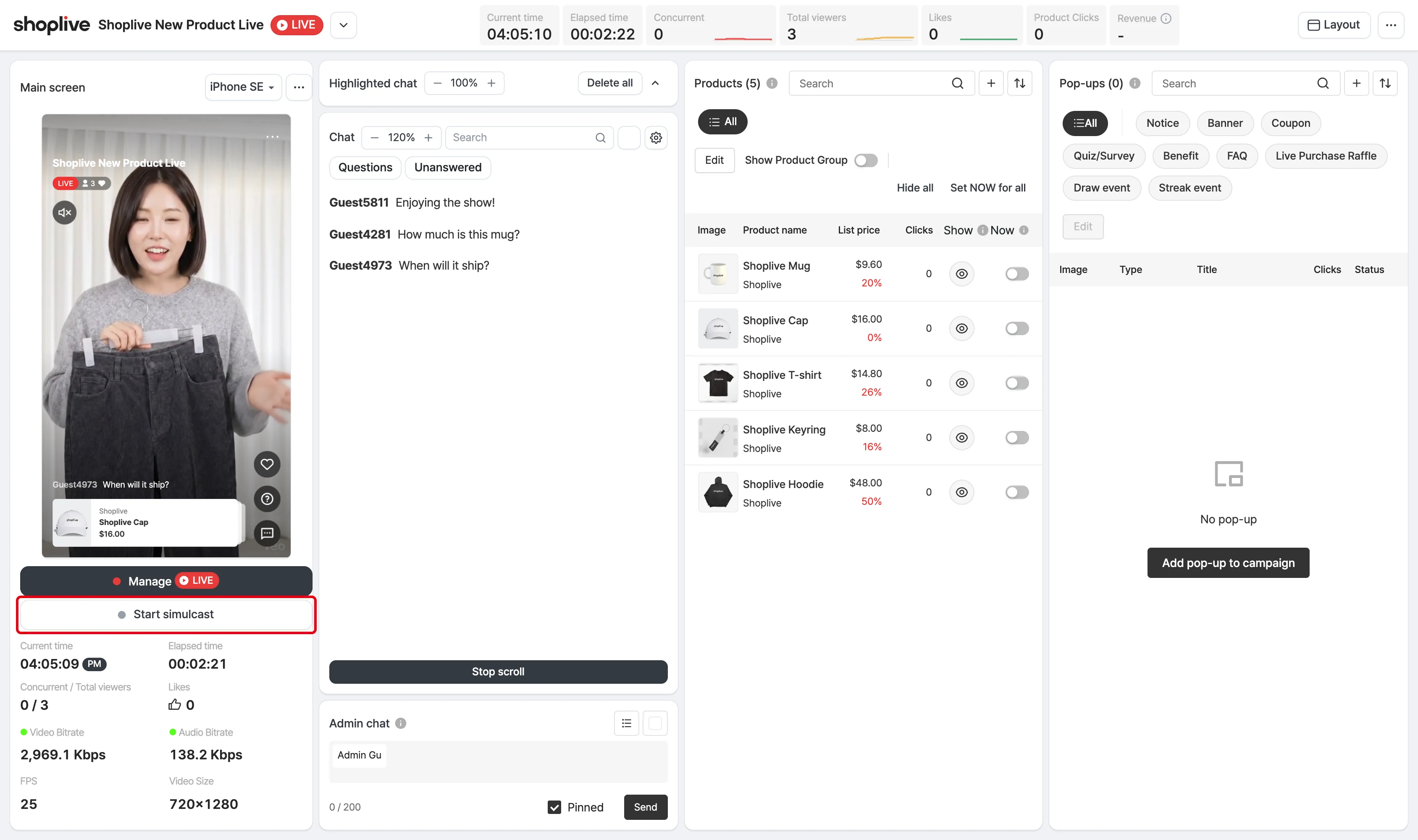
To stop streaming, click the Stop social media streaming button. A confirmation appears when starting and stopping. If no channels are set, No social media channels set appears, and if a stream key looks malformed, the warning The stream key doesn’t look valid appears.
Shoplive isn’t responsible for actions platforms take due to simulcasting.
YouTube
On YouTube, you can go live 24 hours after creating a channel. There is a delay compared with the actual broadcast (around 10 seconds, depending on the network).
1Go to the YouTube Studio page.
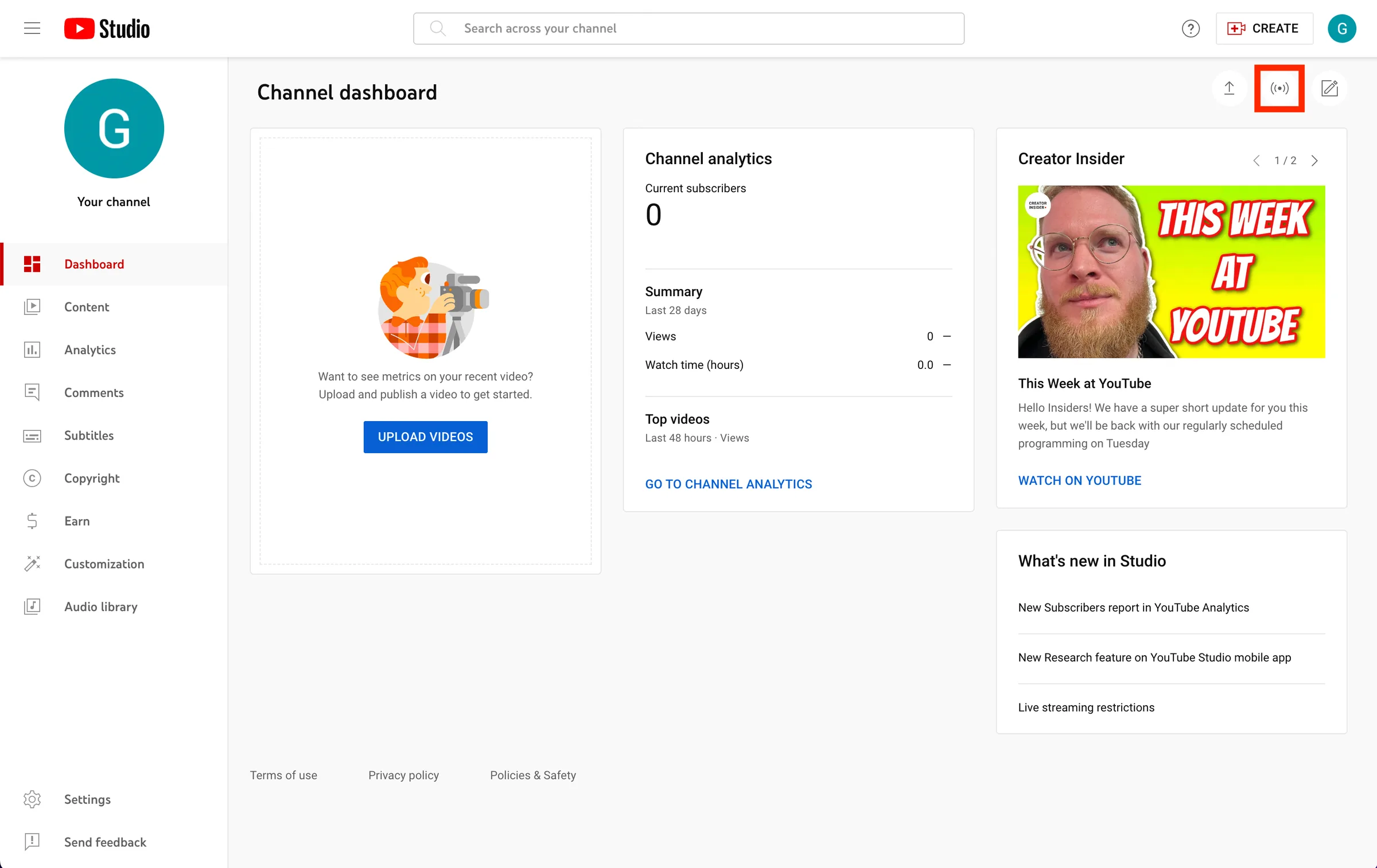
2Click the Go live button at the top right.
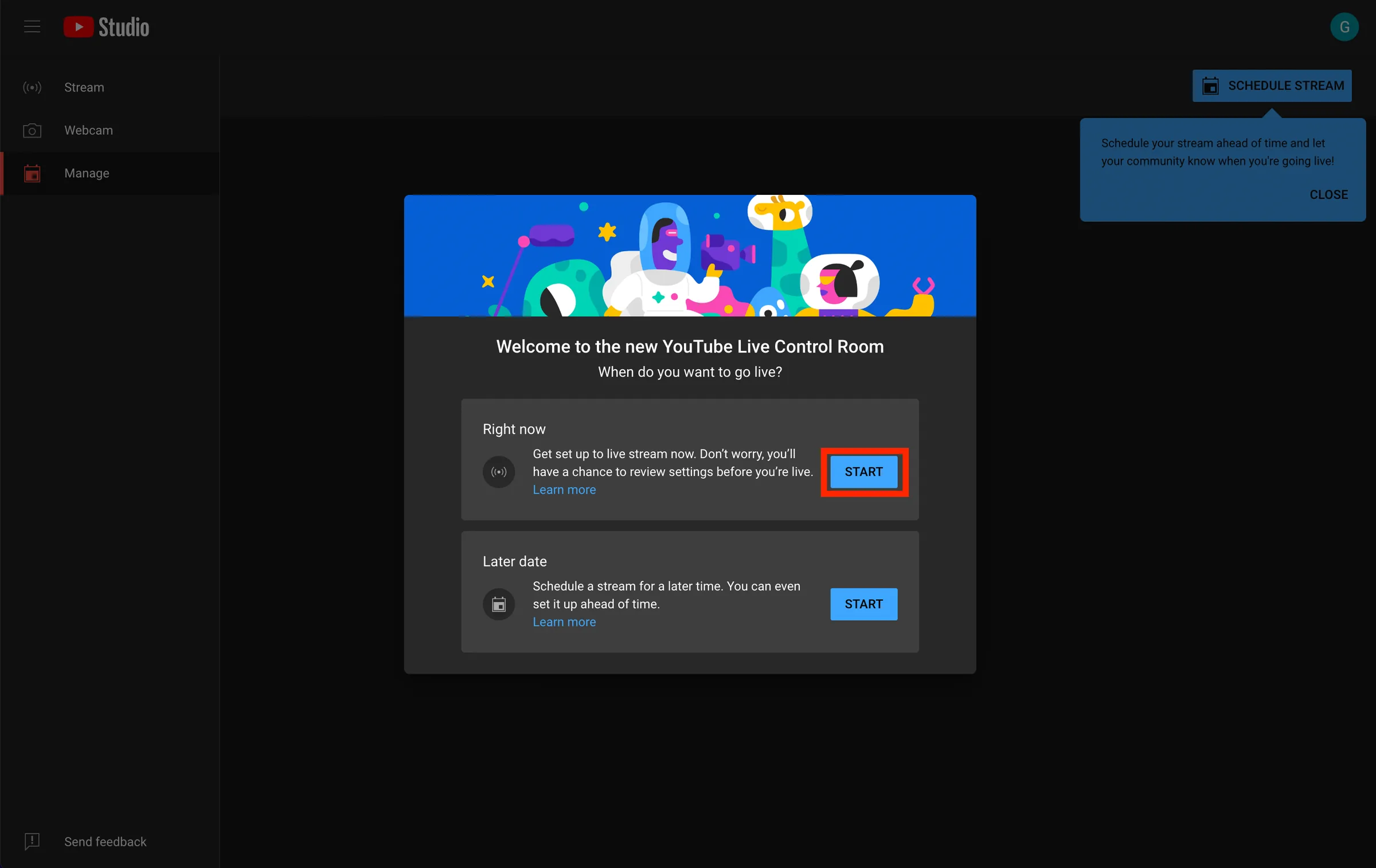
3-1When the live settings window appears, select Start now.
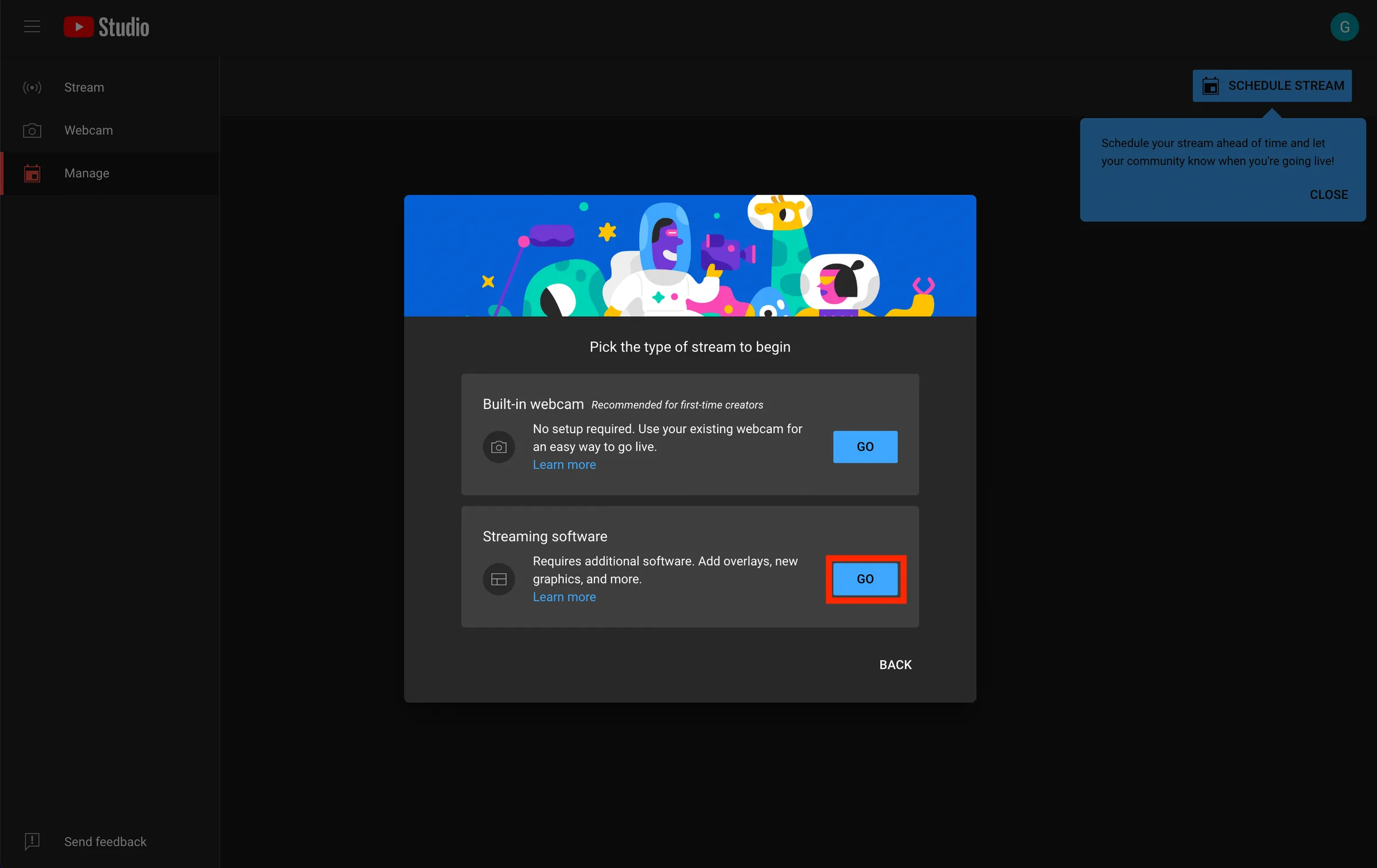
3-2If you’re starting a live stream for the first time, you must first choose the stream type to start.
- (After the first time, it’s set automatically.) Get started > stream type > select Streaming software.
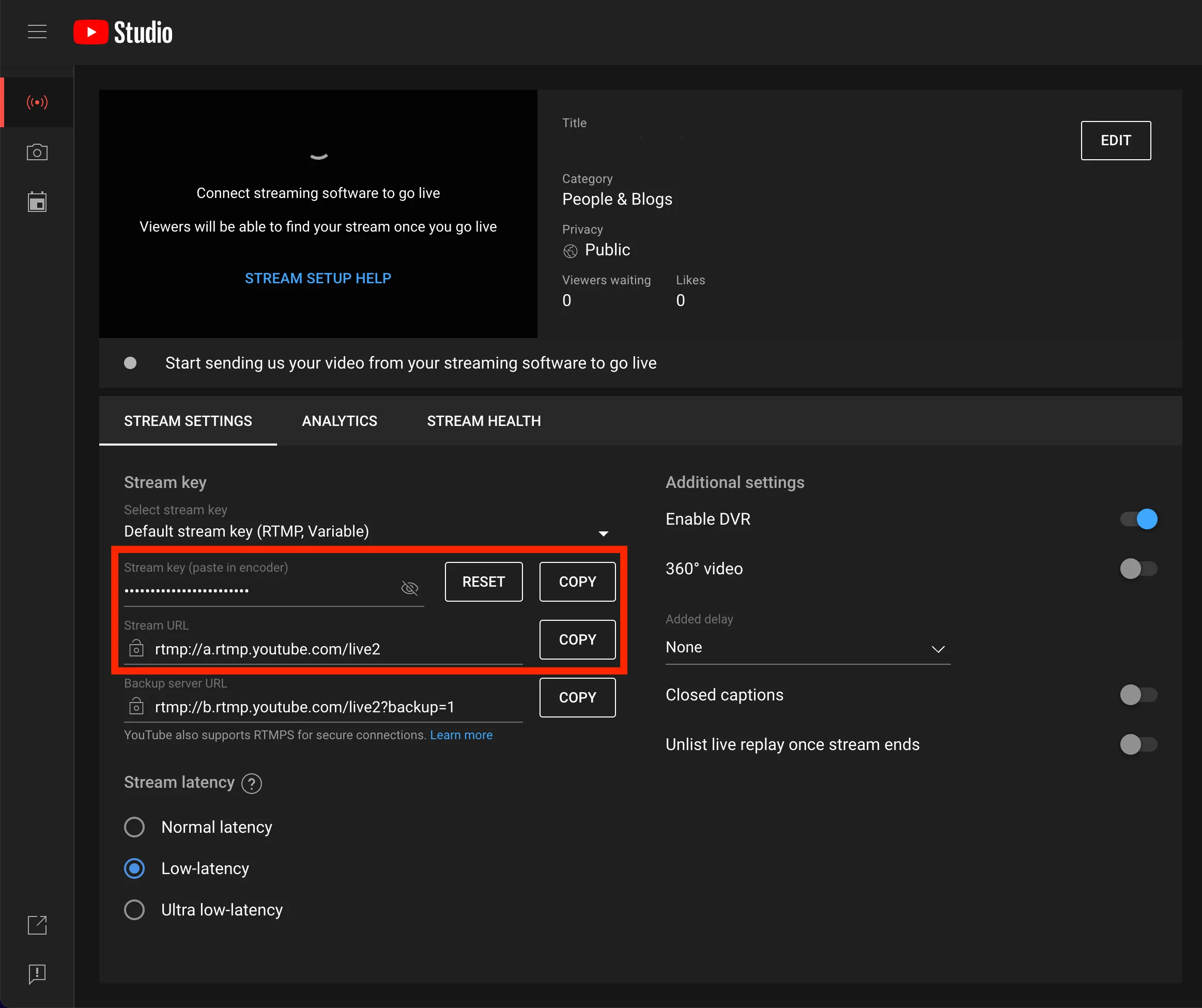
4Copy the stream URL and stream key provided by YouTube and paste them into the Shoplive Admin.
- Copy from YouTube
- Paste into the Admin
5After the broadcast starts, click the Start simulcast button to start simulcasting to YouTube.
1Go to Facebook live video. (Live video > Go live)
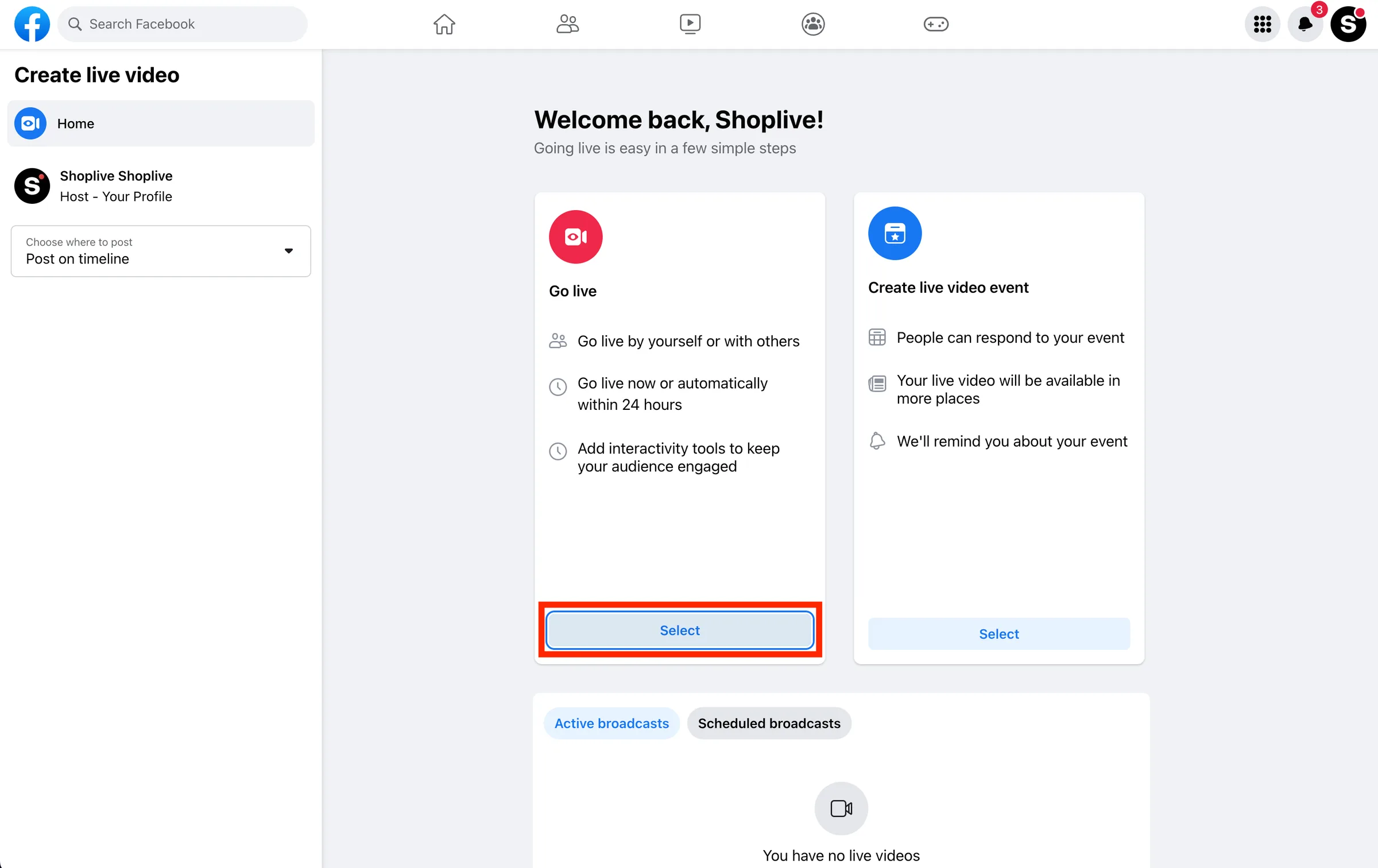
2Select Streaming software.
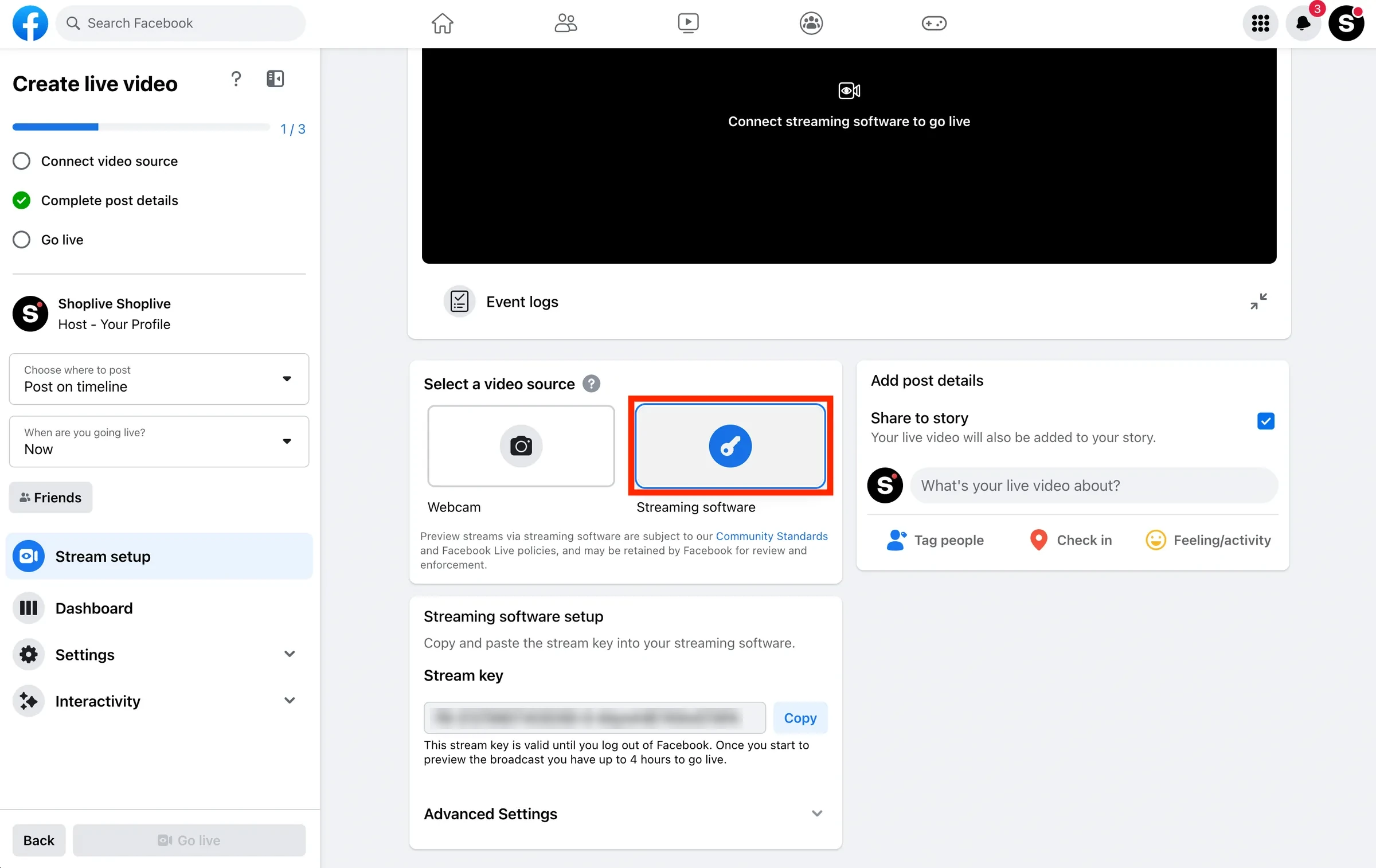
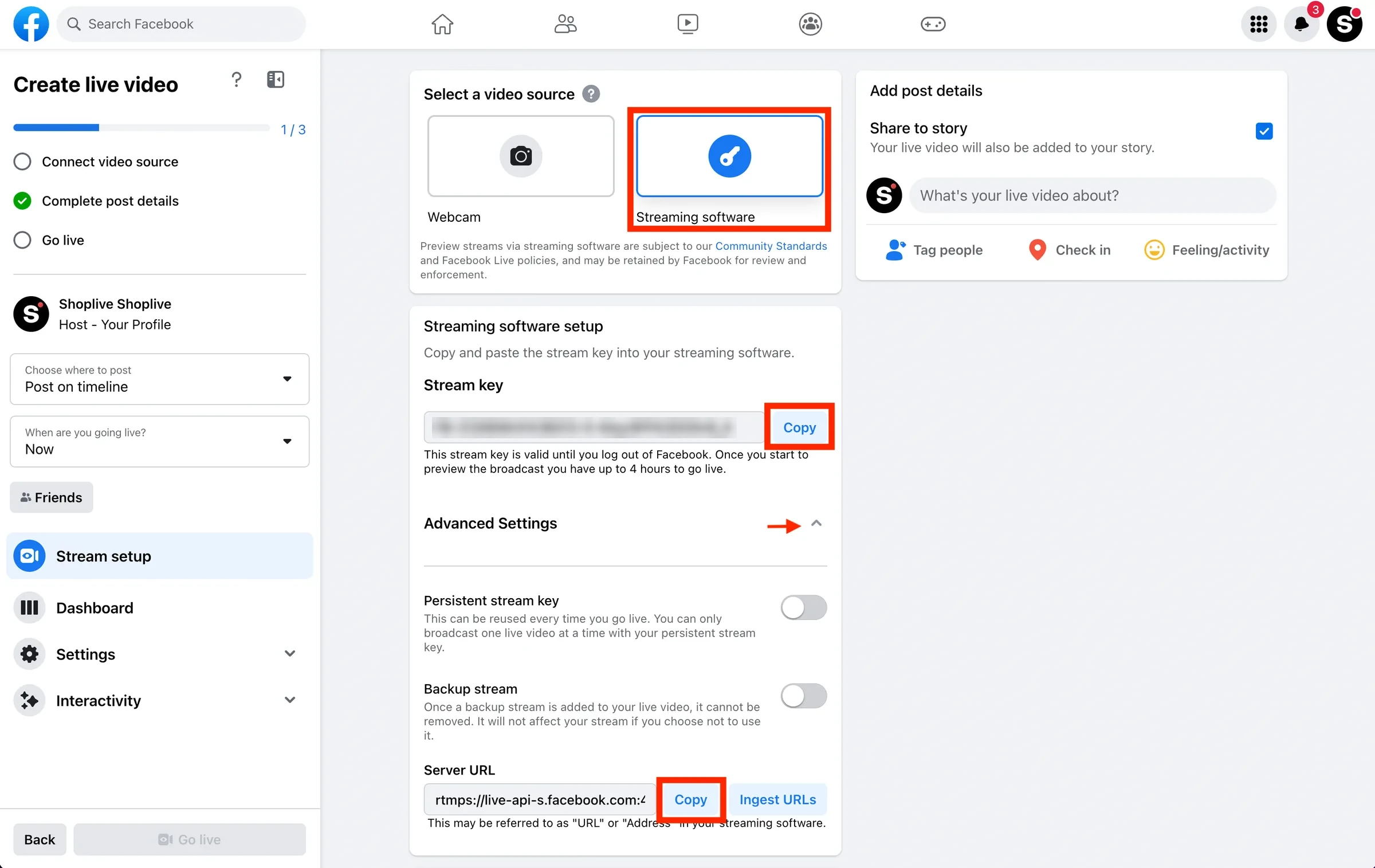
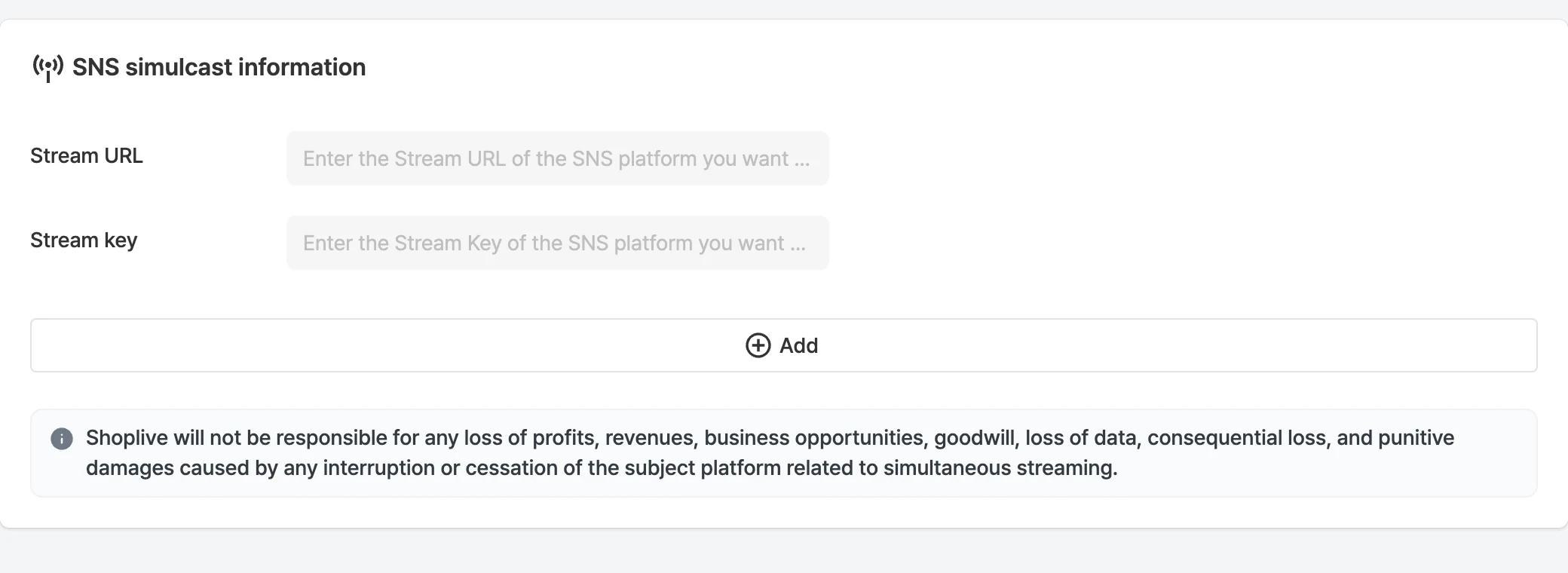
3Copy the Stream URL and Key provided by Facebook and paste them into the Shoplive Admin.
- Copy from Facebook
- Paste into the Admin
4When the video connects to Facebook, enter the post details to finish preparing to go live.
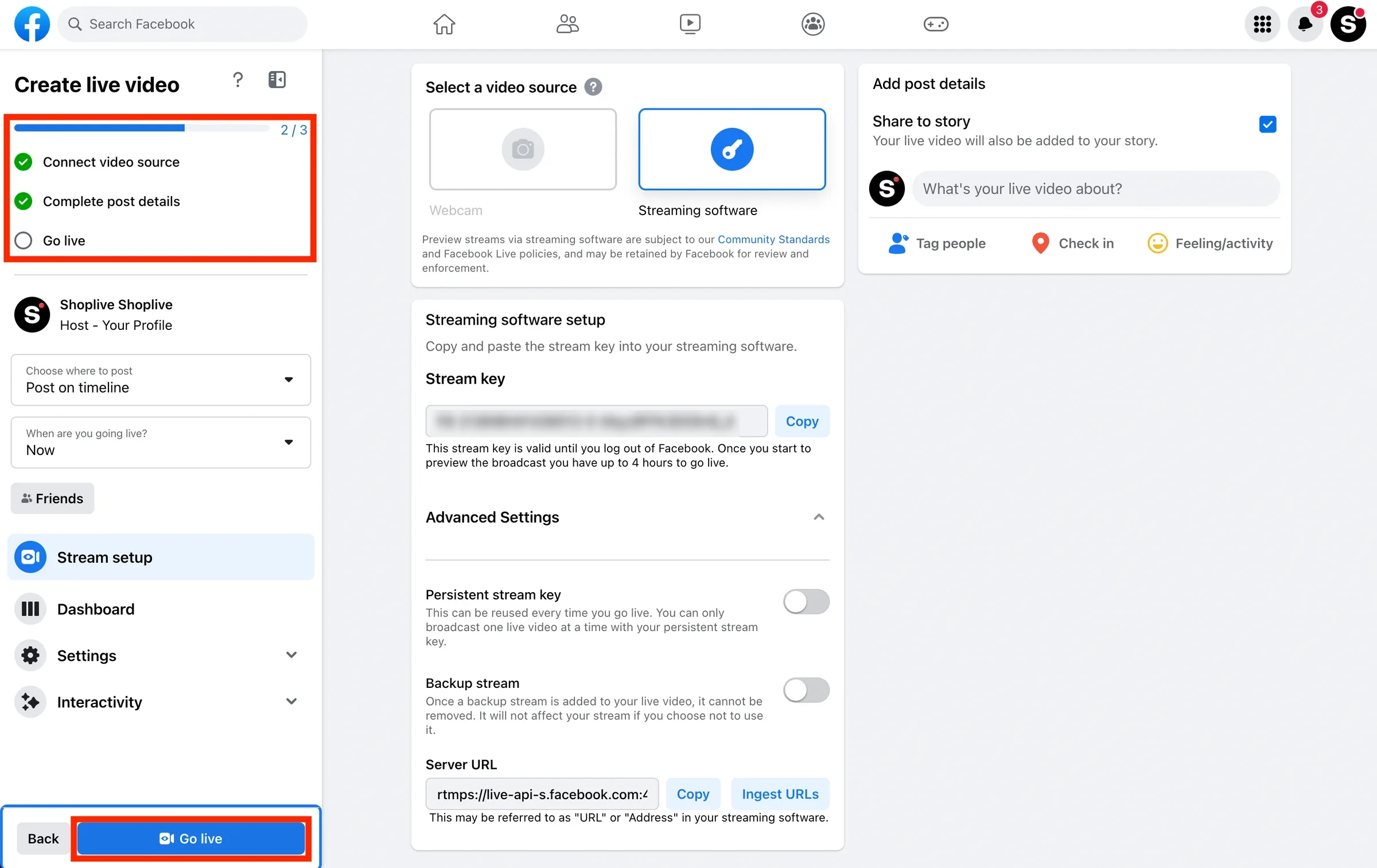
5Click the Go live button at the bottom left of the Facebook screen to start simulcasting.
6When the live broadcast ends, the Facebook live also ends.
- Log in to Instagram on PC. (Simulcasting to Instagram live is possible only with business or creator accounts. Check which type the account you want to simulcast to is.)
- After logging in, click the ‘Create’ button on the left and select ‘Live video’.
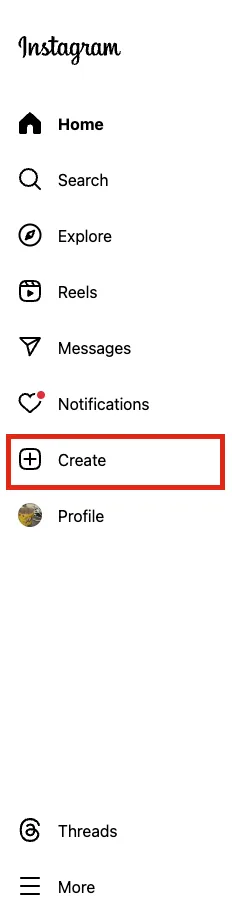 | 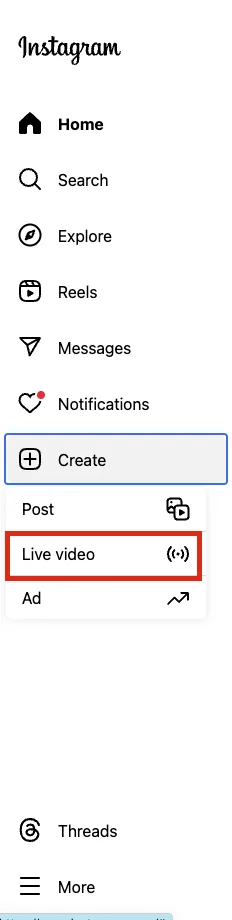 |
|---|
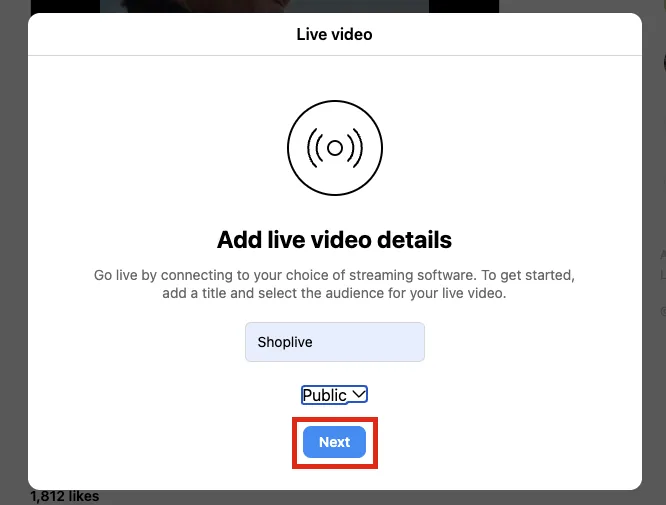
- Set the live video title and audience, then click ‘Next’.
- Copy the Stream URL and Stream Key from that window and paste them into the Shoplive Admin.
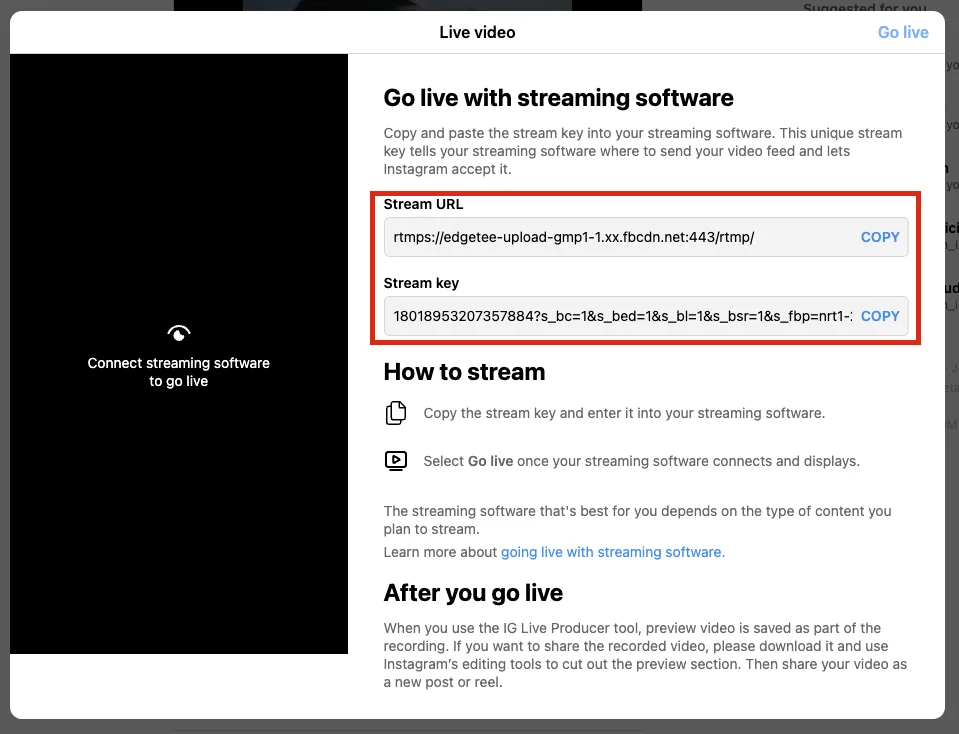
- Paste into the Admin (campaign details > Streaming/video > Social media streaming)
5After the broadcast starts, clicking the Start simulcast button starts sending the video to Instagram.
- Click the Start simulcast button after you start streaming from OBS.
6Start the live broadcast on the Instagram screen to begin the Instagram live. Starting social media streaming alone does not start the live on Instagram.
FAQ
What should I do to simulcast to social media other than YouTube and Facebook?
Go to Campaign details > Streaming/video tab, click the Add button under Social media streaming, then enter the Stream URL and Key.
Can I do a rehearsal for simulcasts?
A rehearsal can’t be run separately for simulcasts. As needed, use a private broadcast or a test account.
During a simulcast, do quizzes, event popups and products on sale appear on the social media platform?
Viewers watching the live broadcast through social media can’t take part in quizzes or events, and products on sale aren’t shown. We recommend giving social media viewers separate guidance.