Register Admin Accounts and Assign Permissions
Your company’s admins can add admin accounts directly in the admin and divide what each account can do (permissions). There are two kinds: permissions for all campaigns and permissions for specific campaigns only.
Add an account for all campaigns
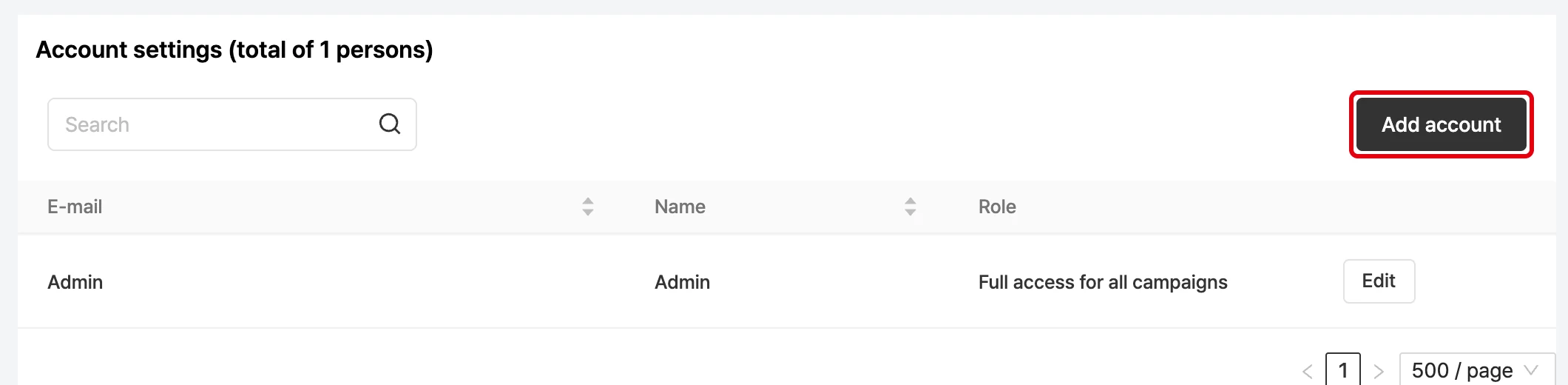
- Select Admin accounts in the left menu. The list of registered accounts (with the total count) appears, and you can search by email or name.
- Click the Add account button.
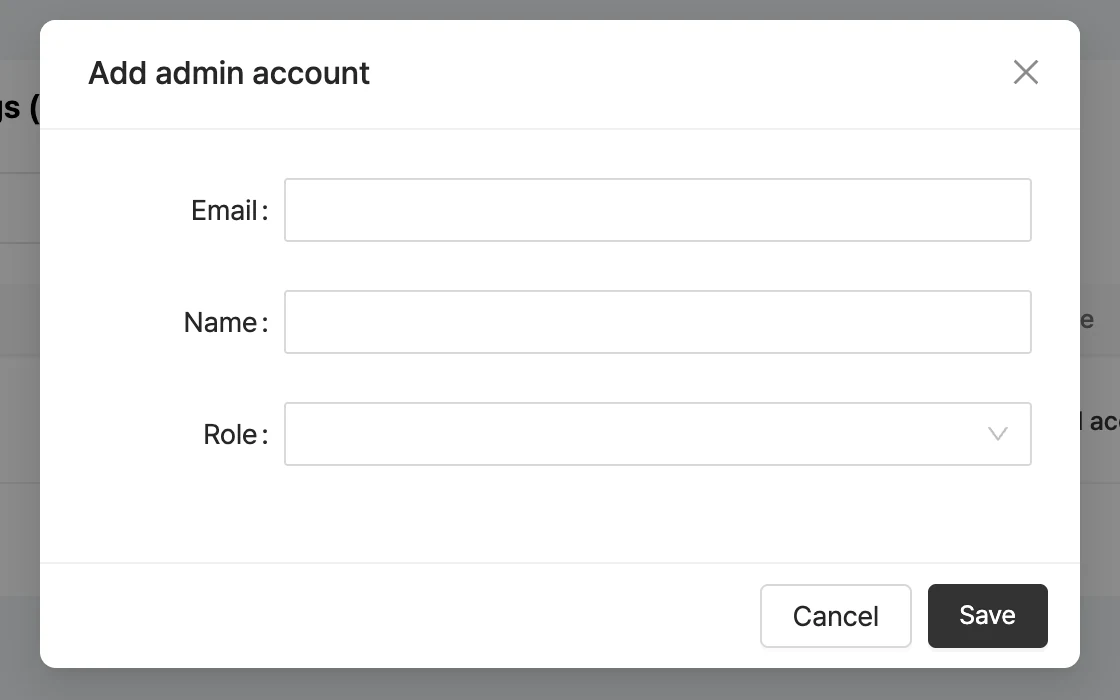
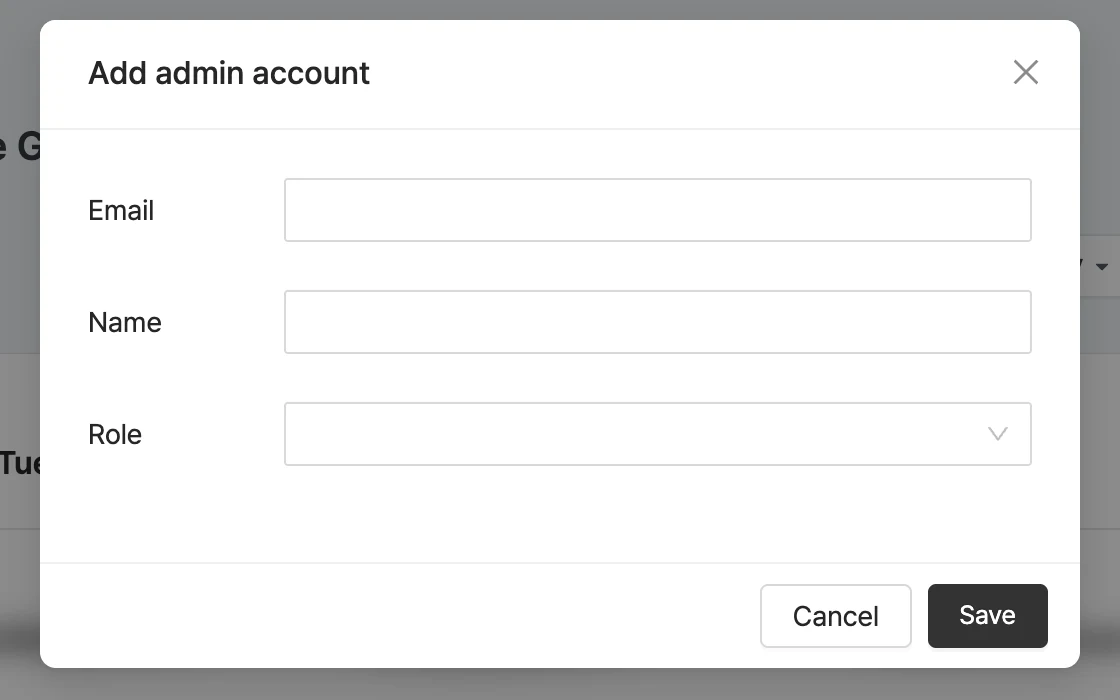
- Enter the Email and Name, select a Role, then click Save.
When the new account logs in for the first time, enter the Language (English/Korean), Name, Password and Confirm password on the account setup screen and click Done. Enter a password that meets the conditions shown on screen.
Edit accounts, reset passwords and remove accounts
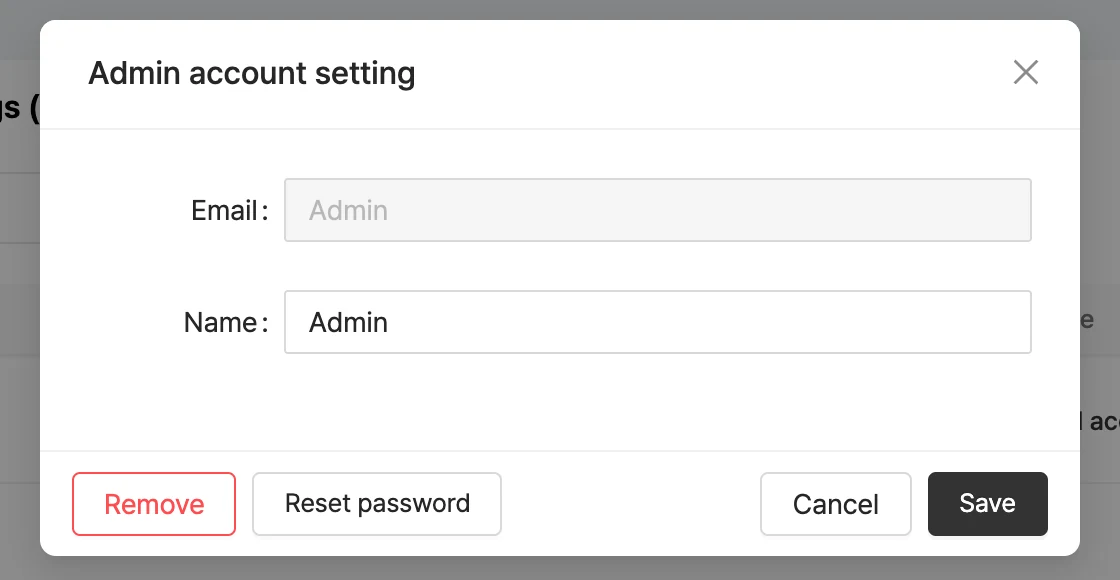
- Click Edit in the list to change the name. The email and role can’t be changed on the edit screen.
- Reset password: click Reset in the confirmation (Do you want to reset the password?) and The password has been reset. appears.
- Remove: click Remove in the confirmation (Are you sure you want to remove this account? This can’t be undone.) and the account is deleted.
Roles (permissions)
The role you choose when adding an account depends on its scope. Which roles appear as options may vary with your account settings.
| Scope | Role |
|---|---|
| All campaigns | Full access to all campaigns Console access to all campaigns Product / popup management for all campaigns Chat management for all campaigns Console view-only for all campaigns View-only for all campaigns Prompter view-only for all campaigns AI Clip admin only |
| Specific campaign | Full access to a specific campaign Console access to a specific campaign Product / popup management for a specific campaign Chat management for a specific campaign Console view-only for a specific campaign Prompter view-only for a specific campaign |
| Seller campaigns | Full access to seller campaigns (companies that use sellers) |
Grant permissions for a specific campaign only
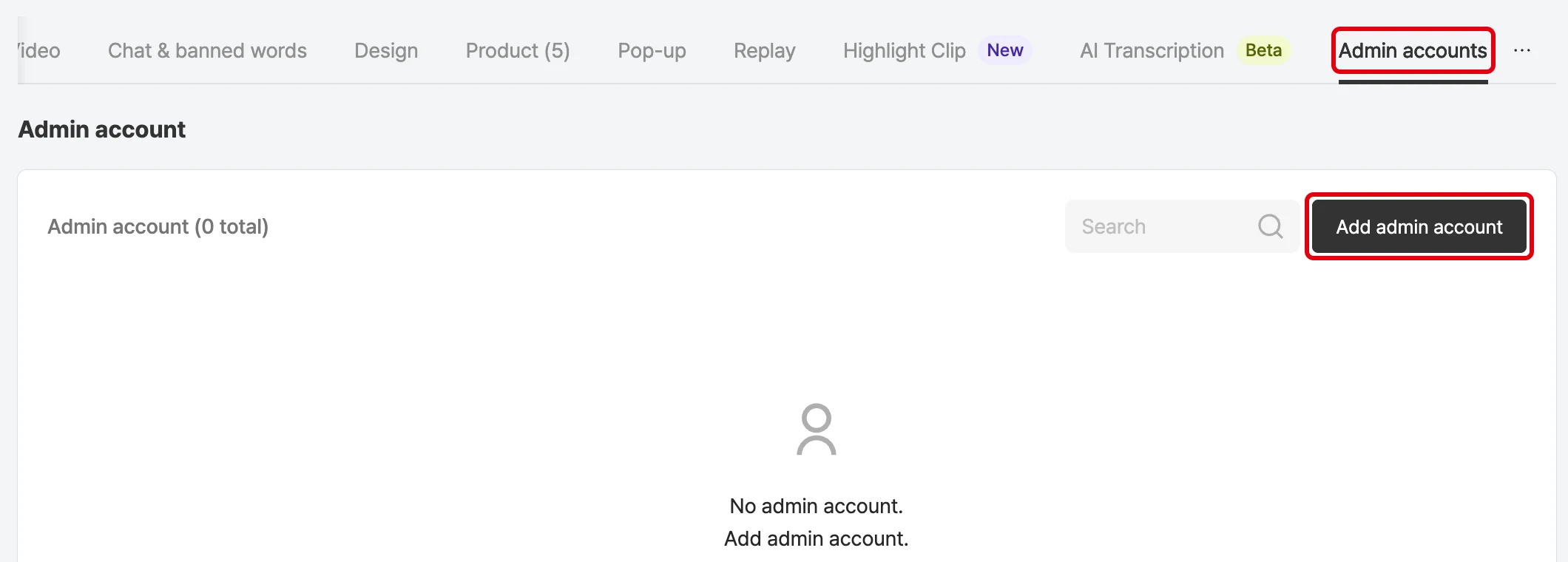
- Open the Admin accounts tab in the campaign details.
- Click Add admin account, enter the Email and Name, select a Role (a role for specific campaigns), then click Save.
- To change permissions, click Manage on the account row, change the role and Save.
- To remove an account from this campaign, click Edit, select the account and click Remove. Only the permissions for this campaign are deleted.
Accounts that use two-factor authentication enter a one-time code from the authenticator app when logging in. For setup, see Create an Admin Account. To reset two-factor authentication, contact ask@shoplive.cloud, because it can’t be done directly in the admin.