Stream a Saved Video
How saved-video streaming differs from reruns
Saved-video streaming creates a new campaign and streams a video you choose. A rerun creates a campaign based on an ended campaign and streams it again. When you make a rerun, the products and popups of the original broadcast are copied as they are, and “(Rerun)” is added to the start of the title.
| Item | Saved-video streaming | Rerun |
|---|---|---|
| How to create | Create a new campaign, then on the Streaming/video tab, set Streaming method to Saved video streaming. | On an ended campaign, open the More menu and select Make a rerun. |
| Video used | Choose from media you uploaded before, an ended campaign, or newly uploaded media. The video is converted before streaming, and you can also edit its range. | Uses the streamed video of the ended original campaign. A campaign with no streamed video can’t be made into a rerun. |
| Making a rerun | A saved-video campaign can’t be made into a rerun. | A rerun or a saved-video campaign can’t be made into a rerun again. |
| Deleting and resetting | Media and campaigns used for saved videos can’t be deleted or reset. | An original broadcast that has a rerun can’t be deleted or reset. |
| Finding in the list | Search for “saved video” in the campaign search. | Search for “rerun” in the campaign search. |
While a rerun is on air, the player shows a “RERUN” label where the LIVE badge normally appears.
To learn how to make a rerun, see Create reruns.
Create a campaign to stream a saved video
You can create a campaign from video you’ve already recorded or from an ended broadcast.
Create a campaign for saved-video streaming
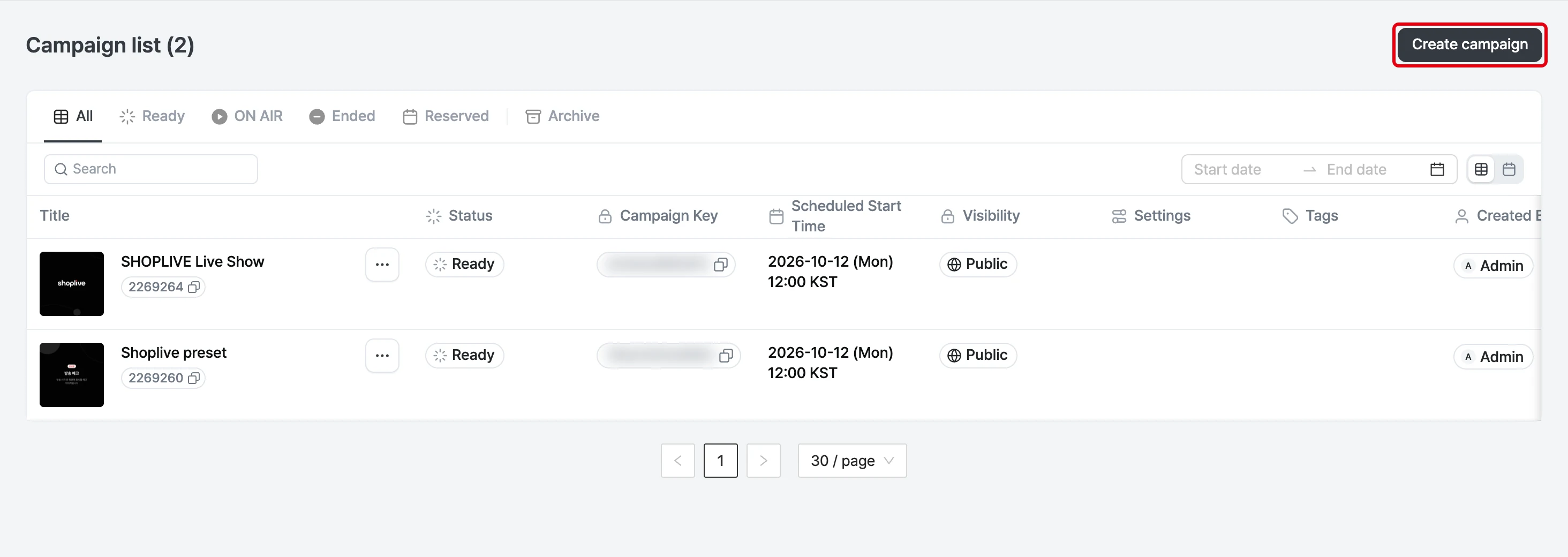
1Create a new campaign.
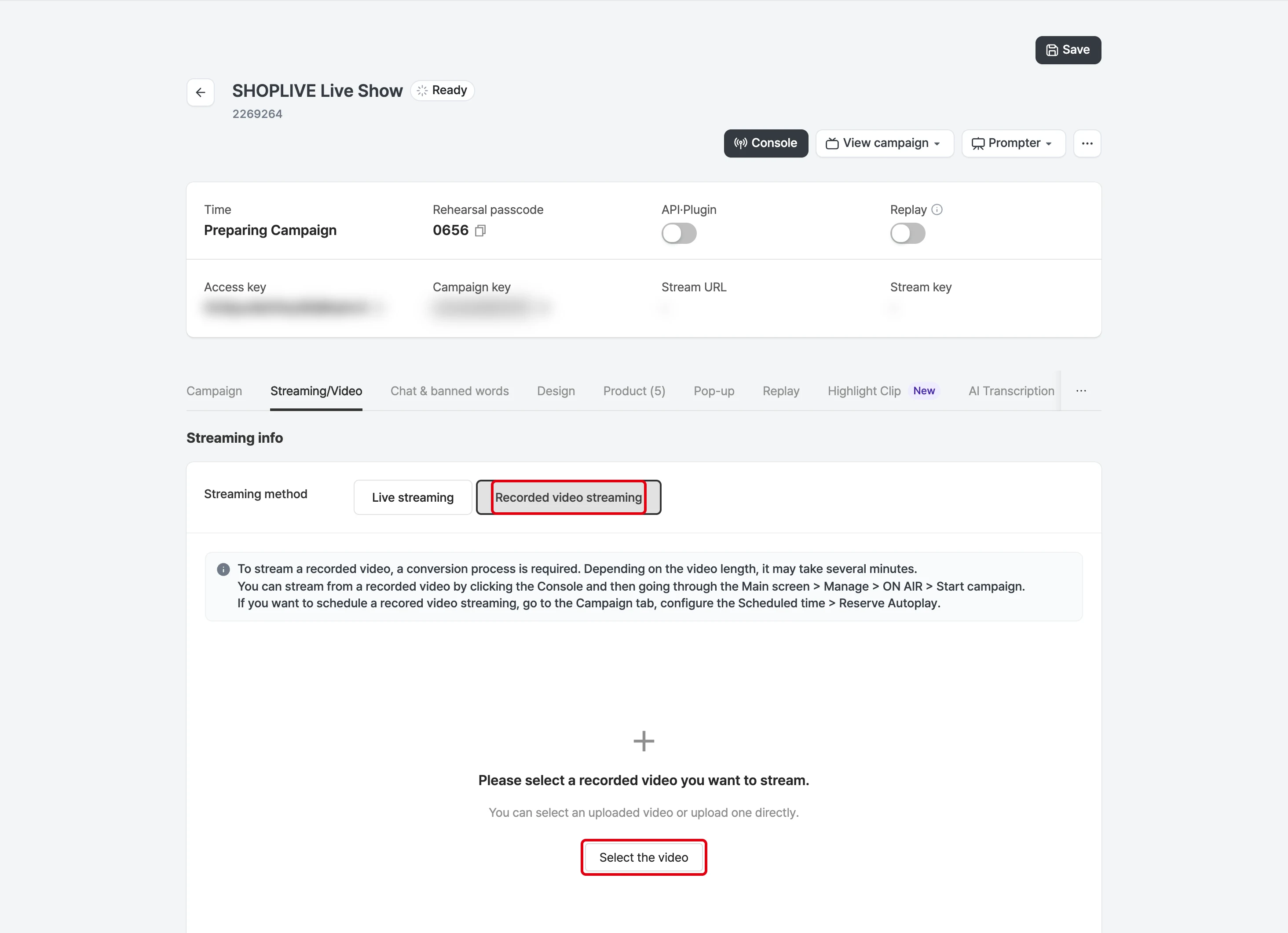
2In the streaming method on the Streaming/video tab, select Saved video streaming. (Streaming method: Direct streaming/Saved video streaming)
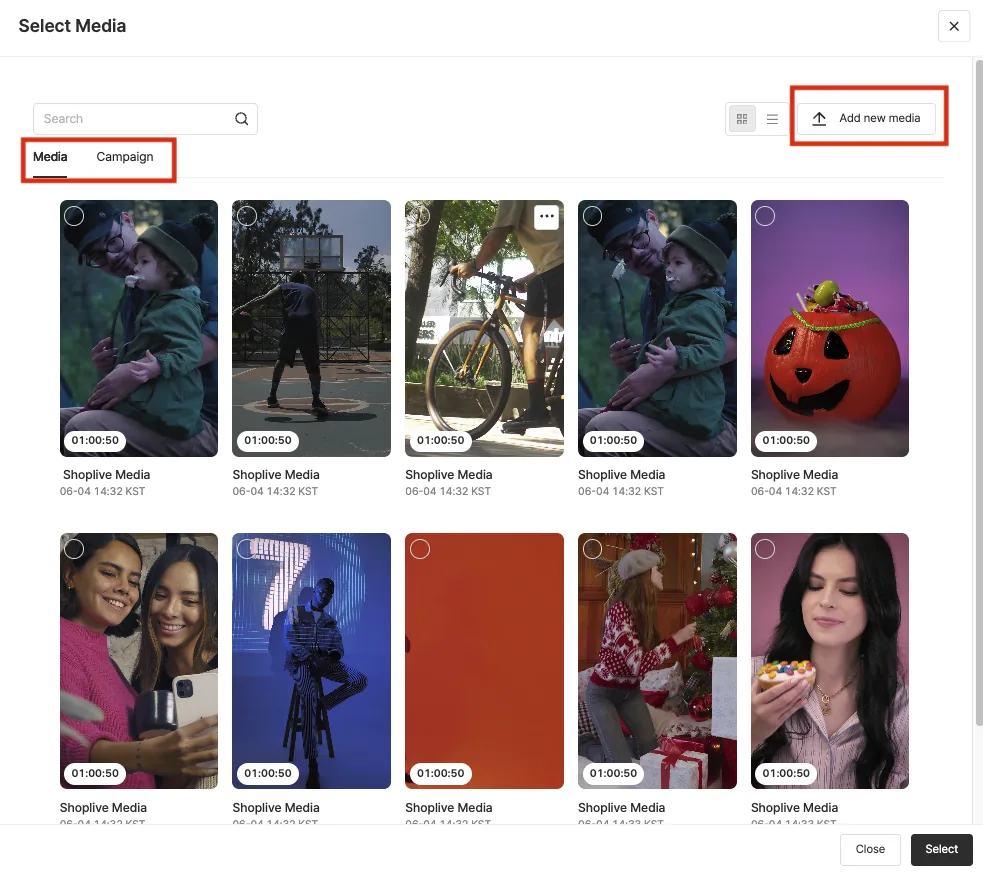
3Select the video you want to stream.
- You can select media you’ve uploaded before.
- You can select an ended broadcast.
- You can upload new media and select it.
4Check the selected video information and save the campaign.
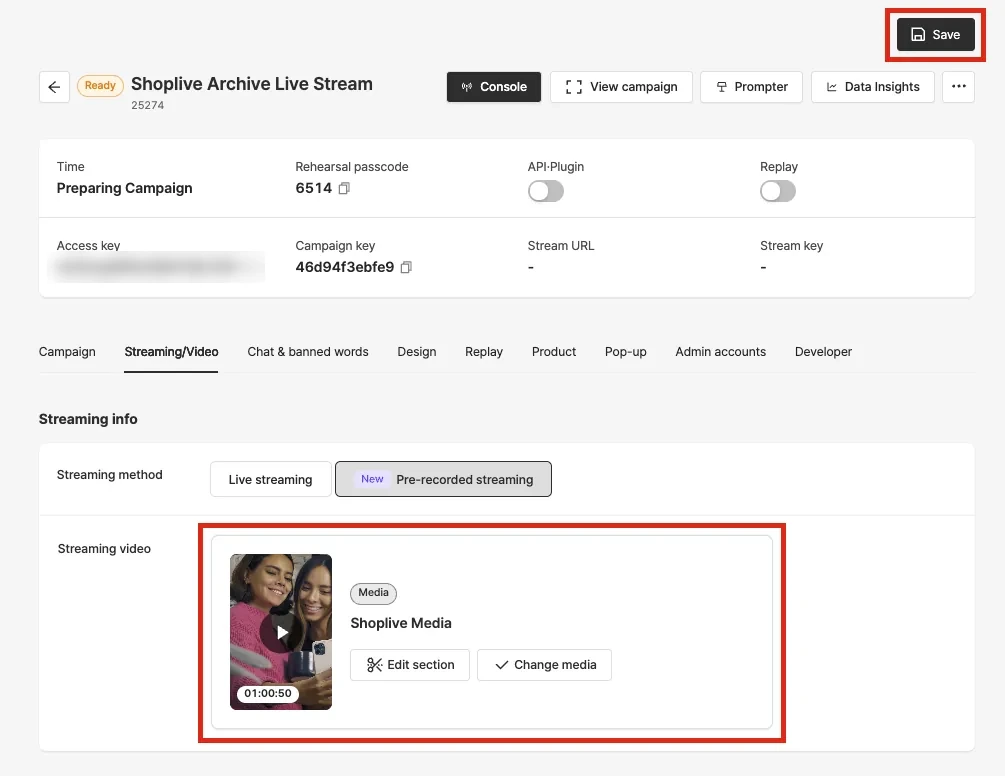
The video is converted before streaming, which can take several minutes depending on its length. A notice appears on screen while it’s converting or if an error occurs. You can change the video, and you can also regenerate it after the Do you want to convert the video again? confirmation.
Start a saved-video campaign
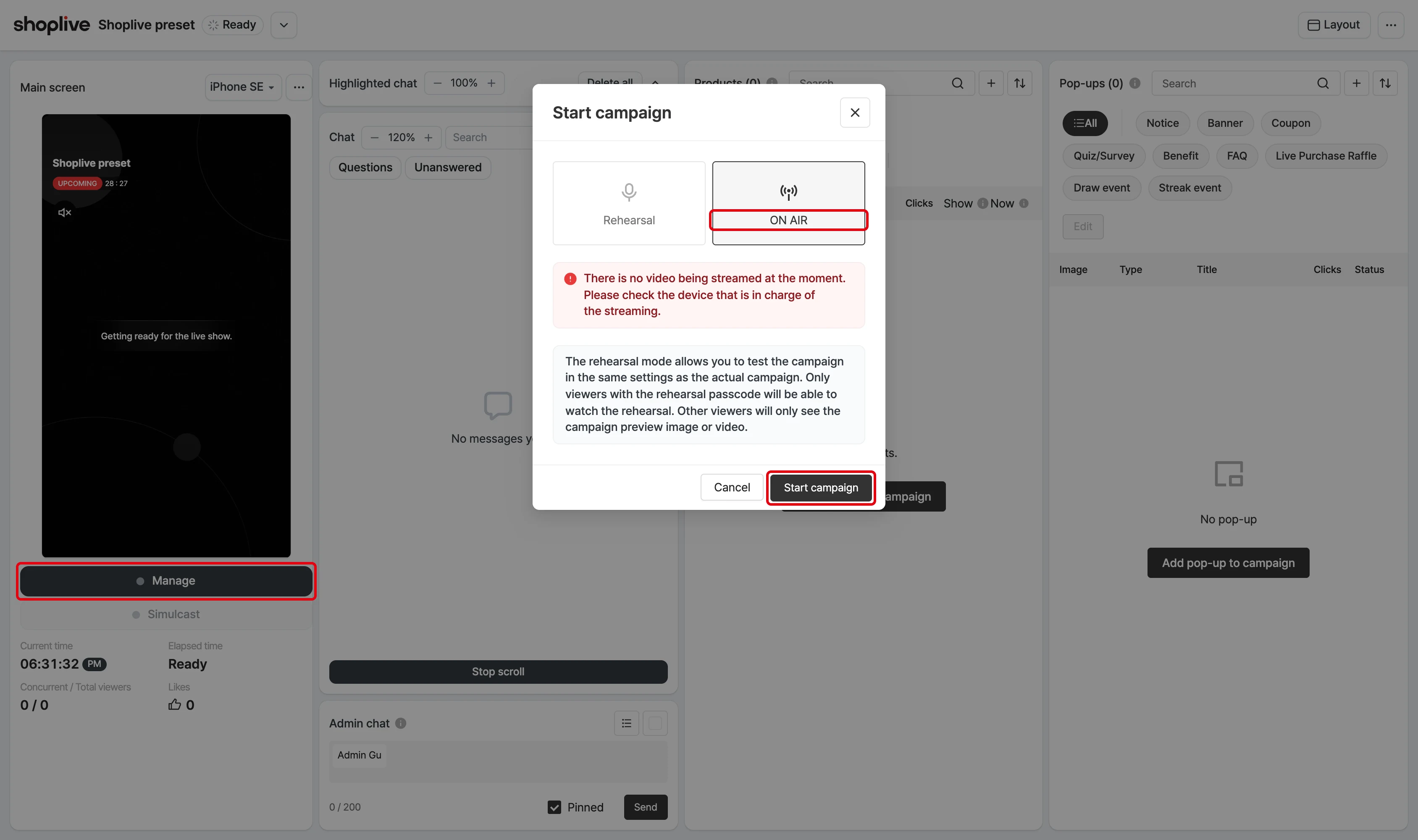
Go to the campaign console and start broadcast mode. You can start the broadcast right away.
Schedule a saved-video campaign
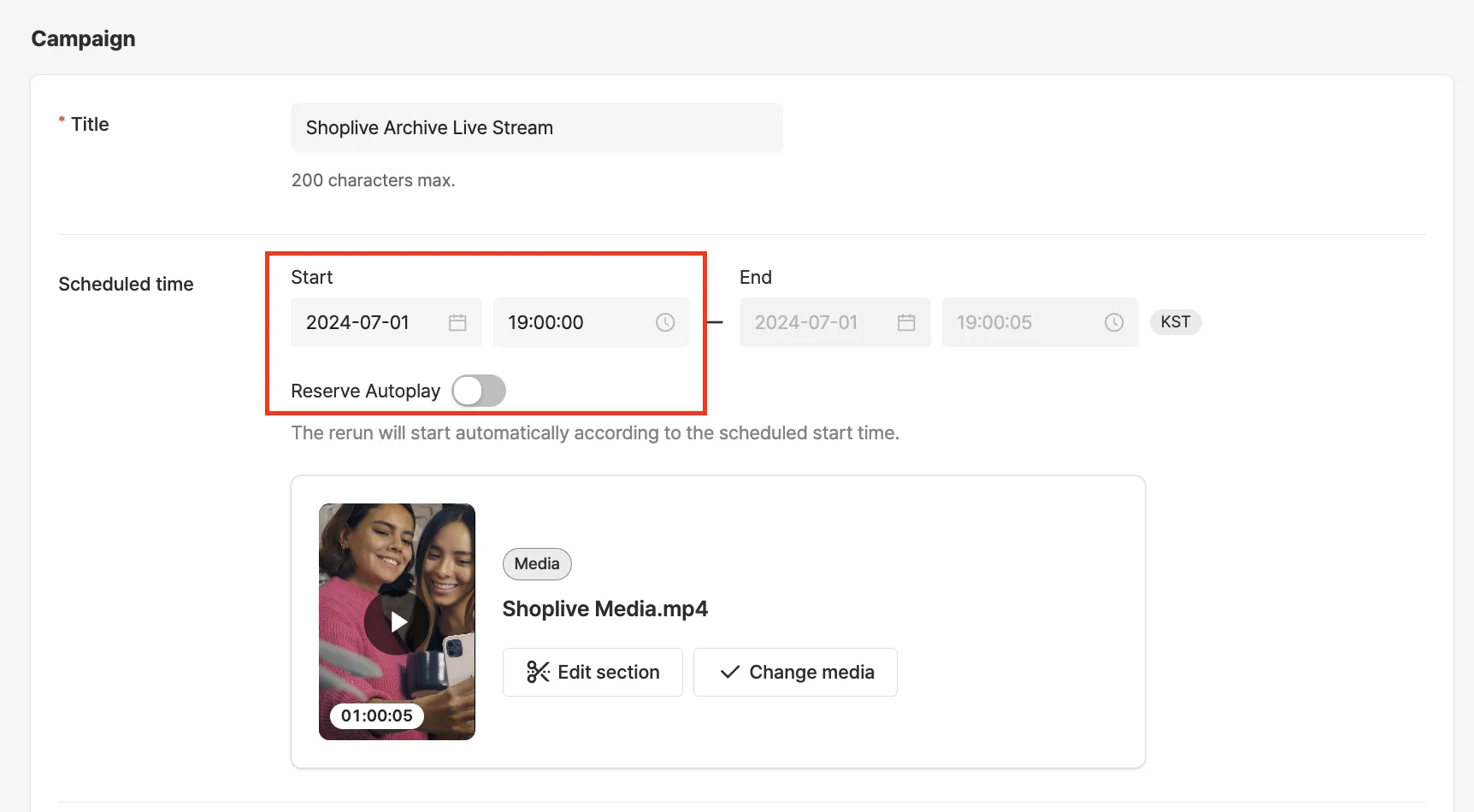
Go to the Campaign tab to set a schedule and auto start. If you set Scheduled auto start, the broadcast starts automatically at the set time.
Edit the saved video
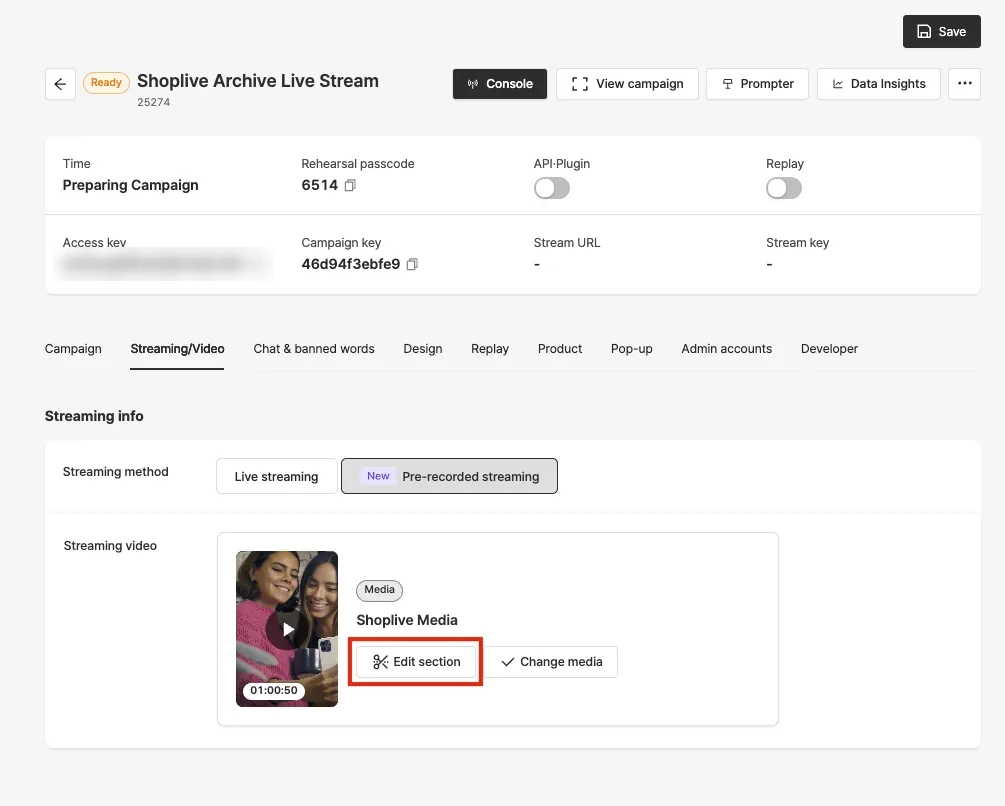
After selecting a saved video, you can edit its range before streaming.
1Select the Edit range button.
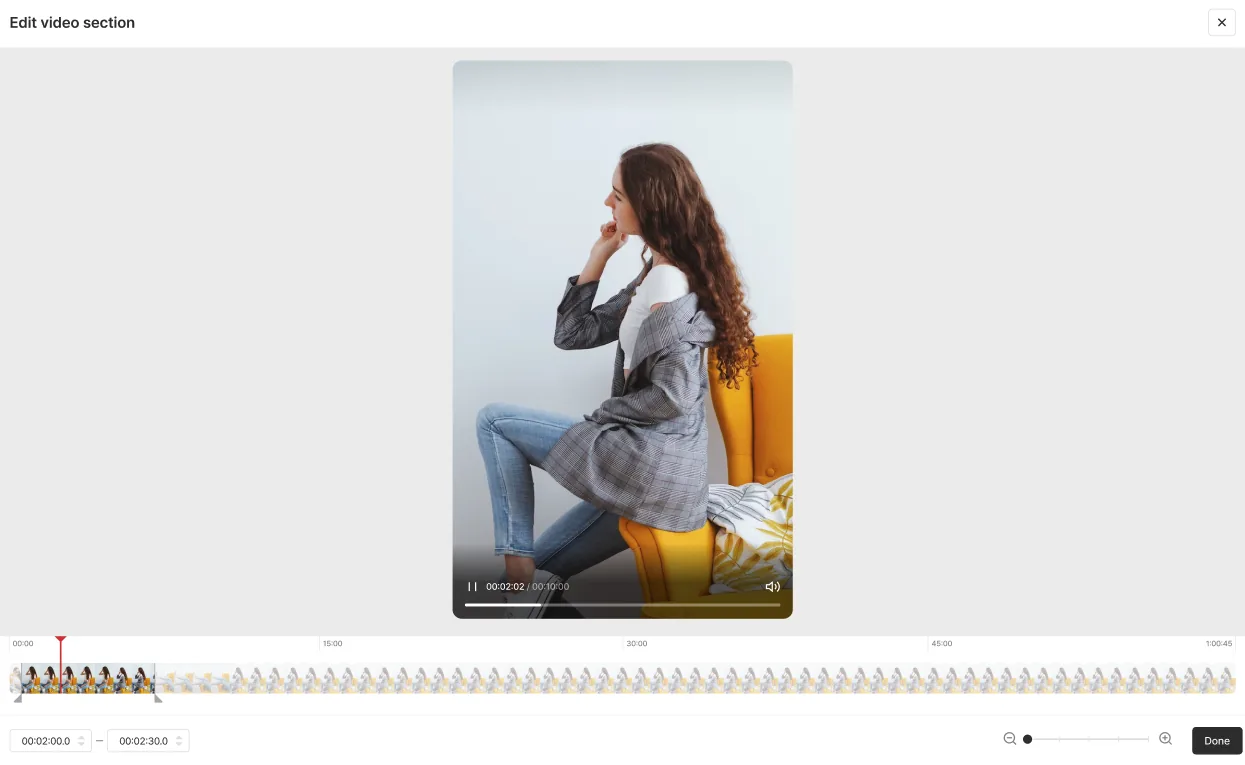
2In the edit range modal, adjust the start and end of the selected video and save.
Frequently asked questions
Until when can I edit the video?
- You can edit the range until the broadcast actually starts. Once it starts, range editing isn’t available.
Can a saved-video campaign be made into a rerun?
- A saved-video campaign can’t be made into a rerun.
Can I delete or reset the media and campaigns used for saved videos?
- Media and campaigns used for saved videos can’t be deleted or reset.
Can I search for only saved-video campaigns?
- Search campaigns for ‘saved video’ to see all campaigns created or streamed with the saved-video method.