Manage Products and Popups During the Broadcast
Manage products during the broadcast
You can manage products during the broadcast in the product management area of the console.
Product management area
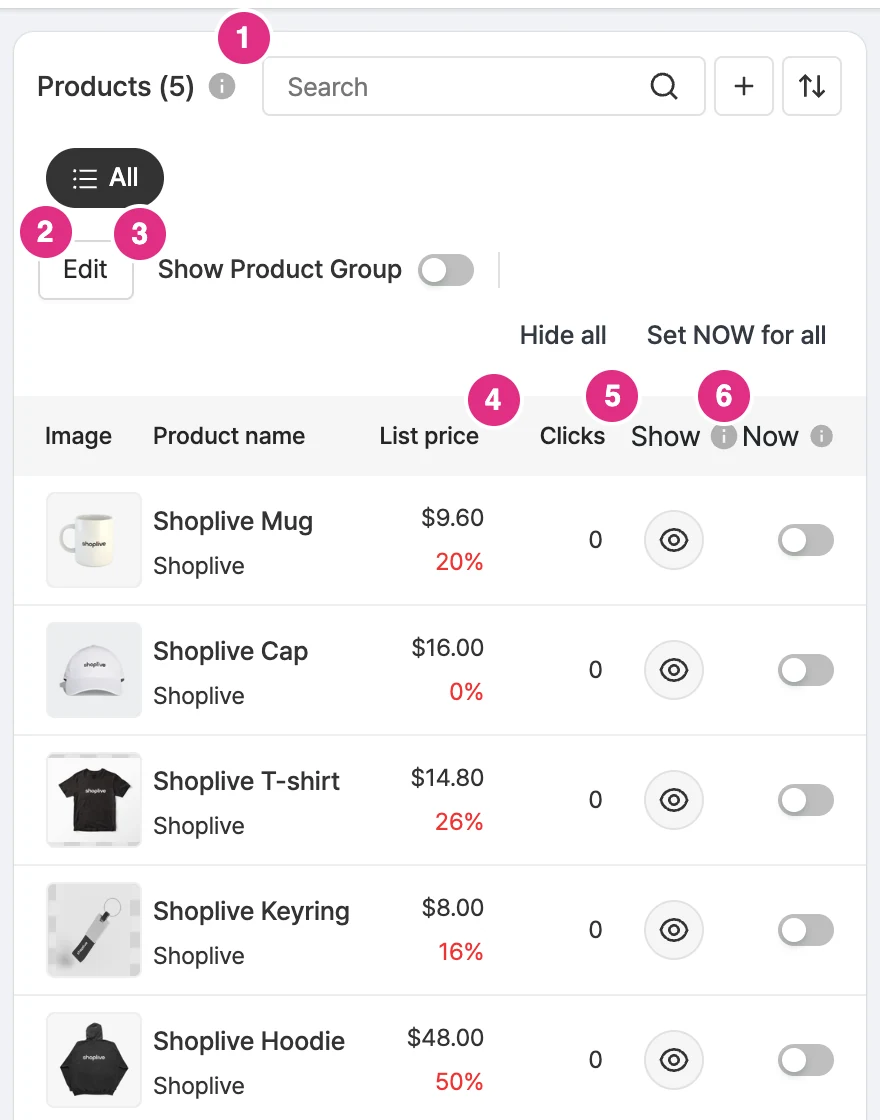
- Product search: Searches the products in the campaign.
- Edit: Edits the product order.
- Show Product Group toggle: Sets whether the product groups you created appear as groups in the player's product list. To learn how to create groups, see Managing product groups below.
- Clicks: Check the clicks of each product in real time.
- Show: Sets whether the product is shown on the viewer screen.
- Now: Turns the Now label on or off for the product being introduced.
Mark products as Now
Turning on the button to the right of an individual product shows a Now icon on it. Turn it on for the product being discussed during the live broadcast so viewers can find it more easily.
Apply the Now icon to all products
Use the Turn all off and Turn all on buttons in the product management menu to show or clear the Now icon on all products at once.
You can also use the Set NOW for all/Clear NOW for all buttons. Selecting Clear NOW for all shows the confirmation Clear all NOW settings? with the notice This applies to all users immediately.
NOW applies only to products being shown. If some products aren’t shown, the notice NOW was applied only to the N products being shown appears.
Manage product groups
Lets you manage products in groups and turn the Now icon on/off for them. Click the Add group to list button in the product management menu to add a group, select the products to include and save. You can create several groups and turn each group’s products on/off at once. (Example: group the products a model is wearing to turn them all on/off together)
For each group, choose Turn group on/Turn group off, or delete it with Delete group. The display of products in a group can also be set per group, and you can select several products and change them at once with Turn selected on/Turn selected off.
A group you created can appear as a group in the player's product list. Turn this on or off with the Show Product Group toggle.
Product search
Product search lets you quickly find the product you want when there are many.
Product clicks
You can see product clicks in real time. Product clicks count both clicks on the product card view and clicks in the product list shown after clicking the card view.
Add products
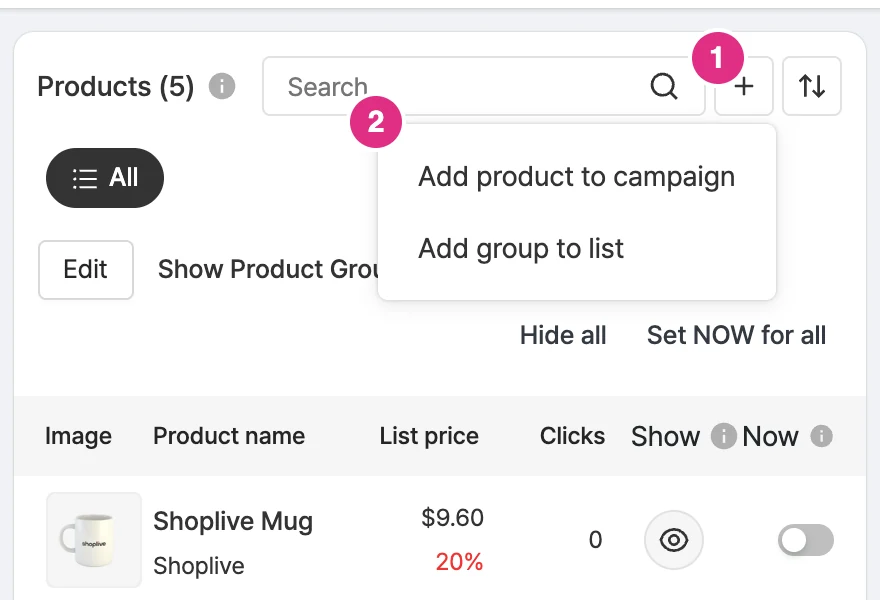
- Click the + button.
- Select Add product to campaign. Add group to list in the same menu creates a product group.
If you missed registering a product to the campaign, you can add it from the console too with the Add products to campaign button in the add products area.
Product display settings
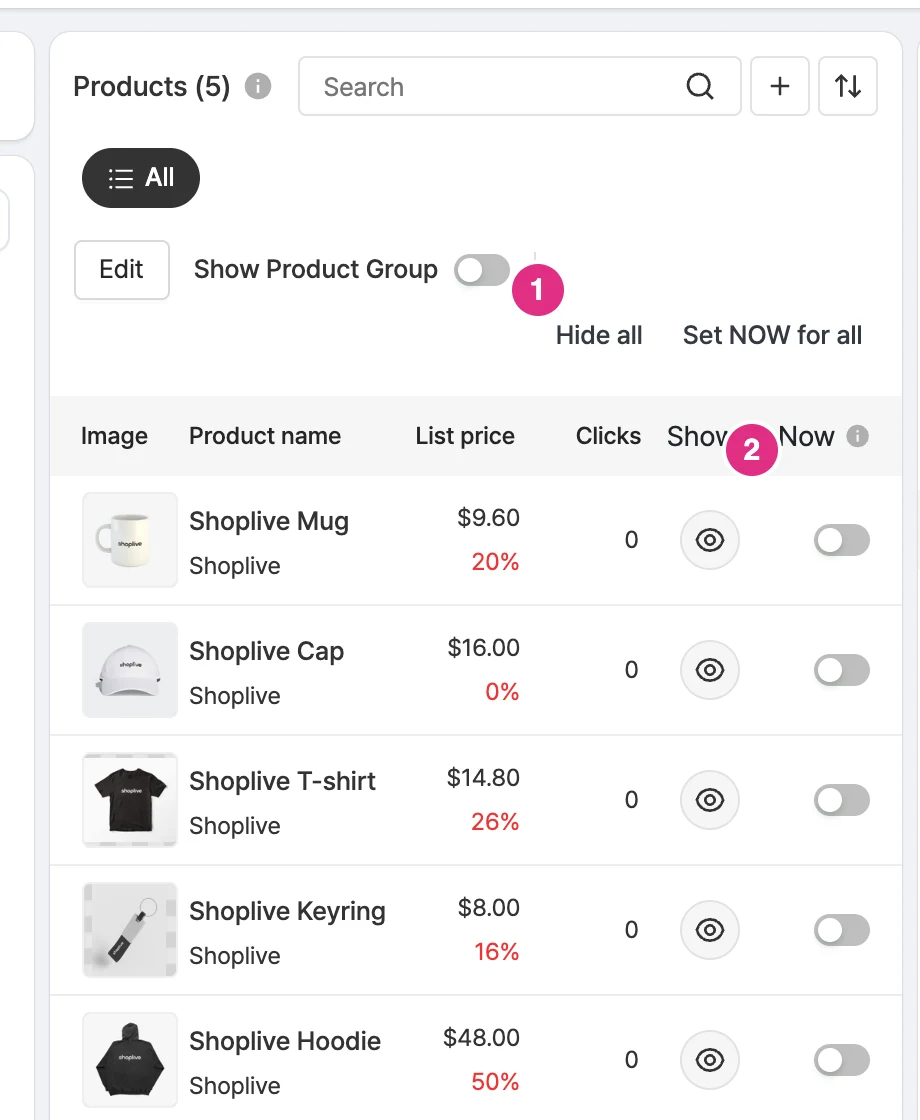
- Show all/Hide all change the visibility of all products at once.
- Use the visibility (eye) button on each product to change whether it is shown. A hidden product is not shown on the viewer screen.
Product sorting and order editing
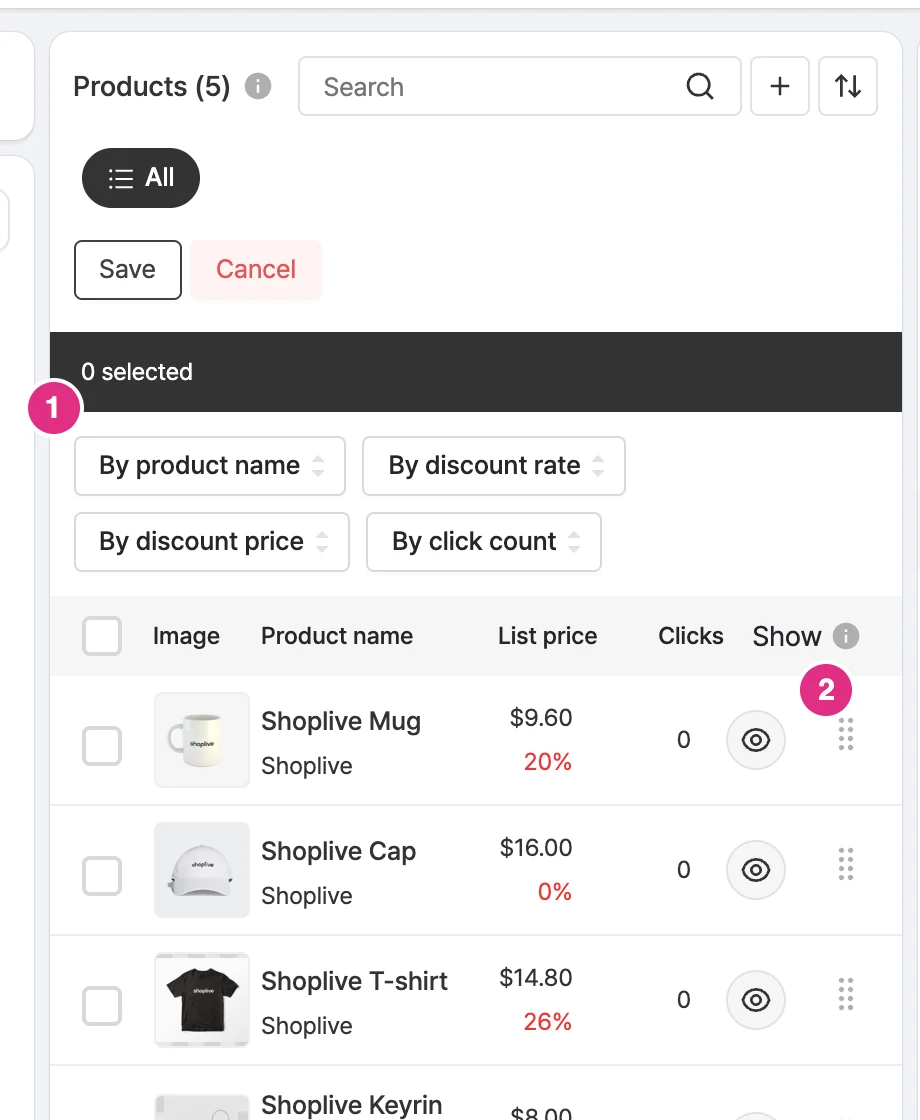
- Click Edit to show the By product name, By discount rate, By discount price, and By click count buttons, and sort the product list with them.
- Drag the handle on the right of a product to change the order, then click Save. To discard the changes, click Cancel.
You can also use the Sort by NOW toggle from the sort icon at the top right. Sold-out products are marked as sold out.
Remove products
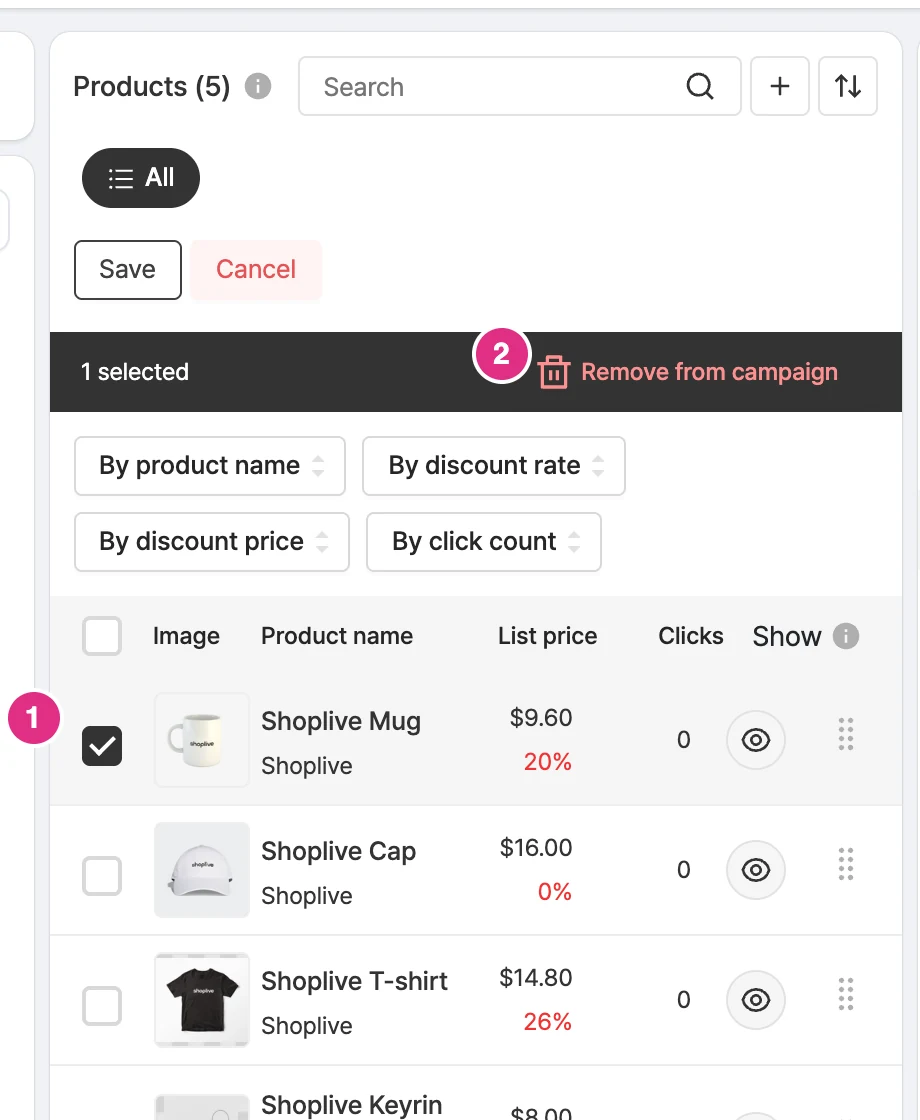
- Click Edit, then select the checkbox of each product you want to remove.
- Click Remove from campaign at the top to remove the selected products from the broadcast.
A product that has been through an auction cannot be deleted.
Manage popups during the broadcast
You can control the notice, coupon, banner, event, quiz/survey, benefit, FAQ, prize draw and purchase verification popups used in the broadcast.
Activate/deactivate popups
Use the toggle to the right of each popup to show or hide it in the broadcast. Turning the toggle on applies it to the player immediately.
Example player screen
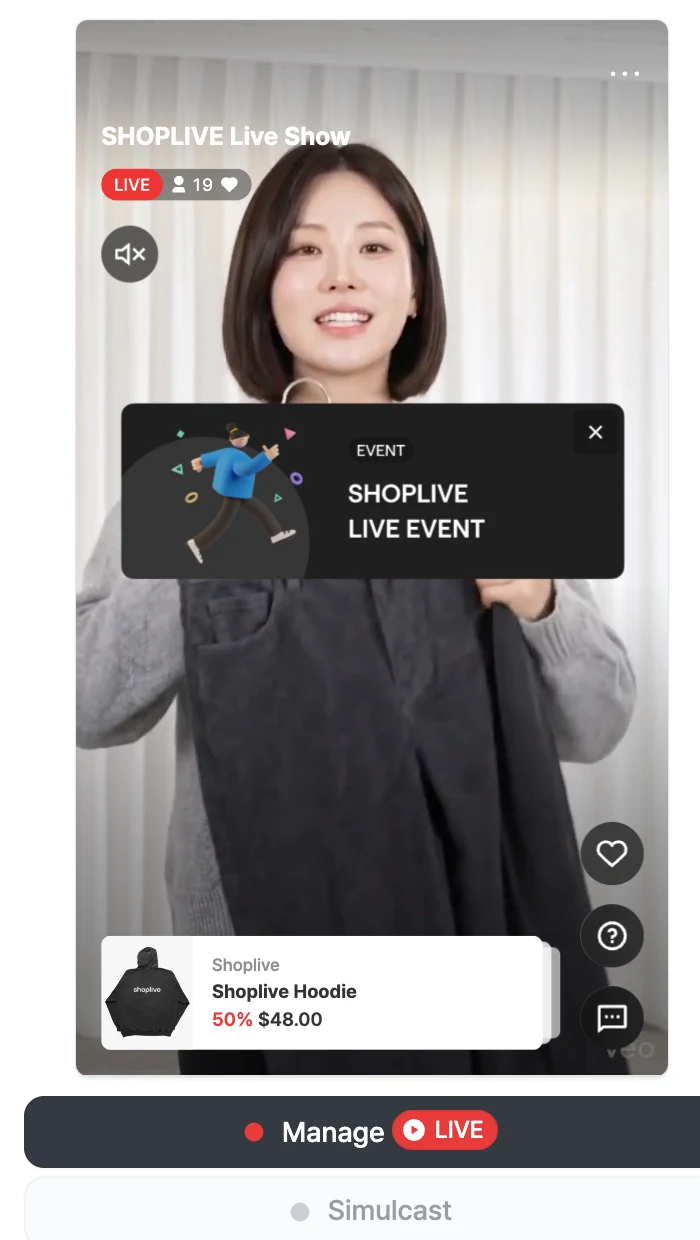
Popup display rules and order
Only one popup of the same type is shown at a time. After editing popups, you can change their order by drag and drop and sort by activation order. Select Remove from current campaign to remove the popup from the campaign.
Purchase verification popups
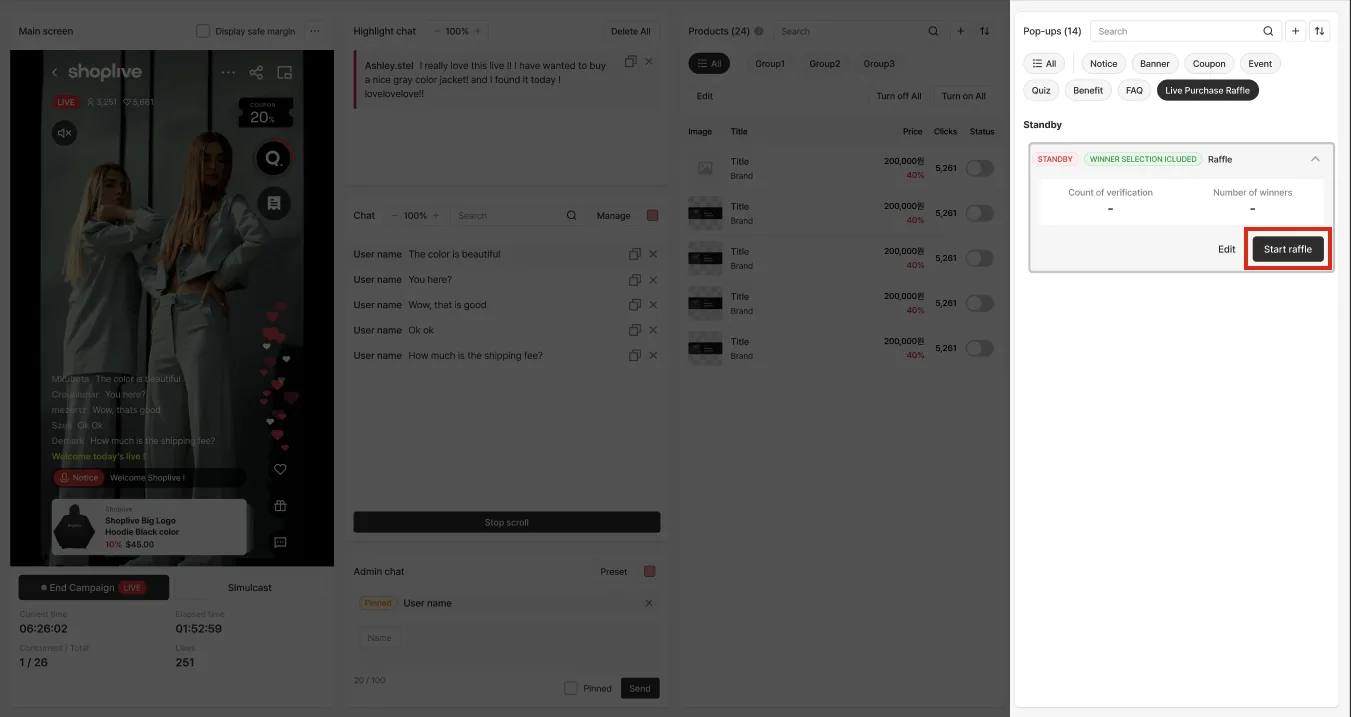
Start purchase verification in the console, and pause or resume verification submissions. You can see the number of verifications and announce or reset winners.
Start purchase verification
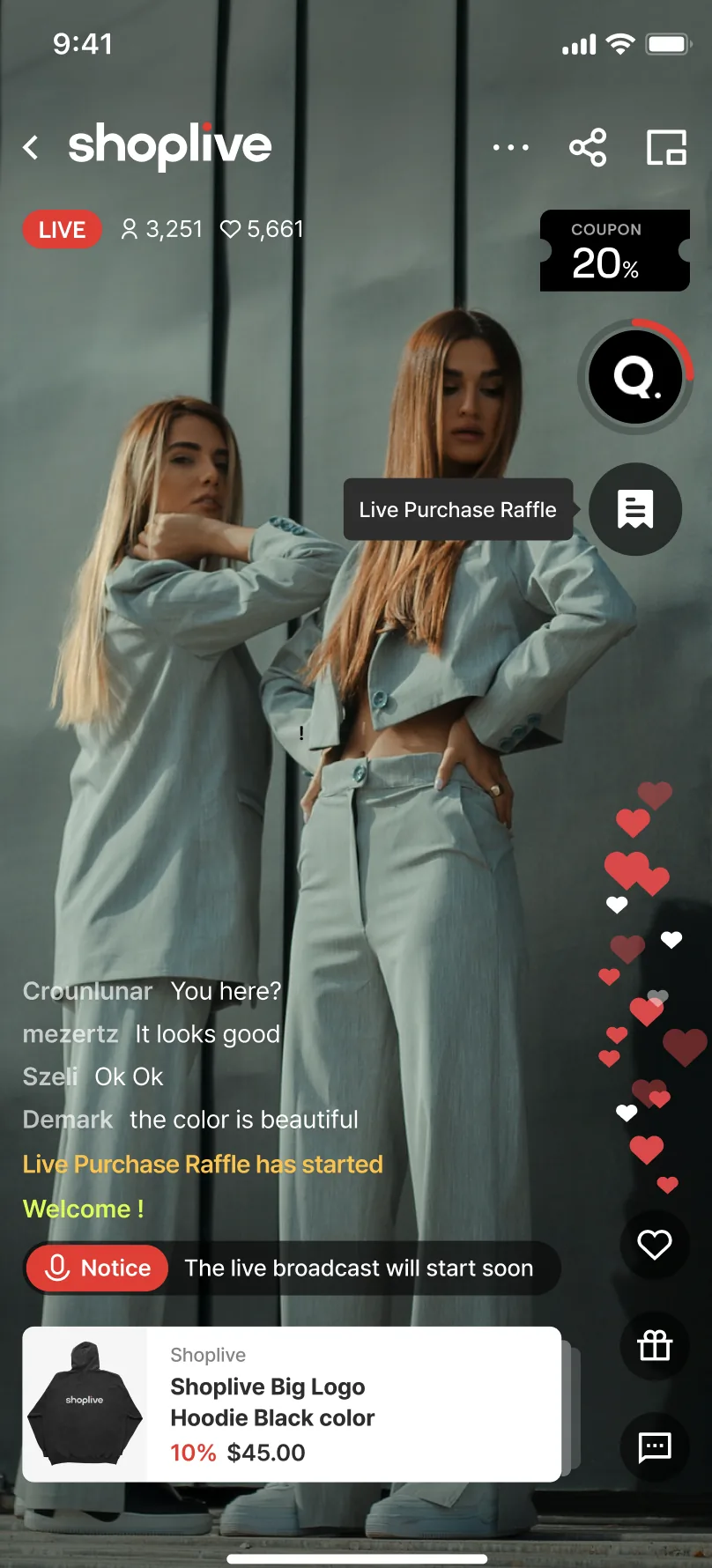
- When you start it in the console, a purchase verification icon appears in the live player.
- Viewers tap the icon to open a modal where they enter their order number for verification, then submit it.
- Answers can be resubmitted; resubmitting updates the entry to the latest submission.
Stop purchase verification
To stop order number entry in the player, click Stop accepting verifications in the campaign console.
The stop confirmation shows End without announcing winners along with the number of verifications.
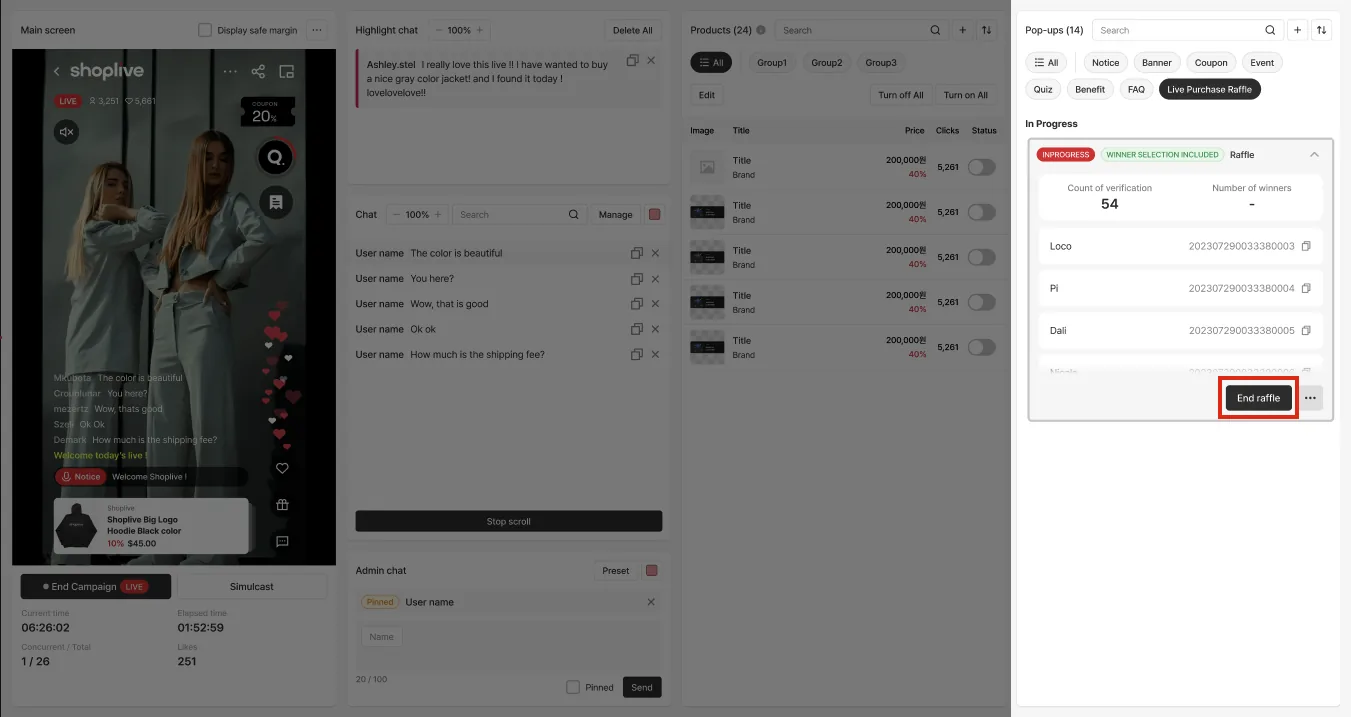
Choose and announce purchase verification winners
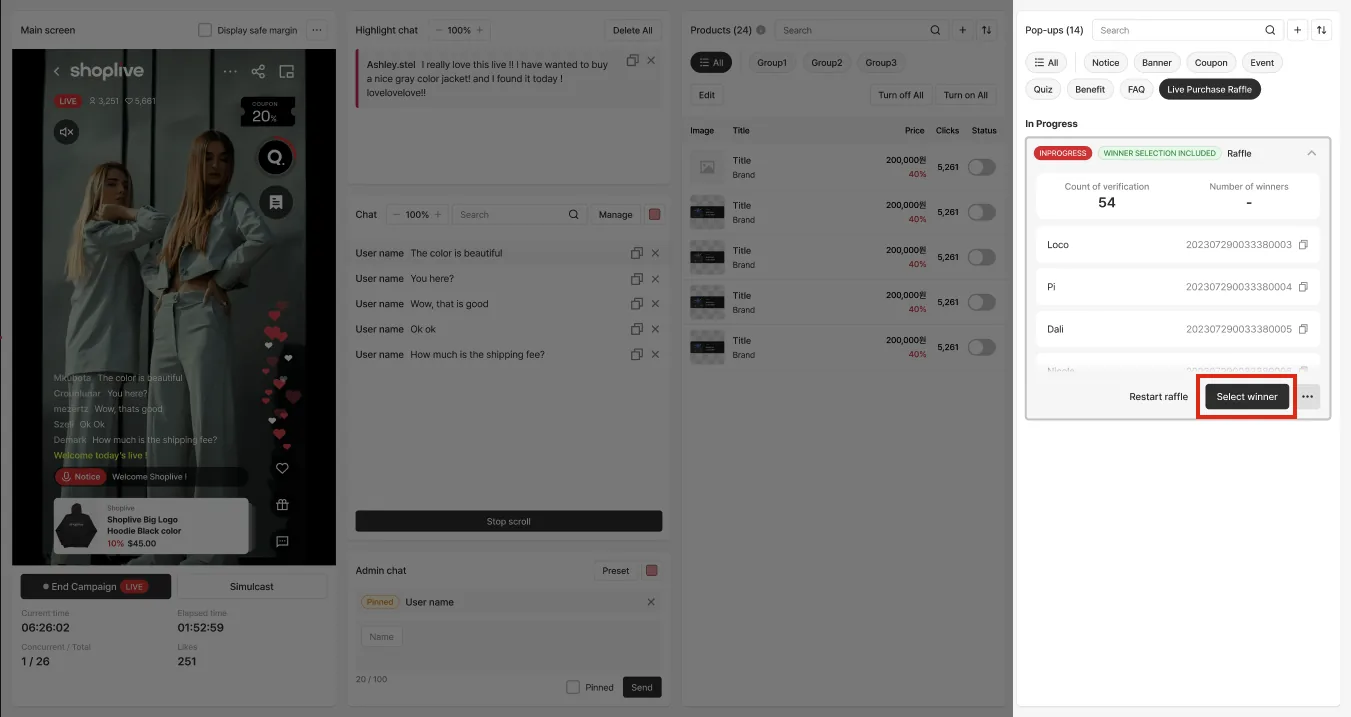
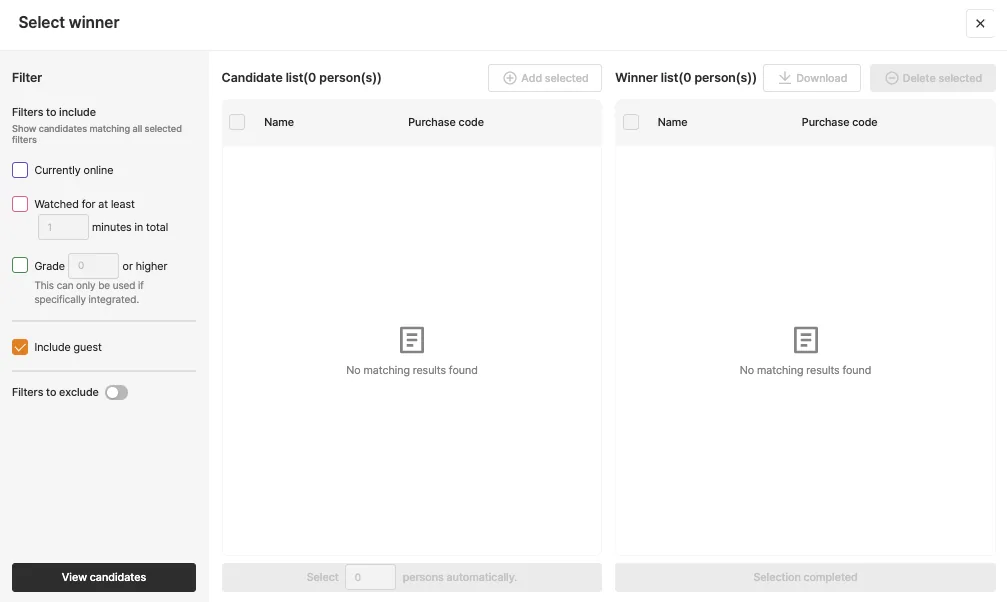
1Choose winners
- Open the winner selection modal, search the candidates and choose winners.
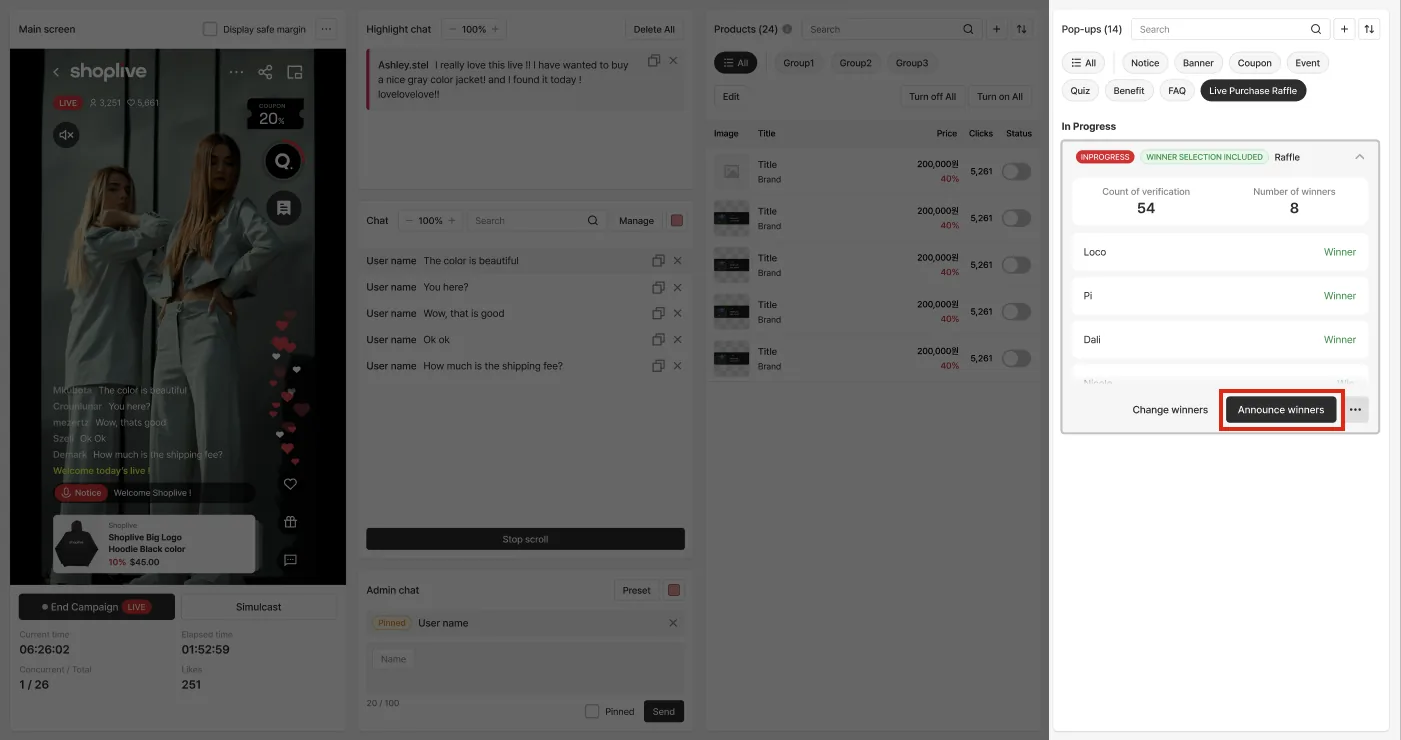
2Announce winners
- Click Announce winners to show the purchase verification event winners.
Purchase verification FAQ 🤔
Is choosing winners required?
- If you save the popup settings without setting winners, you can run purchase verification without winners.
How do I start accepting verifications again after stopping?
- Click the Accept verifications again button to restart purchase verification.
I want to add validation for purchase verification numbers.
- You can add validation for the purchase verification number (order number) entered in the player. Contact your Shoplive representative!
Can I run several purchase verifications at the same time?
- Only one purchase verification can run at a time, but you can run it several times within one broadcast.
Can I check purchase verification participants and winners afterwards?
- You can download the purchase verification participants and winners as Excel from live Data Insights.
Prize draw popups
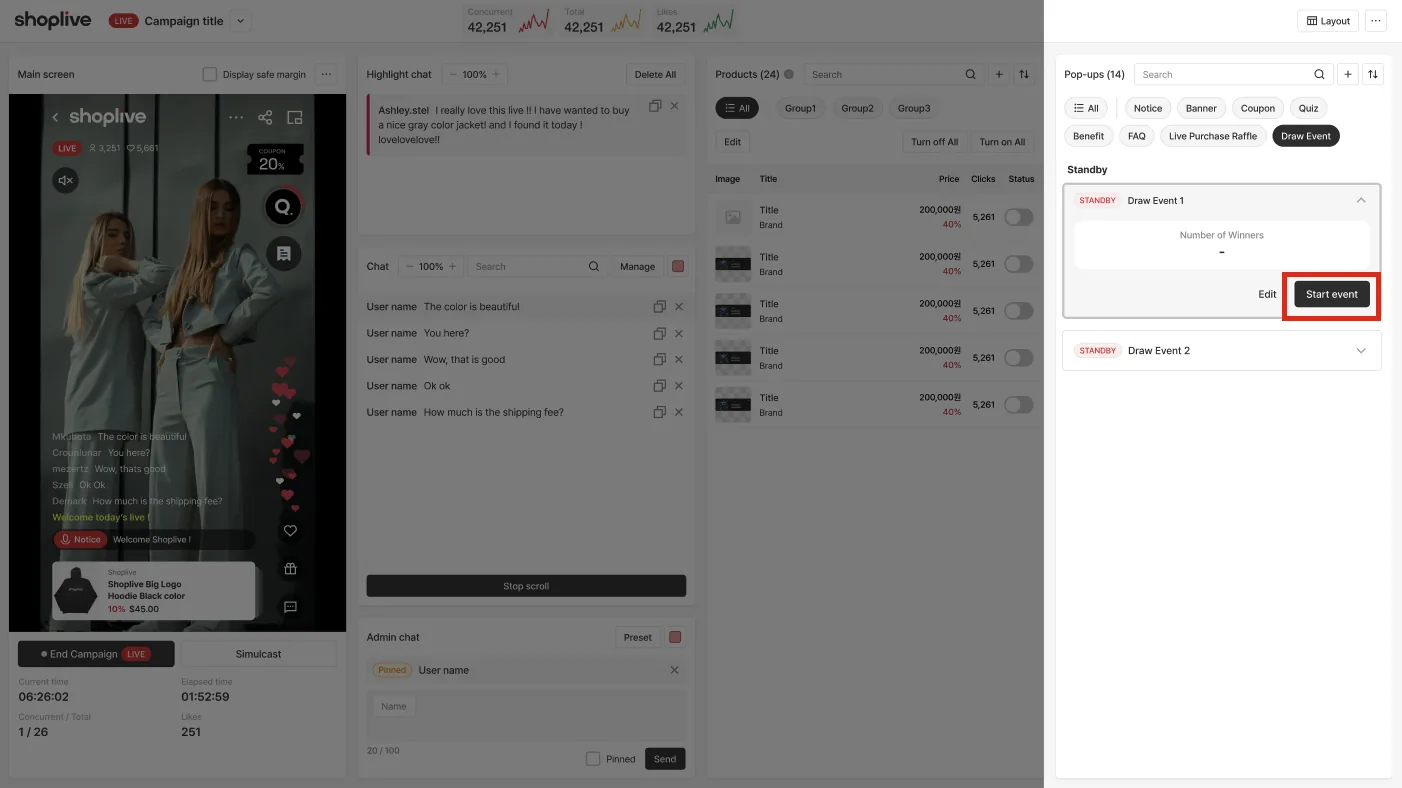
- In the Draw event tab of the popup list, click Start event on the event, then click OK in the Would you like to start the draw event now? dialog.
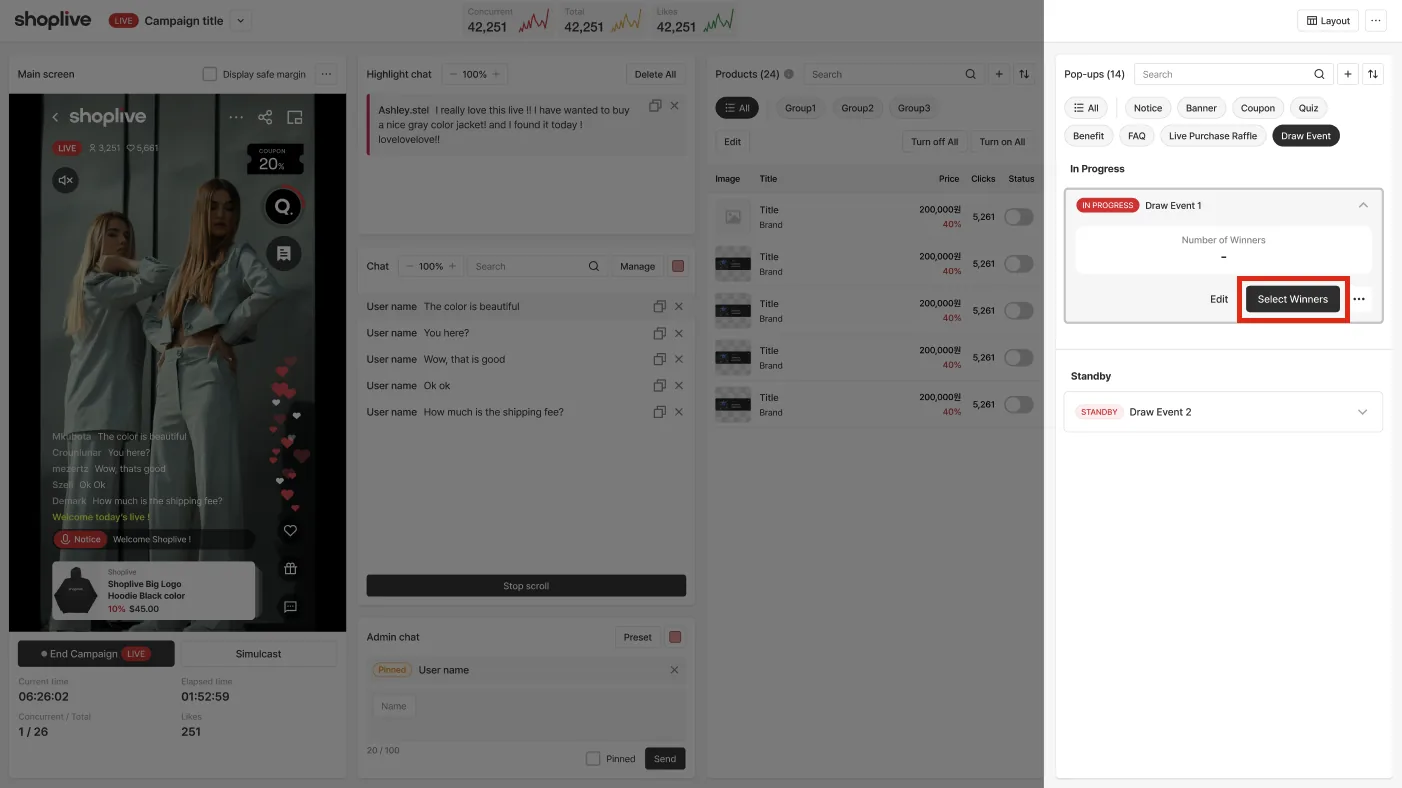
- When you are ready to choose the winners, click Select winner.
- In the filters on the left of the winner selection window, choose whether to Include guest and the Participation Criteria (Highlighted chat, Saved chat, Currently online, Cumulative viewing time, Grade), then click View candidates. Candidates that match all selected filters appear in the Candidate list. With the Filters to exclude options, you can leave out winners of today's campaign or of campaigns within the last few days.
- Select candidates and click Add selected to move them to the Winner list, or click Select N persons automatically to pick the number of people you enter.
- Click Selection completed and the event card shows the number of winners and the winner list. If needed, use Change winners to edit the list.
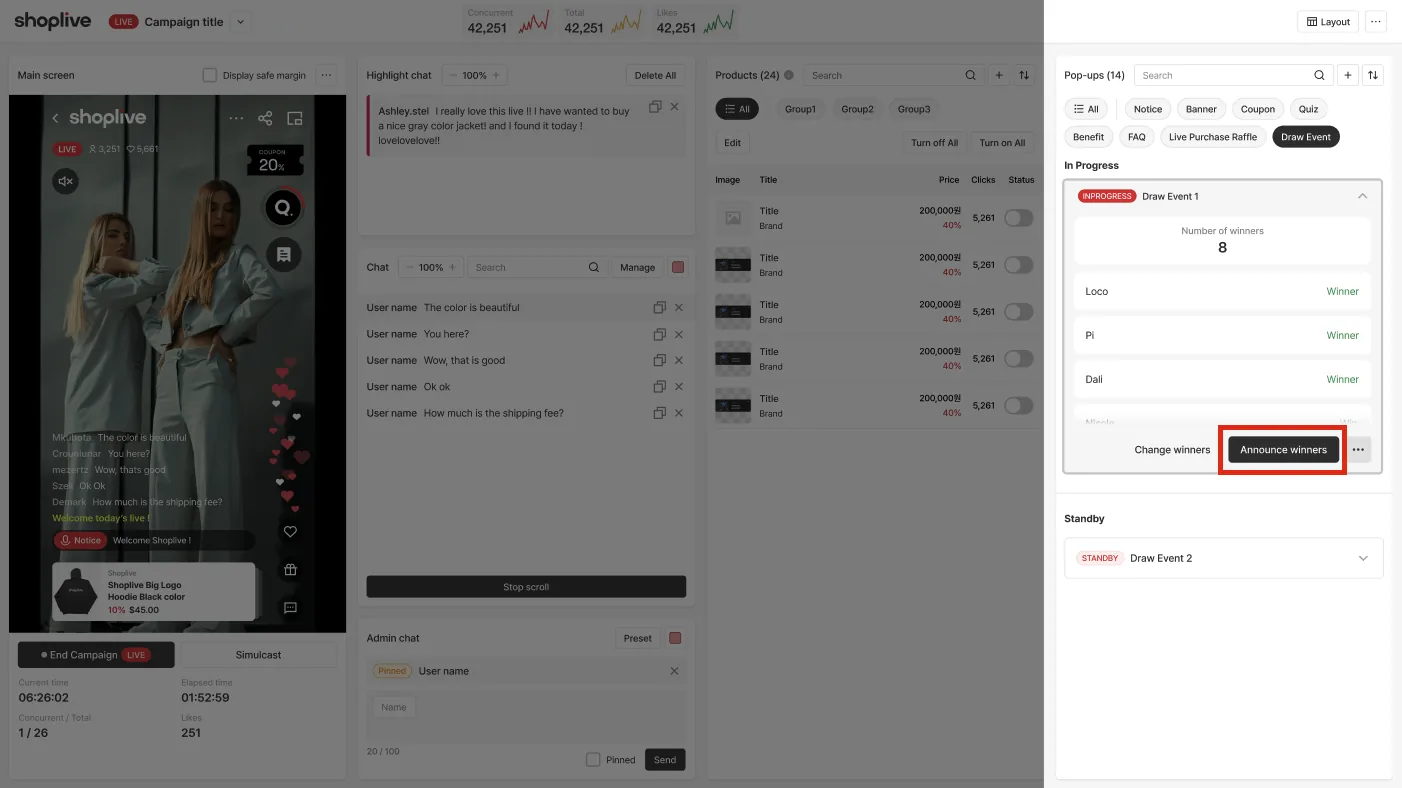
- Click Announce winners to reveal the results, and the event status changes to Show results. To finish, click End.
You can check the number of anonymous guests and anonymous members in the participant and winner lists. A confirmation dialog also appears when you end the event without announcing winners.
Start the prize draw
- Start the prize draw in the console.
- No icon is shown in the player.
You can later choose winners based on what users did while the event was running.
Choose prize draw winners
- Choose winners
Open the winner selection modal, search the candidates and choose winners.
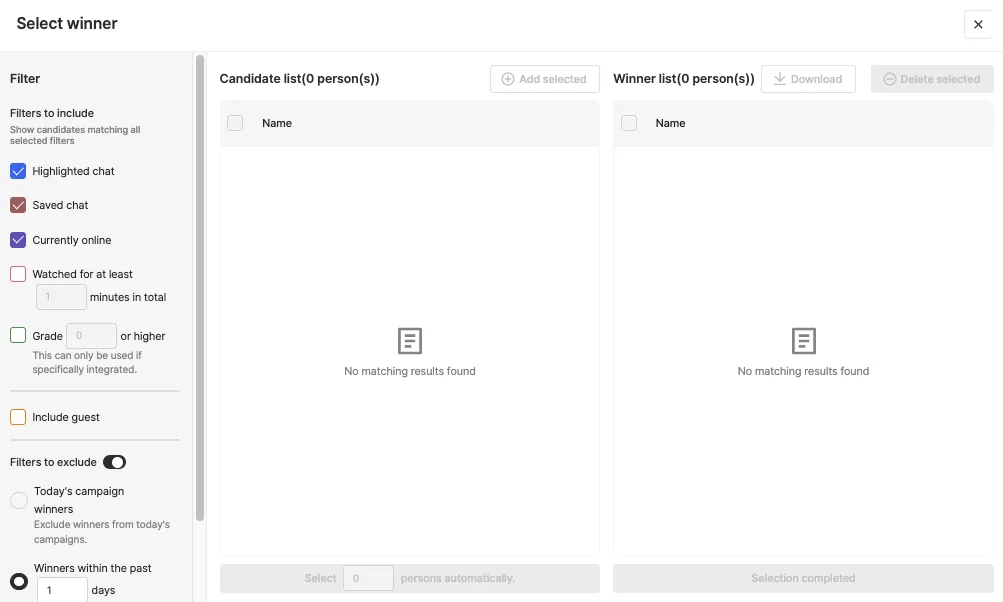
- Announce winners
- Click Announce winners to announce the prize draw winners.
Winners see a congratulations popup, and other users see the winner list popup.
Prize draw FAQ 🤔
Can I check the winner list again?
- You can download the winner list with the ‘Winners’ download button in the console or in Data Insights > Prize draw winners.
I can’t find any winner candidates.
- Check the filters in the selection modal again. If no users match the filter conditions, none are found.
Can I edit a prize draw popup after the live broadcast ends?
- After the live broadcast ends, prize draw popups used in it can’t be edited.
Streak event popups
Check attendance and download
| Column | Meaning |
|---|---|
| Round | Automatic number in order of scheduled broadcast time |
| Status | Ready · Live · Ended |
| Check-ins | The number of viewers who completed check-in for that round (— for Ready rounds) |
- Download results: An XLSX summary of the whole event. It is a table with one viewer per row and rounds as columns, so you can see at a glance who checked in to which rounds.
- For participant details by round, use the check-in participants item in Data Insights > Campaign download.
How to read the downloaded file
The file is saved as 방송 팝업_attendance.xlsx. If you download the same file more than once, the browser appends a number to the name. (e.g., 방송 팝업_attendance-3.xlsx) The file name does not include the download time, so we recommend recording when you downloaded it.
Columns: userId · Total check-ins · round columns (the column order is the round order)
Round column headers carry an emoji for the broadcast status at the time of download. The format is status (broadcast ID) broadcast name. (e.g., ✅ (12345) Autumn new arrivals live)
| Emoji | Meaning |
|---|---|
| ✅ | Ended broadcast |
| 🔴 | Broadcast in progress |
| 🕐 | Broadcast that has not started yet (including broadcasts in rehearsal) |
Cell values show each viewer's attendance.
| Value | Meaning |
|---|---|
| o | Checked in |
| x | Did not check in — confirmed only for ended rounds. |
| - | Cannot be determined yet — the round is Ready or live, so viewers still have a chance to participate. |
Even for the same file, the broadcast status emoji and the x/- results differ depending on when you download it. Download the final list after every round has ended (✅).
Display in the broadcast console
The Streak event appears in the console popup panel of the linked broadcast. The status toggle controls whether it is shown on the viewer screen.
- Turn the status toggle on to show the stamp board on the viewer screen, and off to take it down.
- Turning off the display does not delete check-in records.
Viewer screen behavior
- The Streak event is shown only to viewers who are logged in (user authentication). The Streak event popup is not displayed to guest (not logged in) viewers.
- The stamp board shows the total number of rounds, the check-ins so far (2/3 checked in), and the stamp for each round (checked in ✓ / in progress / upcoming).
- If a minimum watch time is set, the check-in button is activated only after viewers watch for at least that long.
- After checking in, the title and schedule of the next round's broadcast are shown automatically. Nothing is shown after checking in to the last round.
- Checking in twice for the same round is recorded as one check-in.
Reward operation
Reward coupons are not linked. Check-ins are the number of viewers who checked in for that round. For ended rounds, download the participant details (XLSX) and handle rewards on your own.
The system does not give out any rewards automatically. Run things like selecting viewers who reached N check-ins and giving out prizes yourself, using the downloaded list.