Create an Admin Account
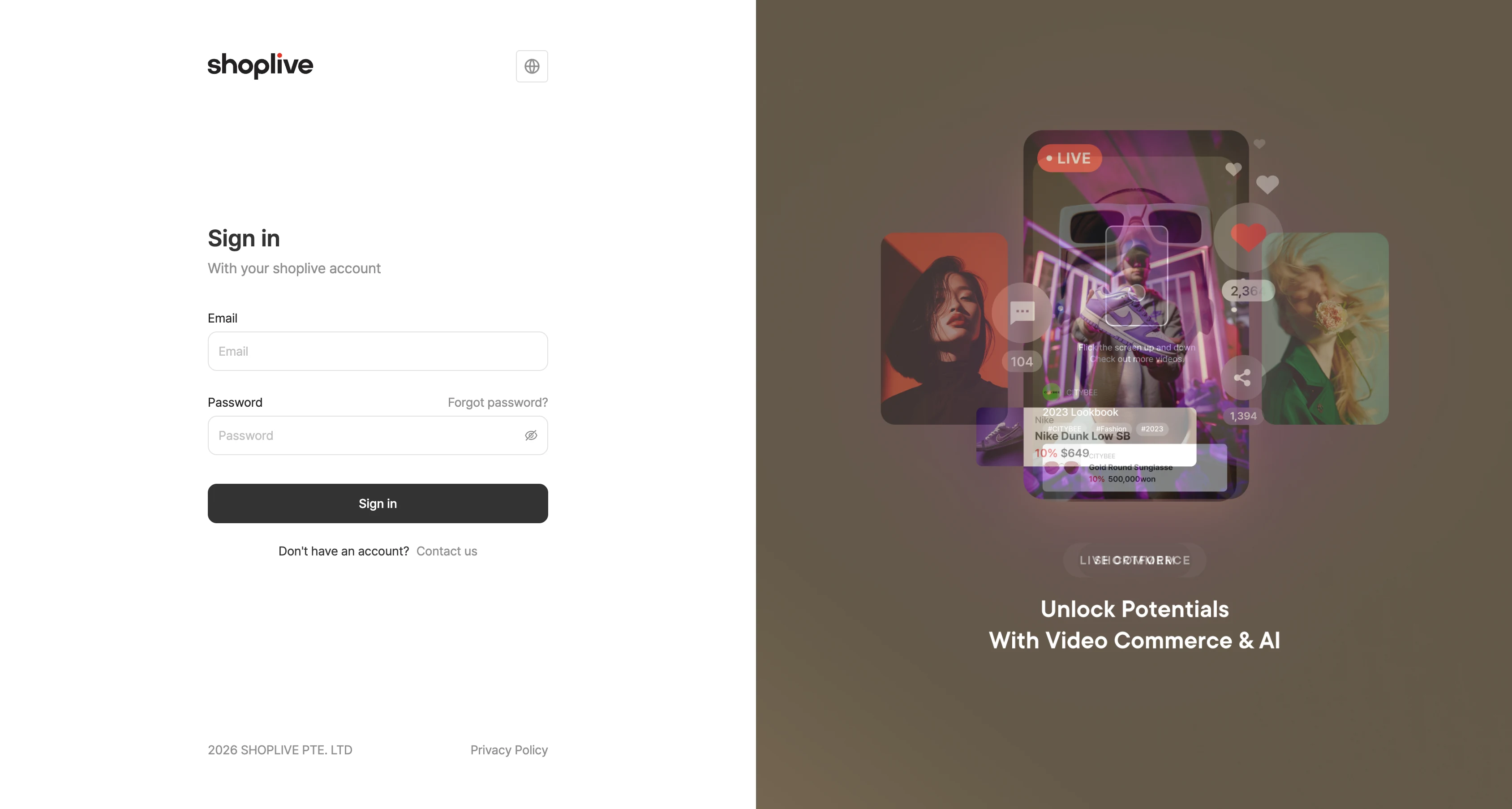
Get an admin account
Ask your Shoplive representative for an admin account for the Shoplive Admin.
Send the email and name to register, and an account will be issued.
When the admin account is created, an account setup email is sent to that address.
Follow the steps to complete registration.
Your company’s admins can also manage accounts themselves. In the admin’s Admin accounts menu, you can add, edit and remove accounts and reset passwords. For details, see Register admin accounts and assign permissions.
Can several admins use one account at the same time?
You can create as many Shoplive admin accounts as you need for your company. We recommend not sharing a single Shoplive admin account.
Two-factor authentication (2FA)
I want to apply two-factor authentication for stronger security
Ask the Shoplive team to enable two-factor authentication.
The admin labels this feature Two-factor authentication, and the login screen is titled Account security. Register an authenticator app, then enter the one-time code to log in.
Two-factor authentication (2FA) is an additional security step that confirms the person logging in is the real owner of the account, protecting it further.
In other words, after entering a user name and password, you must enter additional requested information to gain access to the account.
See the following for how to set up 2FA for the Shoplive Admin and use verification codes.
Setting up 2FA with a third-party authenticator app
When 2FA is enabled, a 2FA setup page appears when you access the Shoplive Admin. (To enable 2FA, contact ask@shoplive.cloud.)
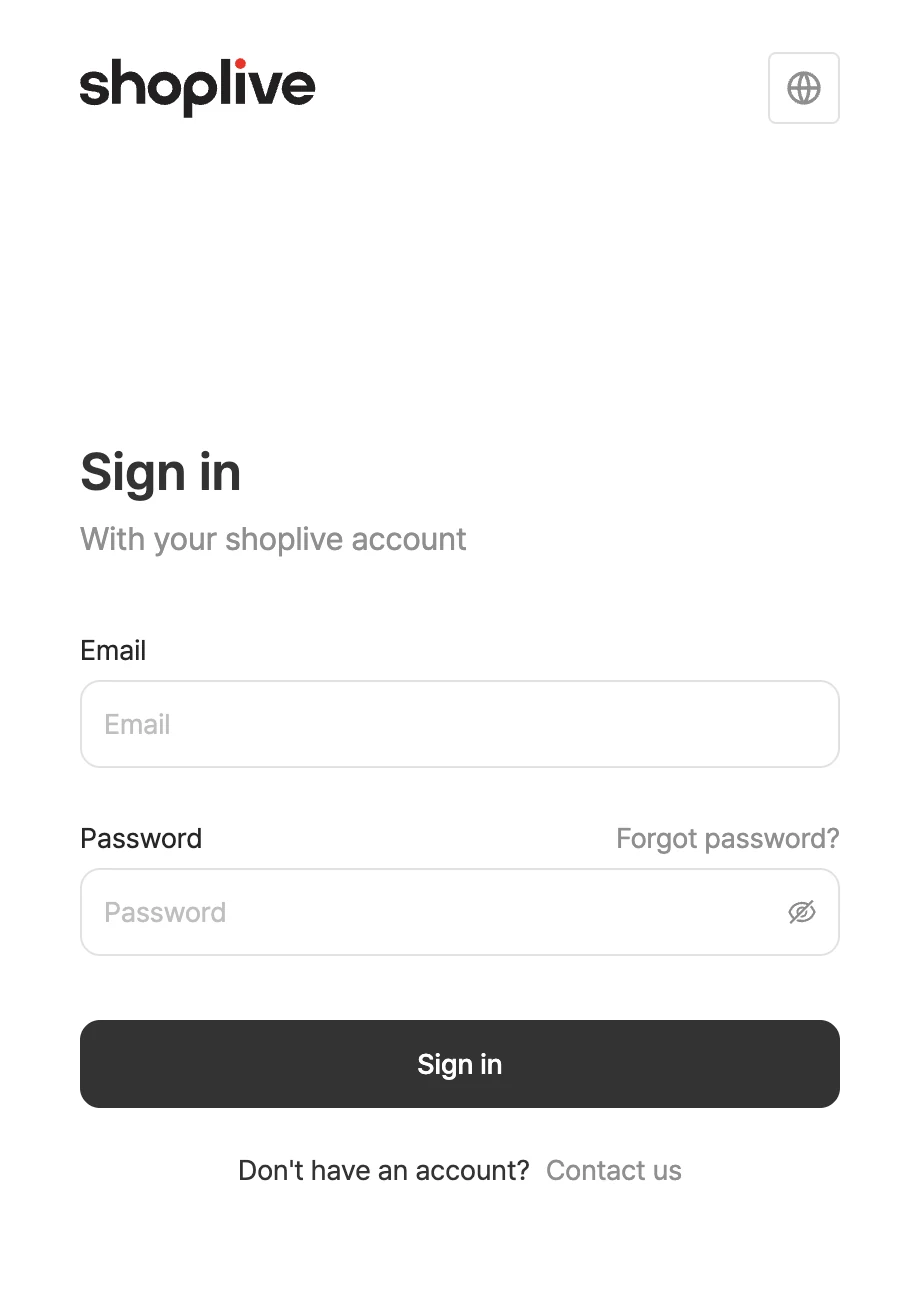
1Log in with your Shoplive Admin account.
2Set up 2FA with a third-party authenticator app (e.g. Google Authenticator).
3Log in to the Shoplive Admin using the third-party authenticator app.