Use the Prompter
The following features are available in the prompter.
- Broadcast progress information
- Main screen
- Highlighted chats
- Live chat
- Memo
- Script
- Product information
Prompter screen
Use memos to send directions to the host during the live broadcast. Scripts let you create, edit and manage the scripts needed for the broadcast. Content saved in a script is kept even when you open the prompter again later.
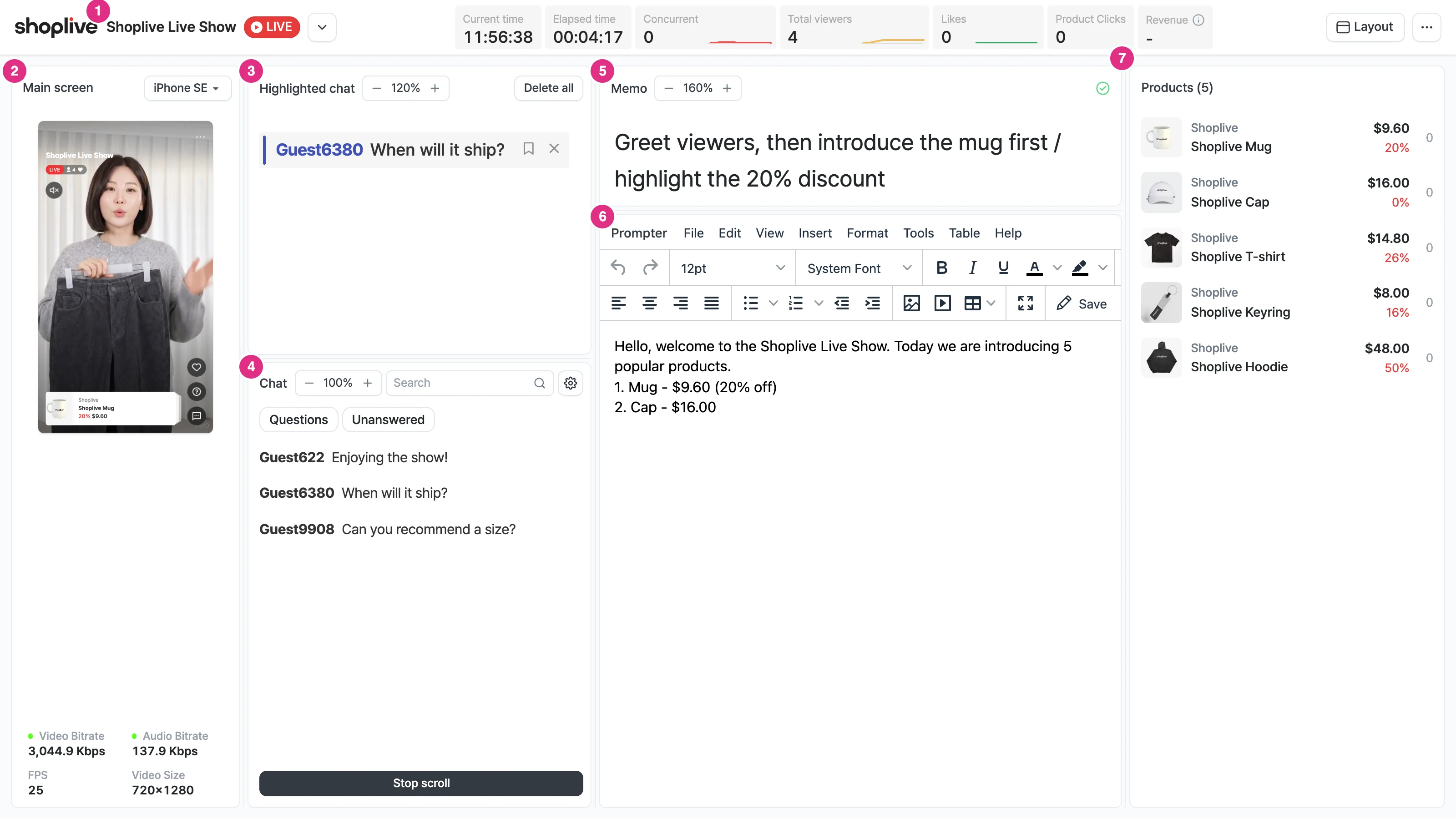
- Campaign info: Check the campaign title, status, current time, elapsed time, concurrent viewers, total viewers, likes, product clicks, and revenue.
- Main screen: Check the campaign that is being streamed. Below the screen, you can see the video and audio bitrate, FPS, and video size.
- Highlighted chat: Highlighted user messages are displayed. You can adjust the text size.
- Live chat: Check viewer chat in real time. Hover over a message to show the Delete, Mute User, Highlight, Copy and Save, and Reply icons. A message added with Highlight is shown in the highlighted chat. For details, see Manage chat.
- Memo: Leave directions for the host. You can adjust the text size.
- Script: Write and edit the broadcast script.
- Product info: Check the details and clicks of the products in the campaign.
Change the screen layout
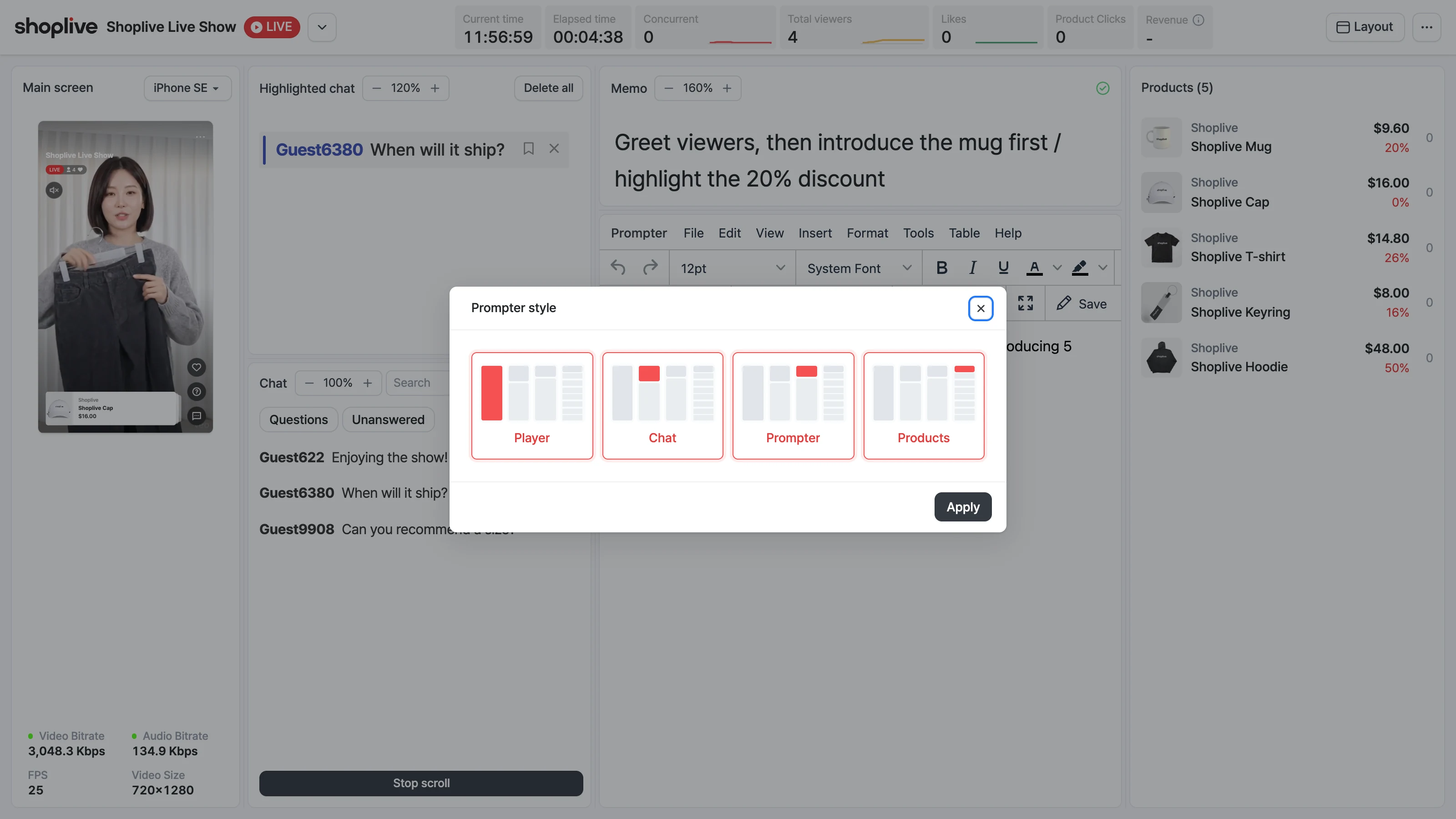
Select the Layout button at the top right to open the Prompter style window. Choose which areas to show (Player, Chat, Prompter, Products) and select Apply. Only the selected areas are displayed.
Select a device for the main screen
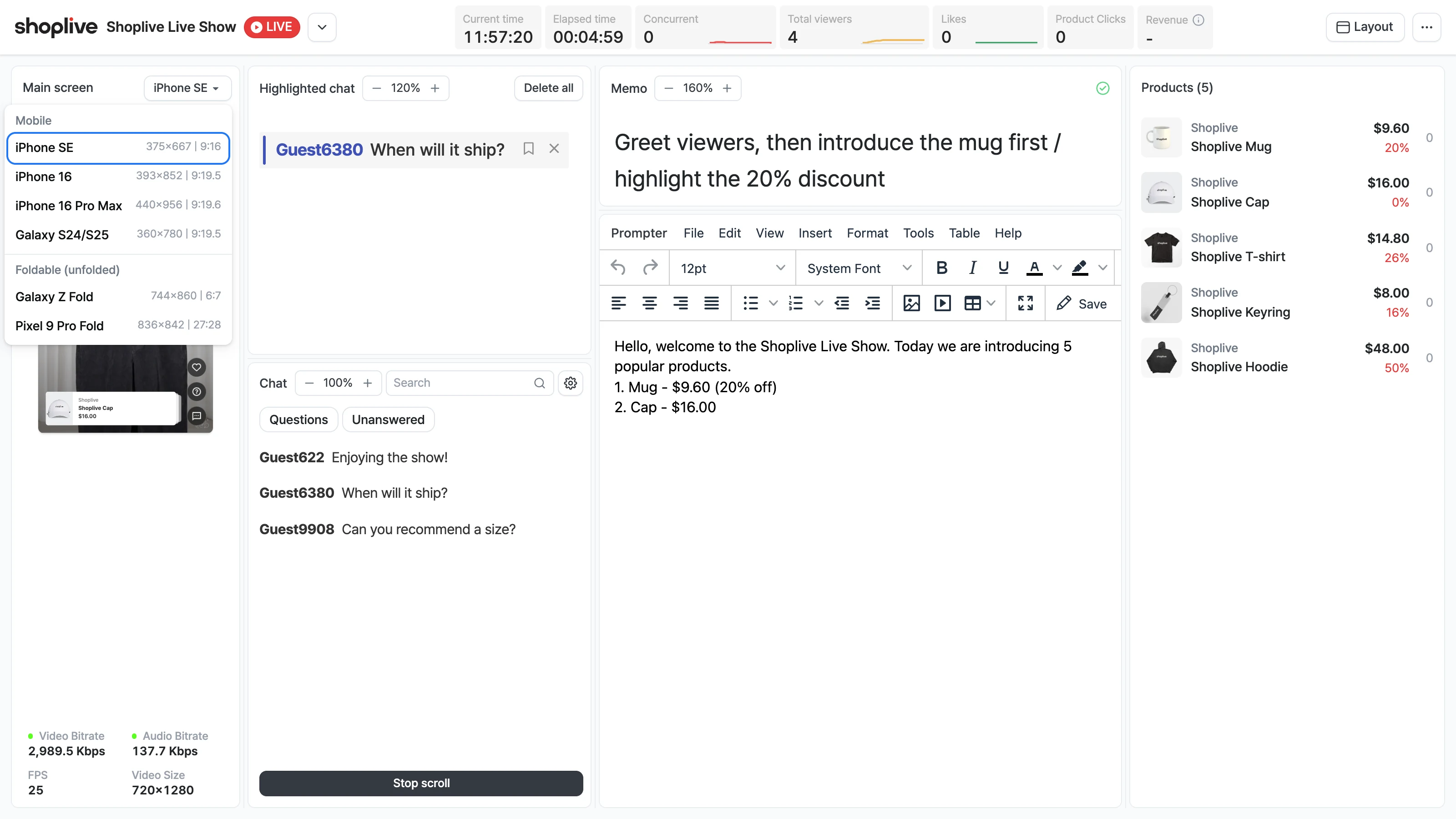
Select the device name above the main screen (for example, iPhone SE) to open the device list. Choose from Mobile (iPhone SE, iPhone 16, iPhone 16 Pro Max, Galaxy S24/S25) or Foldable (unfolded) (Galaxy Z Fold, Pixel 9 Pro Fold), and the main screen is displayed in that device's aspect ratio.
Check the campaign info
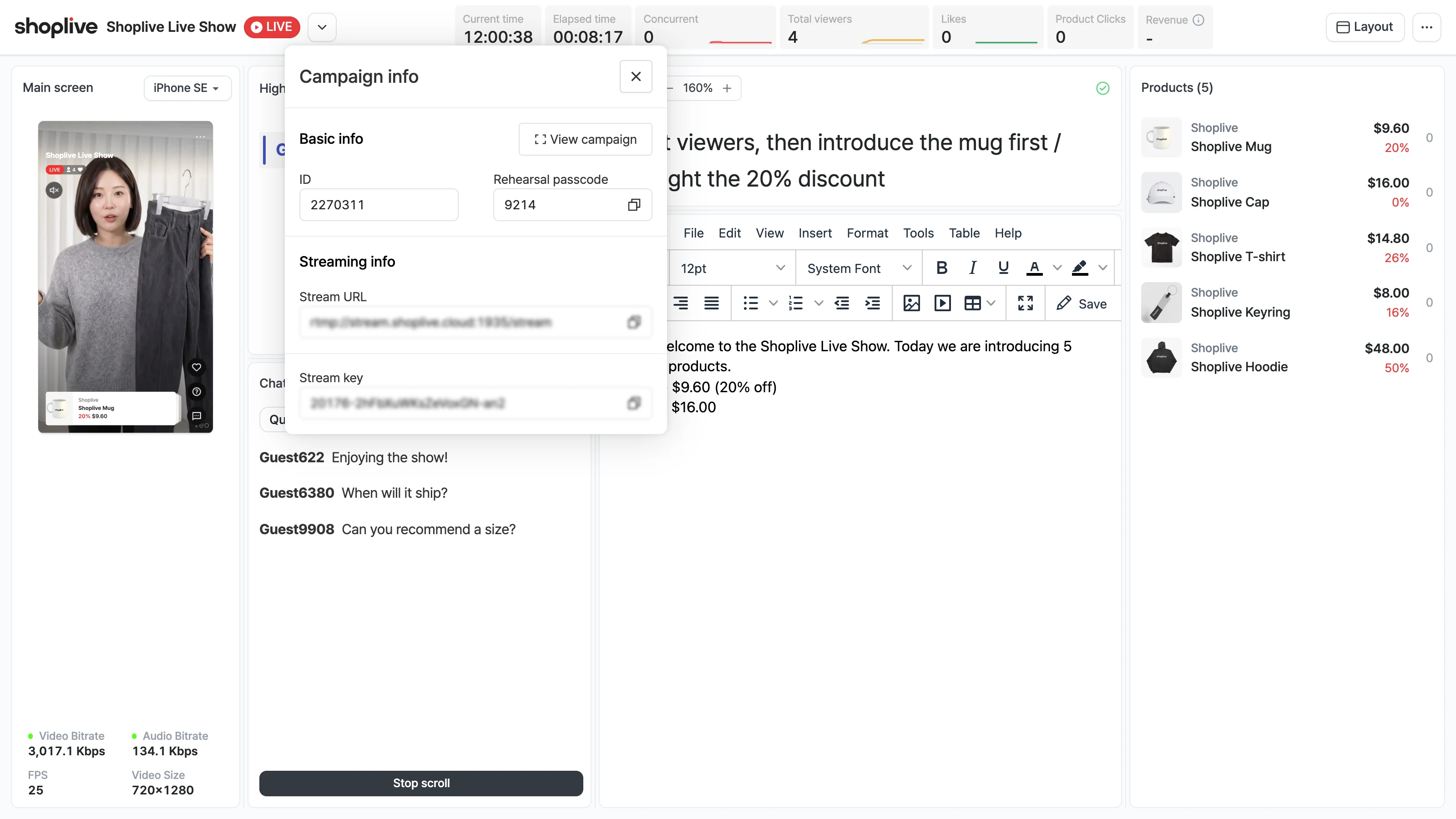
Select the expand button next to the campaign title to open the Campaign info window. You can check the campaign ID, rehearsal passcode, and streaming info (Stream URL and Stream key). There is also a View campaign button.
Adjust column width
When you hover over the divider between columns, the cursor changes to a left-right resize cursor. Drag the divider left or right to change the column width. The width you set is kept after you refresh the page.
More menu
Select the ⋯ More button at the top right to show Language and Low Spec Mode. In Language, you can choose from 한국어 (Korean), English, and 日本語 (Japanese). Low Spec Mode is turned on and off with a switch.
Event winner notice
When you use event popups, a winner notice popup appears in the prompter so the host can see the winners.