Guide · 3 · Publish the Campaign and Prepare to Stream
Set Up the Plugin Screen
Set up the Shoplive Plugin screen shown on your store in the Admin’s Live > Plugin menu. There are two screens you can set up: Home, where the broadcast list appears, and PIP, shown when viewers move to another screen during a broadcast.
Check first
Campaigns you want to show in the plugin must have the API·Plugin switch on in the campaign details. For how to set it, see Publish the campaign.
Home screen settings
At the top of the screen, switch between desktop and mobile and change the screen width to check the preview, then set the items in Default setting on the right. When you’re done, click Save and the message Settings saved. appears.
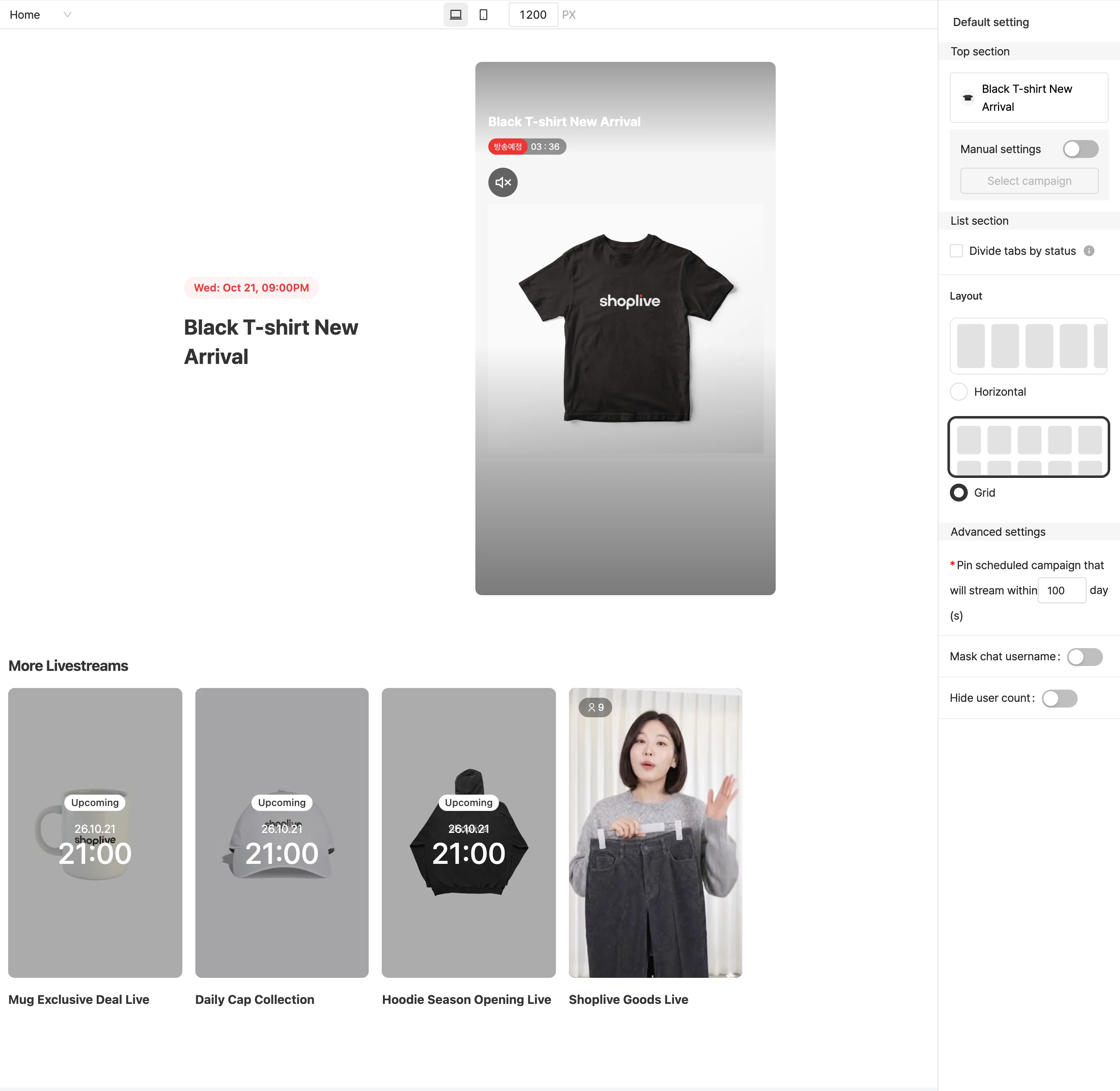
Top area
- Manual settings: Turn the switch on, then click Select campaign to open the pinned campaign selection window and choose the campaign to pin at the top. Only campaigns that are public through the API and plugin can be selected. When a live broadcast starts, the live broadcast in progress is shown first even if you have selected another campaign.
List area
- Separate tabs by status: splits the broadcast list into sections for live, upcoming and replay.
Layout
- Choose between Horizontal and Grid.
Advanced settings
- Pin scheduled campaign that will stream within [N] day(s): Enter the number of days, and campaigns scheduled within that period are shown at the top. This field is required.
- Mask chat user names: hides user names shown in the chat.
- Hide user count: doesn’t show the user count on screen.
PIP screen settings
Set the campaign banner and PIP in Campaign banner, PIP settings. You can check the PIP location and space in the preview on the left.
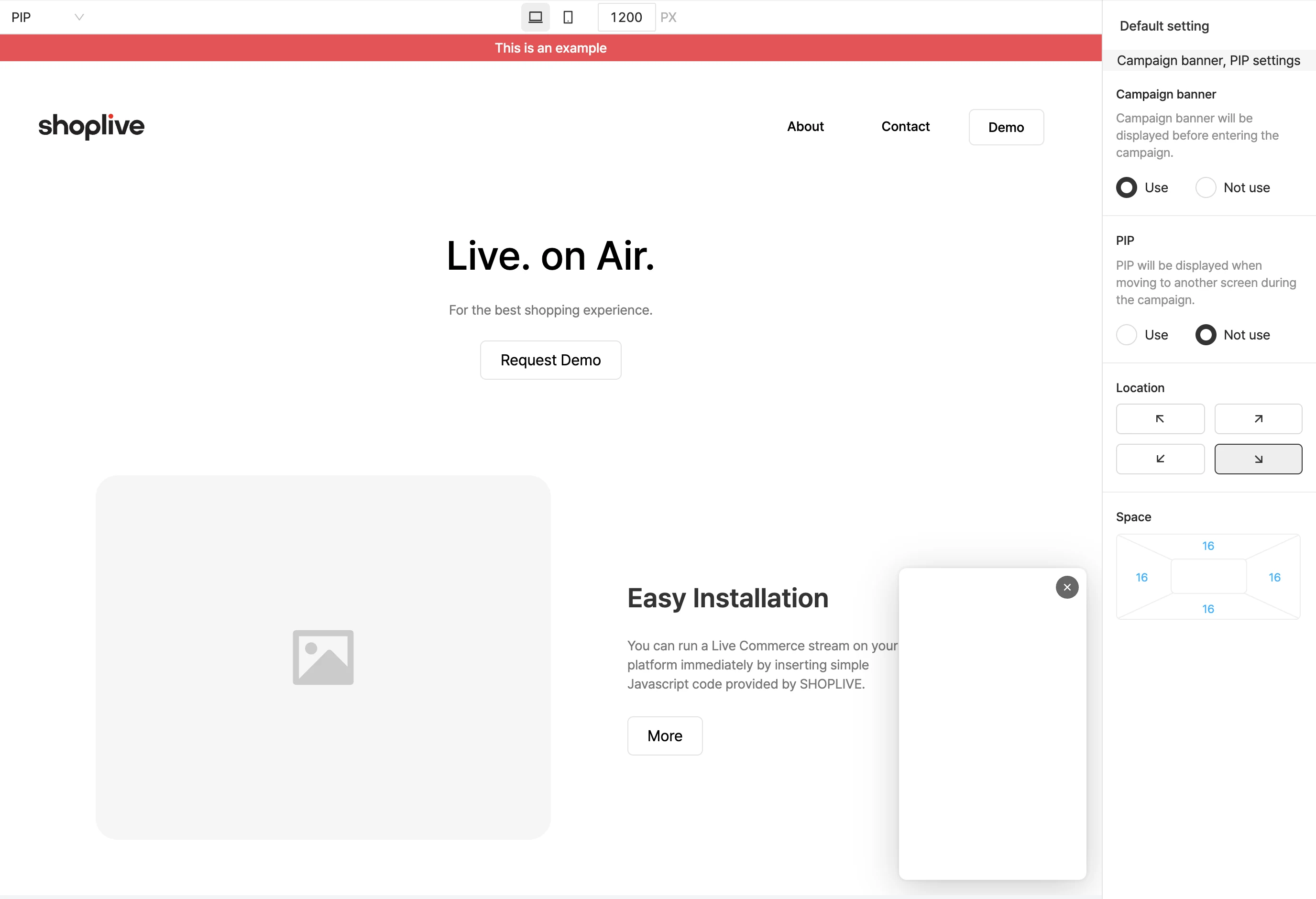
- Campaign banner: A banner shown before entering the campaign. Select Use or Not use.
- PIP: Shown when the viewer moves to another screen during the campaign. Select Use or Not use.
- Location: Choose one of the four corners where the PIP is shown.
- Space: Check and set the top, bottom, left, and right space of the PIP.