Replay Settings
Set replay options
Set replay options to run replays the way you want.
Basic setup
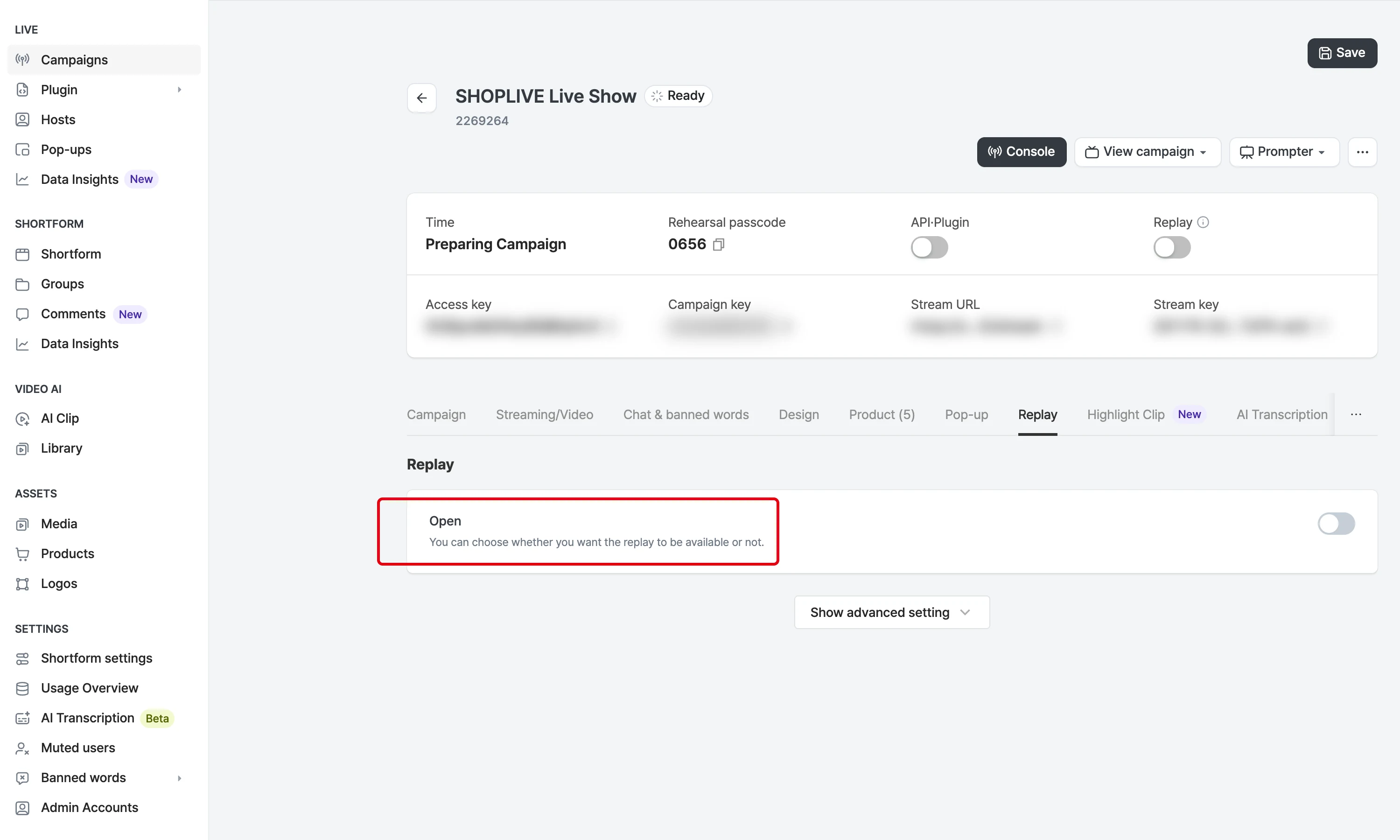
Publish replay
Click the public toggle to publish the replay. The visibility states are Public, Private and Scheduled.
Autoplay setting
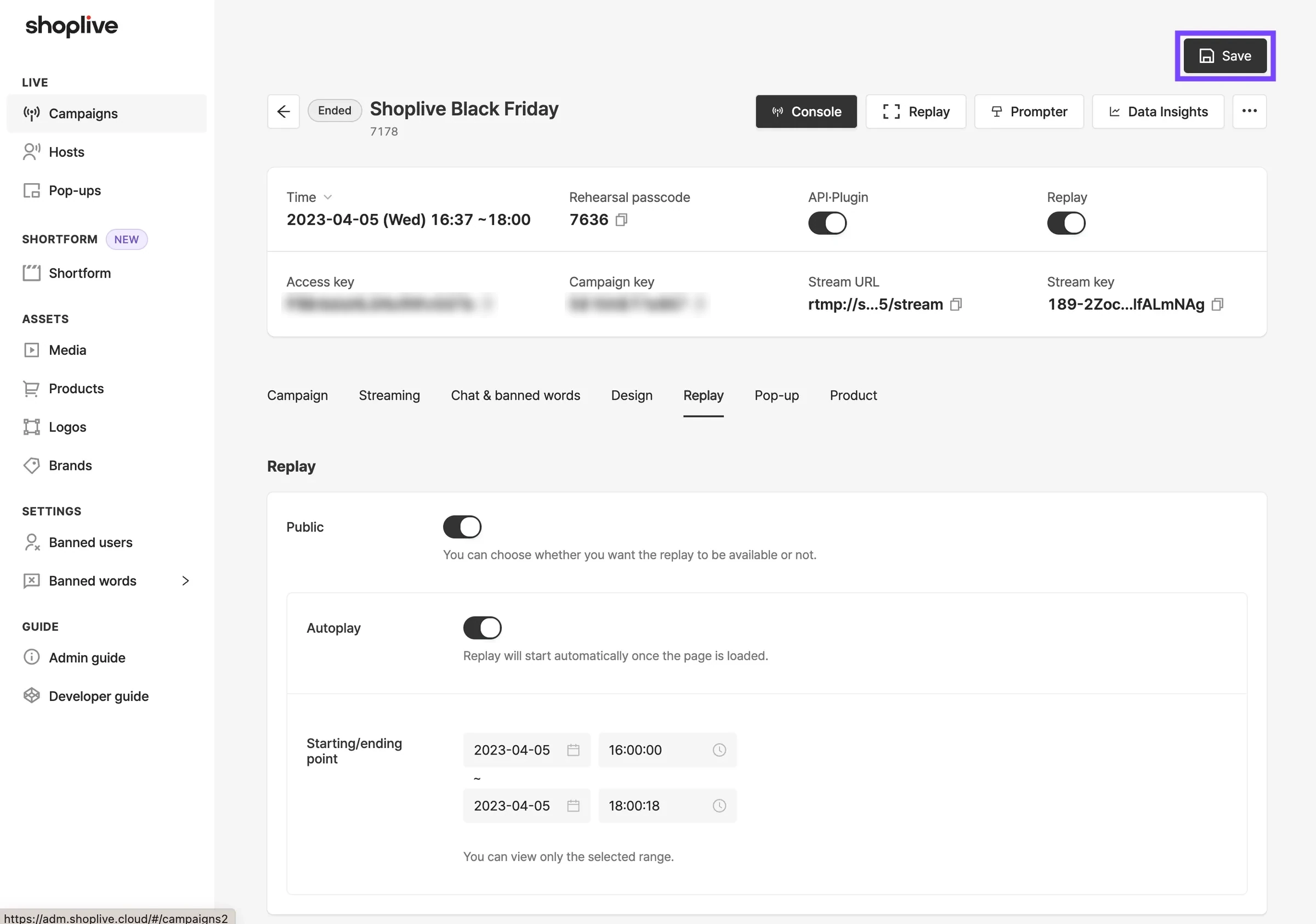
Option | Description |
|---|---|
Autoplay ON | The video plays automatically when the player opens. |
Autoplay OFF | A play button appears when the player opens, and the video plays after the play button is clicked. |
Set range
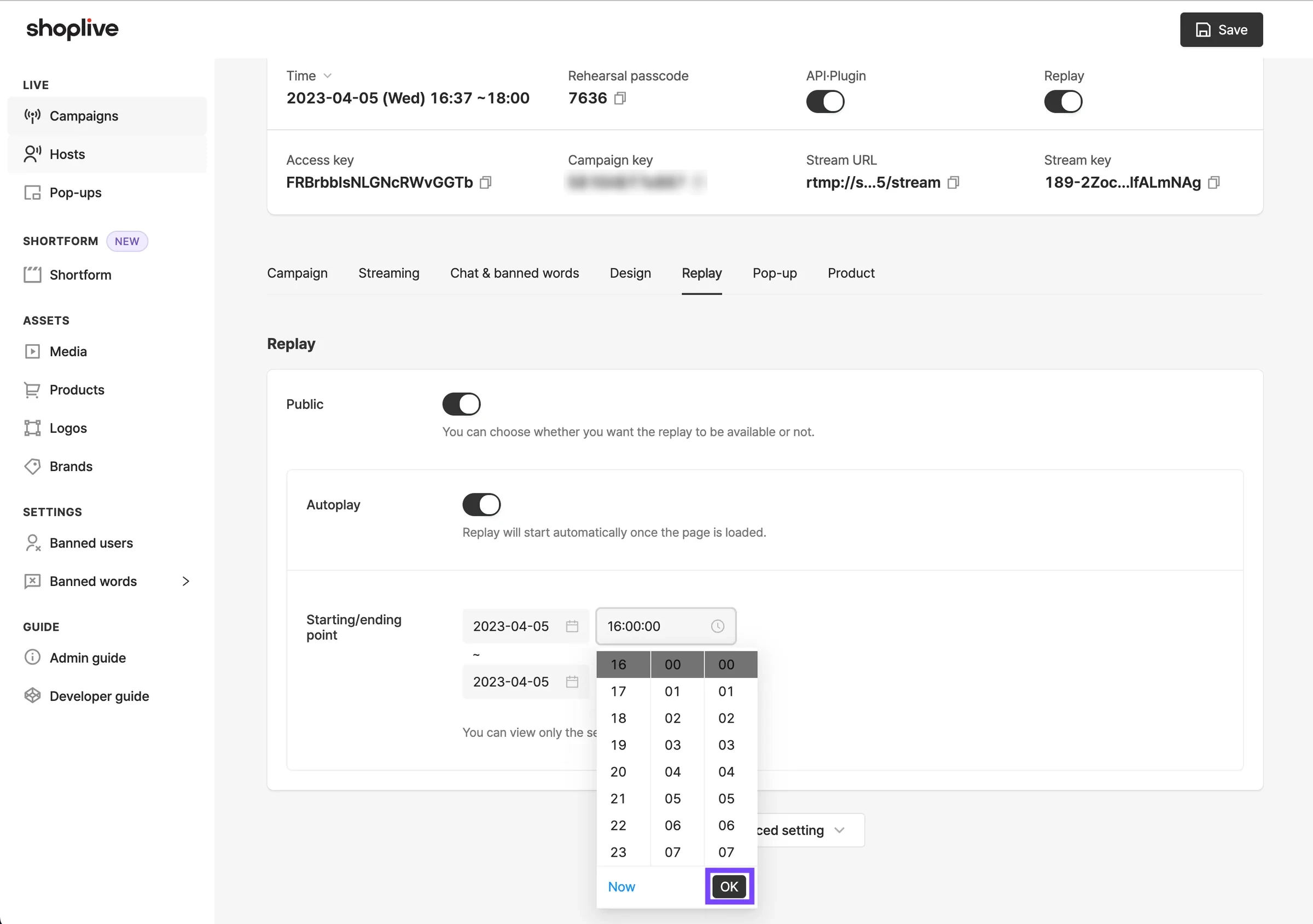
With range settings, you can publish only the part of the broadcast you want as the replay. (e.g. when an intro or outro video was streamed before or after the actual broadcast)
Set the times to when the broadcast actually started or ended and click OK.
Is setting a replay range required?
If you don’t set a replay range, the entire broadcast is published as the replay.
- Entering a time outside the actual broadcast range causes an error when saving.
- The end time must be after the start time, and the end date can’t be later than the broadcast end date.
- Enter the range as a date and time (HH:mm:ss).
The range of a rerun’s replay can’t be edited. Replays can’t be edited while the broadcast is streaming.
Advanced settings
Set display period
In Set display period, set the period for publishing the replay with a start and end time.
The replay is published at the set start time, and until then the image after the broadcast ends is shown.
When the end time passes, the replay becomes private automatically and a banner notice appears.
Viewers who joined before the end can keep watching until the end.
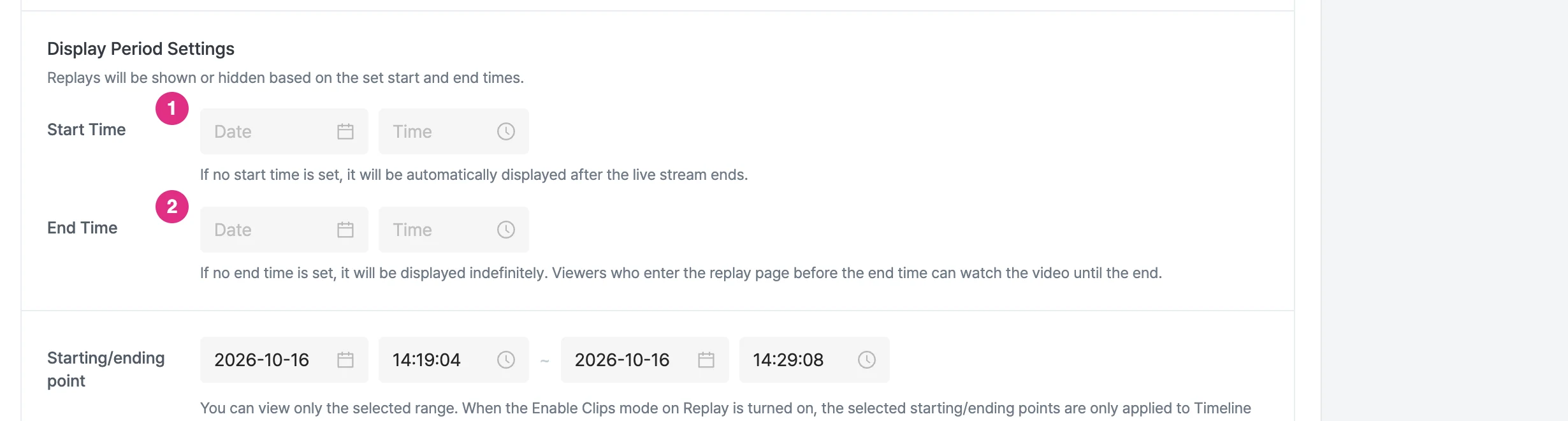
- Start time: Enter the date and time when the replay becomes available.
- End time: Enter the date and time when the replay stops being available.
Do I have to set a replay display period?
If you don’t set a start time, the replay is displayed automatically after the broadcast ends; if you don’t set an end time, it’s displayed indefinitely.
Reproduce broadcast stats
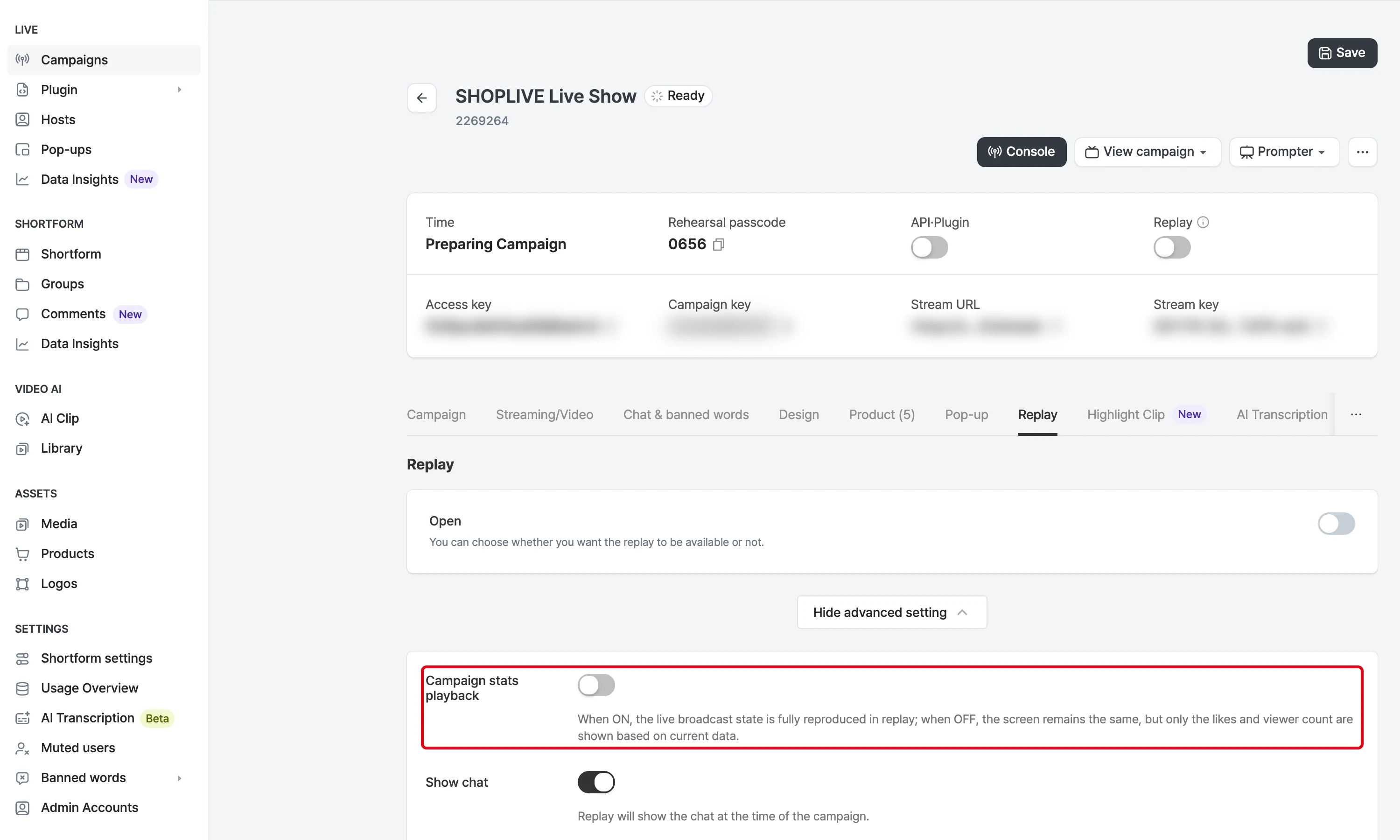
Option | Description |
|---|---|
Reproduce broadcast stats OFF | Viewers and Likes are shown cumulatively (including replay viewers). Edits to products registered to the campaign are reflected immediately. |
Reproduce broadcast stats ON | Reproduces the viewer count, Like count and product list exactly as during the live broadcast. |
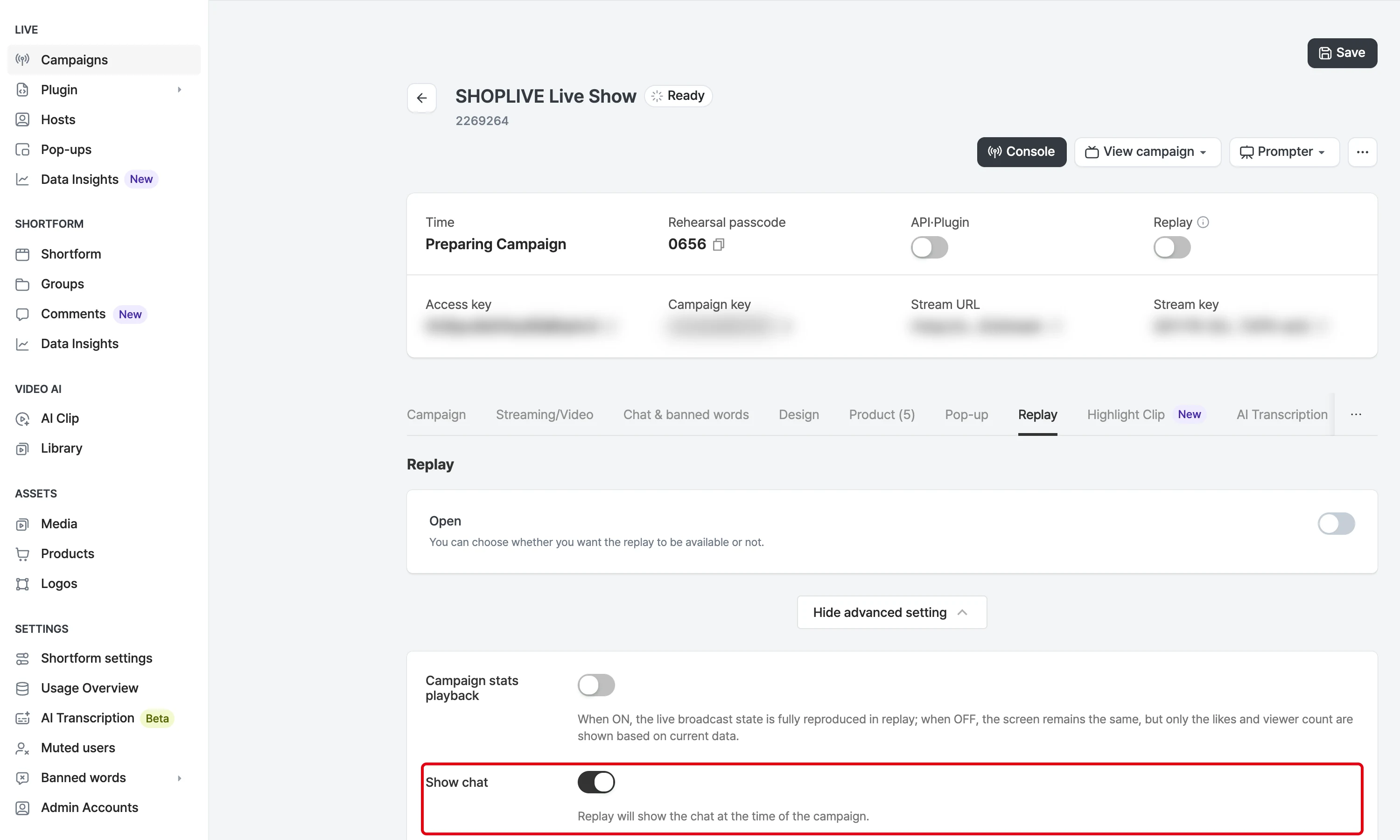
Show chat
If you set Show chat to OFF, the chat isn’t shown in the replay.
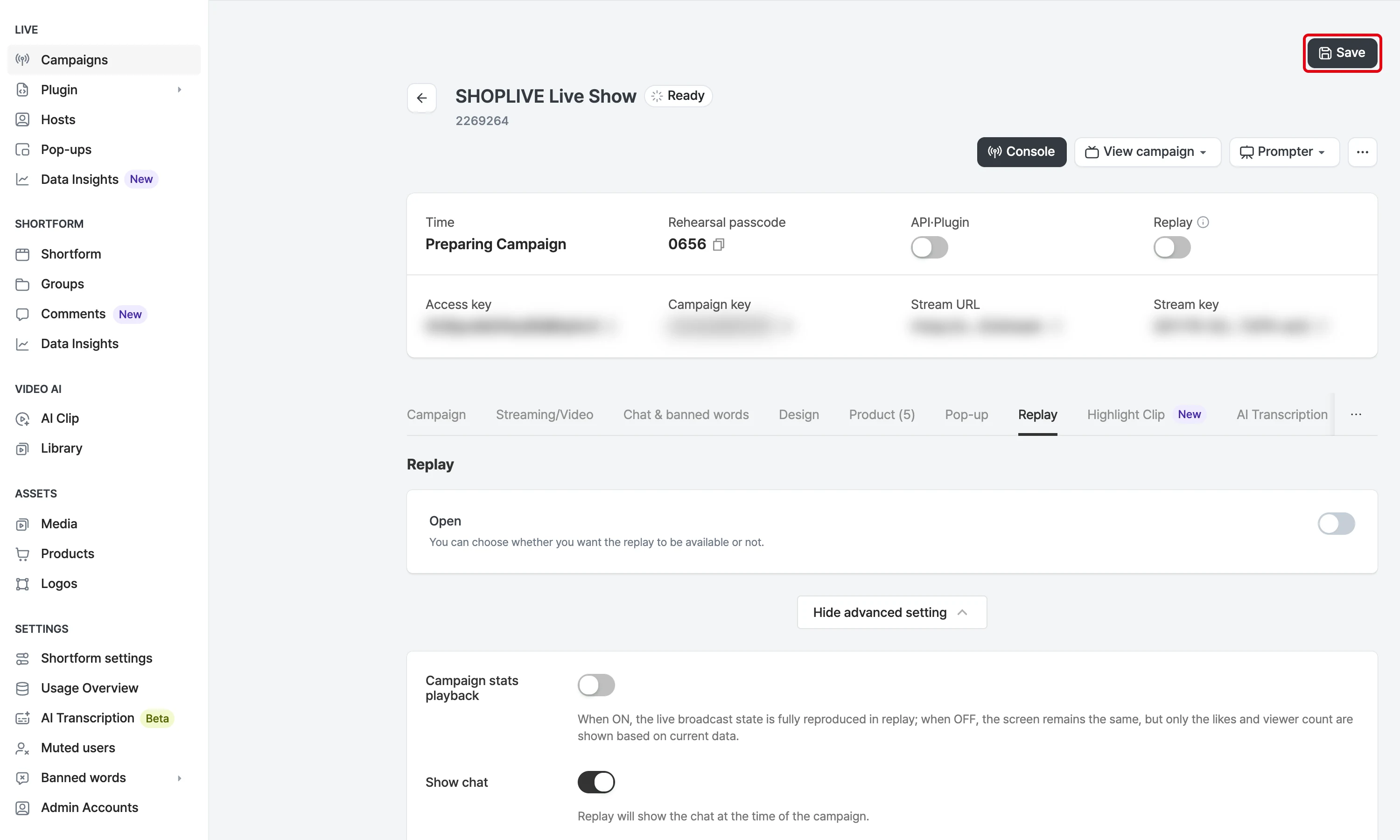
Save
Save when you’re done with the replay settings.
Download the full broadcast video
After the broadcast ends, you can download the full broadcast video from Data Insights in the campaign details.
Shoplive provides video files in two formats: flv, the original streamed video, and the highly compatible mp4.
Does the video file include the chat?
The video file is the pure original video without player UI elements such as the logo, chat, Like animations and popups. Video files that include player elements aren’t provided.
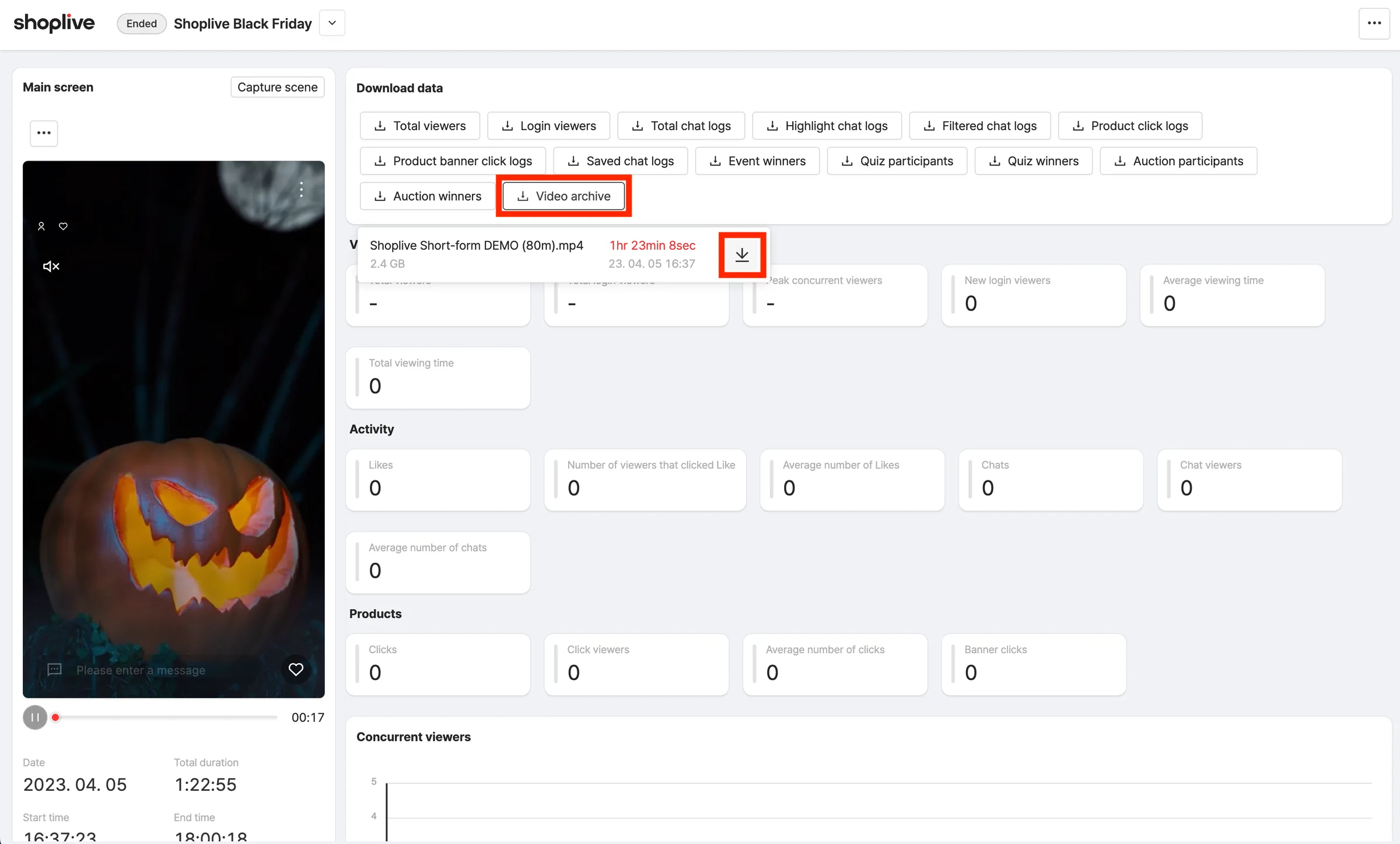
1After the broadcast ends, click the Data Insights button on the campaign details page.
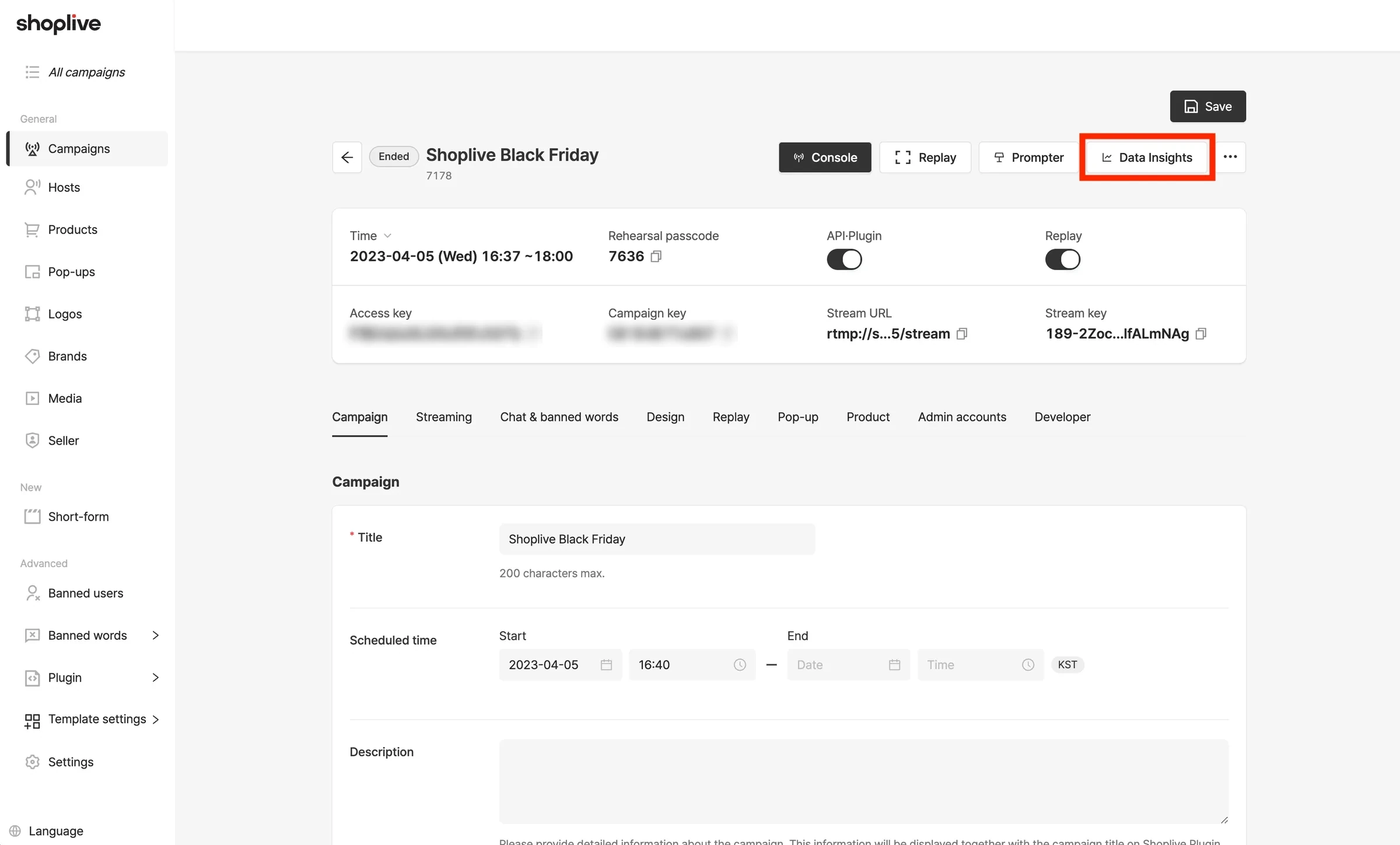
2Click Full video under data downloads to download the ended broadcast as an flv or mp4 file.
Use highlight clips
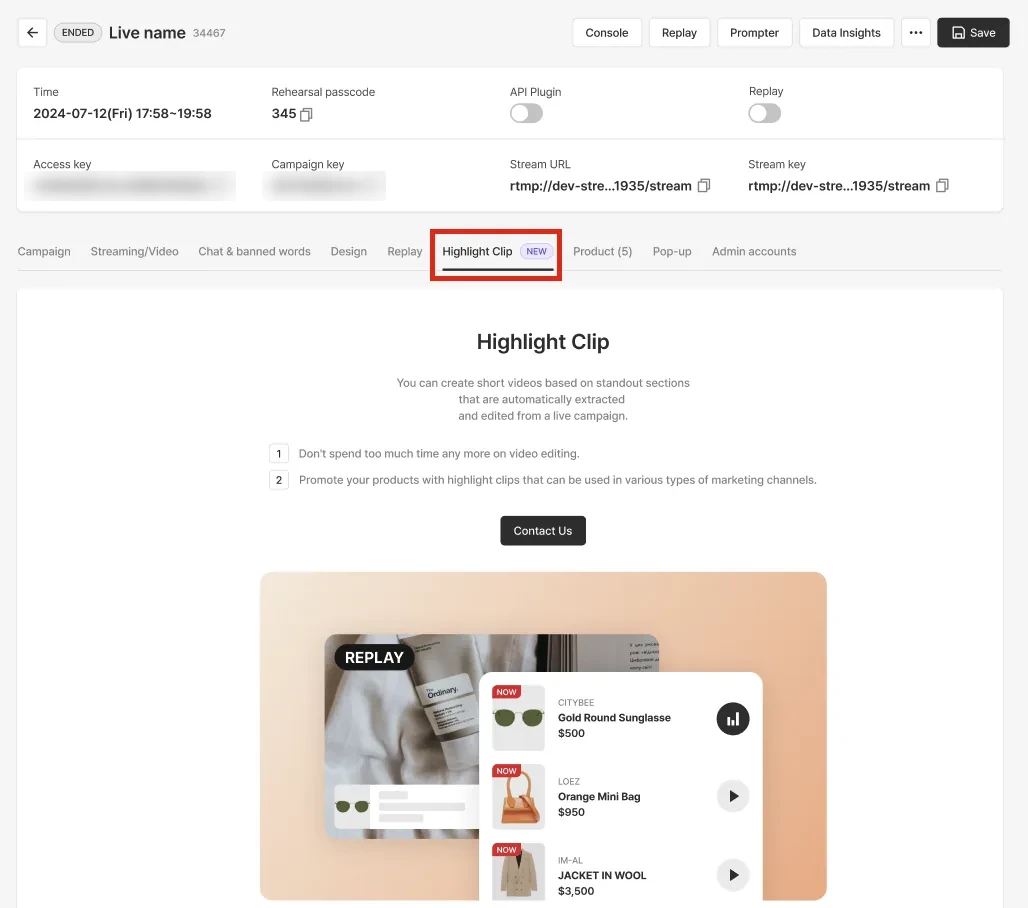
Edit and use short product highlight videos to create replays that draw customers’ attention to products.
What are highlight clips?
About highlight clips
Selected segments of the live broadcast are automatically extracted, edited and turned into short videos, or clips. During the live broadcast, highlight a segment by turning it on/off with Console > Products > NOW, and that segment is clipped.
You can review each video, re-edit and save its range, and combine the edited segments to create a shortform.
During the replay, a View clips mode is enabled in the player so customers can conveniently watch only the highlight clips for each product.
Automatically recommended highlight clips
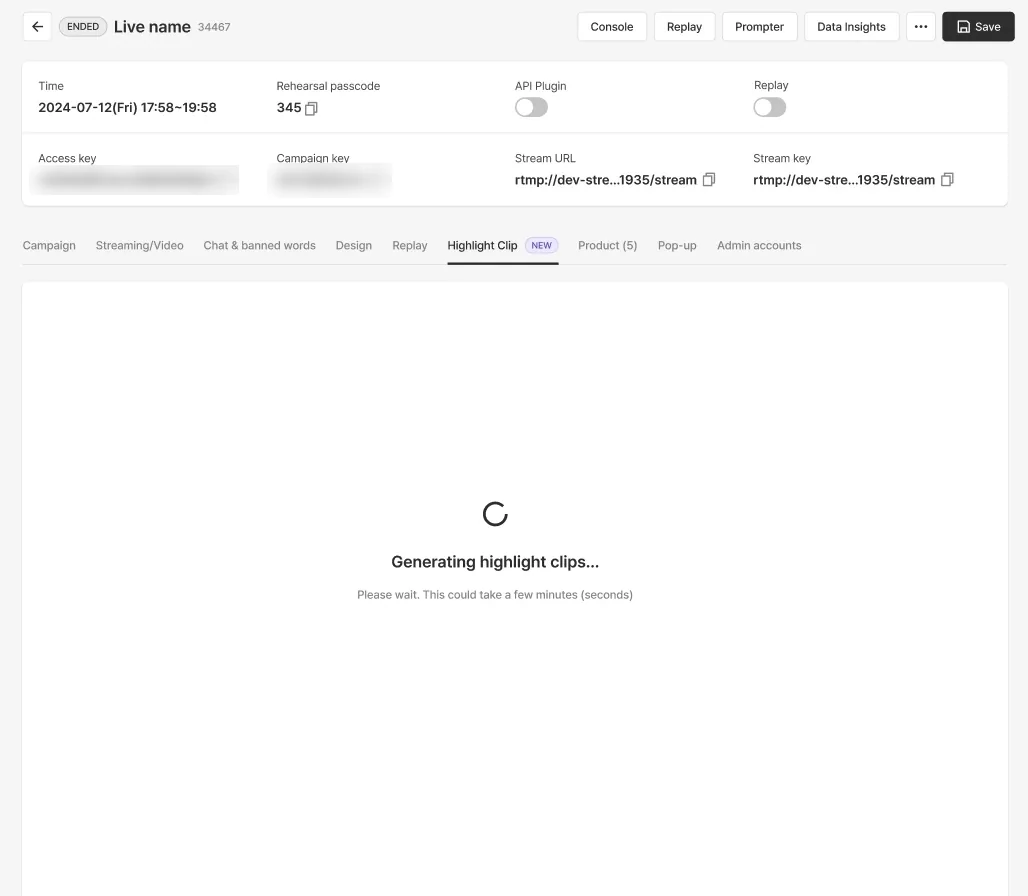
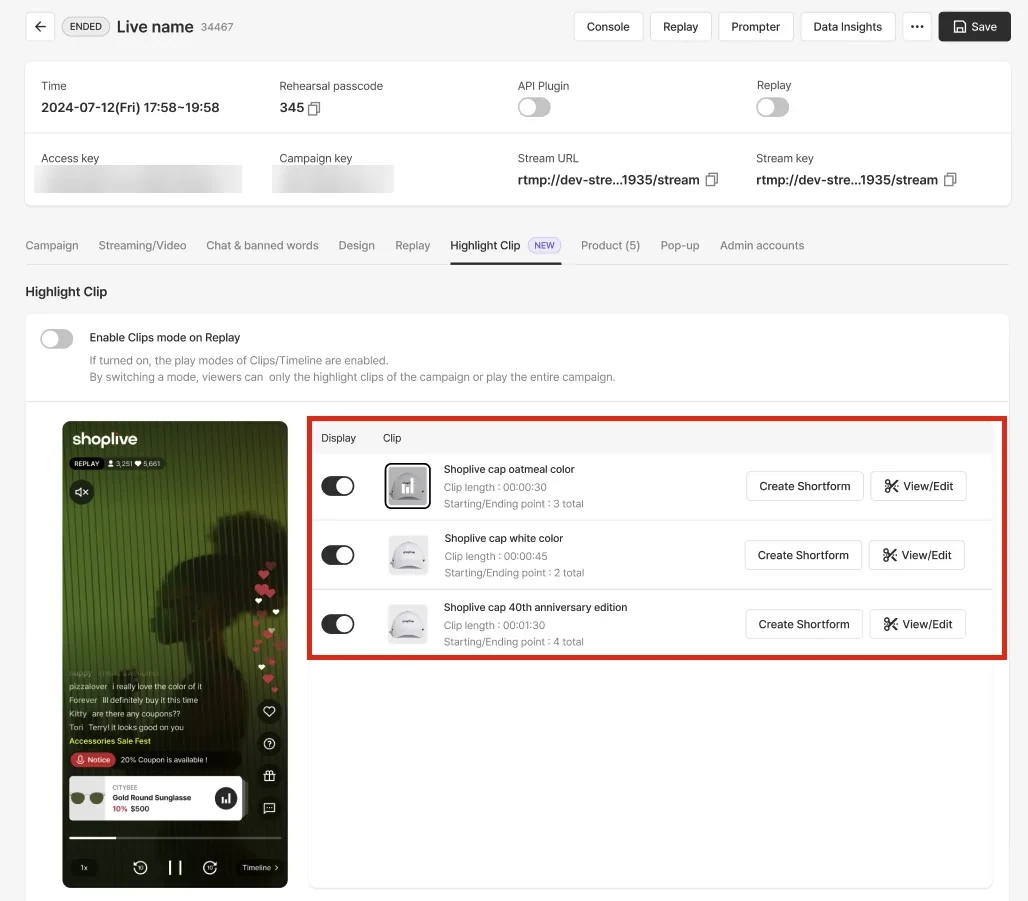
Check the automatically recommended highlight clips on the Highlight clips tab. They’re generated based on the points turned ON/OFF with Console > Products > NOW during the broadcast.
Highlight clips are provided only for ended broadcasts, and it takes some time after the broadcast ends for them to be generated.
Edit and preview highlight clip ranges
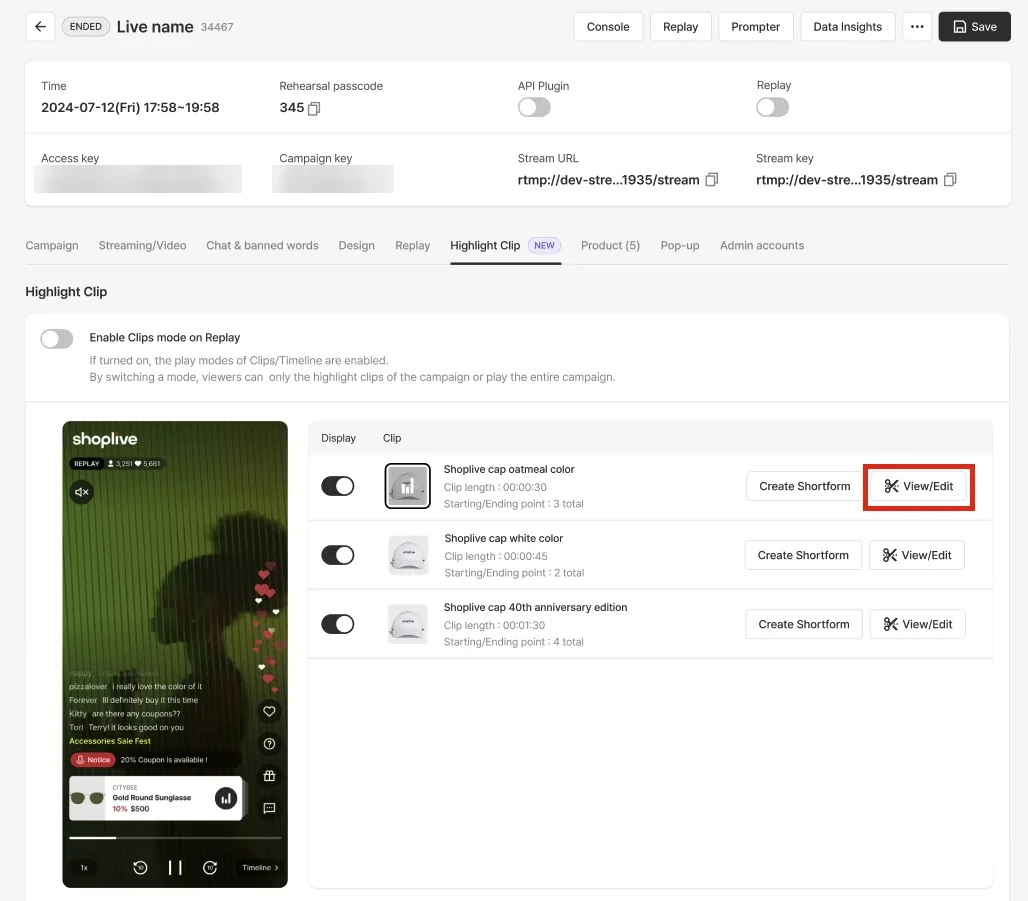
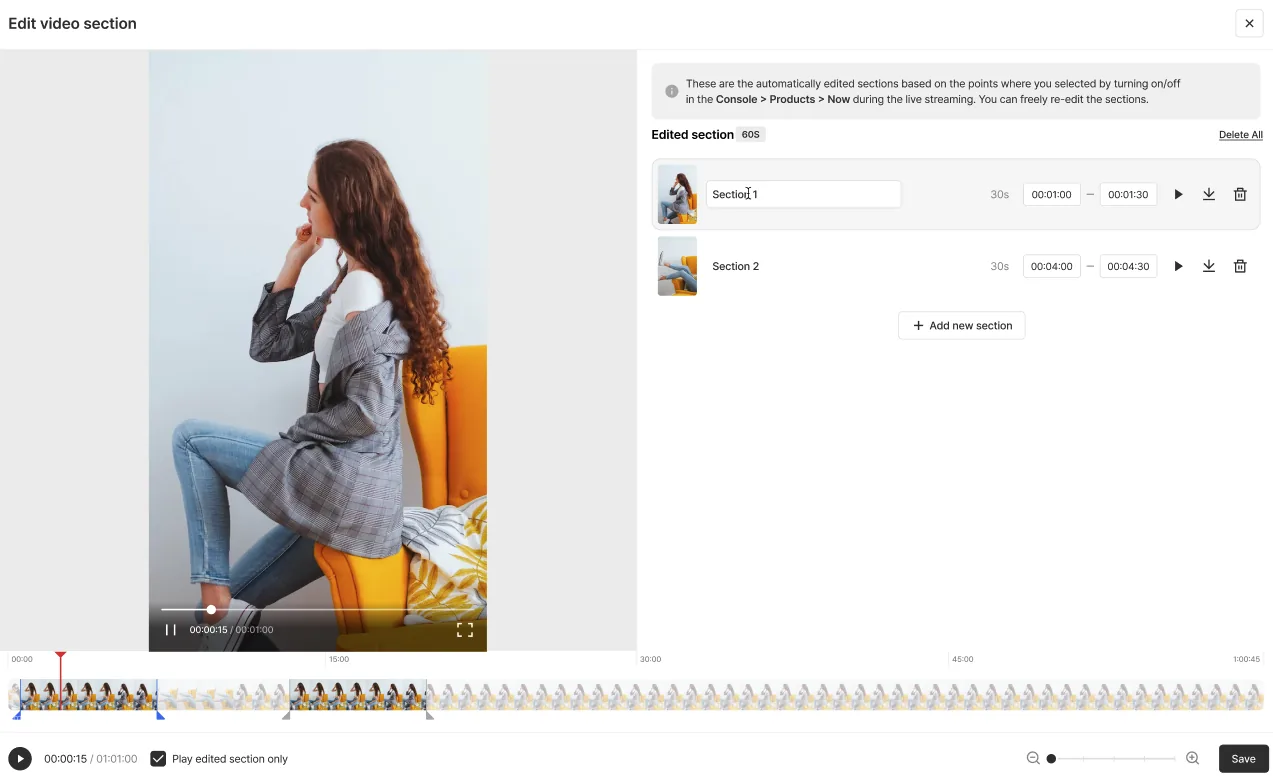
View and edit range
Click View and edit range on each clip to see its set range. You can also re-edit the range; when you do, it must be at least 1 second long.
Preview range
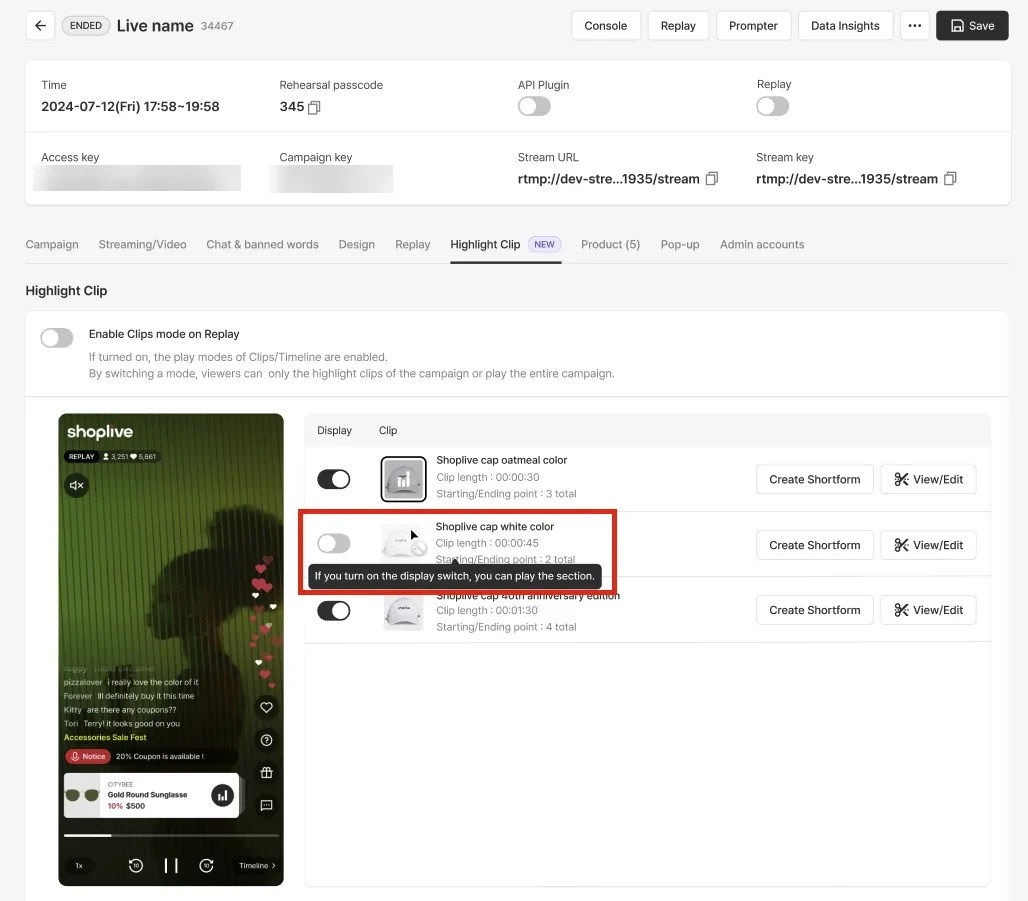
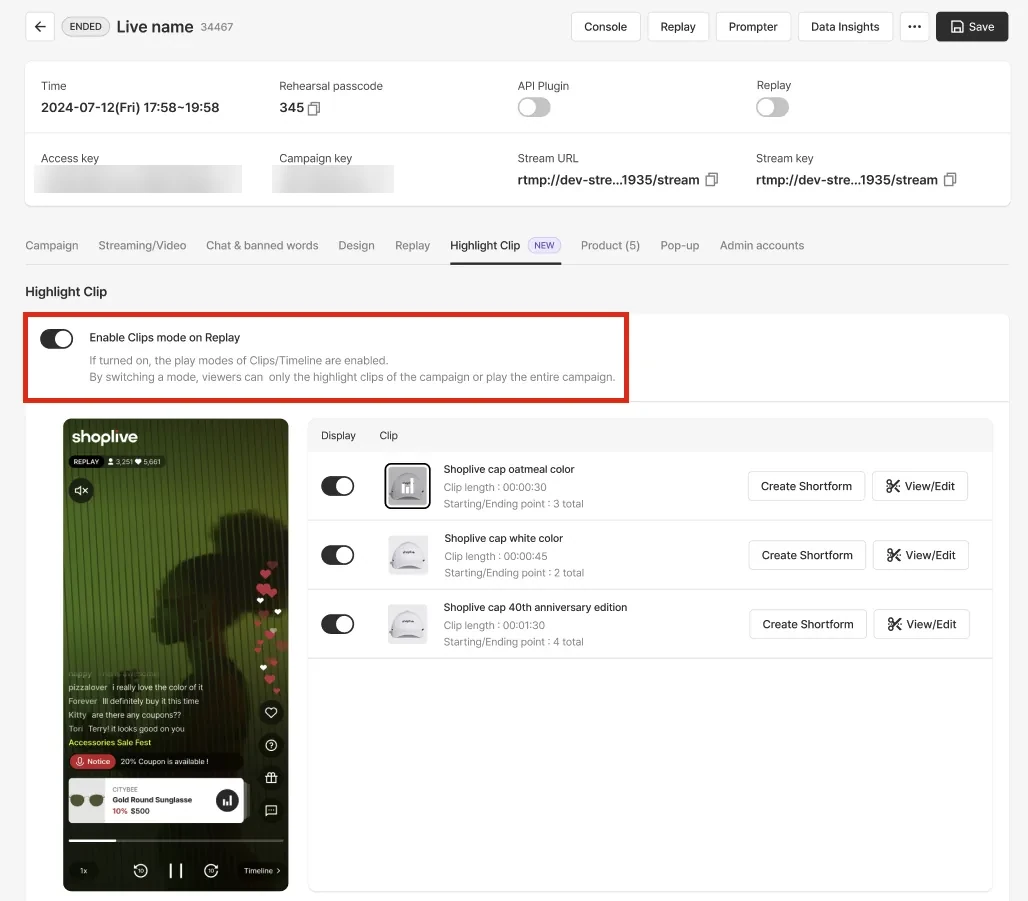
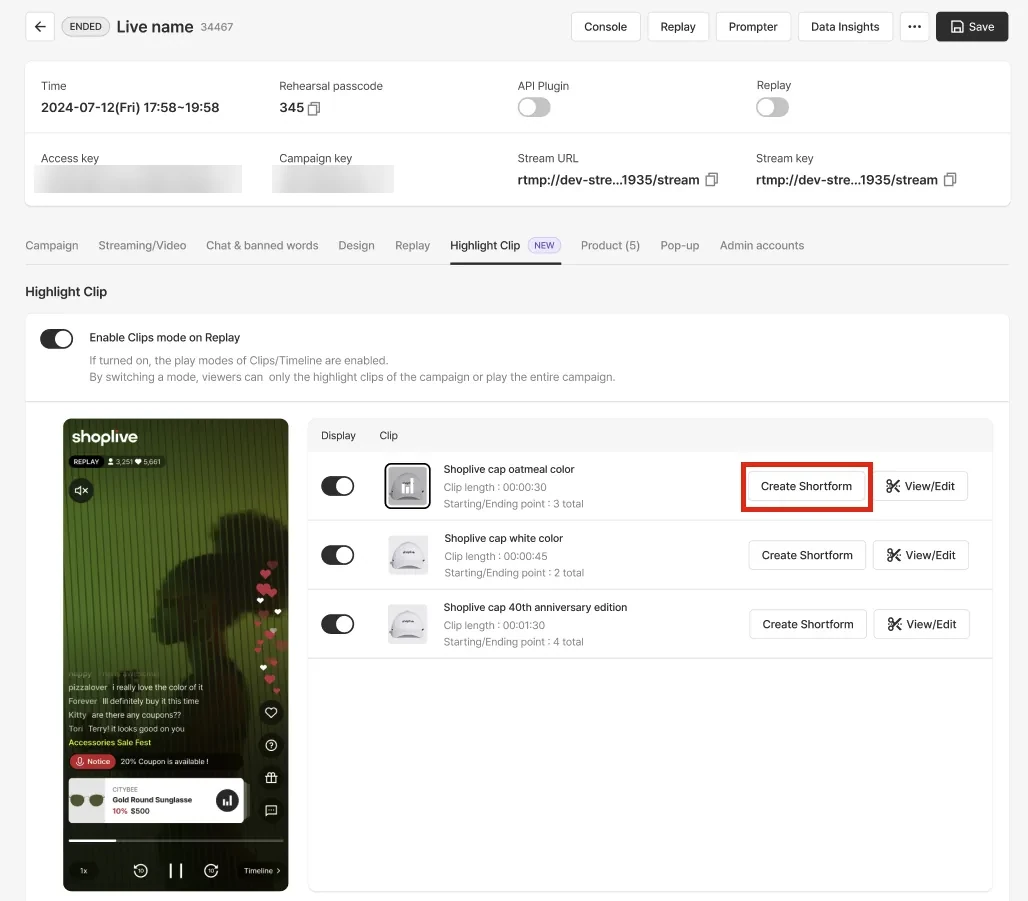
Set each clip’s Visibility to ON to check the clip in the preview area on the left.
Show highlight clips in the replay
When Visibility is ON, the clip plays in the player’s View clips mode during the replay.
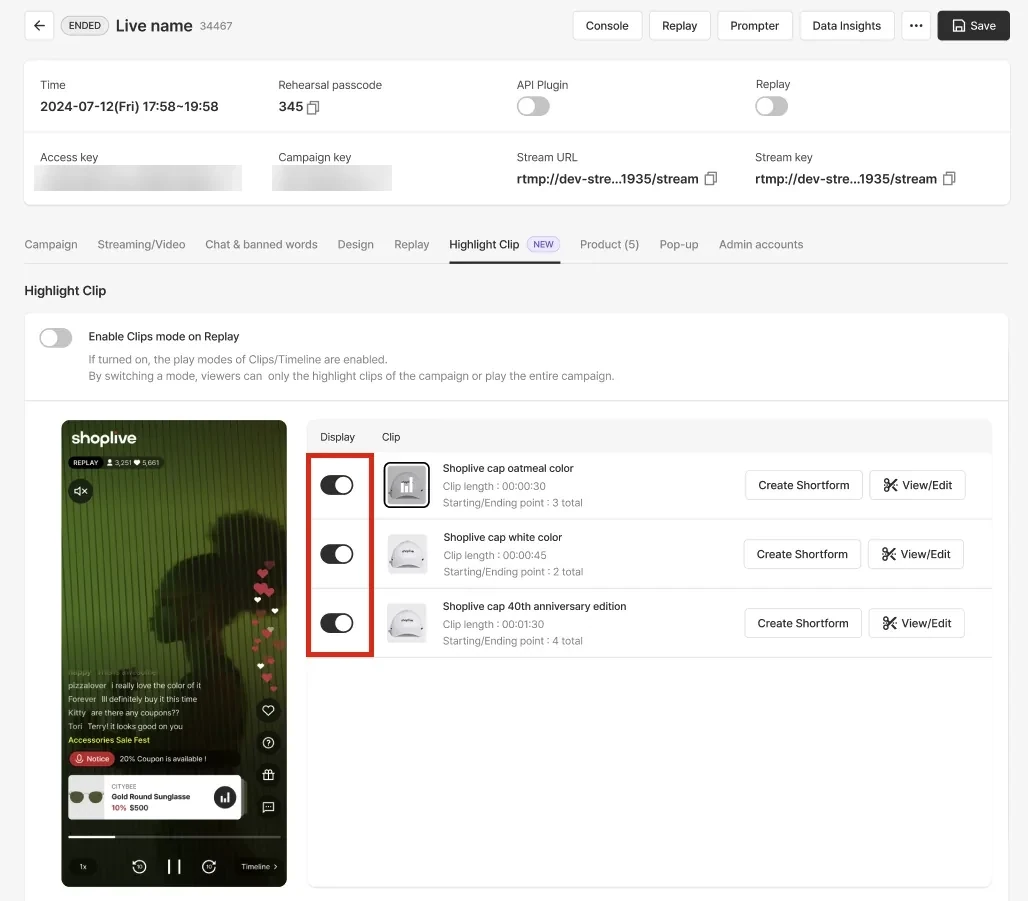
Enable View clips mode in the replay
Turn on Enable View clips mode in the replay to enable View clips mode in the replay player. In this mode, each set clip plays in order.
Watching in View clips mode in the player
When View clips mode is enabled, highlight clips play in the player by default during the replay. The edited highlight clips play in order, and viewers can open the product bottom sheet to choose the highlight clip registered to each product.
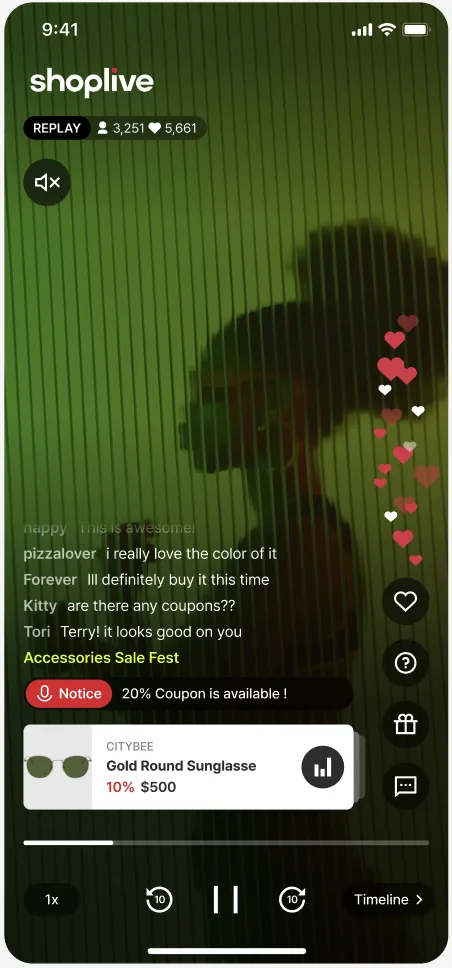
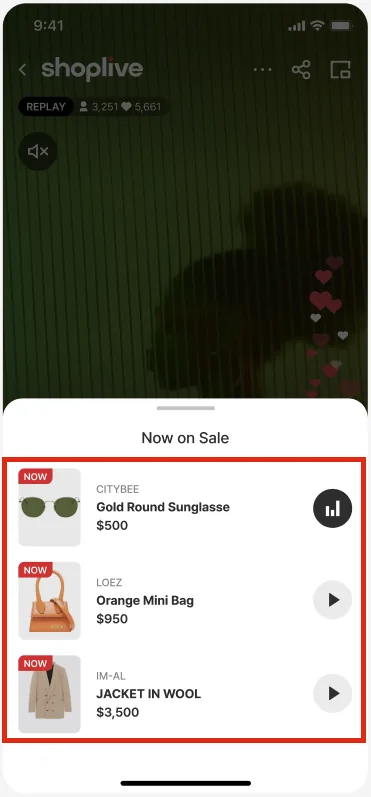
Switch modes in the player
Click View full at the bottom right of the player to enable View full mode and play the whole broadcast in the player.
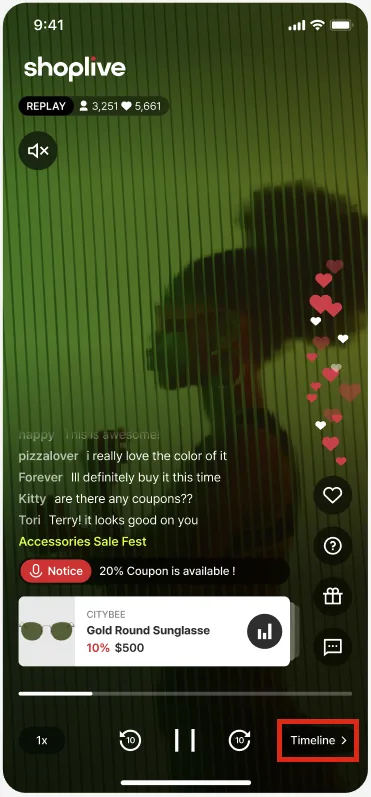
Create shortforms from highlight clips
Click Create shortform to create a shortform from each clip, enter the information needed and save.
FAQ
Highlight clip FAQ 🧐
Can I use Reproduce broadcast stats mode while highlight clips play in the replay player?
No. When Enable View clips mode in the replay is on, Reproduce broadcast stats mode is turned off automatically in the replay player.
What happens if I set the video range to play with Set range on the Replay tab?
The Set range on the Replay tab applies only to View full mode; in View clips mode, where highlight clips are shown, each clip plays with its own range.
What happens if I delete a product after the broadcast?
Highlight clips of deleted products aren’t added to the replay.
Create a rerun
You can turn an ended live broadcast into a rerun and stream it again.
To see how it differs from saved-video streaming, see How saved-video streaming differs from reruns.
Make a rerun
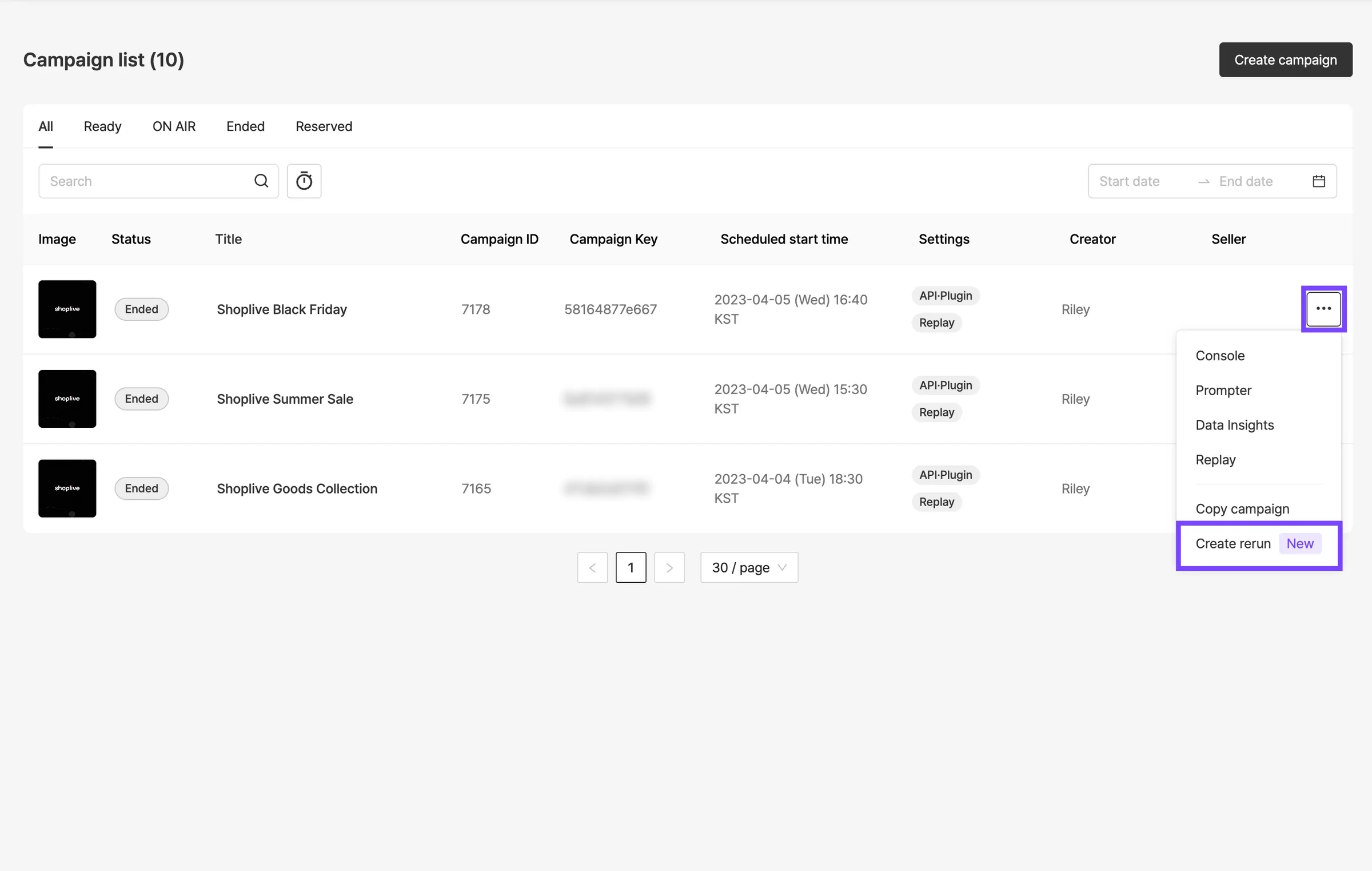
Click the More menu button of an ended campaign, then click Create rerun. Only ended campaigns can be made into reruns.
The Create rerun menu appears when you have permission to create/delete campaigns, the campaign has ended, and it isn’t a rerun or a saved-video campaign. Campaigns without streamed video can’t be made into reruns. Clicking it shows the confirmation Create a rerun?.
Check the rerun
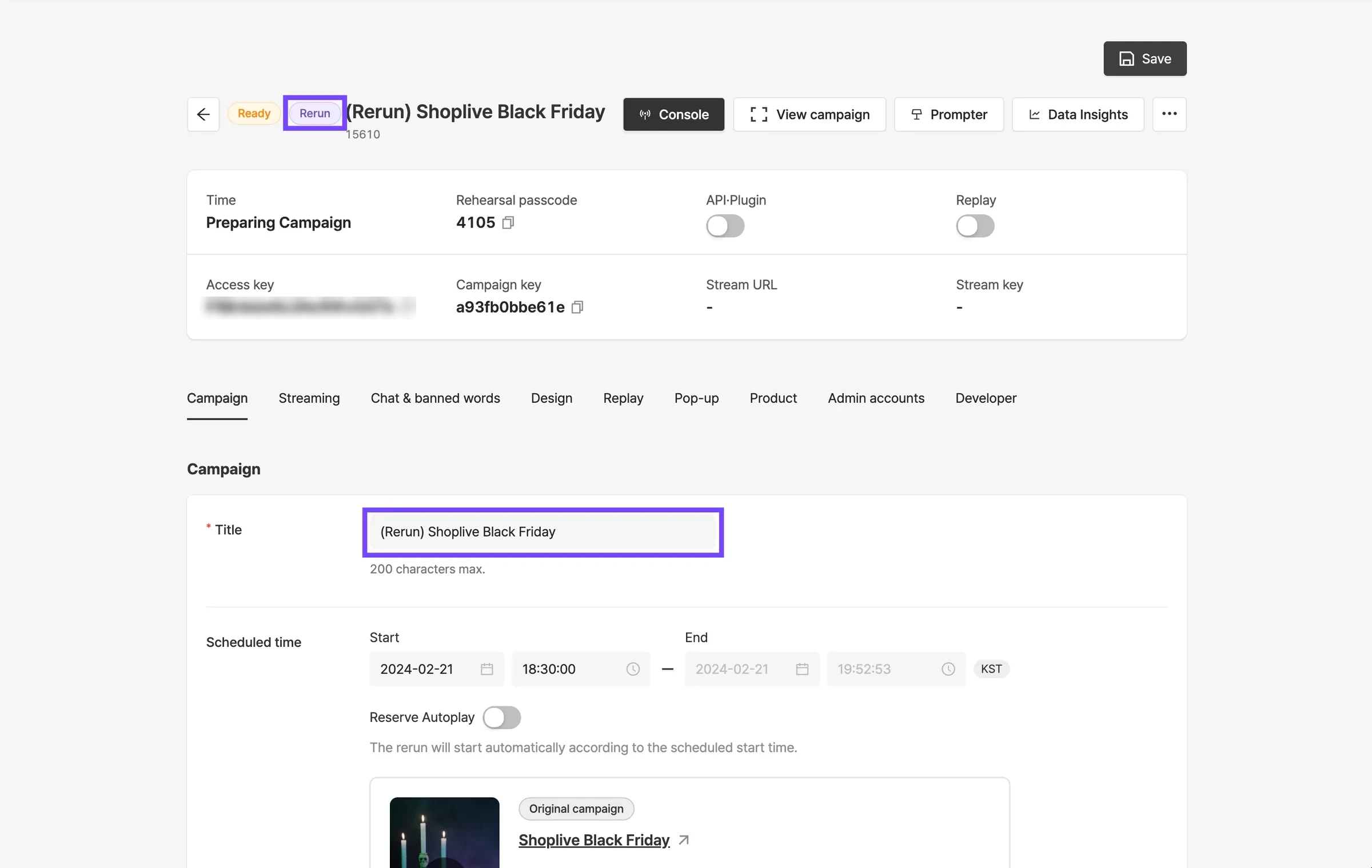
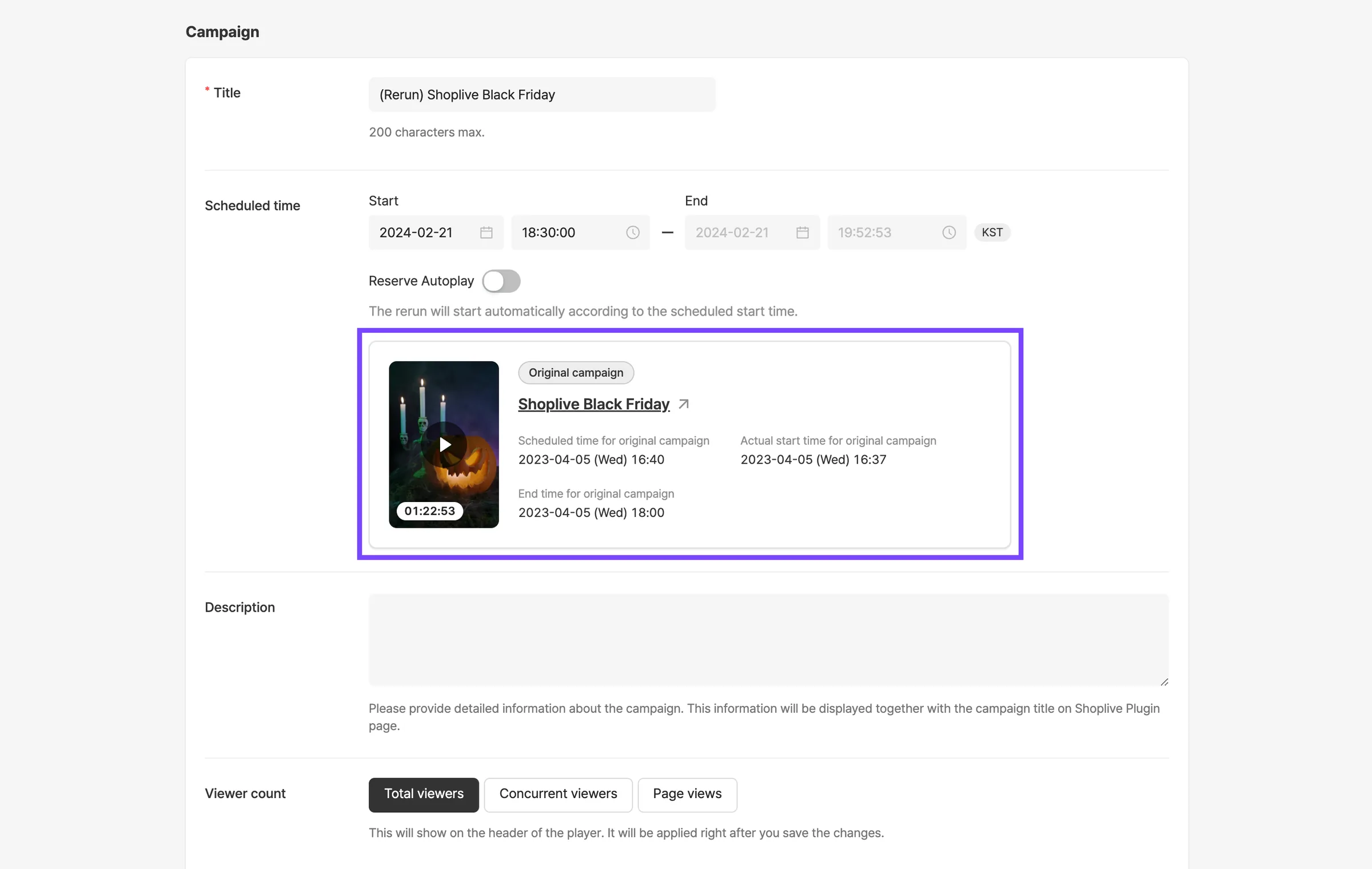
The rerun shows a Rerun label. Its title is the original broadcast’s title prefixed with '(Rerun)'.
Set the rerun schedule
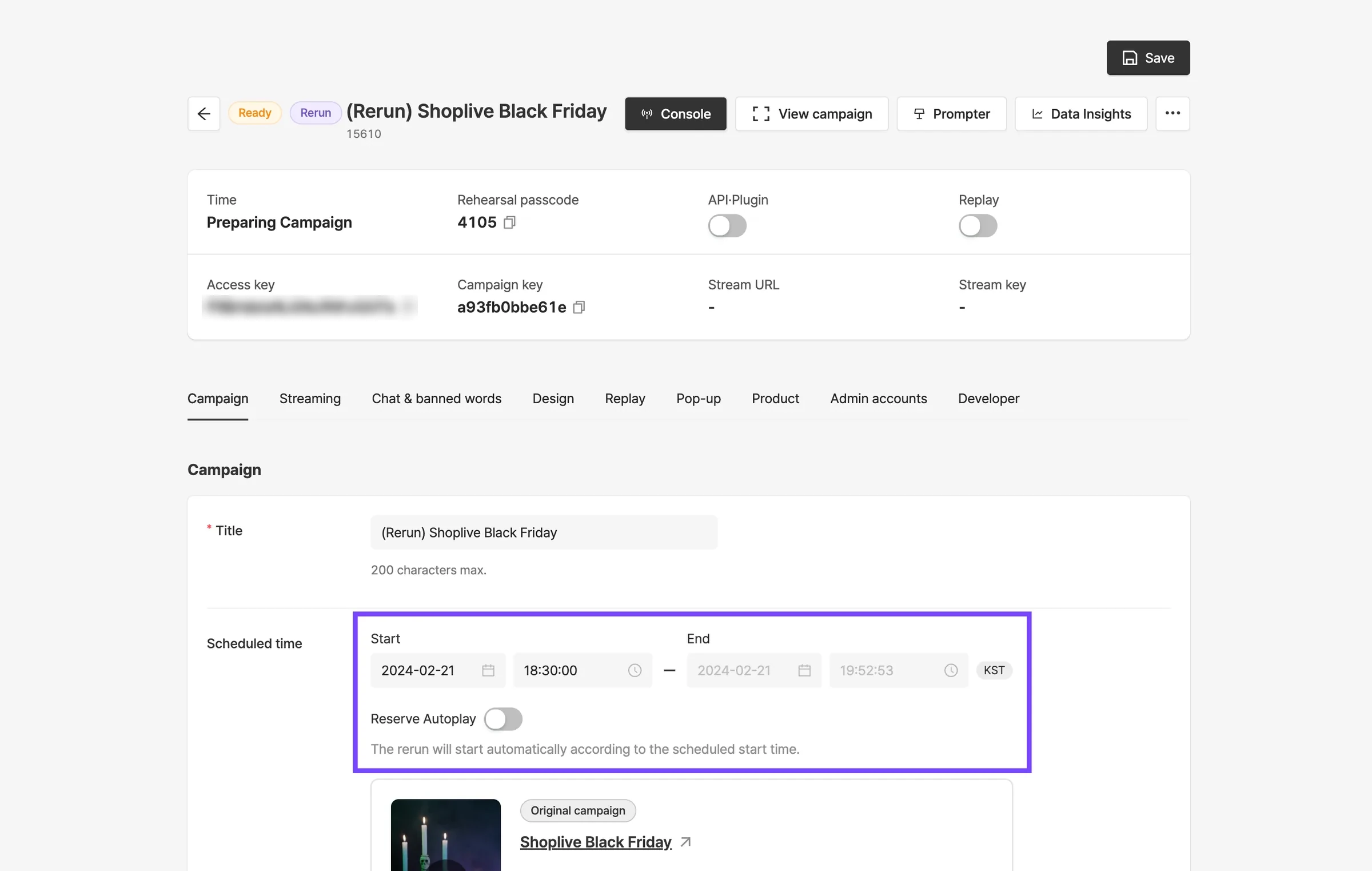
Set the rerun’s start time. The scheduled start must be in the future. For reruns, the end time is set automatically based on the start time.
If you set Scheduled auto start, the rerun starts automatically at the set start time.
Check the original broadcast’s video information
You can check the video information of the original broadcast the rerun was made from. The rerun details show the start, end and scheduled times of the source and original broadcasts.
Check scheduled reruns
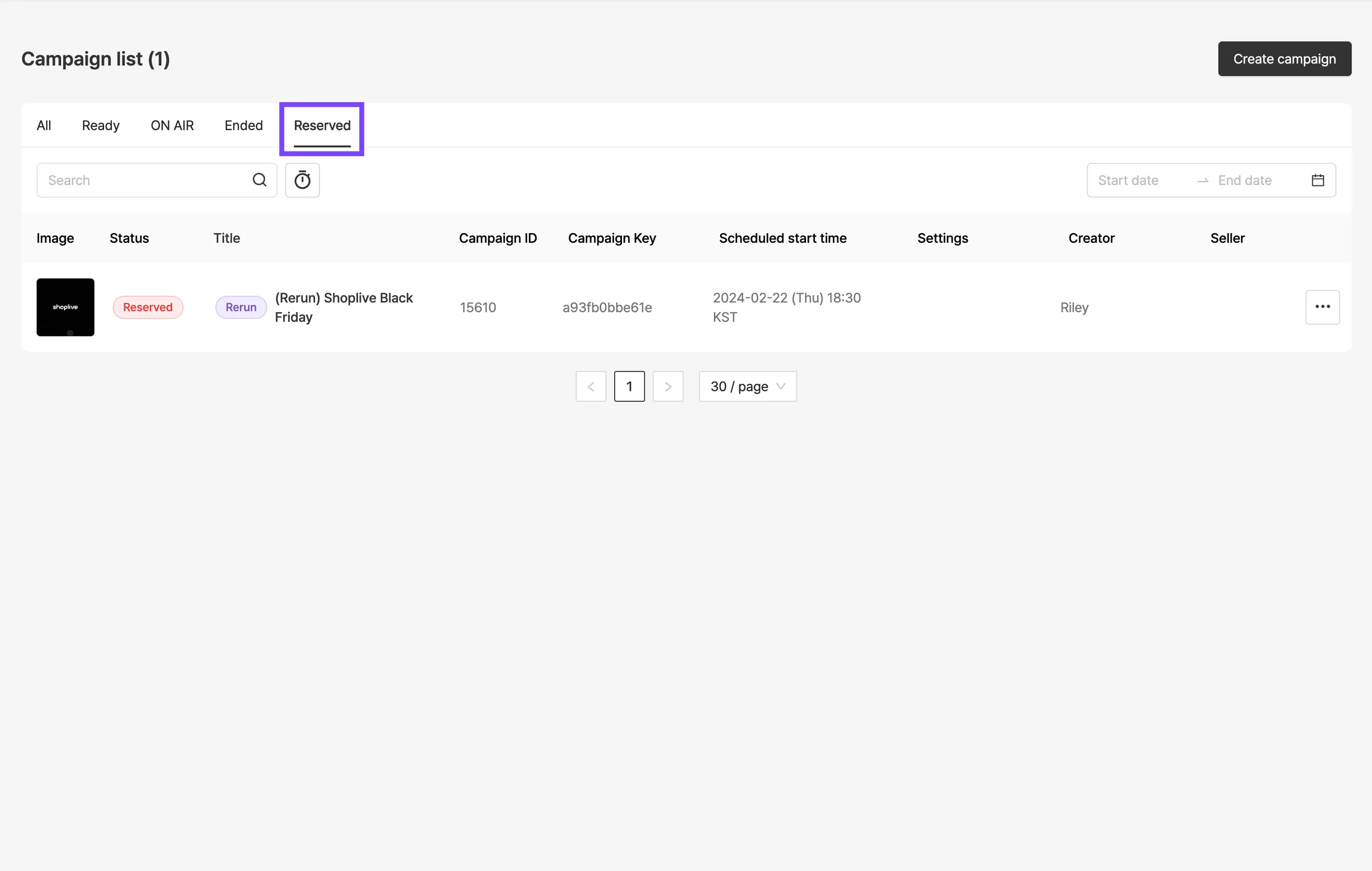
Reruns with Scheduled auto start set can be found on the Scheduled tab.
FAQ
Can reruns have replays too?
When you first create a rerun, the replay option is created as Off.
If you change the option to On, the rerun can also have a replay.
(For reruns, the API Plugin option is also created as Off. Changing it to On includes the campaign in the API list and shows it on the campaign collection page.)
Do I have to set up products again after creating a rerun?
When you create a rerun, all products and popups from the original broadcast are copied as they are.
Can I copy a rerun?
Reruns don’t support campaign copy.
Can I delete the original broadcast a rerun was created from?
An original broadcast that has a rerun can’t be deleted or reset.
Can I filter to see only reruns in the Admin?
Search with the keyword 'rerun' to see only campaigns that are reruns.