Stream from a Phone (Shoplive Studio)
Introducing the Shoplive Studio app
Complete live commerce from preparation to streaming on location with just your phone, no PC needed.
About the service
Shoplive Studio is a broadcasting tool for sellers that lets you create broadcasts, configure their details, and manage the broadcast list in the app. A seller on site can go from preparing a broadcast to going live with just a mobile device, no PC required.
With Shoplive Studio, everything from preparing a broadcast to going live happens on a single device. The app and the PC admin sync in both directions in real time, so information stays consistent even when several operators work together.
The PC Admin stays as it is
Shoplive Studio doesn’t replace the PC Admin. Managing many campaigns and detailed reporting are still better on a PC. The point is to add the option of mobile-only operation so operators can choose the right environment for the situation.
Key features
Every feature of Shoplive Studio is designed around a single direction: running broadcasts from the app alone. The supported features are listed below.
Feature | Description |
|---|---|
Create campaigns in the app | Create a campaign directly in the app by entering a title and scheduled start time. |
Detailed campaign settings | Set the title, time, description, tags, replay settings, and teaser images and video in the app. |
Campaign list viewing, search and filters | See and search scheduled, ongoing and ended campaigns at a glance in the app. |
Real-time two-way sync with the PC Admin | Changes in the app appear immediately in the PC Admin, and vice versa. |
Admin mode | Admins can independently manage operations such as products and chat during the broadcast, separately from the person streaming. |
Mobile product management | Add, delete and reorder products on mobile, even during the broadcast. |
Mobile streaming | Complete everything from rehearsal to starting, running and ending the live broadcast in one mobile app. |
Camera features | Supports zoom in/out, switching to a wide-angle view, and mirror mode. |
WebView-based operations area | The operations area is delivered as a WebView, so features can be improved quickly without an App Store release. |
Screens built around key actions | Screens are organized around the key actions to reduce mistakes and confusion during a broadcast. |
Are all features available only in the app?
No. The broadcast creation and management features also exist in the PC admin in the same way. The app extends part of the PC admin's features to the mobile environment, and both environments share the same data in real time.
Install the app
Shoplive Studio has been officially released and can be installed from the App Store.
Create a campaign and set its information
Overview
These are the screens in the Studio app for registering a campaign and setting the information needed before it starts. They follow three steps, campaign list → add campaign → campaign details management, and this document walks through each screen’s buttons and fields in order.
1. Campaign list
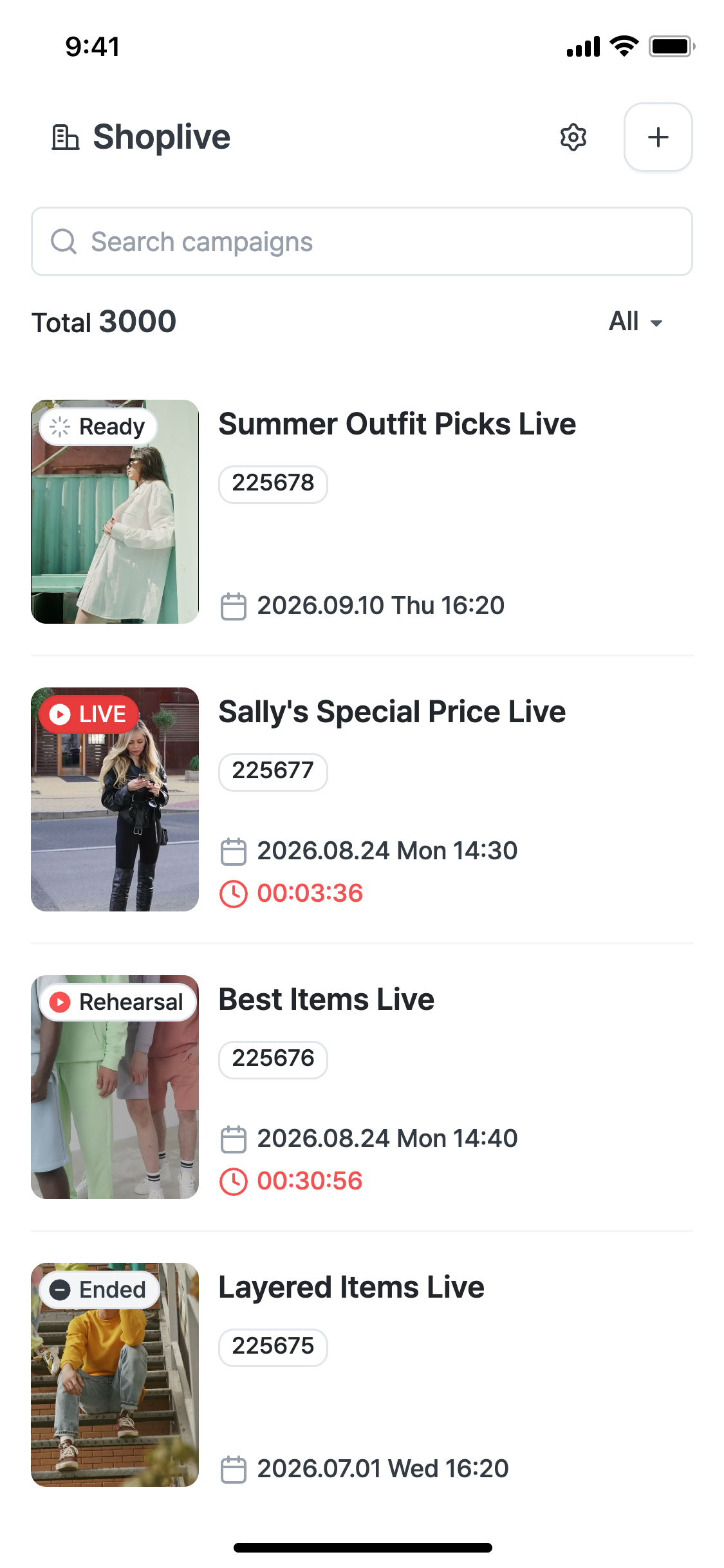
The campaign list is the starting screen where you see all registered campaigns at a glance, add new ones, or open the detailed settings of existing ones.
Components | Description |
|---|---|
Account selector (e.g. Brand A) | The account you’re currently viewing. If you run several accounts, switch with the dropdown. |
⚙ Settings icon | Goes to account settings. |
+ button | Goes to the Add campaign screen to register a new campaign. |
Search box (search campaigns) | Filters the campaign list by title keyword. |
Total {nn} | The number of campaigns matching the current filter. |
All ▾ | Filter by status (All/Ready/LIVE/Ended). |
Campaign card
Element | Description |
|---|---|
Thumbnail | The campaign teaser image or the default image. |
Status badge | See the table below |
Title | Broadcast title |
Campaign ID | The campaign’s unique identifier. |
Scheduled start | The scheduled broadcast time, shown with a calendar icon. |
Elapsed time (shown only for LIVE/rehearsal) | The time since the broadcast or rehearsal started, counting up in red. |
Status badges
Badge | Meaning |
|---|---|
Ready | Registered but the broadcast hasn’t started yet |
LIVE | Currently streaming in real time |
Ended | The broadcast has ended |
Rehearsal | Entered rehearsal mode before actual streaming |
Tap a campaign card to go to the campaign details management screen.
2. Add campaign
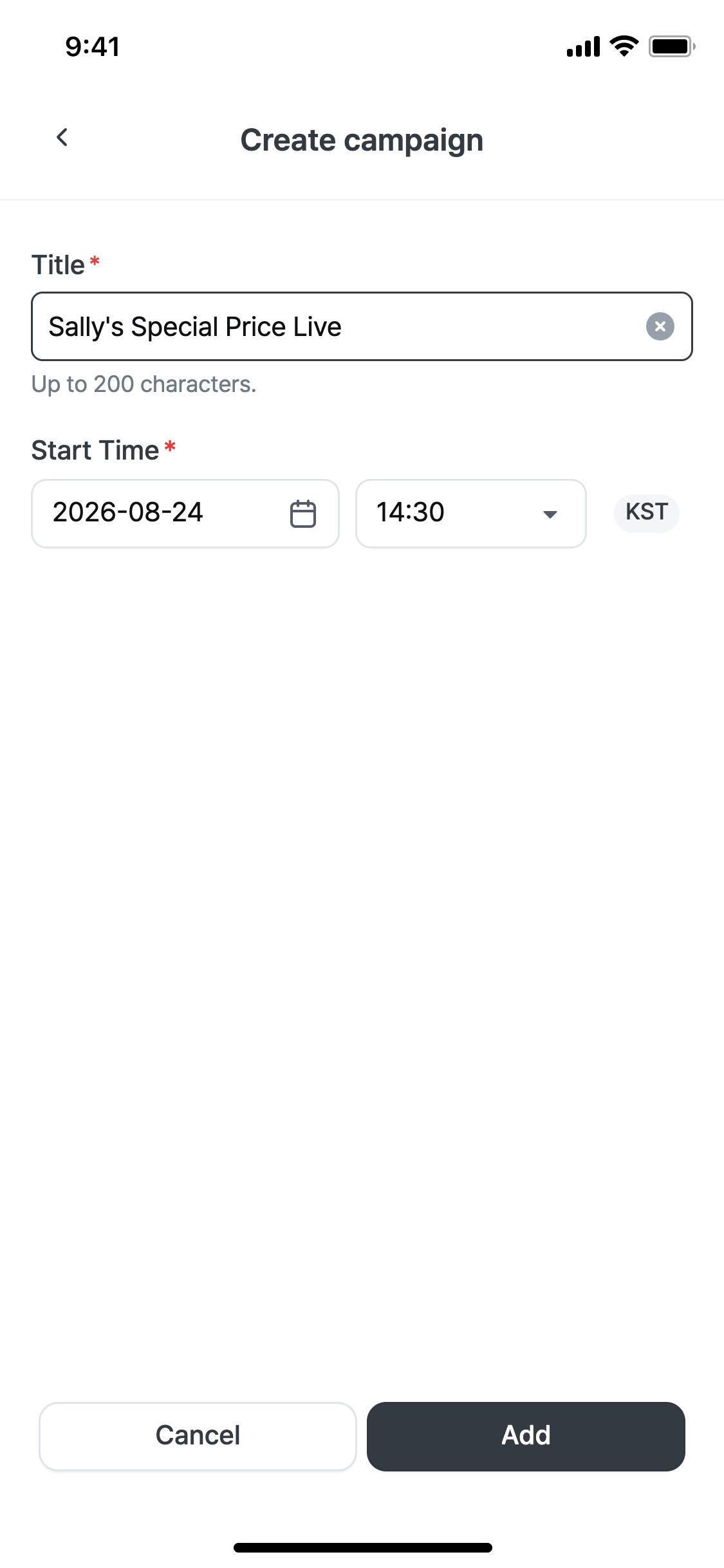
This screen opens when you tap the + button in the campaign list, and you enter only the minimum information needed to create a campaign. Other detailed settings (description, tags, images, replay, etc.) are configured after creation in campaign details management.
Item | Required | Description |
|---|---|---|
Title | Required | There is a maximum length, and you can clear the field instantly with the X button inside it. |
Scheduled start | Required | Select the date and time; the time zone is shown too. |
Bottom buttons
Button | Action |
|---|---|
Cancel | Closes the screen without saving what you entered. |
Add | Creates the campaign with the information entered and registers it in the list as Ready. |
3. Campaign details management
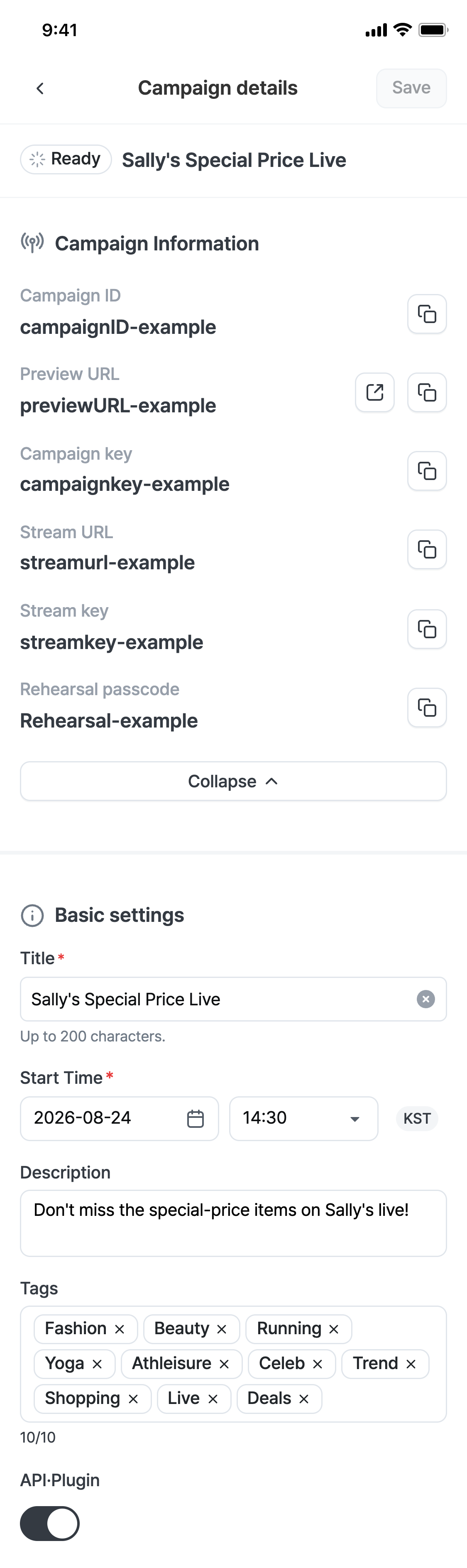
The screen for checking and editing details after creating a campaign. Apply changes with the Save button at the top.
3-1. Campaign information
Only some items are shown by default; tap Expand to show the remaining values needed for integration.
Shown by default
Item | Description |
|---|---|
Campaign ID | The campaign’s unique identifier. Copy it right away with the copy icon. |
Preview URL | A player link you can open to preview the screen even before the broadcast starts. |
Shown when expanded
Item | Description |
|---|---|
Campaign key | A unique key used to integrate the campaign. |
Stream URL | The server address entered when connecting an external encoder (streaming equipment/software). |
Stream key | An authentication key used as a pair with the stream URL. |
Rehearsal entry code | A code shared with teammates to enter rehearsal mode without actual streaming. |
3-2. Basic settings
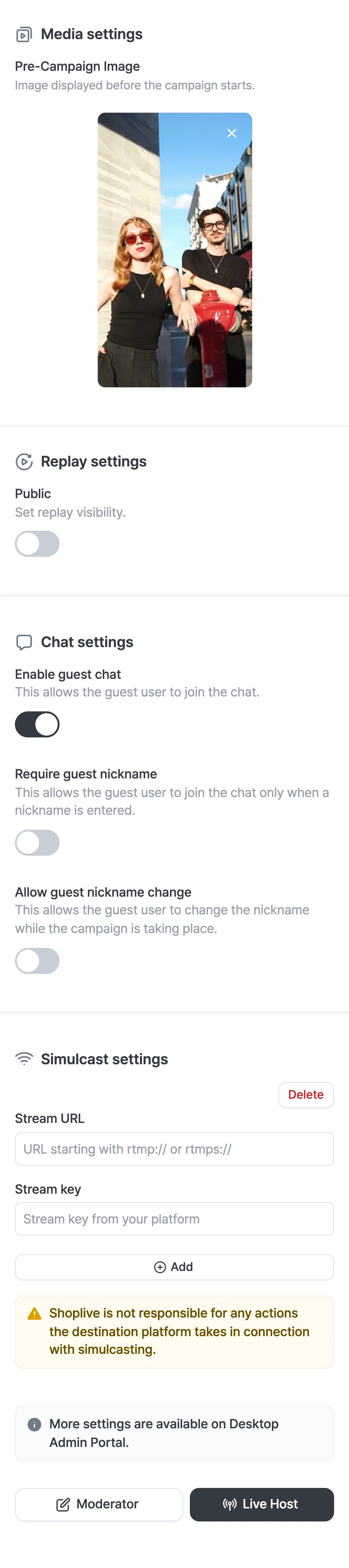
Item | Required | Description |
|---|---|---|
Title | Required | You can edit the title entered when adding the campaign here too. |
Scheduled start | Required | Edit the date, time and time zone |
Description | Optional | Additional description of the campaign. |
Tags | Optional | Register with the Add + button; up to 10 can be set. |
API·Plugin | Optional | When turned on, this campaign is included in the campaign list API and appears in the collection list of the Shoplive Plugin. A new campaign is created with it off (private), and the change takes effect after you tap Save. If the replay is private, the campaign no longer appears in the list once it ends. For details, see Publish the Campaign. |
3-3. Media settings
Item | Description |
|---|---|
Upcoming broadcast image | An image shown on the waiting screen before the broadcast starts. Tap the X on an uploaded image to delete it; the default image is used instead. |
3-4. Replay settings
Item | Description |
|---|---|
Public toggle | Sets whether the replay video is published to viewers after the broadcast ends. |
3-5. Chat settings
Item | Description |
|---|---|
Enable guest chat | Allows guest users to join the chat. |
Require guest nickname | Allows guest users to join the chat only after entering a nickname. |
Allow guest nickname change | Allows guest users to change their nickname during the broadcast. |
3-6. Simulcast settings
To simulcast your broadcast to an external platform such as a social network, enter the stream details issued by that platform and register them as a channel.
Item | Description |
|---|---|
Stream URL | Enter a URL that starts with rtmp:// or rtmps://. |
Stream key | Enter the stream key issued by the social platform. |
Add | Registers an additional channel. |
Delete | Deletes the registered channel. |
The notice "Shoplive is not responsible for any actions the destination platform takes in connection with simulcasting." appears below the input fields. To set this up in the desktop admin, see Simulcast to Social Media.
As the notice at the bottom ("More settings are available in the PC Admin") says, the mobile Studio provides only key settings, and detailed options are managed in the PC Admin.
3-7. Bottom action buttons
Button | Action |
|---|---|
Enter admin mode | Goes to management features such as chat and products. (Covered in a separate guide) |
Enter the studio | Goes to the actual streaming screen (streaming mode). (Covered in a separate guide) |
Streaming mode (entering the studio)
Overview
The actual filming and streaming screen you enter by tapping Enter the studio in campaign details management. While watching the camera preview, you control the mic, filters and more, and run the actual broadcast through Start streaming (connecting to the server) and mode switching (rehearsal/public live).
Start/stop streaming and the mode (rehearsal·live) are separate layers. Start streaming handles only the streaming connection between the encoder and the server (the network); whether viewers actually see the screen is decided by the mode. Even after you start streaming, viewers don’t see anything until you switch the mode to "Live".
1. Streaming standby screen (Ready state)
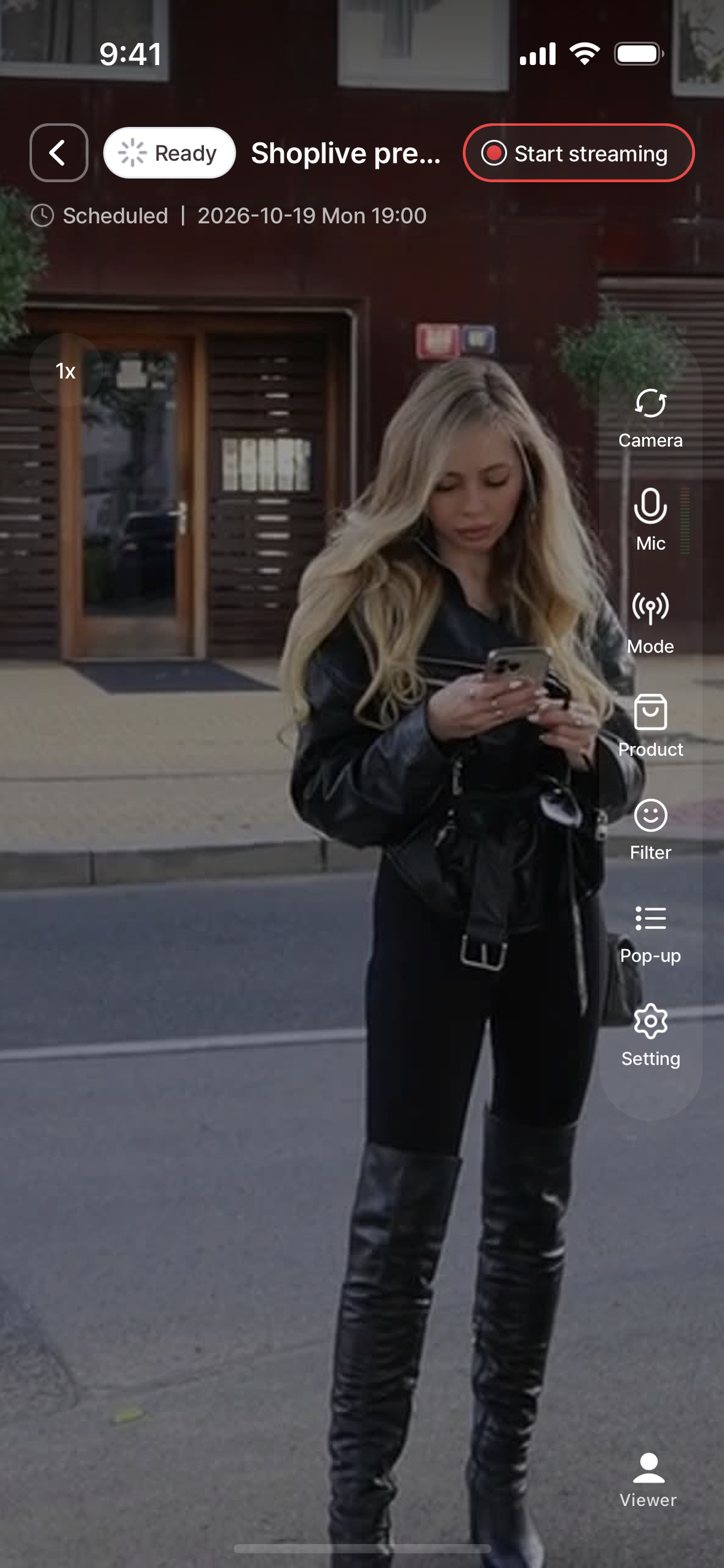
Element | Description |
|---|---|
< Back | Returns to the campaign details management screen. |
Status badge + title | Shows the current campaign status (Ready/Rehearsal/LIVE) and title. |
Scheduled broadcast time | The scheduled start time set when adding the campaign. |
Start streaming button | Connects the encoder (device) to the streaming server. It has nothing to do with whether viewers can see it. |
2. Sidebar features
Icon | Feature |
|---|---|
1x (zoom) | Zooms in/out with a pinch gesture; the current zoom is shown as a number. |
Camera | Switches between the front and rear cameras. |
Microphone | Turns the microphone on and off. The bar next to the icon is a level meter showing the live input volume. |
Mode | Opens the Campaign management bottom sheet to start a rehearsal or live broadcast. (See item 3) |
Products | Adds, deletes and reorders products shown in the broadcast. (See item 4) |
Filter | Sets beauty and filter effects. (See item 5) |
Setting | Sets camera options (shutter speed, ISO, etc.). (See item 6) |
3. Mode – campaign management
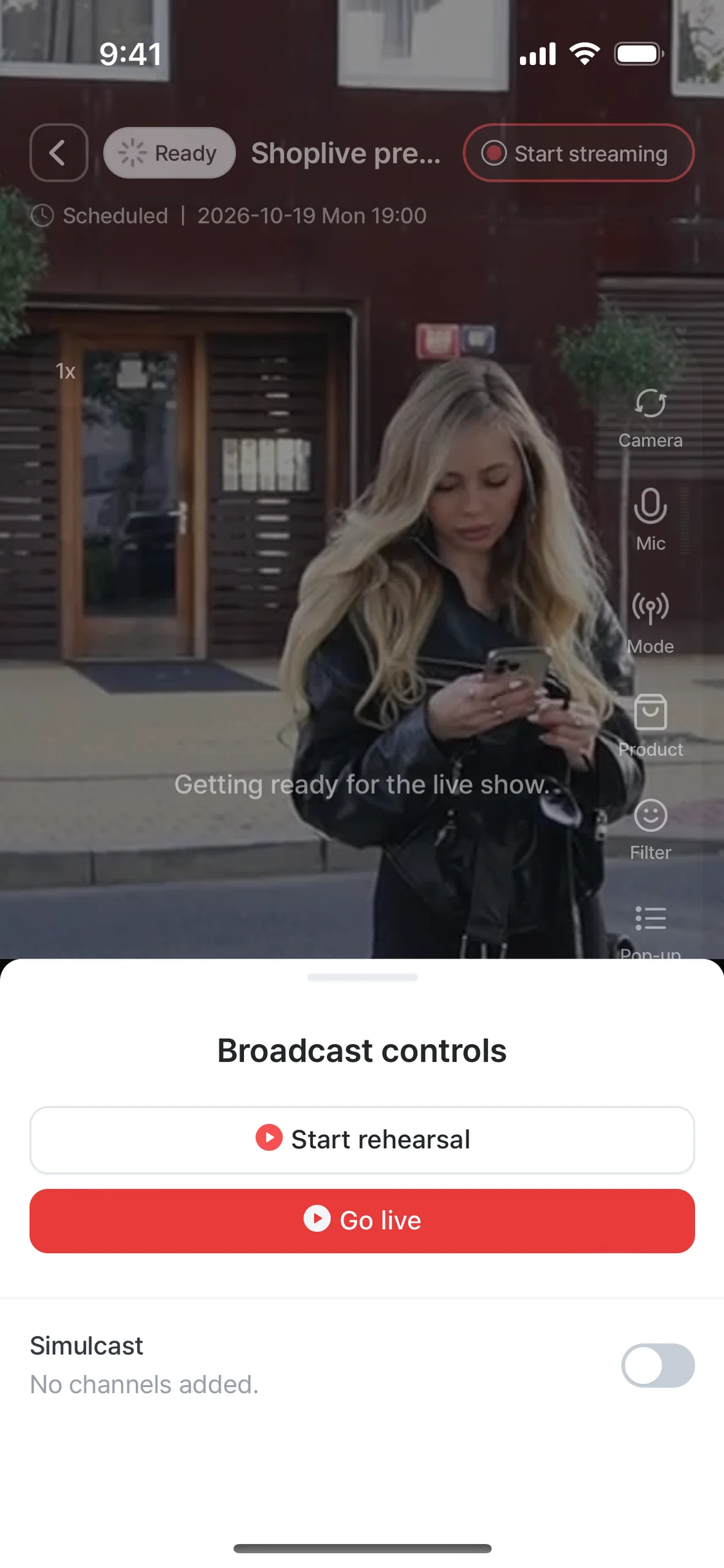
Button | Action |
|---|---|
Start rehearsal | Switches to rehearsal mode, which regular viewers can’t see. Only people who know the rehearsal entry code can join. |
Start live broadcast | Starts a live broadcast that is public to real viewers. The status badge changes to LIVE. |
Simulcast | Turns simulcasting on or off for the channels registered in campaign details. If no channel is registered, "No channels added." is shown. |
4. Product management
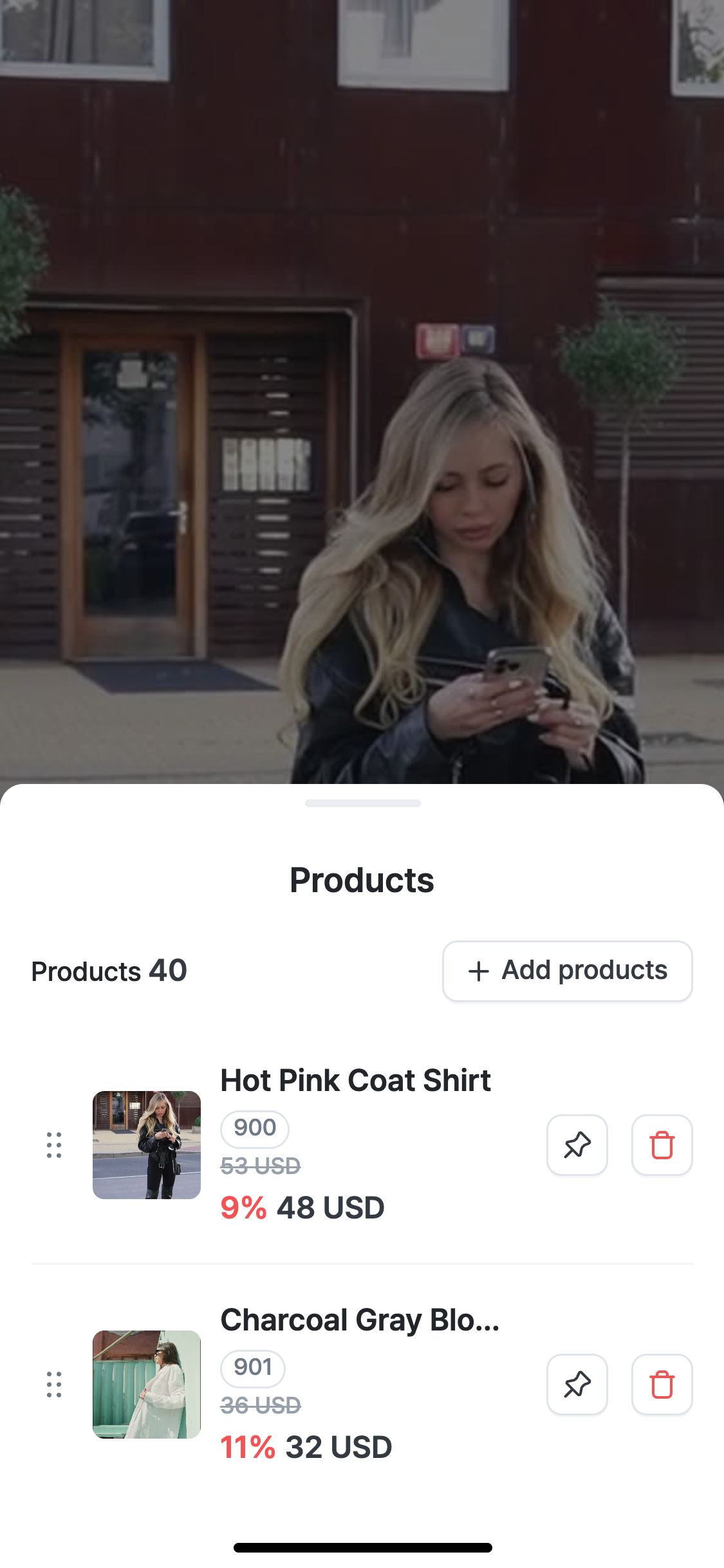
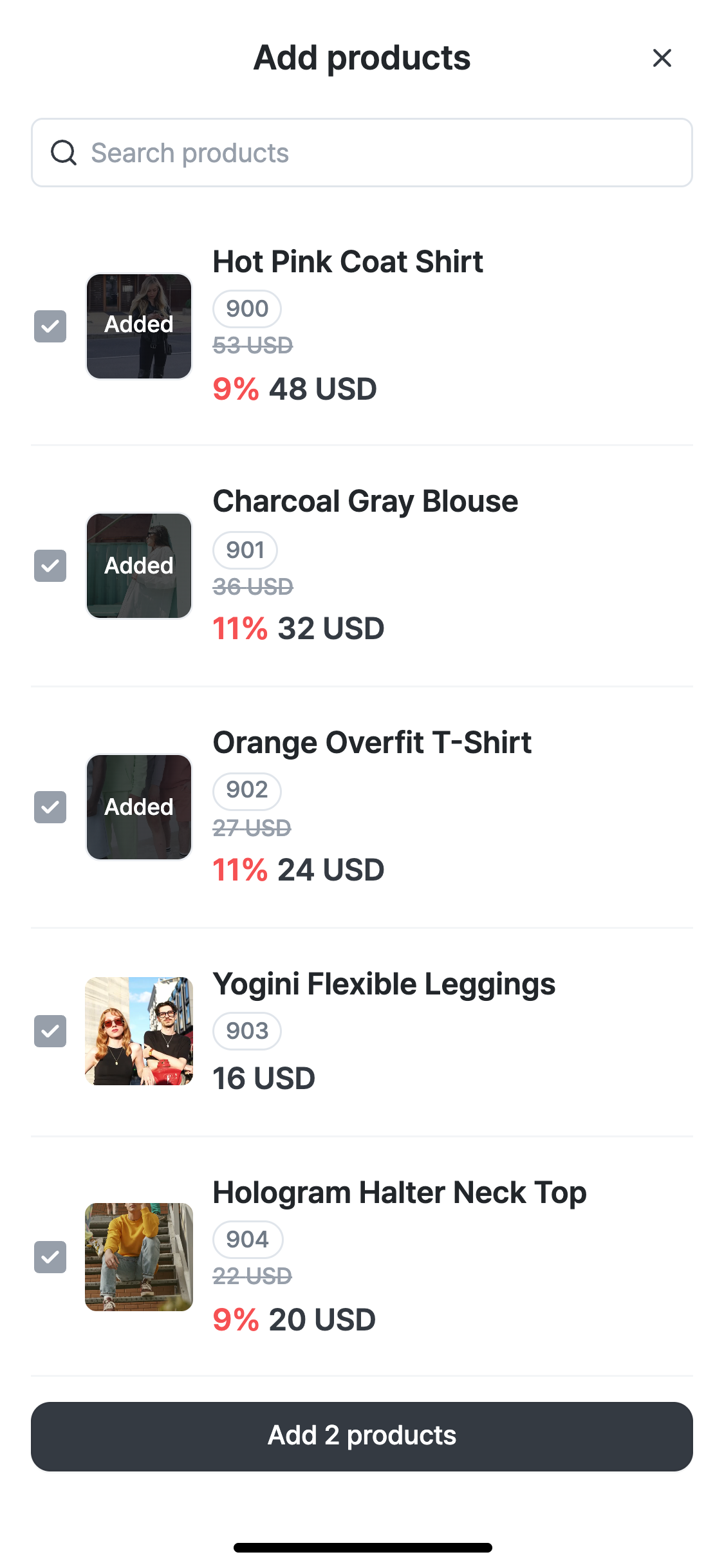
Tap the Products icon in the sidebar to open the list of products shown in the broadcast as a bottom sheet.
Product list
Element | Description |
|---|---|
Campaign products {nn} | The number of products currently registered to the campaign. |
+ Add products | Opens the product search and selection screen. |
⋮⋮ Drag handle | Changes the display order of products by dragging. |
📌 NOW | Pins the product at the top. (Same as the NOW feature) |
🗑 Delete | Removes it from the campaign product list. |
Add products
Element | Description |
|---|---|
Search box | Searches by product name. |
Added | Products already added to the campaign show an Added mark. |
Add {n} products | Applies the selected products to the campaign product list all at once. When done, the toast "{n} products added." appears. |
5. Filters (beauty · tone)
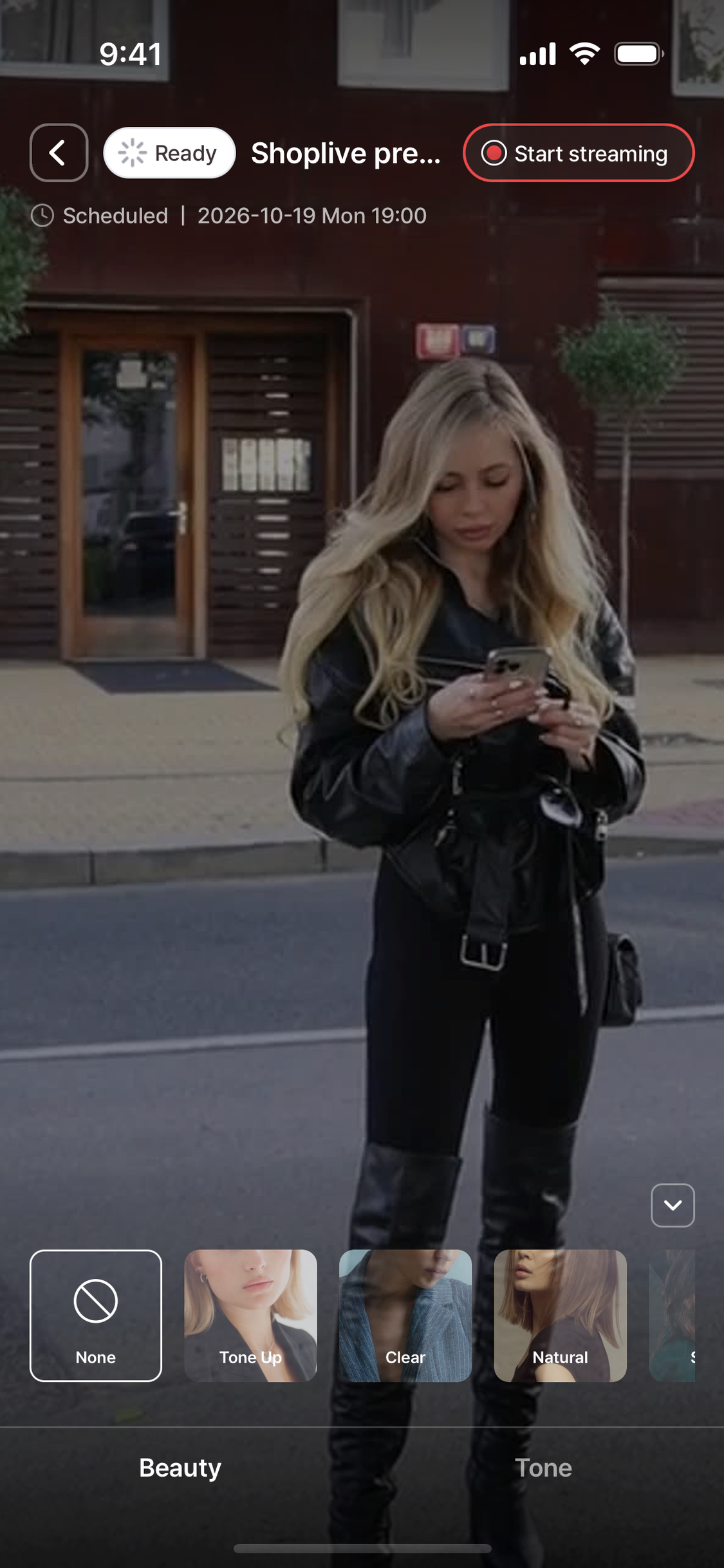
Element | Description |
|---|---|
Beauty / Tone tabs | Switch between beauty retouching and filter preset settings at the bottom of the screen. |
Filter presets | Choose a filter preset from the carousel. |
Skin/jawline/V-line/nose/eye size/lip sliders | Adjust the strength of each item with its own slider. Per-item adjustment is available only in the beauty filter. |
Reset | Returns all beauty/filter values to the defaults. |
6. Settings (camera options)
⚠ Access restriction
The settings menu can be opened only before streaming starts (Ready state). After streaming starts, settings are disabled.
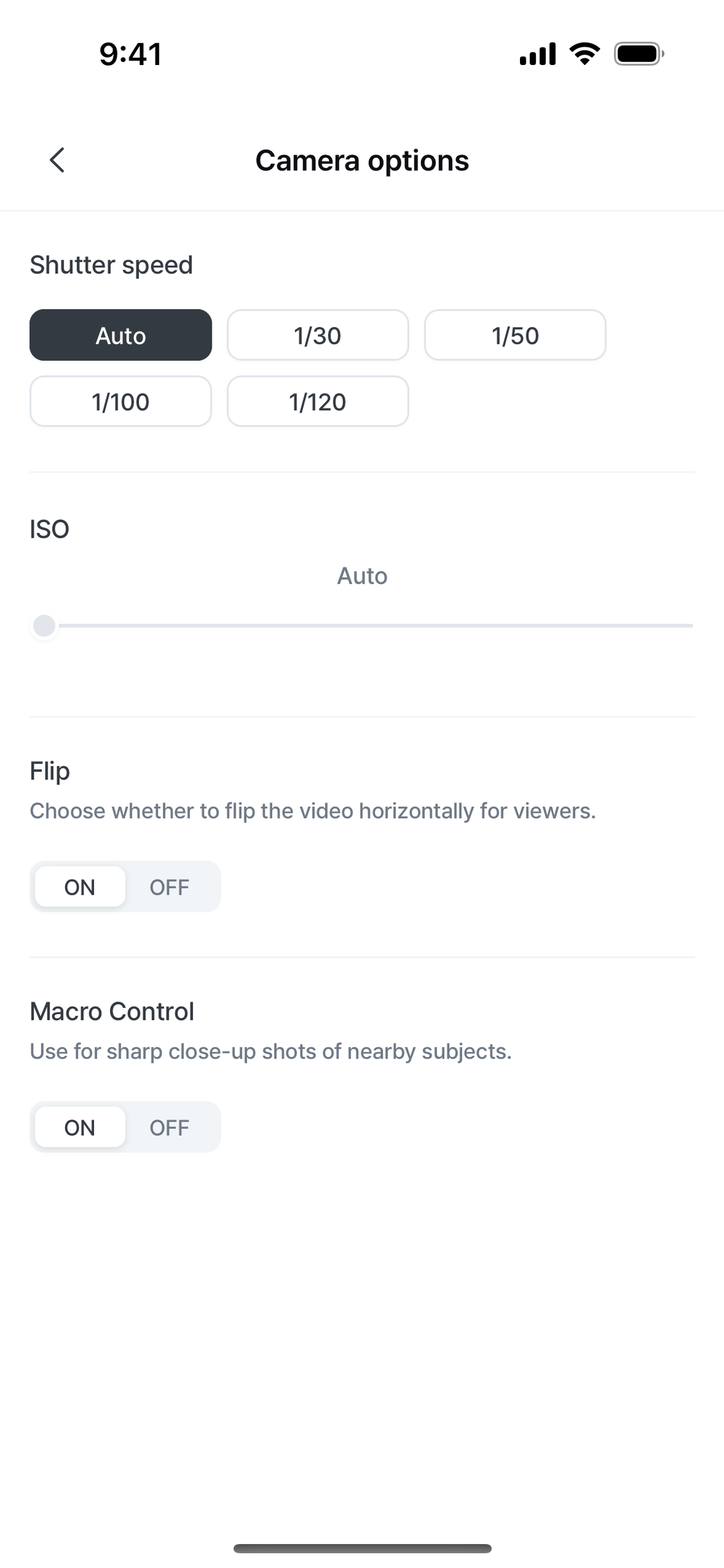
Item | Description |
|---|---|
Shutter speed | Controls how long light is captured. Longer is brighter; shorter captures motion more sharply. (Auto/1/30/1/50/1/100/1/120) |
ISO | Controls sensitivity to light. Higher values are brighter in dark places but may add noise. (Slider, default: Auto) |
Mirror the stream | Sets whether the screen viewers see is mirrored left-right. (ON/OFF) |
Macro mode | Used to shoot nearby subjects sharply. (ON/OFF) |
Ending streaming and ending the broadcast
- Tapping Start rehearsal or Start live broadcast shows a confirmation. The Start live broadcast confirmation says "It becomes public to viewers as soon as it starts.", and if you try to start the broadcast without streaming, it warns "We recommend starting streaming before broadcasting. If you start without streaming, viewers won’t see any video."
- During a rehearsal, tap End rehearsal. The confirmation says "Streaming continues, and you can start a rehearsal or live broadcast again."
- During a live broadcast, tap End live broadcast. An ended broadcast can’t be restarted. When it ends, "The live broadcast has ended." appears.
- If the campaign is already streaming from another device, you’re asked whether to stop that stream and stream from the current device.
The next guide is admin mode.
Admin mode
Overview
The screen you enter by tapping Admin mode in campaign details management. Where streaming mode focuses on filming and streaming, admin mode focuses on operational tasks such as responding to chat and managing products so the person streaming can concentrate on the broadcast. So its sidebar is also simpler than in streaming mode.
Product management (add/delete/pin/reorder) works the same as in streaming mode. For details, see "4. Product management" in the Shoplive Studio app – streaming mode document.
1. Basic chat interactions
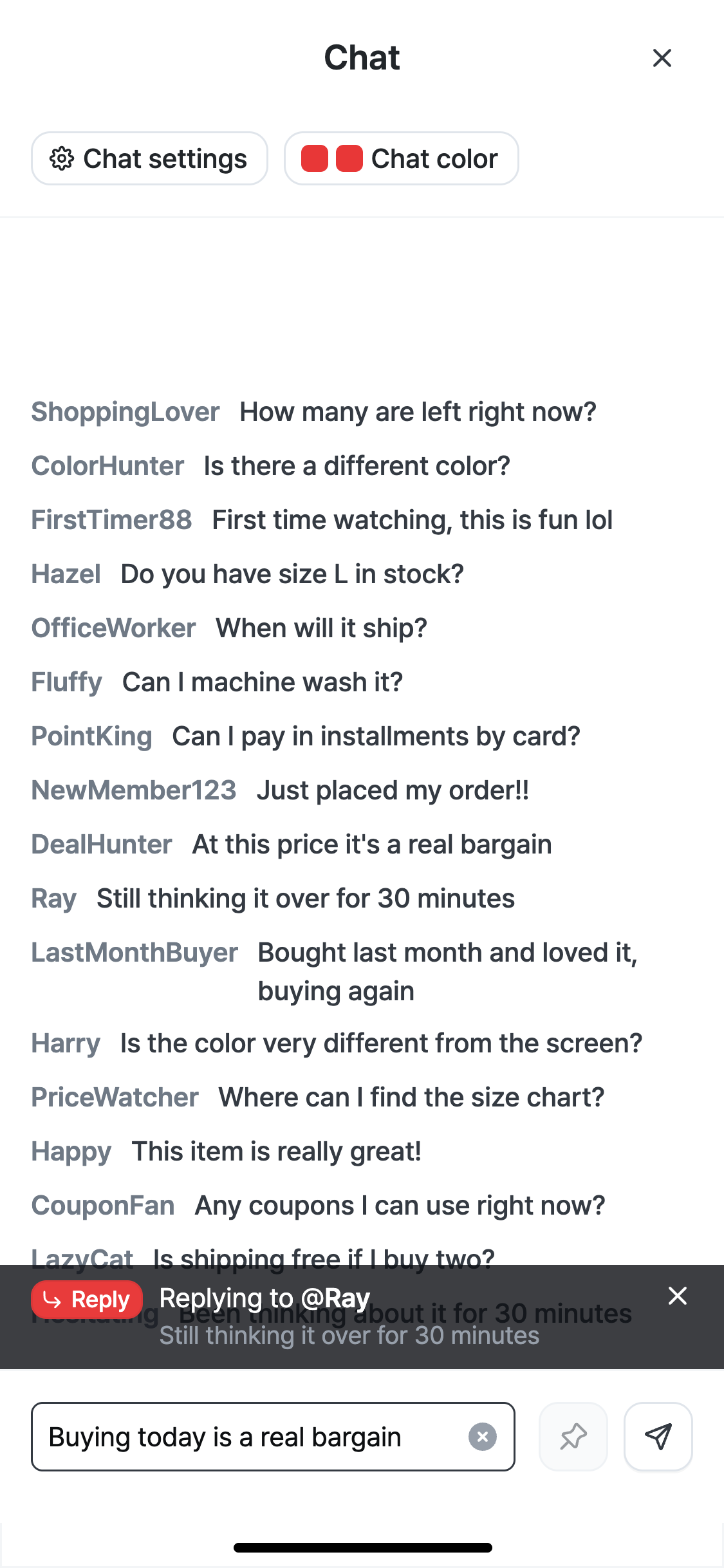
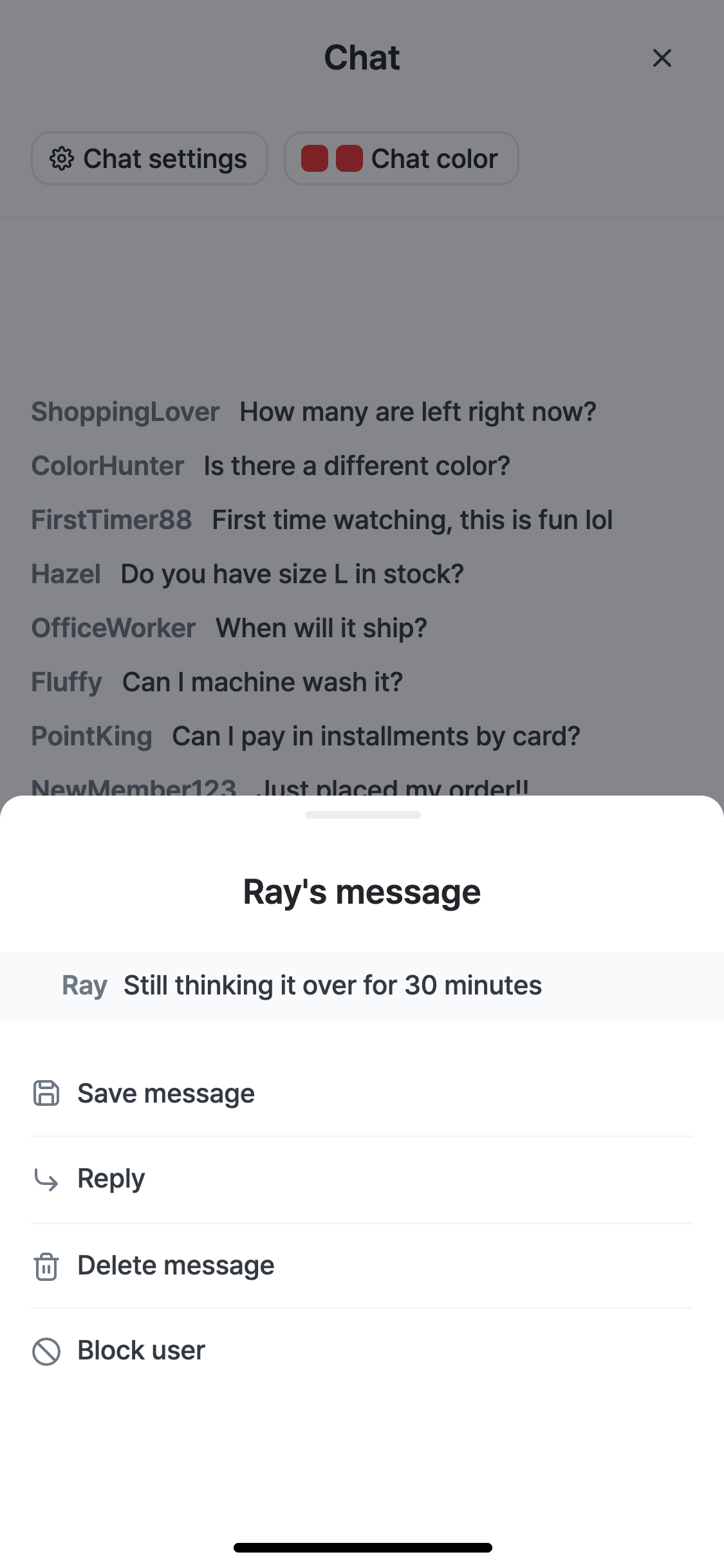
Action | Result |
|---|---|
Tap | Switches to reply mode so you can reply to that chat right away. |
Long press | Opens an action bottom sheet for that chat. (See the table below) |
Long-press action bottom sheet
Item | Description |
|---|---|
Reply to chat | Writes a reply to that chat. |
Save chat | Keeps the chat in the Chat management > Saved chats list. |
Block user | Blocks the user from the chat. Blocked users can be viewed and unblocked in the Chat management > Blocked users list. |
Delete chat | Deletes the chat. |
📌 Post a notice
The 📌 icon next to the chat input can be used only in operator chat. It doesn’t pin an existing chat; it posts text you write in the input box at the top of the broadcast screen as a notice banner. Only one notice can be posted at a time, and posting a new notice replaces the previous one.
2. Chat management
Opens when you tap the ⚙ Chat management button at the top of the chat, with three tabs.
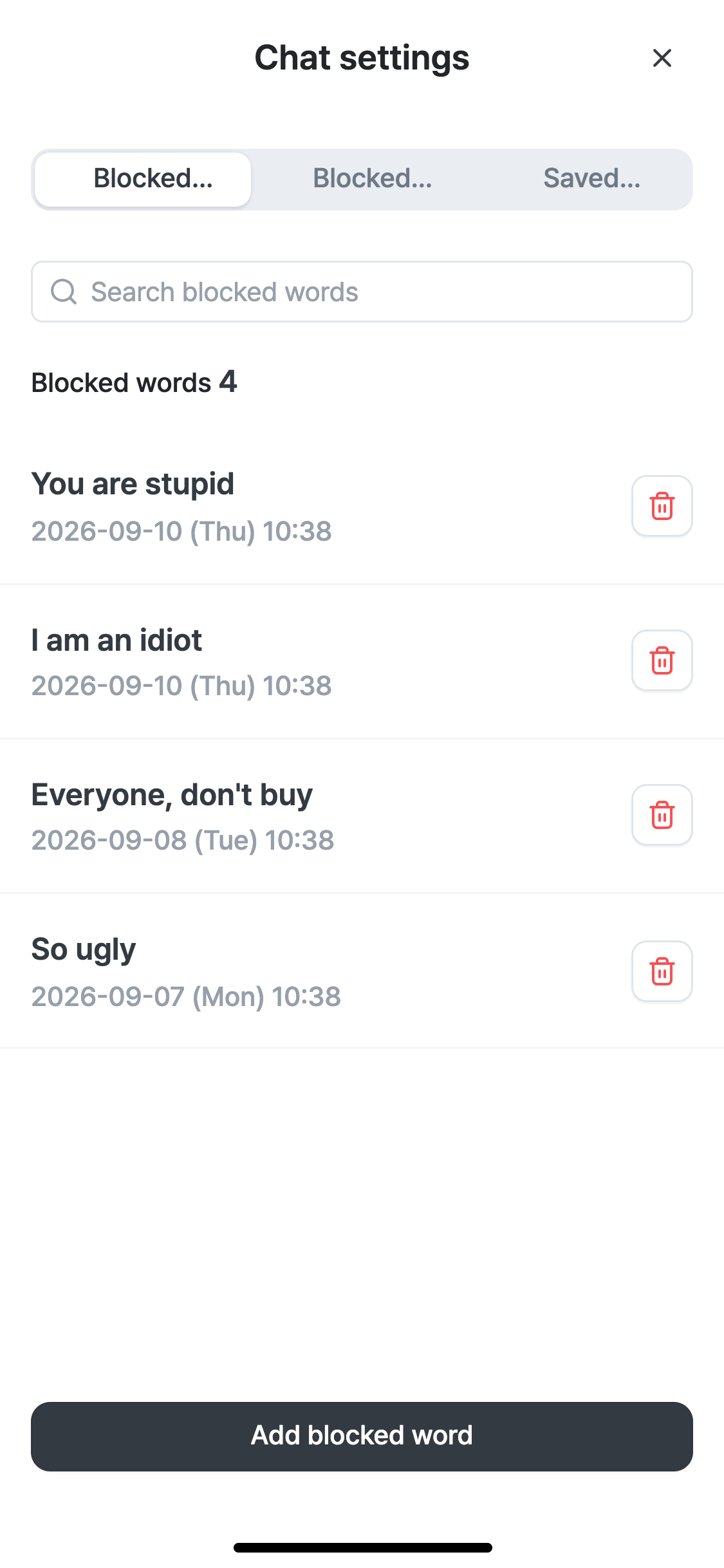
2-1. Banned words
Element | Description |
|---|---|
Search box | Search registered banned words. |
Registered banned word list | Shown with the registration date; delete individually with the 🗑 icon. |
Add banned word | Registers a new banned word. Chats containing registered words are filtered automatically. |
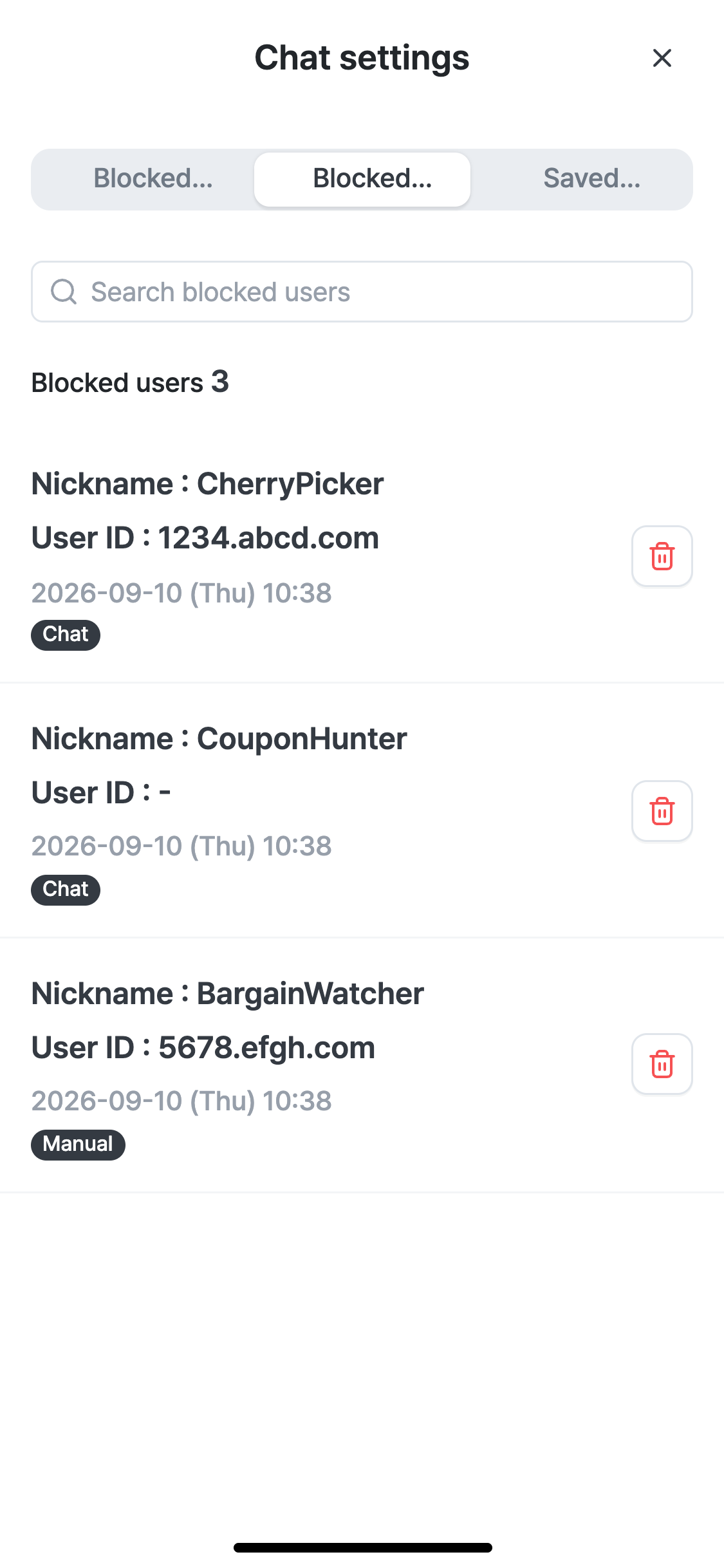
2-2. Blocked users
Element | Description |
|---|---|
Nickname / user ID | Identifying information of the blocked user. |
Block source tag (Chat/Option/Direct) | Shows whether the user was blocked by long-pressing a chat, through another options menu, or by entering the user ID directly. |
🗑 icon | Unblocks the user. |
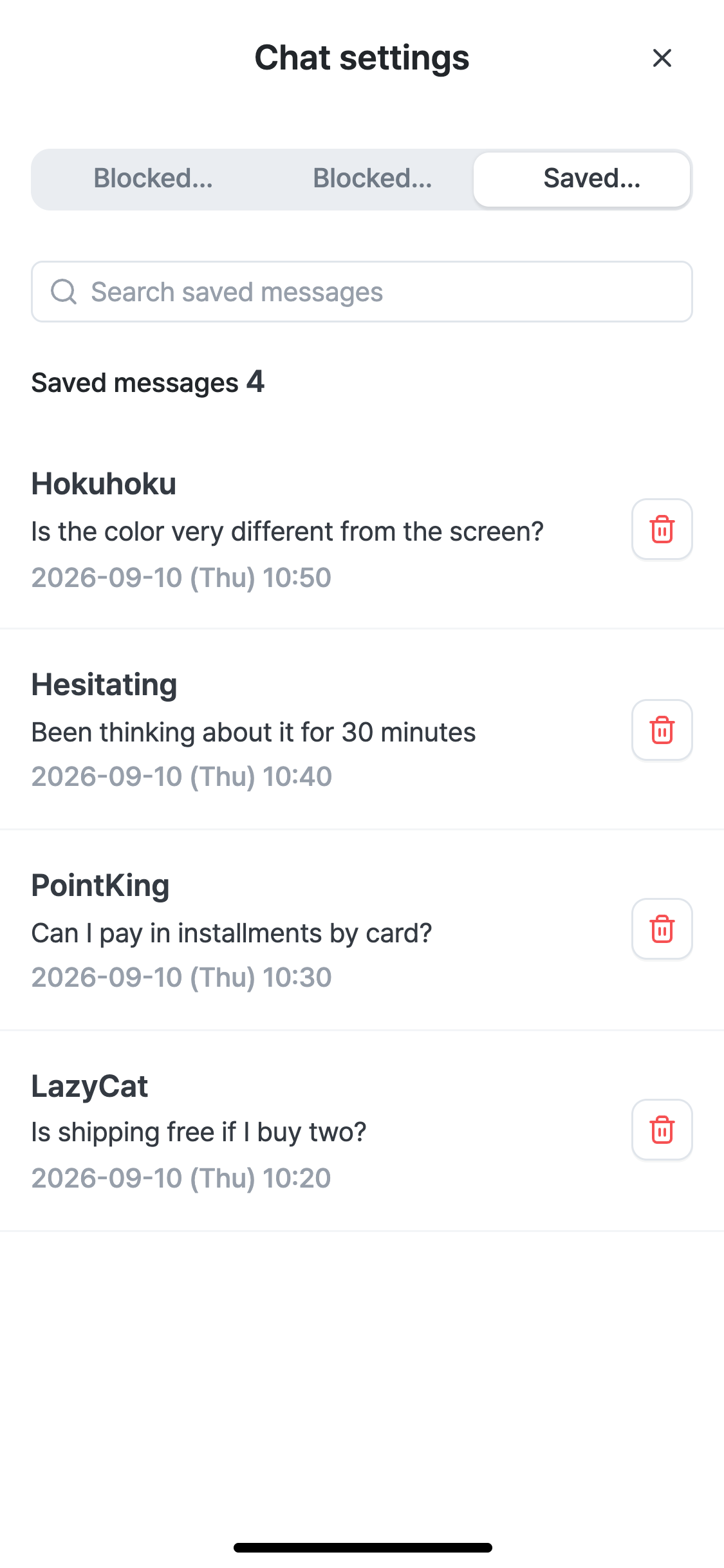
2-3. Saved chats
Element | Description |
|---|---|
Saved chat list | Messages you chose Save chat for in the long-press menu are collected here. Useful for reviewing frequently asked questions after the broadcast. |
3. Chat color
Opens when you tap the Chat color button at the top of the chat, and lets you set different chat text colors for the operator and viewers.
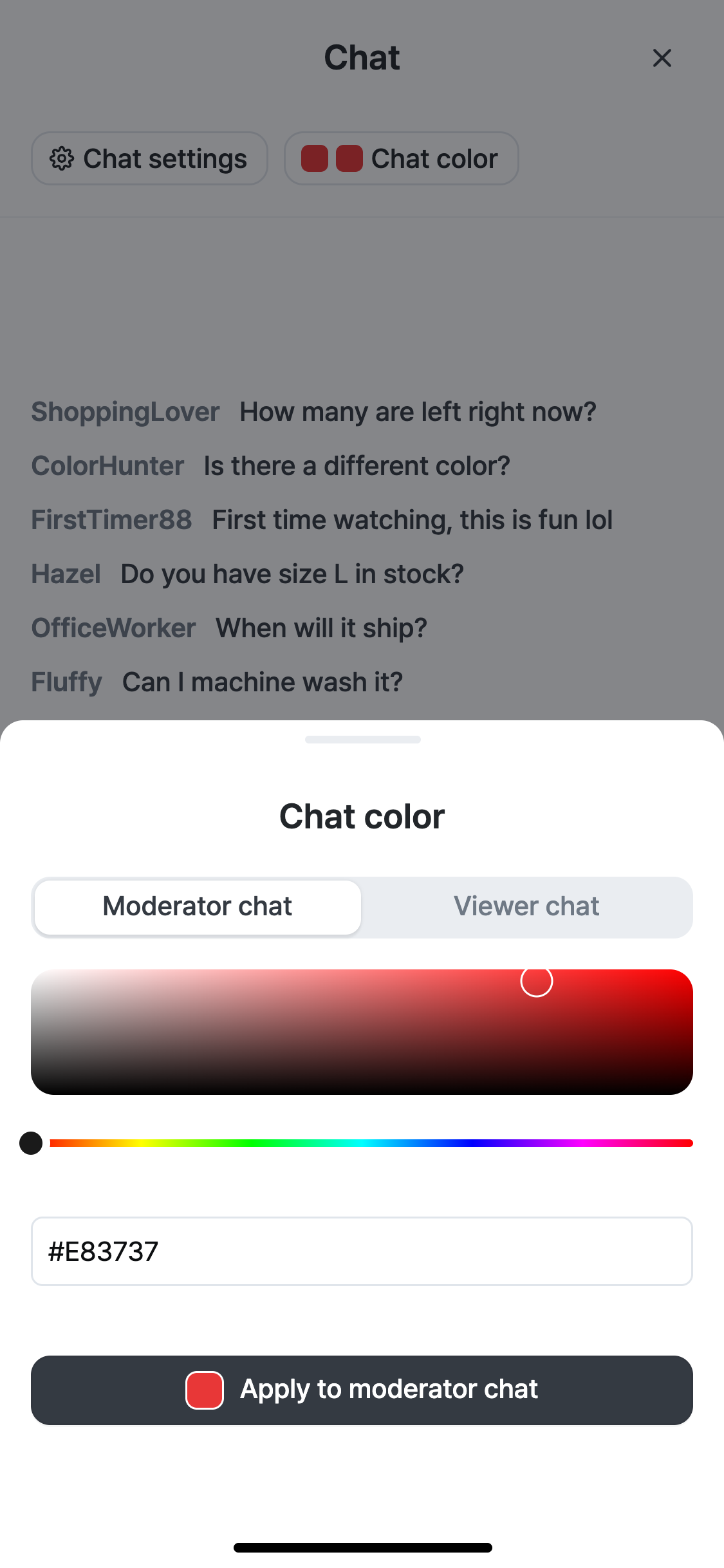
Element | Description |
|---|---|
Operator chat / viewer chat tabs | Choose what to apply the color to. You can set operator (host) chat and regular viewer chat to different colors. |
Color slider / HEX input | Choose a color on the gradient bar, or enter a HEX code directly for an exact value. |
Apply to operator chat / apply to viewer chat | Applies the selected color to the chat on the actual broadcast screen. The changed color previews live on the broadcast screen behind. |
4. Popup management
In the popup list during the broadcast, you can turn the display of popups linked to the campaign on and off.
- The Popup list always shows five types — Notice, Banner, Coupon, Benefit and FAQ — with the number of popups showing at the top. Tap a type to expand it and see its registered popups.
- Tap the ON/OFF chip next to a popup title to turn its display on the broadcast screen on or off immediately. It’s applied to viewers’ screens right away without a confirmation, and only one popup of the same type can show at a time. Turning another popup ON automatically turns the one already showing OFF.
- Tap + Add popup to register popups made in the admin to this campaign. Filter with the type chips (All and the 5 types) or search in the search box (Search popups.), select several, then tap Add popups.
- To remove a popup from the campaign, swipe its row to the left and tap the trash icon that appears.
- The list refreshes every few seconds and also reflects display changes made in the admin console.
Creating, editing and deleting popups, and operating interactive popups such as quizzes, prize draws and purchase verification, are done in the PC admin.