Stream with OBS
Live streaming over RTMP (OBS example)
Shoplive supports live streaming over RTMP. You can stream with RTMP-based PC/Mac software such as OBS or XSplit. This guide uses OBS.
Install OBS
Install the latest version for your operating system from the official OBS Studio site.
OBS setup wizard
When you first launch OBS, a setup wizard appears. We recommend closing the wizard and setting things up manually following the instructions below.
Check the network
- For stable streaming, a wired (Ethernet) connection is strongly recommended. Wi-Fi can drop frames due to momentary disconnections.
- Check the upload speed: streaming at 1080p (5,400 Kbps) uses about 5.6 Mbps including audio and headroom. For stability, secure a measured upload speed of 8 Mbps or more.
- Measure the streaming PC’s upload speed in advance with fast.com or similar.
- If the upload speed is below 8 Mbps, lower the bitrate or stream at 720p (see ‘OBS settings’ below).
OBS settings
Open Settings and configure the items below in order.
Video
Set these in Settings → Video.
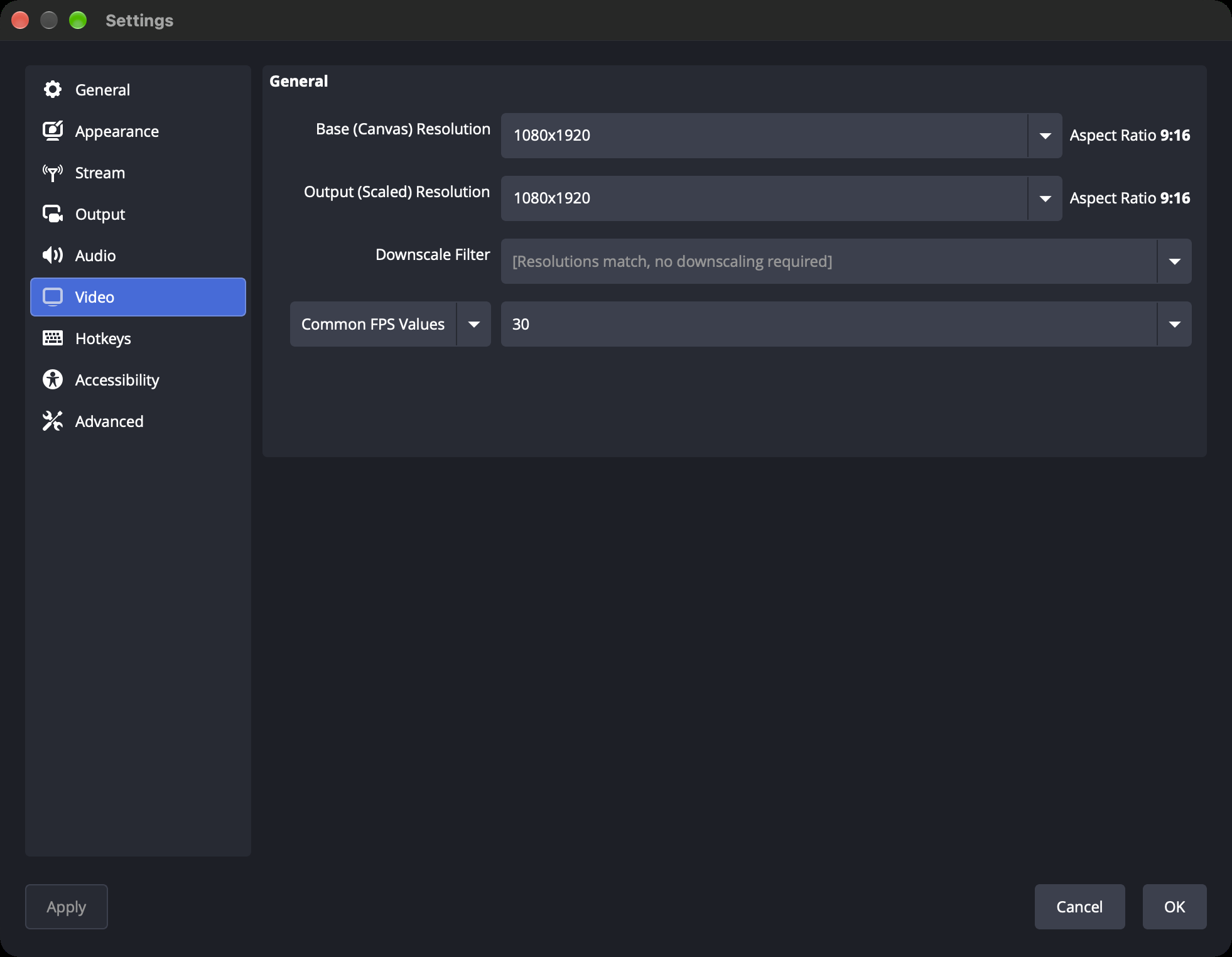
| OBS settings | Portrait (9:16) | Landscape (16:9) |
|---|---|---|
| Base (canvas) resolution | 1080 × 1920 | 1920 × 1080 |
| Output (scaled) resolution | 1080 × 1920 | 1920 × 1080 |
| Common FPS values | 30 | 30 |
- Set base resolution = output resolution so no output scaling is used. (When the canvas and output resolutions match, "no downscale needed" is shown.)
- Shoplive uses portrait (1080×1920) by default. If the upload speed is low, lower it to 720×1280 (with a bitrate of 2,500–3,000).
Audio
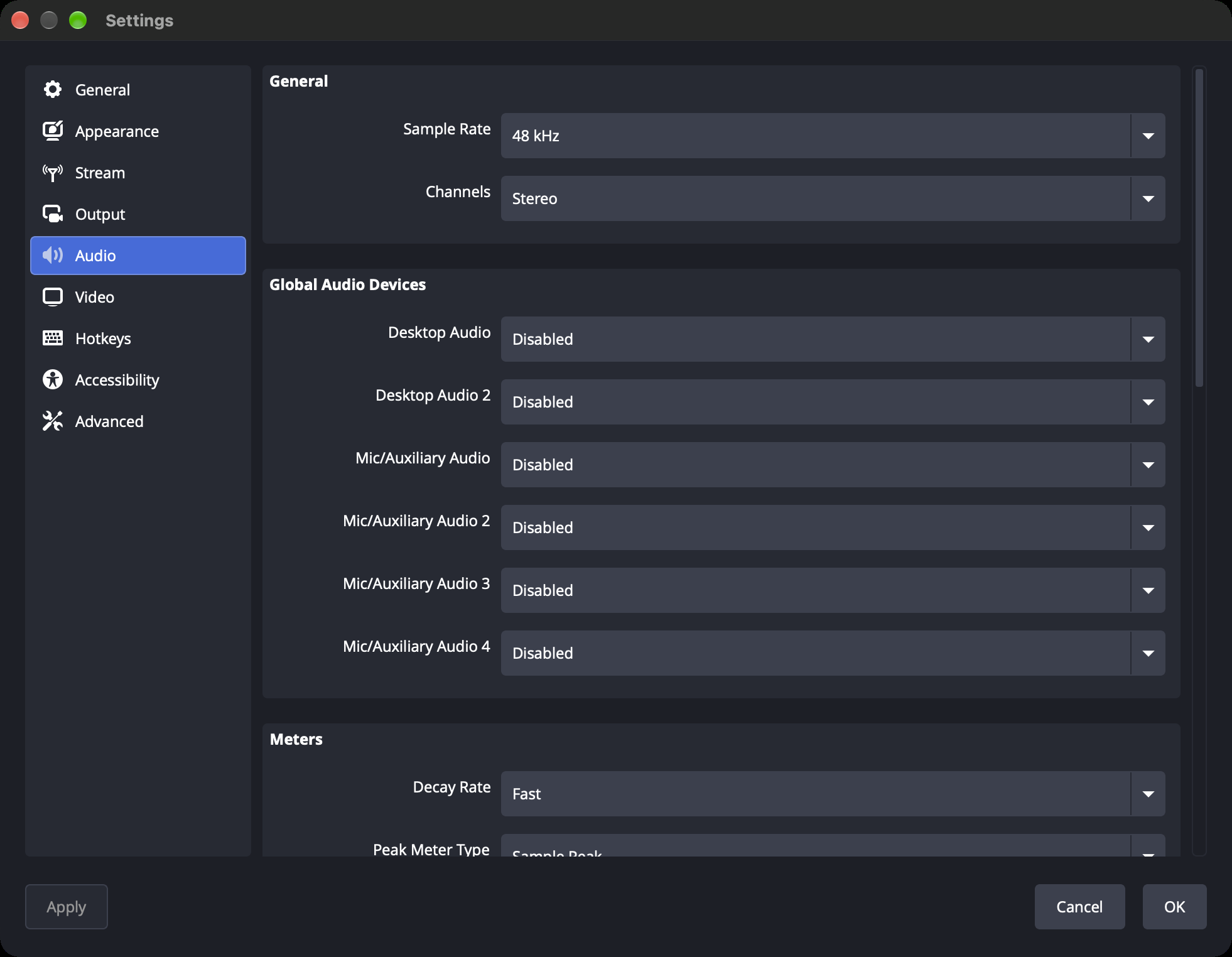
| OBS settings | Recommended |
|---|---|
| Sample rate | 48 kHz |
| Channels | Stereo |
| Audio bitrate (track 1) | 160 Kbps (128–192 allowed, AAC codec) |
Output
In Settings → Output, change the output mode to Advanced, then set the values below on the Streaming sub-tab. (Simple mode doesn’t show the keyframe and other settings.)
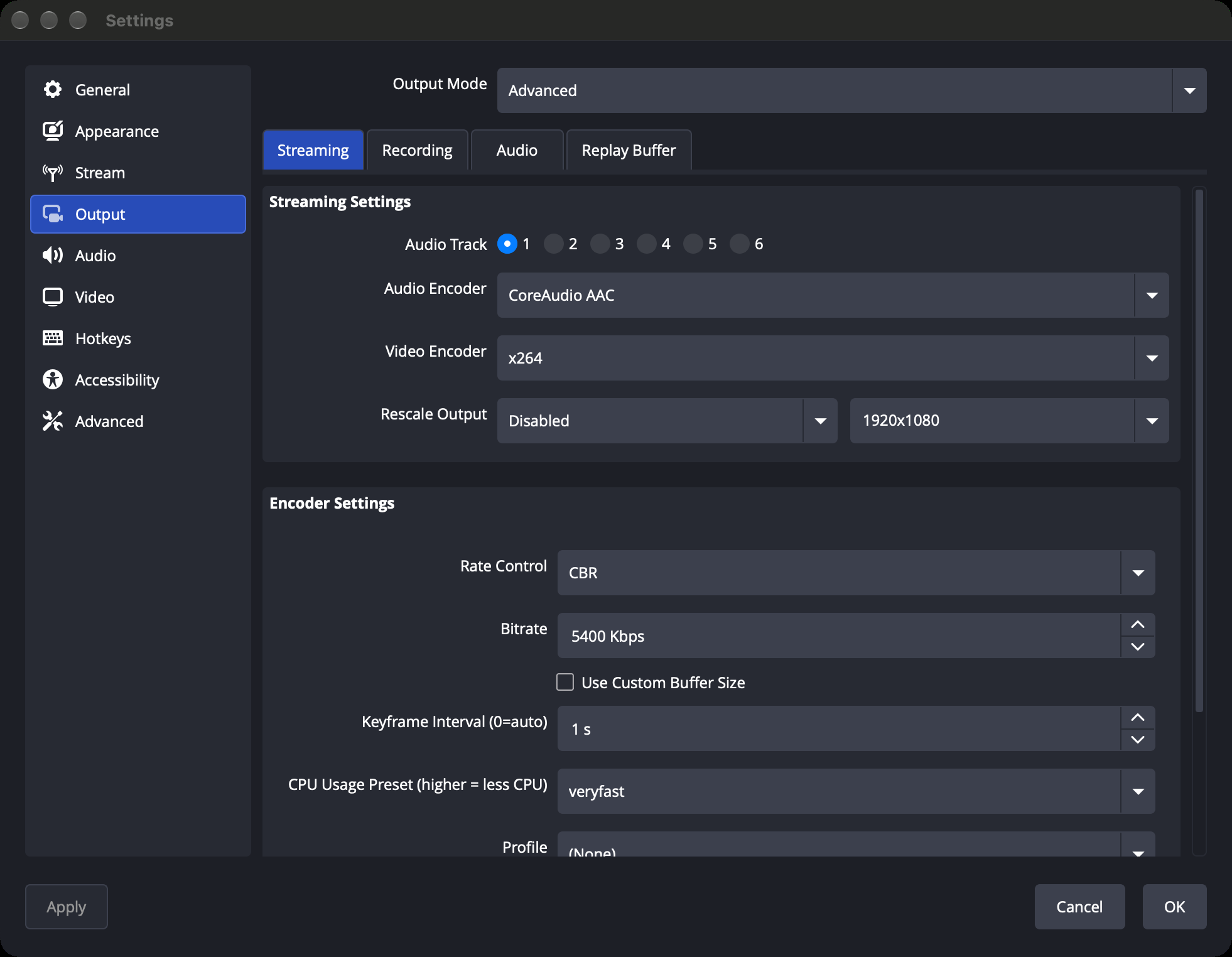
| OBS settings | Recommended | Description |
|---|---|---|
| Audio Track | 1 | Track 1 = full mix (default) |
| Video Encoder | Hardware first (NVENC / QuickSync / Apple VideoToolbox); x264 if none | See the table below for recommended values per encoder |
| Rescale Output | Off (unchecked) | Streams the video resolution as is |
| Rate Control | CBR | Always CBR for live streaming |
| Bitrate | 5,400 Kbps (1080p) / 2,500~3,000 (720p) | Recommended maximum 6,000 |
| Keyframe Interval | 1 second | The Shoplive streaming server processes video based on a 1-second keyframe interval, so other values such as 0 (auto) can’t be used. |
Bitrate maximum
At 1080p·30fps, going above 6,000 Kbps barely improves quality, so 6,000 is the recommended maximum.
The keyframe must be 1 second
The Shoplive streaming server processes video based on a 1-second keyframe interval. Values other than 1 second, or 0 (auto), aren’t processed correctly, so be sure to enter a keyframe interval of 1 second in Advanced mode. (Simple mode doesn’t let you set the keyframe.)
Recommended values per encoder
Prefer a hardware encoder (GPU). It keeps CPU load low and streaming stable. Use x264 (software) only if no hardware encoder is available.
| Encoder | Preset | Notes |
|---|---|---|
| NVIDIA NVENC | P5–P6 (quality) | |
| Intel QuickSync | TU4 (balanced) | |
| Apple (VideoToolbox) | — | macOS. Rate Control must be CBR |
| x264 (software) | veryfast (superfast on low-spec CPUs) | Not recommended if the CPU has no headroom. |
Enter the streaming information
After creating the campaign, find its Stream URL and Stream Key on the campaign details page in the Shoplive Admin. Enter these two values in OBS.
Check streaming information
The Stream URL and Stream Key are issued uniquely for each campaign. Be sure to check the values for that campaign before you start streaming. Take care not to expose the stream key.
Enter the following in Settings → Stream.
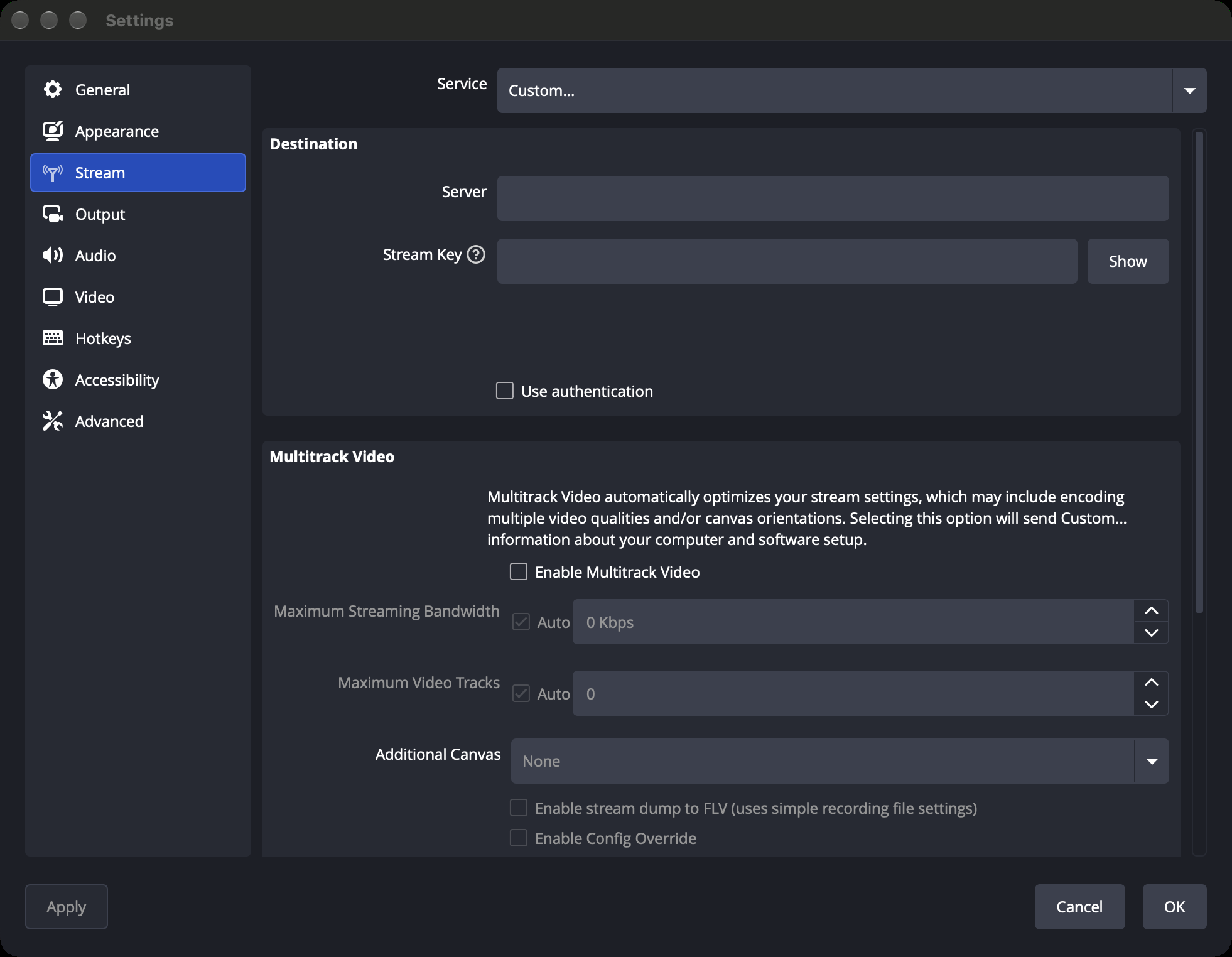
- Service: select Custom...
- Server: enter the Stream URL issued in the Admin
- Stream Key: enter the Stream Key issued in the Admin
- Click OK
Automatic reconnect
Set OBS to reconnect automatically when the network drops momentarily. Configure this in the Reconnect section at the bottom of Settings → Stream.
| OBS settings | Recommended |
|---|---|
| Enable automatic reconnect | On (checked) |
| Retry Delay | 2–5 seconds |
Start streaming and check
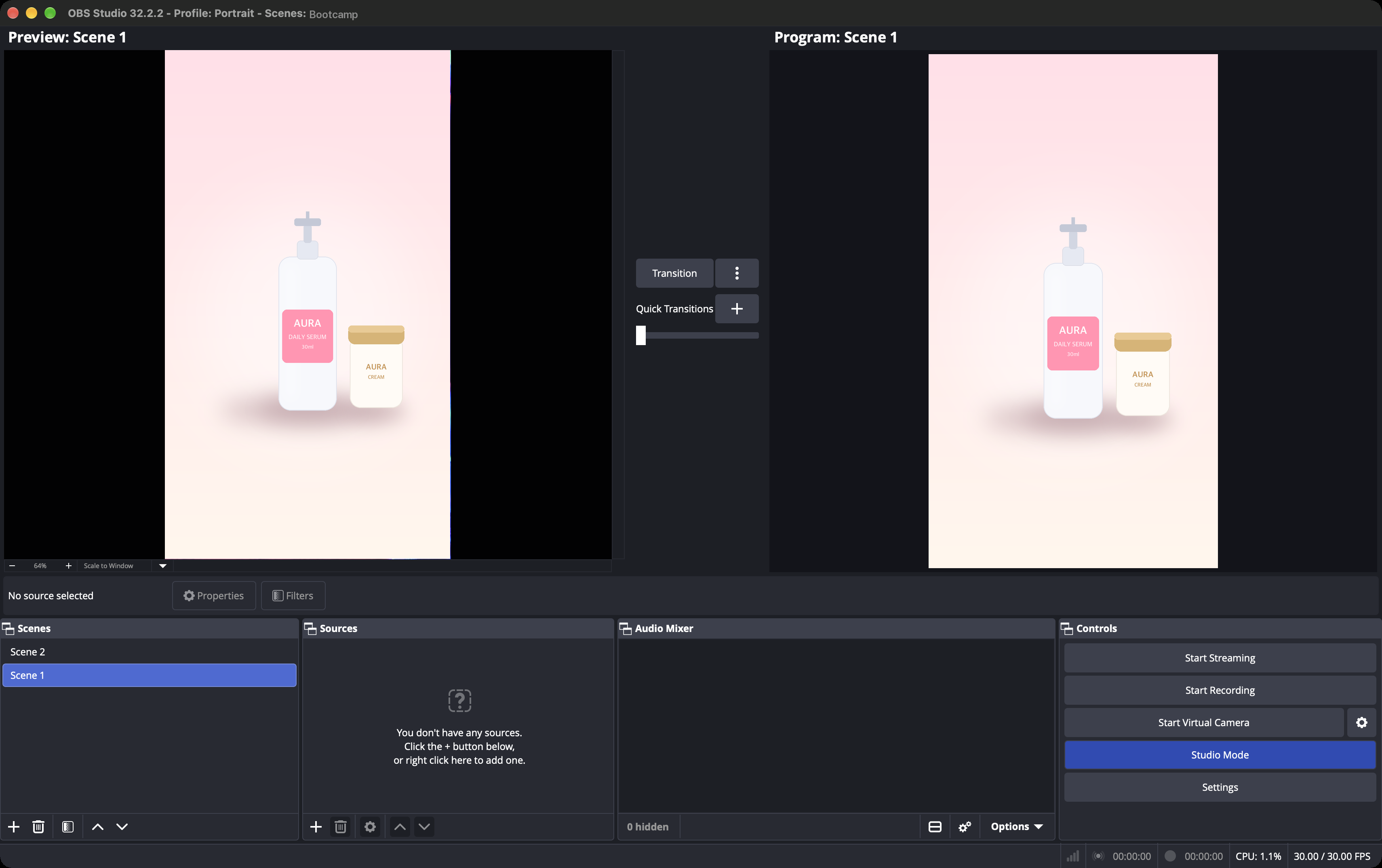
- Set up the scenes and sources (camera, screen capture, etc.) in OBS.
- Click Start Streaming at the bottom right.
- Check in the Shoplive Admin preview that the video is being received correctly.
- Open View → Docks → Stats to check the metrics. Dropped Frames % should be close to 0%, and rendering lag and encoding lag indicate GPU and CPU overload.
Troubleshooting guide
| Symptom | Cause | Solution |
|---|---|---|
| Connection failed (failed to connect socket, failed: -2) | Typo in the Stream URL or Key, or values from another campaign | Compare the Stream URL and Stream Key issued in the Admin again (check for leading/trailing spaces and typos). If the values are correct but it still won’t connect, contact your Shoplive representative. |
| The stream doesn’t appear in the Admin (OBS shows no streaming) | Start Streaming wasn’t clicked | Check that you clicked Start Streaming at the bottom right of OBS. |
| The stream doesn’t appear in the Admin (OBS is streaming normally) | The keyframe interval isn’t 1 second | Check that the keyframe interval is set to 1 second in Output. |
| No sound | Audio device or volume problem | In the OBS audio mixer, check mute, volume, and that the correct microphone/audio device is selected. |
| Dropped Frames increasing | Insufficient upload bandwidth | Lower the bitrate / switch to a wired connection / switch to 720p (2,500–3,000 Kbps) / enable automatic reconnect |
| OBS "encoding overloaded" warning | CPU overloaded | Switch to a hardware encoder / change the preset to superfast / lower the resolution or FPS |
| The picture is cropped | Wrong canvas ratio | In Video, match the base resolution to the output resolution. (Portrait 1080×1920). |
| Settings can’t be changed while streaming | Settings are locked while streaming | Stop streaming, make the change, then stream again. |
Appendix — recommended values at a glance
| Item | Recommended |
|---|---|
| Rate Control | CBR |
| Bitrate | 1080p: 5,400 Kbps (recommended maximum 6,000) 720p: 2,500–3,000 |
| Keyframe | 1 second (required by the Shoplive server; other values such as 0 (auto) can’t be used) |
| Encoder | Hardware (NVENC / QuickSync / Apple) first; x264 veryfast if none |
| Resolution | 1080×1920 (default) 720×1280 (fallback) |
| Audio | AAC 48kHz stereo 160 Kbps (128–192) |
| Automatic reconnect | On (retry 2–5 seconds) |
| Stream tab (actual values issued in the Admin) | Service = Custom Server = Stream URL Stream Key = Stream Key |