Configure Details
Campaign details
When you add a campaign, you go automatically to its details page.
On this page you can set detailed options for the campaign.
You can set the logo image shown in the player, whether to publish the replay, chat and banned word settings, and more.
You can also add the products to sell and the popups to show during the broadcast.
You can change campaign settings on this page at any time.
See the submenus for details.
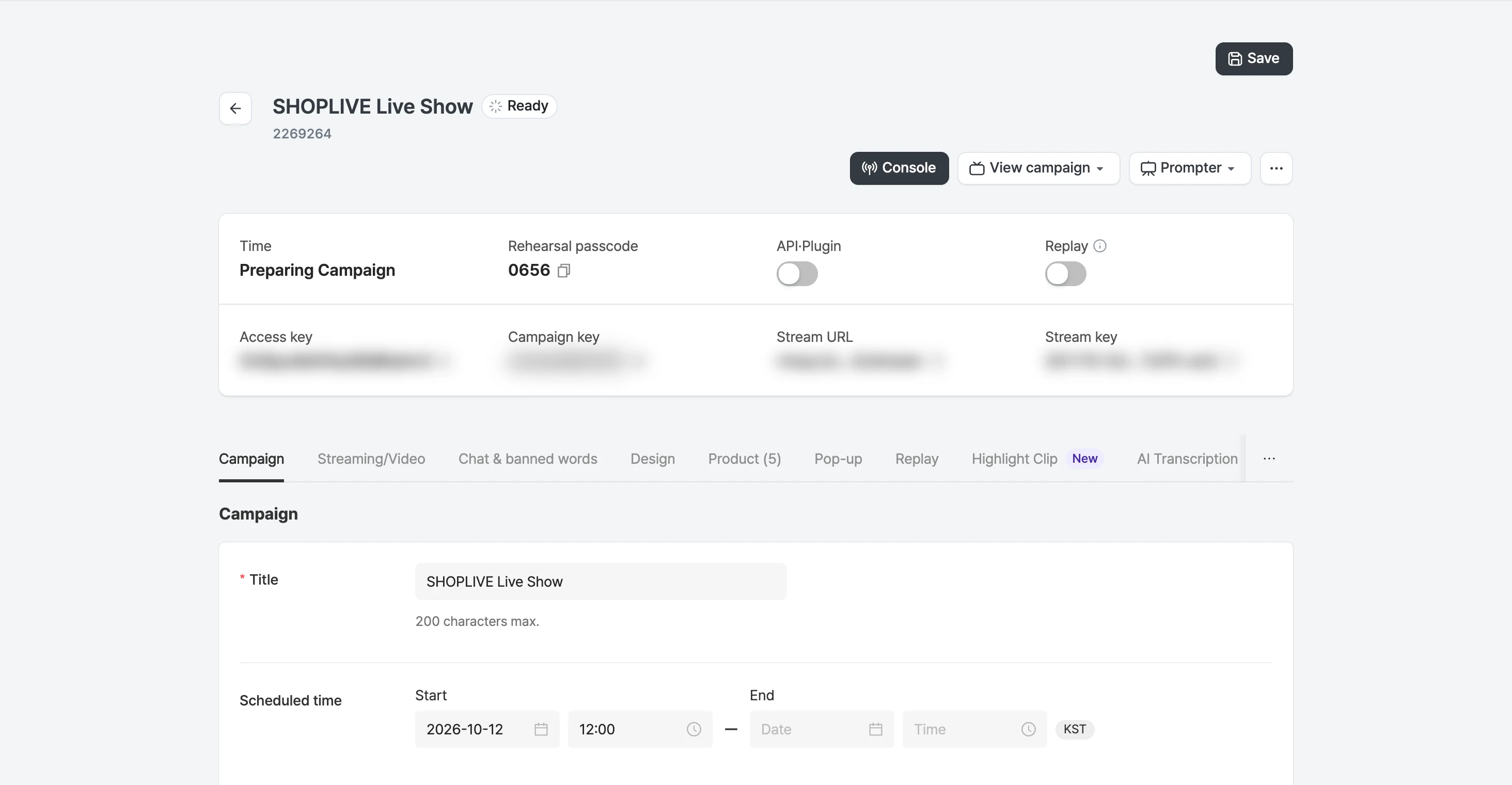
Campaign summary
| Feature | Description |
|---|---|
| ID | The campaign’s unique ID. |
| Broadcast time | The time the broadcast actually took place. |
| Rehearsal entry code | The entry code used in rehearsal mode. It appears in the campaign detail header and can be copied. |
| API Plugin | An option that sets whether the campaign is published to and included in the Shoplive Plugin or API query list. (If this option is Off, the campaign may not appear in the campaign list) |
| Replay | Whether the replay is published. (If the replay option of an ended campaign is Off, the campaign may not appear in the campaign list.) |
| Access key | A unique value that identifies your company. |
| Campaign key | A unique value that identifies the campaign. |
| Stream URL | Information used for streaming. |
| Stream key | Information used for streaming. |
Campaign
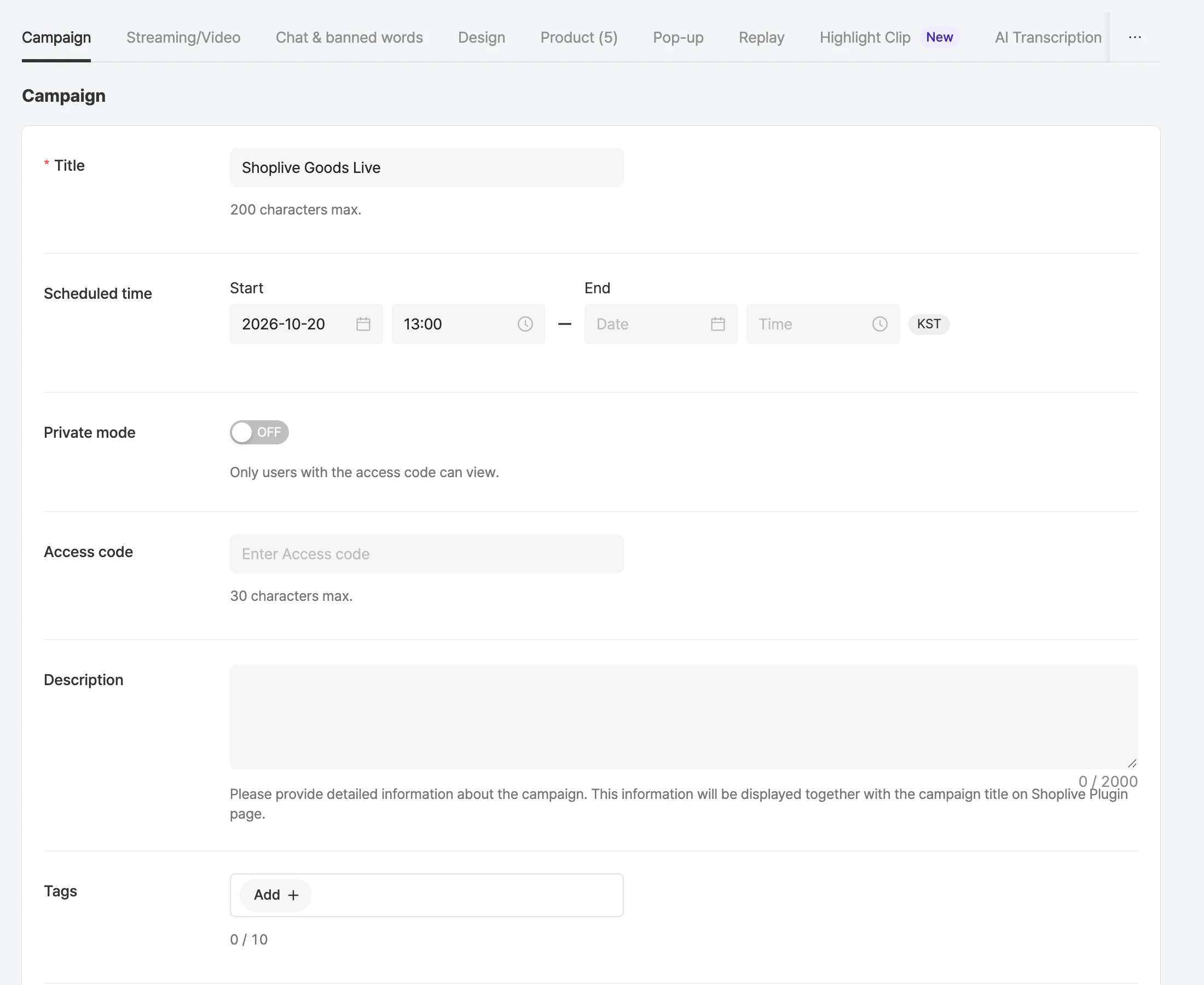
| Feature | Description |
|---|---|
| Title | The campaign title. This title is shown when the Shoplive Plugin is used. |
| Scheduled start | Sets the time the broadcast will start. The broadcast doesn’t start automatically at the set time. The scheduled start time is shown when the Shoplive Plugin is used. |
| Scheduled end | Sets the time the broadcast will end. The broadcast doesn’t end automatically at the set time. |
| Description | The campaign description. This description is shown when the Shoplive Plugin is used. |
| Viewer count display | The viewer count is shown in the player according to the option you set.
|
| Rehearsal entry code | The entry password used in rehearsal mode. One code is created per campaign, and the rehearsal entry code stays the same even if you rehearse several times in one campaign. For rehearsal mode, see the Use rehearsal mode page. |
Streaming/video
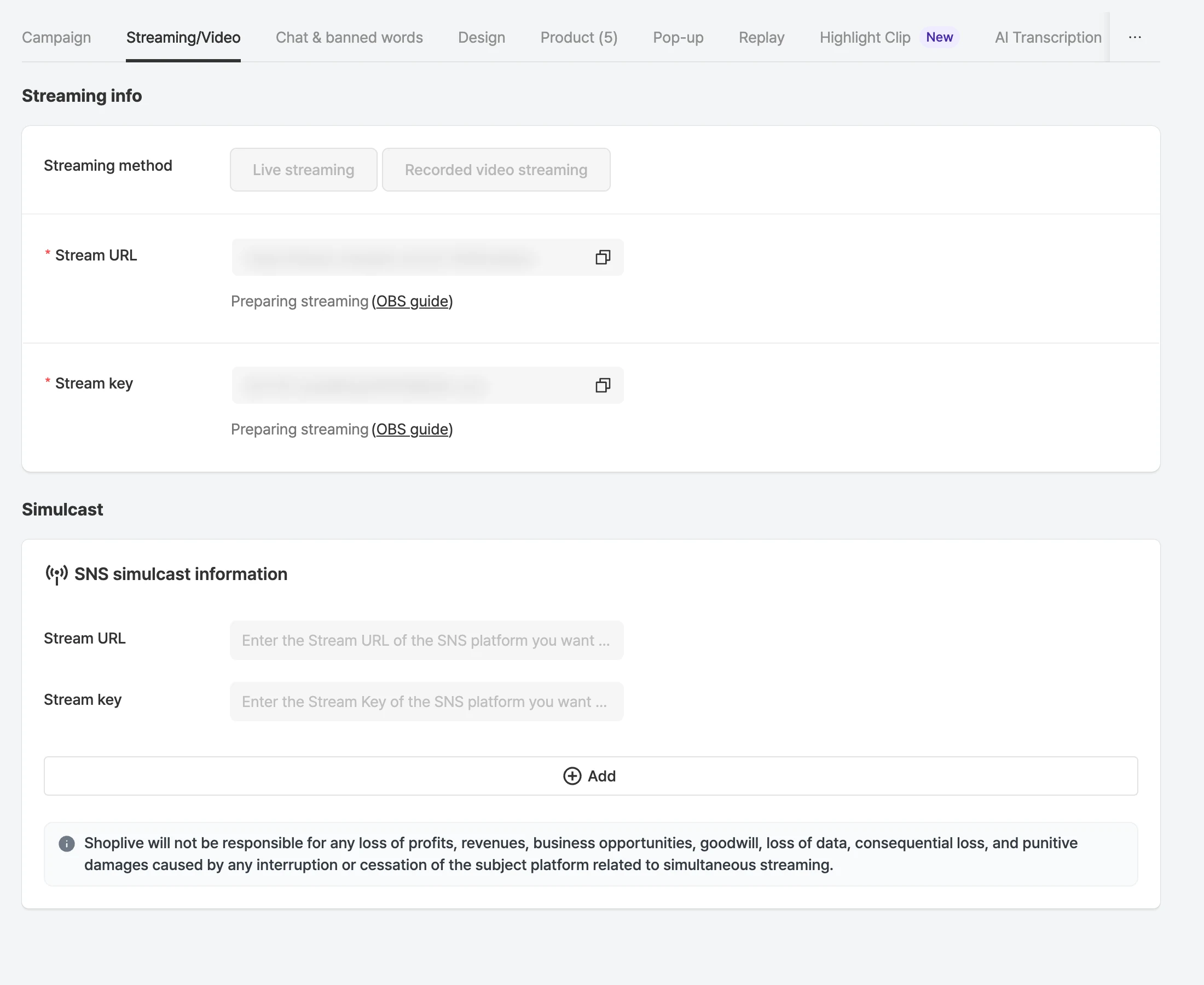
| Feature | Description |
|---|---|
| Stream URL | Information used for streaming. |
| Stream key | Information used for streaming. |
| Social media streaming | Where you enter social media streaming information. |
| Streaming method | Choose Direct streaming or Saved video streaming. |
Chat and banned words
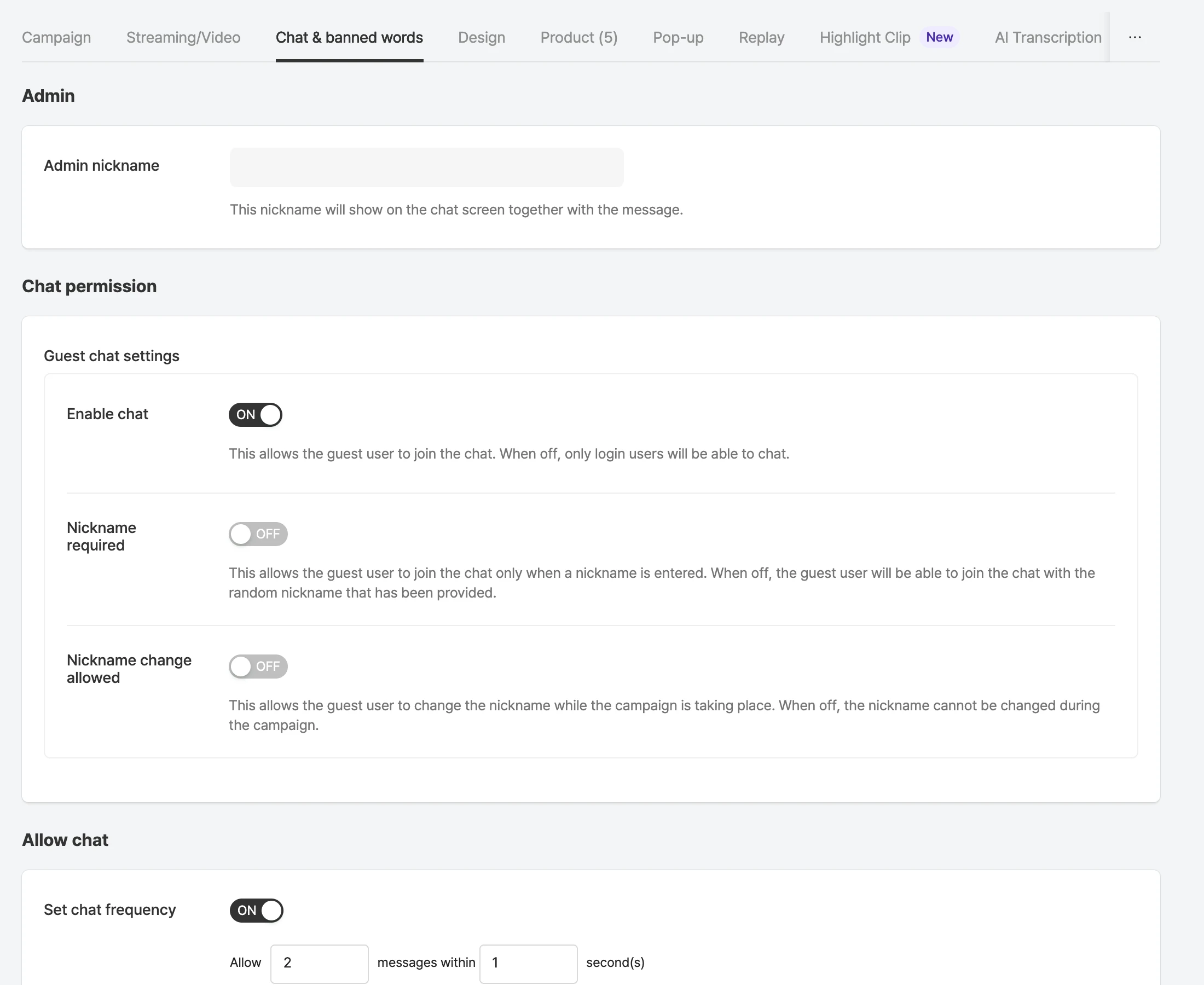
Operator
| Feature | Description |
|---|---|
| Display name | You can set the operator’s chat display name. |
Guest chat settings
| Feature | Description |
|---|---|
| Allow chat | ON: guests can take part in the chat. OFF: guests can’t take part in the chat. |
| Display name required | ON: guests must enter their own display name to take part in the chat. OFF: guests can take part in the chat with a random display name (GuestXXXX). |
| Allow display name change | ON: guests can change their display name during the broadcast. OFF: guests can’t change their display name during the broadcast. |
| Chat rate limit | Enter the chat rate limit in the form ‘{count} messages within {seconds} seconds’. Seconds can be up to 60. |
Banned words
| Feature | Description |
|---|---|
| System | Sets whether to apply the default banned word list provided by Shoplive. You can view the system banned word list with the Manage button on the right or in the Banned words tab in the left menu. |
| Company | Manages banned words applied to all campaigns. You can manage the company banned word list with the Manage button on the right or in the Banned words tab in the left menu. |
| Campaign | Manages banned words applied only to this campaign. You can manage the campaign banned word list with the Manage button on the right. |
| Host | Applies and manages banned words per host. You can manage the host banned word list with the Manage button on the right or in the Banned words tab in the left menu. If no host is registered, this option is disabled. |
Banned-word match scope
When you add a banned word, choose partial, word, or sentence in Match scope to set how a chat message is matched against it. A chat message that hits a banned word is visible only to the user who sent it and is not shown to other viewers.
The examples below assume the banned word is "sale".
| Match scope | Action | Example |
|---|---|---|
Partial | The message is not shown if it contains the banned word anywhere, even when other characters are attached before or after it. | "Hello. Presale starts today." → Not shown "Hello. Big sale today." → Not shown |
Word | The message is not shown if, when split by spaces, it contains a word that is exactly the same as the banned word. If other characters or punctuation such as a comma or period are attached, it is treated as a different word and the message is shown. | "Come to the sale today." → Not shown "Come to the saleroom today." → Shown "Come to the sale, today." → Shown |
Sentence | The message is not shown only when the whole sentence is exactly the same as the banned word, including spacing. If other words are included, the message is shown. | "sale" → Not shown "Hello. Big sale today." → Shown |
Banned words per host
Once you register hosts, you can link a host to each campaign and manage banned words that apply only to that host.
- Select Hosts in the left menu, click Add host, enter the host name and click Save. You can also edit and delete hosts on the same screen.
- On the Chat and banned words tab of the campaign details, select a Host and save the campaign. The number of banned words applied is shown next to the selected host.
- Add banned words for a host with the Manage button next to the host, or from Hosts in the Banned words menu on the left. Enter the Banned word, Type (chat/nickname) and Match scope (partial/word/sentence). Words already registered aren’t added, and a notice is shown.
Logged-in user chat settings
| Feature | Description |
|---|---|
| Display name required | ON: If the logged-in user’s name is not linked, a nickname input window appears when they tap the chat button, and they can join the chat only after setting a nickname. If the name is already linked, they can chat right away without the input window. OFF: Users can join the chat without entering a nickname. If a user has no nickname, a random nickname made of letters and random numbers is assigned. |
| Allow display name change | Logged-in users can change their display name during the broadcast. |
| Show recent chat on entry | You can set how many recent chat messages (last N) to show to users who join during the broadcast. |
A Unique display name option is also available.
Design
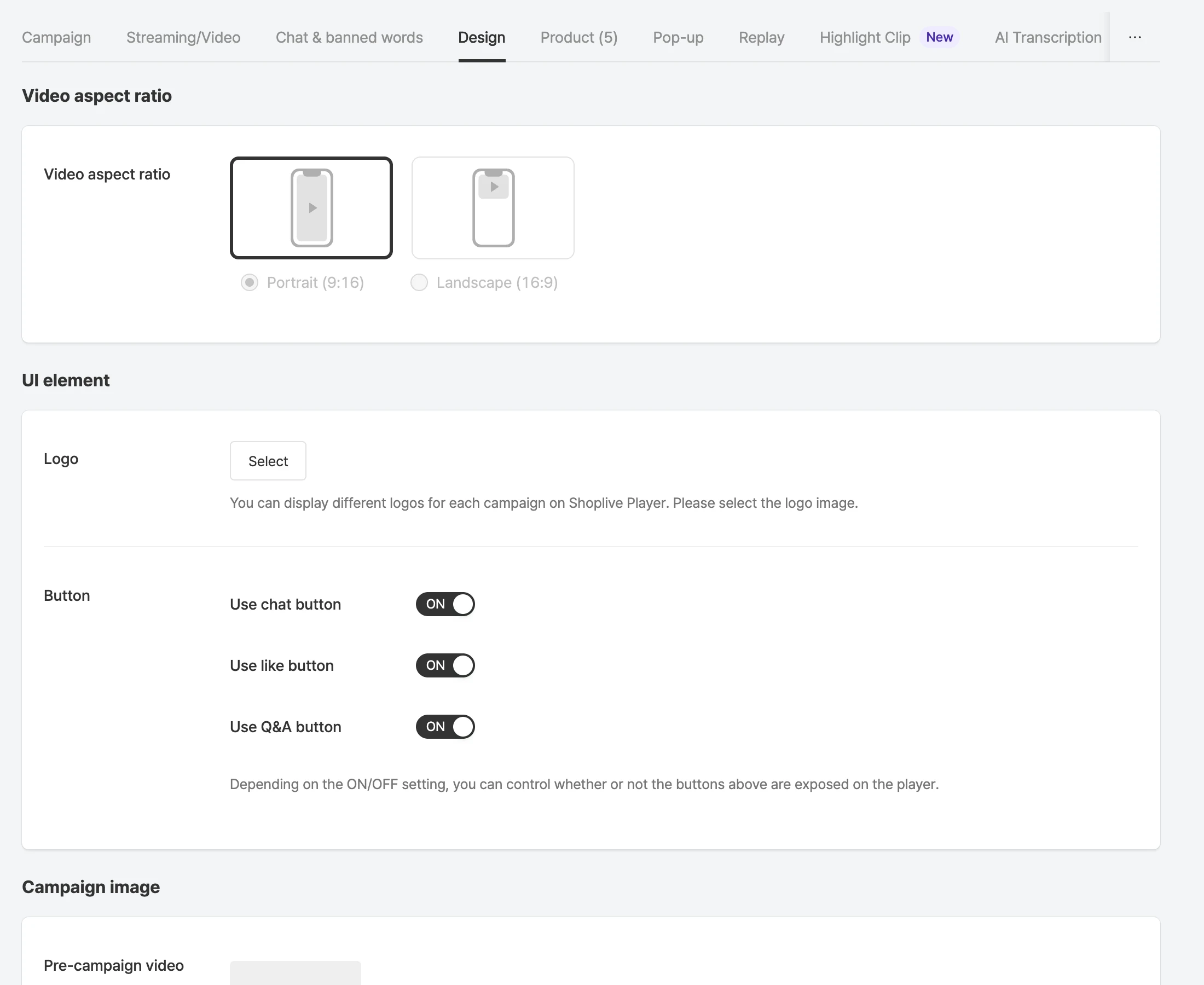
Video aspect ratio
| Video aspect ratio | Description |
|---|---|
| Portrait (9:16) | Used for portrait content, like a smartphone screen. If not set, portrait (9:16) is applied by default. |
| Landscape (16:9) | Used when a landscape screen is needed, as on YouTube or regular broadcasts. Enabling ‘Start in landscape full screen’ switches to landscape full-screen mode automatically when the broadcast starts. |
I want to choose the video aspect ratio. What should I do?
The landscape (16:9) aspect ratio isn’t provided by default. If you need it, contact your Shoplive representative.
The ratio can be changed only while the campaign is ready and it isn’t a rerun.
Logo
| Feature | Description |
|---|---|
| Logo | You can choose the logo shown in the player. After registering several logos in the Logo tab on the left, you can select and apply the one you want. |
Campaign images
| Feature | Description |
|---|---|
| Upcoming broadcast image | An image shown on screen while the broadcast is "Ready" and hasn’t started yet. If you don’t add one, your company’s default image is shown. |
| Live background image | A background image shown on screen when the resolution changes during the broadcast or the video stream isn’t smooth. If you don’t add one, your company’s default image is shown. |
| Image after the broadcast ends | An image shown on screen after the broadcast ends. If you don’t add one, your company’s default image is shown. |
| IE unsupported image | An image shown to users who visit with Internet Explorer. The Shoplive player doesn’t work in IE due to technical issues. |
How do I register default images?
If you want to register default images that are added automatically when a campaign is created, contact your Shoplive representative.
Replay
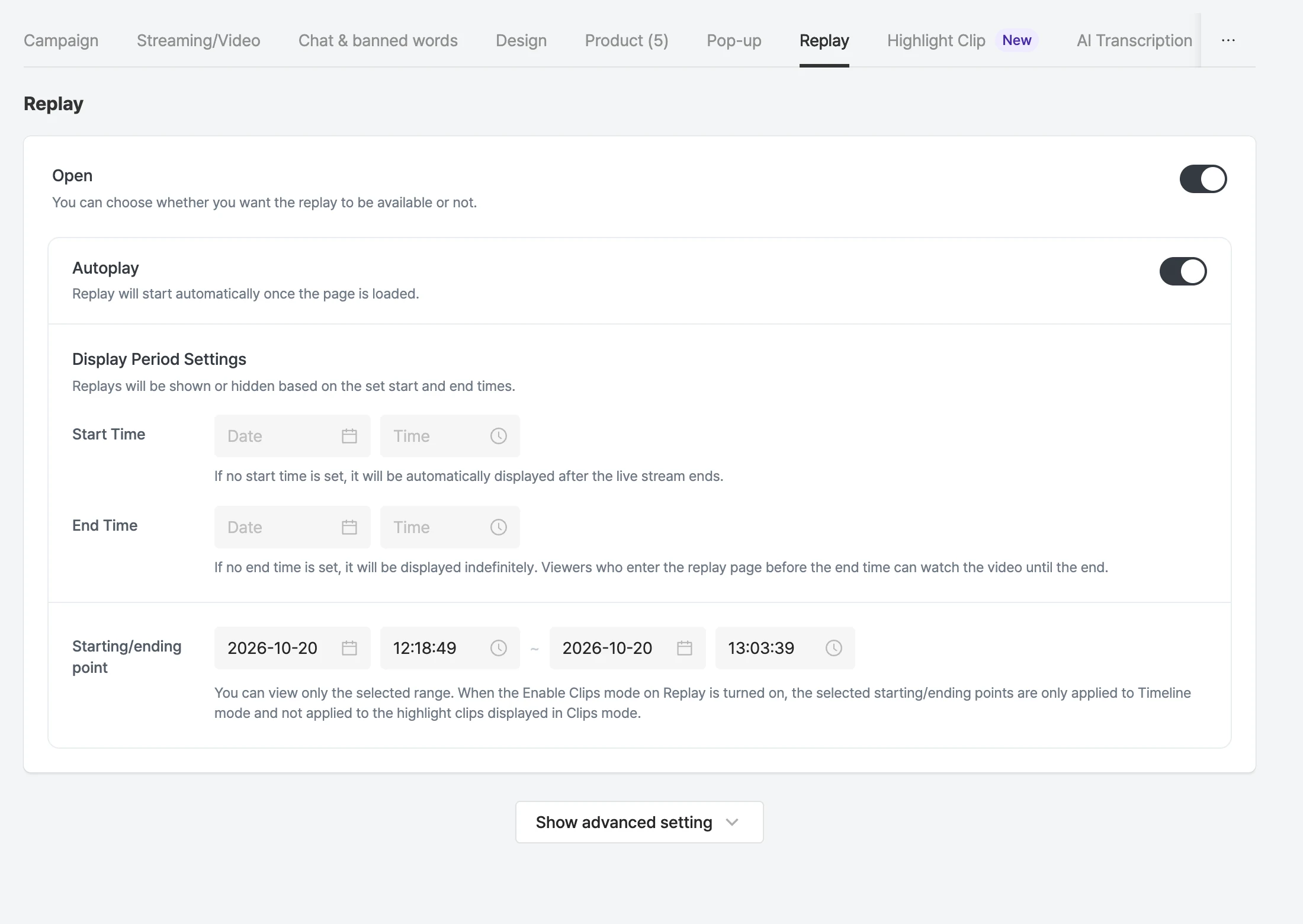
| Feature | Description |
|---|---|
| Publish replay | Sets whether to publish the replay. If published, the following sub-options appear. |
| Autoplay | Plays the replay automatically after the page loads. |
| Set range | Only the set video range can be watched. For details on setting a range, see Set replay options in the admin guide. |
Advanced replay settings
| Feature | Description |
|---|---|
| Set display period | Set the period for displaying the replay by specifying a start and end time. If you leave the start time empty, the replay is displayed automatically after the broadcast ends; if you leave the end time empty, it’s displayed indefinitely. It becomes private automatically when the end time passes. For details on the display period, see Set replay options in the admin guide. |
| Reproduce broadcast stats | Shows the same viewer and Like counts as during the broadcast when the replay plays. If you turn this off, the cumulative viewer count including replay viewers and the Like count are shown. |
| Show chat | Sets whether the chat is shown in the replay. |
Products
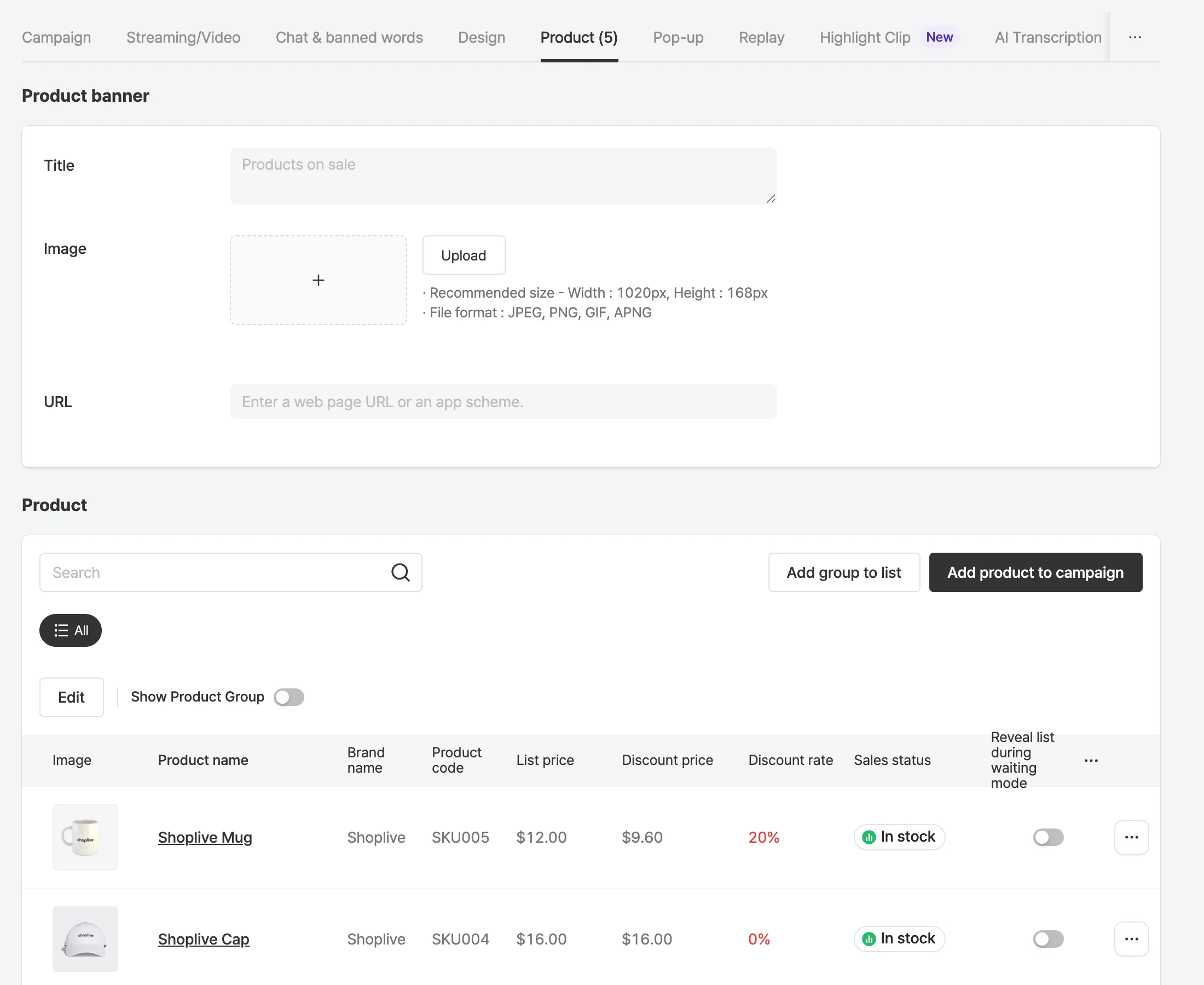
Banner
| Feature | Description |
|---|---|
| Title | You can set the title of the full product list shown when the product list is tapped in the player. If you don’t enter one, ‘Products on sale now’ is shown by default. |
| Image | You can set an image to show as a banner above the product list. When this image is set, the title above the product list isn’t shown. |
| URL | You can set the web page or app scheme to open when the banner above the product list is clicked (tapped). |
Product list
See the page below for product list features.
Popups
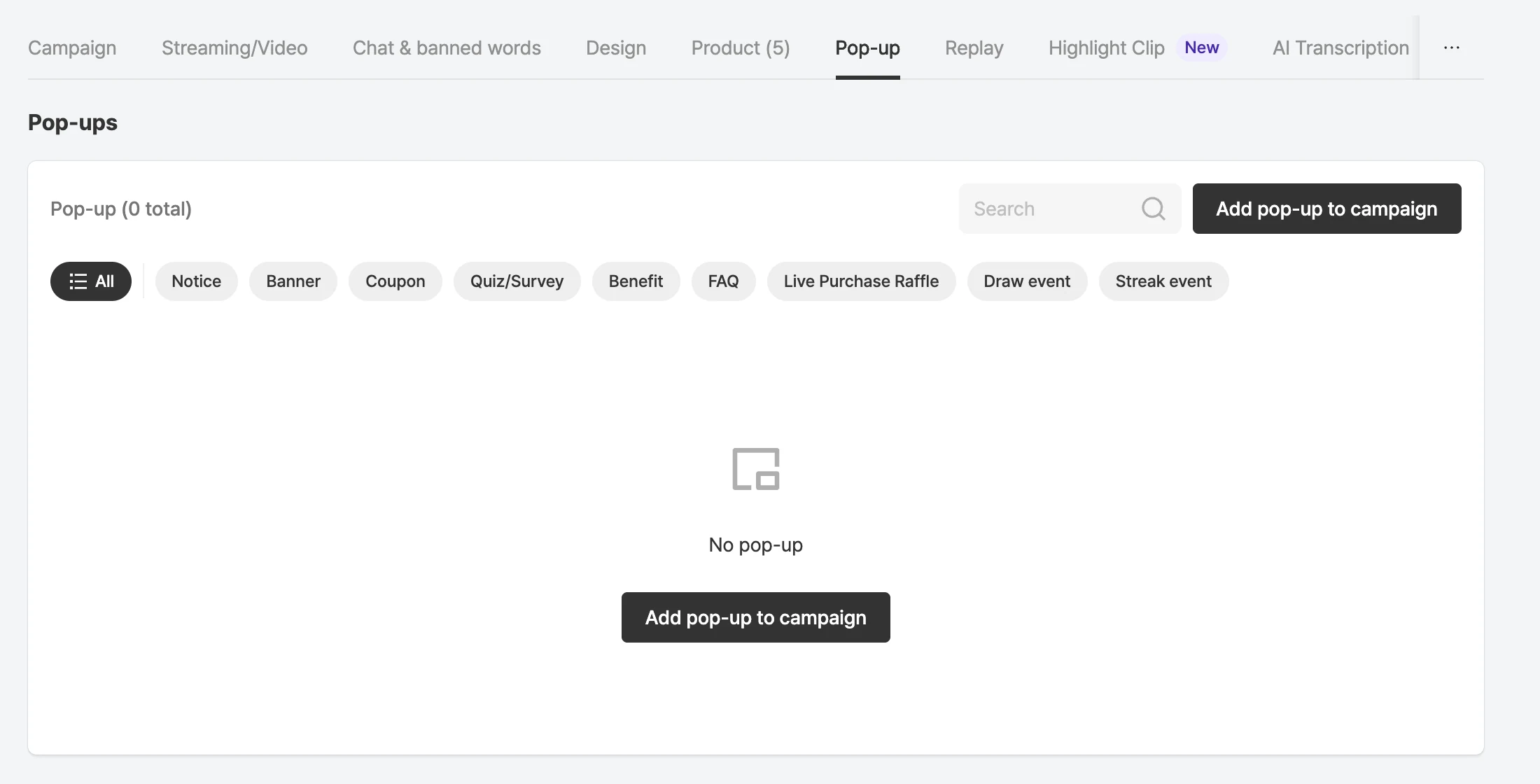
Popup list
See the page below for popup list features.
Additional settings
- AI subtitles
- AI chatbot
- Highlight clips
- User activity notifications
- Banner type above the product list: Link / Coupon
- PIP design
- Redirect campaign after the broadcast ends
Admin accounts
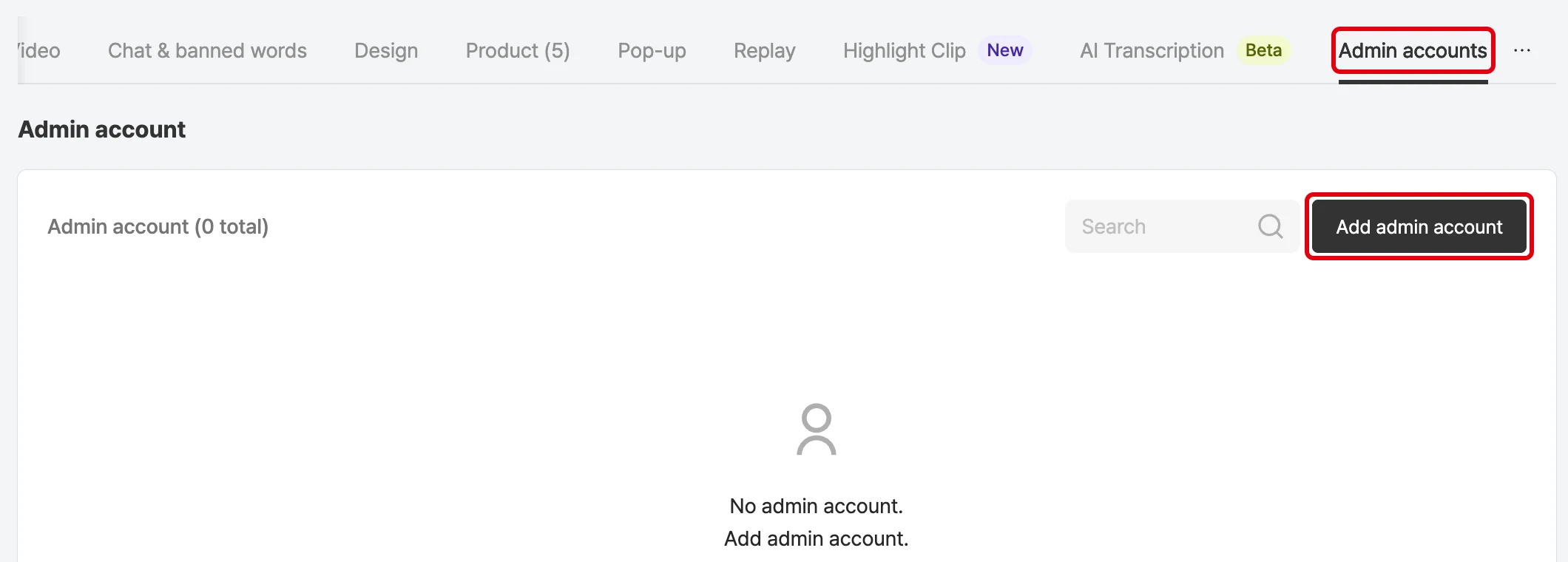
Add admin accounts
Lets customers set admins for each campaign themselves. It also supports finer-grained admin roles so you can grant only the permissions needed.
The admin roles are as follows.
| Role | Permissions |
|---|---|
| Full access to a specific campaign | Grants management of all campaign features, limited to the campaigns the account was added to as an admin. |
| Console access to a specific campaign | Grants management of the console and prompter, limited to the campaigns the account was added to as an admin. |
| Chat management for a specific campaign | Grants management of chat in the console only, limited to the campaigns the account was added to as an admin. |
| Product / popup management for a specific campaign | Grants management of popups and products in the console, limited to the campaigns the account was added to as an admin. |
| Console view-only for a specific campaign | Grants permission to view the console, limited to the campaigns the account was added to as an admin. |
| Prompter view-only for a specific campaign | Grants permission to view the prompter, limited to the campaigns the account was added to as an admin. |
FAQ
Can I add only accounts registered with Shoplive?
You can add them even if they aren’t registered with Shoplive.
We send a link to register an account to the email entered when adding the admin account. Complete the registration through that link.
Can I register one admin to several campaigns?
Register admins for each campaign.