Quick Start
Live broadcast workflow
1️⃣ Get a Shoplive Admin account → 2️⃣ Install the live page → 3️⃣ Create a campaign → 4️⃣ Add products and popups → 5️⃣ Publish the live broadcast → 6️⃣ Rehearse → 7️⃣ Go live
Get a Shoplive Admin account
Ask your Shoplive representative for an admin account (send your email and name).
Once it’s registered, a link to set your password is sent to that email.
📌 See the guide below for details.
Install the live page
Create a page on your online store where viewers can watch live broadcasts.
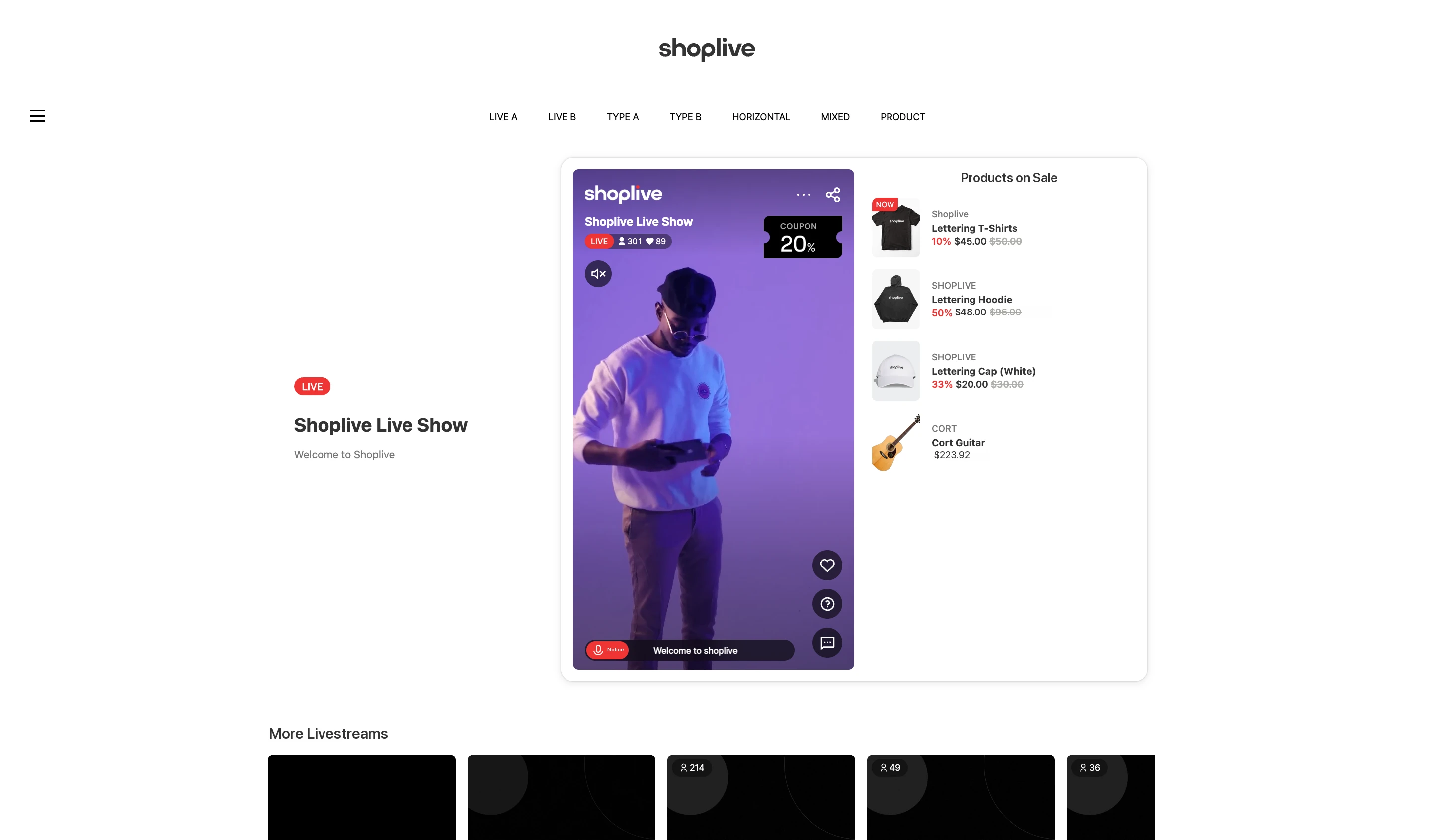
📌 See the guide below for details.
🔗 Install the live collection plugin
Create a Campaign
Click the ‘Add campaign’ button to create a new campaign.
Enter the basic campaign information (title, description, schedule, broadcast images, etc.) and save.
Each item appears on the live display page and in the player.
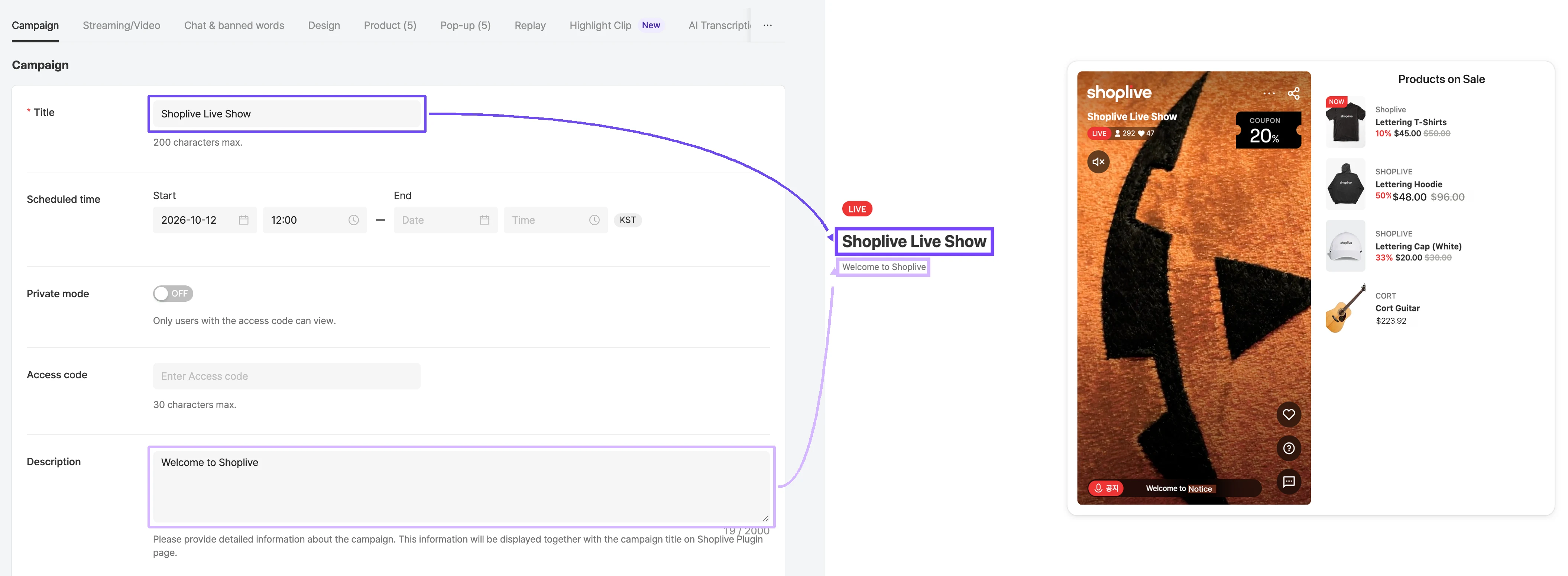
📌 See the guide below for details.
Add products
Click the ‘Add products to campaign’ button to register products.
You need to create a product once; after that, you can reuse it at any time.
- Create product - add a single product
- Excel upload - add products in bulk
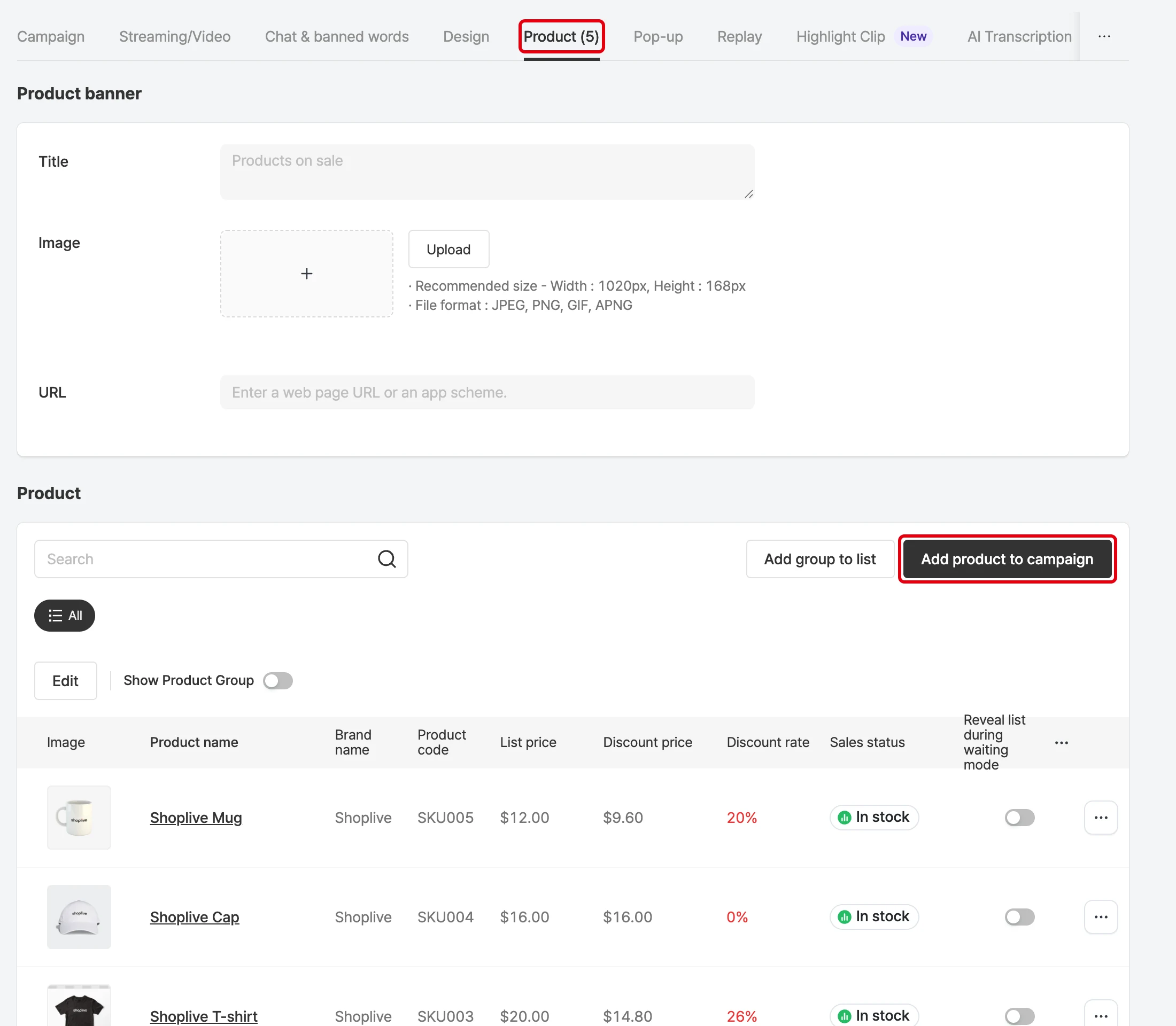
📌 See the guide below for details.
🔗 Product integration is available for CAFE24
Add popups
Create the popups to use in the live broadcast, then add them to the campaign.
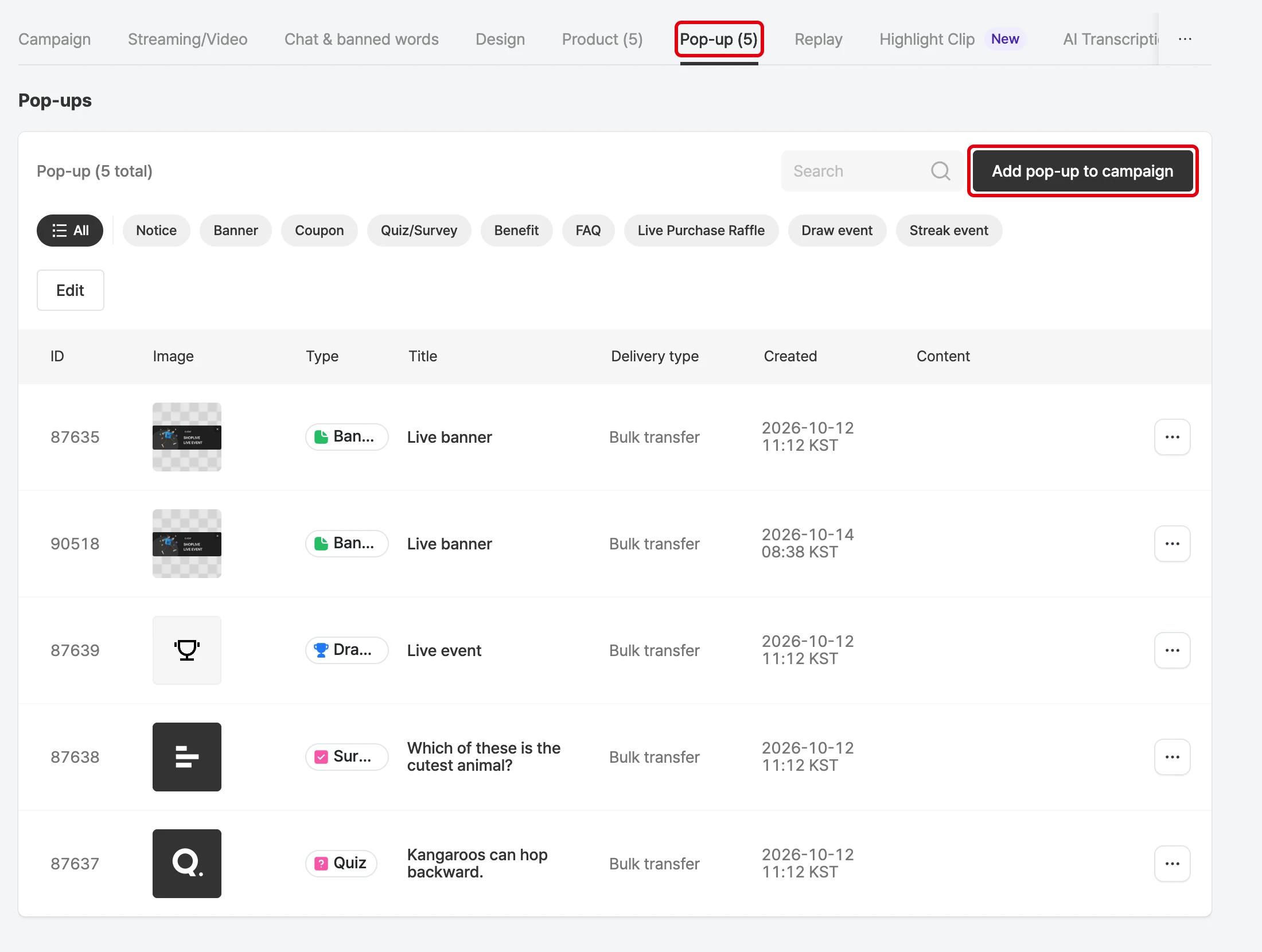
📌 See the guide below for details.
🔗 Create banner, notice and coupon popups
🔗 Create purchase verification popups
Publish the live broadcast
When the campaign setup is complete, publish the broadcast on the live page.
If the live page isn’t installed yet, install it by following the installation guide below.
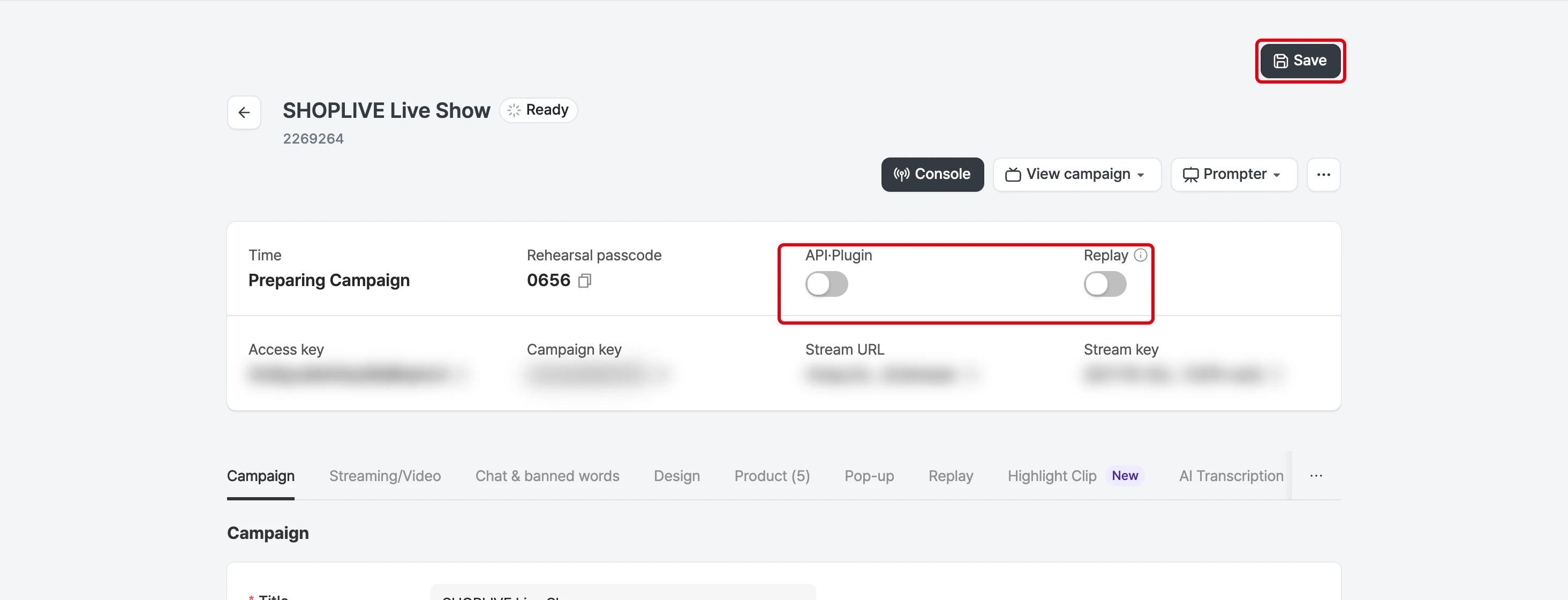
📌 See the guide below for details.
🔗 Basic installation
Rehearse
You can rehearse at any time, as often as you like, in the same environment as the real broadcast.
Rehearsal mode is visible only to admins, even when the campaign is published.In the player, go to Options > Admin mode and enter the rehearsal entry code to watch the rehearsal.
(Campaign console → Broadcast management → Rehearsal mode → Start rehearsal)
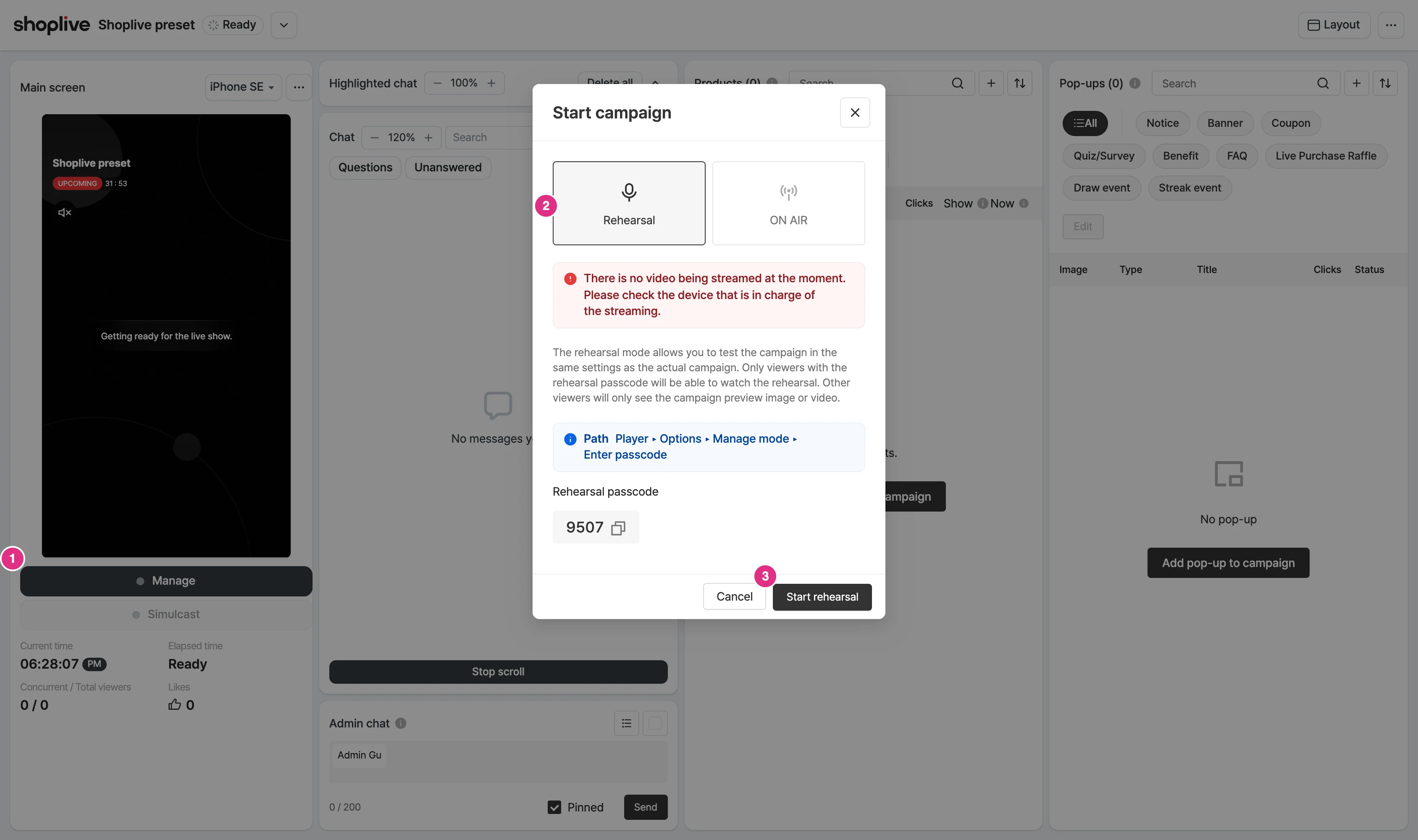
📌 See the guide below for details.
Go live
When the rehearsal is done, run the live broadcast in broadcast mode on schedule.
(Campaign console → Broadcast management → Broadcast mode → Start broadcast)
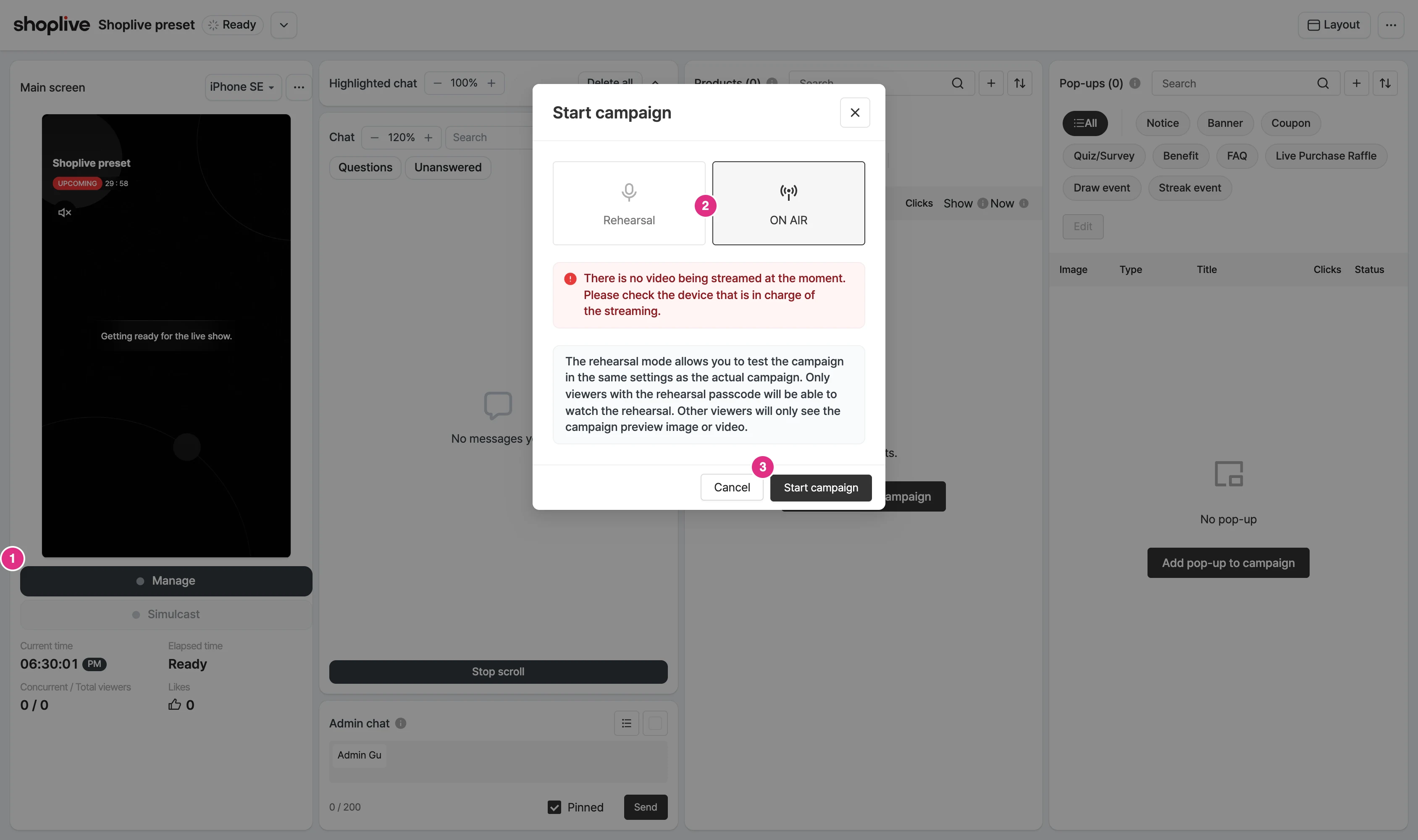
📌 See the guide below for details.