Set Up AI Subtitles (AI STT)
Shoplive AI subtitles provide live and replay subtitles based on speech recognition optimized for live commerce. Recognition results may vary with the speaker’s pronunciation, background noise and acoustics. For better subtitle quality, we recommend speaking clearly, avoiding overlapping voices and minimizing background noise.
Set company defaults
In AI Transcription in the left menu (page title AI subtitles), set the defaults applied to new campaigns and click Save.
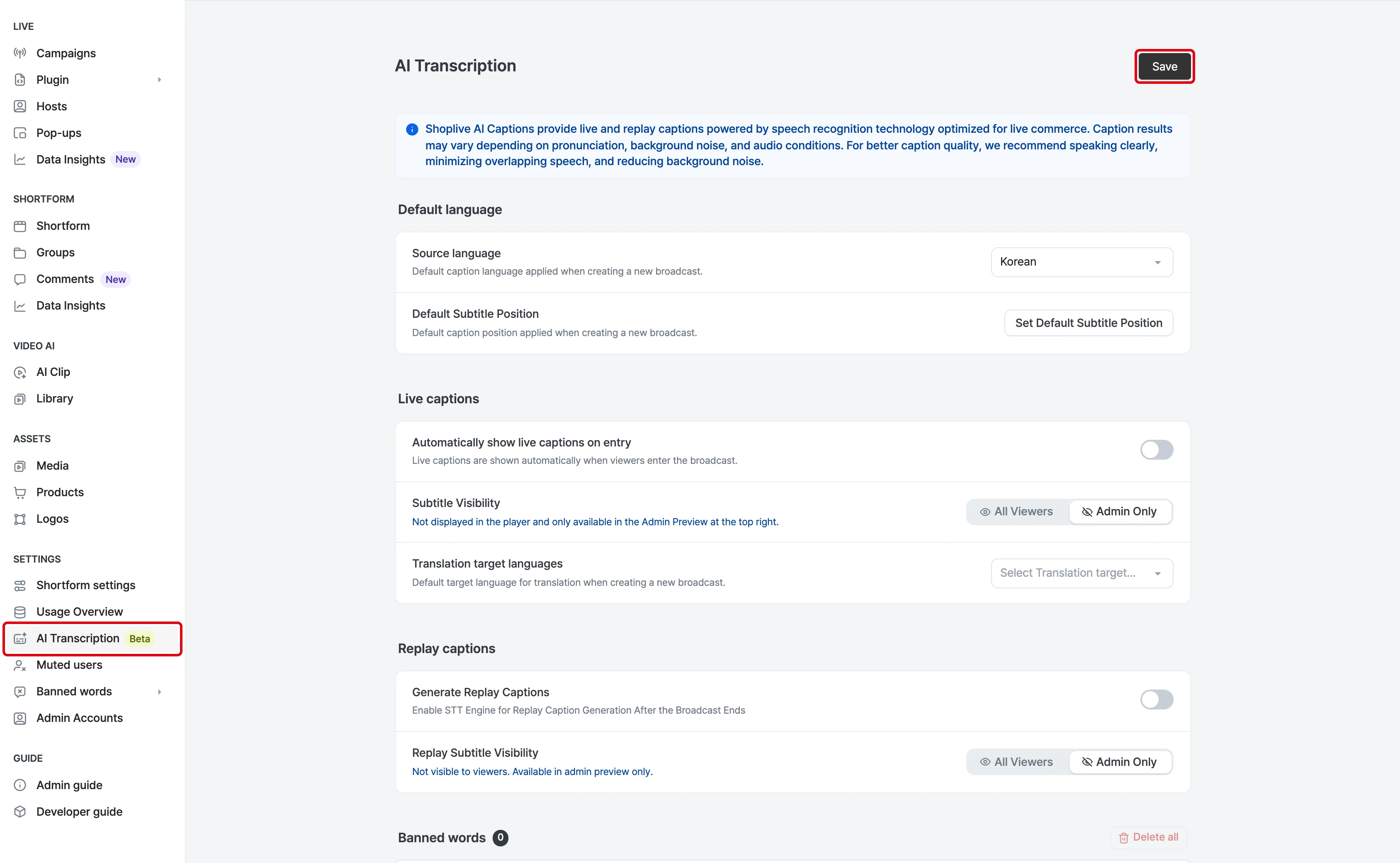
- Default language: Source language (the base language of the subtitles), Default subtitle position (Set default subtitle position button)
- Live subtitles: Subtitle visibility (All viewers / Admins only), Translation languages
- Replay subtitles: Generate replay subtitles, Replay subtitle visibility
- Banned words: company-wide default banned words. You can enter several at once, separated by commas or line breaks.
Per-campaign settings
Set these for each campaign on the AI subtitles tab of the campaign details.
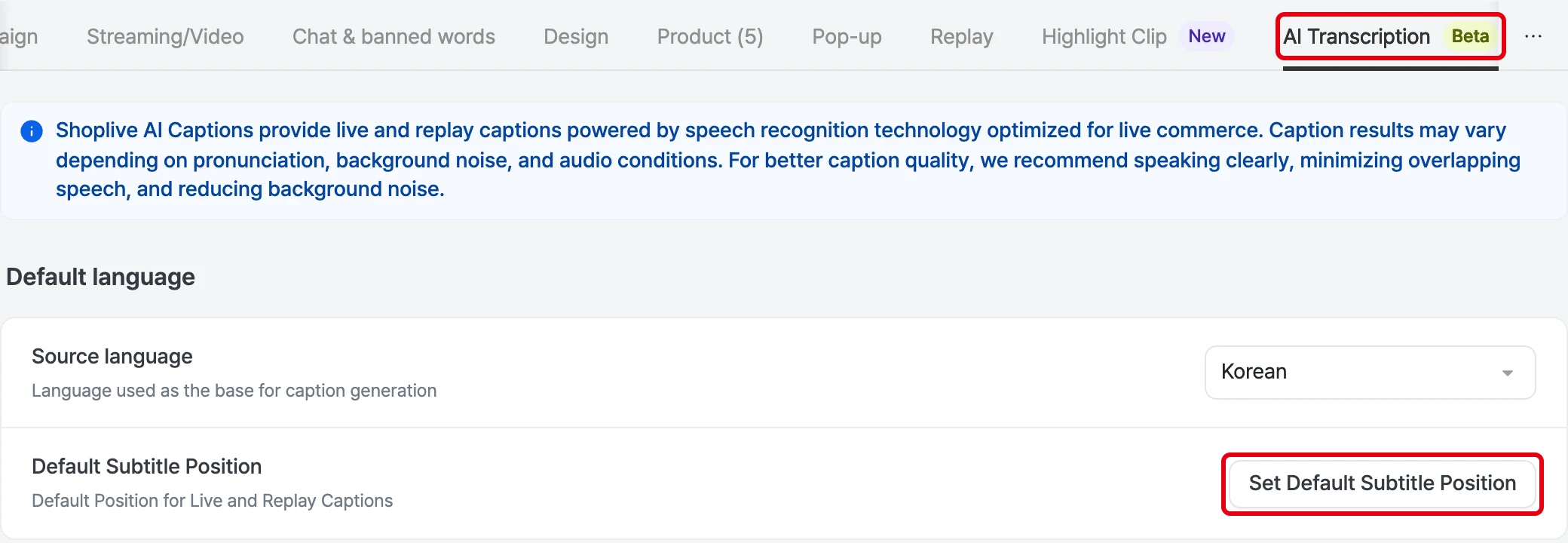
Default language
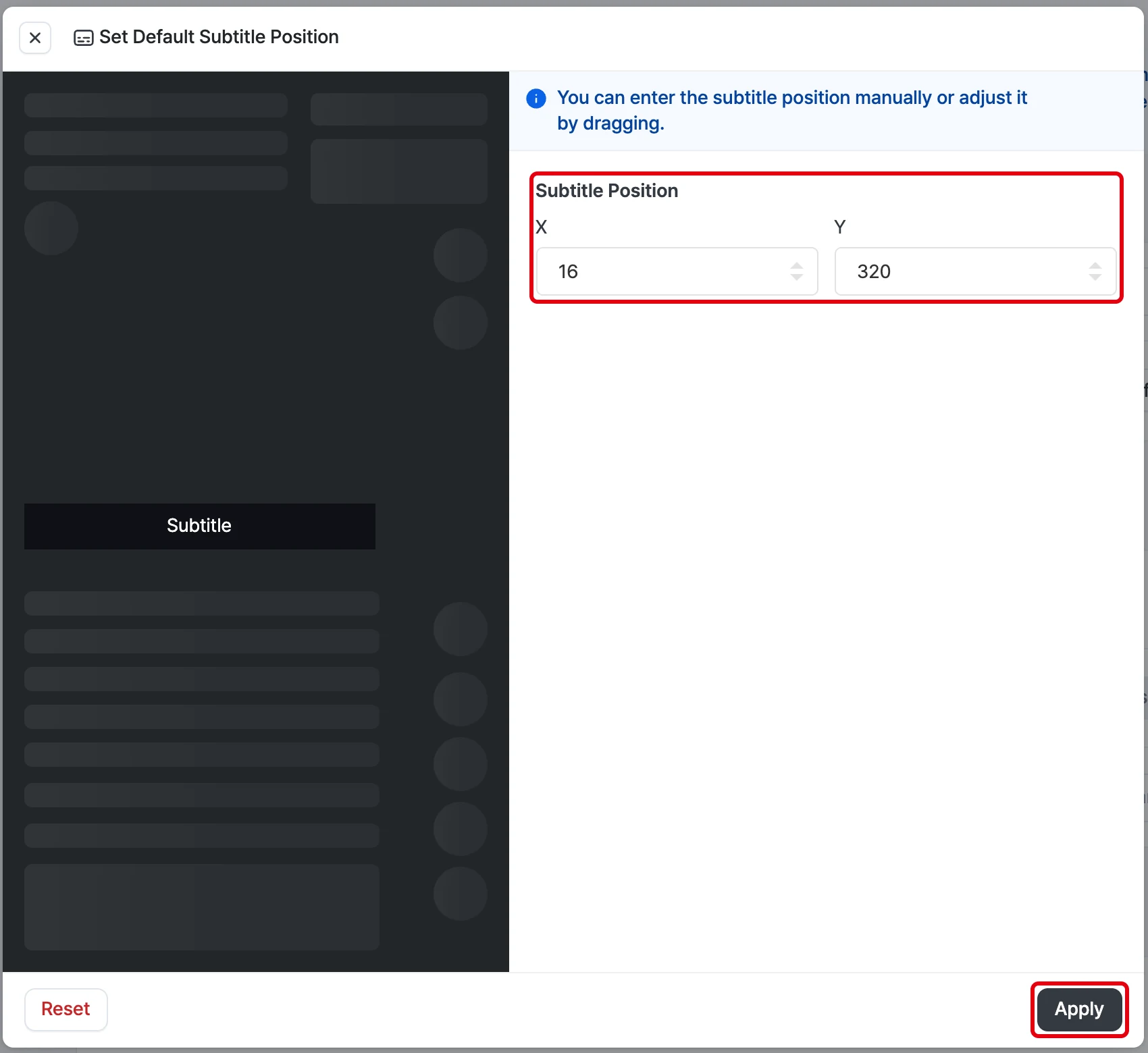
The Source language is the base language for generating subtitles. You can choose 한국어, English, 日本語 or 中文. Click Set default subtitle position to enter the subtitle position as values or adjust it by dragging, with Reset and Apply buttons. This position applies to both live and replay subtitles.
Live subtitles
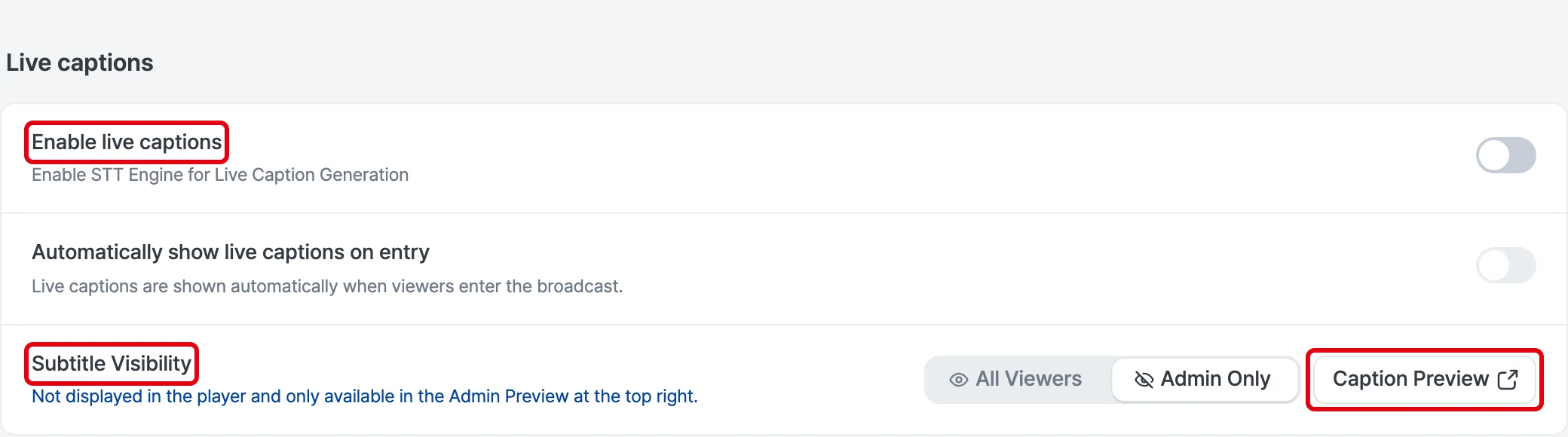
- Enable live subtitles: turns on the live subtitle (STT) engine for the campaign.
- Subtitle visibility: choose All viewers to show a subtitle (CC) button in the player so viewers can turn subtitles on when they need them. Choose Admins only to hide them from the player and show them only in the admin preview at the top right.
- Subtitle preview: an admin-only subtitle review player, available when Admins only is selected, that isn’t shown in the actual broadcast.
- Translation languages: the translation languages viewers can choose. The source language can’t be selected.
Replay subtitles
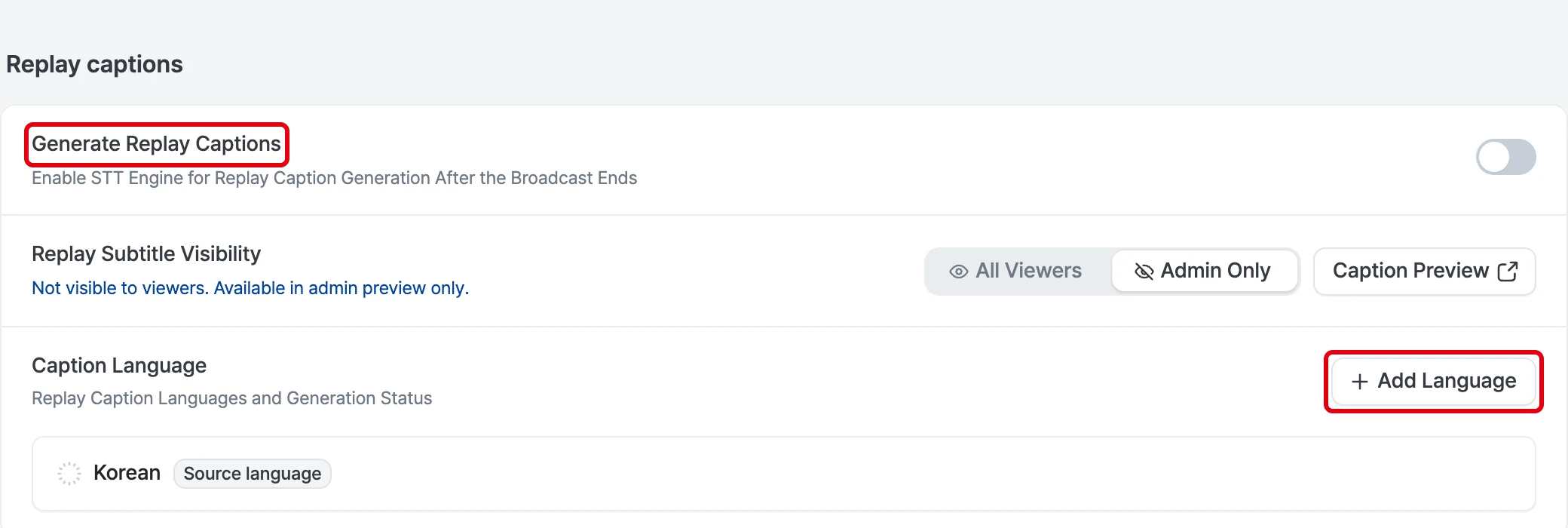
- Set Generate replay subtitles and Replay subtitle visibility. If visibility is All viewers, a subtitle (CC) button appears in the replay player.
- In Subtitle languages, use Add language to add languages to show in the replay. When the broadcast ends, the generation status for each language (waiting, progress, failed, done) is shown.
- For languages that are done, you can hide/show, download as .srt, or delete. The delete confirmation warns: If you delete subtitles and generate them again, additional charges may apply.
Banned words and correction words
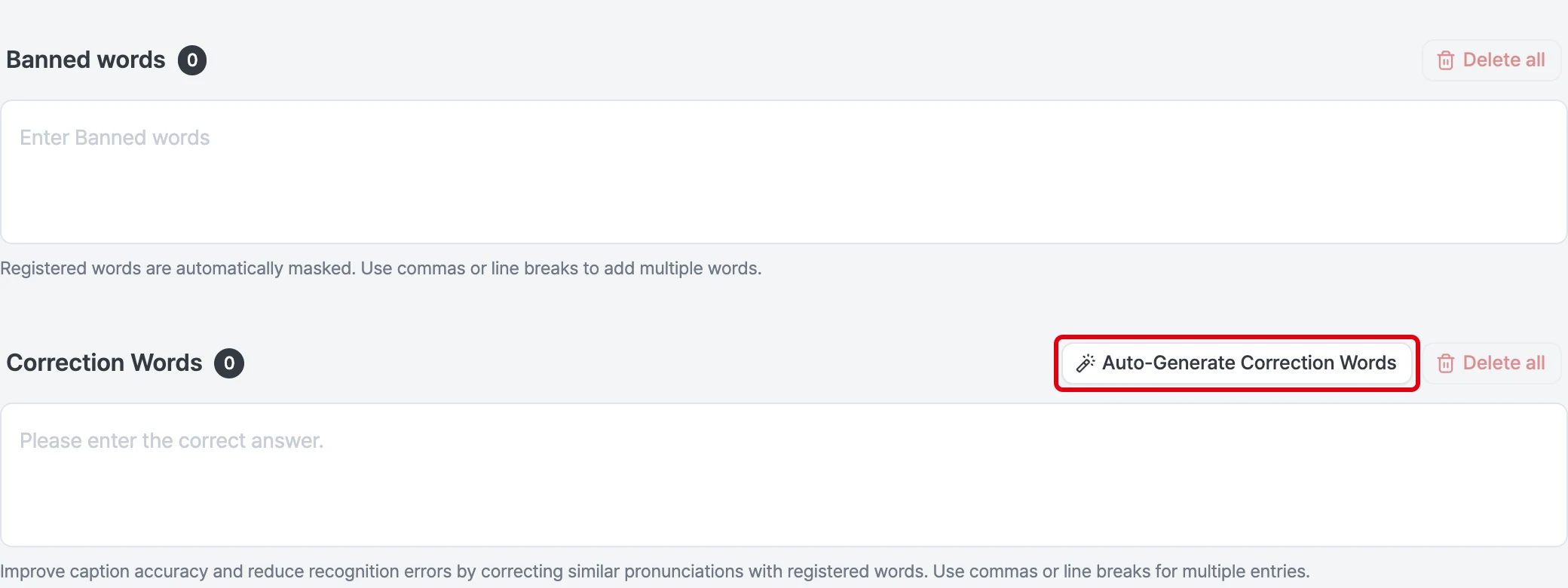
- Banned words: registered words are automatically masked in subtitles.
- Correction words: registered words correct similar-sounding speech to improve subtitle accuracy and reduce misrecognition. You can register up to 200. Click Generate correction words automatically and AI creates correction words from the title, description, tags, registered product names and brand information. Loading new ones resets the existing words and replaces them.