Run Quizzes, Surveys and Auctions
Run quizzes/surveys and choose winners
You can run a quiz at any point during the broadcast as follows.
Quiz/survey list
To open the quiz/survey list, click the Quiz/Survey tab in Console > Popup list during the broadcast, or click the Status button to the right of the quiz/survey to run.
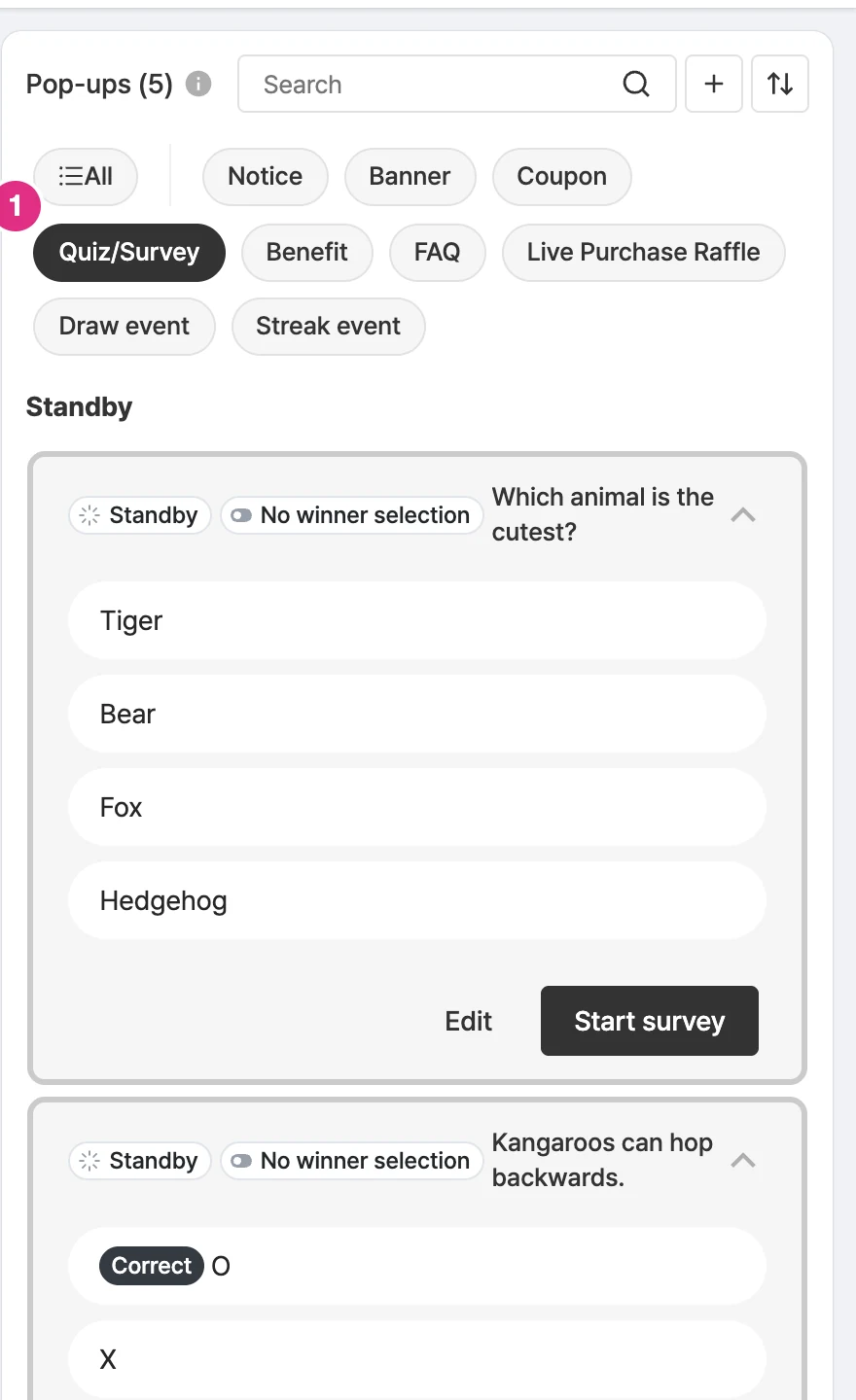
- Quiz/Survey tab: Shows the list of quizzes and surveys added to the campaign.
Start a quiz/survey
Click the Start quiz (Start survey for surveys) button of the quiz/survey to run. Clicking ‘Start quiz’ doesn’t start it right away. Click the Edit button to edit the quiz/survey popup.
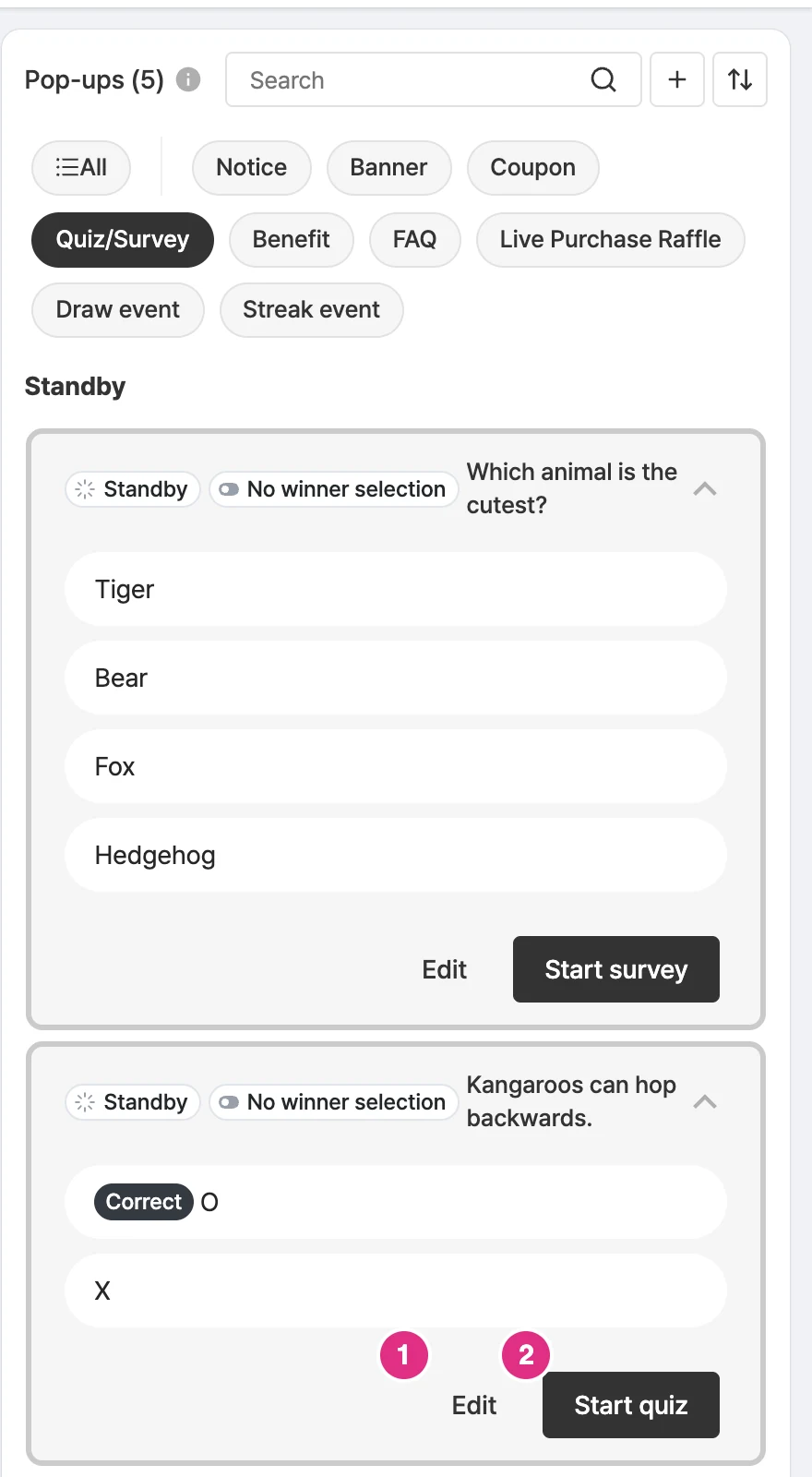
- Edit: Edits the quiz/survey pop-up.
- Start quiz (Start survey for surveys): Opens the start confirmation window.
Confirm starting the quiz
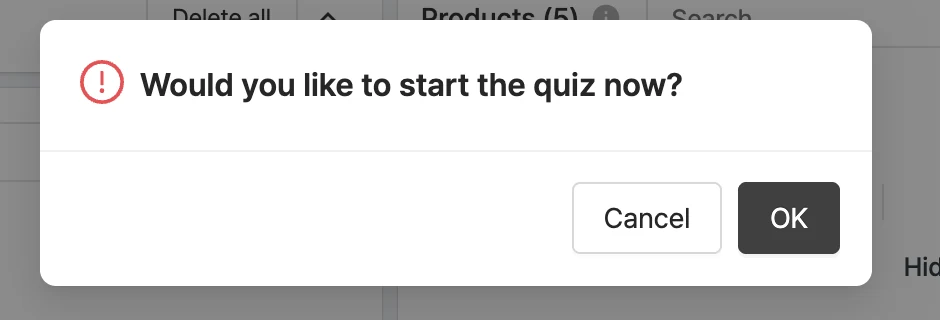
Clicking Start quiz opens a window to confirm starting the quiz/survey. When you’re ready, click OK to start it. Click Cancel to go back to the previous screen.
Quiz/survey popup display
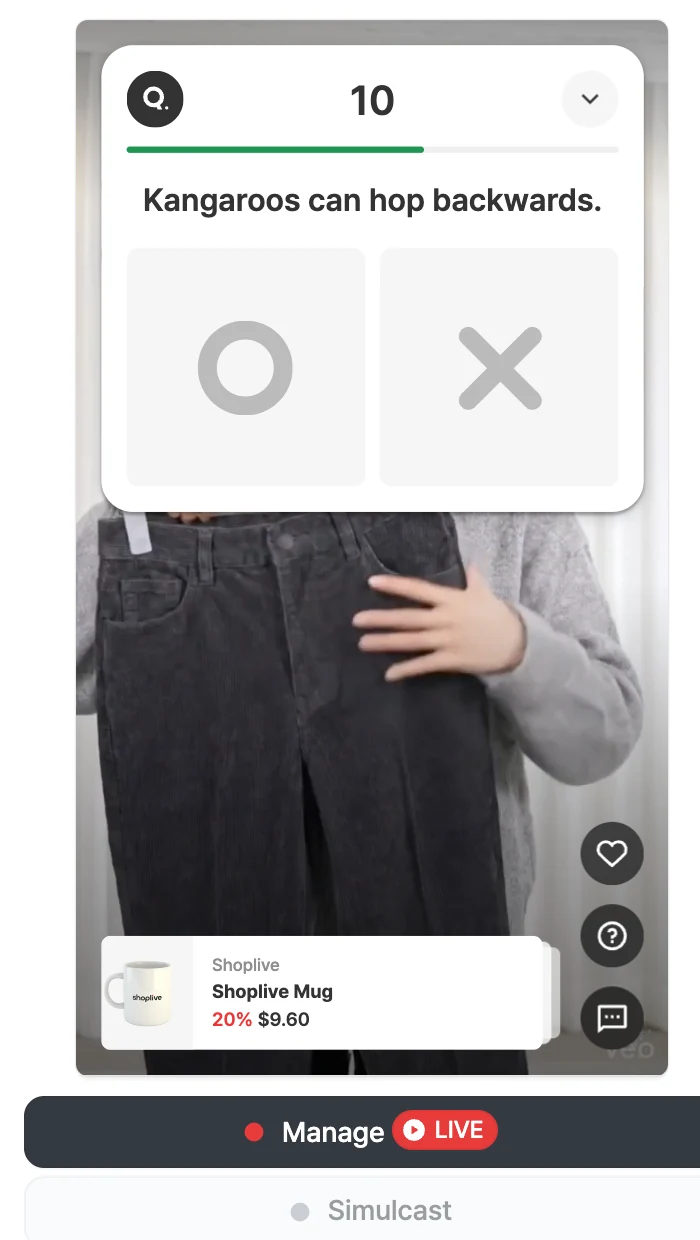
The quiz/survey starts as soon as you click OK, and you can see the running quiz/survey popup on the player screen.
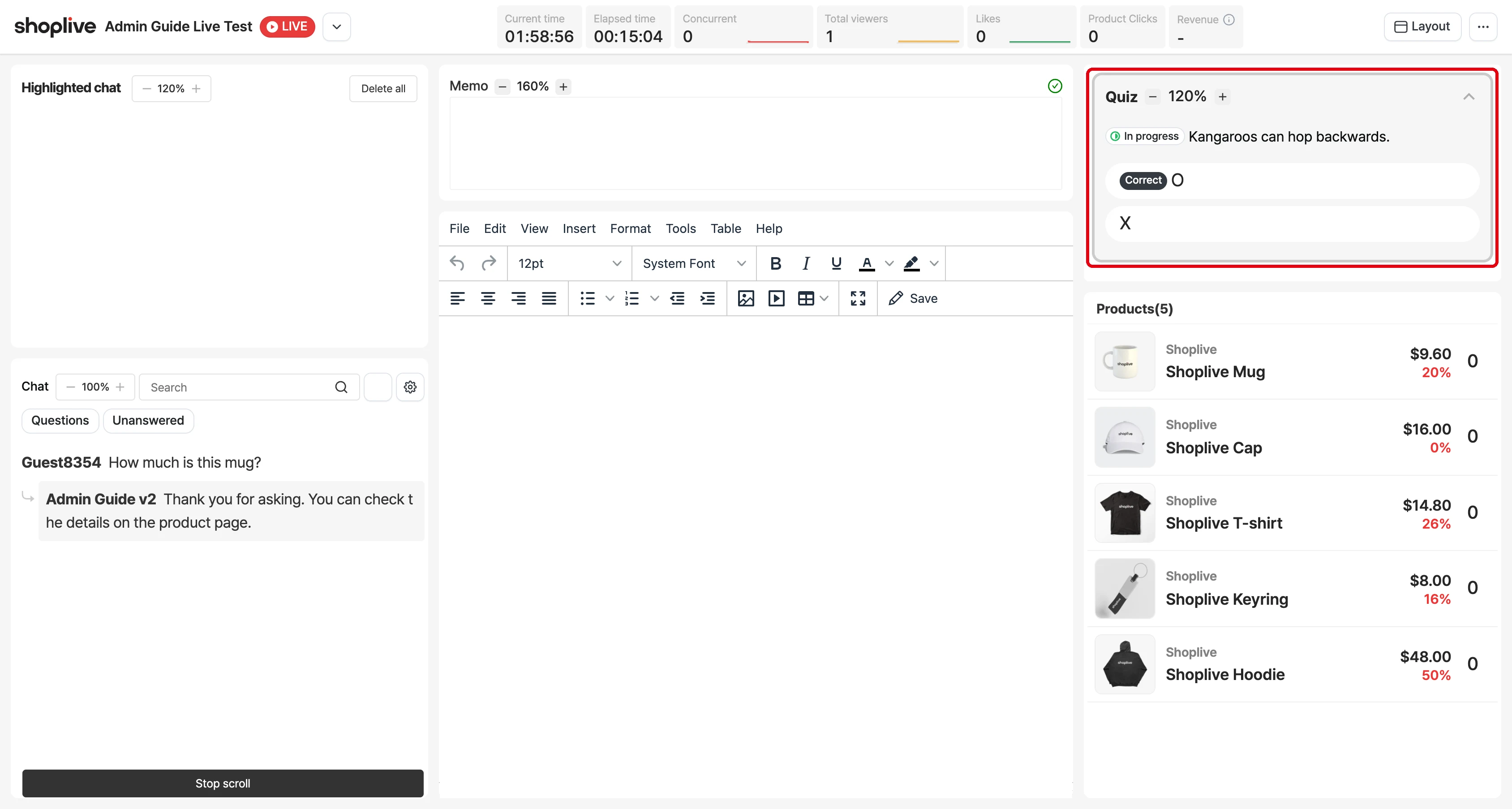
Check the quiz/survey in the prompter
When the quiz/survey starts, the running quiz/survey appears in the top right area of the prompter so the host can see the question.
Reveal the quiz/survey answer
After the quiz/survey starts and the set duration passes, the Reveal answer button appears. (Depending on the duration setting, you may need to close the quiz yourself with the Close quiz (Close survey for surveys) button before announcing the answer)
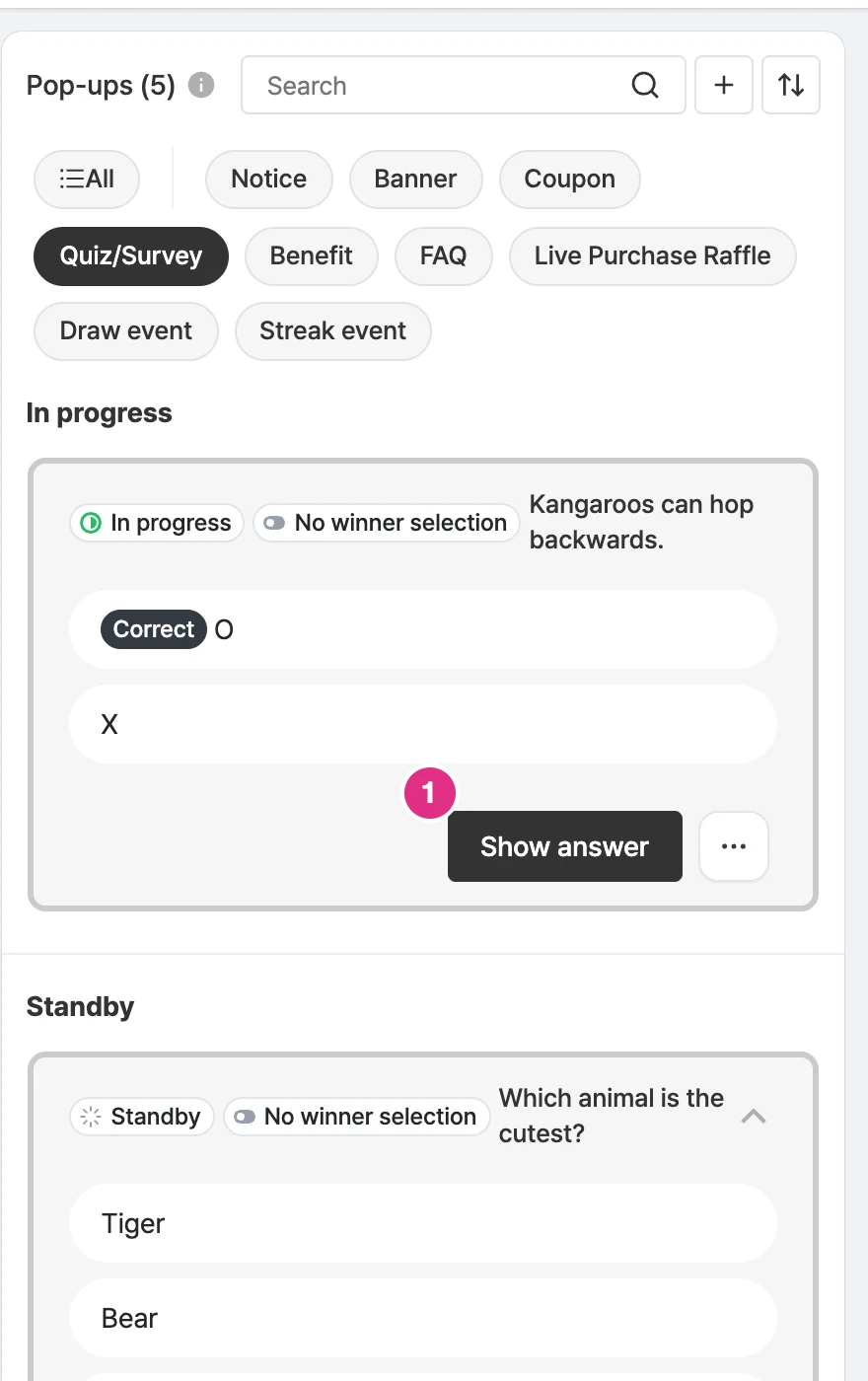
- Show answer: Opens the confirmation window for revealing the answer.
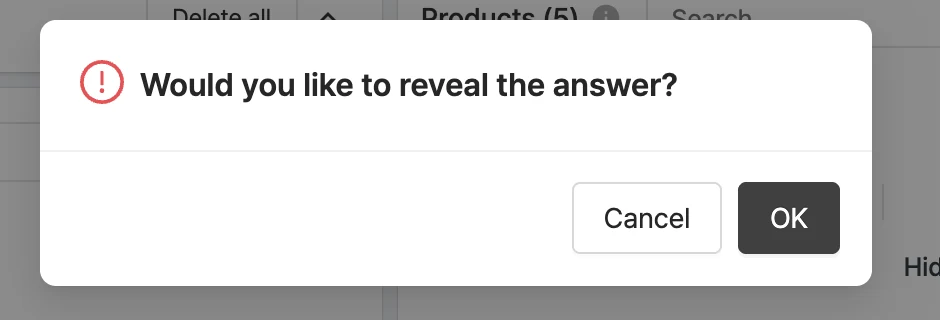
Reveal the quiz/survey answer/results
Click the Reveal answer (Announce results for surveys) button, then click OK in the confirmation that appears to reveal the answer/results.
Check the quiz/survey answer/results
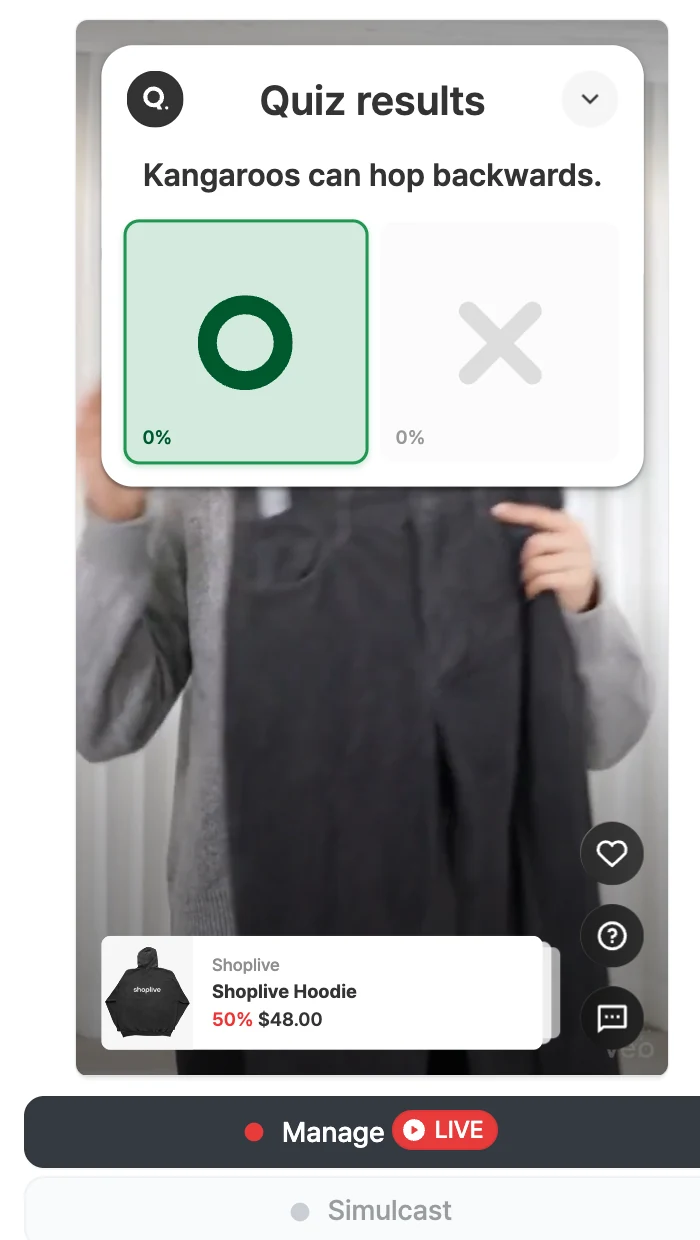
Users’ screens show whether they were right or wrong with O or X, and depending on the popup options, different screens are shown to those who answered correctly, winners and those who answered incorrectly.
End the quiz/survey
If the quiz popup has a duration set, the answer screen disappears when that time passes. If the duration is set to Keep showing, click the End button to close the answer screen.
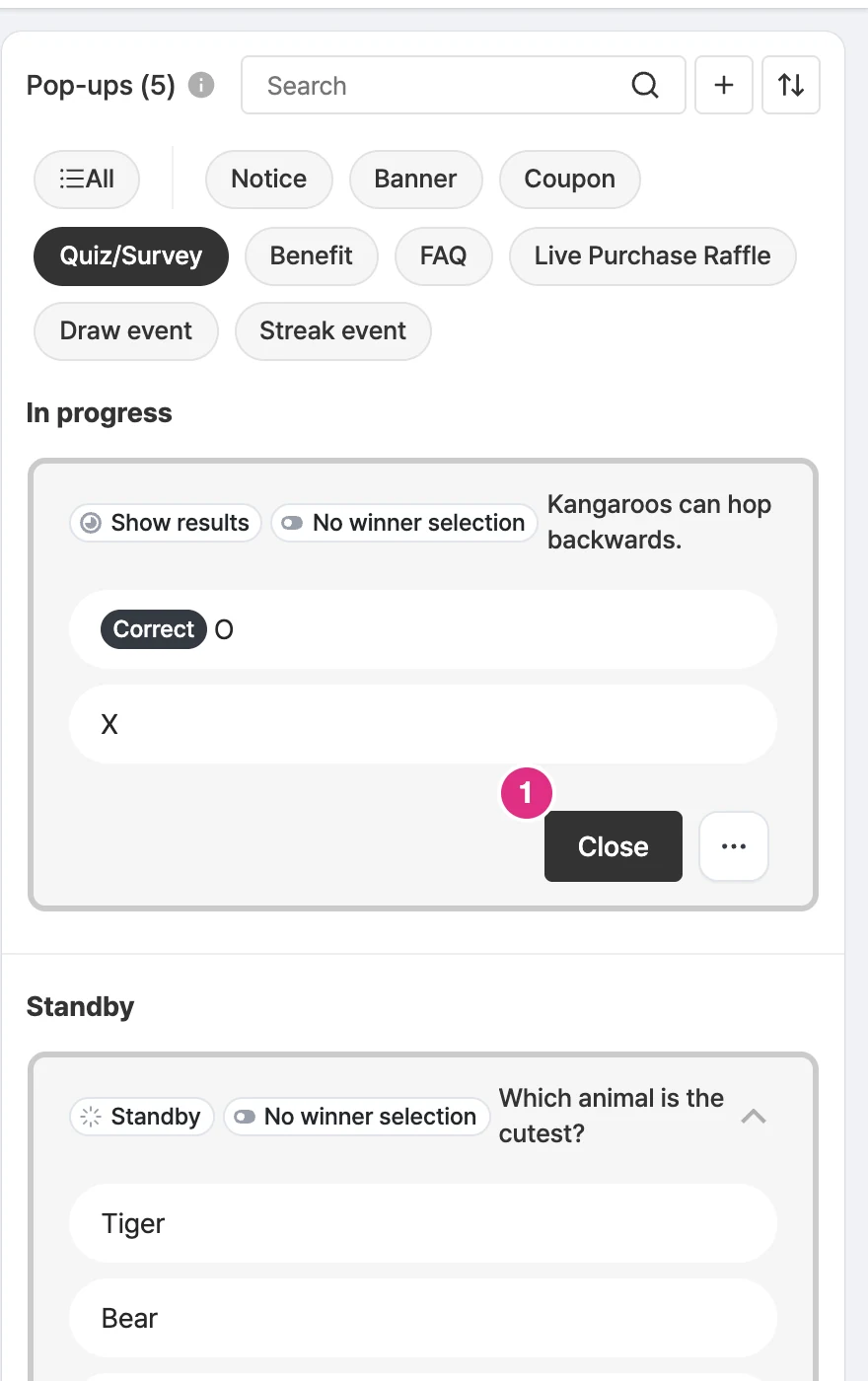
- Close: Closes the answer screen.
Ended quiz/survey list and running the next one
When a quiz/survey ends, it moves to the Ended area at the bottom of the list. The list is divided into Waiting, In progress and Ended areas, and you can run the next quiz from the Waiting area. To run a quiz again, click its Reset button to return it to its pre-start state.
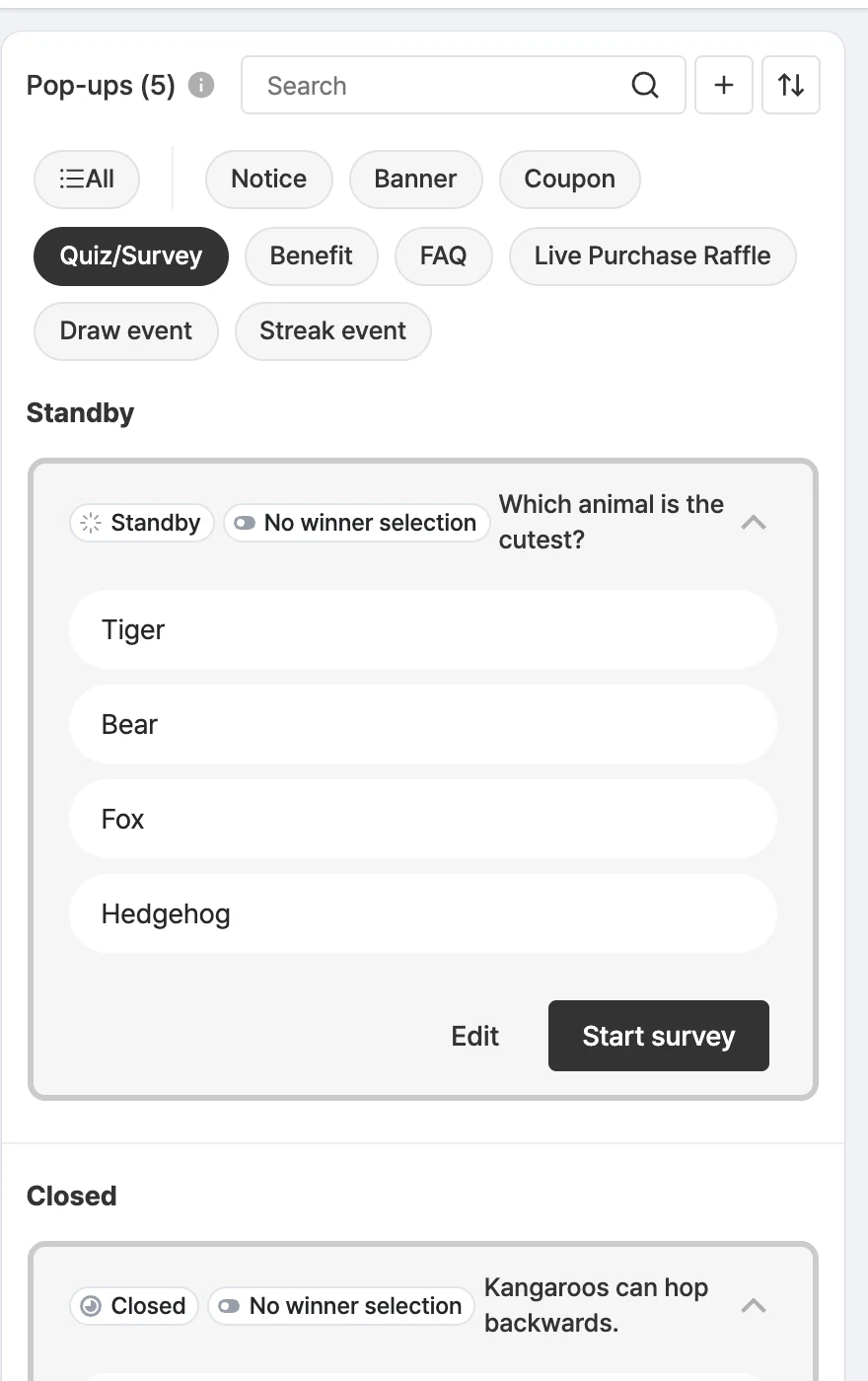
Caution
To announce winners several times with one quiz, copy the quiz and run each copy.
Check quiz/survey participants and winners
After the broadcast ends, click the Quiz participants and Quiz winners buttons in each campaign’s Data Insights to download the participant and winner lists as Excel files.

Additional quiz/survey features
- The remaining time is shown while it’s running.
- Clicking the End now button deletes user activity immediately on ending.
- After revealing the answer/results, you can reveal them again with Reveal answer again (Announce results again for surveys); the status then shows as Ended - results re-announced.
- Reset deletes all selections and event winner results.
Run an auction
Shoplive provides an auction feature. For details, contact your Shoplive representative.
I want to run an auction
Using the auction feature requires arrangement with Shoplive. For details, contact your Shoplive representative (ask@shoplive.cloud).
To add an auction product to a broadcast, see Create auction products.
Check auction products on the console page
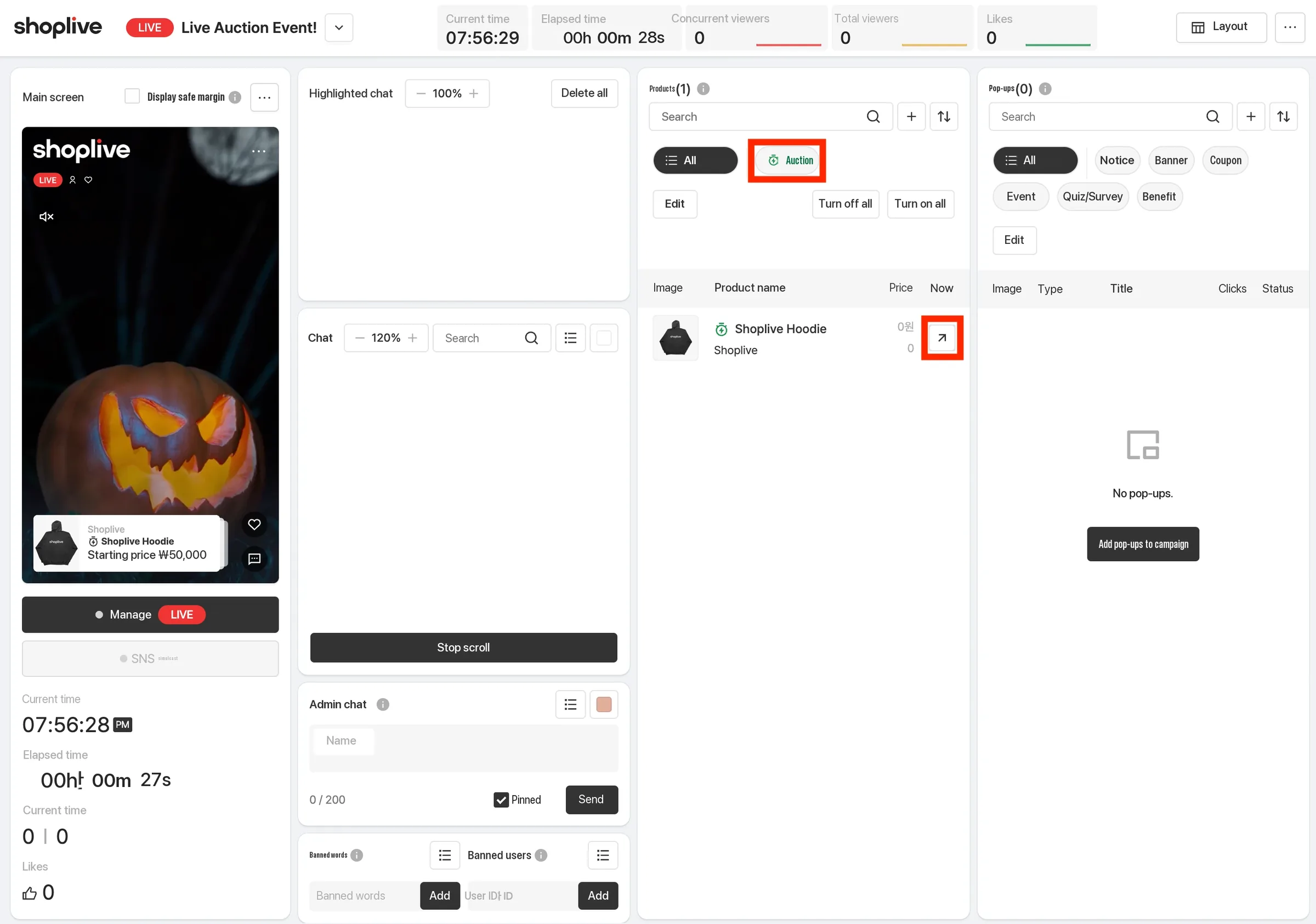
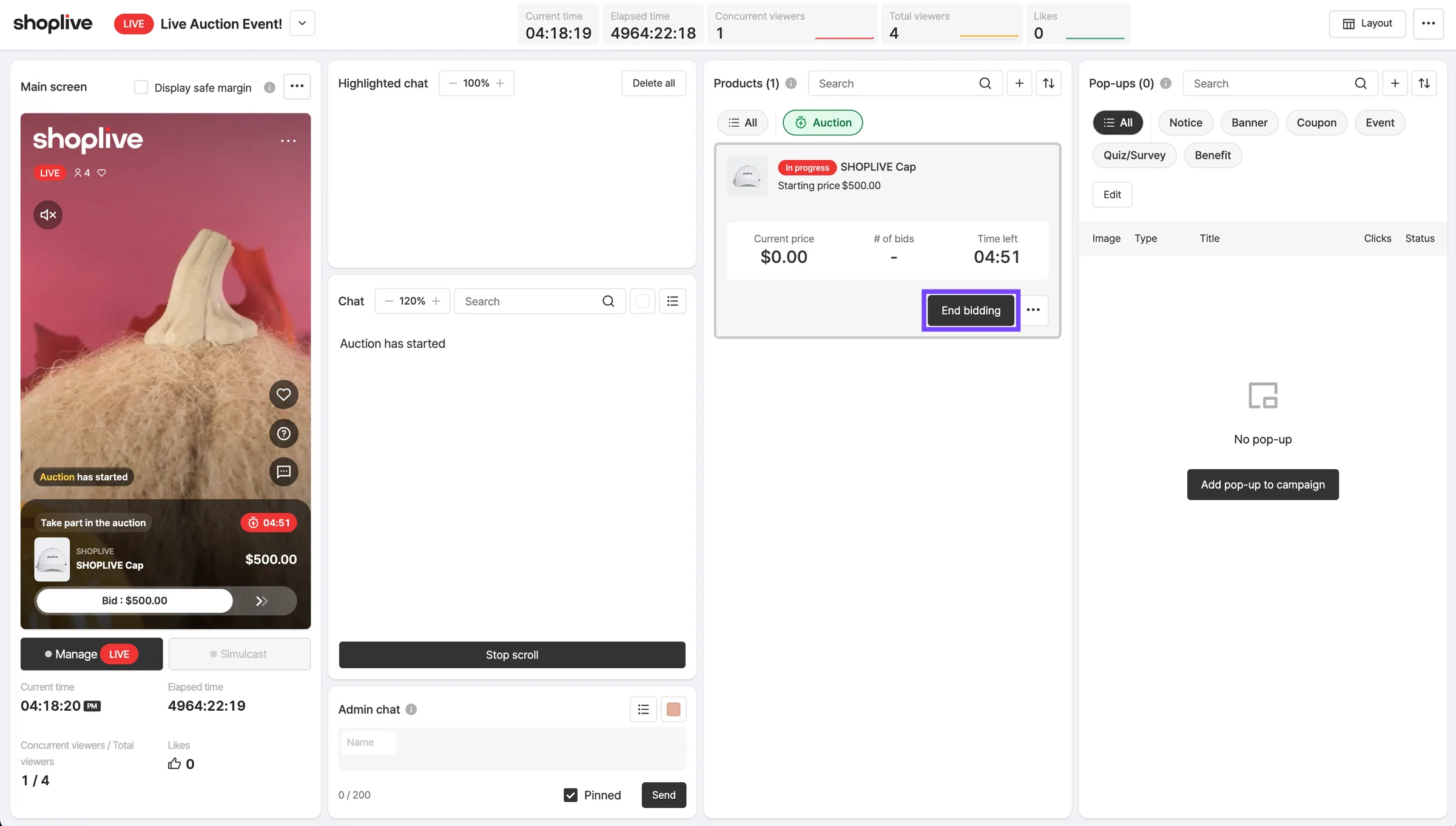
Click the Auction button in the product area of the console page, or the Go button to the right of a product.
Run the auction
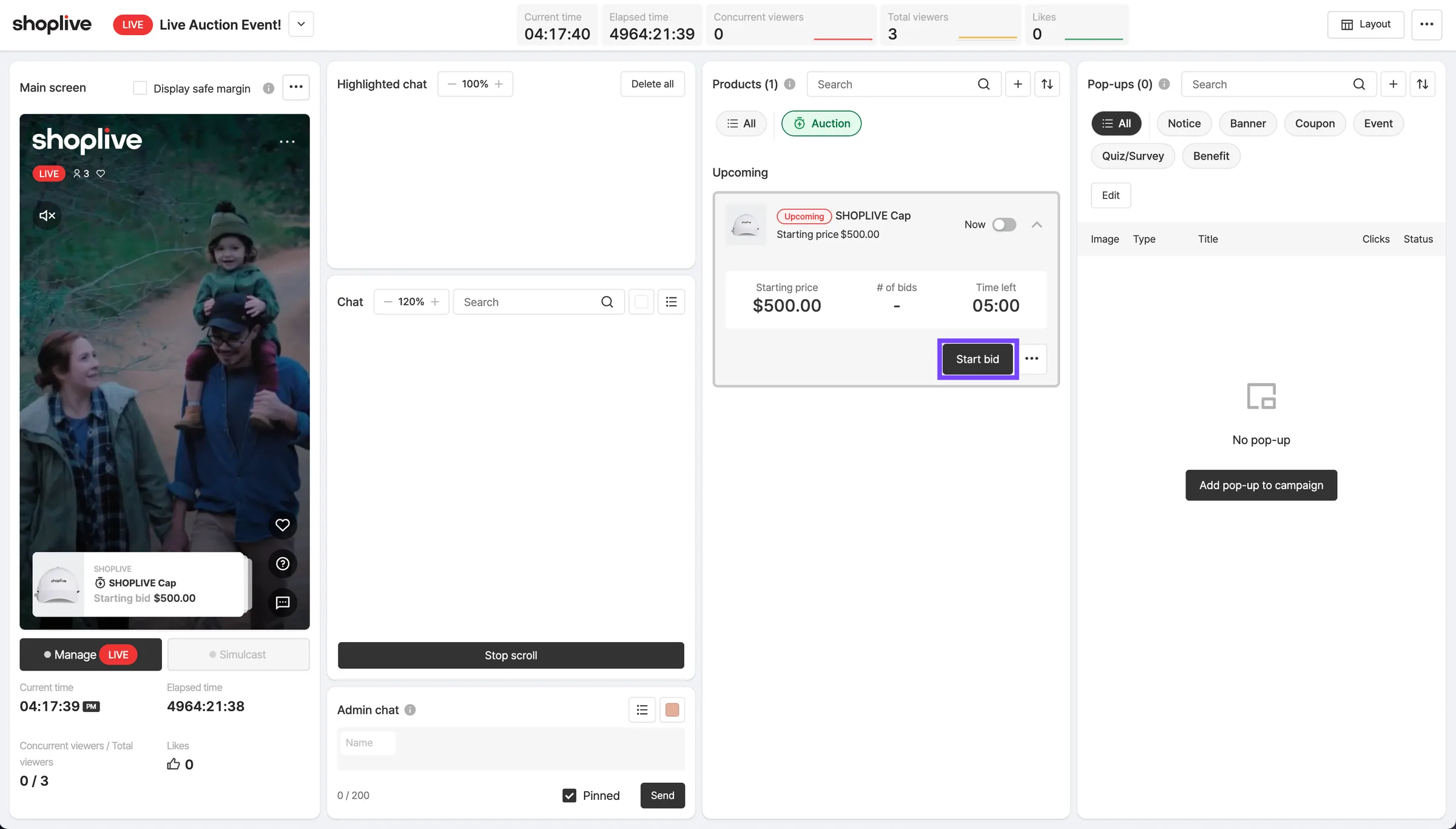
Click the Start button under the product to auction. Once started, the auction ends automatically when the set time passes.
End a running auction
The auction ends automatically when the preset time passes, but to end it early, click the End button to end the running auction at the moment you choose.
Example player screen
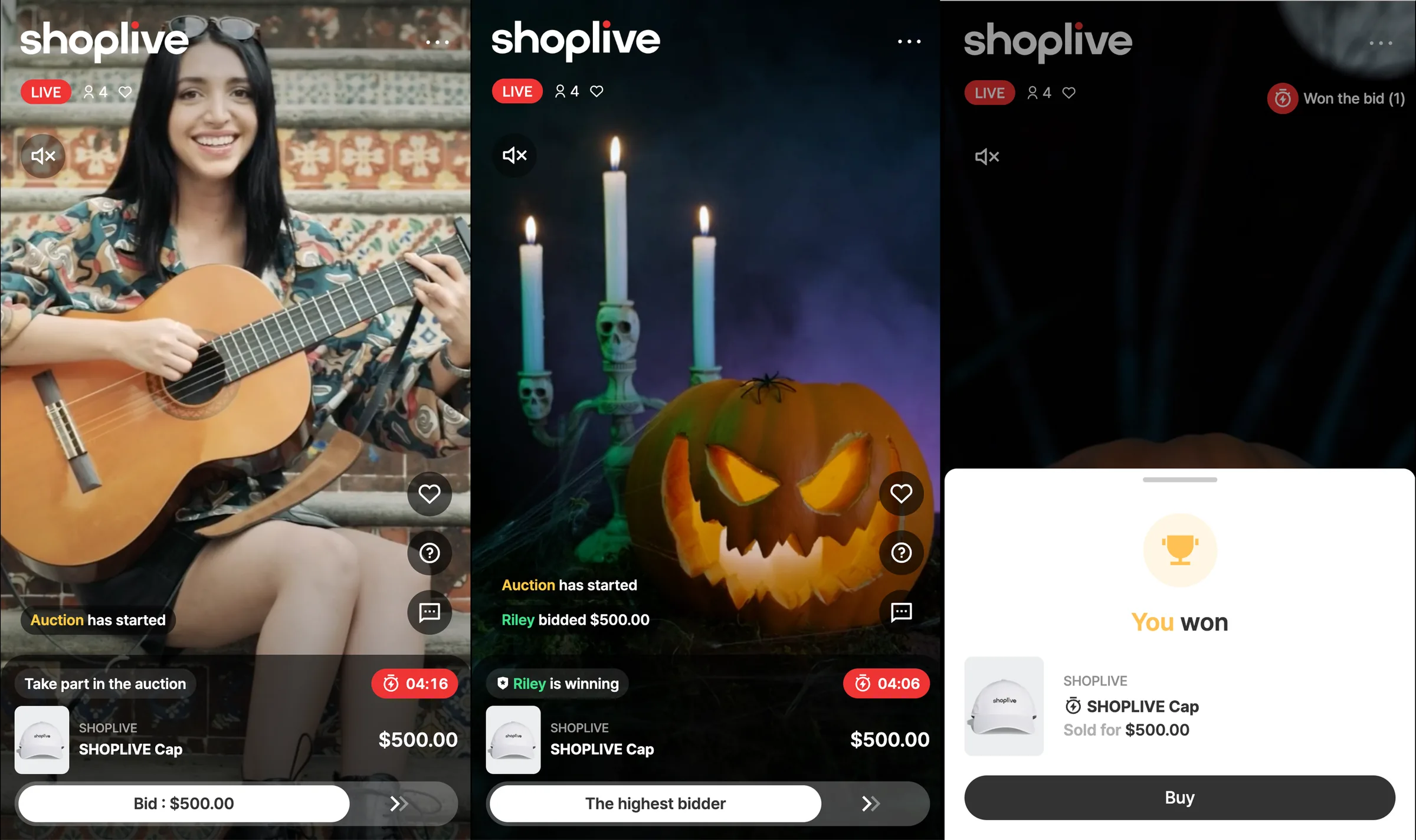
Defining a specific action for the buy button shown to the winning bidder requires a development integration.
- For details, see Integrate the auction feature.