End the Broadcast
You can end the broadcast and publish it as a replay.
To end the broadcast, select Campaign console > Broadcast management and choose End in {N} minutes (enter minutes) or End now. Check in the console that the broadcast has ended, then stop streaming in the software you are using, such as OBS or Studio.
When you schedule the end, the campaign status shows Ending soon, and Ending while it’s being ended. While ending, you can set the following two options.
- Allow new users to join while ending
- Show the viewer count while ending
Canceling the scheduled end shows the notice Cancels the scheduled end and resumes the broadcast and resumes the broadcast.
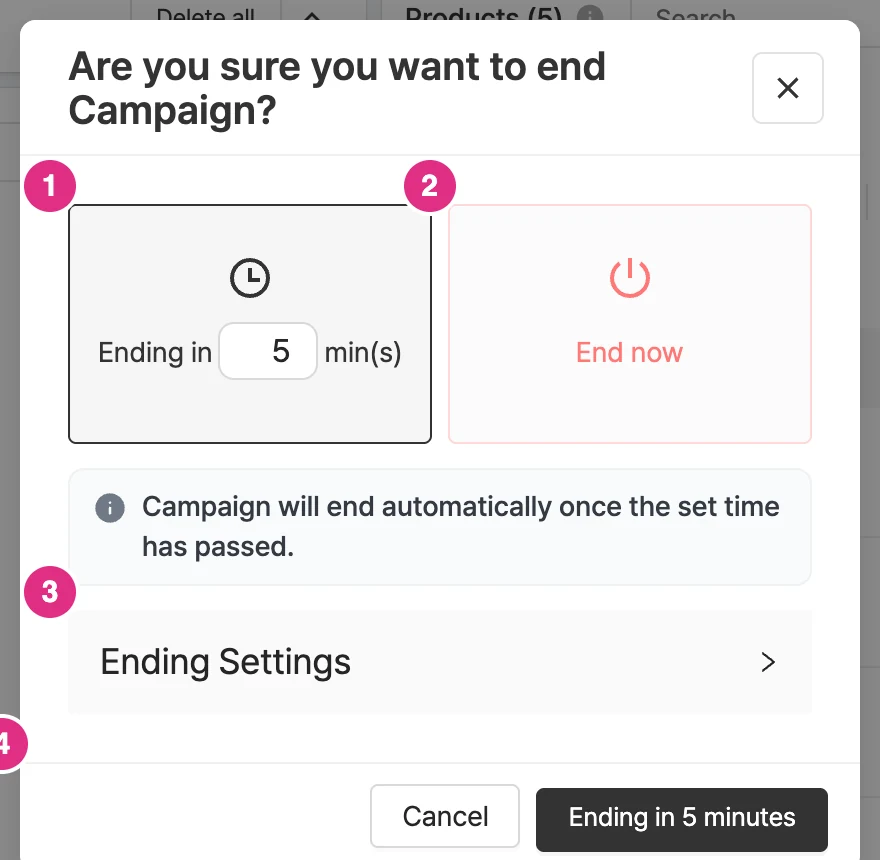
- Ending in {N} minutes: The campaign ends automatically after the minutes you enter.
- End now: Ends the campaign immediately.
- Closing settings: Sets whether new users can enter and whether the viewer count is shown while the campaign is closing.
- Bottom button: Ends the campaign with the selected method.
The status in the campaign details changes to Ended, and the broadcast can be replayed.

Publish replay
Use the public toggle in Campaign details > Replay to set whether the replay is published. Turning the toggle on publishes the replay, and sub-options allow detailed settings.
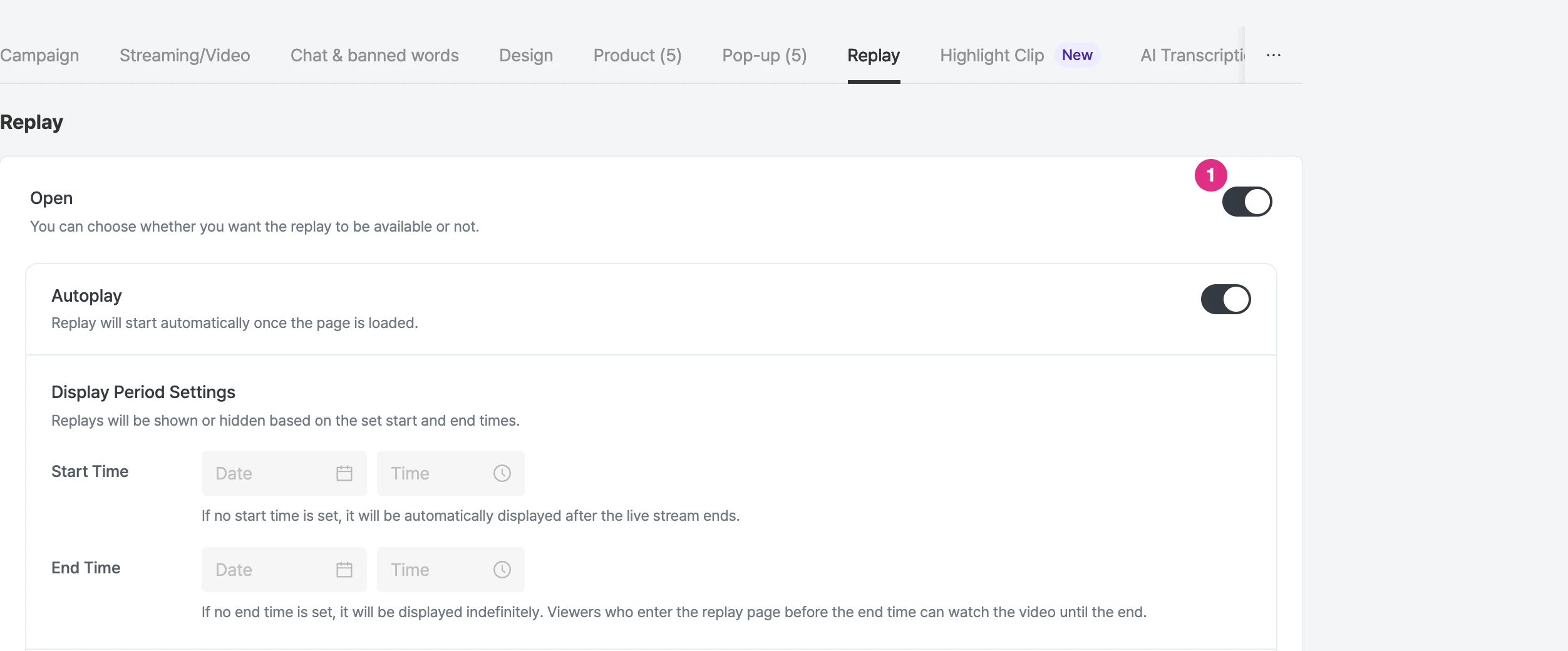
- Open toggle: When on, the replay is made public, and you can set the details with the sub-options.
For details such as the replay range and display period, see Set replay options.