Create banner, notice and coupon popups
Create a popup
You can create and use notices, banners, coupons, events and many other kinds of popups.
- Click the Create popup button on the Popups management page.
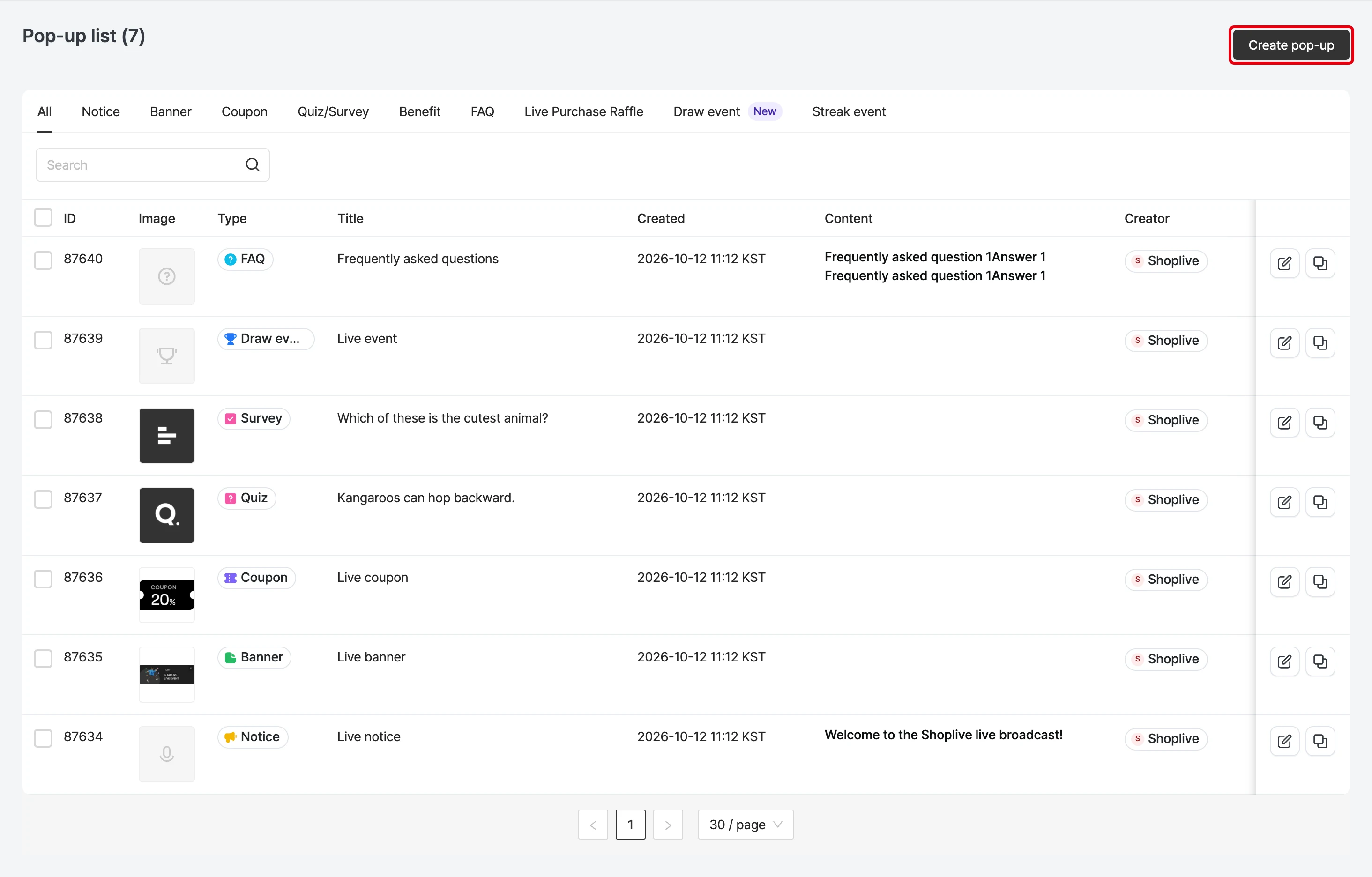
Notice
Select Notice as the popup type, fill in the items below, and save.
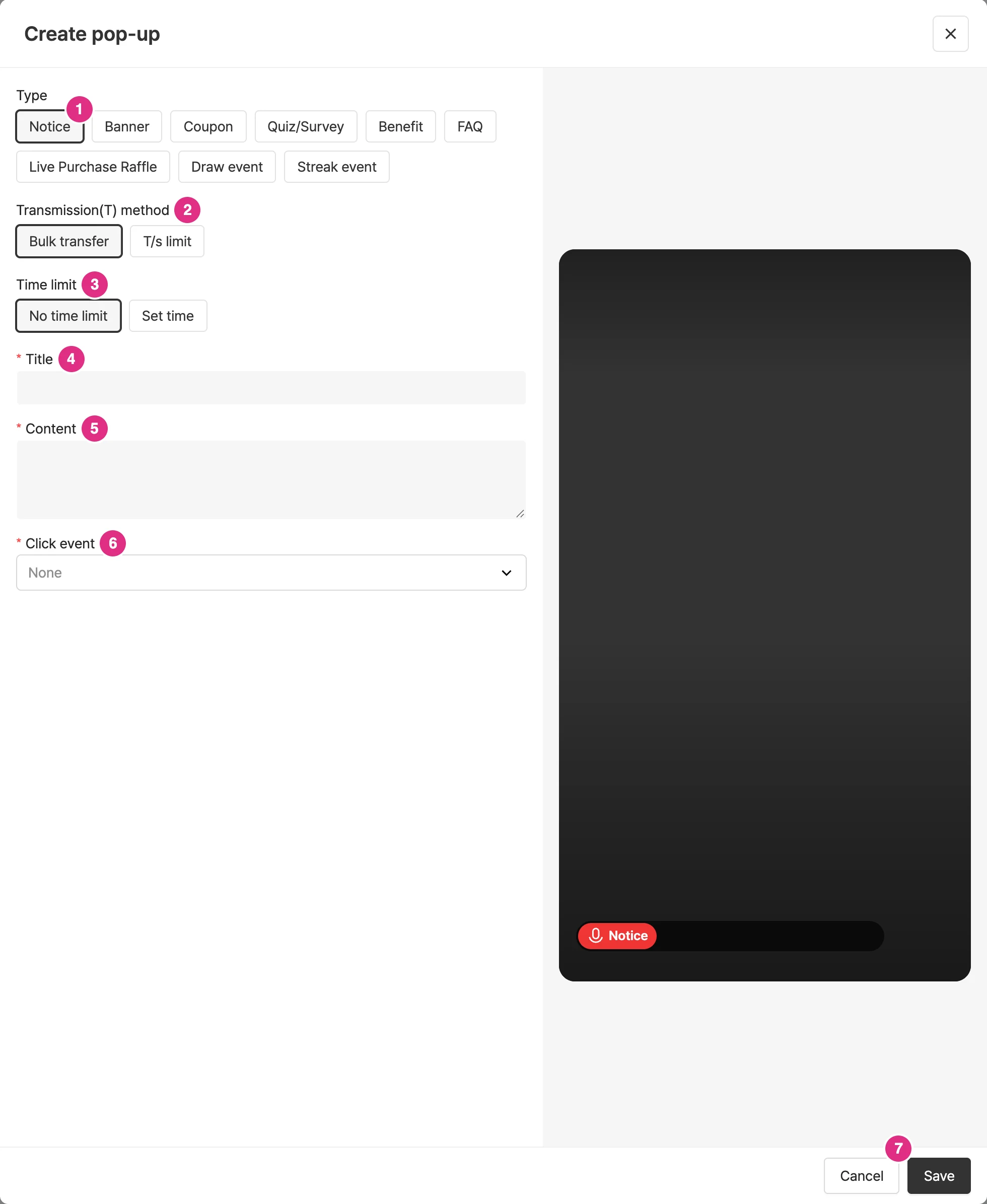
- Type: Select Notice.
- Transmission(T) method: Select Bulk transfer or T/s limit. For details, see Sending method below.
- Time limit: Select No time limit or Set time. For details, see Time limit below.
- Title: Required.
- Content: Required. Enter the content to show as the notice.
- Click event: Required. Select what happens when a viewer clicks the popup. For details, see Click events below.
- Click Save to create the popup.
Banner
Select Banner as the popup type, fill in the items below, and save.
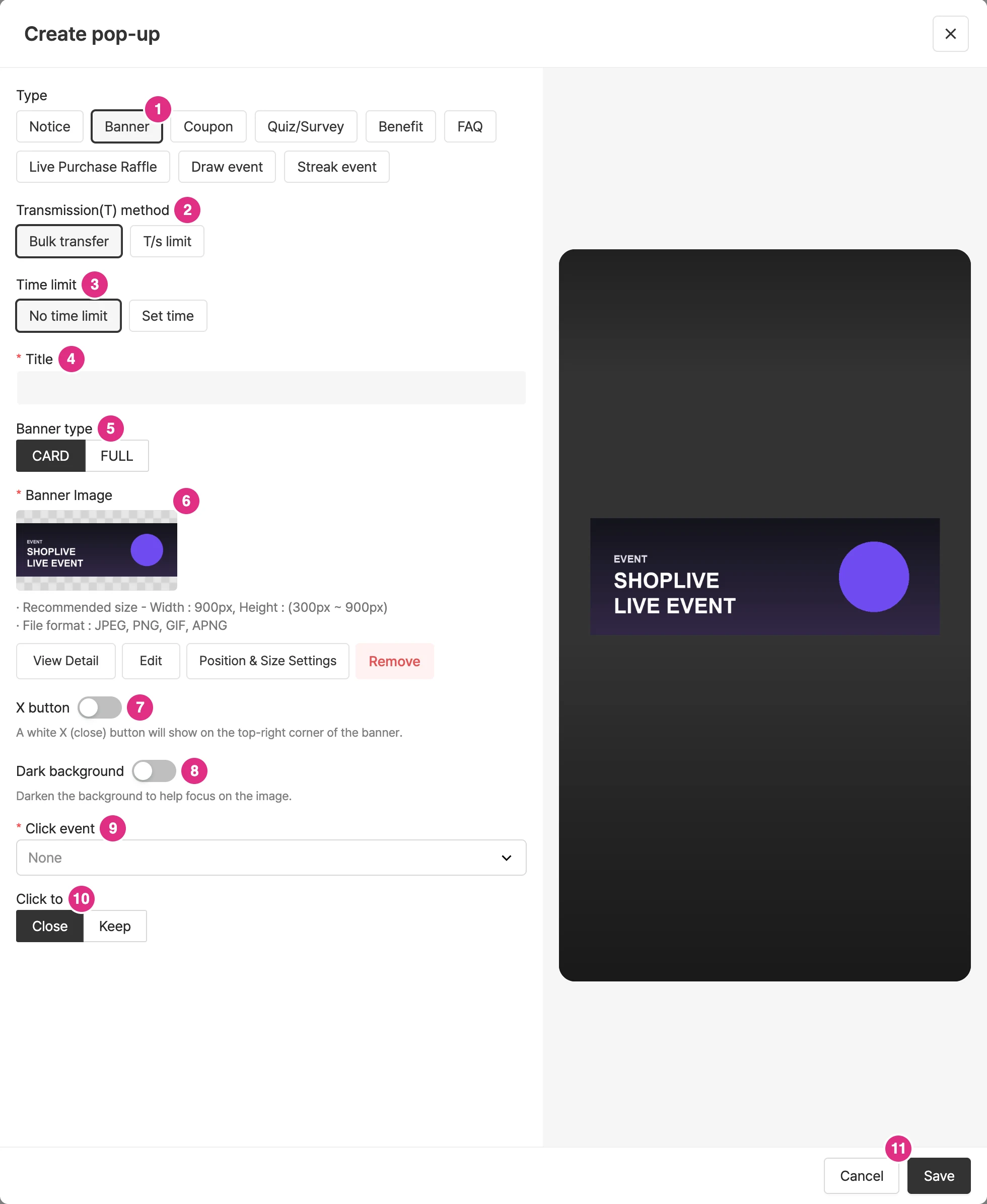
- Type: Select Banner.
- Transmission(T) method: See Sending method.
- Time limit: See Time limit.
- Title: Required.
- Banner type: Select CARD to show the banner as a card, or FULL to fill the whole screen with the banner.
- Banner Image: Required. Make card banners 900px wide and 300–900px tall, and full-screen banners 900x1600. Card banners can also use a movable banner image.
- X button: Turn the toggle on to show an X (close) button on the top-right of the banner.
- Dark background: Turn the toggle on to darken the background while the banner popup is shown.
- Click event: See Click events.
- Click to: Set whether the popup closes or stays after the banner is clicked.
- Click Save to create the popup.
Coupon
Coupons are divided into instant-download coupons and watch-time coupons depending on how they’re issued.
Use instant-download coupons
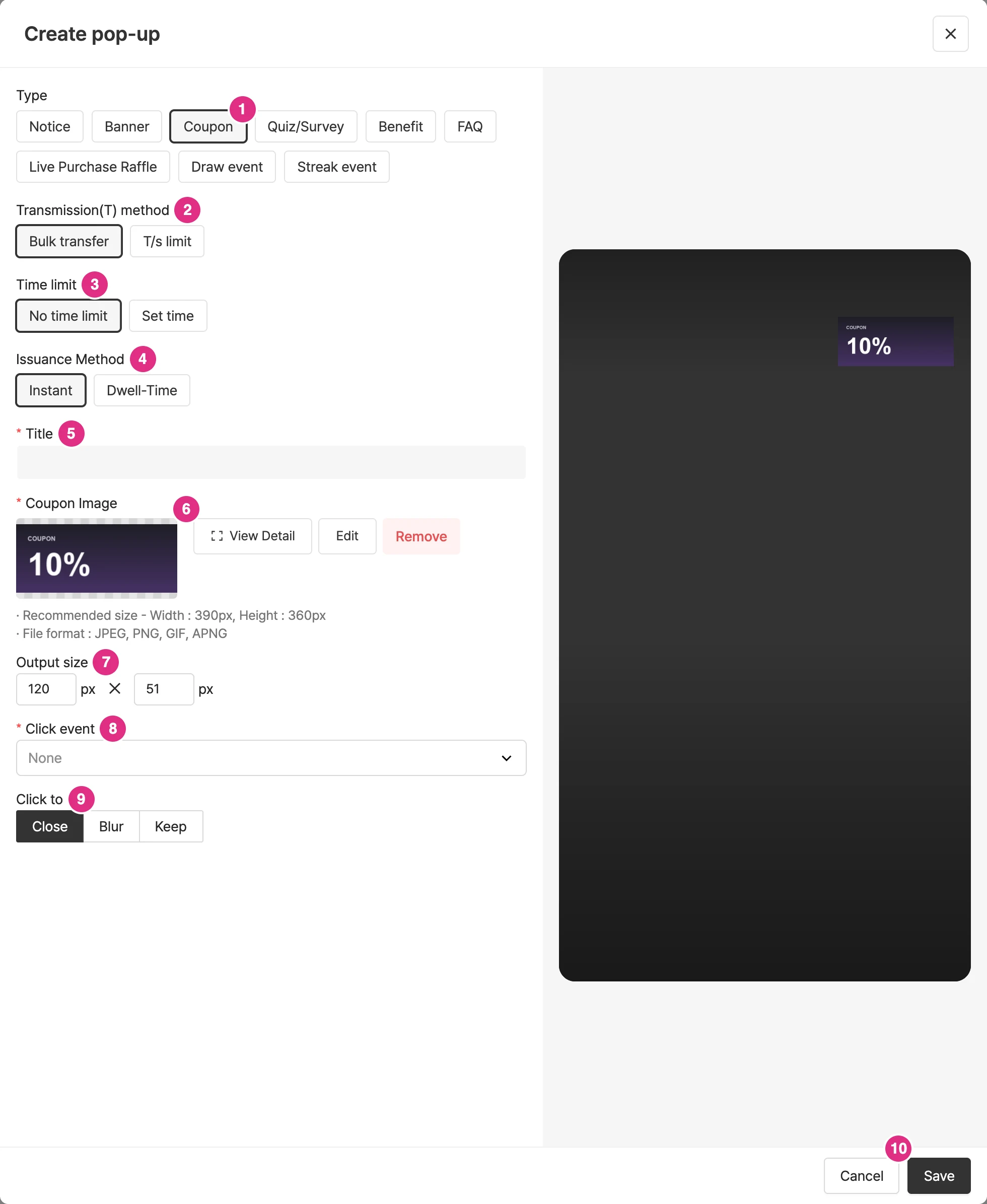
- Type: Select Coupon.
- Transmission(T) method: See Sending method.
- Time limit: See Time limit.
- Issuance Method: Select Instant.
- Title: Enter the coupon title. Required.
- Coupon Image: Required. The recommended size is 390px wide and 360px tall.
- Output size: Shown after you upload an image. Enter the width (px), and the height is calculated automatically from the image ratio.
- Click event: See Click events.
- Click to: After the coupon is shown and clicked, choose Close, Blur, or Keep.
- Click Save to create the popup.
Use watch-time coupons
A watch-time coupon can be downloaded only after the viewer meets the set watch time.
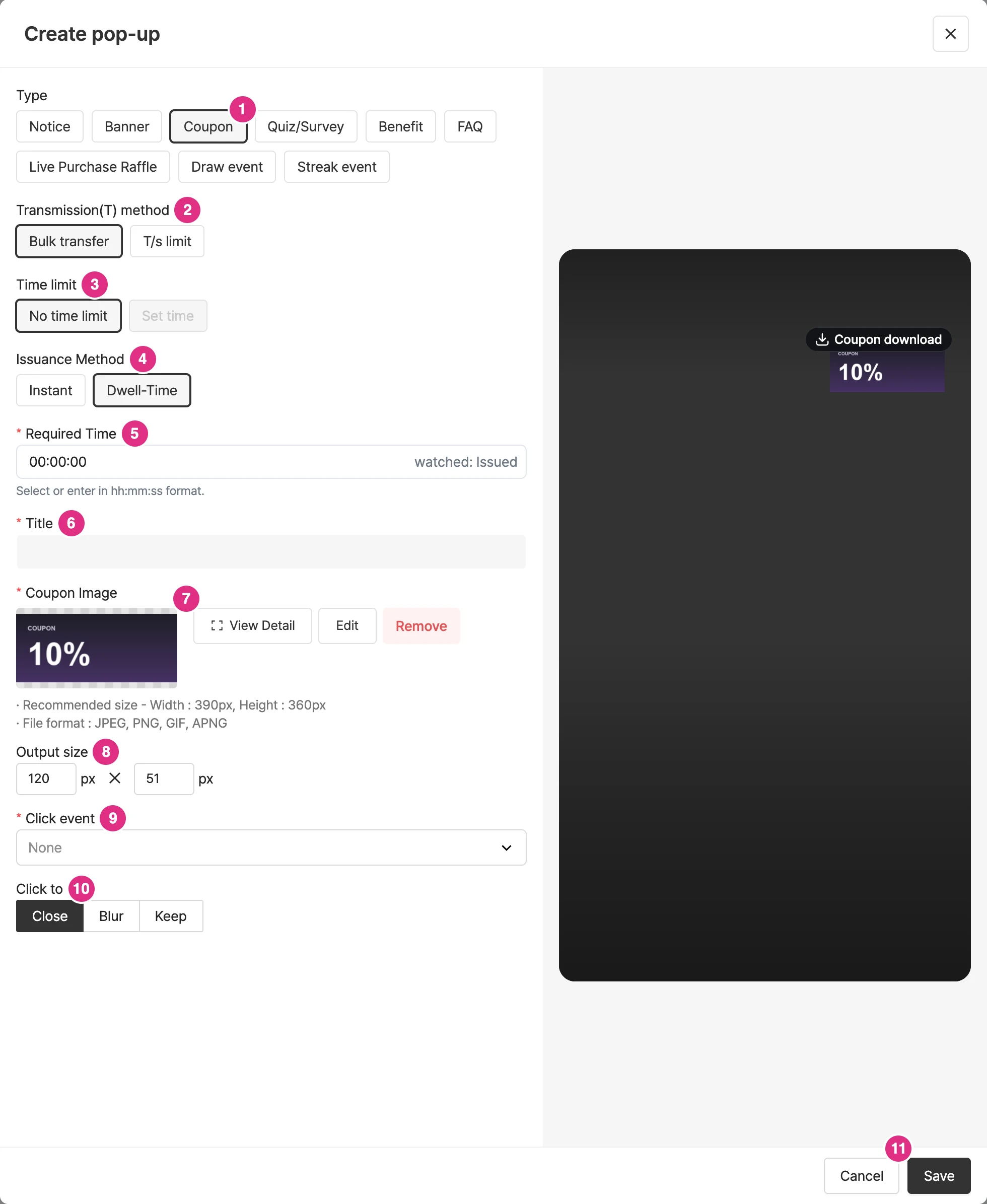
- Type: Select Coupon.
- Transmission(T) method: See Sending method.
- Time limit: Set time cannot be used with dwell-time coupons.
- Issuance Method: Select Dwell-Time.
- Required Time: You can set up to 23:59:59. The coupon download button is activated automatically once the set time has passed.
- Title: Required.
- Coupon Image: Required.
- Output size: Same as for instant-download coupons.
- Click event: See Click events.
- Click to: Choose Close, Blur, or Keep.
- Click Save to create the popup.
- Watch-time coupons don’t apply in replays.
- If a viewer leaves and rejoins, the required watch time starts over.
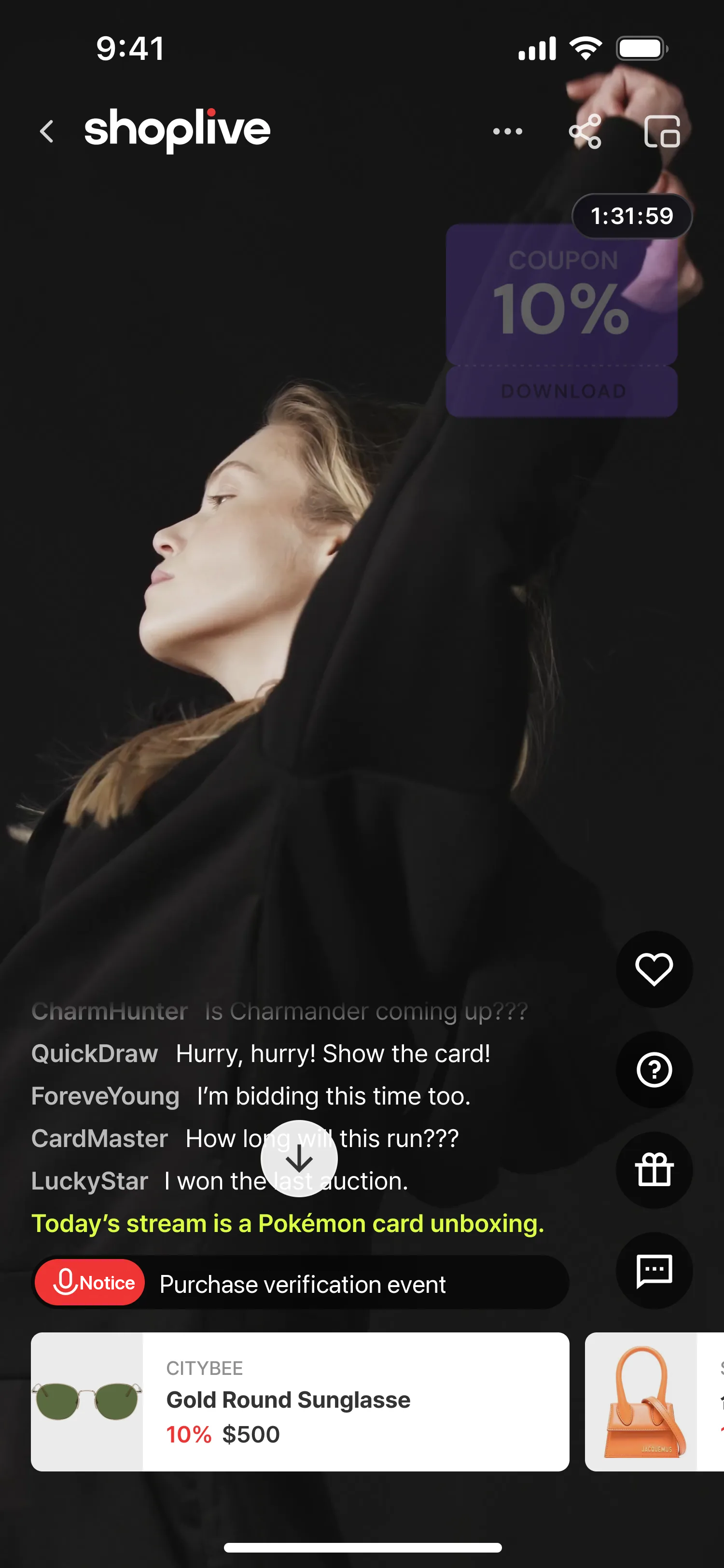
A watch-time coupon appears in the player like this.
Settings
These items are common to notice, banner, and coupon popups.
Sending method
Depending on the sending method, you can send all at once or set a limit on the number sent per second.
What is the difference between "Send all at once" and "Limit per second"?
When many coupons are sent and many people download them at once, the server can be overloaded. To prevent this when you expect a traffic spike, you can set a limit on how many are sent per second.
Time limit
You can set the time limit to No limit or Set time.
The time can be set from a minimum of 2 seconds, and up to 999 seconds for quiz popups.
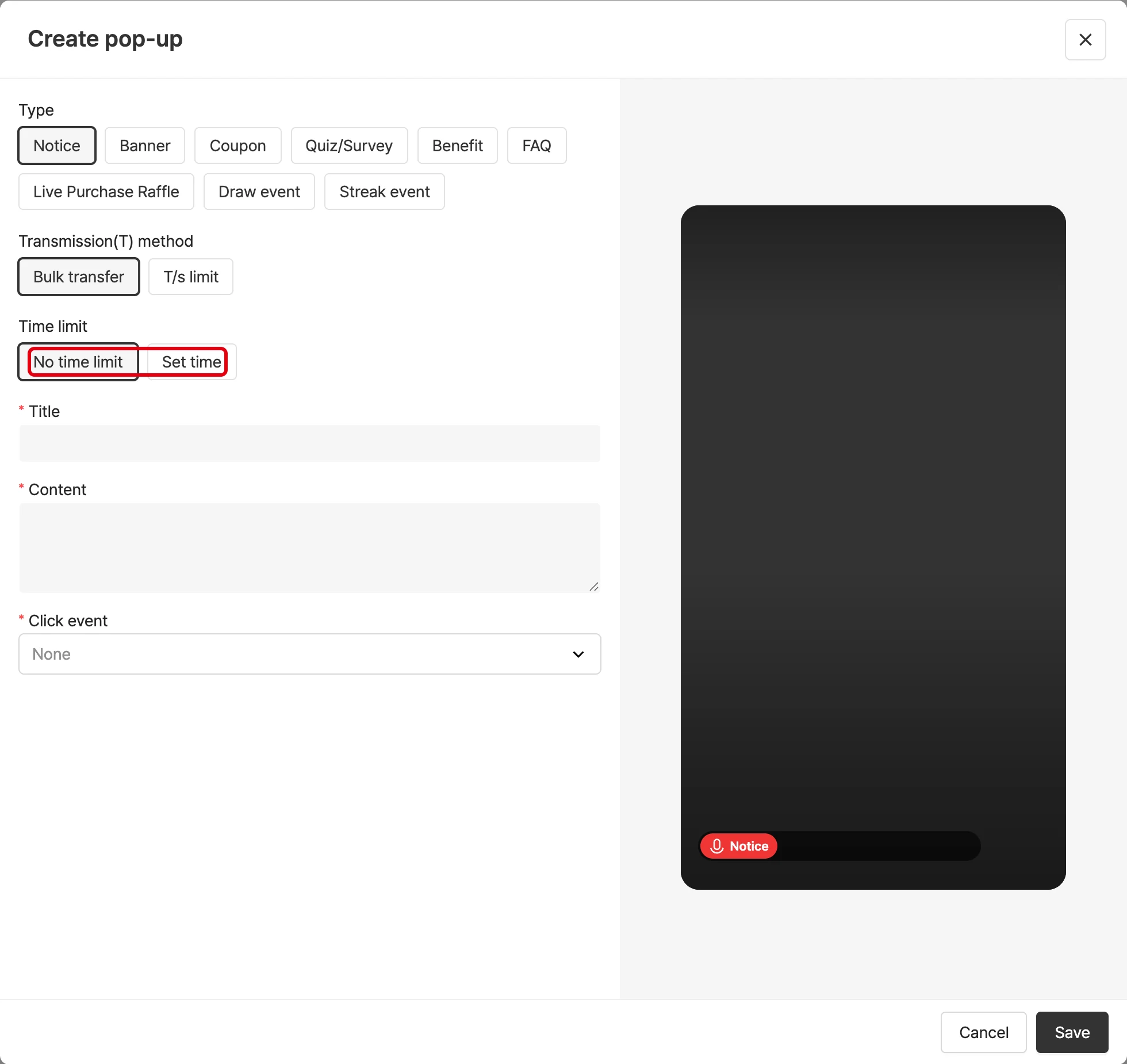
What is the difference between the duration settings "No limit" and "Set time"?
No limit: shown until the operator deactivates the popup Set time: the popup deactivates automatically at the set time
Replay policy
In Replay policy, choose how the popup behaves in replays: Keep, Show expired notice on click or Hide.
Click events
For notice, banner and coupon popups, you can set the event that happens when a viewer clicks the popup.
| Feature | Description |
|---|---|
| No event | Nothing happens on click. |
| Link | Goes to the set URL. |
| Link (open in new window) | Opens the set URL in a new window. |
| Link (new window + PIP) | Available only for card banners and coupon popups. |
| Copy to clipboard | Available only for coupon popups. |
| Coupon download | Passes the coupon code through messageCallback. (Integration on your side is required.) |
| Custom | You can pass any PAYLOAD you like in JSON format. |
| More popup - image | An image popup appears at the bottom. |
| Open bottom sheet | A window describing event benefits opens as a bottom sheet from the bottom. You can add content and images to describe events and benefits. |
Making the most of popups
Shoplive popups can be used in many ways regardless of their type. For example,
- Set a banner popup’s click event to a link to send viewers to a coupon or promotion page.
- Set a coupon popup’s image to information you want shown at all times, such as product information, and show it at the top right of the player.
Popup image guide
Make the images used in popups according to the guide below.