Create quiz popups
With Shoplive’s quiz and survey features, you can run broadcasts where viewers take part.
Use the features by following the guide below.
Create quiz/survey popups
In the Create popup window, select Quiz/Survey and fill in the items below.
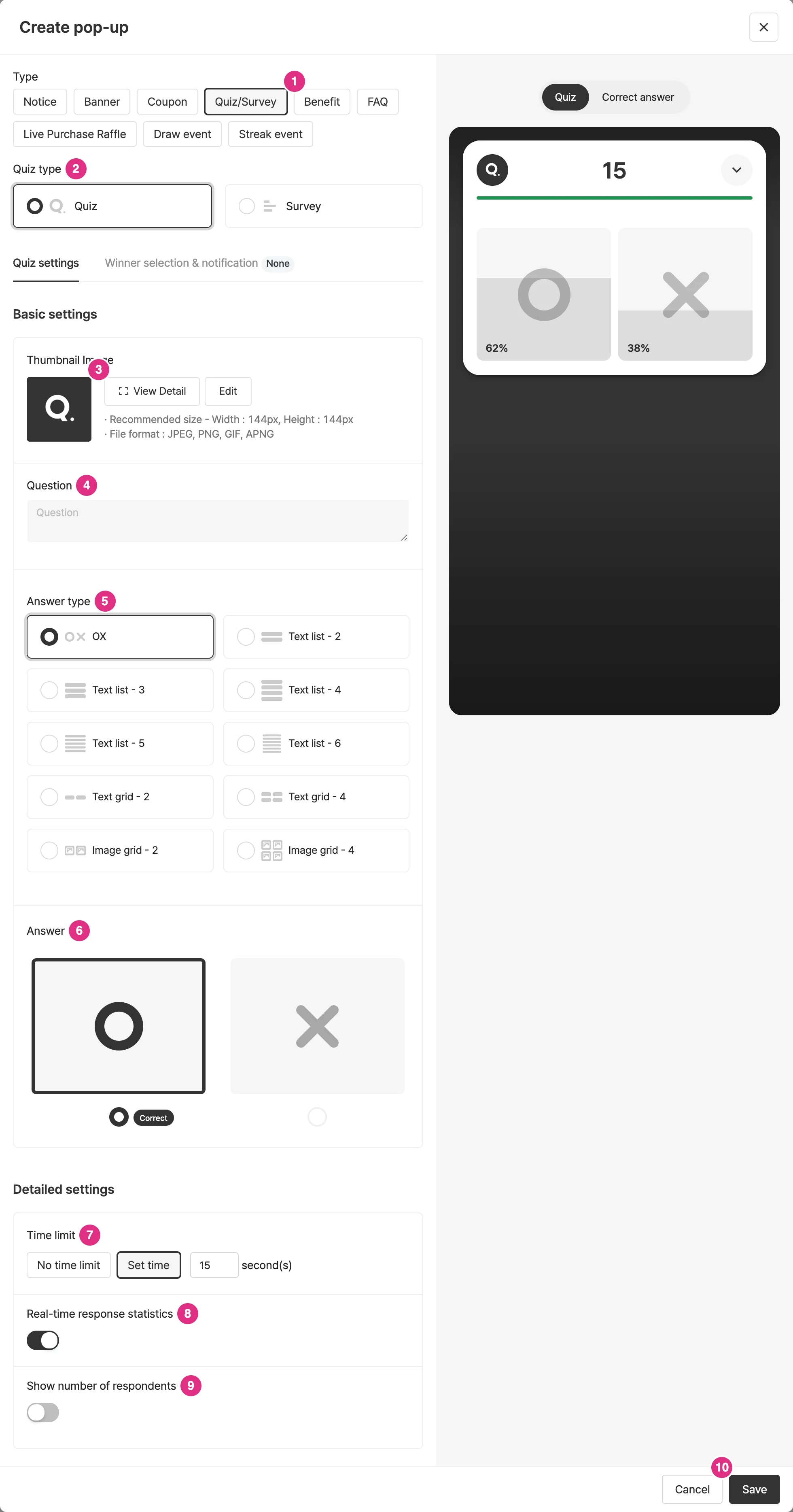
- Type: Select Quiz/Survey.
- Quiz type: Select Quiz or Survey. Depending on the type, you may be required to set a correct answer.
- Thumbnail image: Add the thumbnail image shown above the question in the quiz popup.
- Question: Enter the question. The question you enter is shown to viewers when the quiz starts.
- Answer type: Select the answer type you want from OX, text list, text grid, and image grid.
- Answer: Select the correct answer for a quiz. Survey types do not need a correct answer.
- Time limit: Choose whether the question stays on screen or closes automatically after a set time. (Default: stays for 15 seconds)
- Real-time response statistics: Choose whether to show real-time answer figures for each viewer selection. When you turn the toggle on, the real-time answer figures of quiz participants appear on the options in the quiz popup.
- Show number of respondents: Choose whether to show the number of respondents for each option. When you turn the toggle on, the number of viewers who took part appears on the options in the quiz popup.
- If you need to select winners, set that in the Winner selection & notification tab. Click Save to create the popup.
What is the difference between a quiz and a survey?
- If you set the type to Quiz, you must choose a correct answer.
- If you set the type to Survey, you don’t have to choose a correct answer.
Is a thumbnail image required for quiz popups?
No, you don’t have to upload one. If you don’t set a thumbnail image for the quiz popup, the Shoplive default image is shown. To upload a new image, delete the existing one first.
| Choice type | How it’s displayed | How users take part |
|---|---|---|
| OX | Choices shown as O / X | Choose O or X |
| Text list | Text choices shown as a list | Choose one of the text list choices |
| Text grid | Text choices shown as a grid | Choose one of the text grid choices |
| Image grid | Image choices shown as a grid | Choose one of the image grid choices |
- Ten types are available depending on the number of choices.
- They are OX, text list (2–5 choices), text grid (2, 4 or 6 choices) and image grid (2 or 4 choices).
- Questions and choices can be up to 200 characters, and choices are recommended to be within 40 characters.
- Some types, such as the 6-choice text grid, are recommended to be within 10 characters.
What is the difference between the “No limit” and “Set time” durations?
- No limit: the question ends only when the operator clicks [Close quiz] in the console at the moment they choose, after which the answer can be revealed.
- Set time: the question ends automatically when the time set for the quiz passes, after which the answer can be revealed.
Choosing and announcing winners
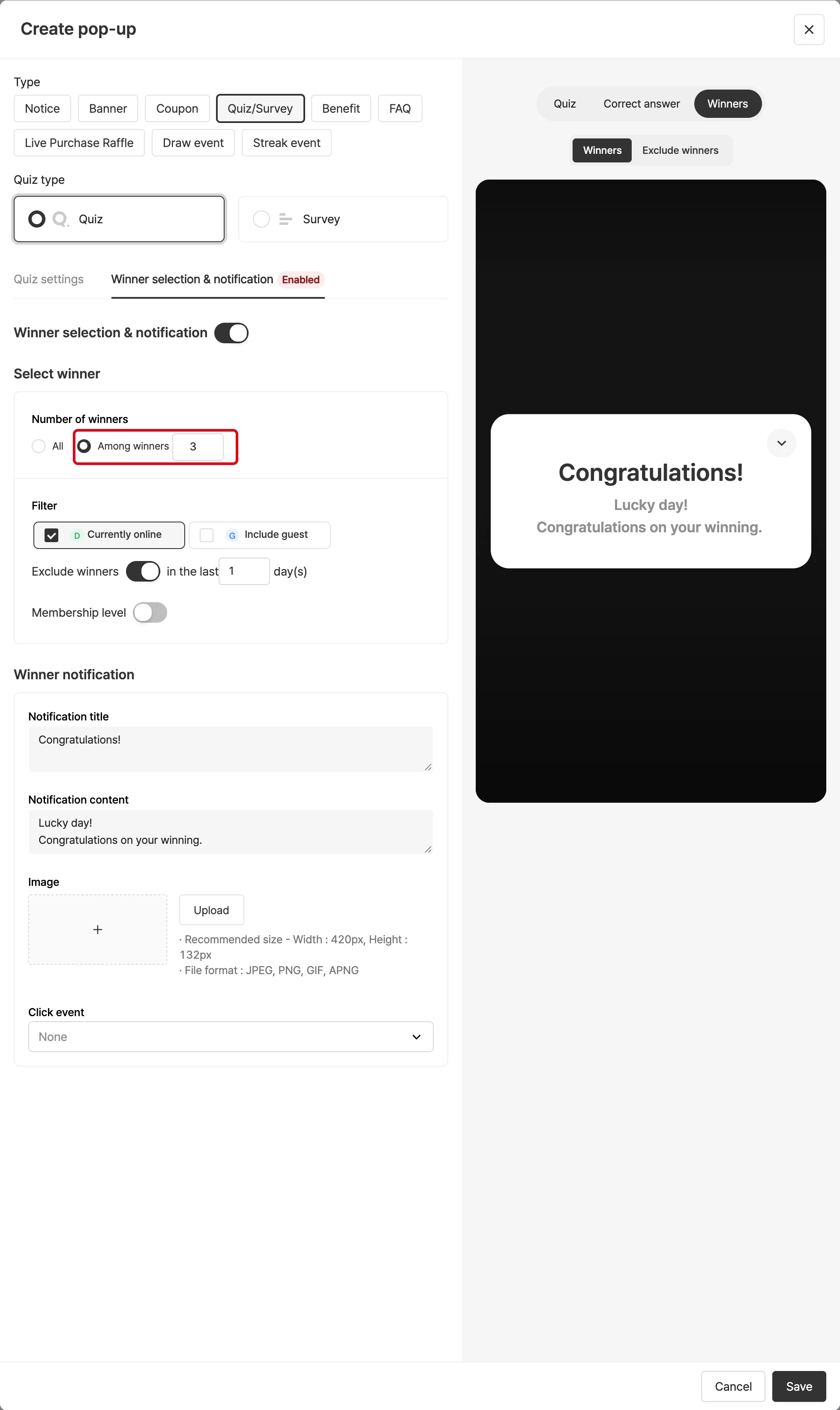
In the Winner selection & notification tab, set whether to select winners and the winner notification popup.
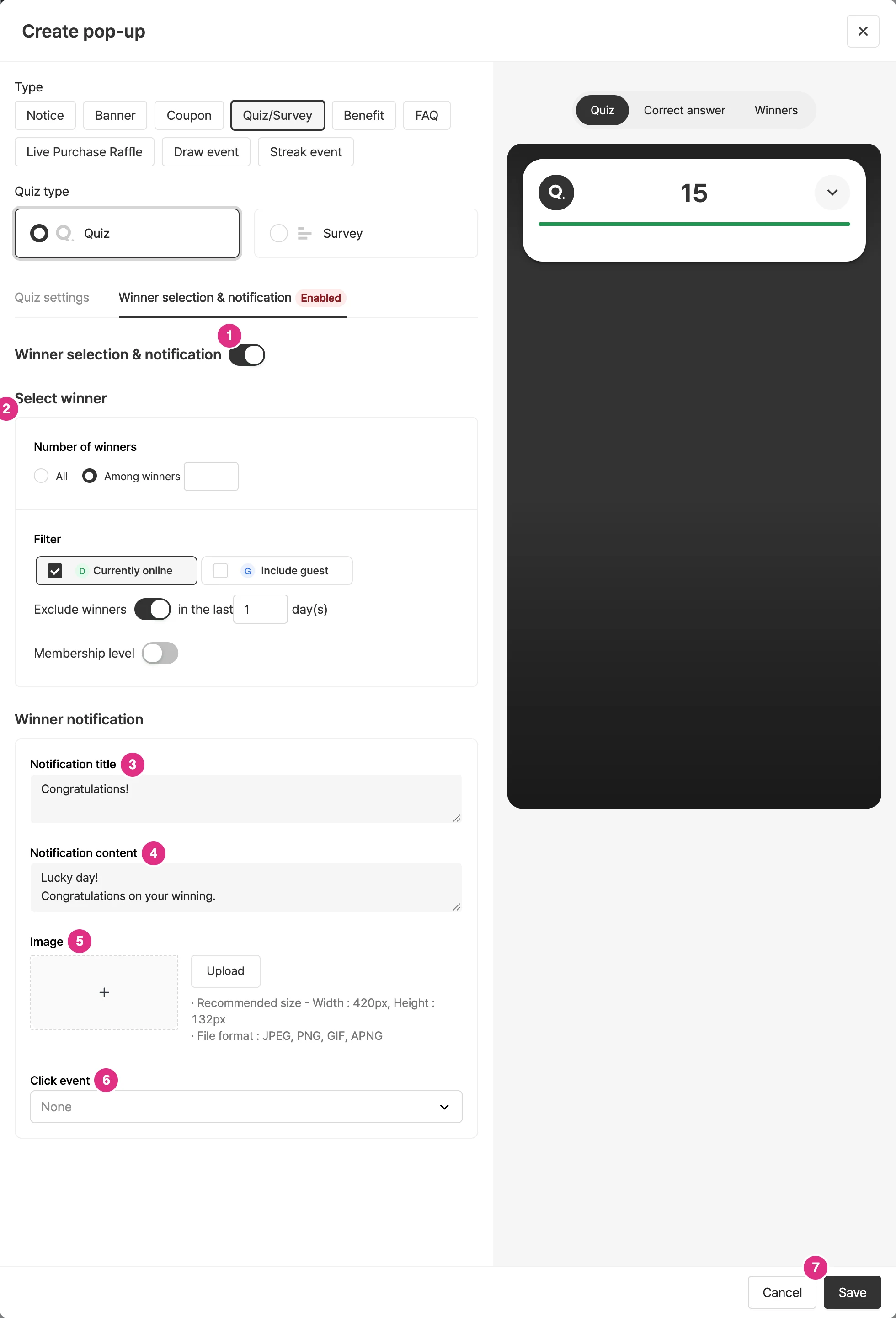
- Winner selection & notification: Turn the toggle on to select and notify winners. If you do not turn it on, the quiz result screen is shown to both correct and incorrect respondents.
- Winner selection: Set the number of winners, filters, excluding previous winners (N days), and membership level. For details, see Winner selection below.
- Notification title: The title of the popup shown to winners.
- Notification content: The content of the popup shown to winners.
- Image: You can add an image to the content.
- Click event: You can set a click event for the image.
- Save: When all settings are done, click Save.
Winners can also be selected in survey popups. Set the popup shown to survey winners in the same way.
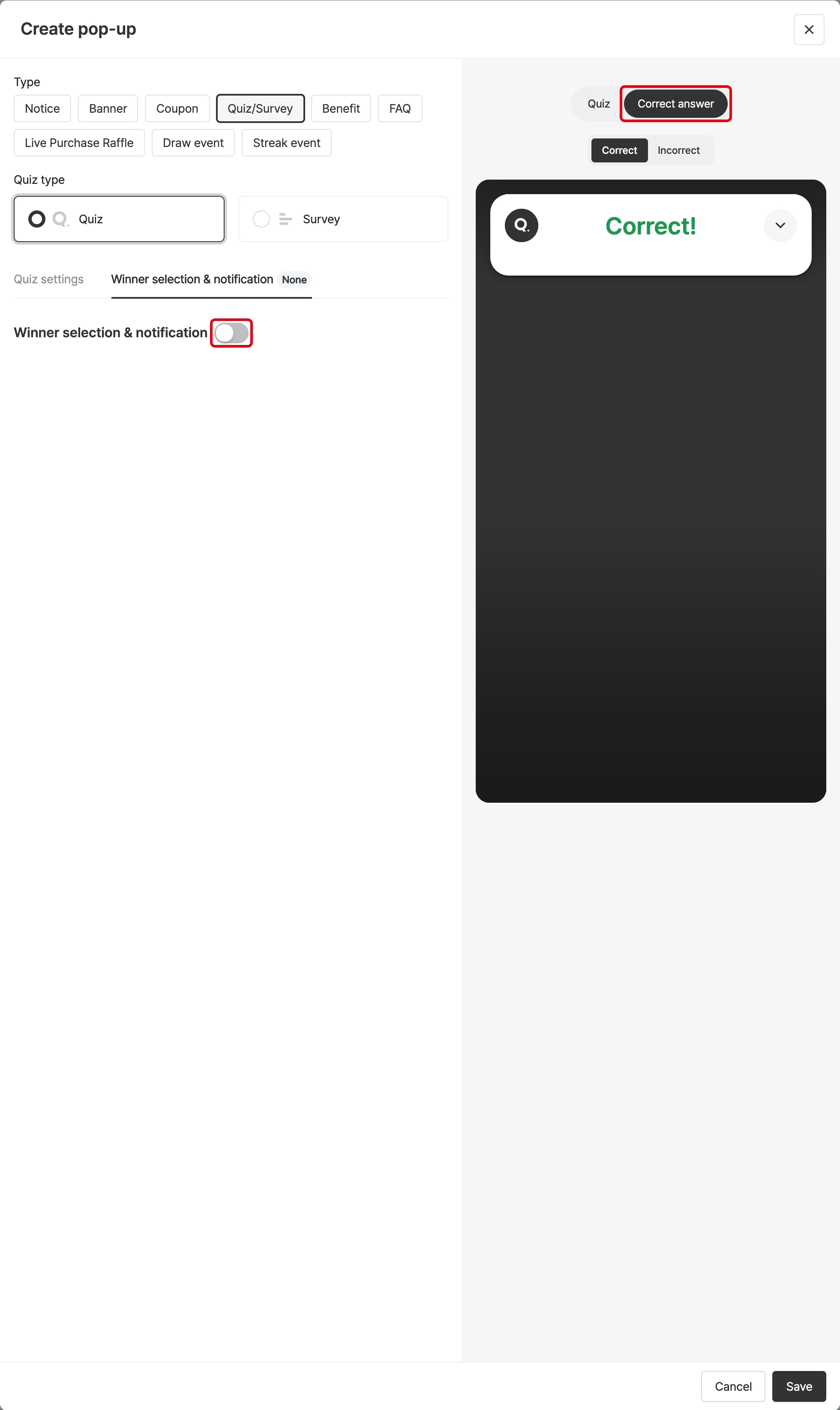
Don’t choose winners
If the ‘Choose and announce winners’ toggle is off, a quiz result screen is shown to those who answered correctly and incorrectly.
Choose winners
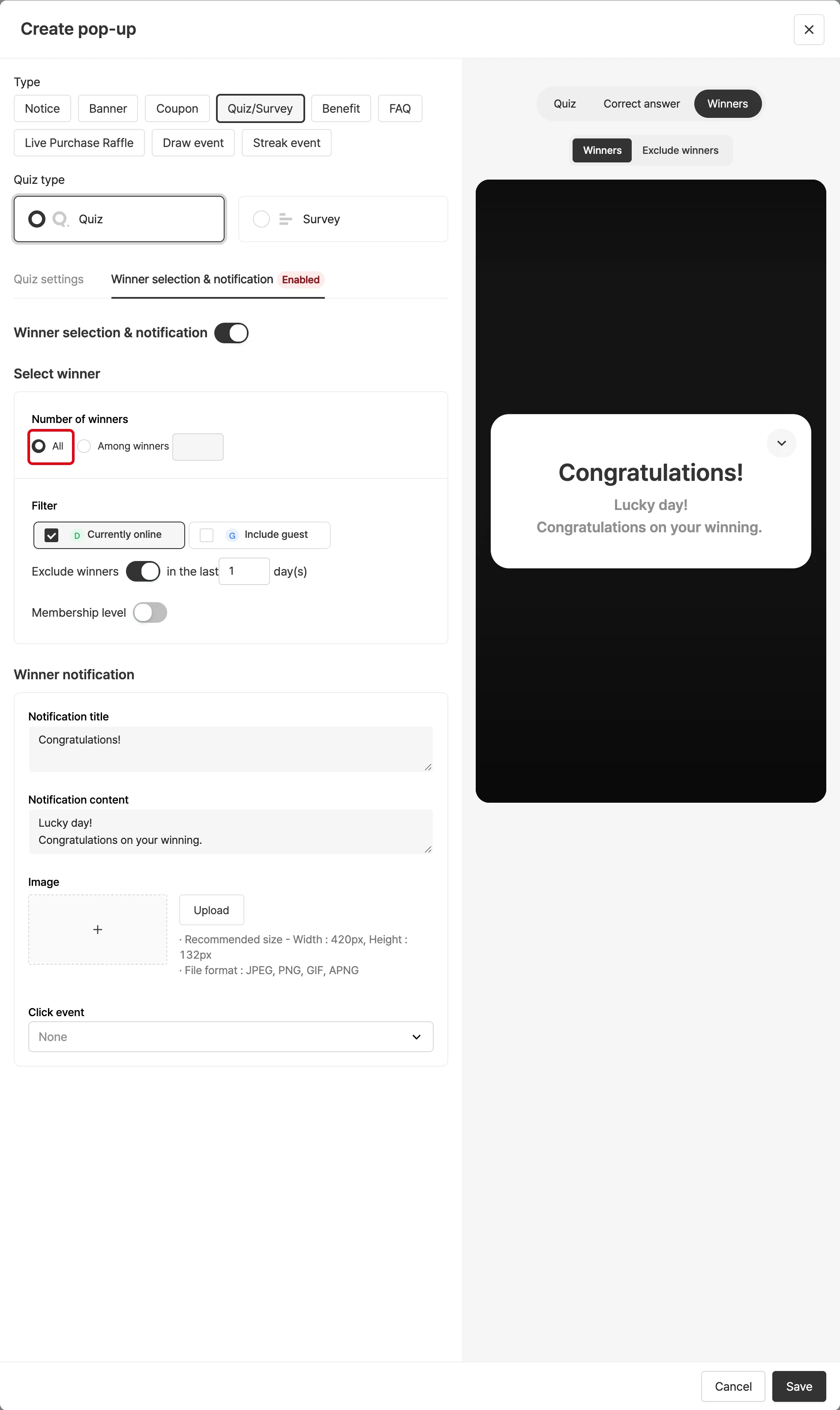
All correct answers
Turn on the ‘Choose and announce winners’ toggle to choose winners from those who answered the quiz correctly. If you select All correct answers, a winner popup is shown to everyone who answered correctly and the winner list is shown to those who didn’t.
Some of the correct answers
If you set the number of winners in Winner selection, that number of winners is selected from the correct respondents. Winners see the winner notification popup, and non-winners see the winner list.
How are winners chosen?
- Winners can’t be chosen by the operator; the system selects them automatically.
- All correct answers: everyone who answered correctly is a winner, and a winner announcement screen is shown.
- n of the correct answers: n users who answered correctly are chosen at random, and a winner list screen is shown.
Eligibility and draw filters
For surveys, you can choose all participants or N participants as winners; for quizzes, all correct answers or N of them. The draw supports these filters: user grade, include guests, currently connected, and exclude previous winners (N days).
Winner list and notice for incorrect answers
The winner list popup shows up to 20 people, and the list can be downloaded. Choose how to announce to non-winners: None or Winner list. You can also set the title, message and image shown to those who answered incorrectly.