Create Streak event popups
A popup that gathers a viewer's attendance across multiple broadcasts into a stamp board. The list of linked broadcasts becomes the round structure.
Select Streak event as the type in Popups > Create popup and fill in the items below. Configure it on the left of the edit screen, and preview the stamp board that viewers see on the right. (e.g., 1/2 checked in)
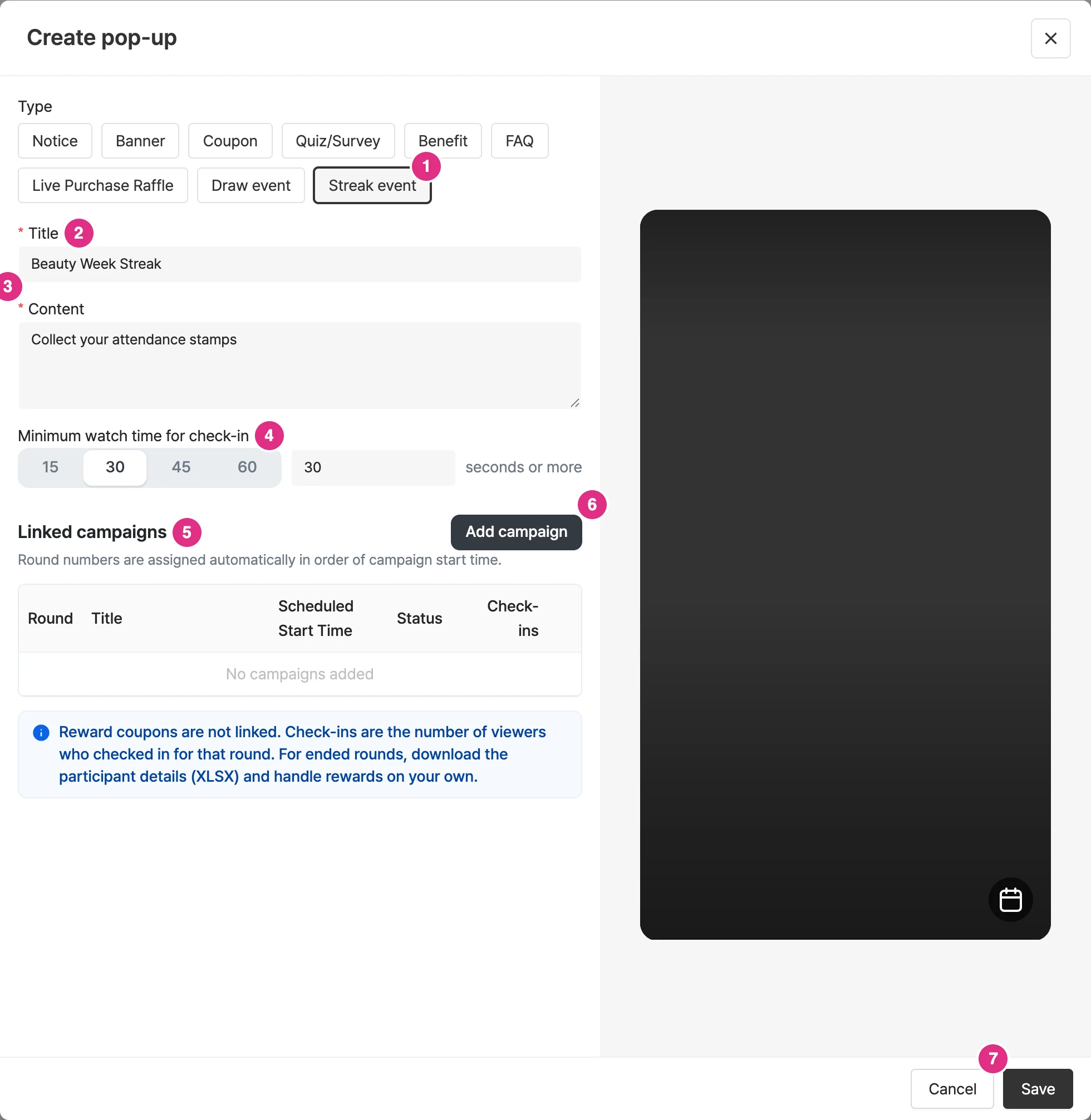
- Type: Select Streak event. Once created, it cannot be changed to another popup type.
- Title *: The event name shown at the top of the viewer's stamp board. (e.g., Beauty Week Streak)
- Content *: The guide text shown below the title. (e.g., Collect your attendance stamps)
- Minimum watch time for check-in: Choose a preset (15/30/45/60 seconds) or enter a number of seconds directly. Viewers who watch for at least this long are checked in automatically, with no action needed.
- Linked campaigns: The list of broadcasts this Streak event is linked to. It forms the round structure.
- Create campaign: Add the broadcasts to link. For details, see Link broadcasts below.
- Click Save to create the popup.
Link broadcasts (create rounds)
1Click the add campaign button in the linked campaigns area to open the broadcast selection window.
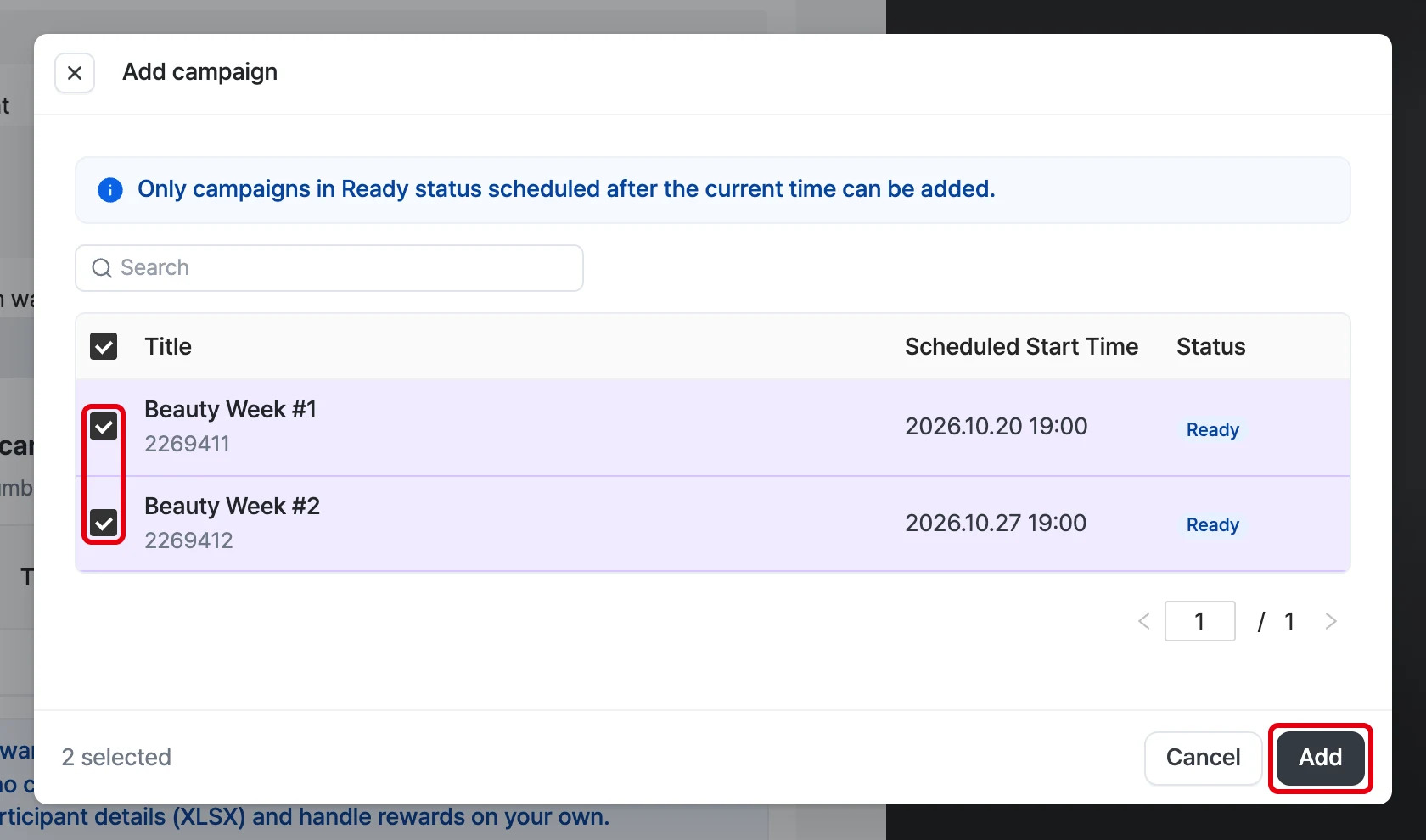
- Only broadcasts in Ready status scheduled after the current time are listed. Broadcasts that have already started or ended do not appear.
- After searching, you can select multiple broadcasts with the checkboxes and add them at once.
- Only one Streak event can be linked to a single broadcast.
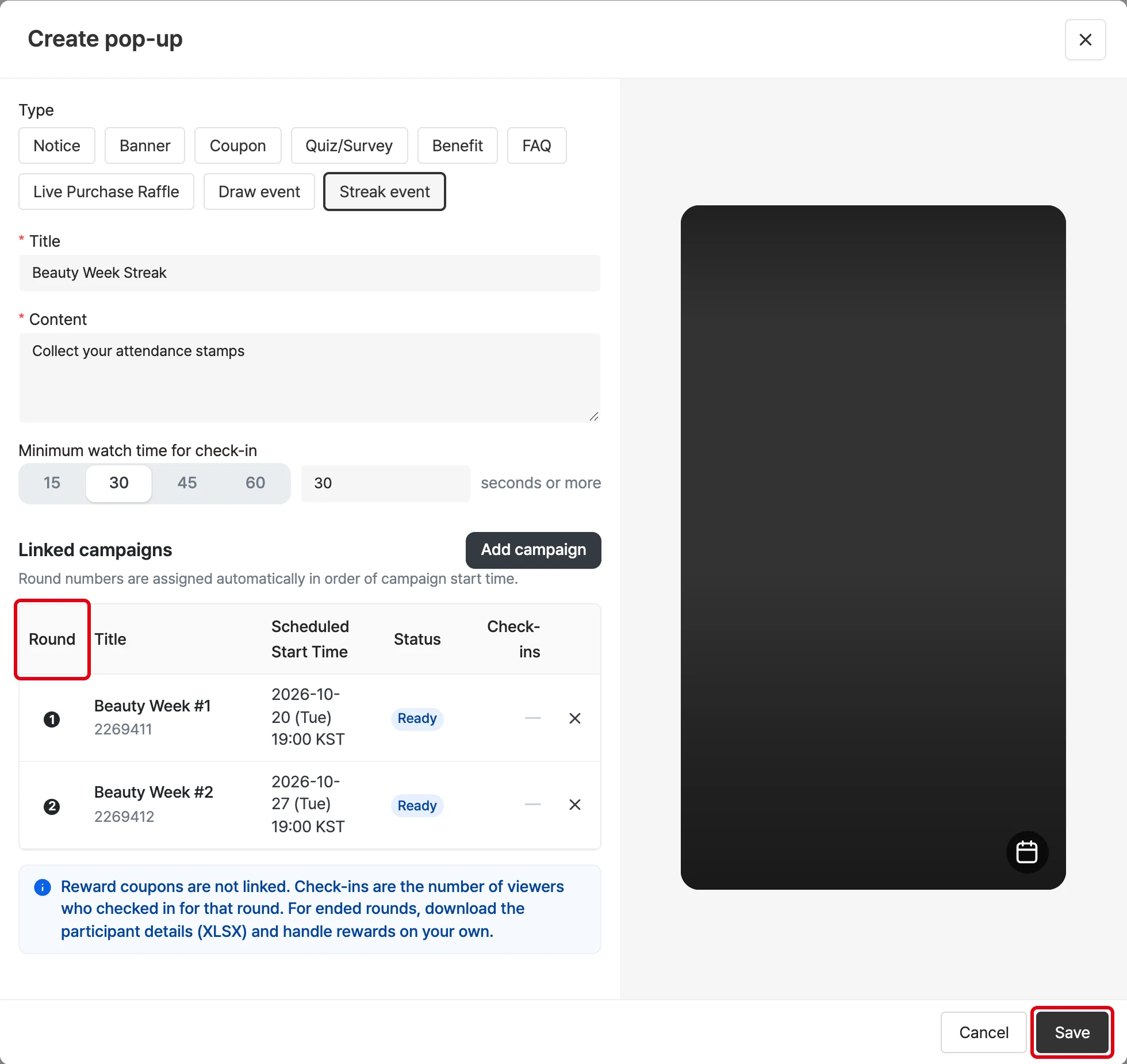
2Click Add to reflect them in the round list, then click Save to apply the changes. The added broadcast enters as round 3 (Ready), and the preview stamp board updates to 2/3 checked in.
Round number rules
- Rounds are assigned automatically in order of broadcast start (scheduled) time. You do not need to set the order yourself.
- When a broadcast schedule changes, round numbers are recalculated automatically to match the scheduled order.
- The round numbers on the viewer's stamp board and on this screen are always the same.
Unlink
- Use the ✕ on the right of the round list to remove a broadcast.
- Only broadcasts that have not started (Ready) can be removed. Rounds that have already started or ended hold check-in records and cannot be removed.
When you reopen a saved check-in king popup, the Download results button is next to the Add broadcast button in the linked campaigns section. Download the check-in result XLSX there.
To show the Streak event popup during a broadcast, check attendance and download the list, and handle rewards, see Streak event popups.
Streak event FAQ 🤔
Why can't I add or remove a broadcast that has already started?
- Round numbers follow broadcast time order, so if a round were inserted or removed among past broadcasts, the round number of viewers who were already told they were at "round 3" would change. To prevent this, only broadcasts that have not started can be changed.
What happens to the rounds if I change a broadcast schedule?
- Among broadcasts that have not started, round numbers are recalculated in scheduled time order. A broadcast never moves to a number earlier than a round that is already live or ended.
If I change the minimum watch time later, what happens to check-ins already made?
- Check-ins already recorded are not affected. The new criterion applies to check-ins made after the change.
Can I delete a Streak event popup?
- If a round that is live or ended is linked, deletion is restricted to preserve check-in records.
Can I link two Streak events to the same broadcast?
- No. Each broadcast can have only one Streak event.
Can guest (not logged in) viewers participate?
- No. Check-ins accumulate across broadcasts, so viewers must be identified. The Streak event popup is not shown to guests at all, only to logged-in viewers.