Guide · 2 · Create a Campaign
Creating a timer popup
A popup that shows the remaining time as a countdown on the stream. On the viewer screen, the text and the remaining time appear to the right of the mute button.
In Popups > Create popup, select Timer as the type and fill in the items below.
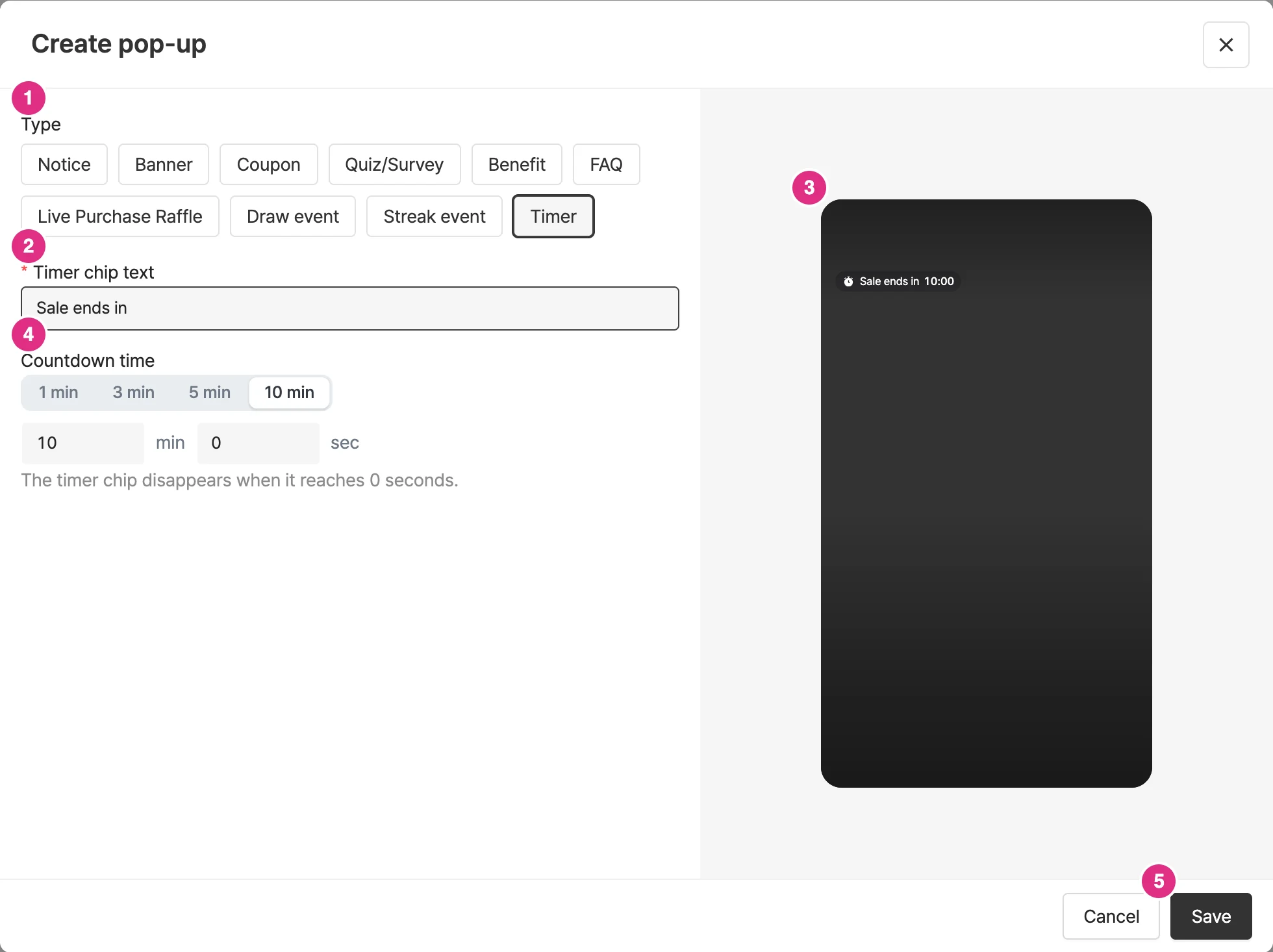
- Type: Select Timer.
- Timer chip text *: The text shown before the remaining time. (e.g. Sale ends in)
- Preview: Check how it appears on the viewer screen.
- Countdown time: Select a preset (1/3/5/10 min) or enter minutes and seconds directly. You can set it from 1 second to 59 minutes 59 seconds, and the default is 5 minutes.
- Click Save to create the popup.
- The countdown runs from the moment you click the Start button in the campaign console, not from when the popup is saved or added to a broadcast.
- When the remaining time reaches 0 seconds, the timer disappears from the viewer screen right away.
- The timer chip text and countdown time can be edited only while the timer is in the Not started status.
To start, pause, reset, and end the timer during a broadcast, see Timer popups.