Guide · 2 · Create a Campaign
Create FAQ popups
Shoplive provides FAQ popups you can use in broadcasts.
Create a popup
Click Create popup in Popup management, select FAQ as the popup type, and fill in the items below.
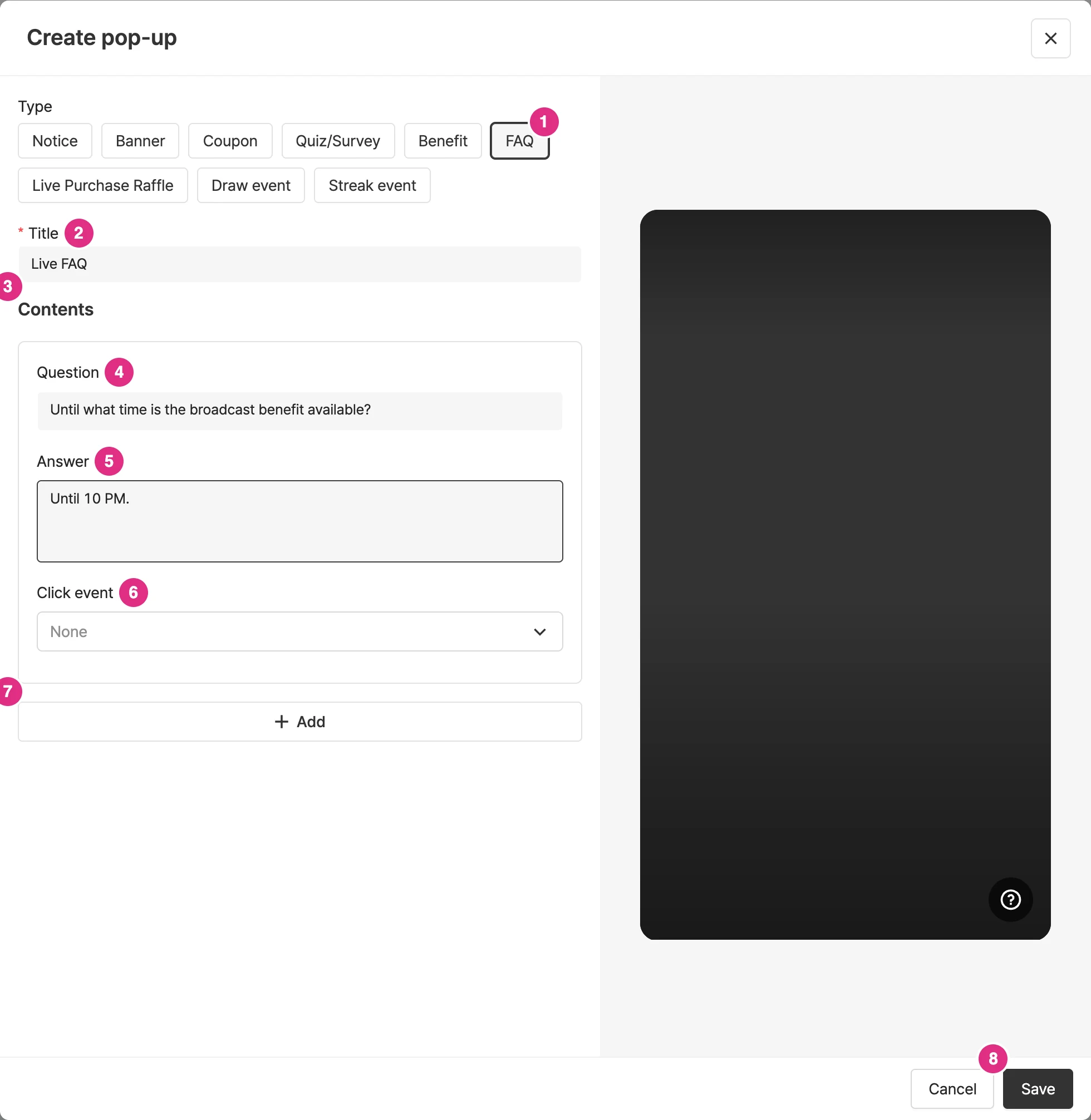
- Type: Select FAQ.
- Title: Required.
- Content: The area where you enter questions and answers. You can register up to 20 questions and answers.
- Question: Enter the FAQ question.
- Answer: Enter the answer to the question. Make FAQ answer images 900x1920.
- Click event: You can set a click event for each answer. For details, see Click events below.
- Add: Click Add to register multiple questions and answers.
- Click Save to create the popup.
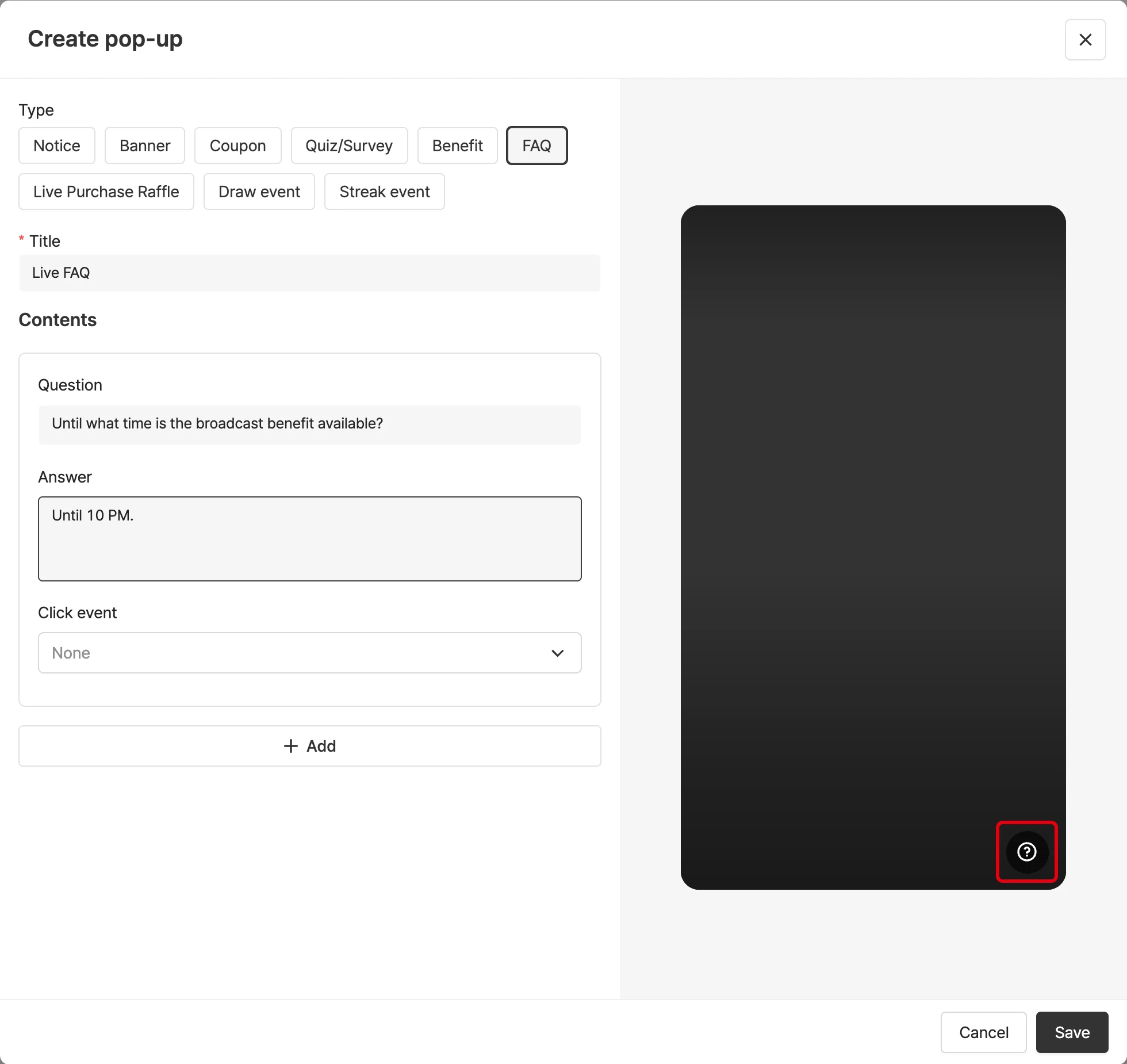
Click the icon in the preview on the right to see how it appears on the player.
Click events
You can set a click event for each answer.
| Feature | Description |
|---|---|
| No event | Nothing happens on click. |
| Link | Goes to the set URL. |
| Link (open in new window) | Opens the set URL in a new window. |
| Coupon download | Passes the coupon code through messageCallback. (Integration on your side is required.) |
| Custom | You can pass any PAYLOAD you like in JSON format. |
| More popup - image | An image popup appears at the bottom. |
| Open bottom sheet | A window describing event benefits opens as a bottom sheet from the bottom. |
For the More image click event, you can enter button text of up to 20 characters; the default text is ‘Learn more’. Make FAQ answer images 900x1920.