Create Videos and Display Shortforms
When you have added all your segments, choose the option that fits your goal at the bottom right of the Select segments screen.
Edit & create video
Recommended when you need subtitles, an aspect ratio, or a background, and for ads and social media.
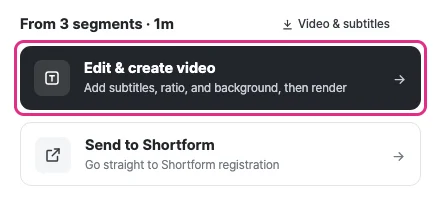
Click Edit & create video at the bottom right of the Select segments screen.
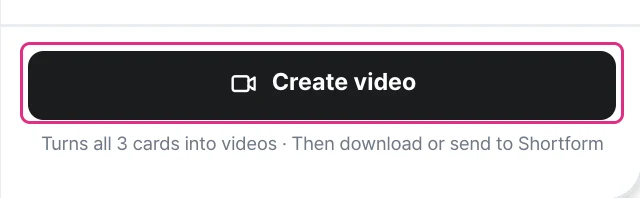
Edit the screen and subtitles in the Edit video tab. For details, see Edit Videos.
Click Create video to create one MP4 (1080×1920) per card. You can download them or publish them as shortforms.
Send to Shortform
Recommended when you want to publish fast without editing, and for product pages and feeds.
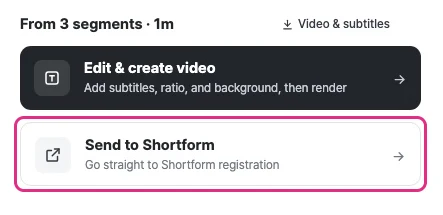
Click Send to Shortform at the bottom right of the Select segments screen.
Your segments go straight to the shortform editor, where you fill in the details and publish.
Video & subtitle downloads
Use this when you only need the files, or want to use them in other editing tools.
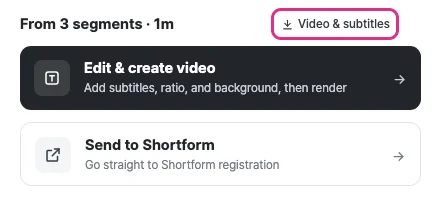
Click Video & subtitles on the Select segments screen.
Choose video (mp4) or subtitles (srt) to download.
Display shortforms
You can display the shortforms you made in three ways to fit your shop.
Collections and groups: Select them in the admin to display on the main page, promotion pages, or anywhere you want. See Create Shortform Groups and Apply Shortform Collections to Your Site.
Product-matched display: The product's shortform is shown automatically on its product page, with PIP preview support.
Story: Playback starts as soon as a brand circle is tapped, and it is simple to set up. See the integration guide for how to apply it.