Insert Images
Insert images such as logos and templates into AI Clip videos to strengthen your brand identity. Visual elements make the video look more polished and effectively improve content delivery and viewer attention.
1. Insert an image
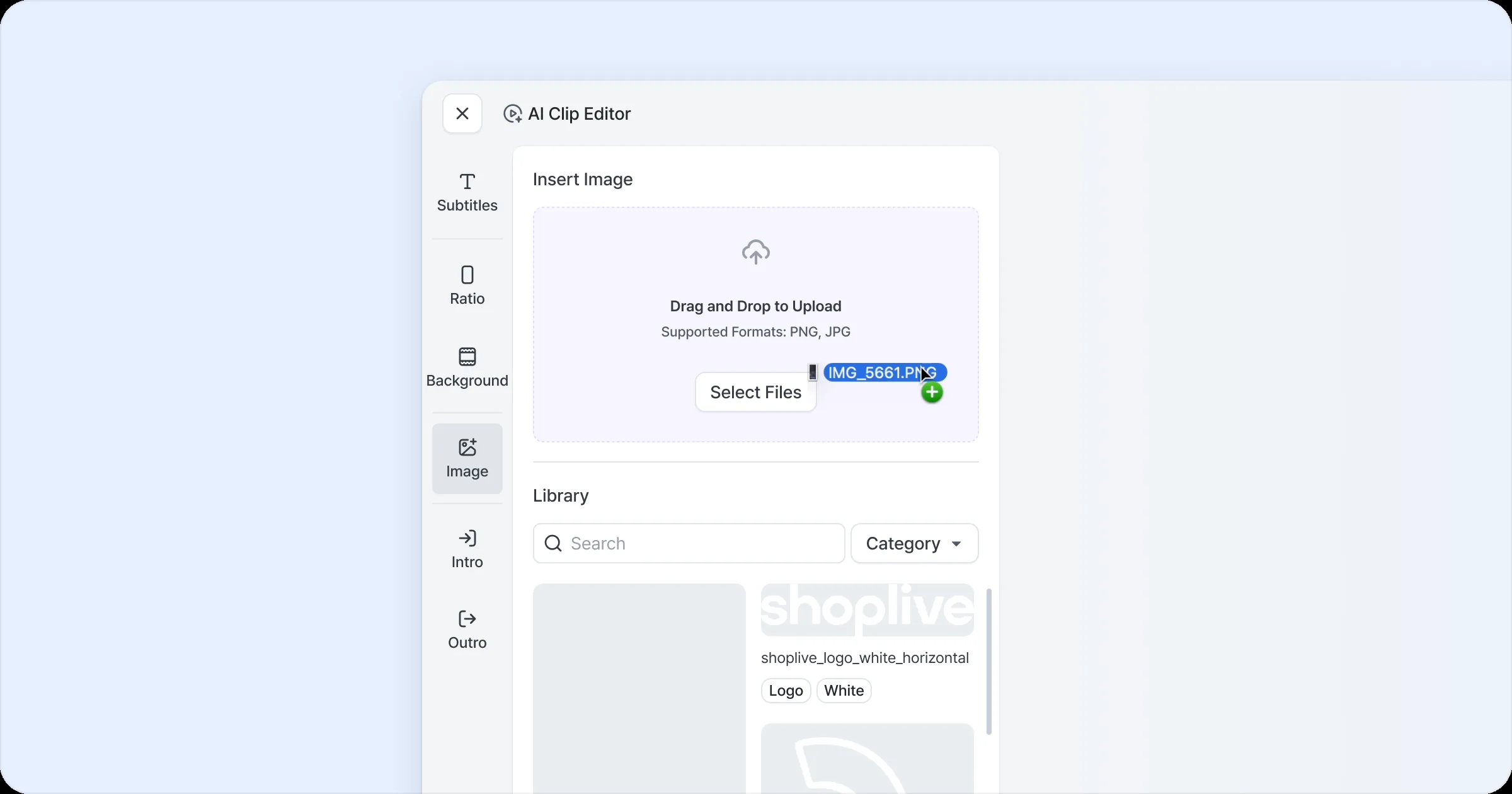
On the AI Clip results page, click Edit > Image. You can upload an image locally or select one from the library; PNG and JPG are supported. Locally uploaded images are saved to the library automatically, so later you can easily insert them over the video with the ‘Select’ button in the library list.
APNG files and corrupted images can’t be uploaded.
2. Edit the inserted image
Adjust image size and position
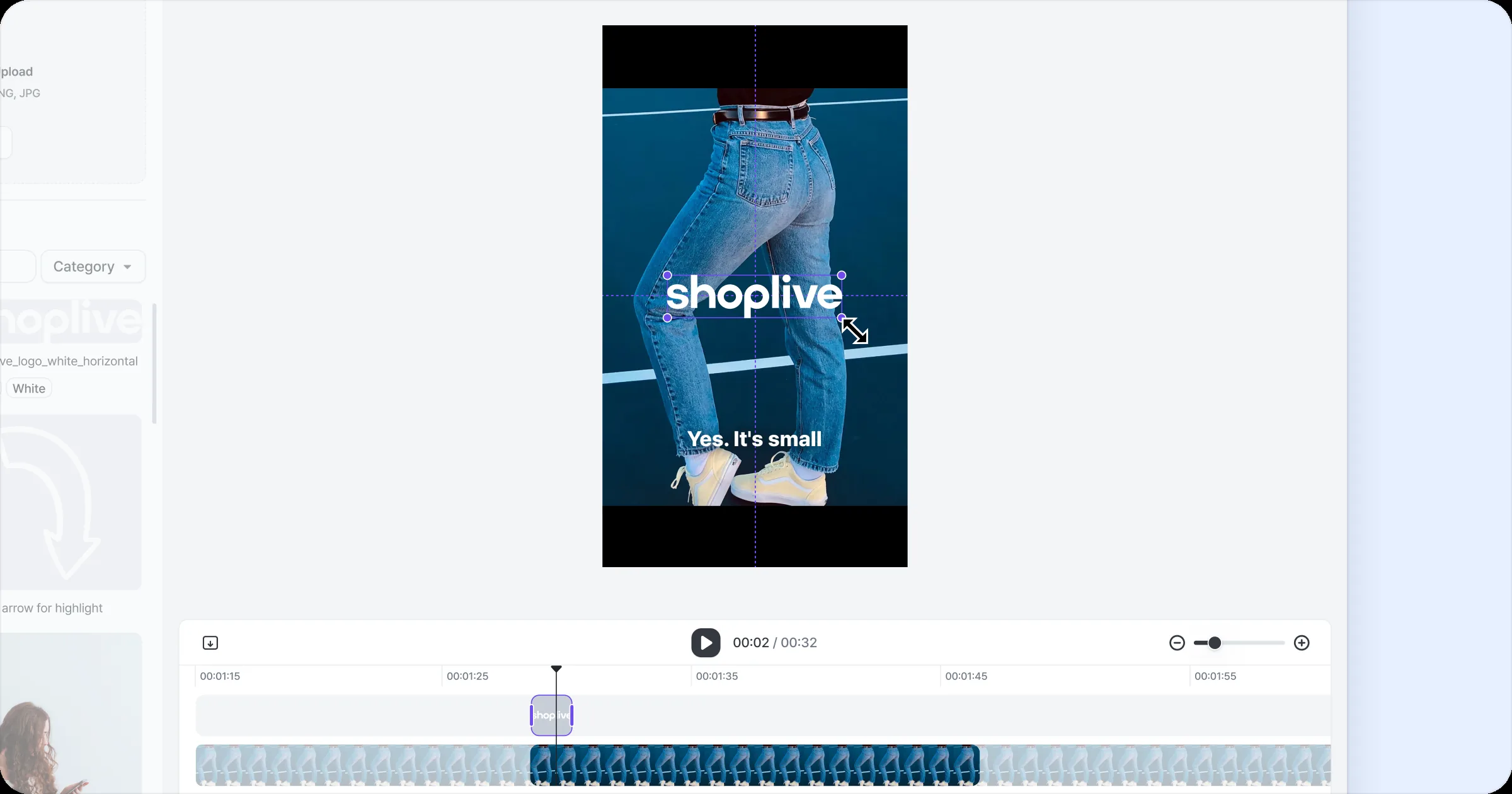
Drag the inserted image in the preview area to freely adjust its position and size. Drag the image edges to resize it while keeping the original aspect ratio, or use the Position button on the toolbar to enter X and Y coordinates for precise placement. Set a size and position that fit the video layout.
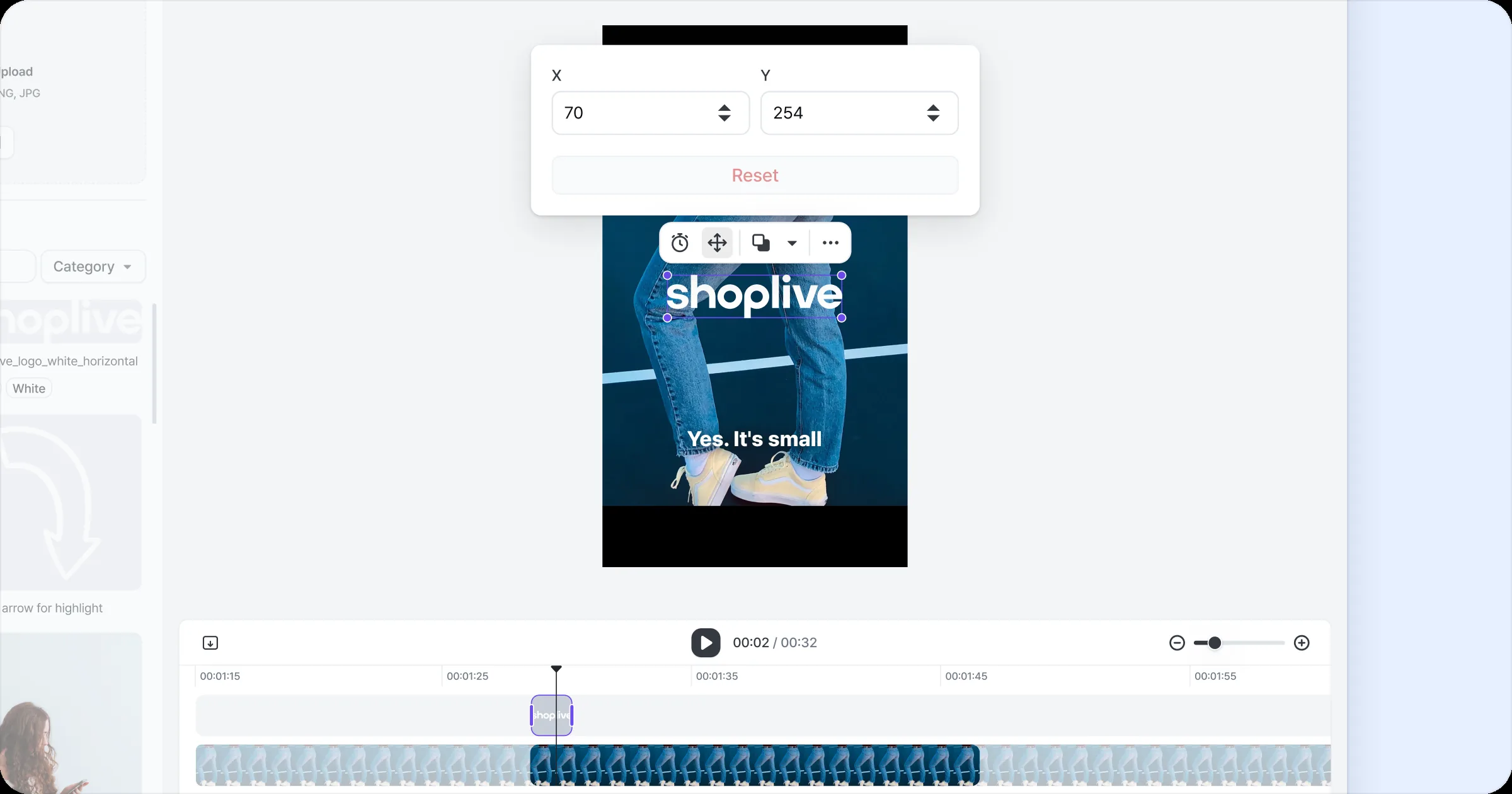
Set image display time
By default, an inserted image is shown for 5 seconds from the current point in the preview. To adjust the display time more precisely, click the image and press the ‘Display time’ button, then enter the start and end times. Click the ‘Fit to clip length’ button to show the image for the clip’s full length automatically.
An image must be shown for at least 0.1 seconds.
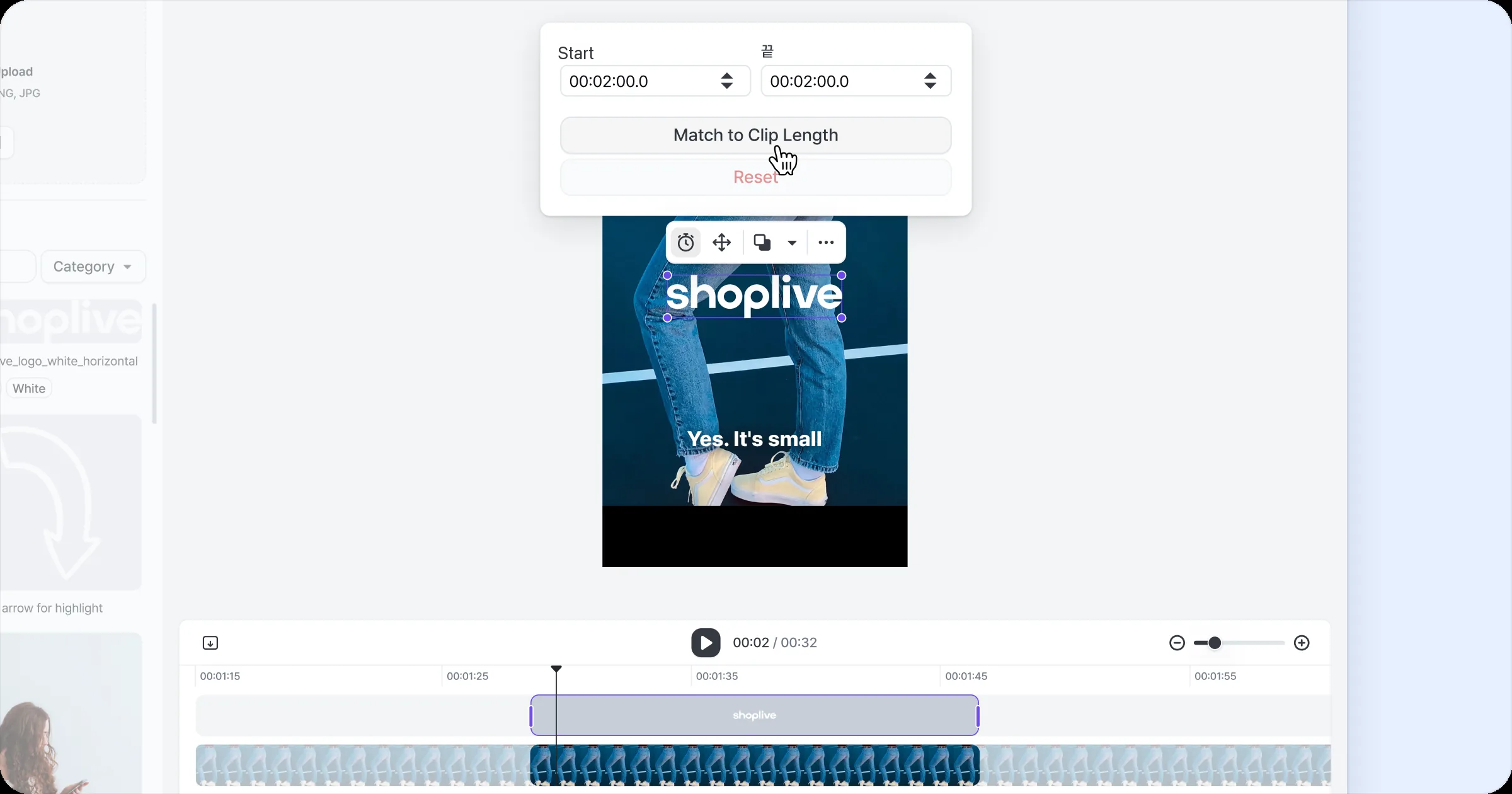
Change image layer order
If you’ve inserted two or more images, you can adjust the order they’re shown in. By default, the most recently inserted image is on top; change the layer order as needed to get the effect you want.
Adjust on the timeline
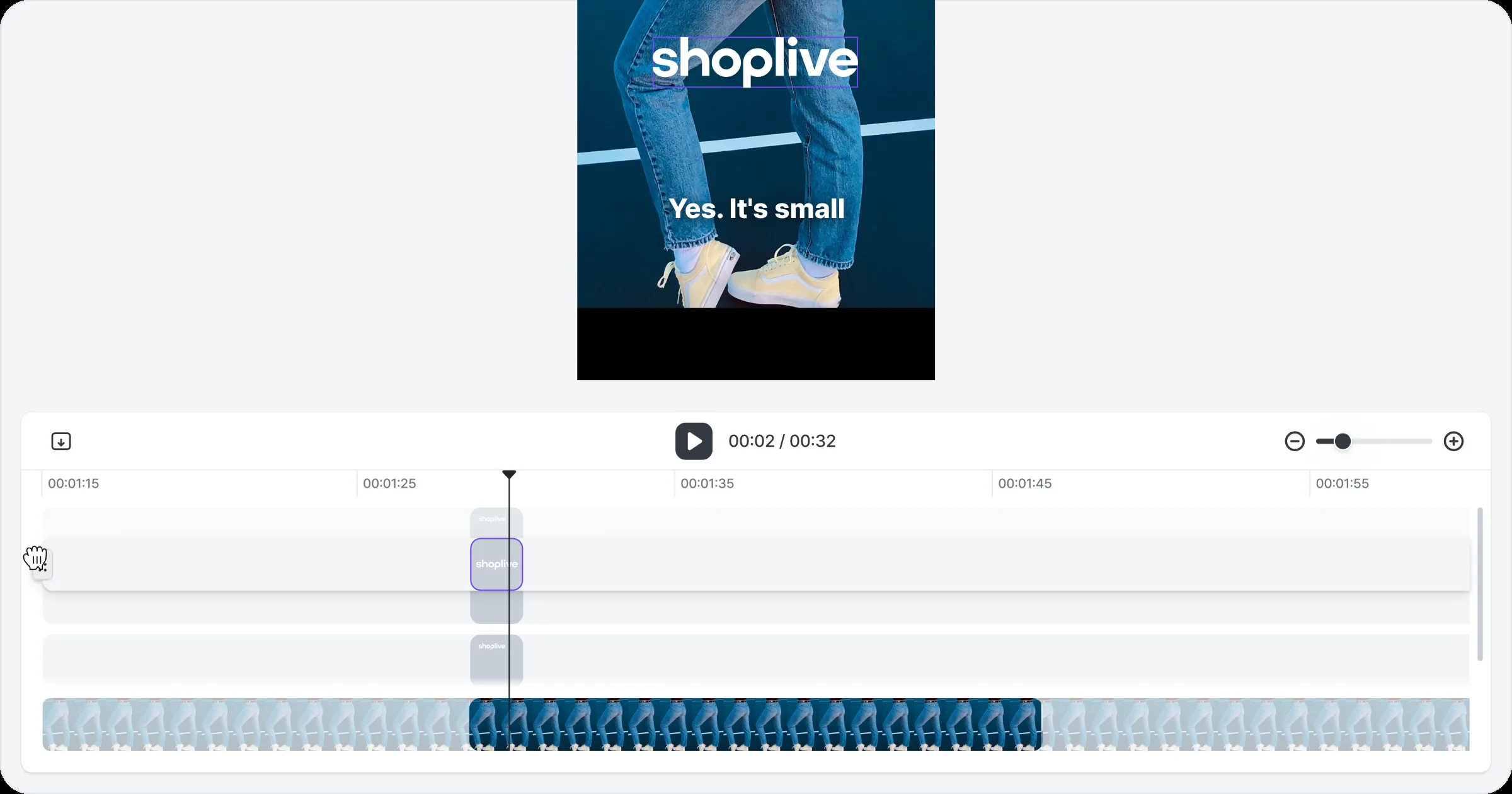
Drag and drop image tracks on the timeline to arrange them in the order you want.
Adjust on the toolbar
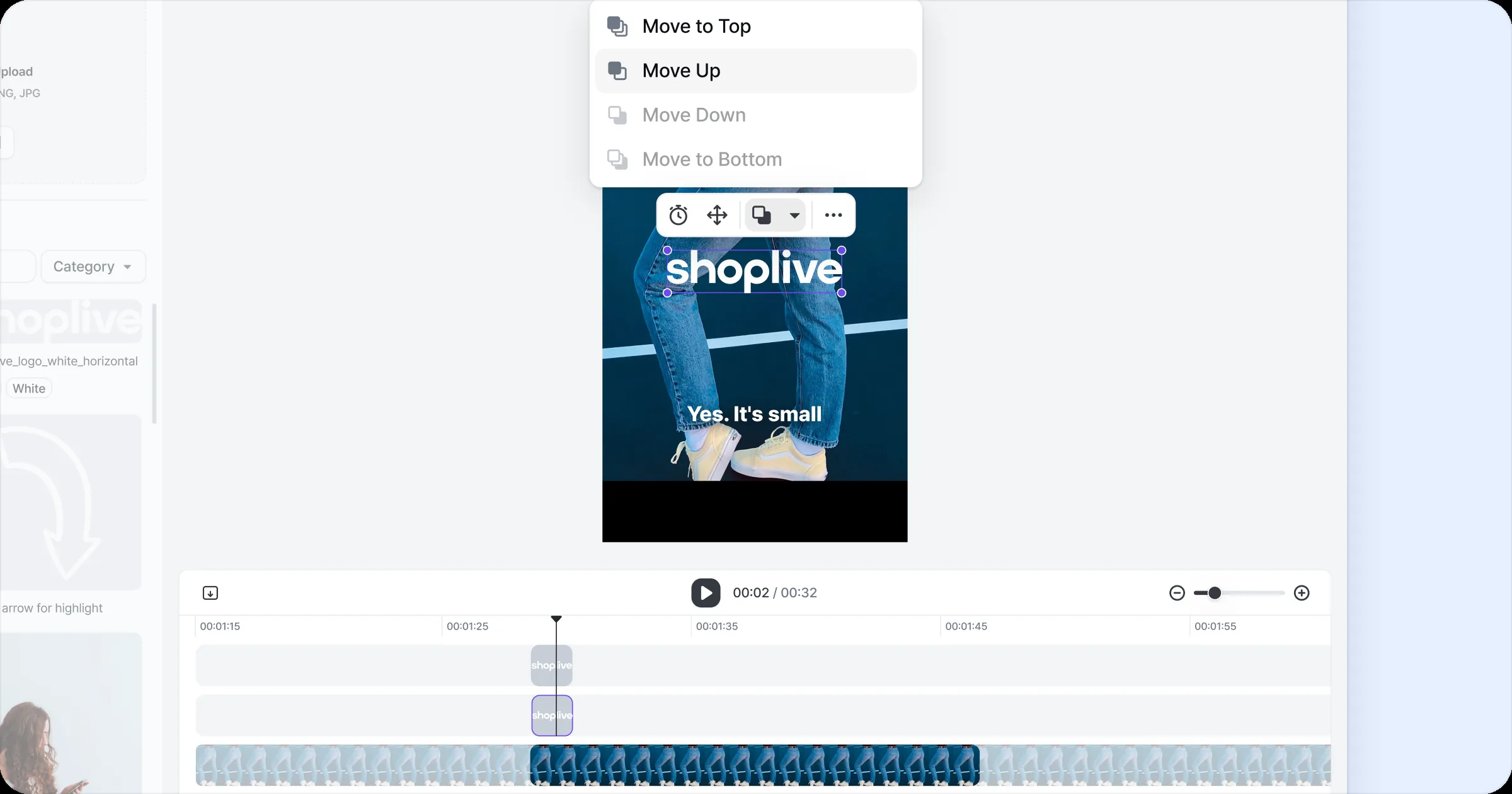
Click an image, press the ‘Layer order’ button on the toolbar and choose one of the options below.
Bring forward: move up one level
Send backward: move down one level
Bring to front: move to the top of all images
Send to back: move to the bottom of all images