View and Manage AI Clips
Check the created AI Clip videos, and view and edit information such as the titles and tags AI recommends for each clip.
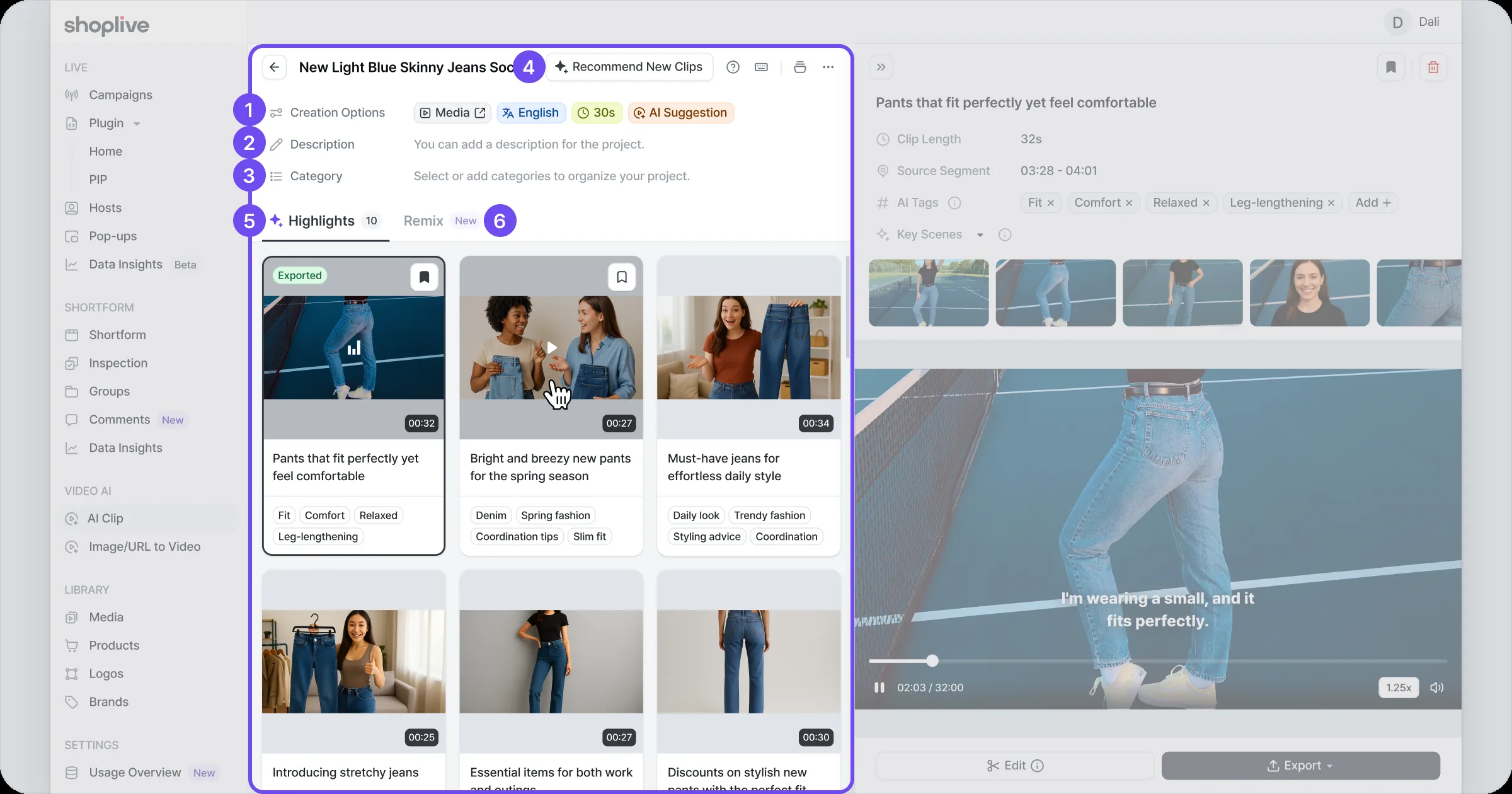
AI Clip list panel (left)
The AI Clip list panel is where you can both check the creation request details and manage the list of created AI Clip videos. It includes key information such as clip creation options, project description and category settings, and you can review the created clips, remix them or get new clip recommendations.
Components
1) Creation options
Check the source video and review the conditions (length, language, etc.) set when creating the AI Clips.
2) Description
Enter a description of the project. It’s used for internal management.
3) Category
Select or add a category to organize projects. Categories are useful for classifying and organizing content.
4) Get new clip recommendations
Keeping the original creation conditions, get automatic recommendations for new clips not yet extracted from the video. For details, see the [Get new clip recommendations guide].
5) Highlights
The area that lists the created AI Clips. Bookmark a clip to pin it to the top of the list so it’s easy to find.
6) Remix
Combines the selected clips into one video. For details, see the [Clip remix guide].
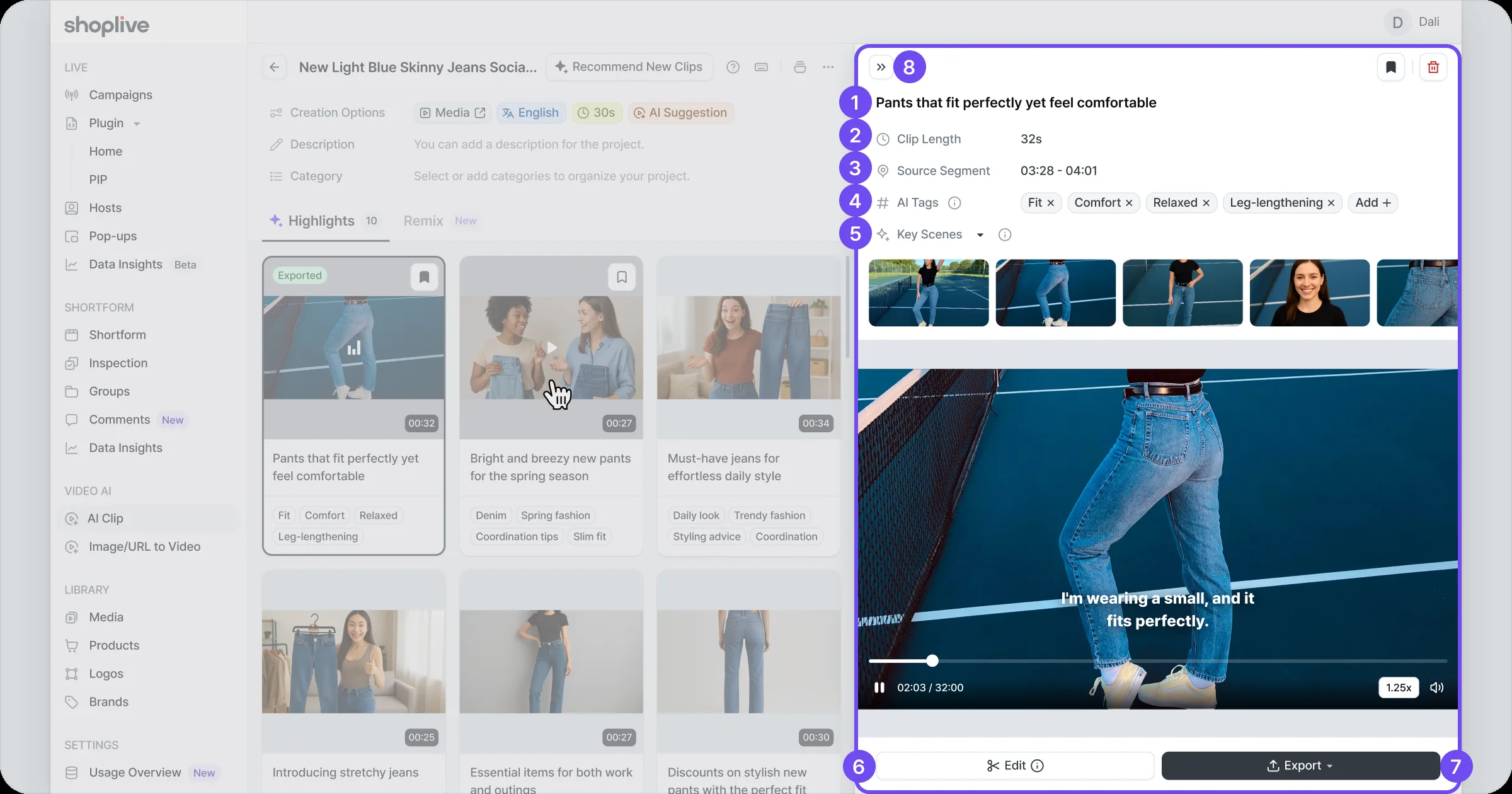
Clip detail panel (right)
The area where you can check the selected clip’s title, tags, creation info (duration, segment position) and key scenes, play the clip, and edit and export it.
Components
1) Clip title
A recommended title generated by AI that analyzes each clip’s content and automatically suggests wording likely to drive high engagement. You can edit the title yourself in [Edit] > [Subtitles] > [Title].
2) Clip length
The total duration of the selected clip, in seconds.
3) Source video segment
Shows by timecode which segment of the source video the clip was extracted from.
4) AI tags
AI analyzes the clip’s content and characteristics and automatically generates the most effective hashtags. Using them in social media content helps increase video exposure.
5) Browse key scenes
A list of key scenes in the clip selected automatically by AI. Click a scene thumbnail to play that segment in the video preview.
6) Edit
Use a range of editing features such as subtitle editing, video ratio adjustment, image insertion, intro/outro and background settings. Click ‘Edit’ to open the clip’s detailed edit screen.
7) Export
Download the edited or original video, or export it as a shortform or media. Save or use the video in the form you want.
8) Collapse panel
Click to collapse the clip detail panel on the right.