Create AI Clips
AI Clip uses AI to analyze high-converting segments of long-form videos and automatically create short clips under 1 minute. Make impactful shortform videos in just a few clicks.
Make an AI Clip
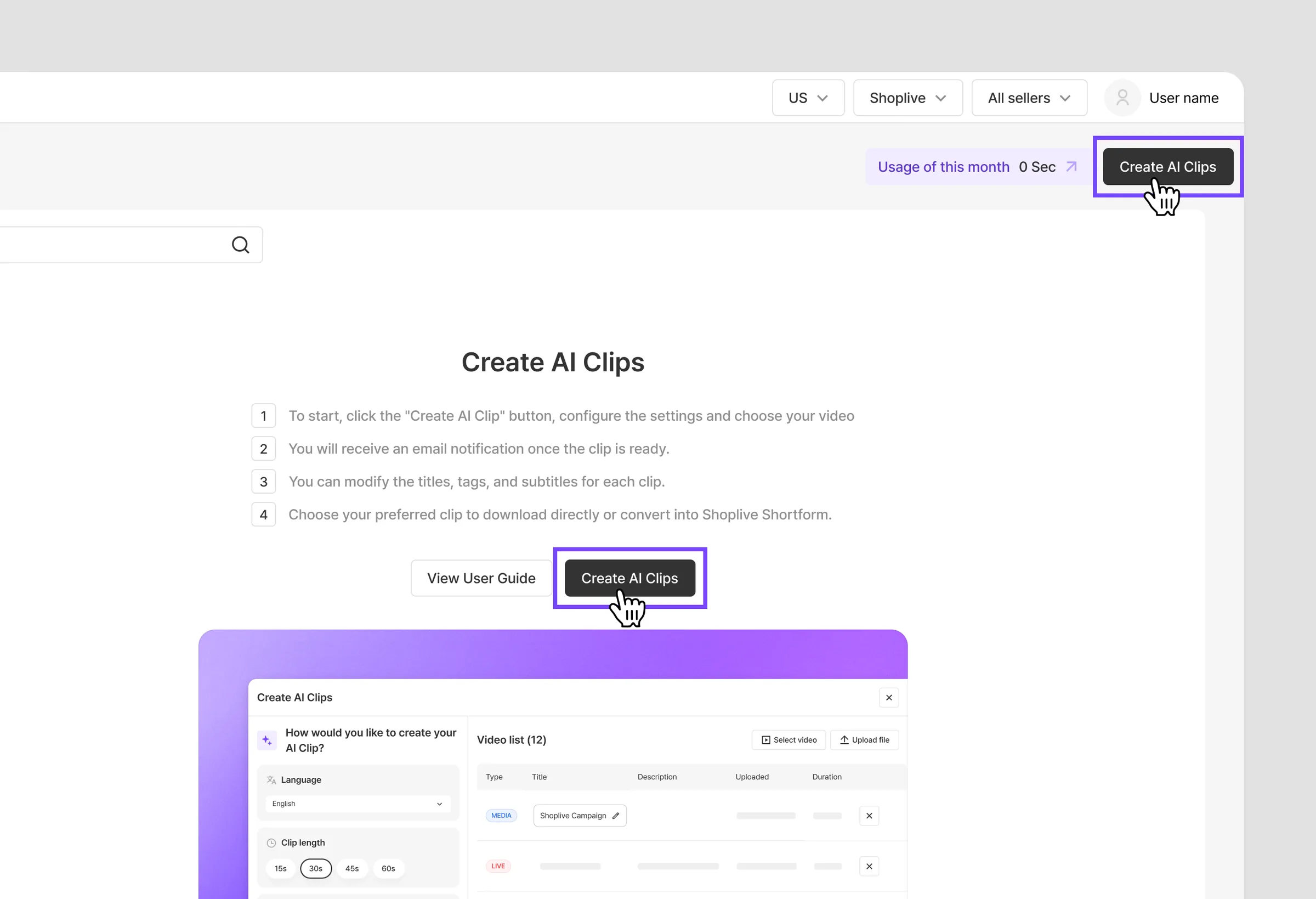
Click the Make AI Clip button.
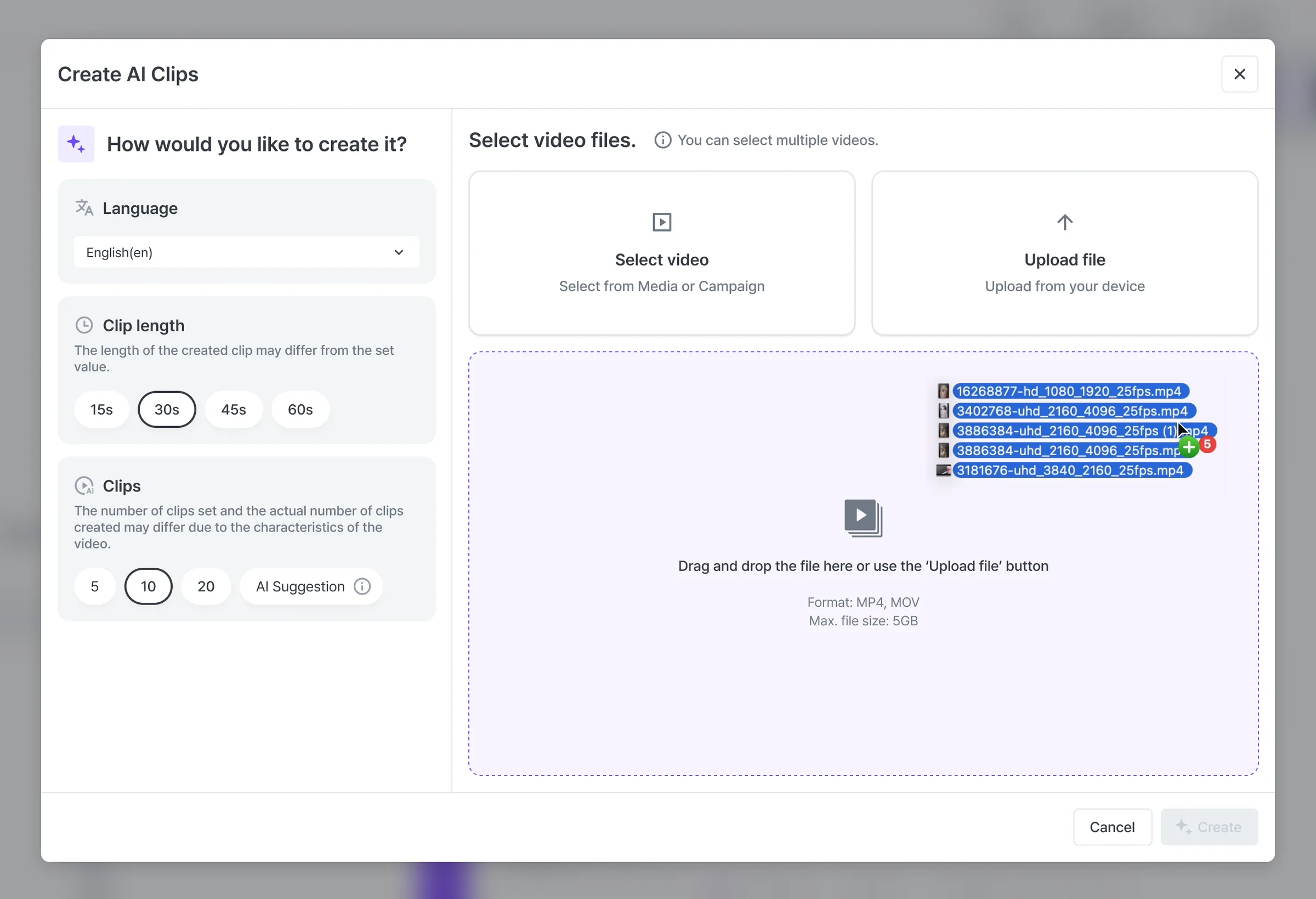
Select the source video for the AI Clip.
Click the Select video button to choose a source video from your media or broadcast list.
You can select multiple videos and create them all at once.
To upload a file directly, click the Upload file button or drag and drop.
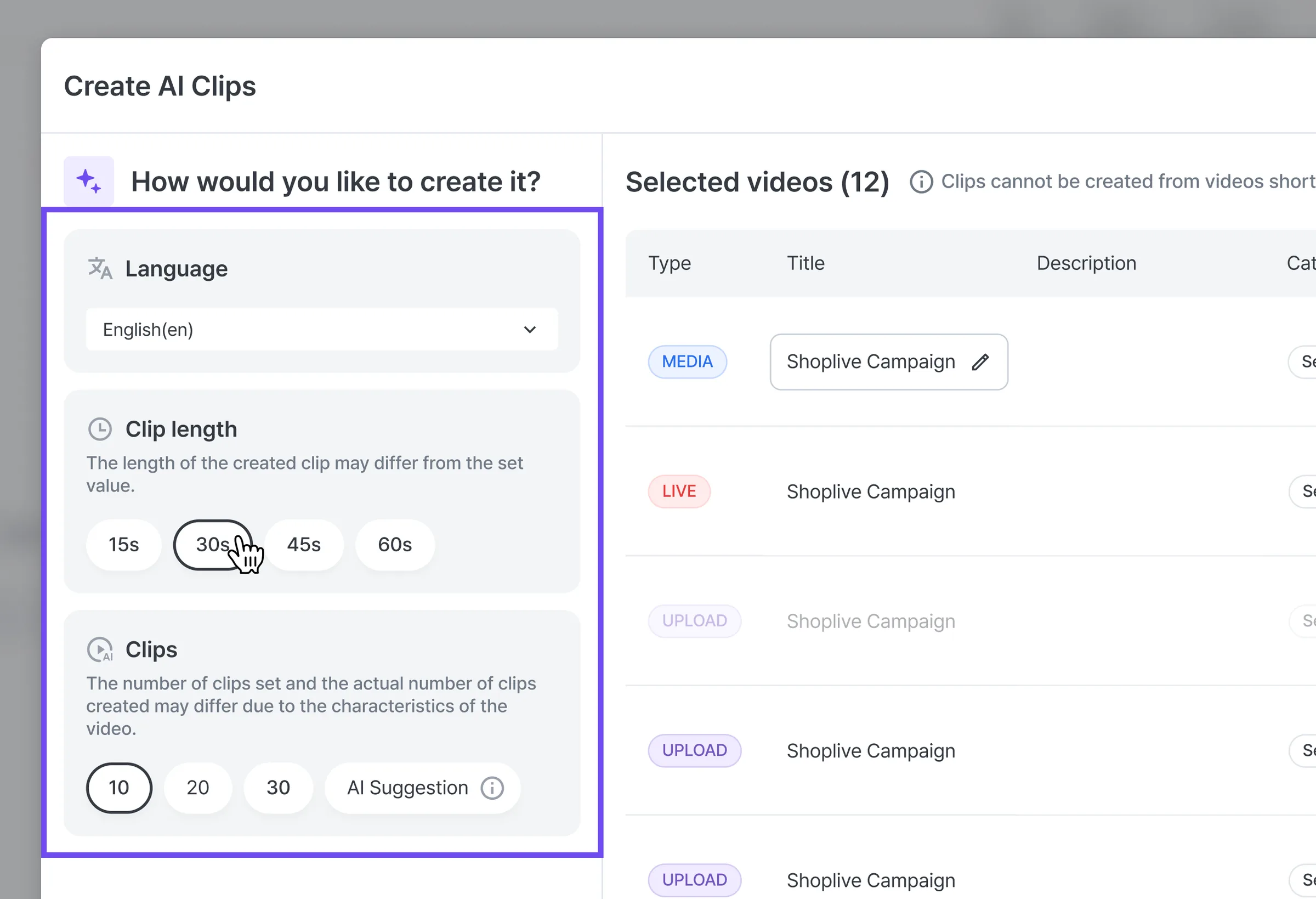
Videos shorter than 5 minutes can’t be made into AI Clips and are marked Not available in the list.
Specify the settings for the AI Clips.
Language: set it to the language used in the source video. This improves the accuracy of automatic subtitles generated from speech recognition. Many languages are supported besides Korean, English and Japanese.
Clip length: choose 15, 30, 45 or 60 seconds.
Number of clips: choose 10, 20, 30 or AI recommended. Custom input isn’t supported.
10 / 20 / 30: AI recommends the chosen number of optimal segments, in order of accuracy.
AI recommended: AI analyzes the video and automatically creates the optimal number of clips.
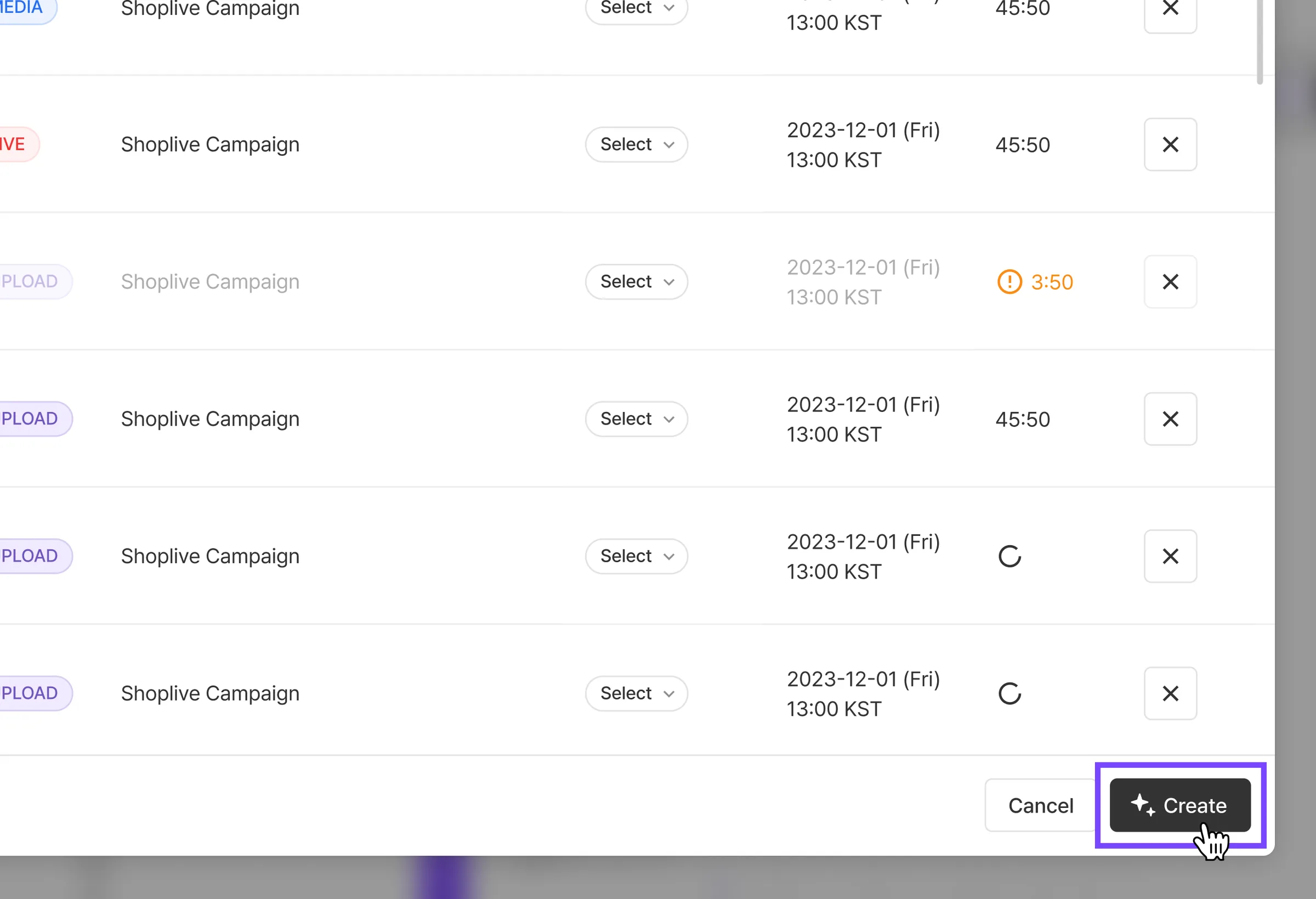
Click the Create button to create AI Clips.
When you click Create, a confirmation asks “Create AI Clips with these settings?”
Creation time depends on the length of the source video. When it’s done, a notification email is sent to your registered address.
You can check creation progress on the list screen.
The number of clips actually created may differ from the number you set, depending on the video.
If an error occurs during creation, contact ask@shoplive.cloud.
You can freely do other work while AI Clips are being created.
AI Clip list
The list has All and Composited clips tabs, and shows a category column and this month’s usage.