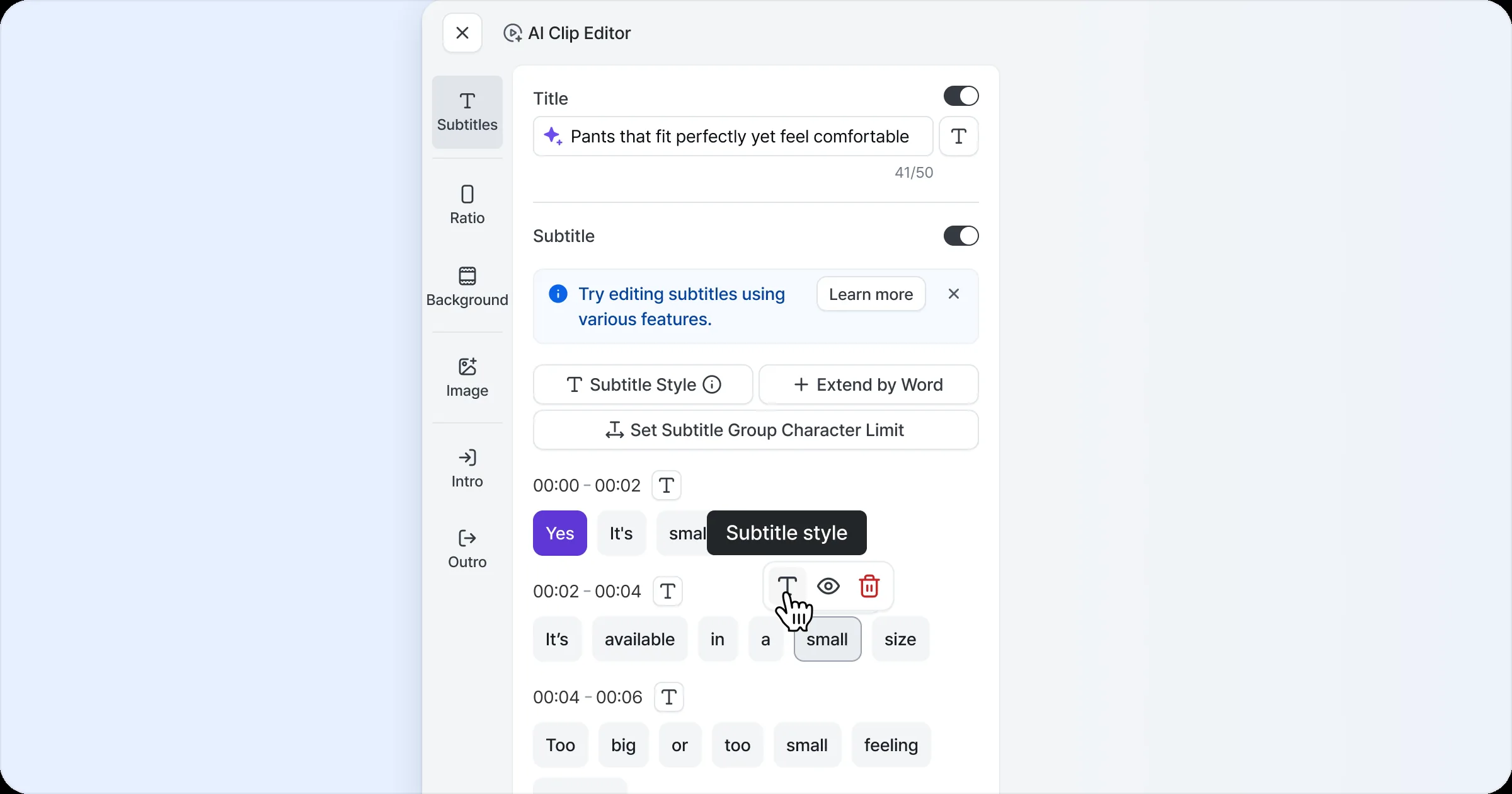
Set Subtitle Styles
Fine-tune subtitle styles such as font, color and position. Trendy, eye-catching subtitles make your video stand out.
Available options are color, size, weight, outline, shadow, blur, box, opacity and position. Outline and shadow range from 0–5, and position from 0–100%.
Set styles by subtitle unit
You can style subtitles individually at each level: clip title, all subtitles, subtitle groups and subtitle word blocks.
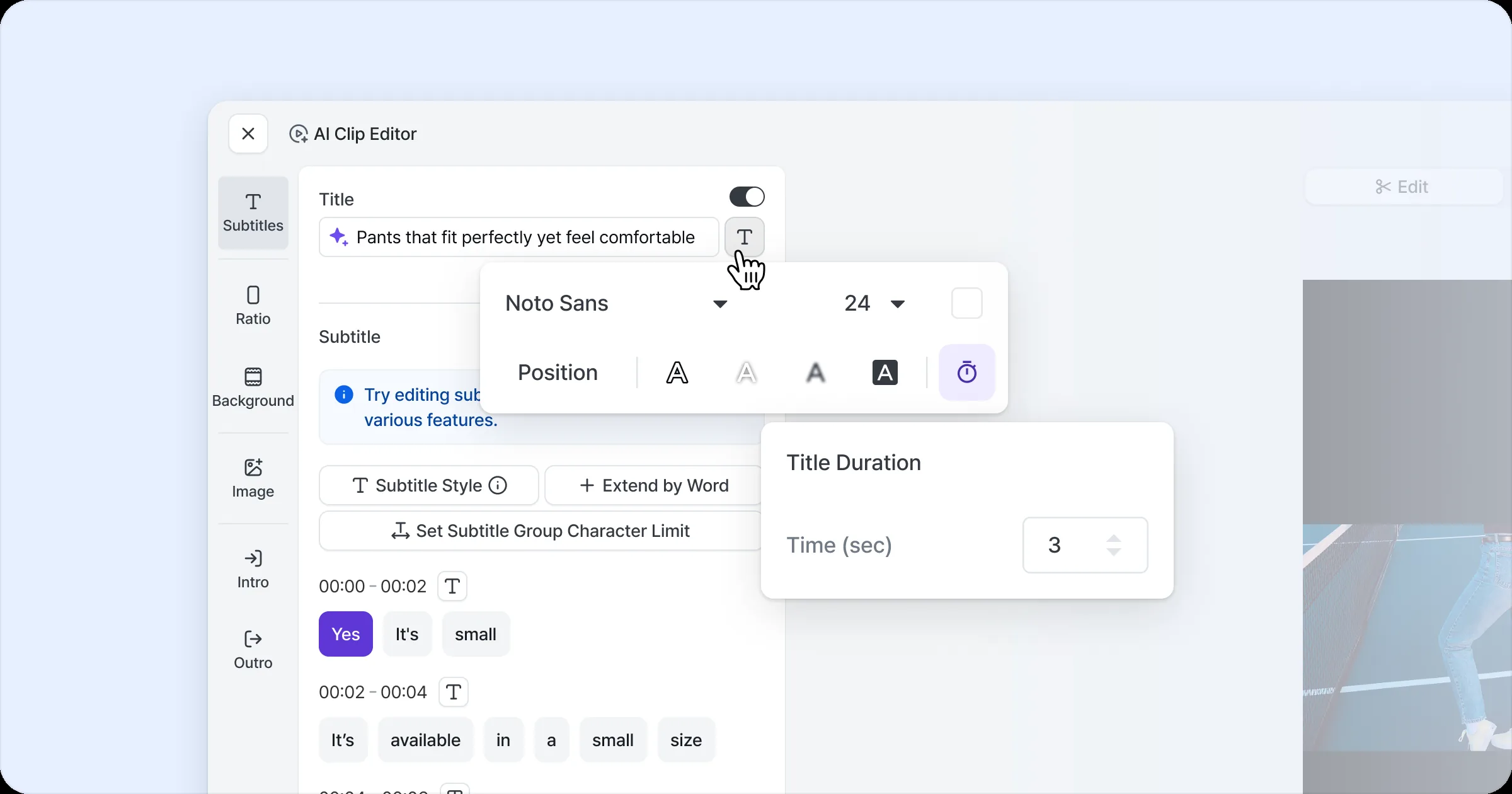
Clip title style
Click the style button to the right of the clip title to style the title separately. Use the display time option to show the title longer for an intro effect, and save styles you use often as the Default style.
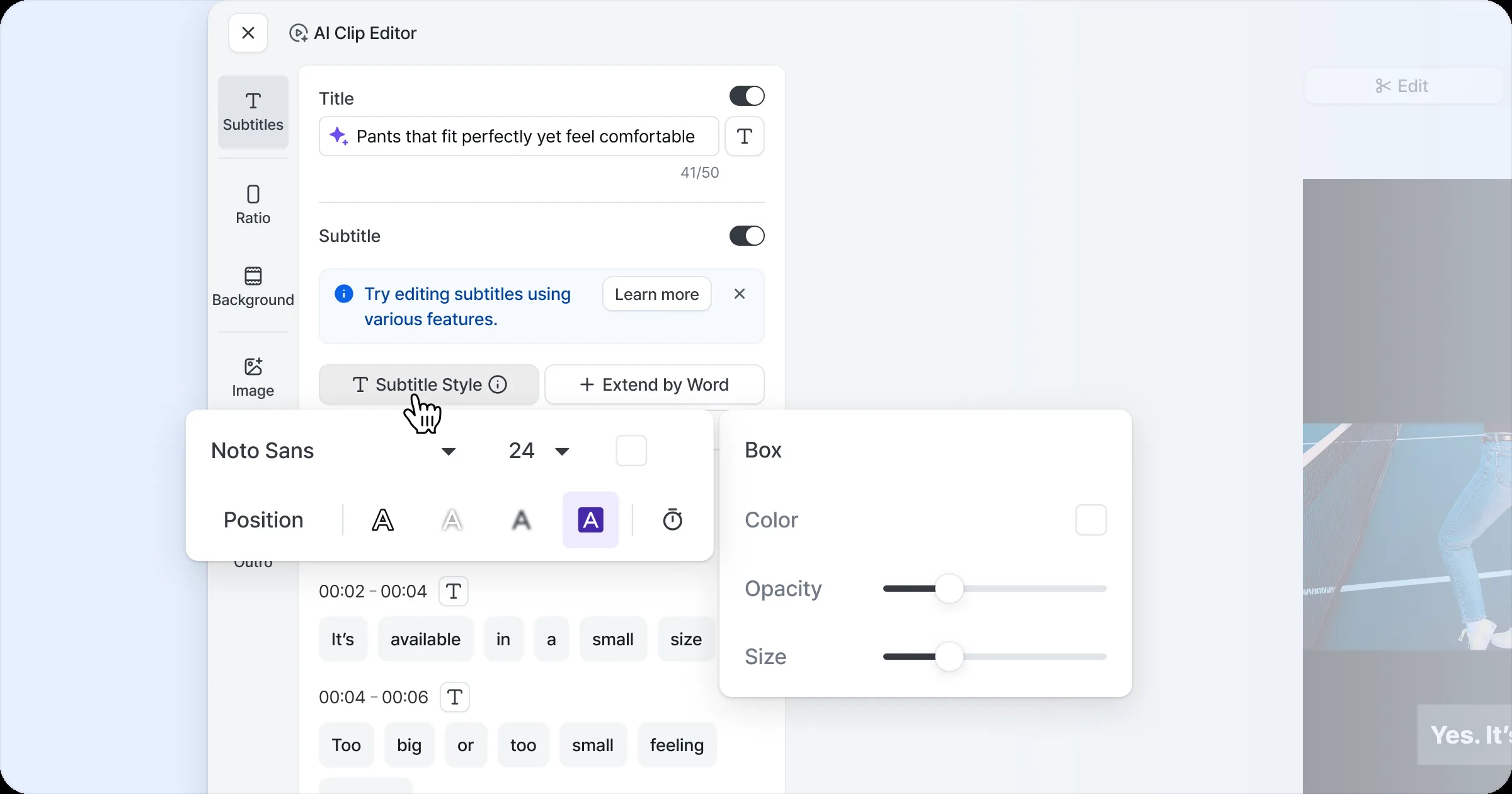
All-subtitles style
Click the all-subtitles style button at the top of the subtitle area to apply a common style to all subtitles at once. Set a subtitle background to improve visibility, and save styles you use often as the Default style.
Subtitle group and word block styles
Click the style button next to a subtitle group’s timecode to apply a style to that group. You can also select subtitle word blocks to style them word by word. This is useful for highlighting specific segments or words in the video.