Create a Clip Remix
With clip remix, you can pick just the clips you want from the ones created and combine them into one short video. Combine the clips you need to build content with a new structure and convey the video’s message or story more effectively.
<Billing for remix clips>
Creating a remix clip counts toward your monthly AI Clip usage, and additional charges may apply if you exceed it. Please keep this in mind before using the feature.
1. Click the clip remix button
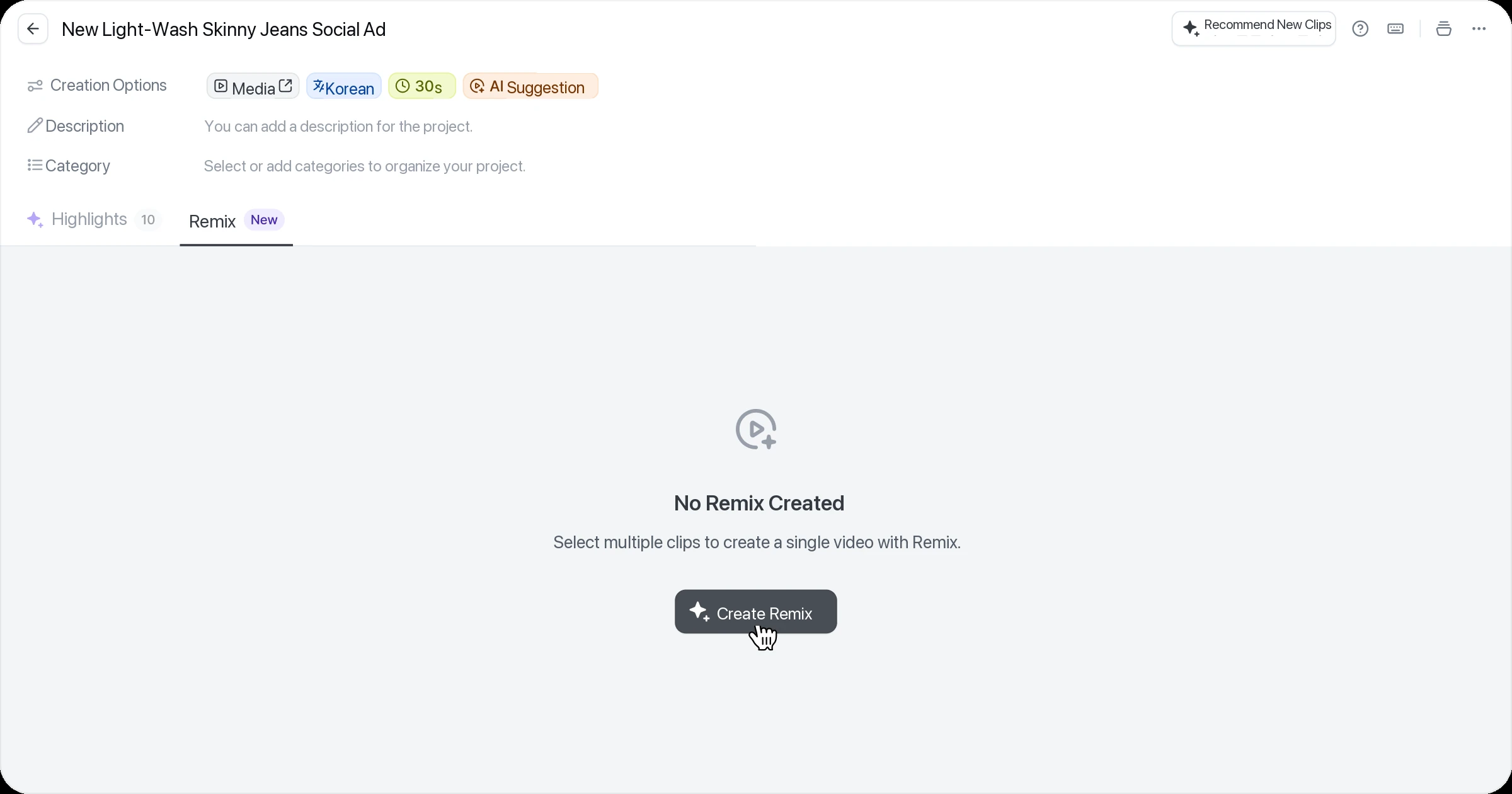
Clip remix is available on the Remix tab next to the Highlights area. Click the ‘Make remix’ button to choose clips and combine them into one video.
2. Select clips to remix
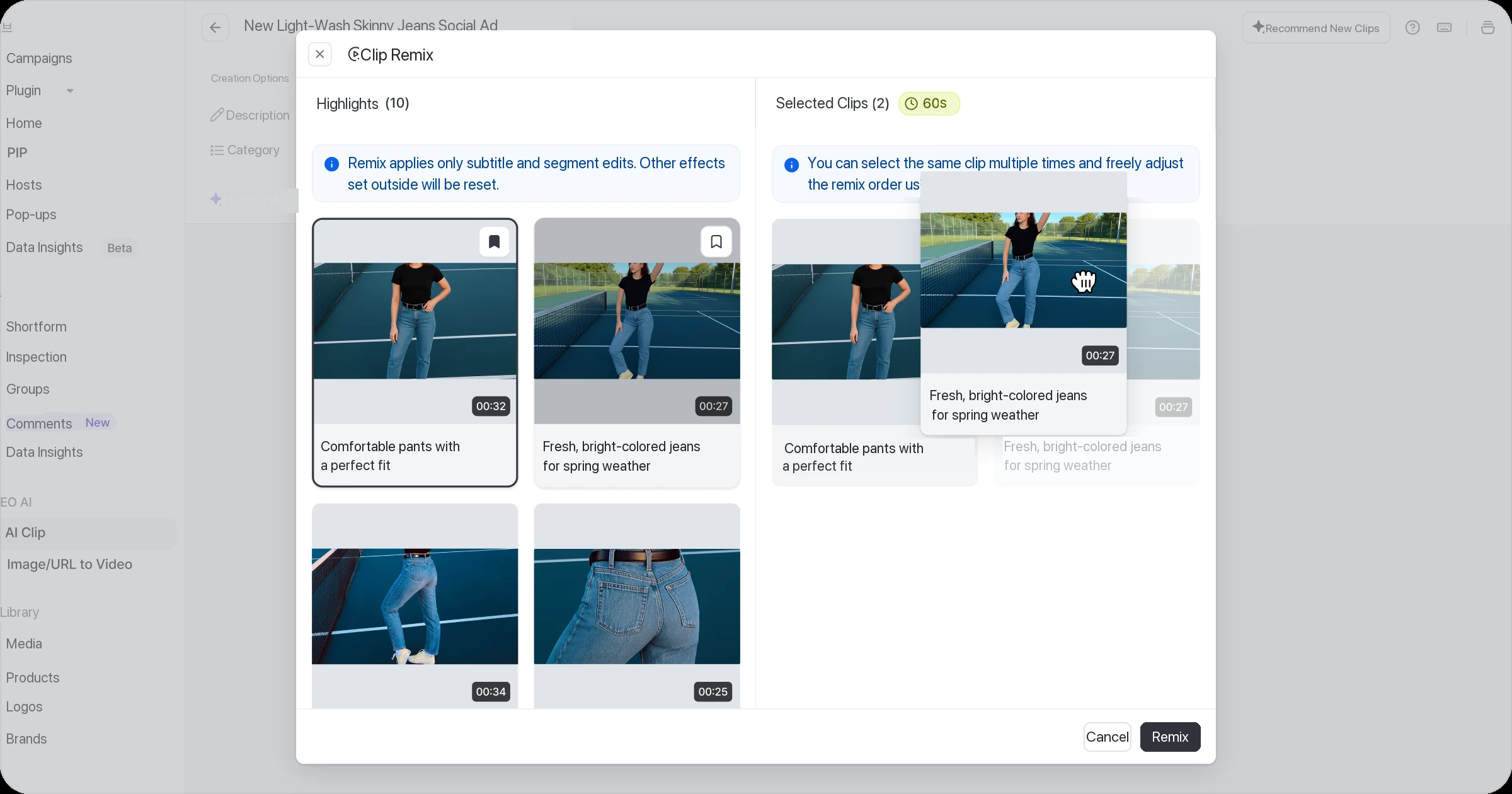
In the Highlights area you can select multiple clips for the remix, and the same clip can be selected more than once. Selected clips appear in the ‘Selected clips’ area on the right, and you can freely reorder them by drag and drop.
For clips included in a remix, subtitle edits and range edits are kept, while other edits such as intro/outro and inserted images are reset.
3. Create the remix
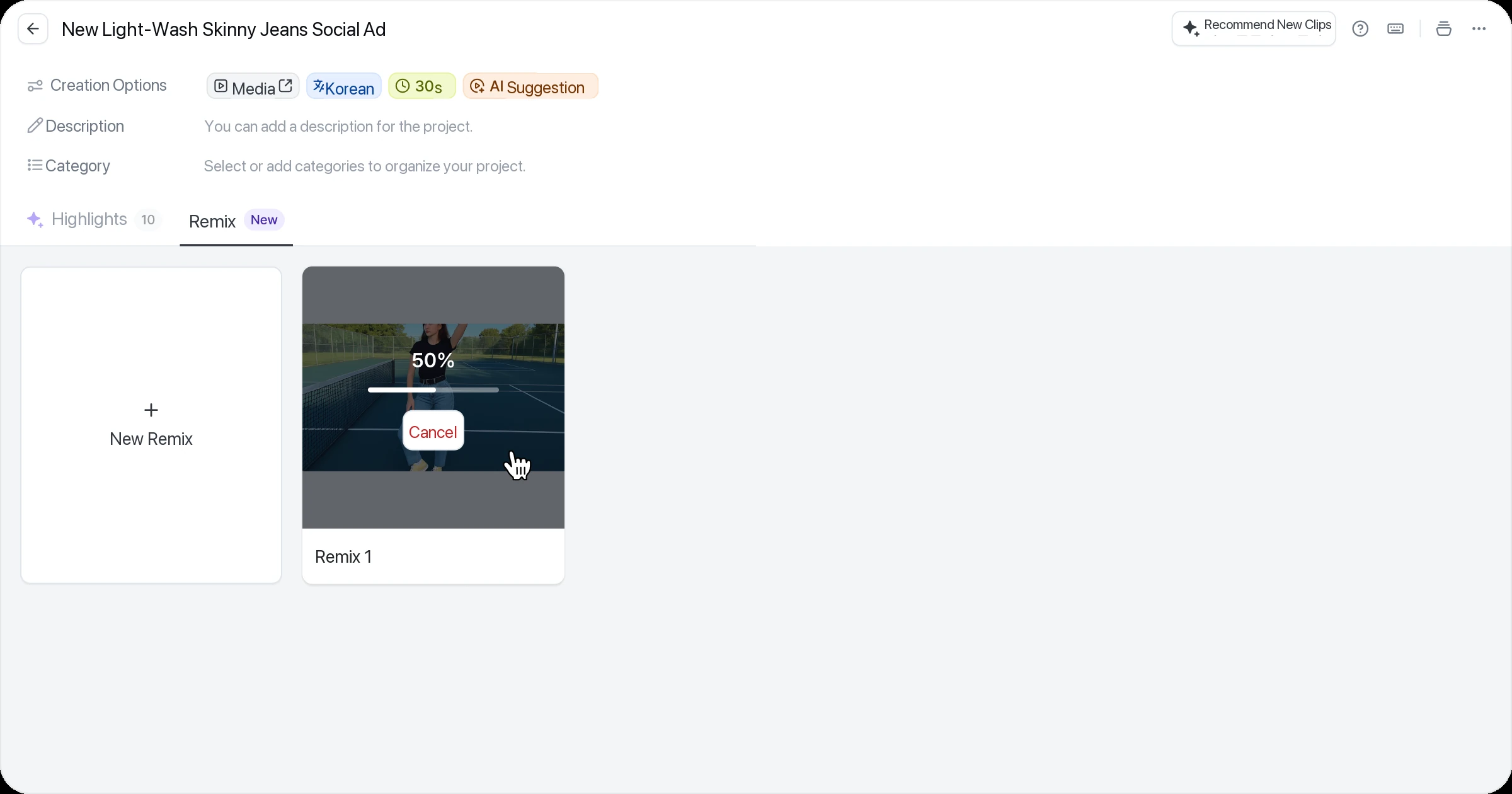
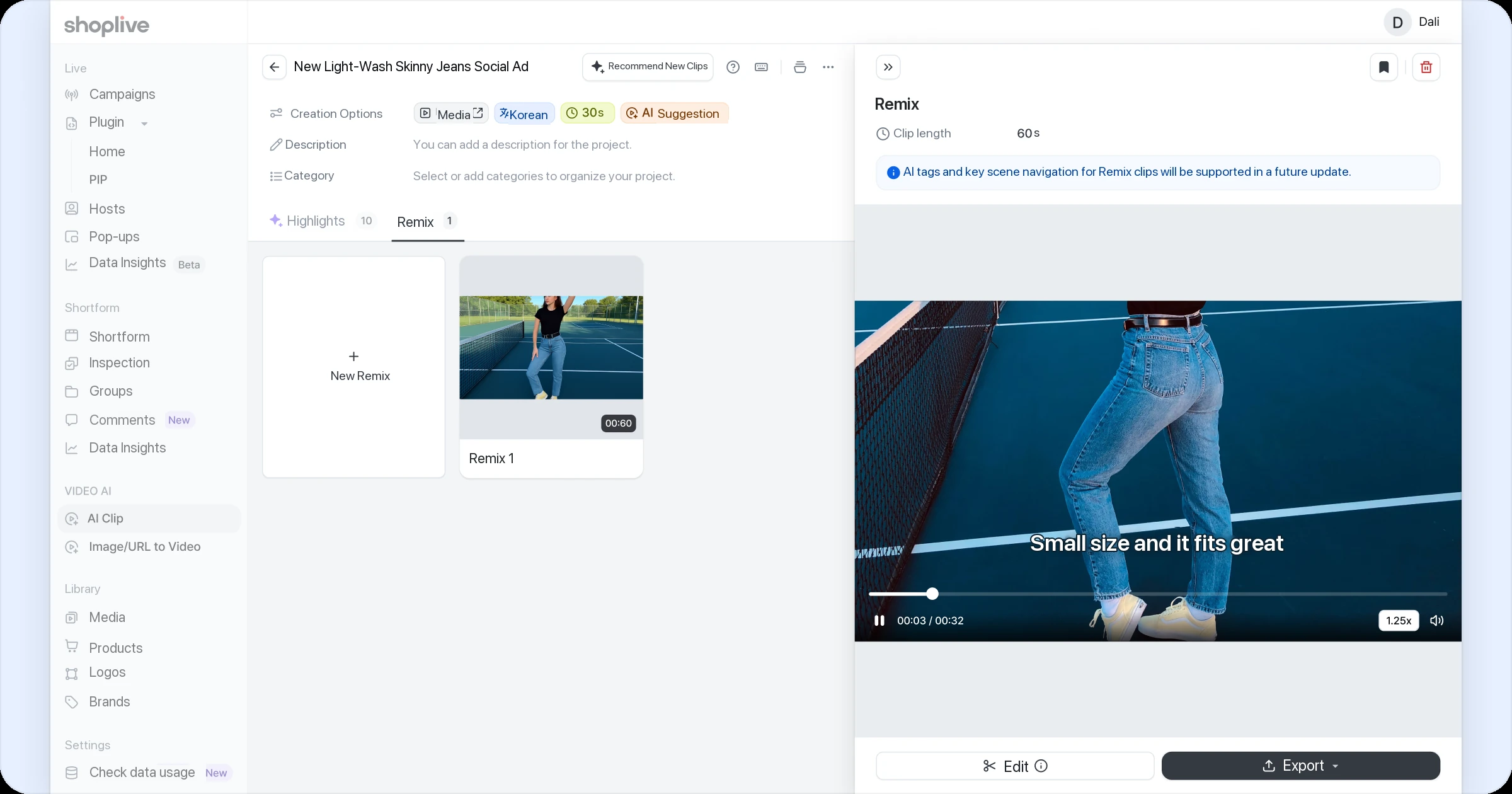
Click the ‘Create remix’ button to combine the selected clips into one remix video. You can follow creation progress in real time, and create more alongside other remix jobs.
Automatic subtitles and hashtags aren’t currently available for remix clips; support is planned in a future update.
The remix title can be up to 50 characters. Subtitle editing isn’t supported for remixes.
If you leave without saving, a confirmation says there are unsaved changes.