Edit Subtitles
AI-based speech-to-text (STT) analyzes the video’s audio and automatically generates highly accurate subtitles. By editing subtitle words and subtitle groups, you can change the subtitle content or edit video segments.
What is a subtitle word?
A subtitle word is the basic unit that makes up an individual word or short phrase within a subtitle group. Each subtitle word appears as a block that you can select to edit or delete, or add new.
What is a subtitle group?
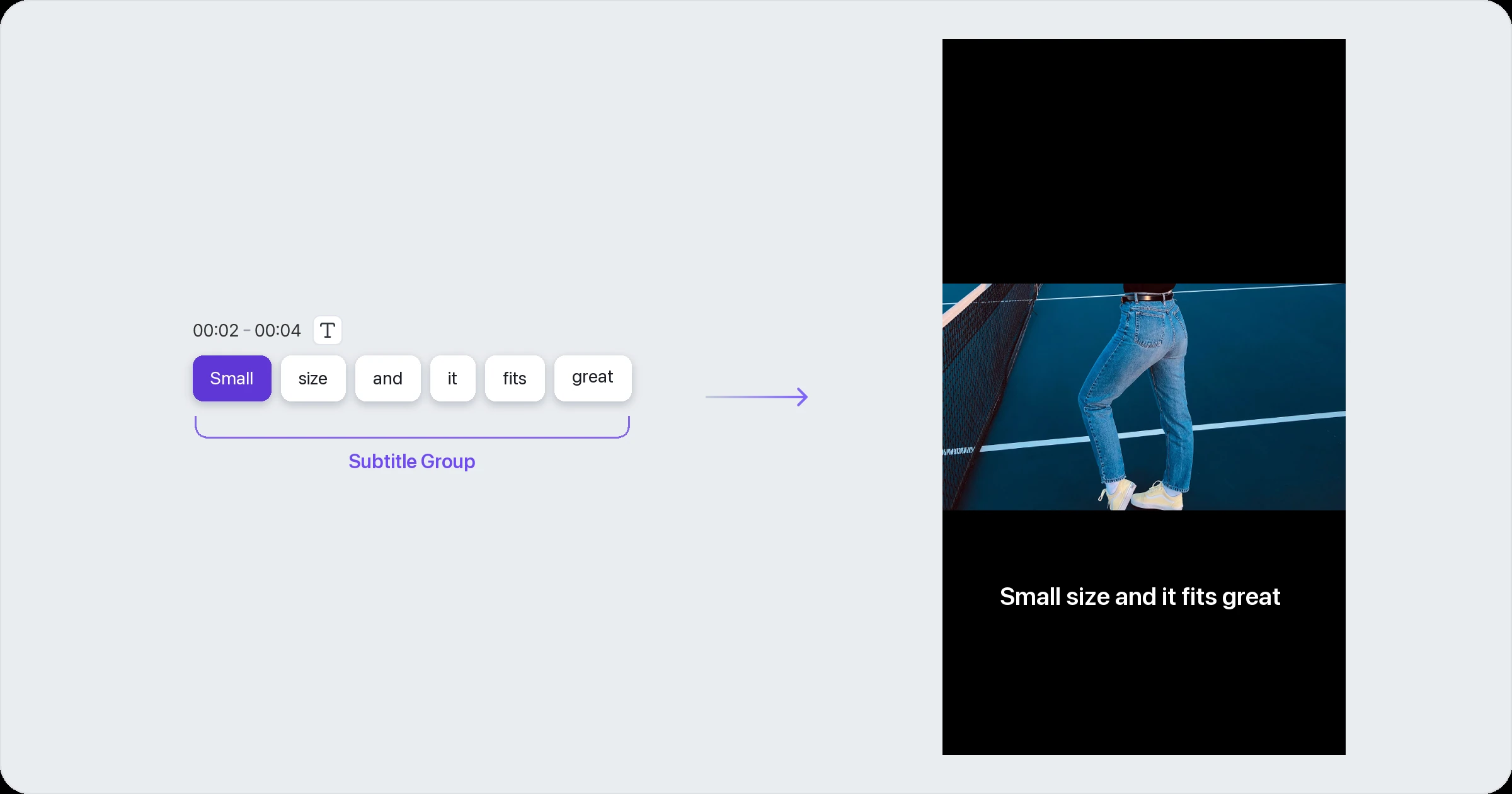
A subtitle group is a unit of subtitles created to match a specific segment (timecode) of the video. One subtitle group contains all the subtitle text shown in that segment, and you can edit, delete or add subtitles by group.
Edit subtitle words
Edit subtitle text
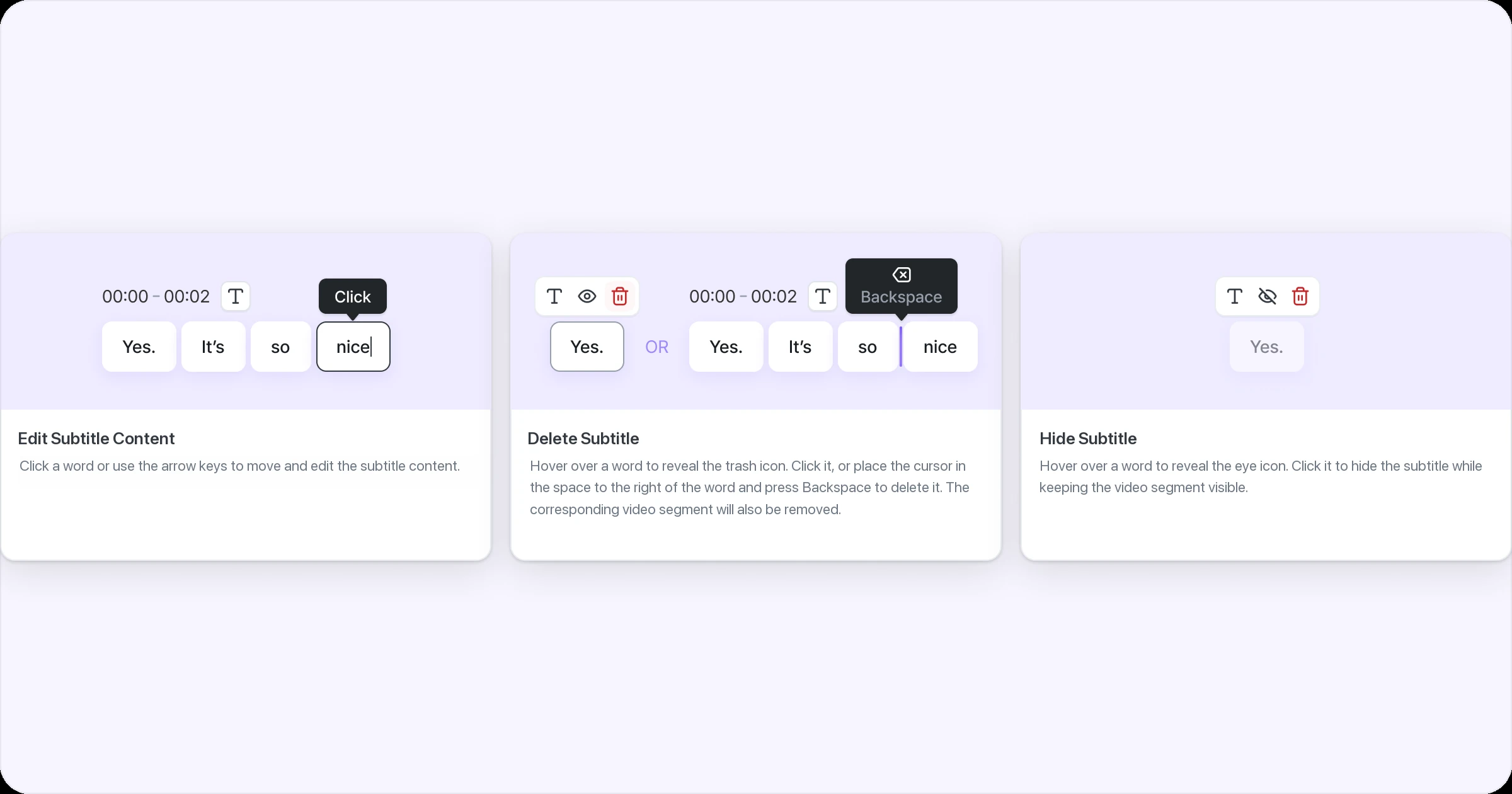
Click the subtitle word block to edit and a cursor appears in it. After editing, click outside the block and the change is applied automatically.
Delete subtitles
Click a subtitle word block and press the trash icon, or place the cursor between blocks and press Backspace. Deleting a subtitle word block deletes not only that subtitle but also that segment of the video.
If you try to delete the last segment, a “This word can’t be deleted” notice appears.
Undo/Redo is supported for all edits in the Subtitles tab.
Hide subtitles
You can hide just the subtitle from the screen without deleting the video. Click a subtitle word block and press the Hide button to hide that block. Hidden subtitle word blocks are shown as inactive so they’re easy to tell apart from other subtitles.
Edit subtitle groups
Set subtitle group character count
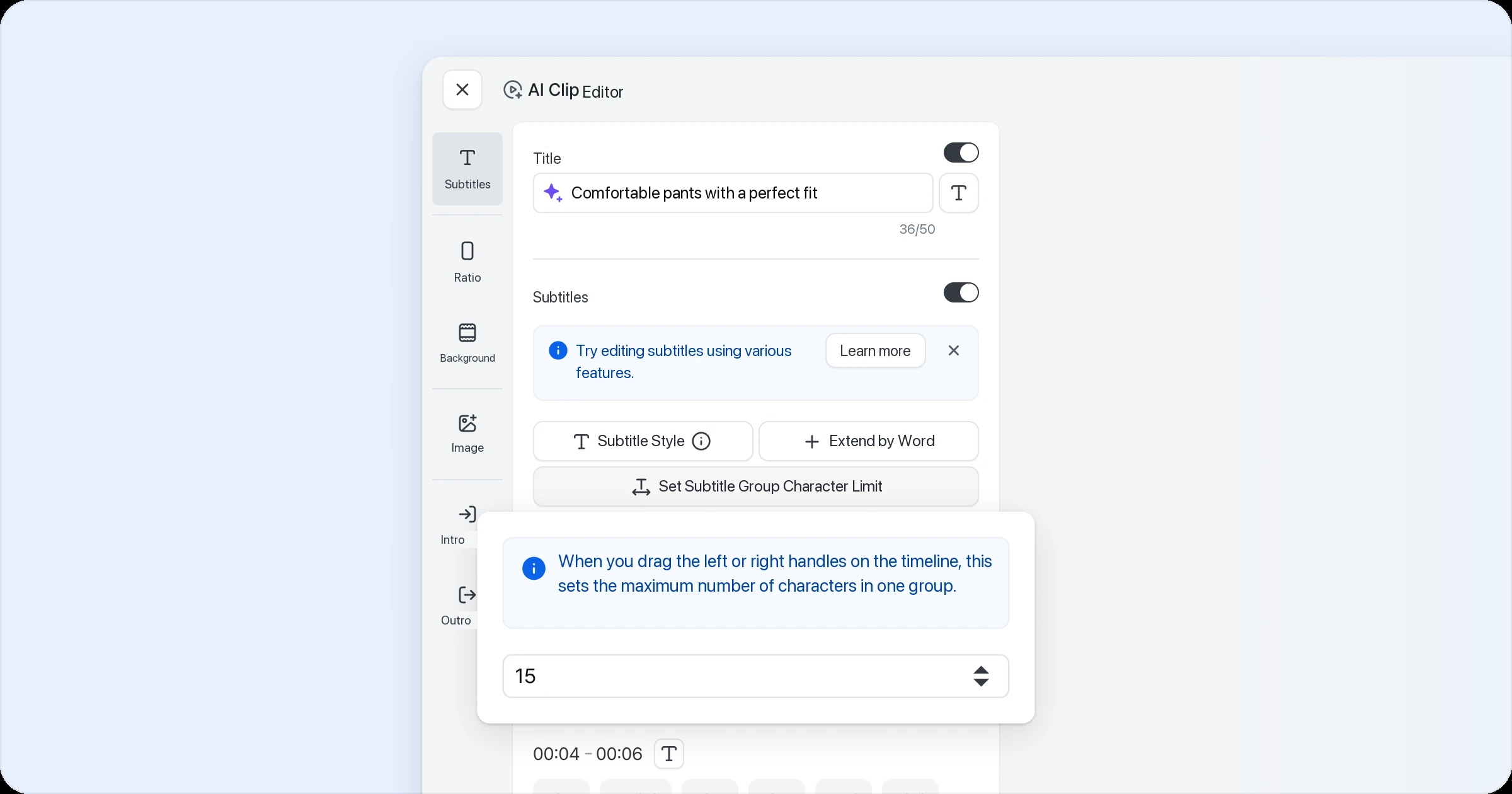
You can set the maximum number of characters shown in one subtitle group. When you edit video segments, AI automatically adds or removes word blocks for that segment and adjusts the subtitle groups. In doing so, AI keeps the subtitle’s meaning as much as possible and builds subtitle groups within the set character range.
Add line breaks within a subtitle group
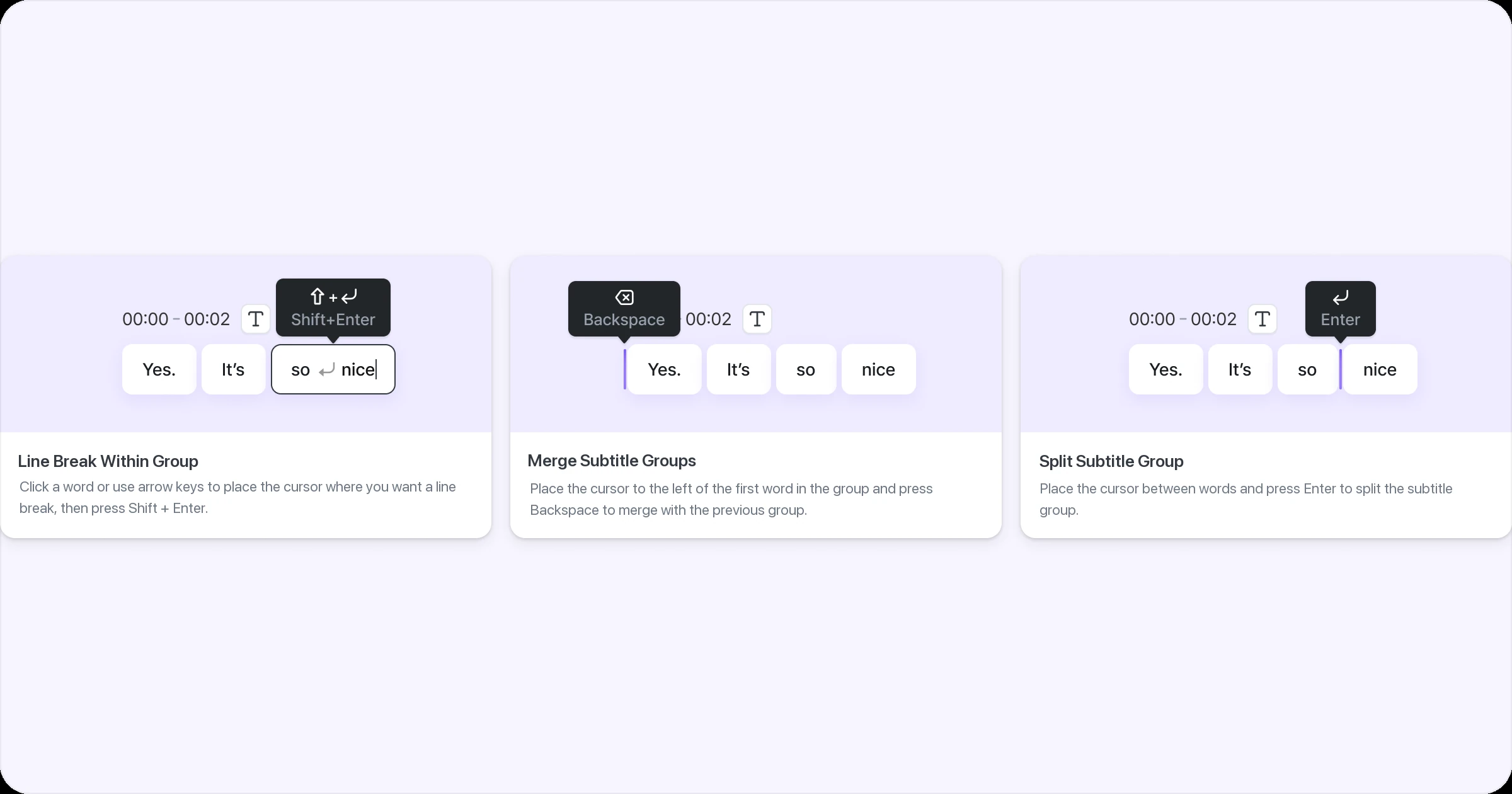
To improve readability, you can insert line breaks within a subtitle group. To add one, click the word block where you want it and press Shift + Enter. Blocks with a line break are marked separately.
Merge subtitle groups
Subtitle groups can be merged or split. To merge, place the cursor before the first word of the group to merge and press Backspace. The preceding subtitle group is merged with the current one into a single subtitle group.
Split a subtitle group
To split a subtitle group, place the cursor between word blocks where you want to split and press Enter. Subtitles after that point become a new subtitle group.