Create Image to Video
This feature is currently offered as a beta service.
If you’d like to use it, contact your Shoplive representative.
Upload images to easily produce shortform videos. AI analyzes the images and automatically applies the best image order and animation effects to deliver a polished video. Even without video footage, you can start making videos with just images.
1. Make a video by uploading images
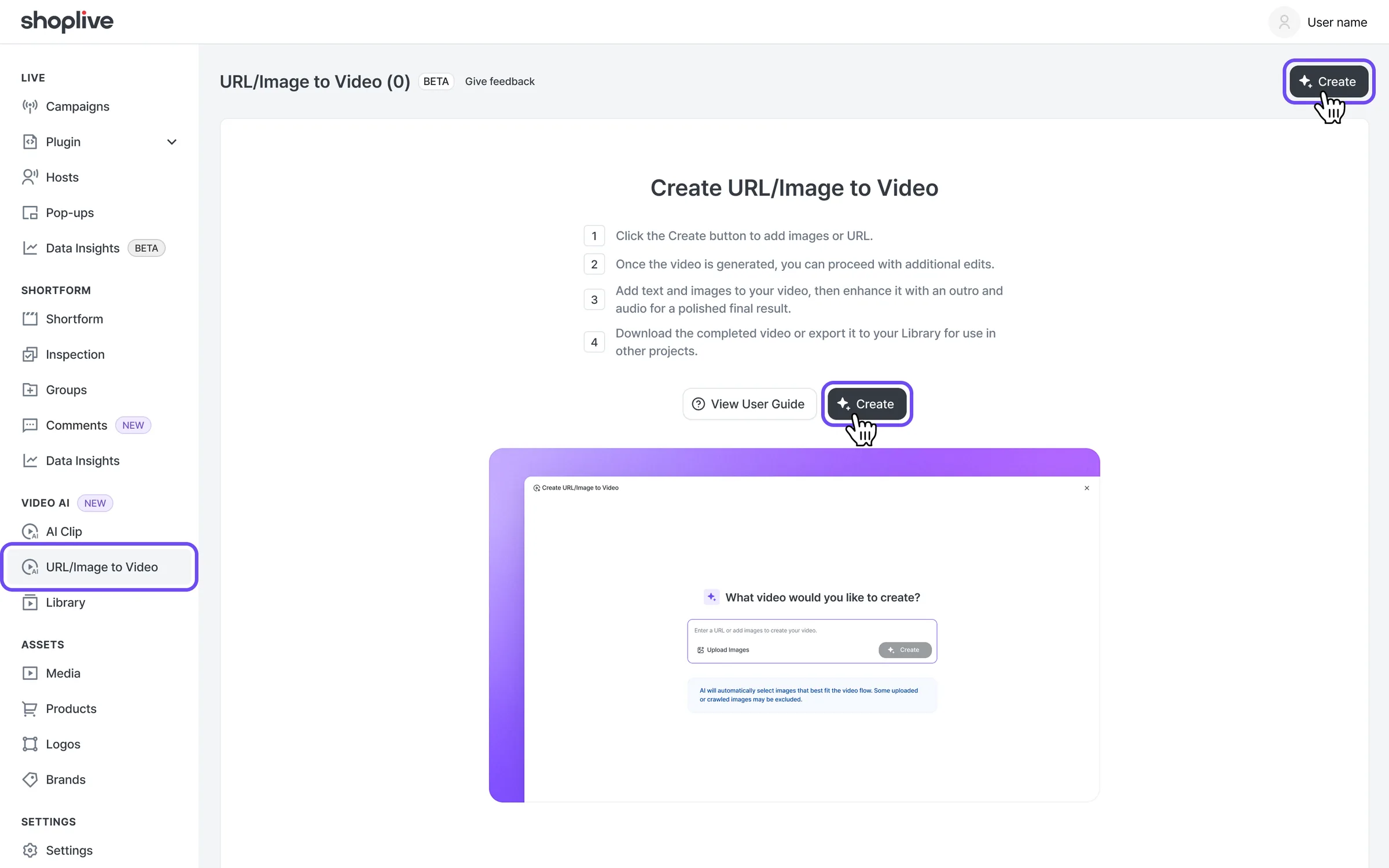
1Click URL/Image to Video in Video AI, then click the Create button to start.
In a single composer, you can enter a URL or add images to make a video. The composer says “Enter a URL or add images to make a video.” You can add at least 2 and up to 20 images, and a review popup appears if any images can’t be uploaded.
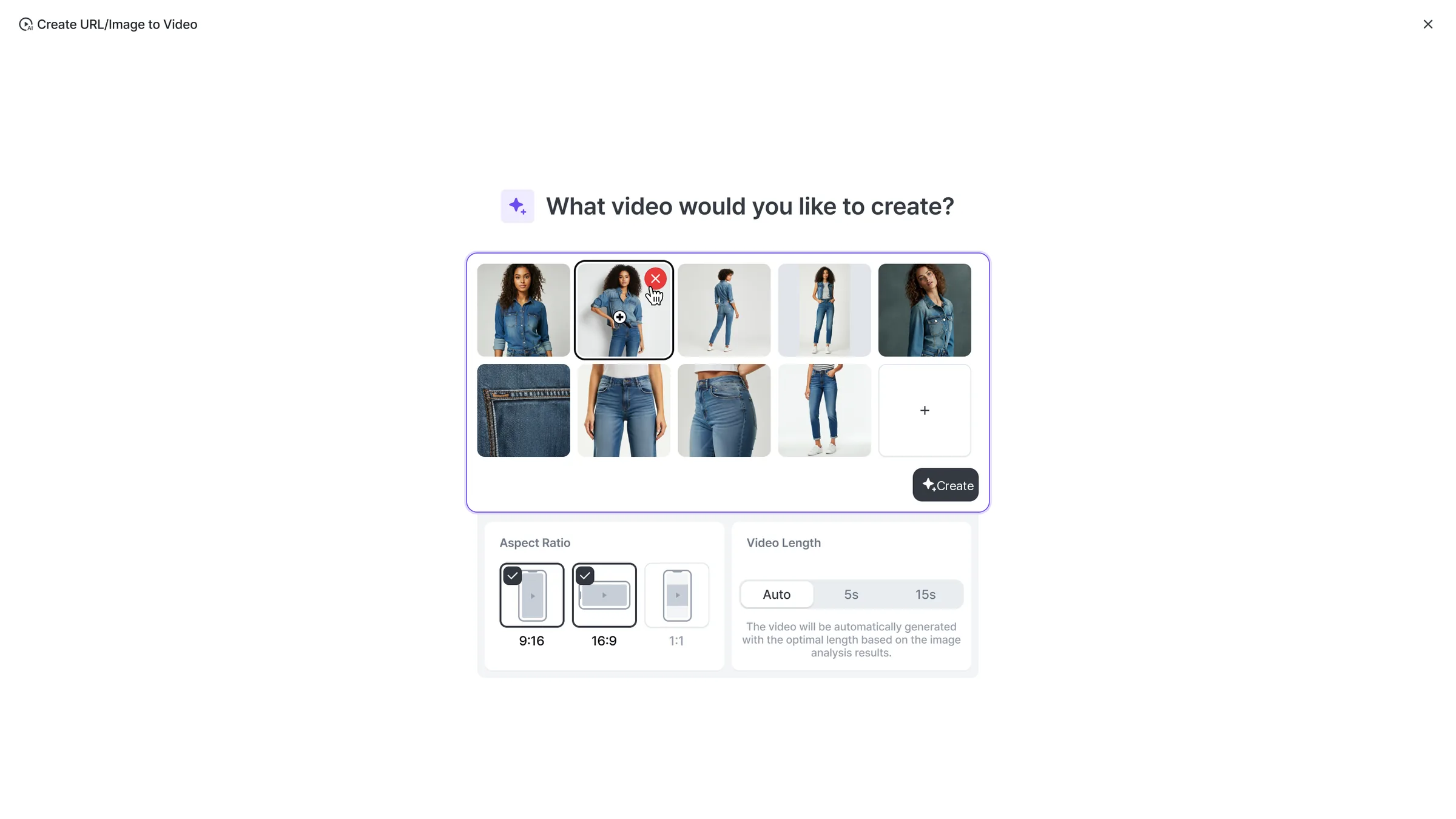
2Click the image upload button and upload at least 2 and up to 20 images to turn into a video. After uploading, choose the video ratio and video length to create.
1) Video ratio: choose the ratio of the video from the following 3 options.
9:16 (1080×1920)
16:9 (1920×1080)
1:1 (1080×1080)
The video is produced at a quality matching the chosen ratio. If uploaded or crawled images are lower quality than the video, quality is automatically adjusted through AI upscaling. You can select multiple video ratios; if you do, the video for each ratio appears on the list screen.
2) Video length: choose the length of the video from the following 3 options.
AI recommended
5 seconds
15 seconds
Choose AI recommended and AI sets the optimal video length automatically based on its image analysis. If there aren’t enough images for the chosen length, some scenes may repeat or video quality may drop.
Can I change the image order too?
AI analyzes the images and arranges them automatically in the order best suited to the video, so changing the order of uploaded images isn’t supported.
3Click the Create button to start creating the video.
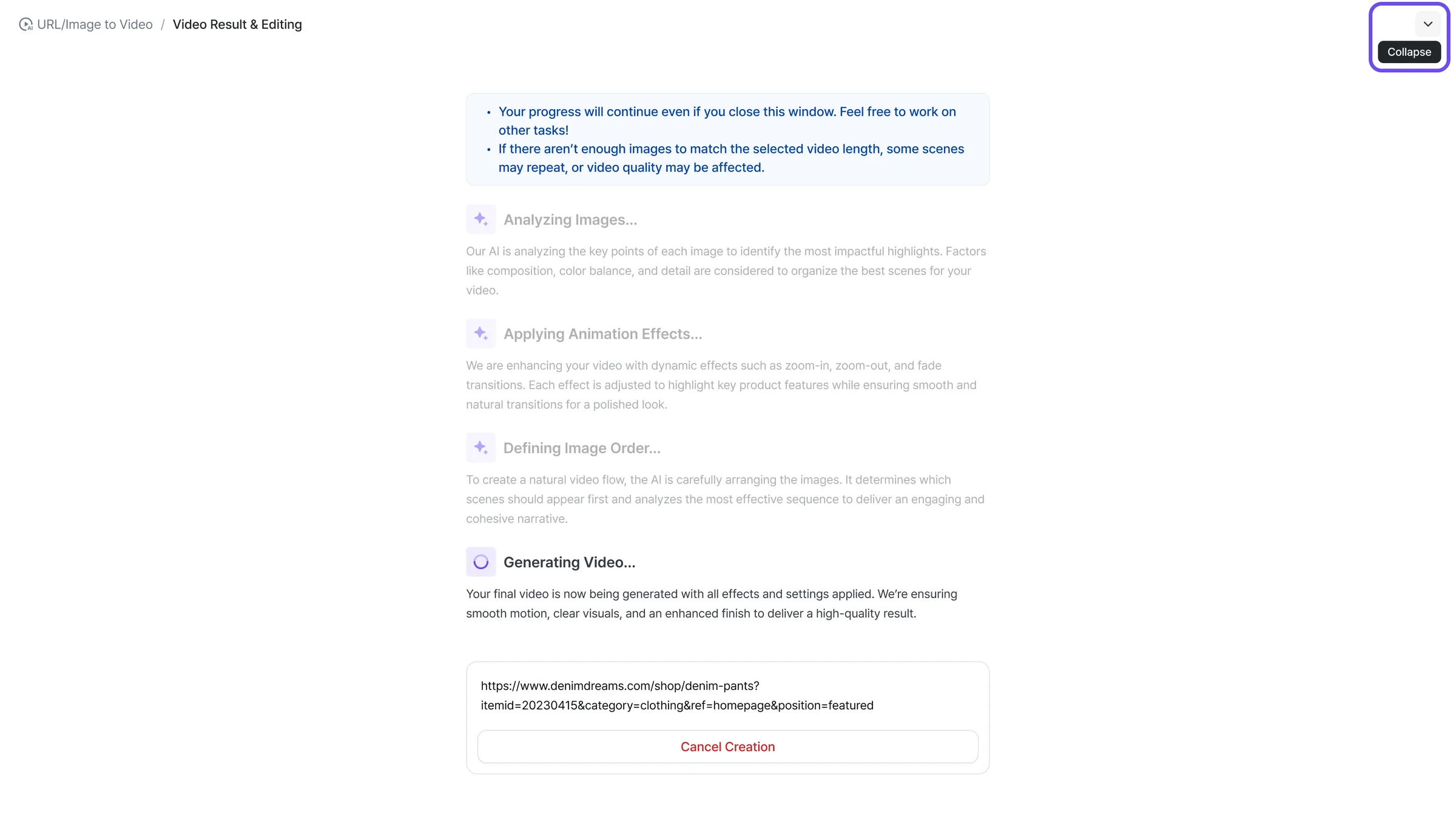
While the video is being created, click the collapse button at the top right to close the window and do other work; check progress on the URL/Image to Video list screen.
Clicking the Cancel creation button shows a confirmation; canceling cancels all work so far and returns to the list screen.
A processing screen with 5 stages is shown while creation is in progress.
2. Check the created Image to Video and add options
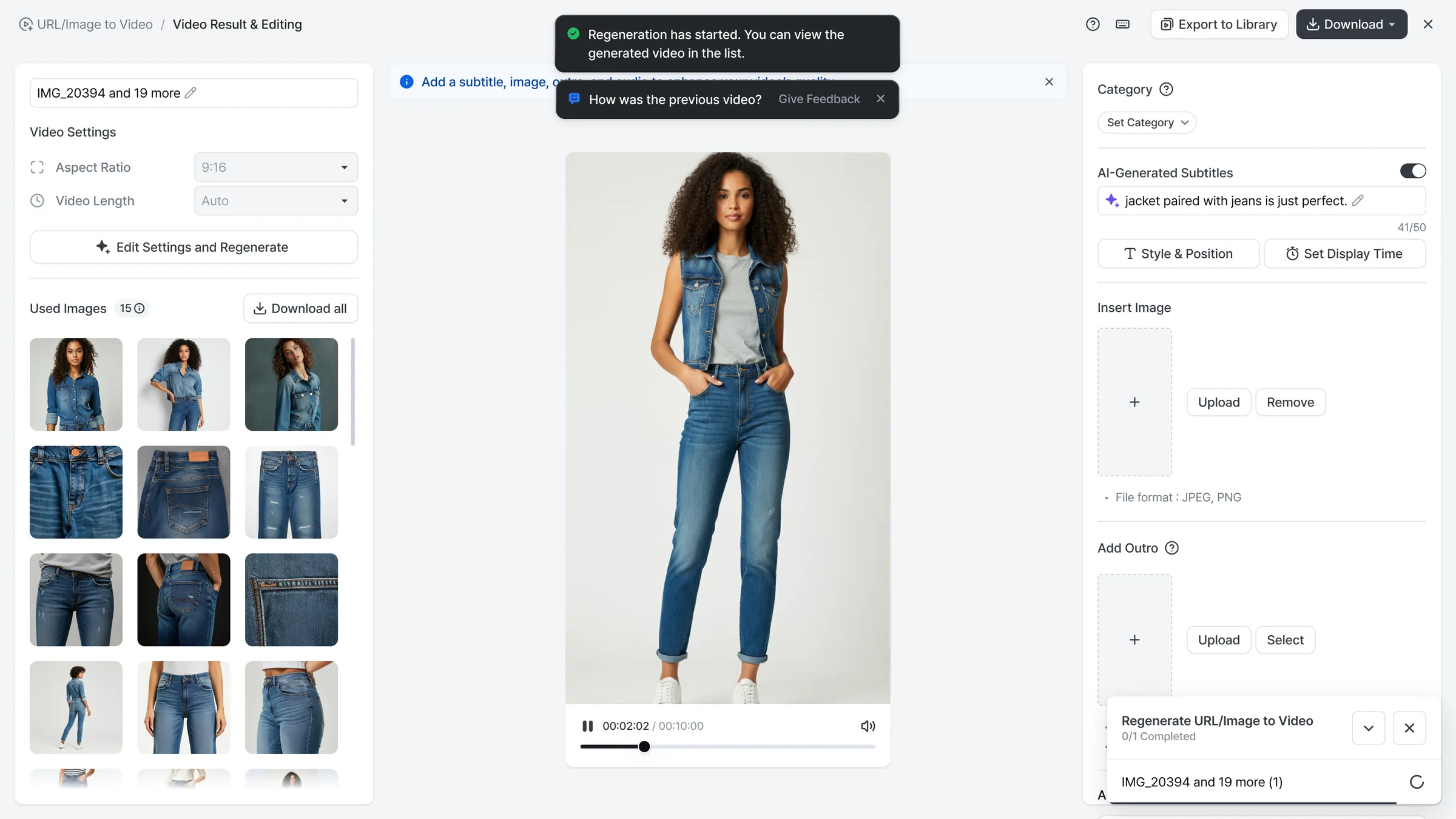
Select a created Image to Video in the list to check it in the preview screen. Add various editing options to change it to the style you want; edits are saved automatically.
On the results screen you can download the edited or original video, use Download all, or export to the library.
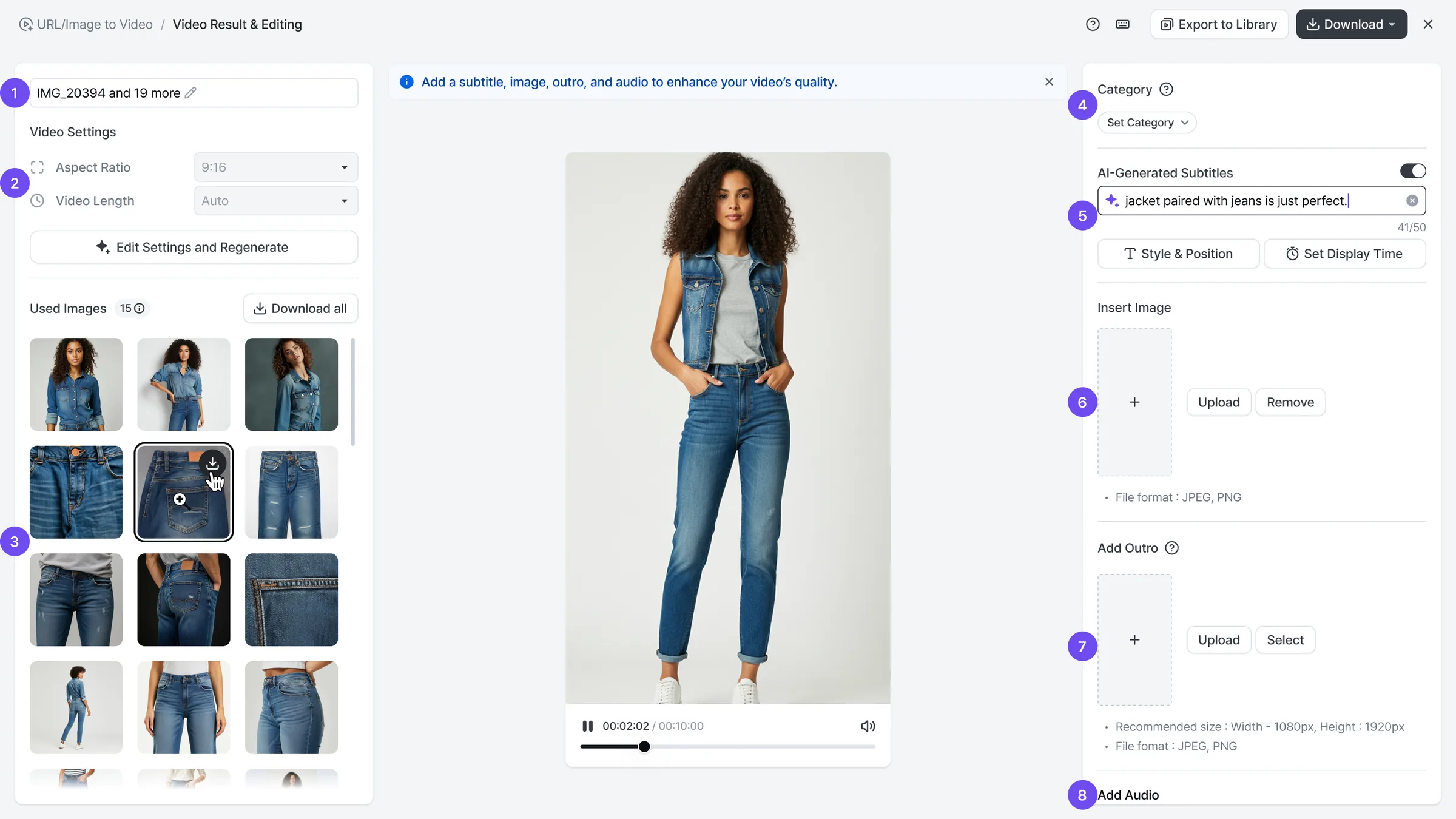
1) Title: a title is shown automatically based on the uploaded images. If image information can’t be recognized, the video’s creation time is shown as the title. The title can be up to 50 characters.
2) Video settings: shows the video ratio and length set when creating the video. If you selected multiple ratios, only one main ratio is shown on the results and edit screens. To check or edit the video for another ratio you selected, click that video in the list.
3) Images used: shows the number of images actually used in the video. AI automatically picks images that fit the video’s flow, so some crawled images may be left out.
4) Category: set a category to manage and organize videos more easily.
5) AI-generated subtitle: AI analyzes the video and automatically generates a one-line description. Use it as is or edit it as needed. Use subtitle style settings to give it a design that suits the video, and display time settings to choose the segment where it’s most effective.
6) Insert image: insert any image over the video. Click the Upload button to upload an image yourself, or the Select button to bring one from the library. Insert logos, intro images and more for a more polished video.
7) Add outro: add an outro image at the end of the created video. The outro image fills the video frame and plays for 3 seconds at the end of the video. Click the Upload button to upload an image yourself, or the Select button to bring an outro image from the library. Give your video a more memorable, clean finish.
8) Select audio: add audio to make the video more lively. You can use audio files uploaded to the library. Add music, sound effects and more to enhance the video’s mood and immersion.
3. Change settings and recreate the video
If you want to change only the video ratio, video length or images used of an existing video, you can change the settings and recreate it. With Change settings and recreate, you can quickly fix just what you need without redoing everything from scratch.
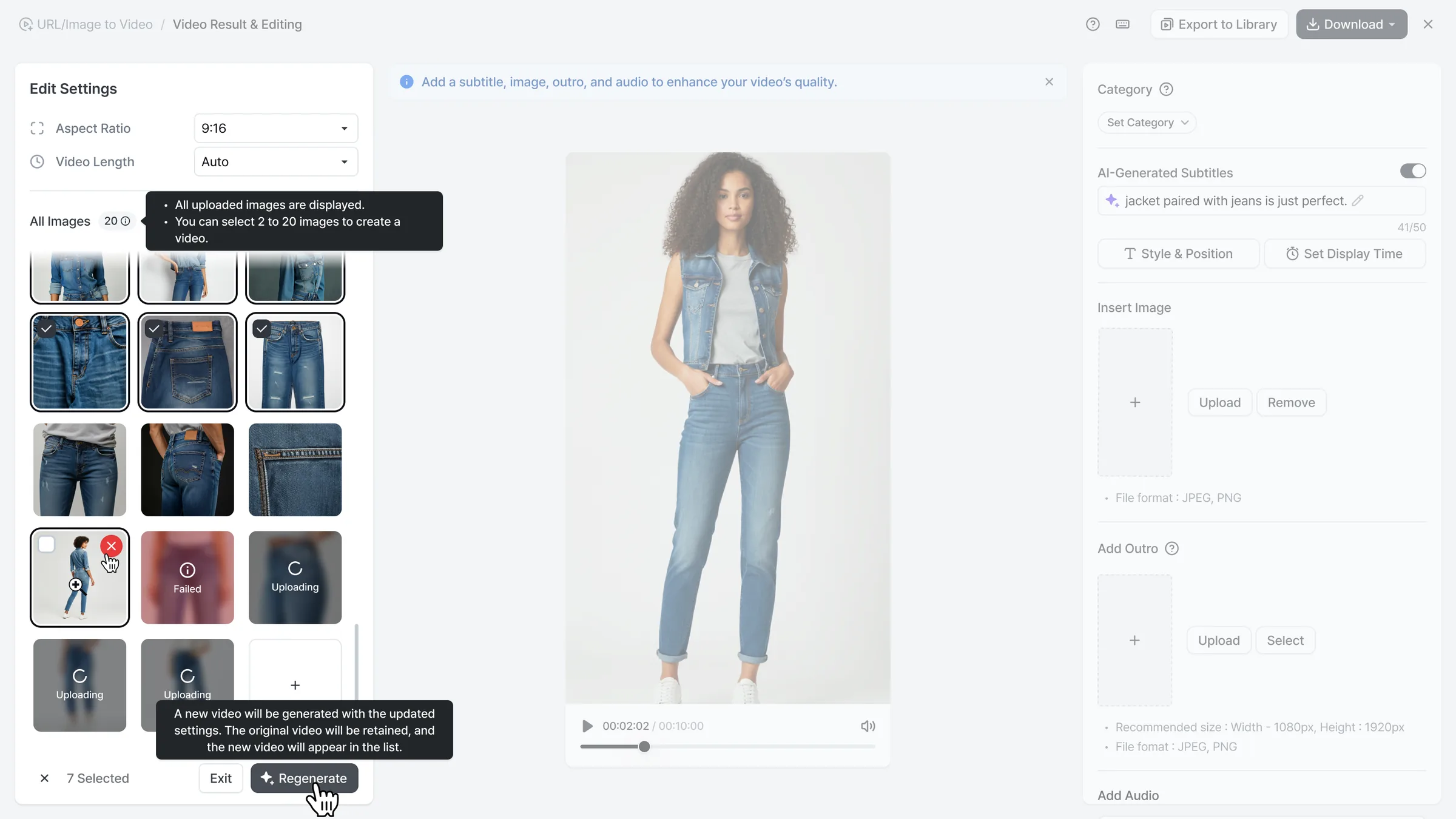
1) All images
Shows all uploaded images, whether or not they’re used in the video.
To use more images in the video, click the upload button to add them to the list.
You can add up to 20 images to the list.
To remove an image from the list, click the X button.
Select the images to use when creating the video. You can select at least 2 and up to 20 images.
AI automatically picks images that fit the video’s flow, so some uploaded images may be left out when creating the video.
Click the X (deselect) button next to the selection count to deselect all selected images at once.
2) Recreate
A new video is created with the changed settings.
The existing video is kept, and the new video appears on the list screen.
You can also check creation progress in the progress popup at the bottom right. Click Open in the progress popup to open that item’s detail page in a new tab.