Arrange and Adjust Video
Freely adjust the video’s position, size and crop area to tidy up the content layout. Place video elements precisely within the frame to match the style and composition you want.
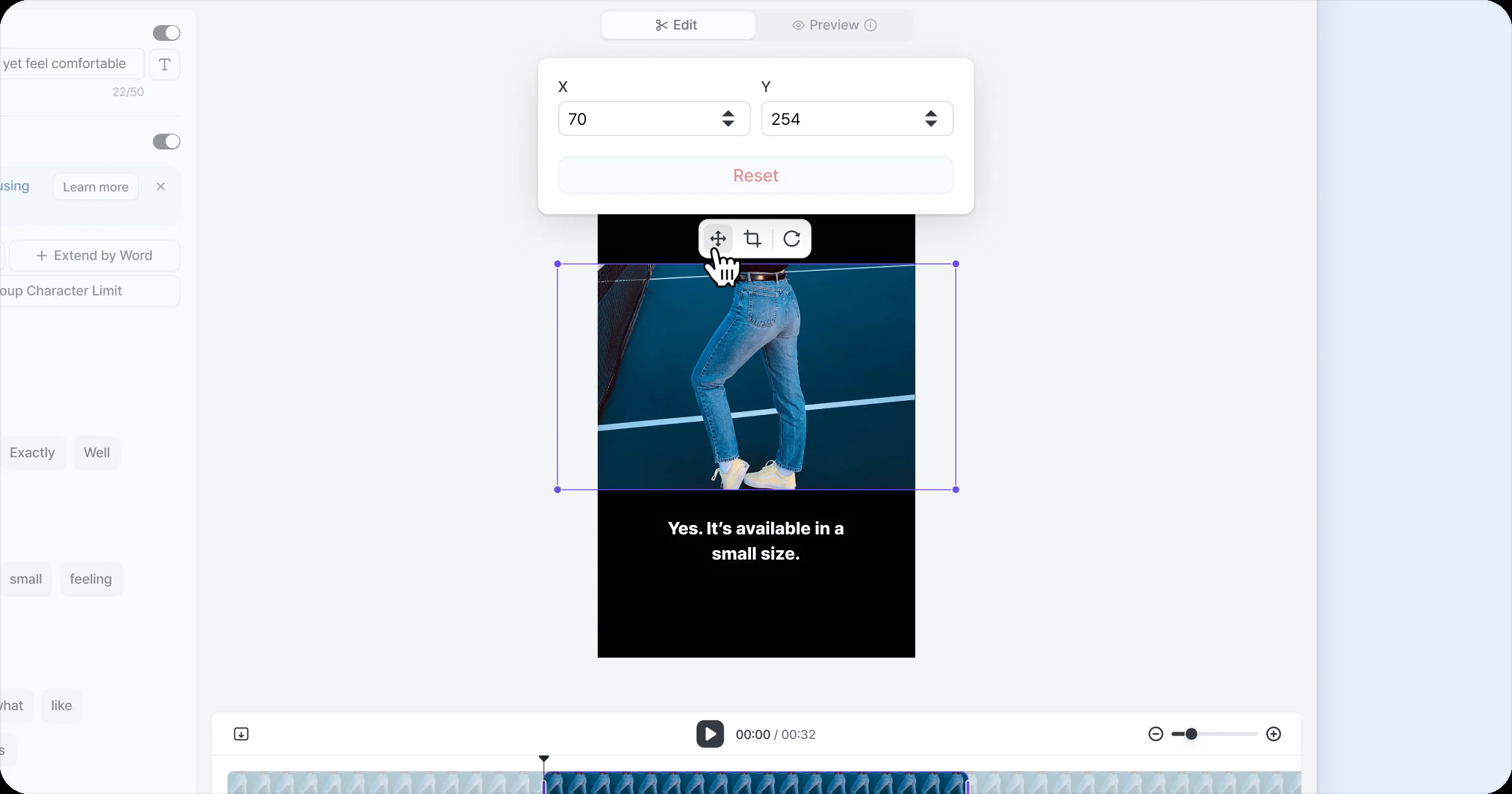
Adjust video position
Hover over the video and click to activate the video area.
Drag to move it freely, even outside the frame.
Only the part inside the frame is shown on screen.
For more precise placement, click the ‘Position’ button on the toolbar and enter X and Y coordinates.
Adjust video size
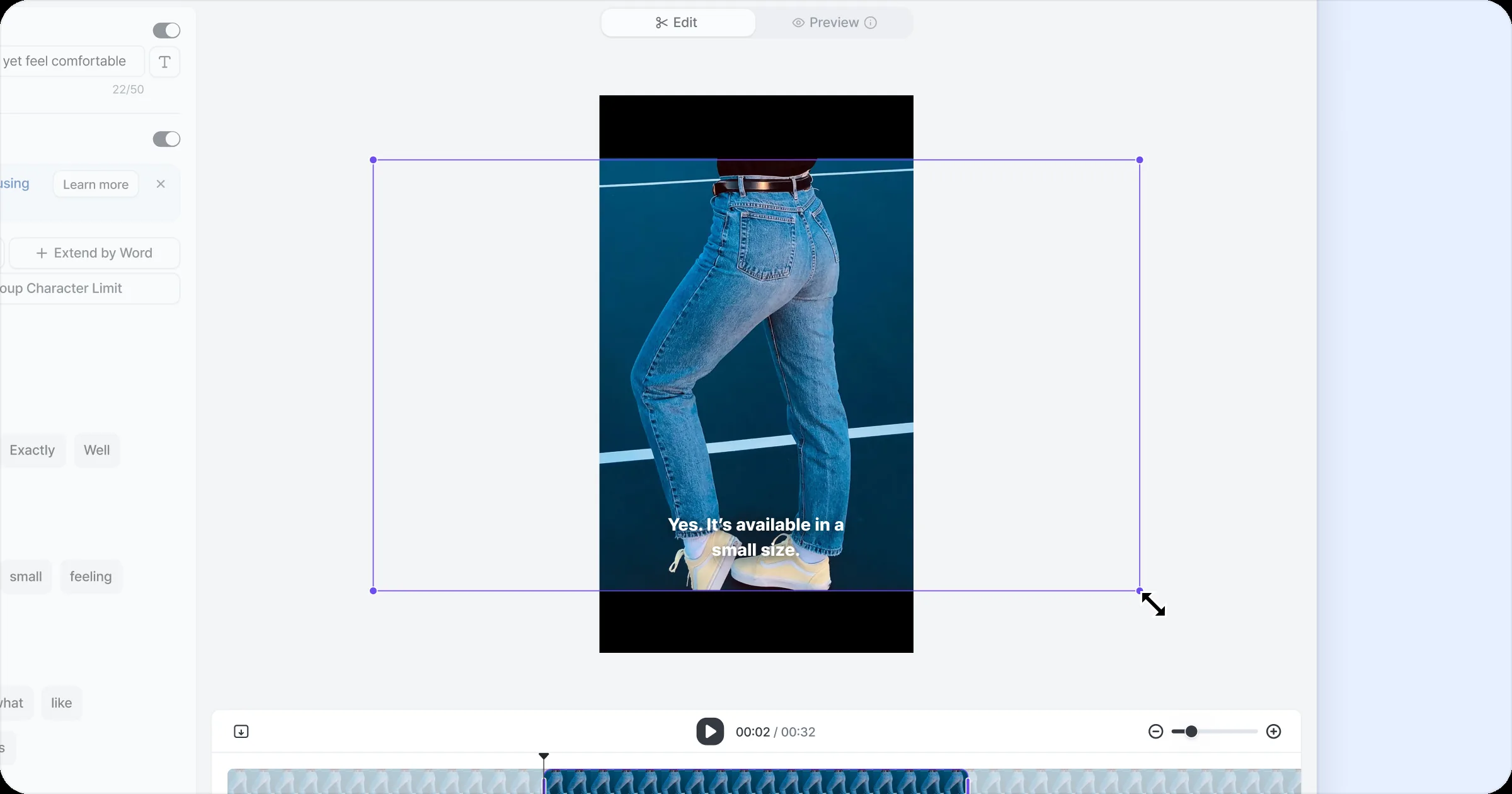
Click the video area to activate it, then drag the resize handles at each corner to freely resize the video. The original aspect ratio is kept automatically, so the video isn’t distorted. Enlarge or shrink the video to fit your style and layout.
Crop video
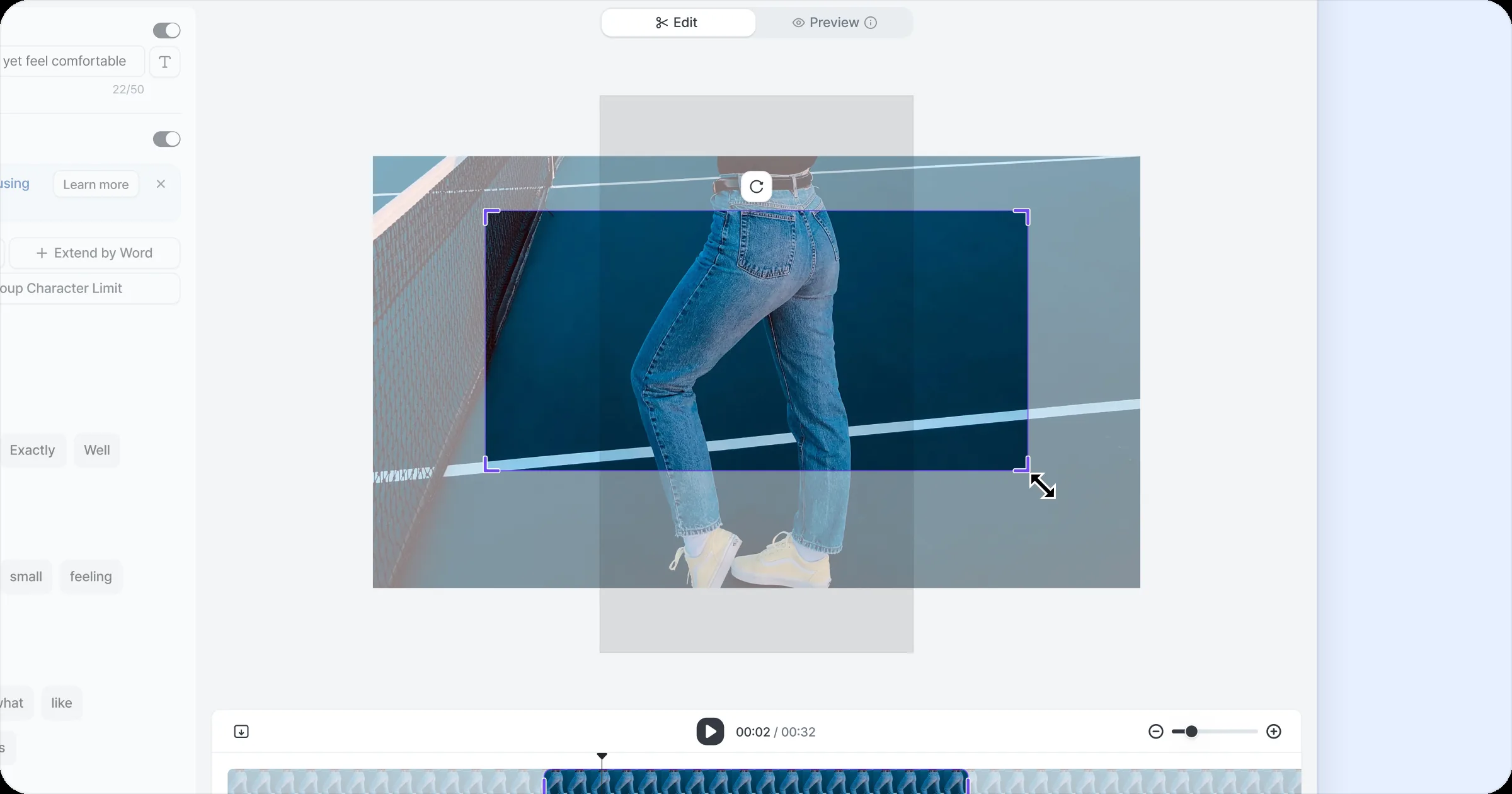
You can trim the video’s left, right, top and bottom to keep only the part you want.
Click the video to activate the area, then click the Trim button on the toolbar to open the Crop window.
Apply changes with the Apply button, and revert them with the Reset button.
Drag the crop handles at the video edges to set the area to trim.
Trimmed areas are shown as inactive, so you can easily see the adjusted range.
Changes to the video’s size, position and crop also apply to the intro video.