Use Intro/Outro
Automatically add an intro video recommended and generated by AI to the start of a clip to grab viewers’ attention. You can also insert an outro image at the end to keep them focused on the content to the very end.
View AI-recommended intros
Click AI Clip details > Edit > Intro to see the list of intro videos AI recommends. AI analyzes the clip’s highlights and automatically recommends the most impactful scene for the start of the video.
Intro videos are 3 seconds long. If there are no recommended intros, “No recommended intros” is shown.
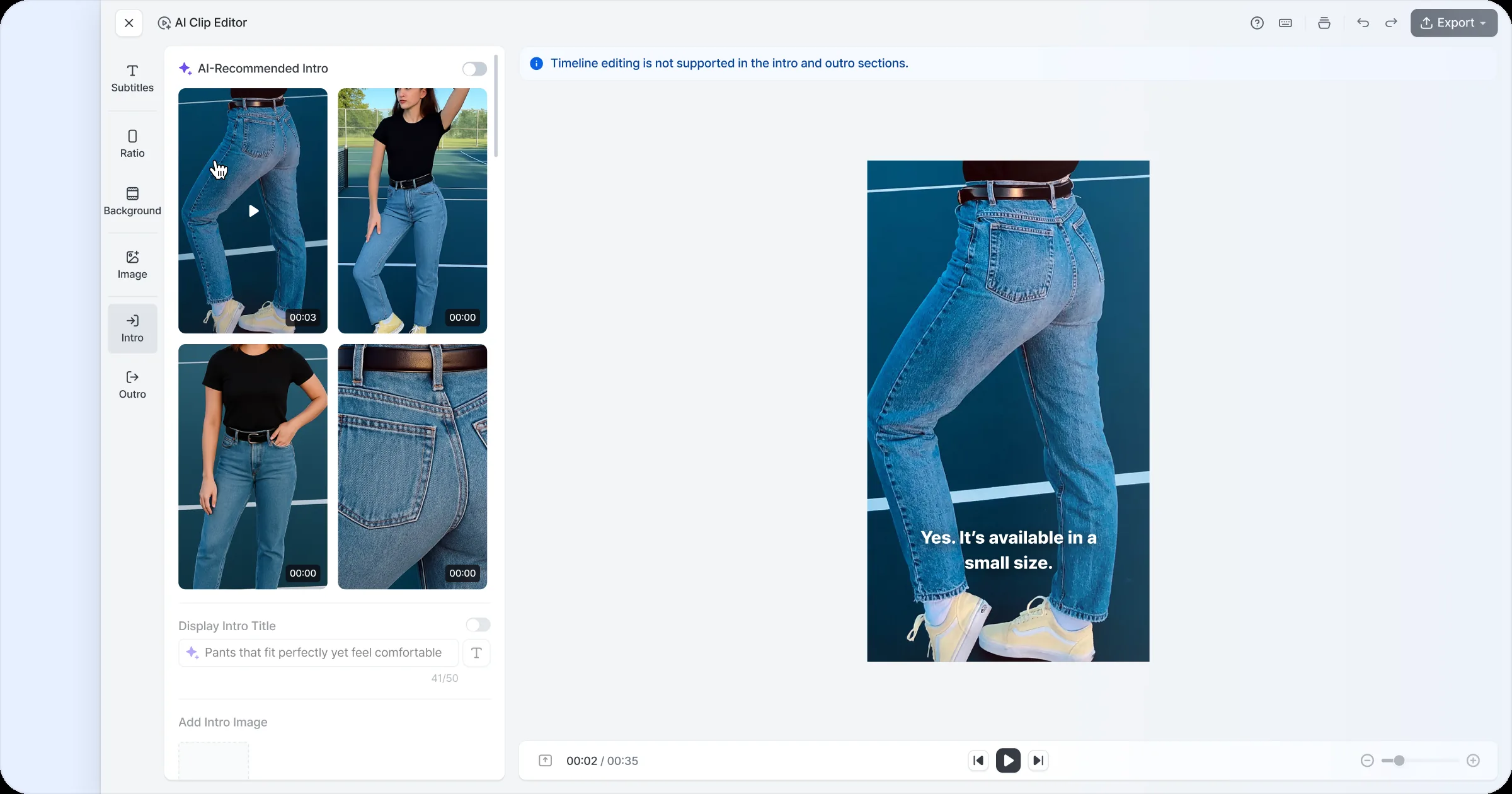
Use an AI-recommended intro
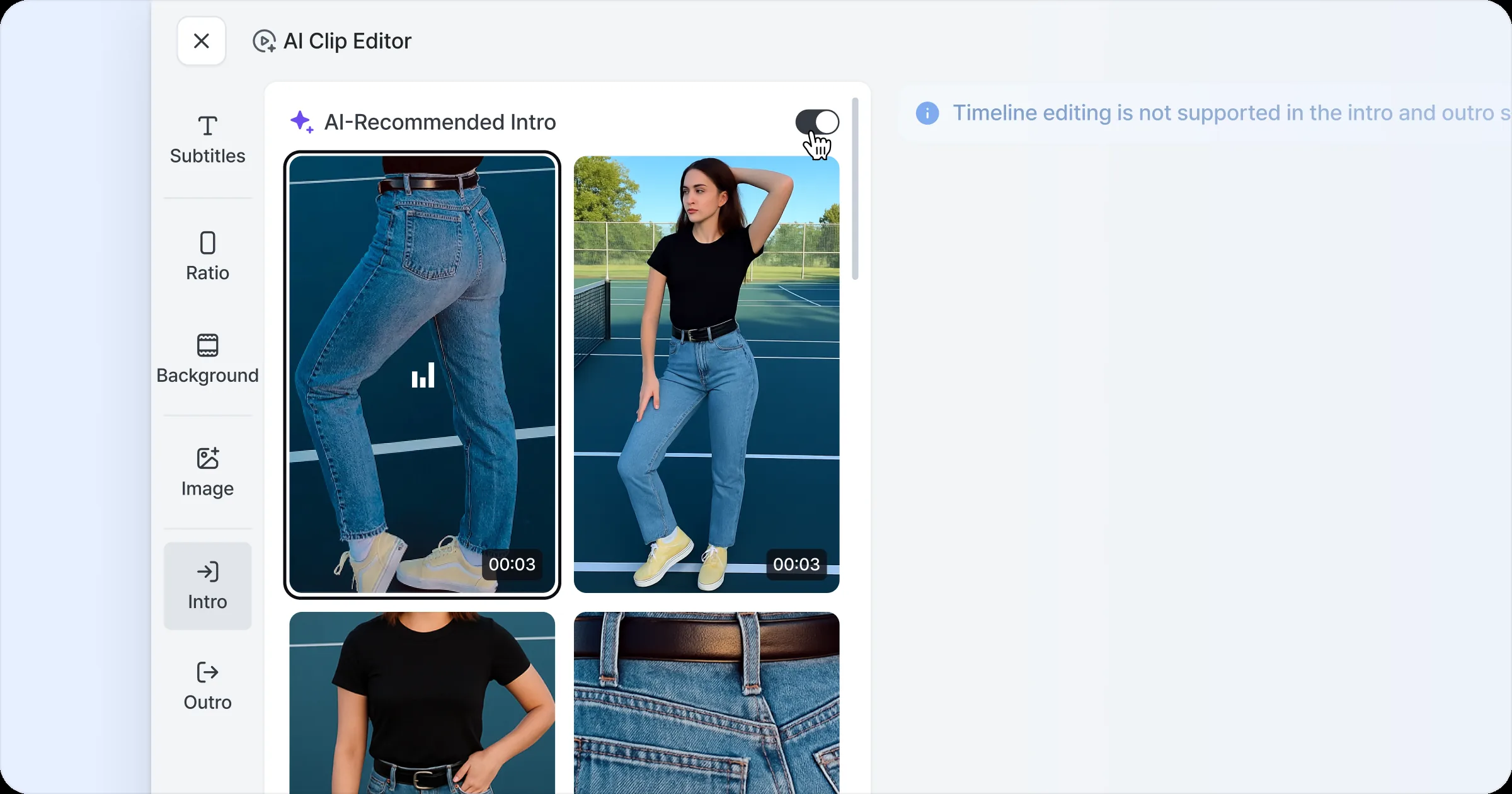
Use the toggle button at the top right of the AI-recommended intro area to turn the feature on or off. Clicking an item in the intro list turns the toggle ON automatically, and you can check the clip with the selected intro in the preview. To export the video without an intro, set the toggle to OFF.
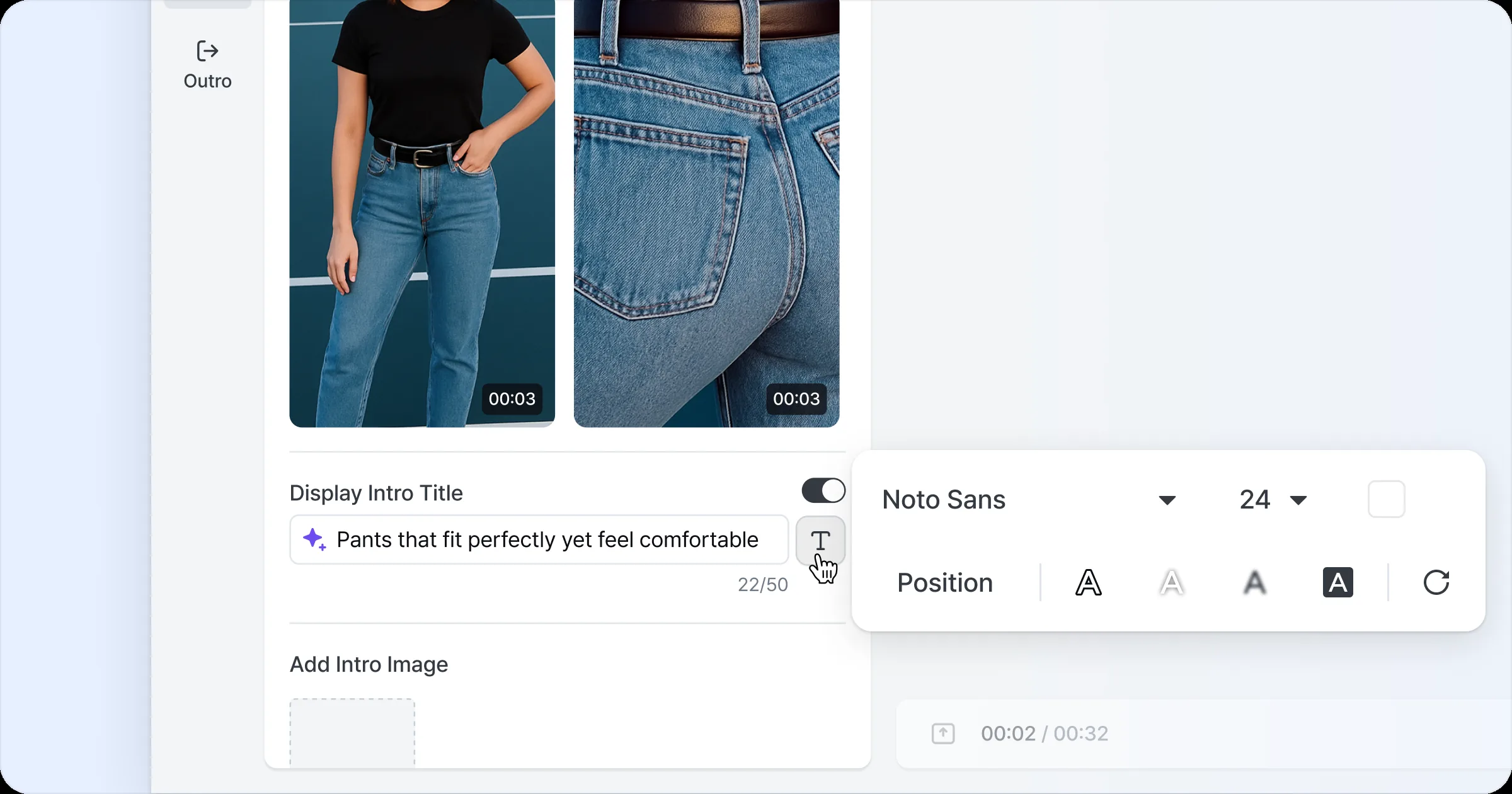
Show intro title
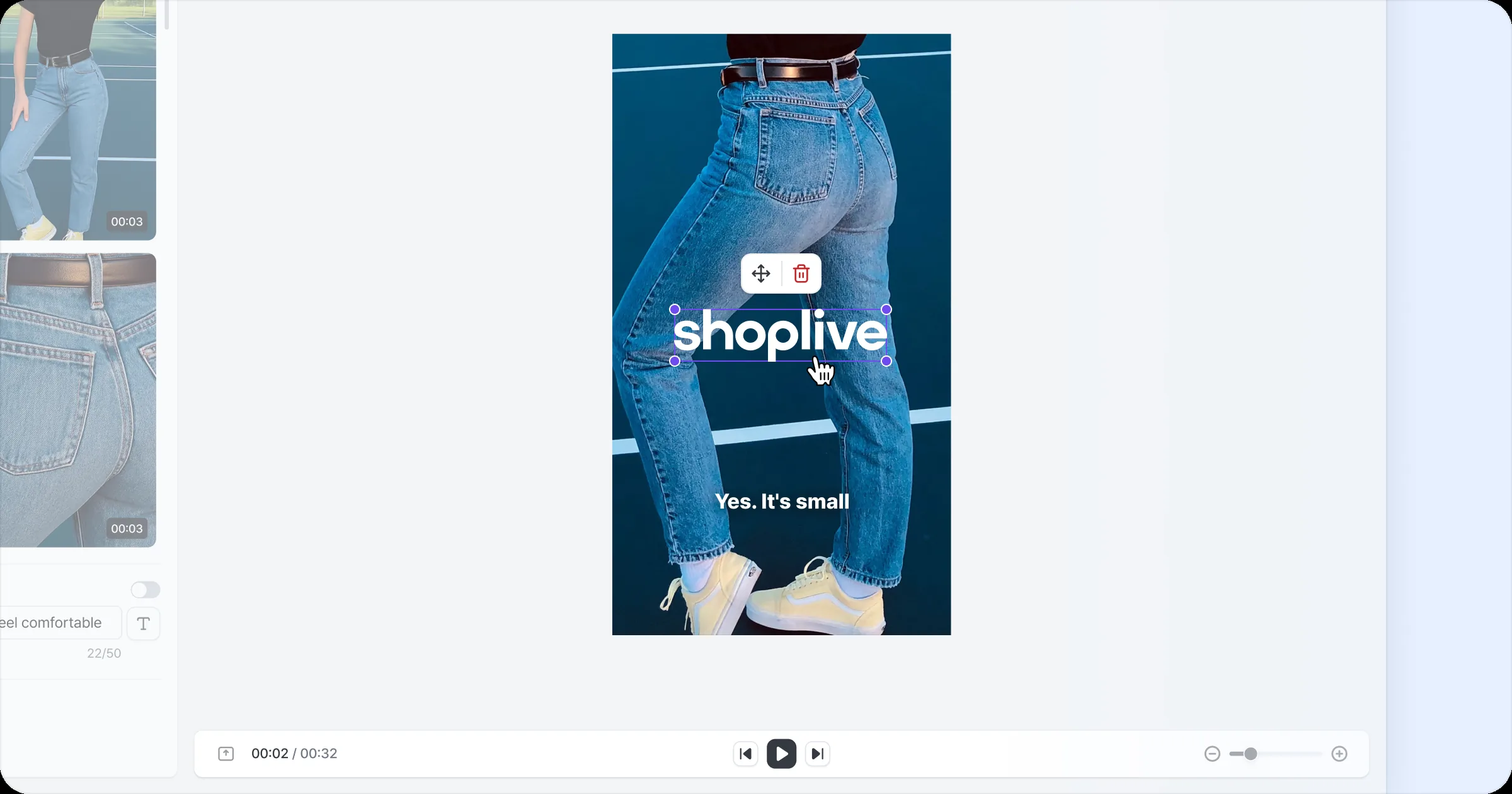
Turn the Show intro title toggle ON to insert a text title into the intro video. By default, an automatic title from AI analysis is shown, and you can edit it or its style yourself. Use the style button to the right of the title to set the text style; the title is shown for the duration of the intro video.
The intro title can be applied only when the intro video is ON. Even with an intro video included, turning the title toggle OFF shows only the video without a title.
The intro title can be up to 50 characters.
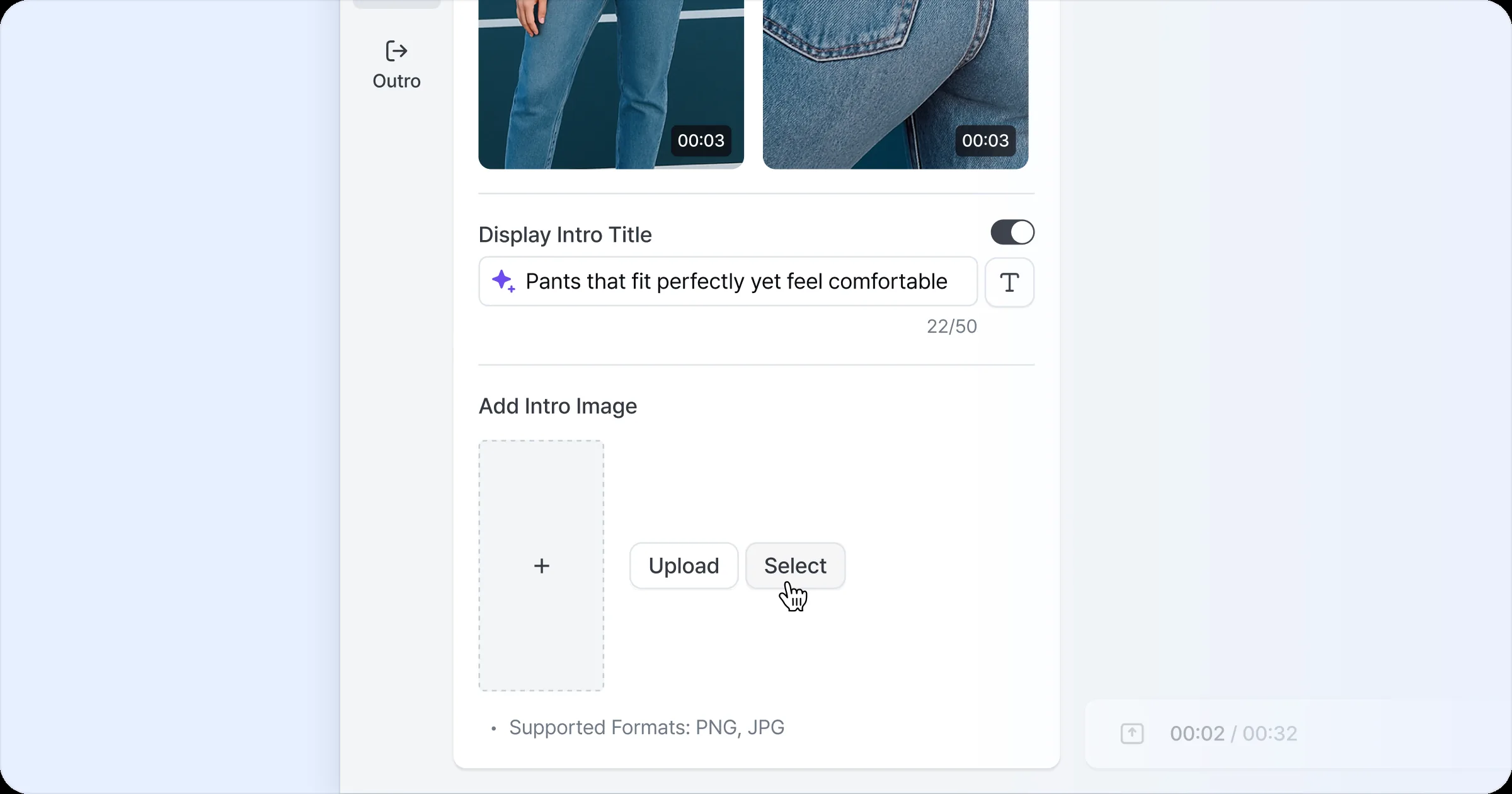
Add an intro image
Add an intro image to insert an image into the intro video. Use a logo or brand image to strengthen branding; both local upload and selecting an image from the library are supported. You can freely resize and reposition the inserted image, and it’s shown for the duration of the intro video.
This can be applied only when the intro video is ON.
Outro settings
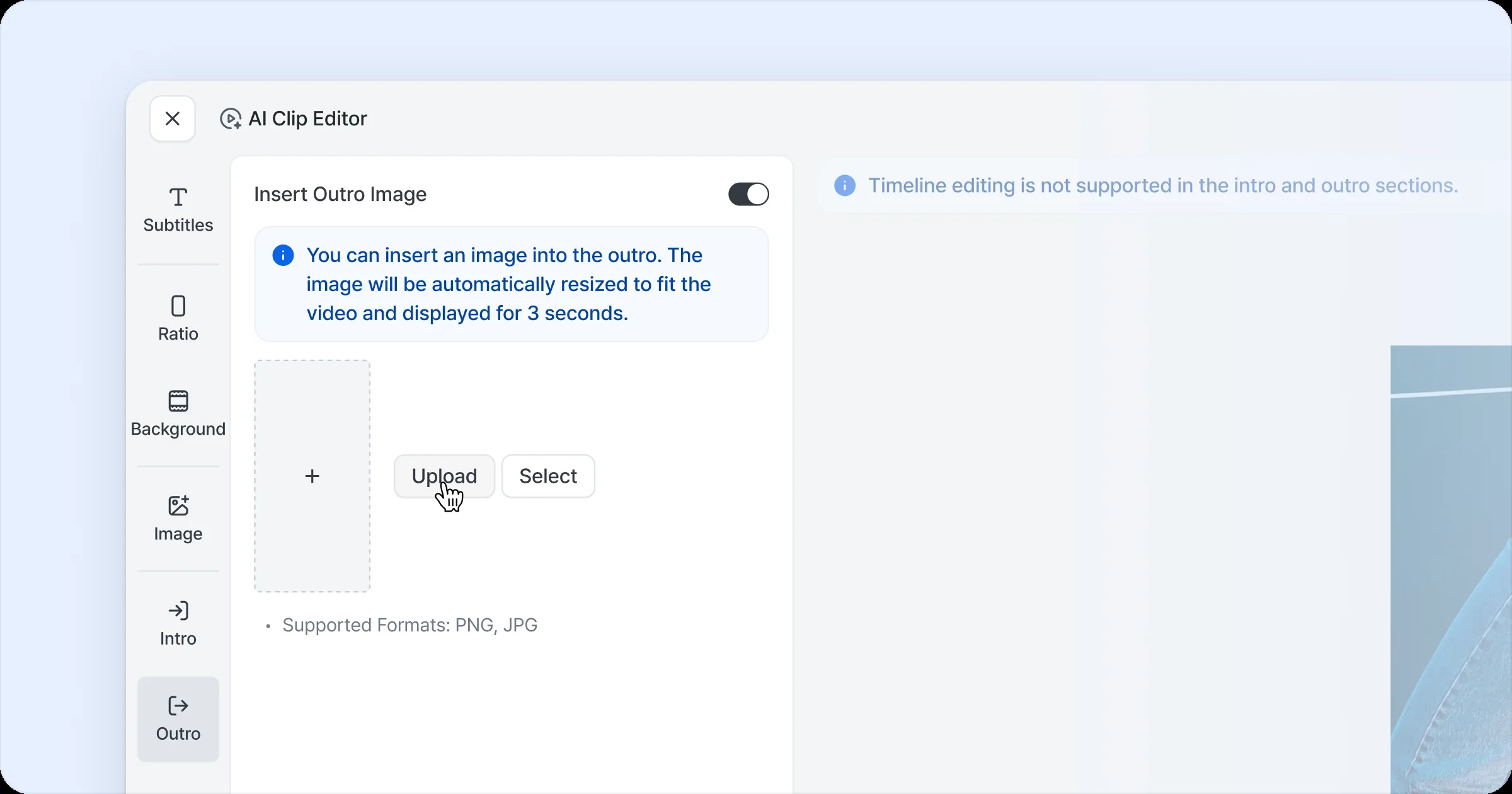
Set up the outro in AI Clip details > Edit > Outro. You can upload an image to insert at the end of the video and turn it on or off with the toggle at the top right of the outro area. The uploaded image fills the full screen automatically and plays for 3 seconds at the end of the video, fitted to the video size with no resizing needed.
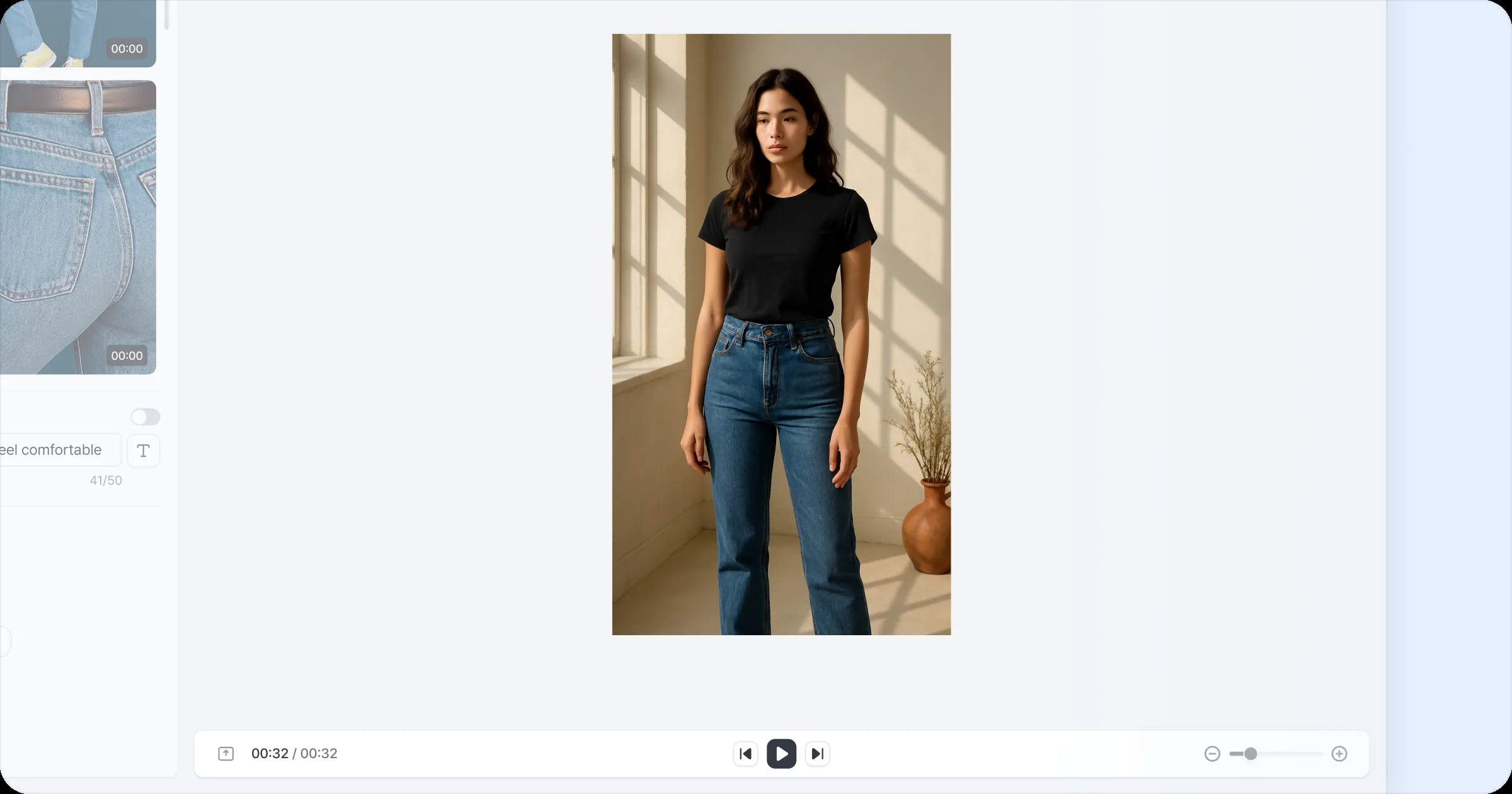
Intro/outro areas can’t be edited on the timeline.