Set Clip Ratio and Background Color
Set the clip ratio to 9:16, 16:9, 1:1 and so on, and choose a background to frame the content as a whole. Adjust clips to fit the screen format and channel you want.
Set the clip ratio
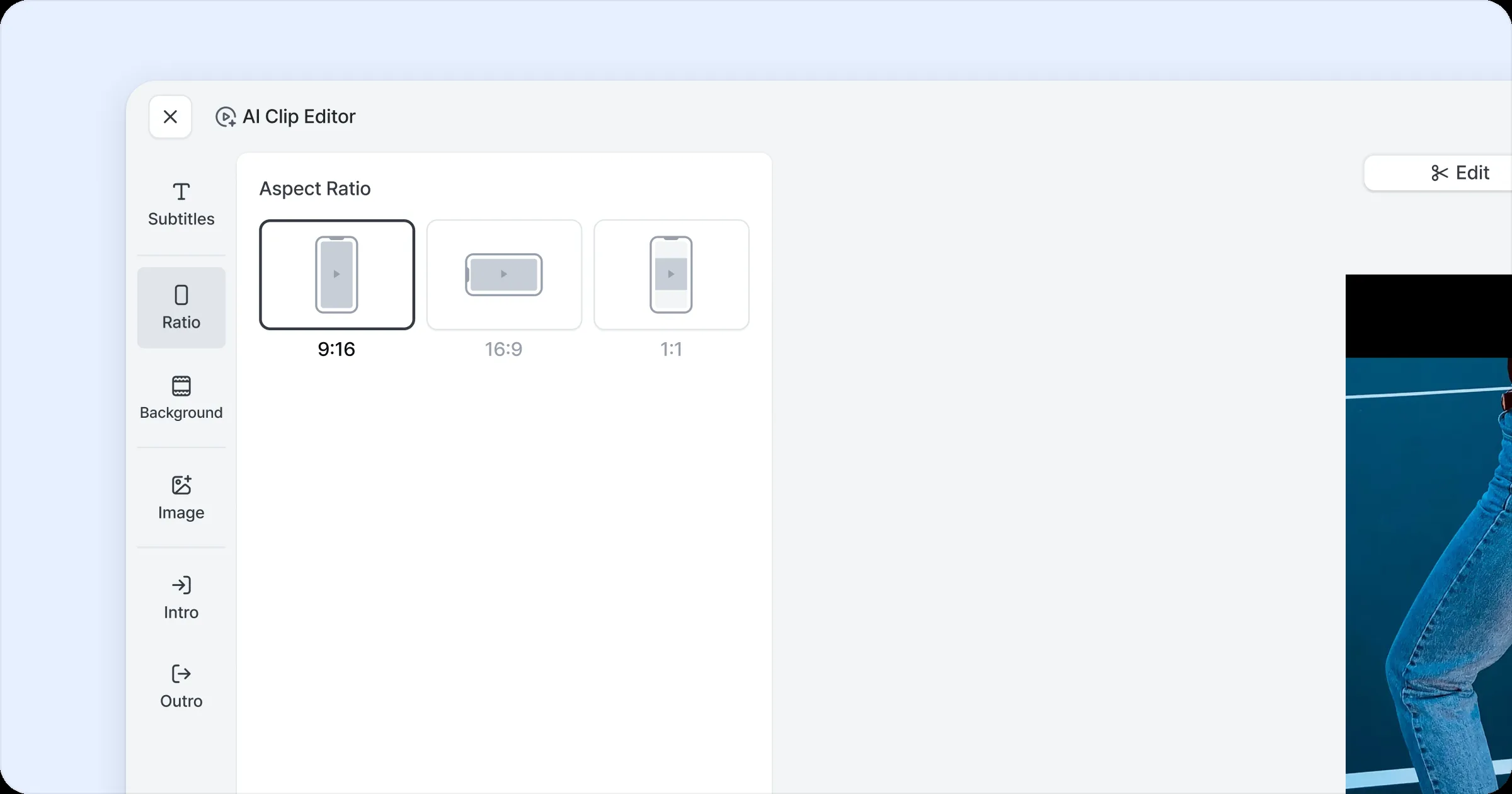
Click AI Clip details > Edit > Ratio.
Three frame ratios are supported, 9:16, 16:9 and 1:1, and the preview shows the result as soon as you choose.
The frame ratio decides how the content is laid out on screen; it doesn’t change the video’s original ratio or resolution. You can choose only one ratio at a time and change it again anytime.
Adjust it flexibly to suit your style.
Supported ratios
9:16
Suits vertical shortform content optimized for mobile.
16:9
The standard ratio for widescreen video platforms such as YouTube.
1:1
A square layout that suits social media feed content.
Set the background color
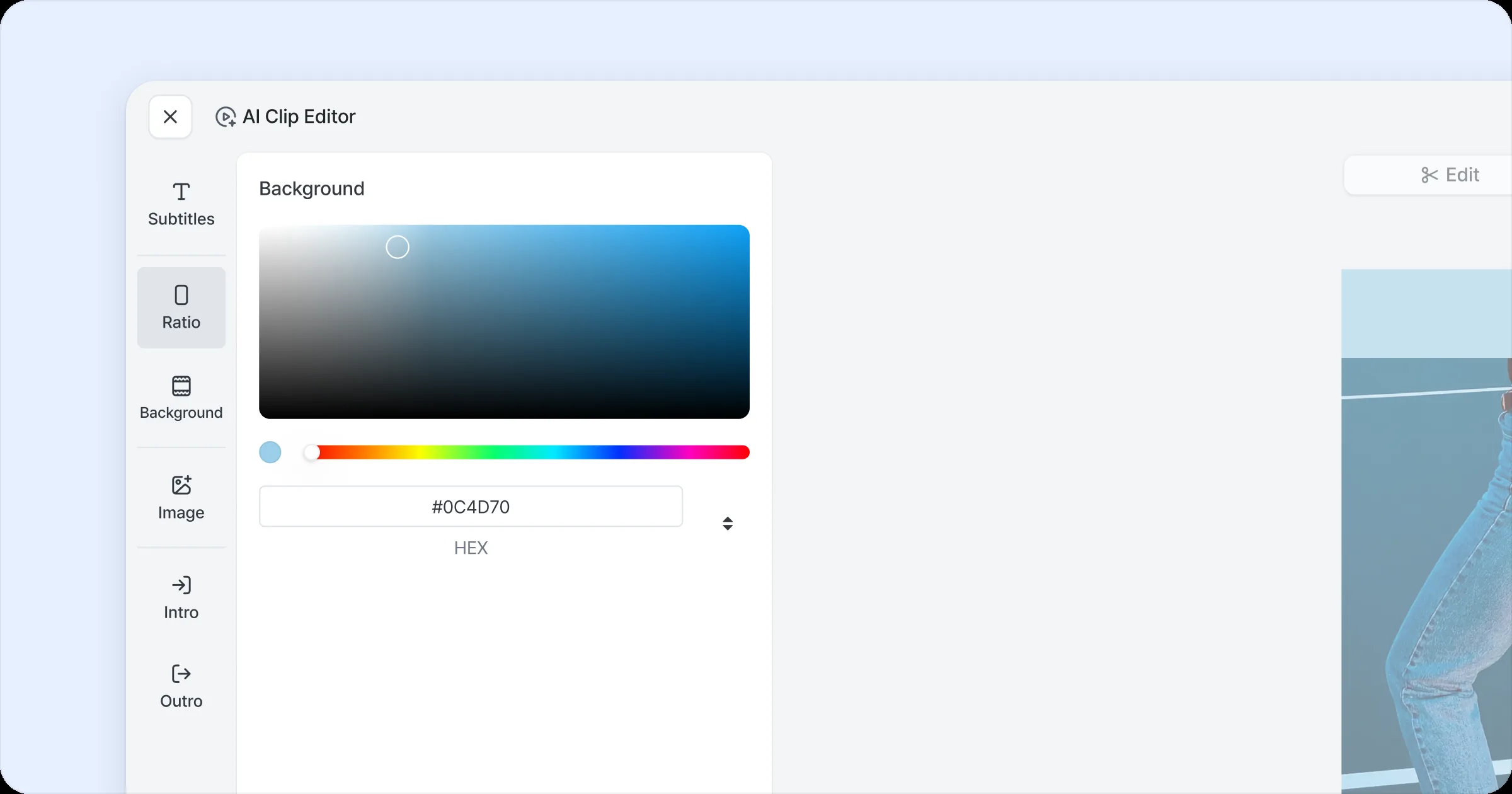
Click AI Clip details > Edit > Background.
After setting the frame ratio, you can choose the color of the empty margins created when the video’s aspect ratio doesn’t match.
The default background color is black, and you can choose from a range of colors as needed.
You can adjust the background color to match the mood or branding tone of the content, which helps polish the video and keep the style consistent.