Edit Videos
Refine the screen and subtitles in the Edit video tab, then click Create video to render a 9:16 MP4 for each card.
How to edit
Step 1. Check the cards
Each card becomes one video. Split segments across cards to create several videos at once, and click Add more segments to bring in more.
Step 2. Set the screen
In the Screen tab, set the aspect ratio, size, and background. Output is always 9:16, and the ratio you choose here is the ratio of the video placed inside the 9:16 frame.
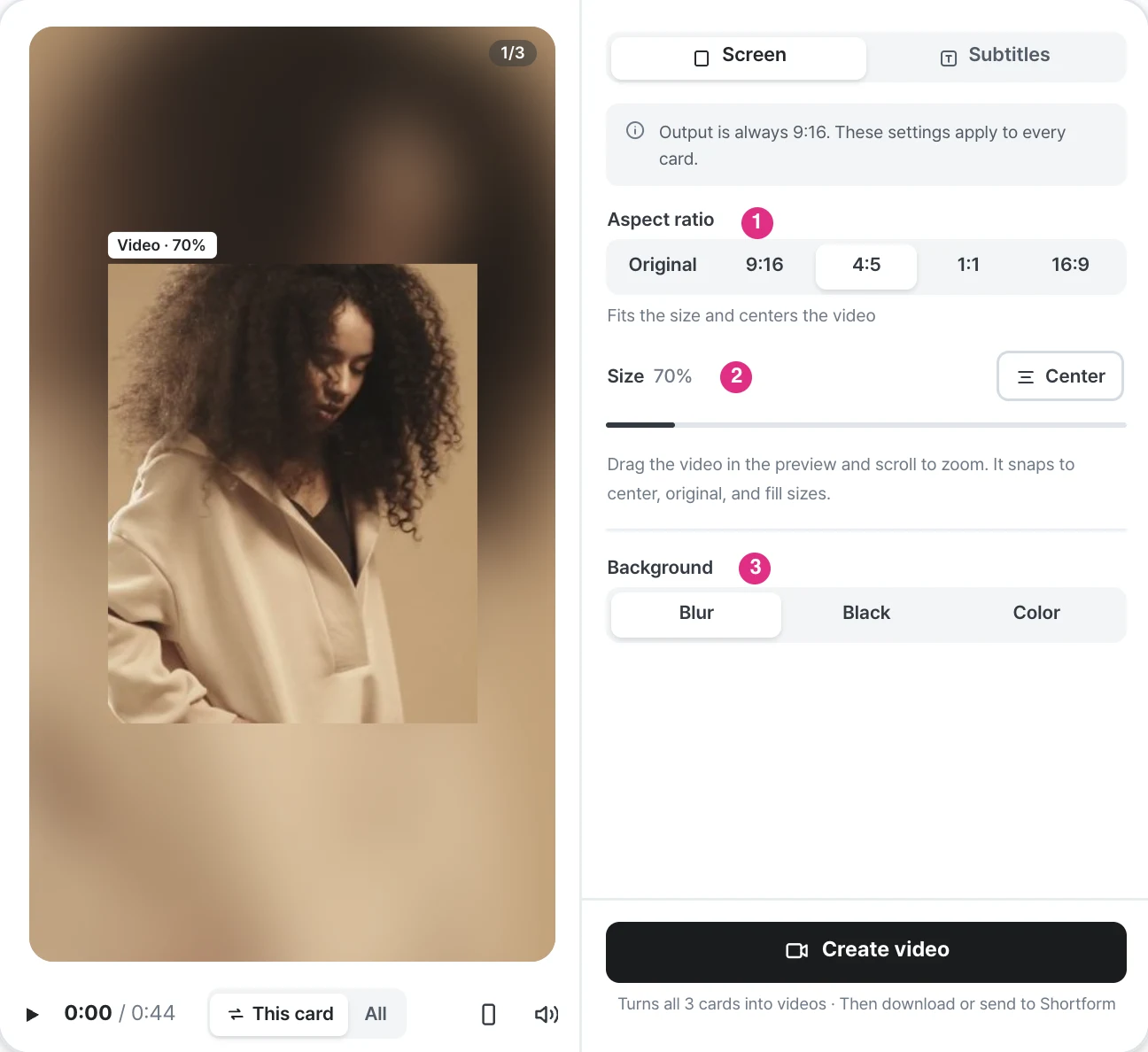
- Aspect ratio: Choose from Original, 9:16, 4:5, 1:1, and 16:9. When you select a ratio, the video is resized to fit and moved to the center.
- Size: Adjust the video size with the slider. Click Center to move the video to the center.
- Background: Choose Blur, Black, or Color for the area outside the video.
Drag the video in the preview and scroll to zoom. The video snaps into place at the center and at the original and fill sizes.
Step 3. Set the subtitles
In the Subtitles tab, import the stream subtitles, add text, or change the style.
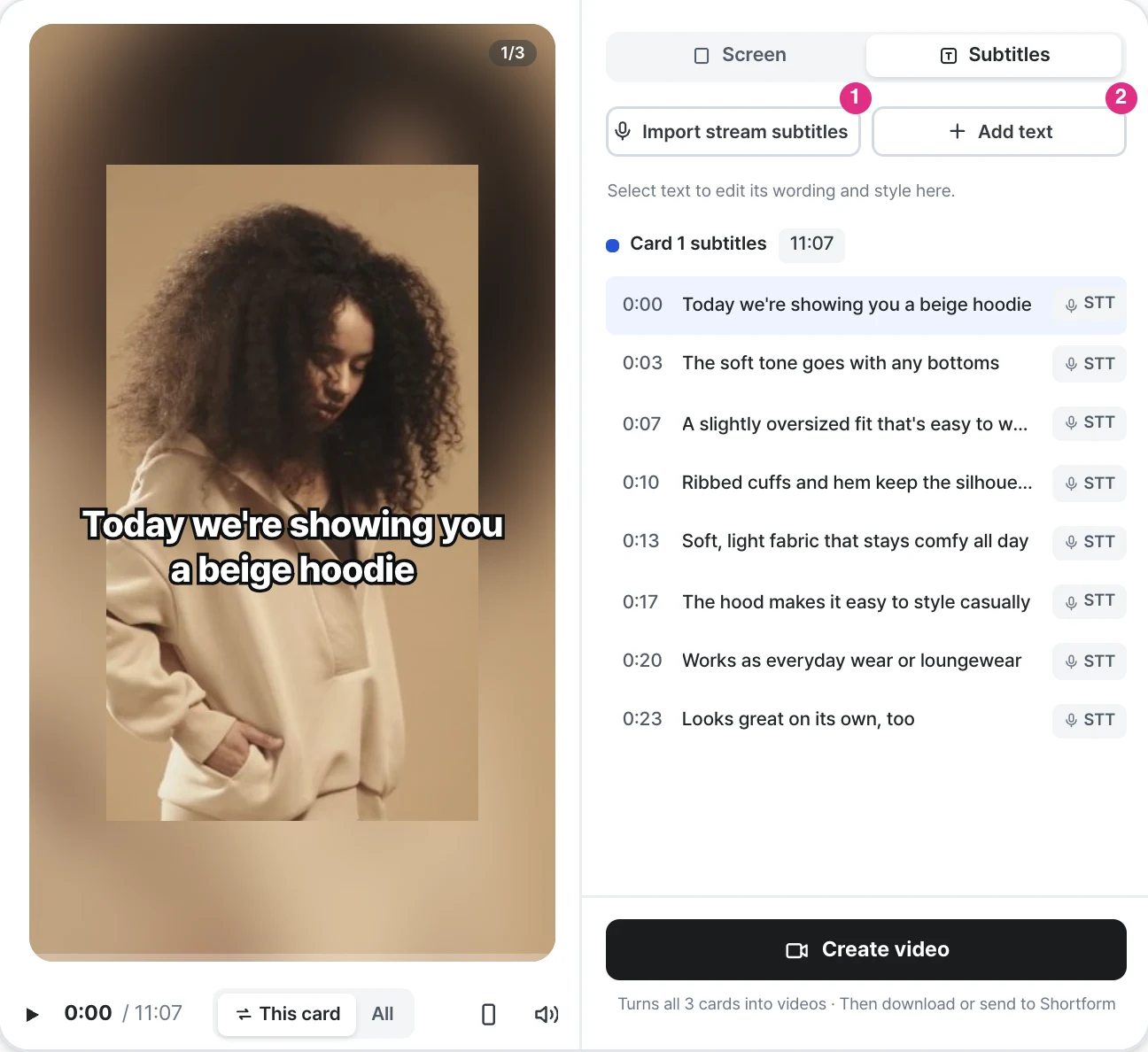
- Import stream subtitles: Imports the stream subtitles into the card.
- Add text: Select a text to change its wording and style.
Step 4. Create the video
Click Create video to create a video for each card as you edited it. You can download the videos or publish them as shortforms.
Caution
The settings in the Screen tab apply to every card.