Find and Add Segments
Select Recommended segments or the product list in the left panel of the Select segments screen, and the segment cards are sorted in the center. If you know exactly what you are looking for, use AI scene search.
How to add segments
Step 1. Choose how to find segments
In the left panel, choose AI scene search, a Recommended segments tab, or the product list. The criterion each method uses is described under Ways to find segments below.
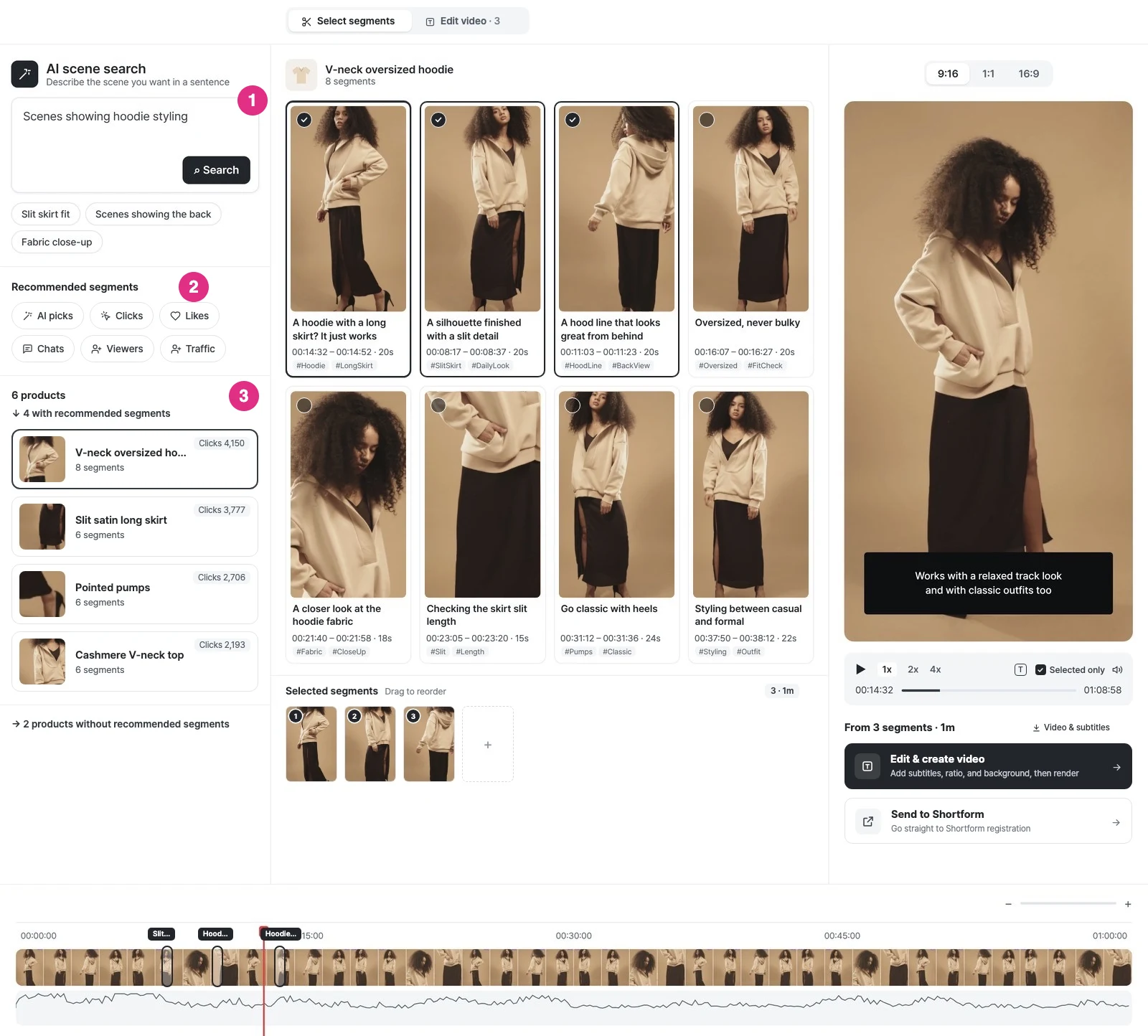
- AI scene search: Describe the scene you want in a sentence and search.
- Recommended segments: Choose a criterion: AI picks, Clicks, Likes, Chats, Viewers, or Traffic.
- Product list: See the recommended segments for each product.
Step 2. Check the segment cards
Select a segment card and check the scene in the preview.
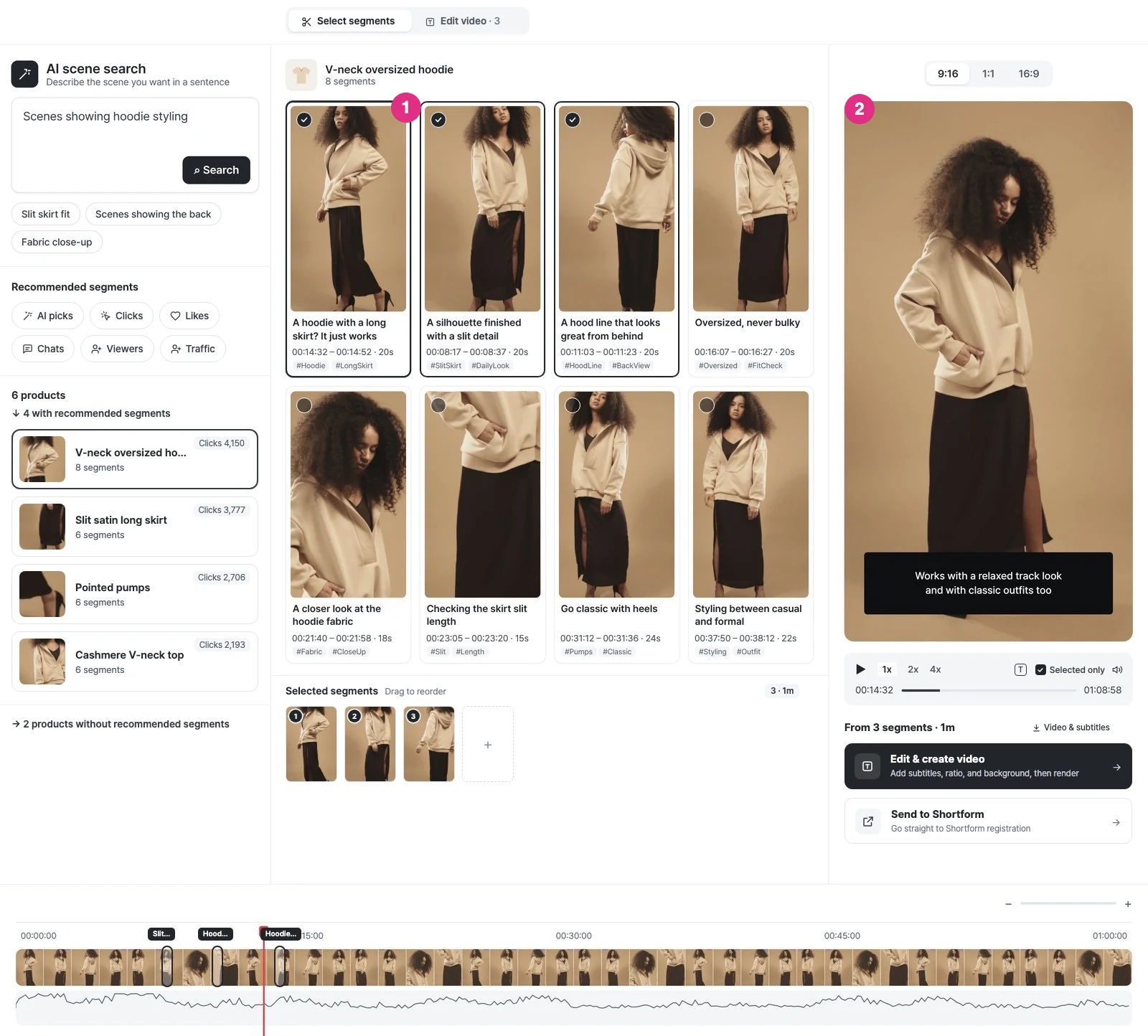
- Segment card: Shows the title and time of the segment.
- Preview: Check the scene of the selected segment.
Step 3. Add segments
Add the segments you want to use. Added segments appear under Selected segments at the bottom of the center area.
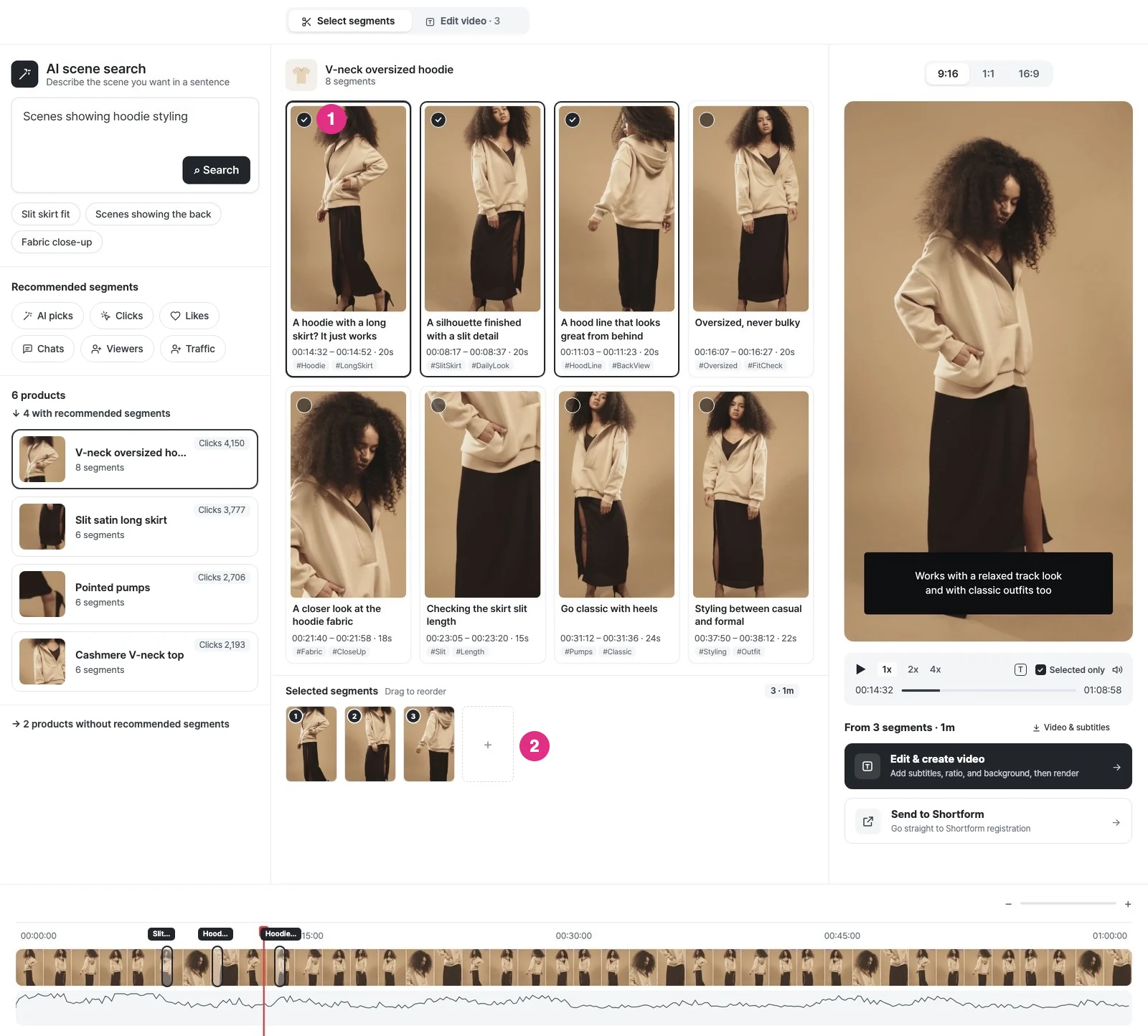
- Check mark: A check mark is shown on the segments you have added.
- Selected segments: The segments you added are shown in order, and you can drag them to change the order.
Ways to find segments
Each method recommends segments using a different criterion.
AI scene search
Describe the scene you want in a sentence, and AI analyzes the stream transcript to find matching segments. Below the search box, suggested queries generated for this stream let you search in one click. Click the × next to the results title to return to the original tab.
Results are the segments whose visuals and speech are closest to your query.
AI recommended
Turns what's said on stream into text and picks segments with lines likely to drive purchases. It looks beyond plain product descriptions for lines that make people want to buy, like how it feels, how to style it, or a deal. Regardless of product or metric, it suggests self-contained segments, each with a title.
Live stream data
Recommends the segments where each metric peaked, based on data collected during the stream. Each metric has its own tab, so you can pick the criterion that fits your goal right away.
| Tap | Recommended segments |
|---|---|
| Clicks | Segments where product clicks peaked |
| Likes | Segments where likes surged |
| Chats | Segments with the most active chat |
| Viewers | Segments where concurrent viewers spiked |
| Traffic | Segments with the most new visitors |
Product list
AI analyzes the product images registered to the live stream and recommends the segments where each product appears on screen. The product list at the bottom left is sorted by clicks, and selecting a product lists its recommended segments in the center. Products without recommended segments are collapsed at the bottom and can be expanded.
It matches your product images to scenes in the stream, scores them, and recommends the best matches first.
The product list shows the number of segments and clicks for each product, and above the list you can see the total number of products and how many of them have recommended segments.
Note
Timeline data graph
The graph at the bottom of the timeline shows the metric for the tab you selected. Click a peak or a thumbnail to jump to that scene.