Get Started with Clip Maker
Introduction
Clip Maker uses AI to find segments to turn into shortforms from an ended live stream or an uploaded video. For live streams, it analyzes viewer reactions, product information, and what was said on stream to recommend segments. Add the segments you want, then download them as a video with subtitles and a background, or display them directly as a shortform.
AI suggests candidate segments based on the stream data, and you make the final selection.
Features
There is no need to rewatch the stream from the beginning. You can review the segments AI recommends and pick the ones you want.
Segments are organized by product and by viewer reaction, so a single stream can become several shortforms.
You can also add any segment you want yourself, in addition to the recommended ones.
From finding segments to editing, creating the video, and publishing a shortform, everything is done in one place.
Open Clip Maker from an ended live stream
Step 1. Select an ended campaign
In the admin Campaigns list, select an ended campaign.
Step 2. Open Clip Maker
Click the Clip Maker button at the top of the campaign details page.
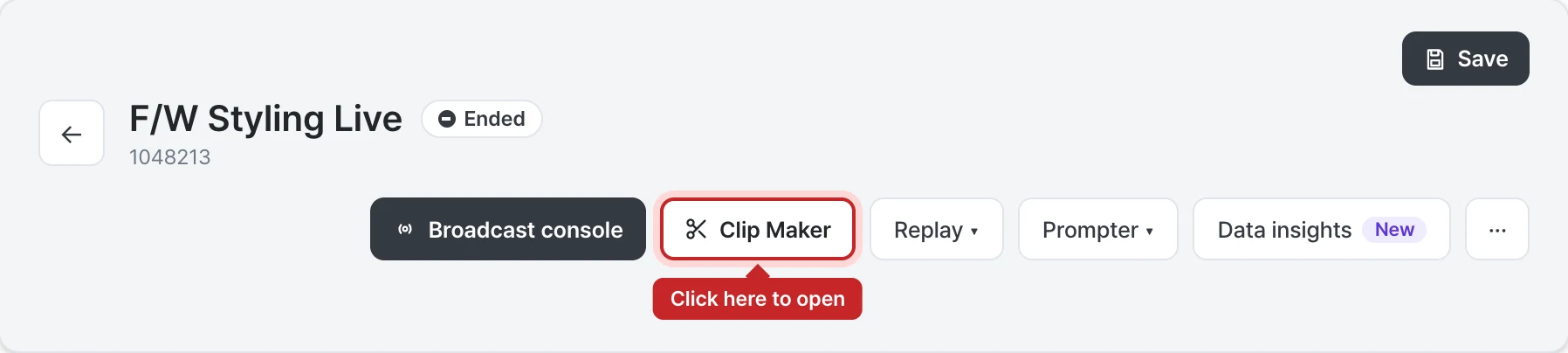
The analysis results and the video open together on one screen.
Analysis complete notification
The stream is analyzed automatically when it ends, and an email is sent to the account that created the campaign once the analysis is complete. The button in the email takes you straight to Clip Maker. To add accounts that receive the email, contact ask@shoplive.cloud.
Analyze an uploaded video
A video in Media is added to the Clip Maker list once you start AI analysis. With uploaded videos, you can make shortforms using AI picks and AI scene search.
Step 1. Select a video in Media
In the admin Media list, select the video you want to analyze.
Step 2. Start AI analysis
In the Edit media window, click Start AI analysis.
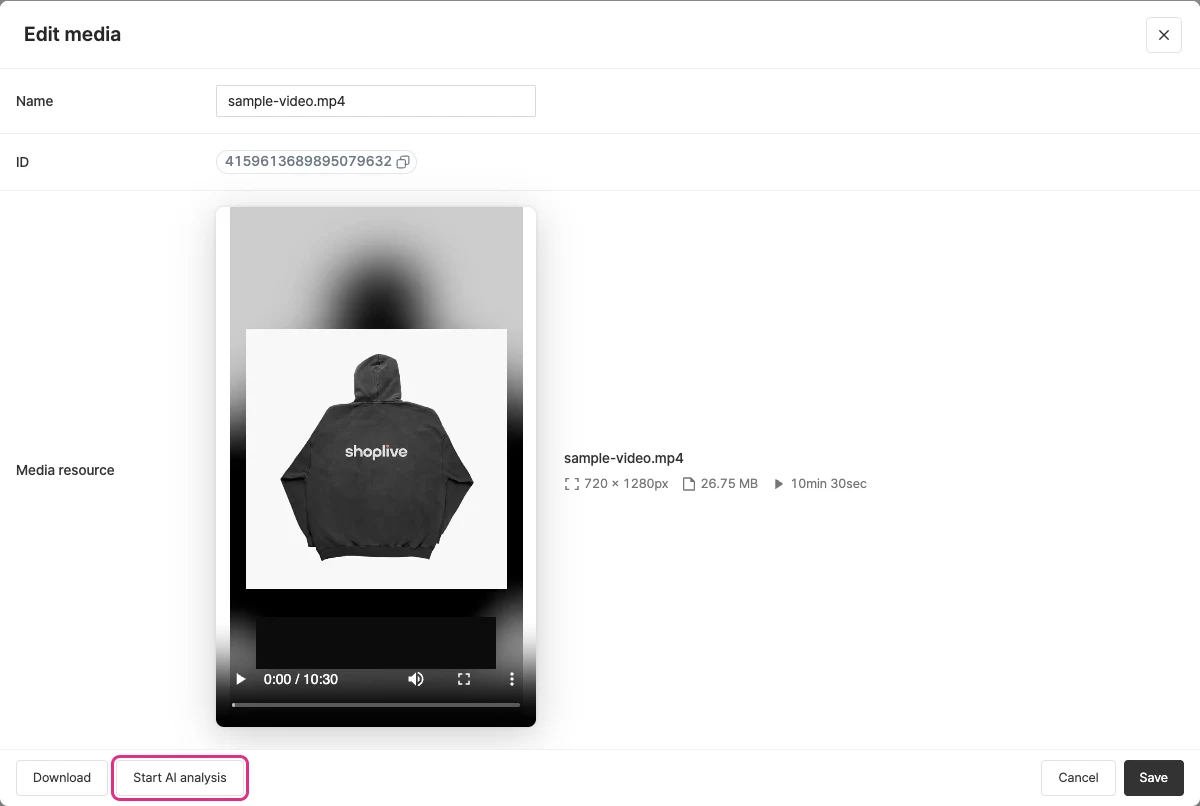
Step 3. Check the analysis status
In the admin Clip Maker list, check the Analysis status. While the video is being analyzed, the progress is shown, and it changes to Completed when the analysis is done.
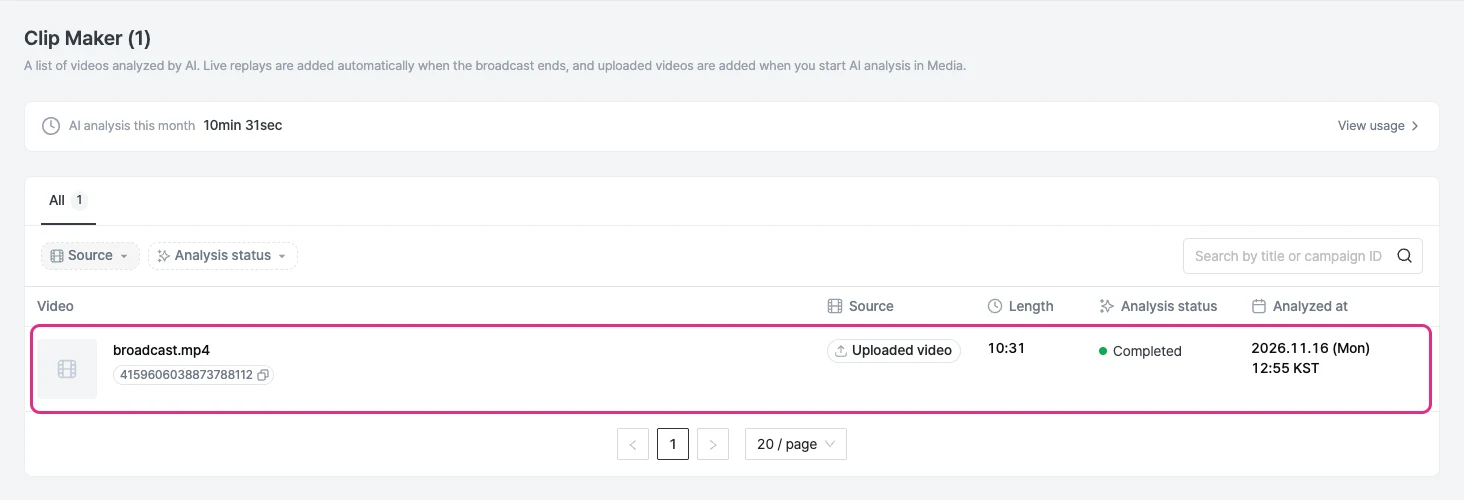
Screen layout
Add scenes in the Select segments tab at the top, then refine the screen and subtitles in the Edit video tab. The Select segments screen has four areas.
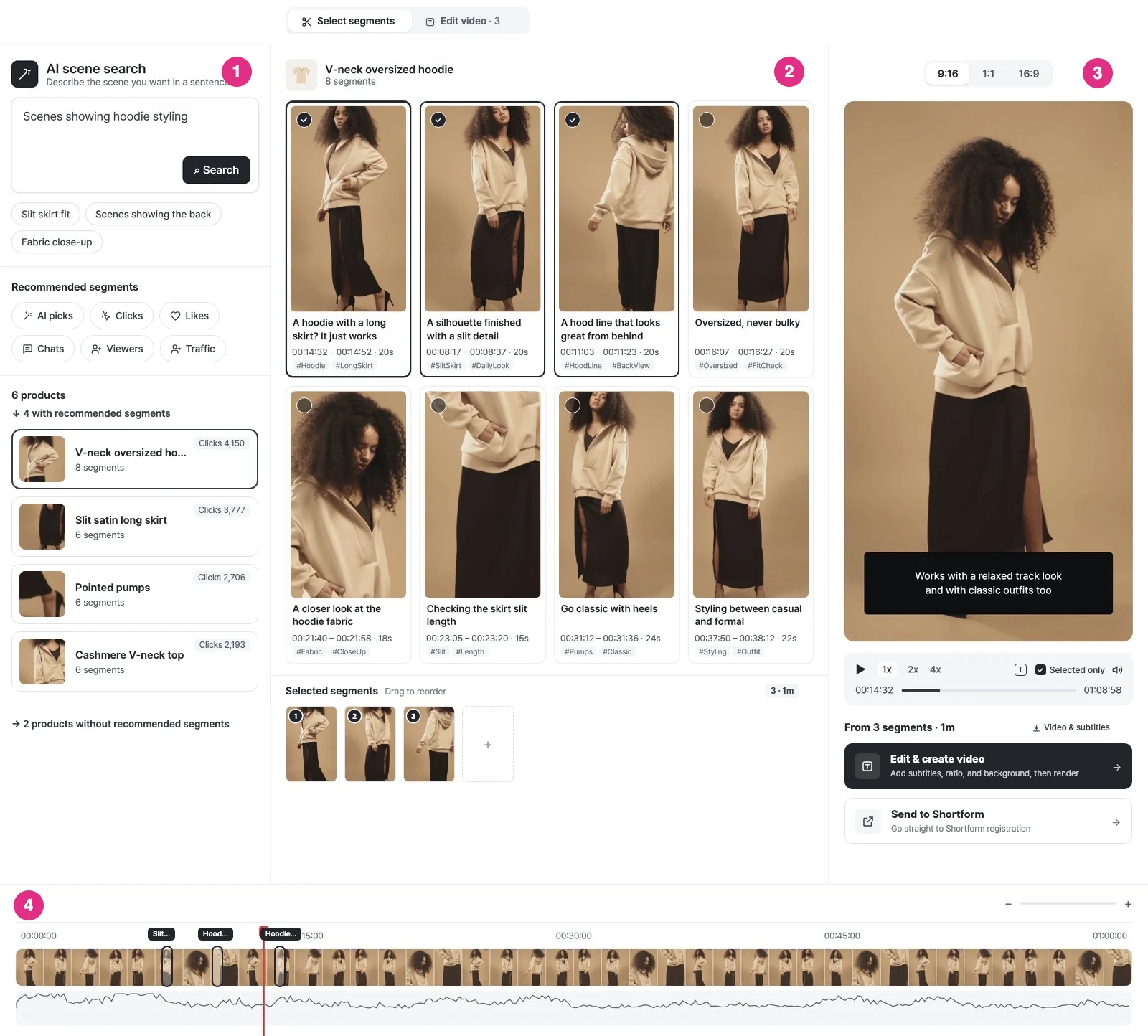
- Left panel: Find segments with AI scene search, recommended segments, and the product list.
- Center area: Browse segment cards and add them. Drag segments under Selected segments below to change their order.
- Right area: Check the preview, then edit or send straight to shortform.
- Timeline: Shows thumbnails of the whole stream, markers for added segments, and a data graph.
For how to find and add segments, see Find and Add Segments.
Use cases
To cut shortform production time
Add the AI-picked segments and click Send to Shortform. You go straight to the shortform editor without editing.
To increase purchase conversion on product pages
Pick segments by product or find them with AI scene search (for example, “Find the segments where product A appears”), then send them straight to shortform and connect them to the product page.
To keep a steady supply of ad creative
Pick segments by Clicks, Chats, or Likes, add the stream subtitles and a background, and download a 9:16 video. Subtitles carry the message even on social media watched without sound.
To keep using a stream that has ended
Add a representative segment for each product, split them into cards, and create several videos at once. Use them in promotions, home feeds, and external ads.