6 · Show Shortform Preview
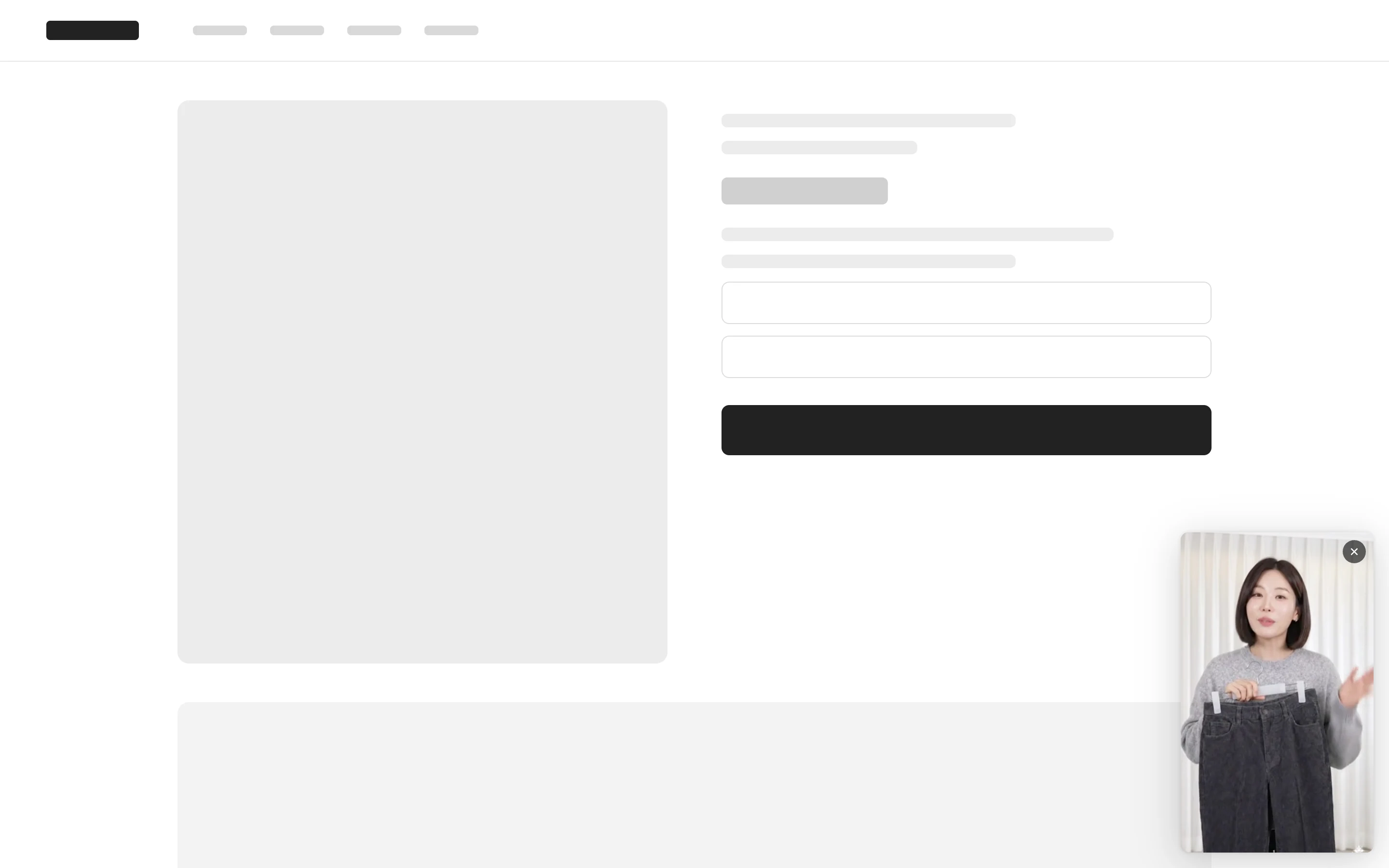
Shortform Preview is a feature that shows a shortform as a small player in one corner of your shop screen. Tapping it opens the full-screen player, and ✕ closes it. The development team applies the code that displays it, and the content you prepare in the Admin decides which shortform appears.
Below is an example of Preview displayed at the bottom right of a product detail page.
Prepare in the Admin
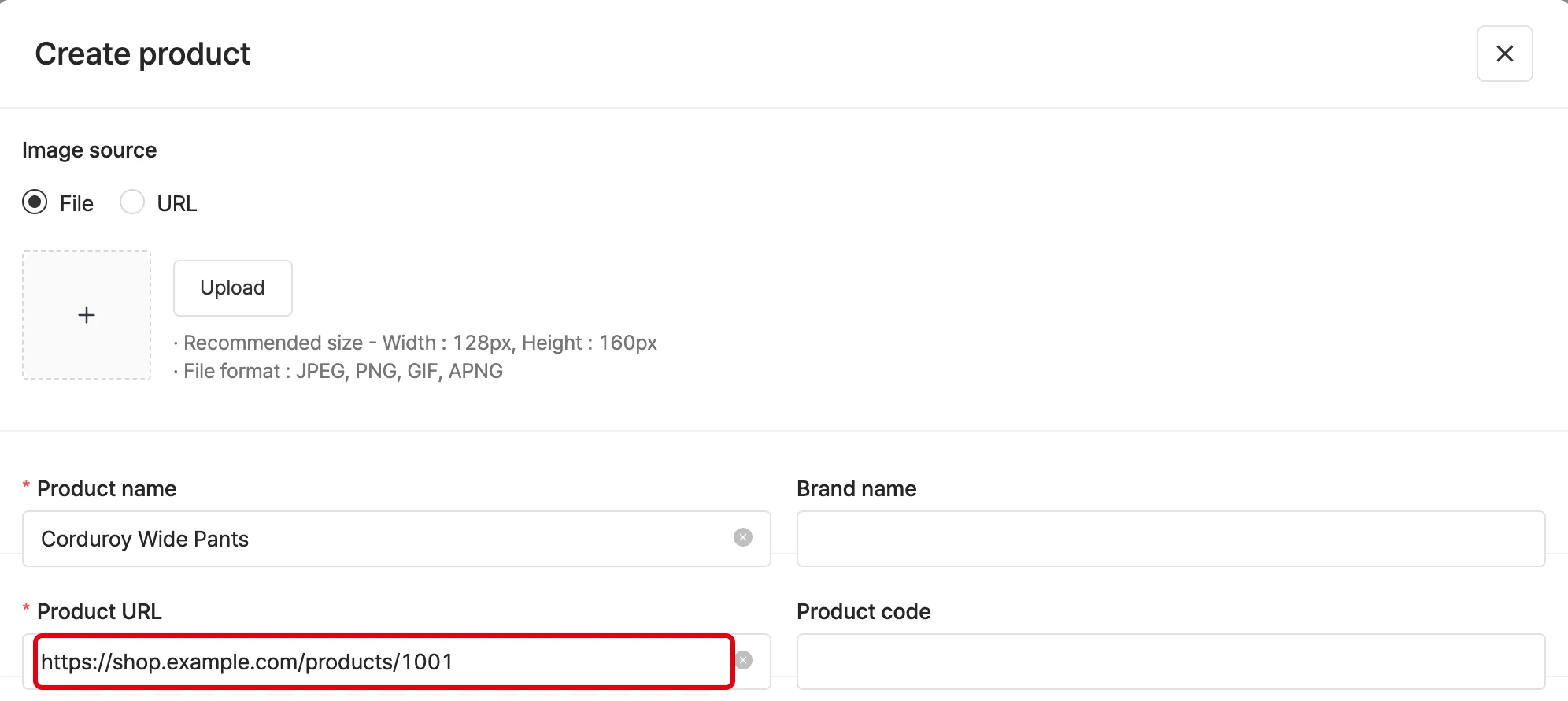
- When you create a product, enter the address of the product detail page in Product URL. For how to register products, see Prepare Products. This address must match the address the viewer actually opens, character for character.
- On the shortform information screen, add the product to link it to the shortform. For details, see Enter Shortform Information and Publish.
- Set the shortform to public.
If no product is linked or the shortform is private, Preview does not appear.
Decide which shortform appears
The development team chooses one of the following in the code.
- If no condition is specified, the shortform linked to the current page address appears. On an address with no registered product URL, nothing appears.
- If the same product opens at several addresses, also specify the product SKU.
- If you specify a shortform group, tag, brand, or product SKU condition, the shortform that matches the condition appears regardless of the page address. For how to write the code, see How to Set Up Shortform Preview (PIP).
Position, size, and close settings
The development team sets the following items with code options. If you do not specify them, the account defaults are used. For option values, see the developer guide.
- Position: one of the four corners of the screen
- Size: set for each screen width (desktop, tablet, mobile)
- Period during which it does not reappear after being closed: set in minutes. If not set, it does not reappear in the same browser session.
Check when it does not appear
If no shortform matches the conditions, Preview shows nothing and raises no error. Check in this order.
- Check that the Product URL registered on the product matches the address of the page the viewer opened. Even a difference in the query parameter (
?utm_source=…) or inwwwbreaks the match. - Check that the product is linked to the shortform and the shortform is public.
- Check that a public shortform matches the group, tag, brand, or SKU specified in the code.
In the following cases, Preview not appearing is normal.
- During the period in which it does not reappear after being closed
- It was already closed in the same browser session
- The page is opened inside an iframe
- The page was reached while playing in browser PIP