Import Social Media Content
Import from Instagram
What is Import from Instagram?
Import from Instagram lets you turn Reels (short videos) uploaded to Instagram into shortforms directly in the Shoplive Admin, with no separate download.
Use Instagram content to secure content more efficiently and make use of a wider range of shortform assets.
Before you start
To import Instagram Reels, you need to link an Instagram account that meets the conditions below.
- Account types you can link: Business accounts, Creator accounts
- Accounts you can’t link: personal accounts
Each company can link multiple accounts.
How to use
1. Link an Instagram account
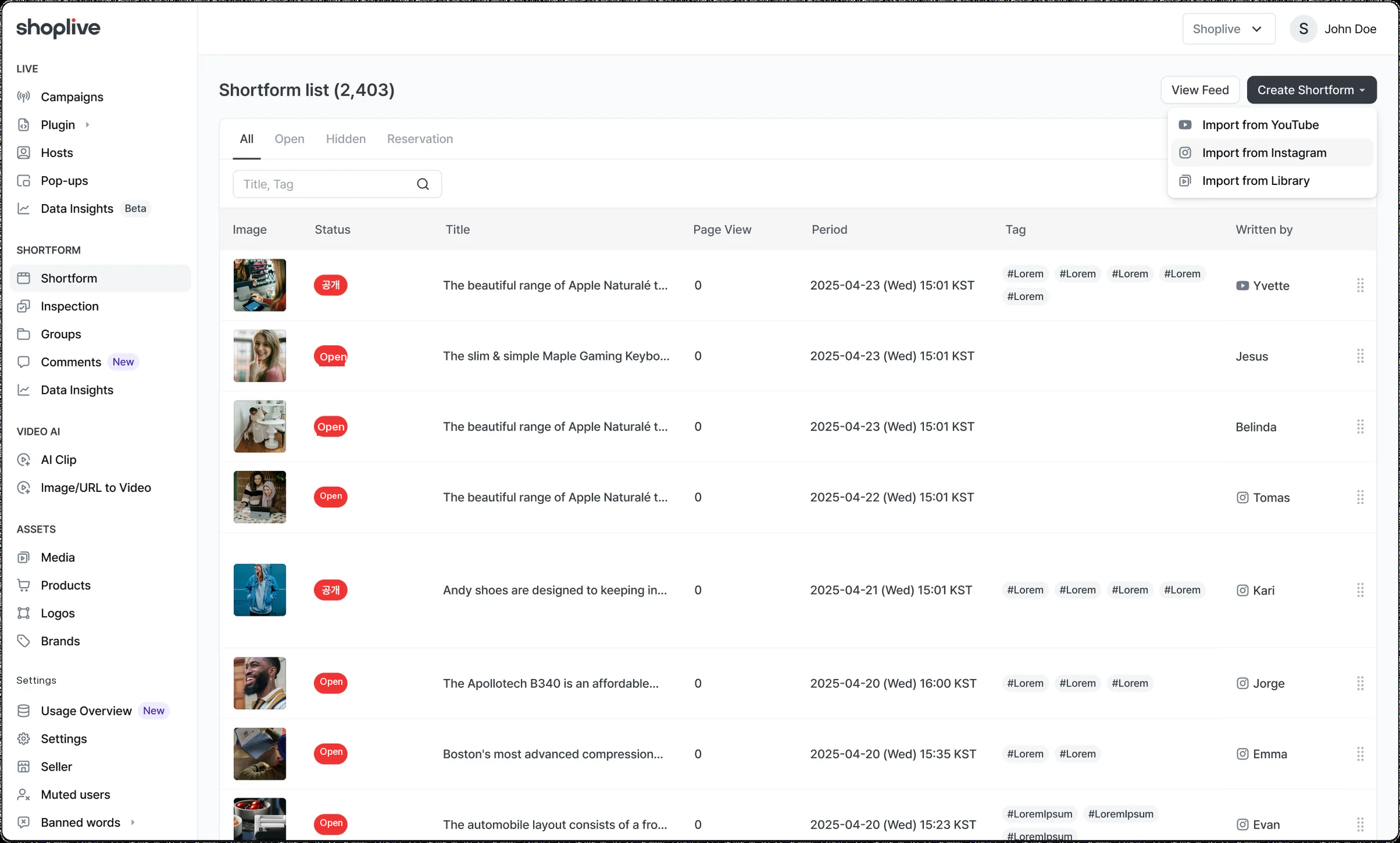
- In Shortform in the Shoplive Admin, click ‘Create shortform’.
- Choosing ‘Import from Instagram’ takes you to a dedicated page.
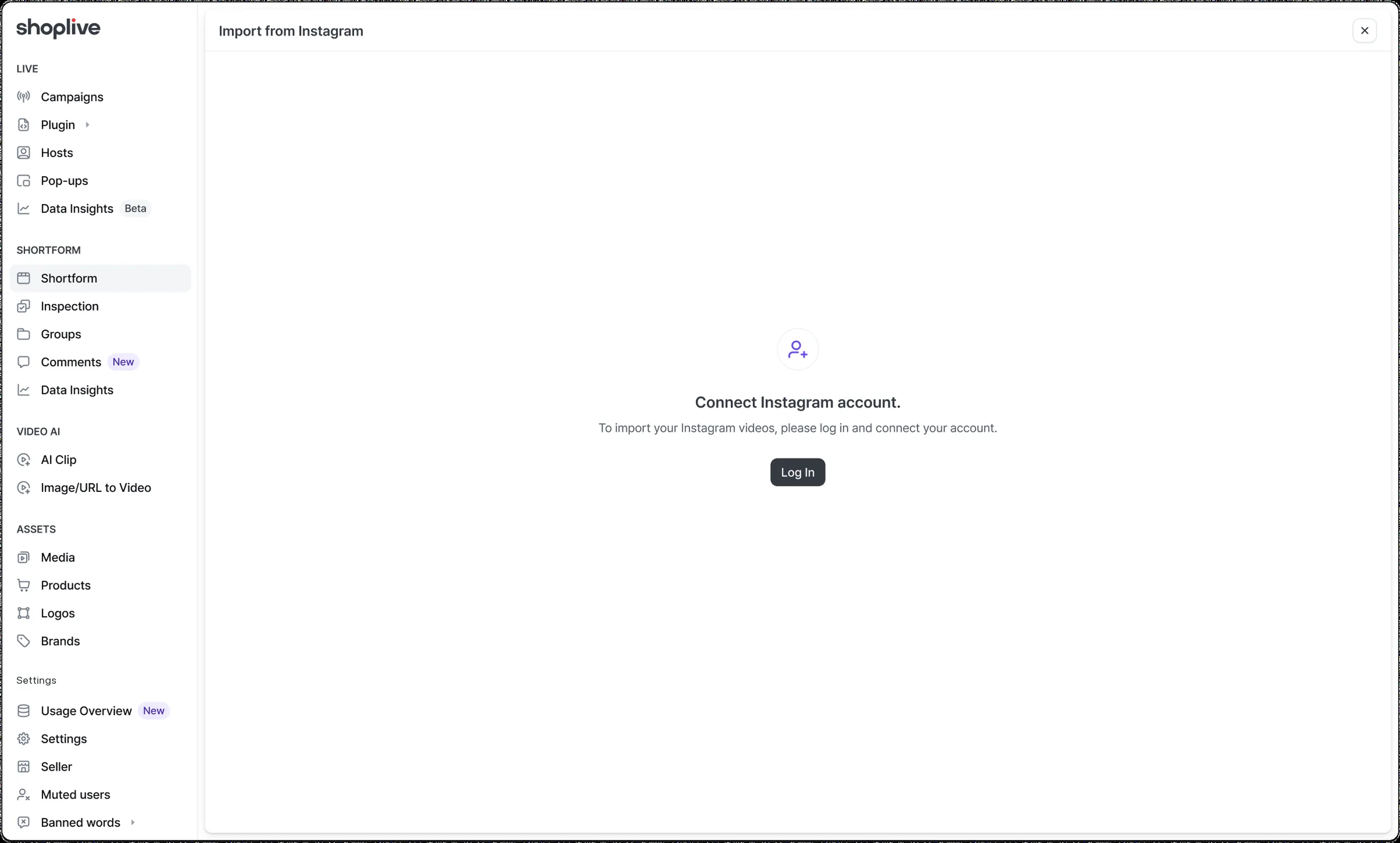
- If no account is linked, a login page appears. Click the ‘Log in’ button to log in.
Once you log in, the account is linked automatically.
- The token issued after login is valid for up to 60 days; after that you may need to log in again.
- Under Instagram’s policy, this is available only for Business/Creator Instagram accounts.
2. Select Reels
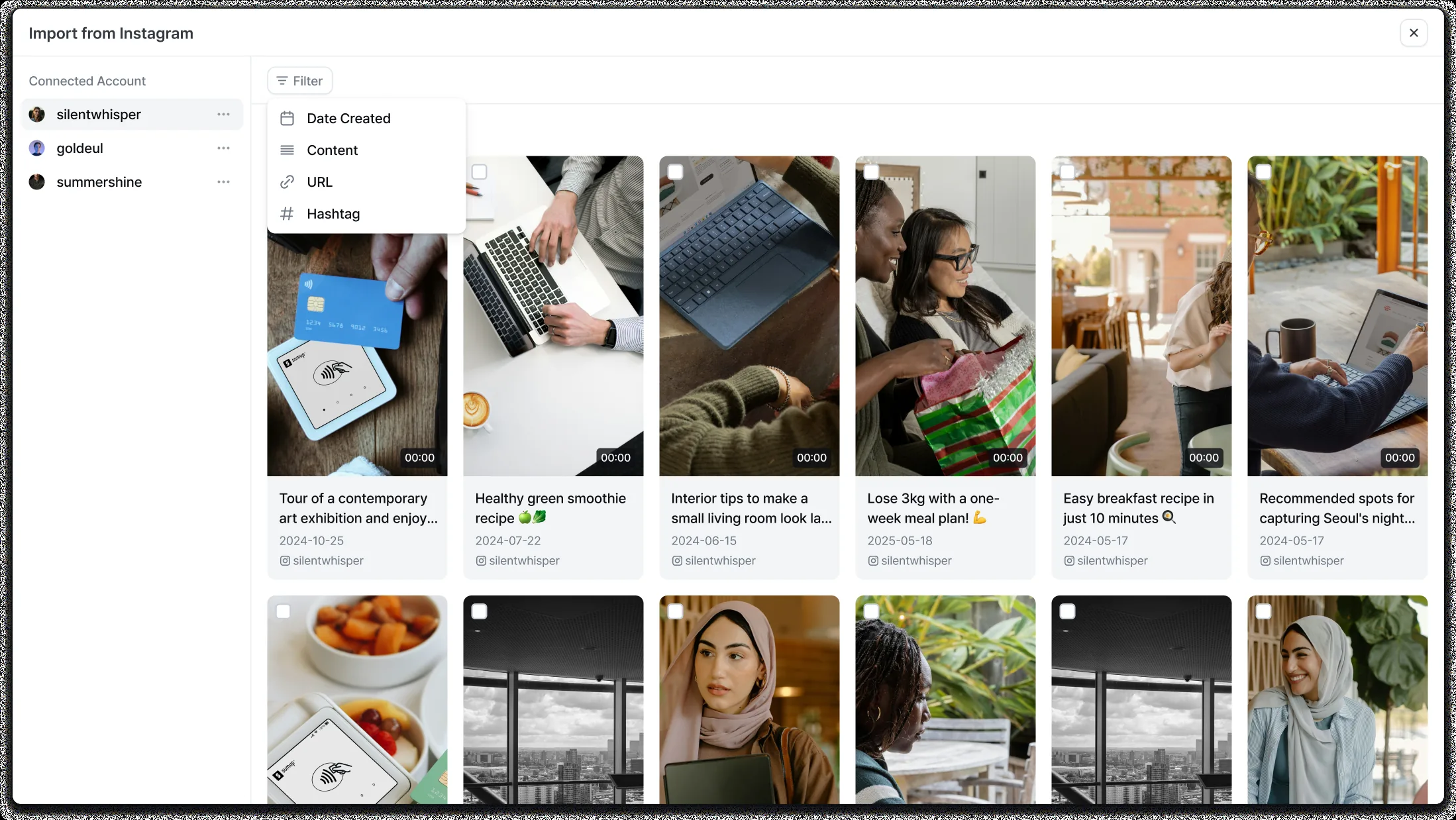
After linking an Instagram account, you can see that account’s Reels at a glance.
Features
- You can see the thumbnail, description, author, created date and more.
- Up to 10,000 items can be loaded.
- Multi-select and select all are supported for Reels.
- Selected Reels can be turned into shortforms with a single click.
Filters
You can search the Reels list with the following filters.
You can use multiple filters at once: conditions within the same filter are combined with OR, and different filters with AND.
| Filter | Description |
|---|---|
| Created | Search Reels created in a specific period |
| Description | Supports partial search of the Reels description |
| URL | You can search by a specific Reel’s URL. |
| Hashtag | You can search hashtags (#).
|
You can switch the list between Reels and Tagged; switching to Tagged lets you import posts the account is tagged in.
3. Create shortforms
Select Reels and click the ‘Create shortform’ button to register a shortform creation request.
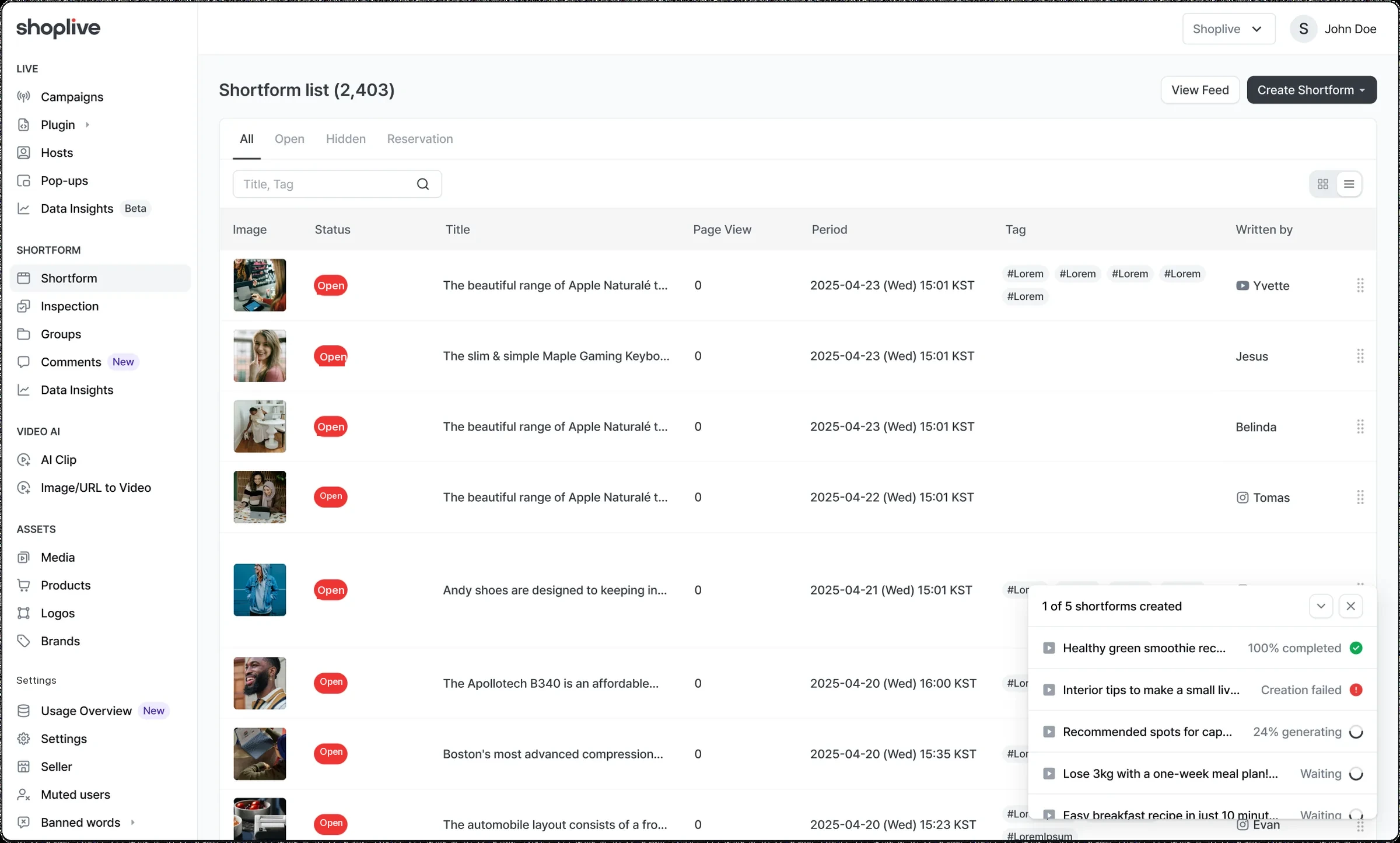
- Requested shortforms appear in a list where you can check their processing status in real time.
- You can’t cancel or delete while creation is in progress.
- Import progress is shown in a popup, and the import continues even if you close the screen during creation.
- If some shortforms can’t be imported, a “Failed to import N of N” modal appears.
4. Check the created shortforms
Shortforms created with ‘Import from Instagram’ have the following fields filled in automatically.
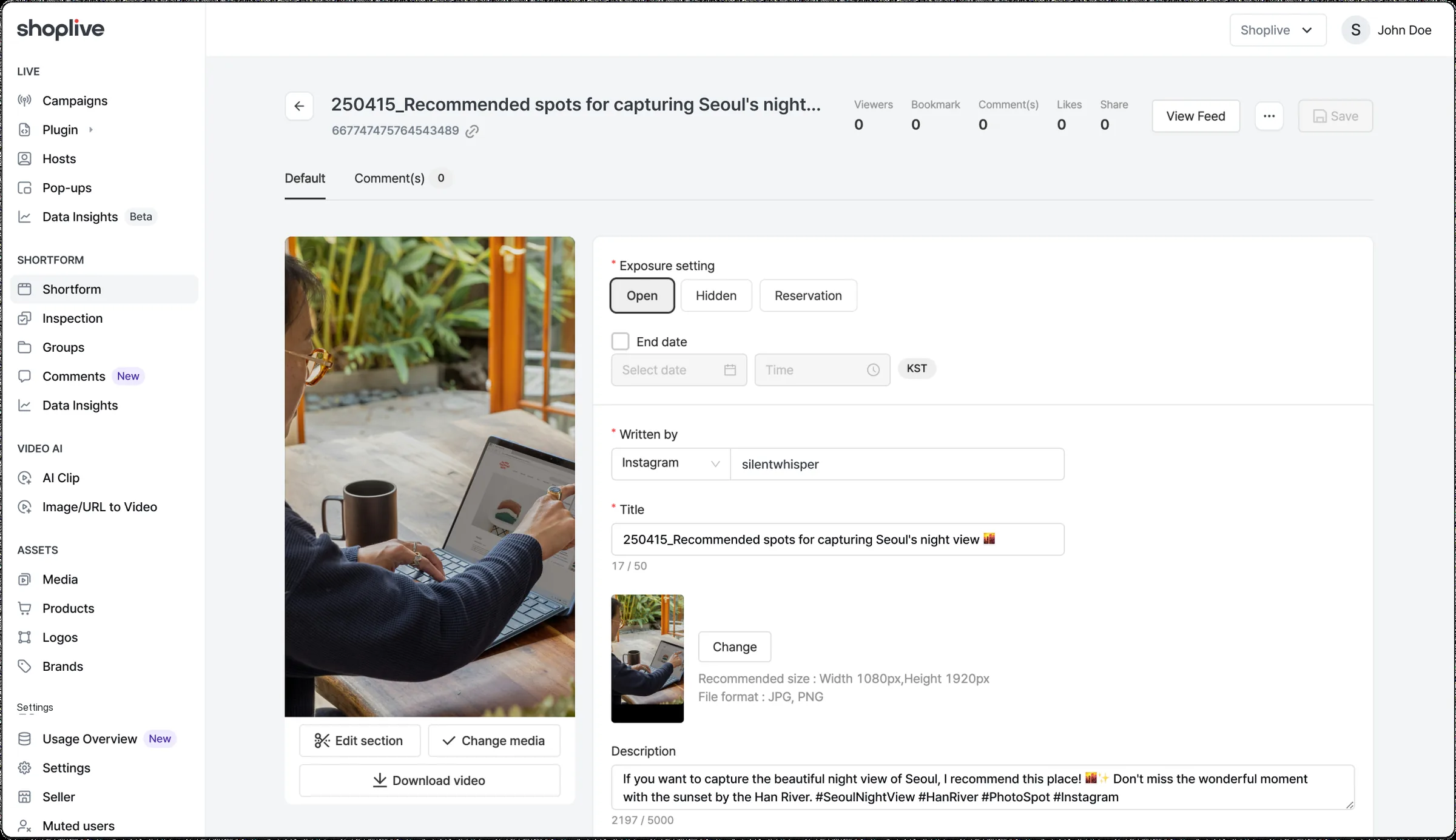
| Item | Description |
|---|---|
| Video | The Instagram Reel video |
| Review status | (Shown only to customers using the review feature) Default: Approved |
| Visibility | Default: Public |
| Title | YYMMDD_first 10 characters of the description |
| Description | The Reel’s description |
| Author | Instagram ID |
| Thumbnail | The Reel’s thumbnail |
| Tags | Hashtags in the description |
5. Link more accounts and unlink accounts
Link more accounts
Shoplive ‘Import from Instagram’ supports linking multiple accounts.
- Add an account with the ‘+’ button next to ‘Linked accounts’ in the left panel.
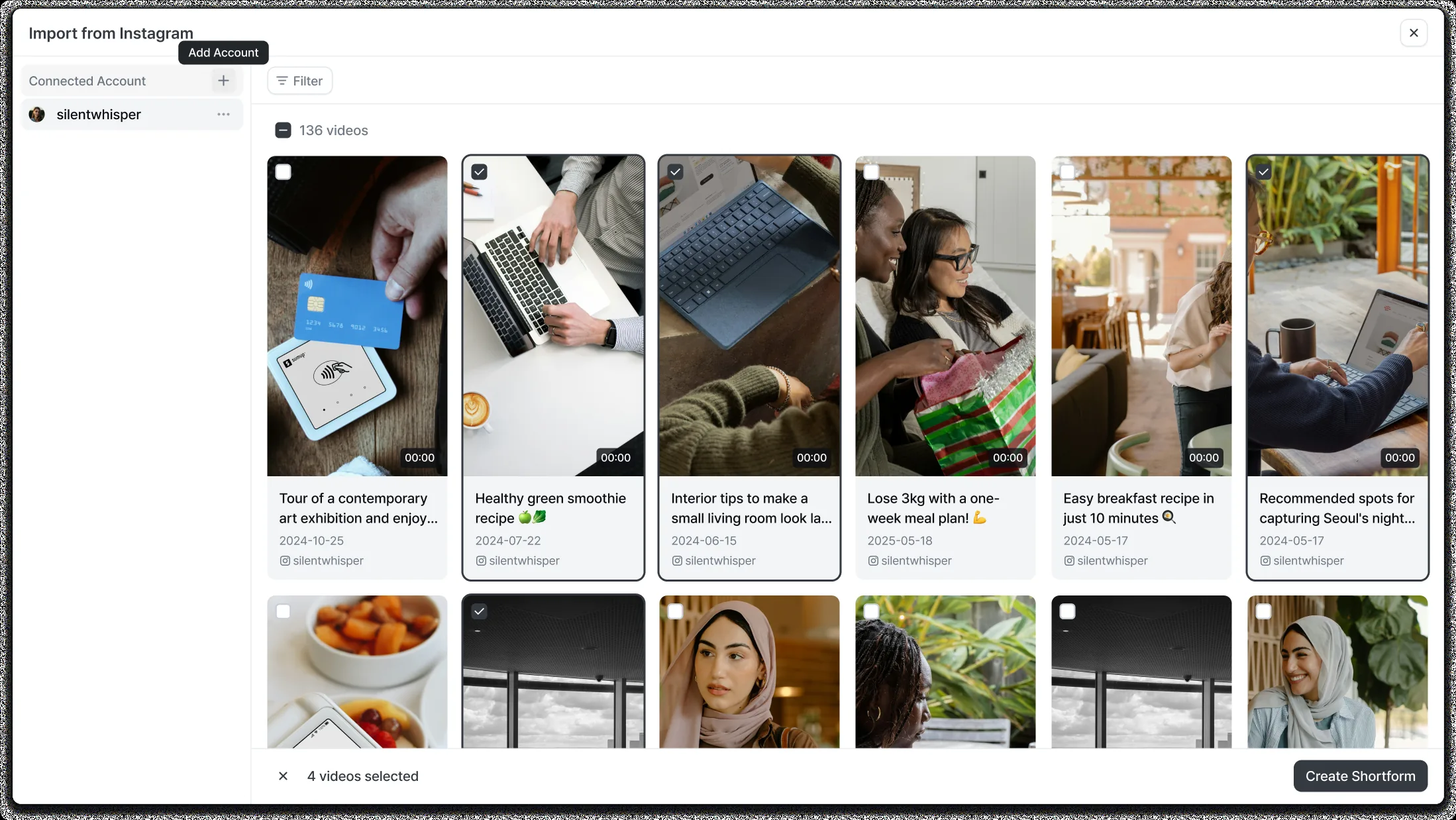
When the token expires, an “Your Instagram link has expired” notice appears; log in again to keep using it.
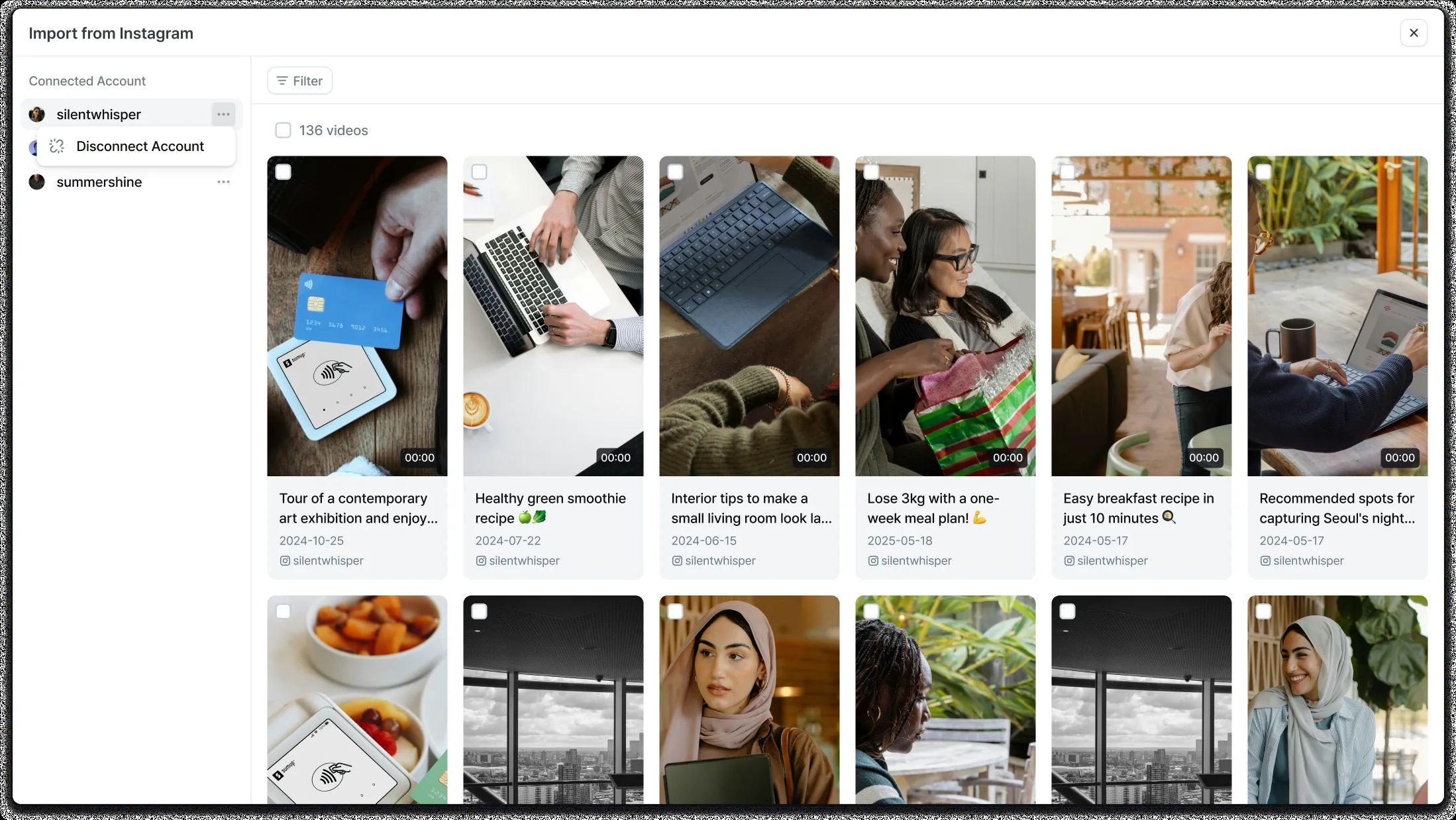
Unlink an account
You can unlink a linked Instagram account as follows.
- Click the [···] button next to the account name
- Choose ‘Unlink account’
- The account is removed, and its token is deleted automatically.
Shortforms you’ve already added don’t disappear when you unlink.
Import from YouTube
What is Import from YouTube?
‘Import from YouTube’ lets you turn videos uploaded to YouTube into shortforms directly in the Shoplive Admin. Just enter the video URL and the video loads automatically, speeding up shortform content production.
The video and its information, such as the description, load automatically with no separate download, improving both operational efficiency and content supply.
How to use
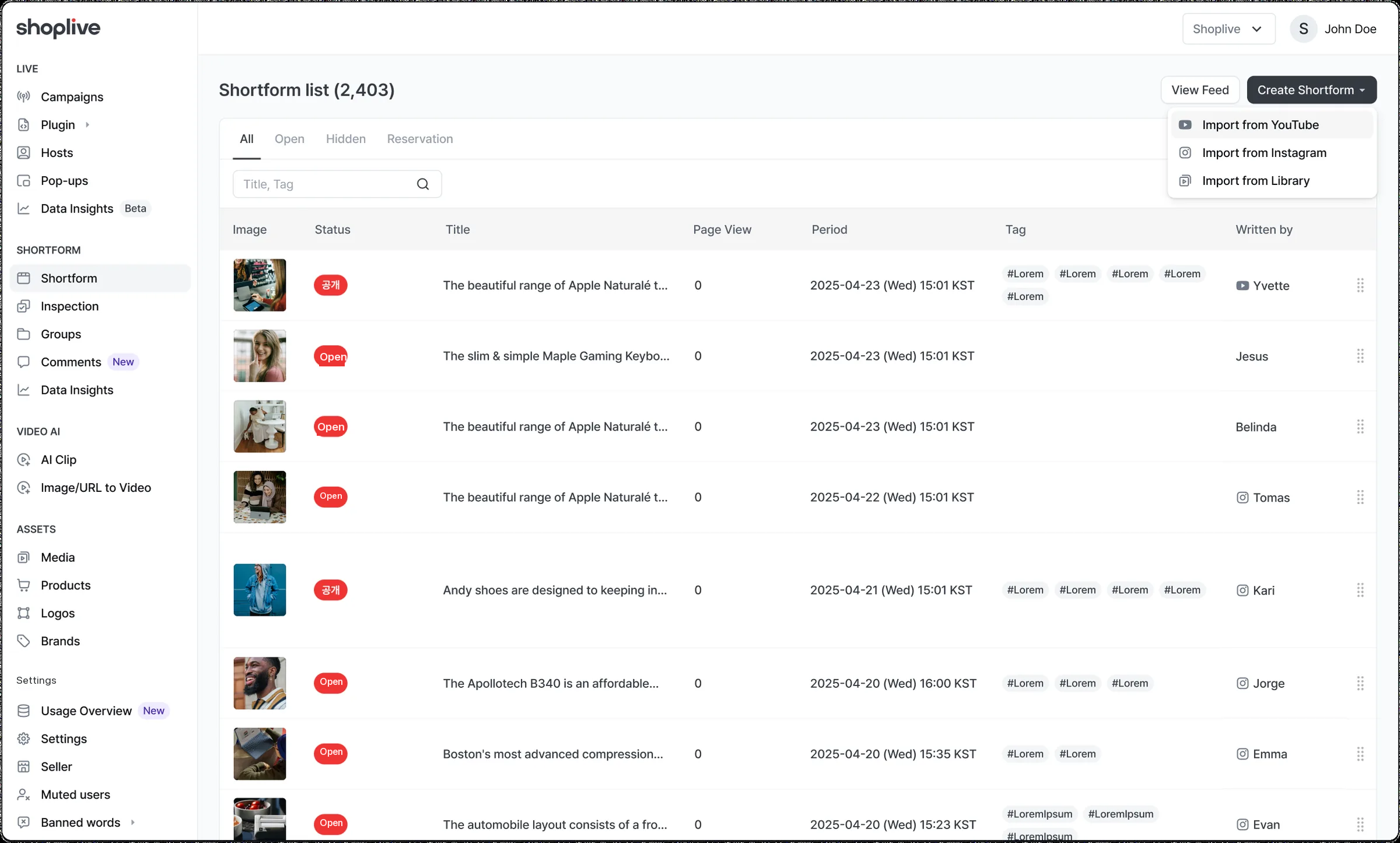
1. Click ‘Import from YouTube’ in the shortform list
- In the left menu of the Shoplive Admin, click [Shortform] → [Create shortform]
- Click the ‘Import from YouTube’ button
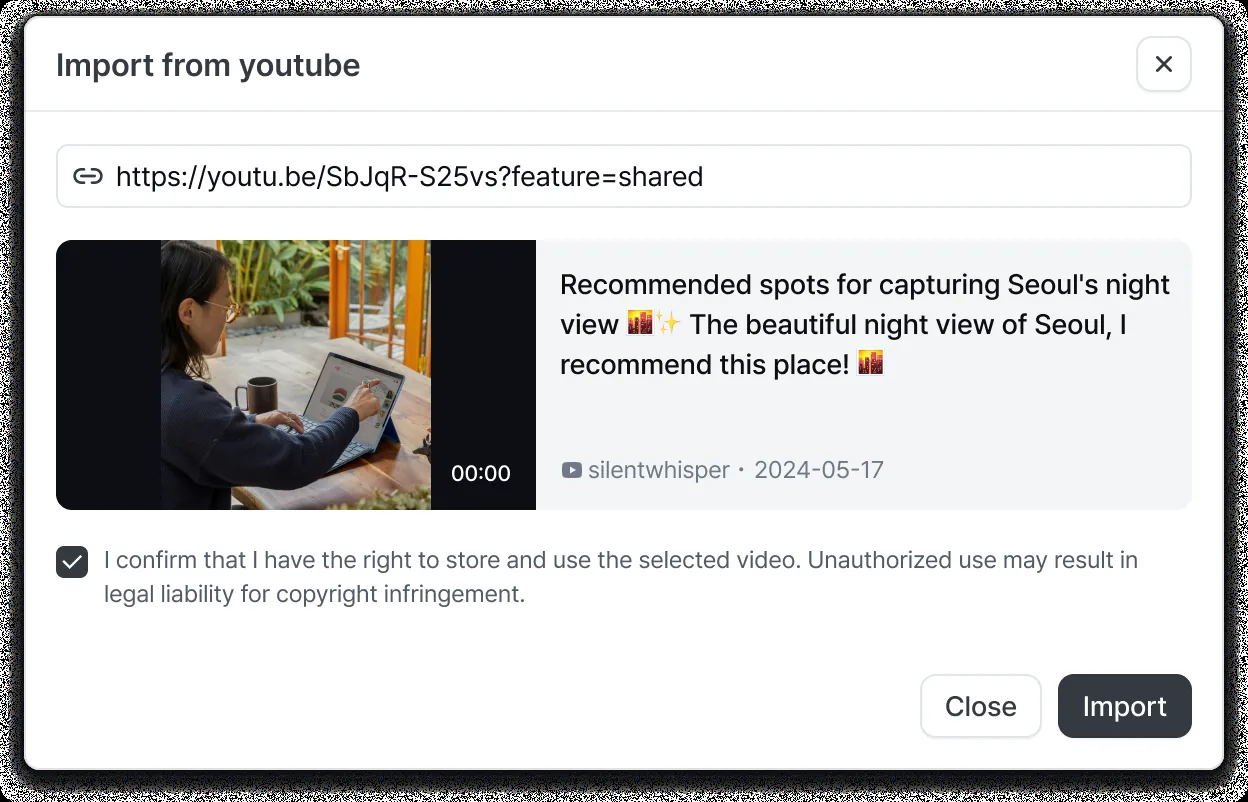
2. Enter the YouTube URL and preview the video
When the ‘Import from YouTube’ modal opens, follow these steps.
- Enter the YouTube video URL.
- The YouTube URL is validated, and for a valid YouTube video some metadata appears automatically.
Once you agree to the terms of use below, the ‘Import’ button is enabled.
- Some content defined by YouTube, such as age-restricted, private or premium content, may fail to import.
- Use the ‘Import’ button to create a Shoplive shortform.
3. Create shortforms
When you click ‘Import’, the following information is filled in automatically. Click the ‘Save’ button to create the shortform.
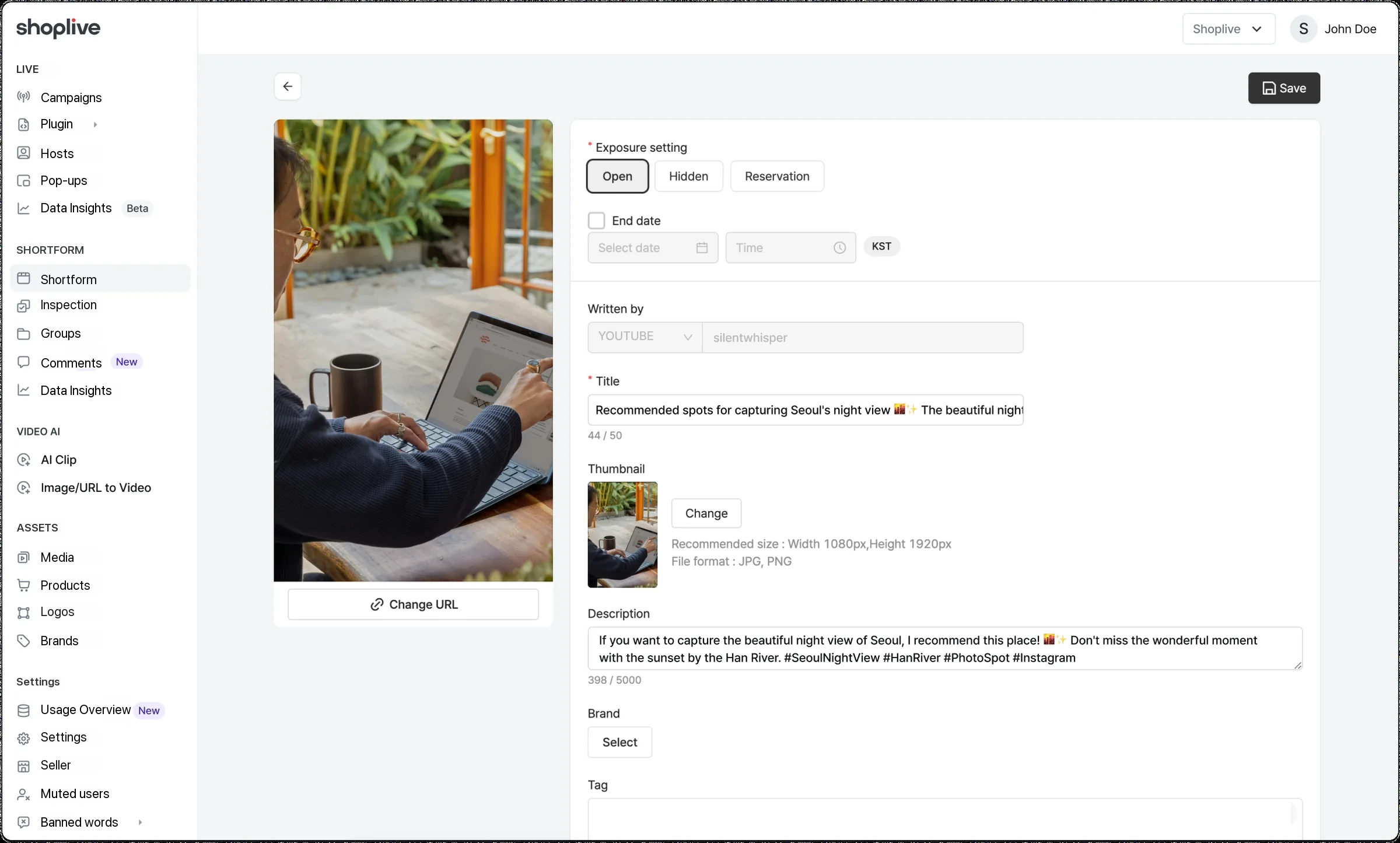
| Item | Description |
|---|---|
| Video | The video imported from YouTube |
| Thumbnail | The thumbnail registered on the YouTube video |
| Review status | (Only for customers using the review feature) Default: Approved |
| Visibility | Default: Public |
| Title | YouTube video title |
| Description | YouTube video description |
| Author | YouTube video author |
- When the import finishes, a confirmation asks whether to update the title, description, tags and author with the YouTube video’s information.
- If the video can’t be imported due to policy or the URL is invalid, an error notice appears.
- You can also use Import from YouTube from the Add media menu on the shortform detail screen.
Chrome is recommended for Import from YouTube.