Create Shortforms
You can create Shoplive Shortforms in the following ways.
- Create from media
- Create from a broadcast
- Import a YouTube video
- Import an Instagram post
Create from media
You can create shortforms from videos and photos you’ve made in advance.
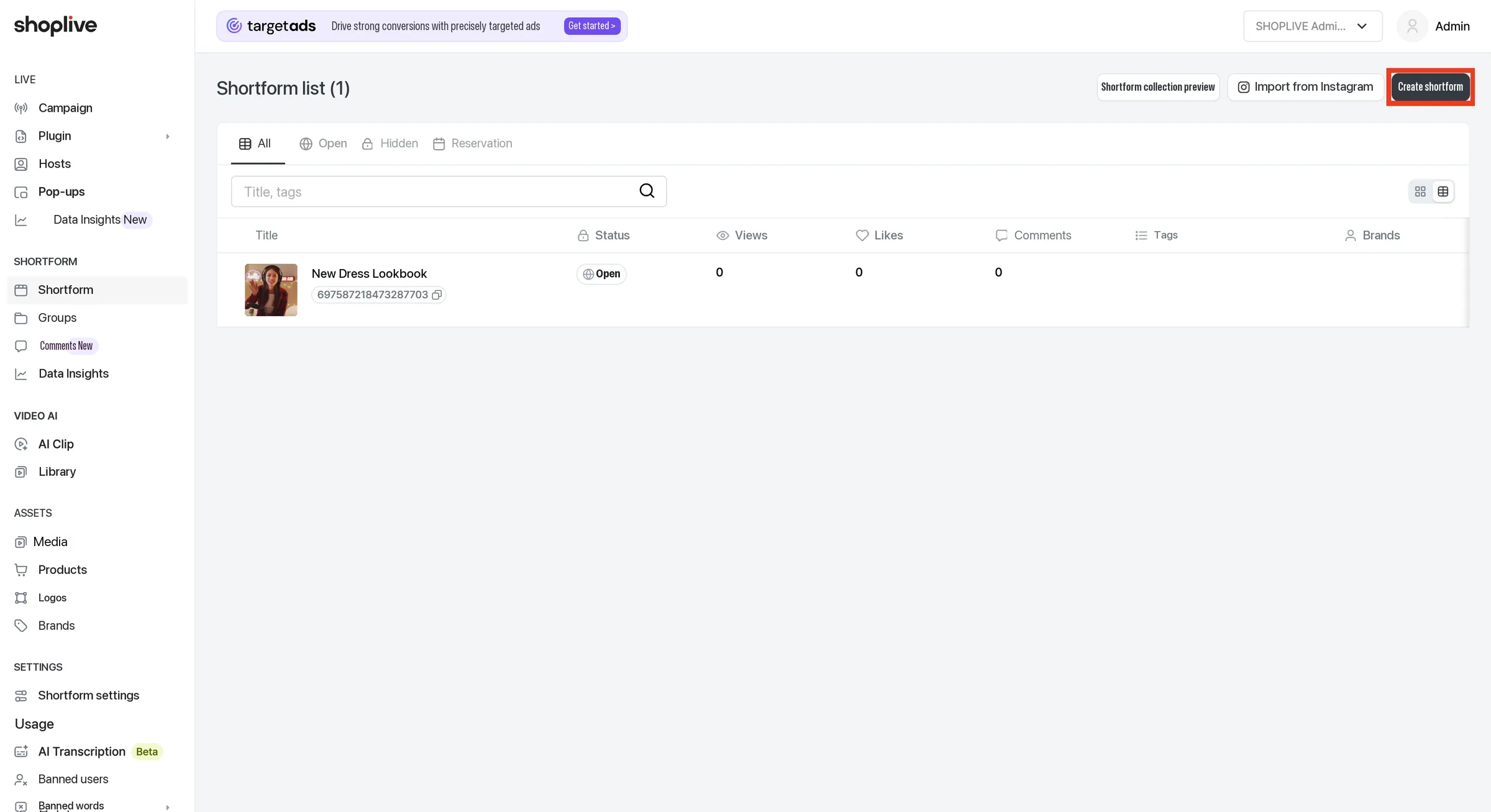
1Click the Create shortform button.
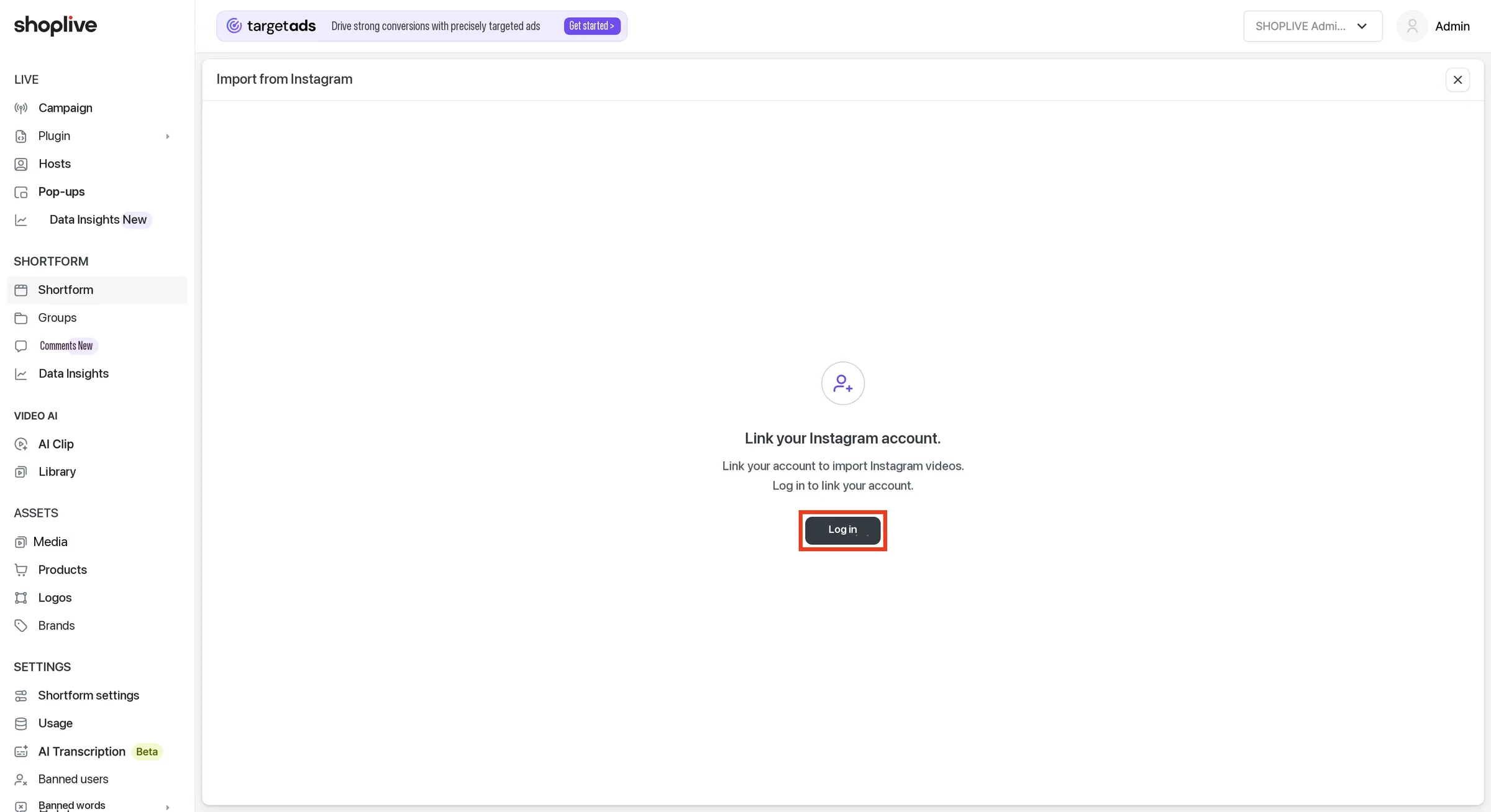
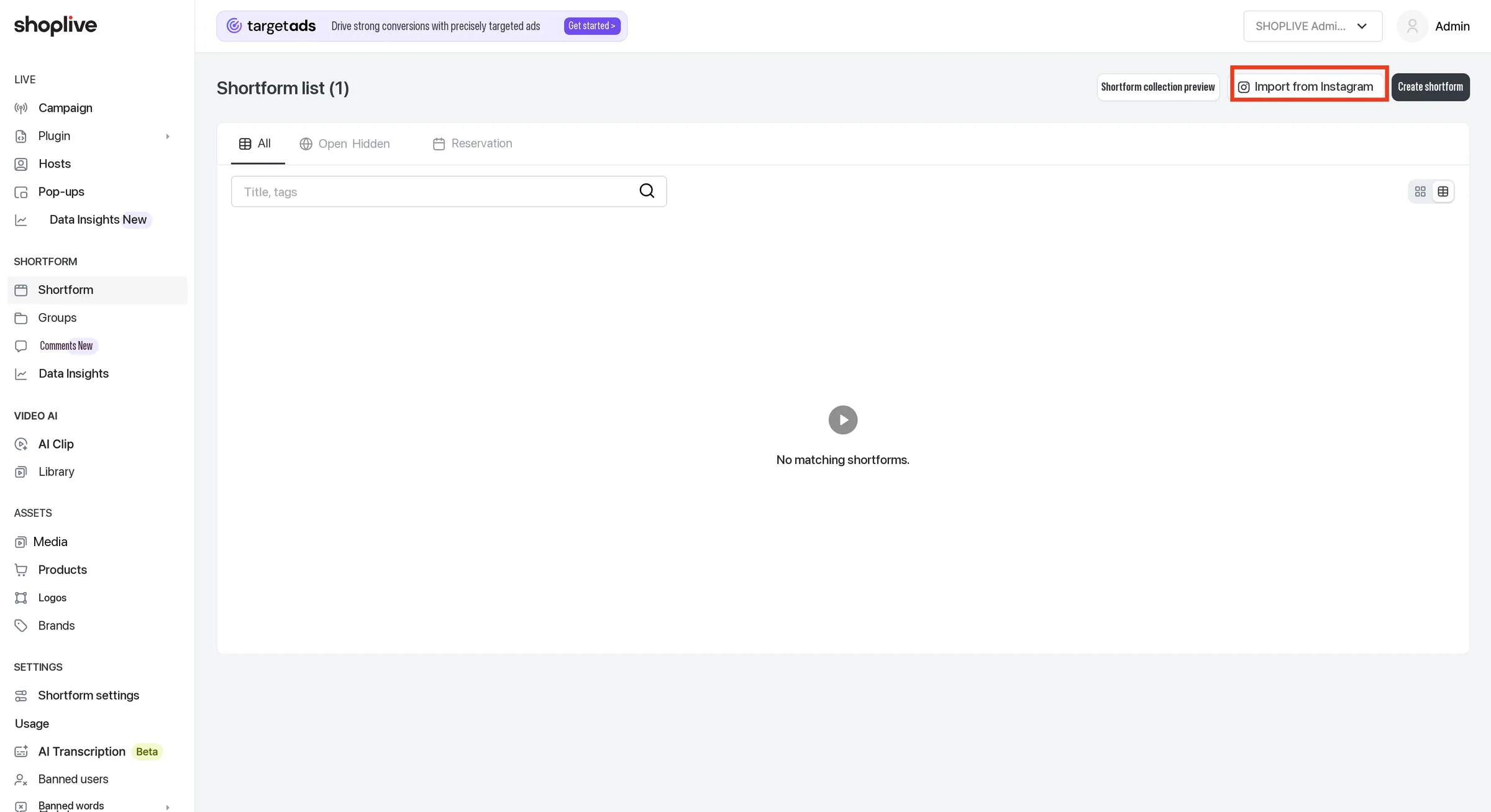
Create shortform is a dropdown menu with three items: Import from YouTube, Import from Instagram and Import media. Choosing Import from Instagram goes to a dedicated page rather than a modal, and if no Instagram account is linked, a login page appears.
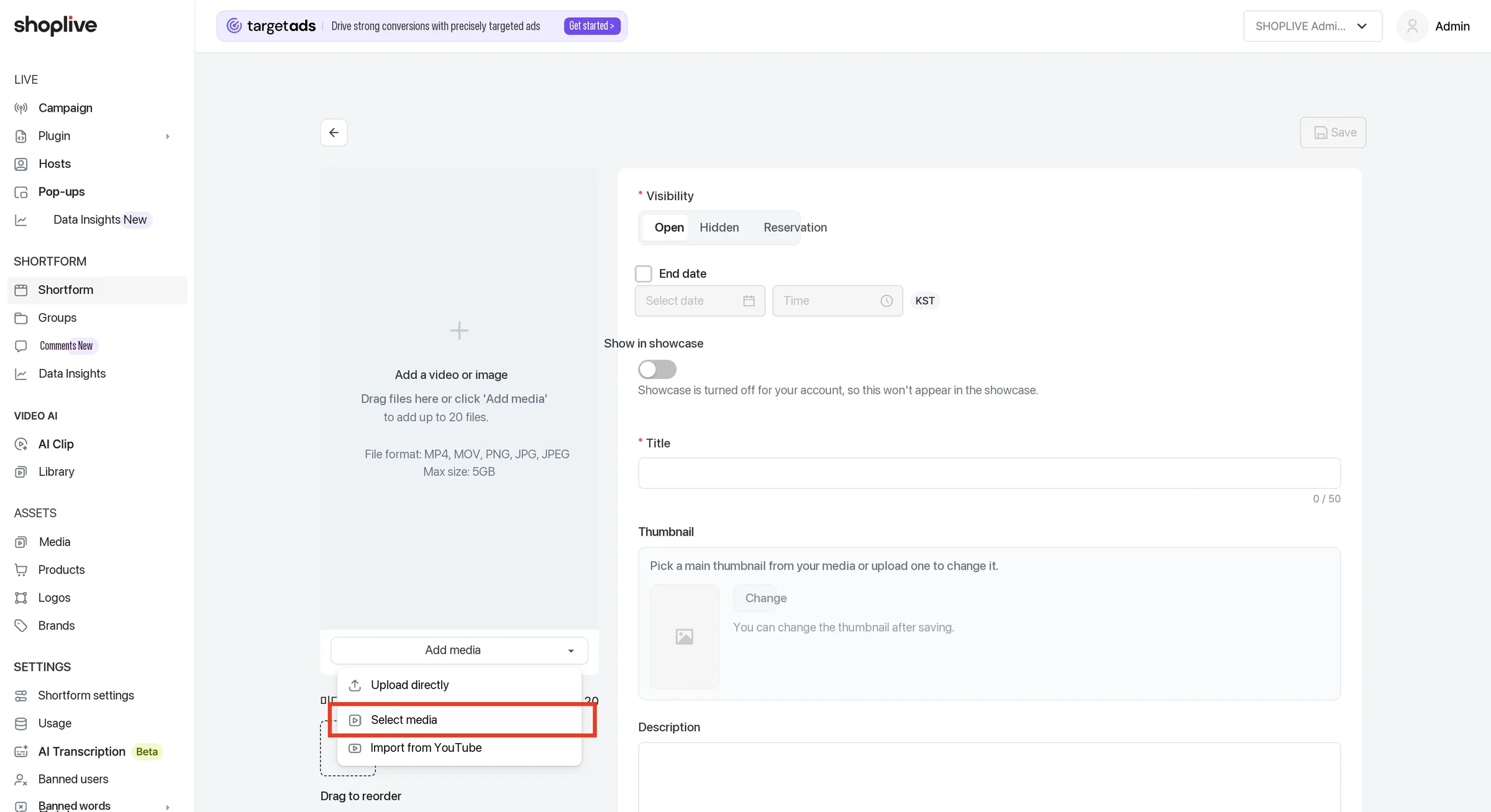
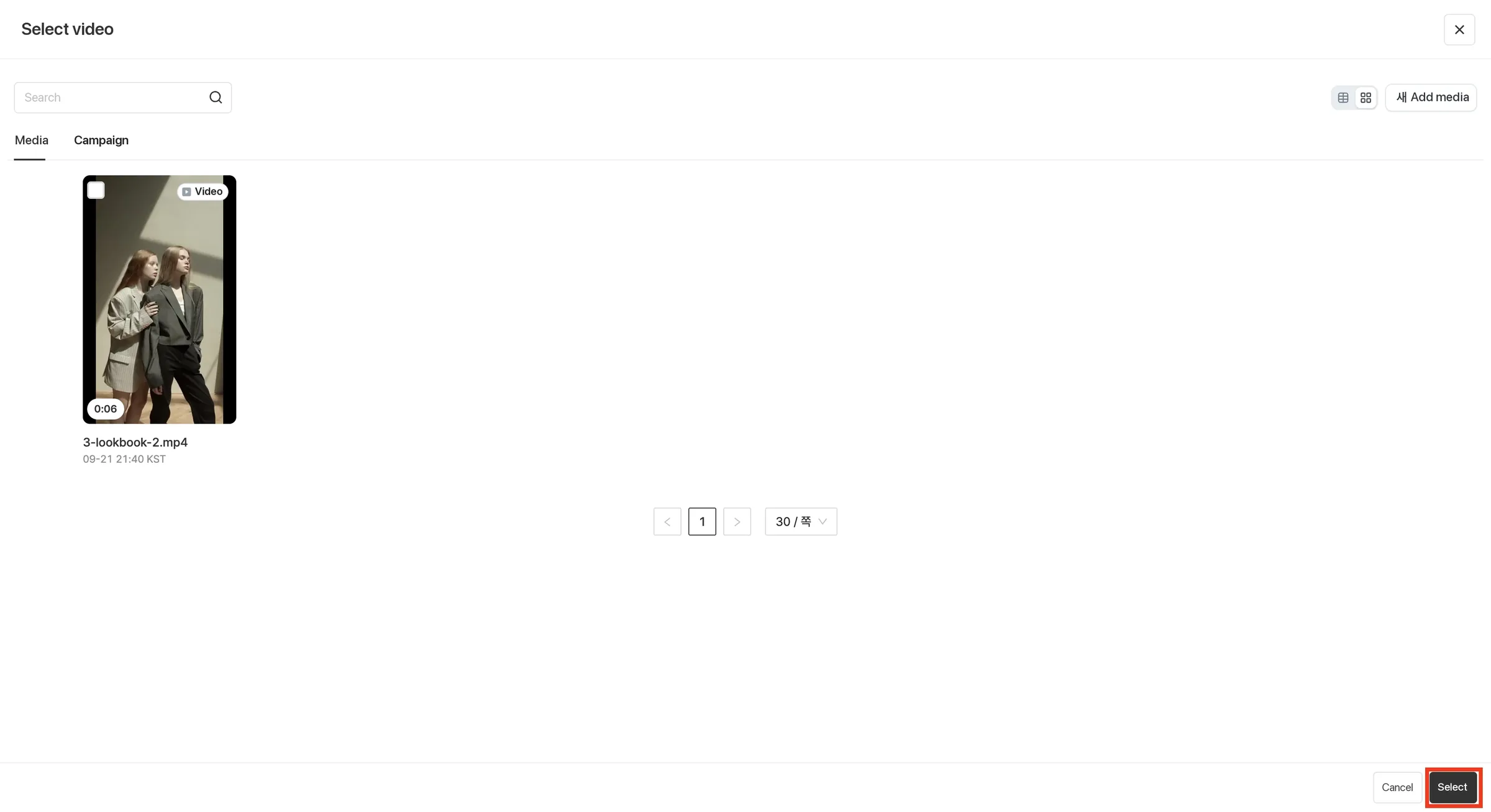
2Click the Add media button to choose one of three methods: Upload directly / Select media / Import from YouTube. To use media that’s already uploaded, click Select media. (Choosing Upload directly opens the file picker right away so you can upload a new video or image.)
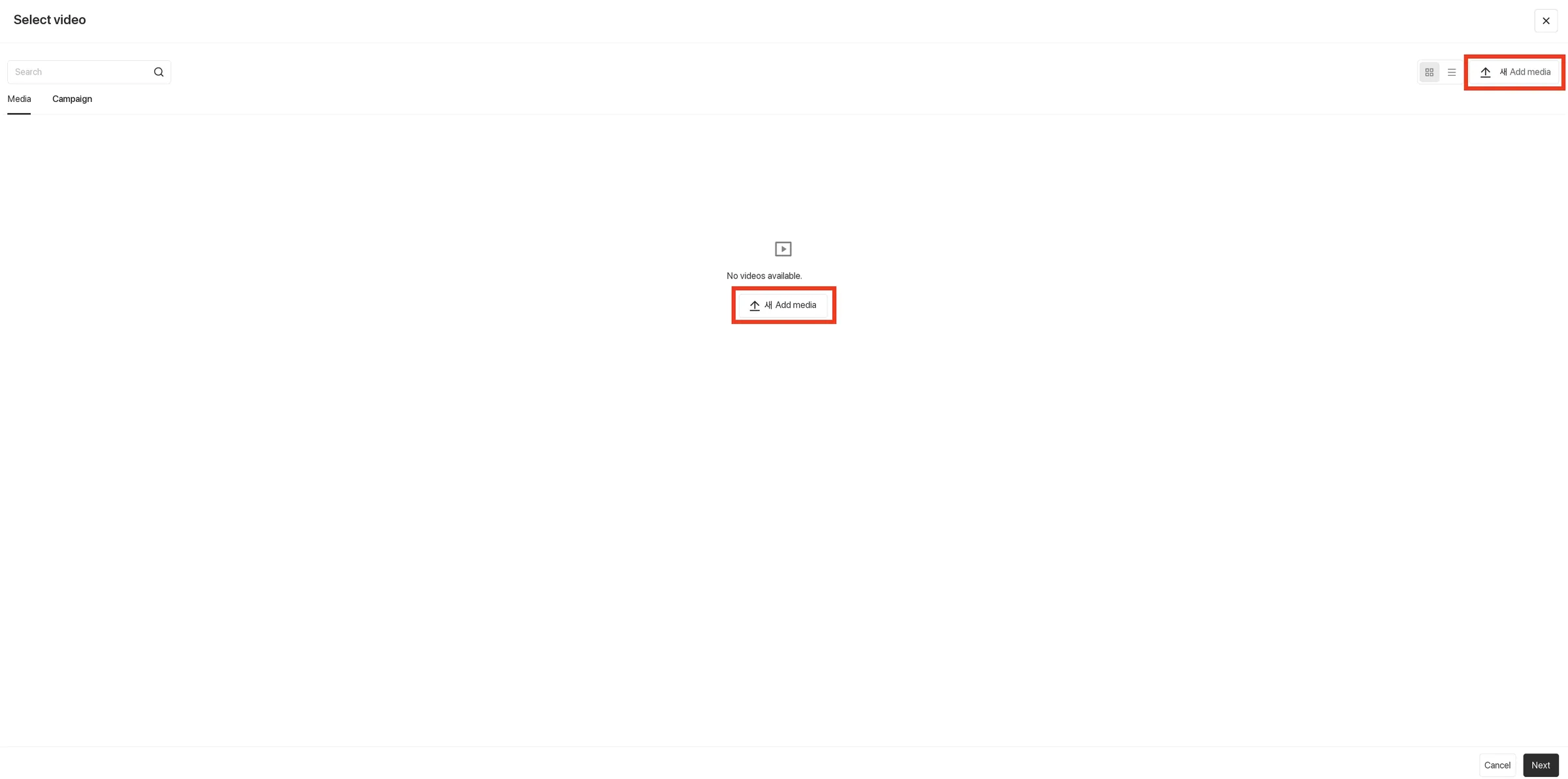
3On the Media tab, click the Add new media button to upload a video or image.
4After selecting the uploaded media, click the Select button.
- You can add up to 20 media items and drag them to change the order.
- Files you can upload directly are mp4·mov (video) and png·jpg·jpeg (image), up to 5GB per file.
- You can’t save while uploading or converting is in progress.
Create from a broadcast
You can create shortforms from broadcasts you’ve run on Shoplive.
1Click the Create shortform button. (Same screen as step 1 of "Create from media" above)
2Click the Add media button, then click Select media. (Same screens as steps 2–3 of "Create from media" above)
3Click the Broadcast tab, select the broadcast to turn into a shortform, and click the Select button.
Import a YouTube video
You can import videos posted on YouTube and turn them into shortforms.
1Click Create shortform → Add media, then choose Import from YouTube.
2Enter the YouTube URL, check the box confirming your rights to store and use the video, and click the Import button.
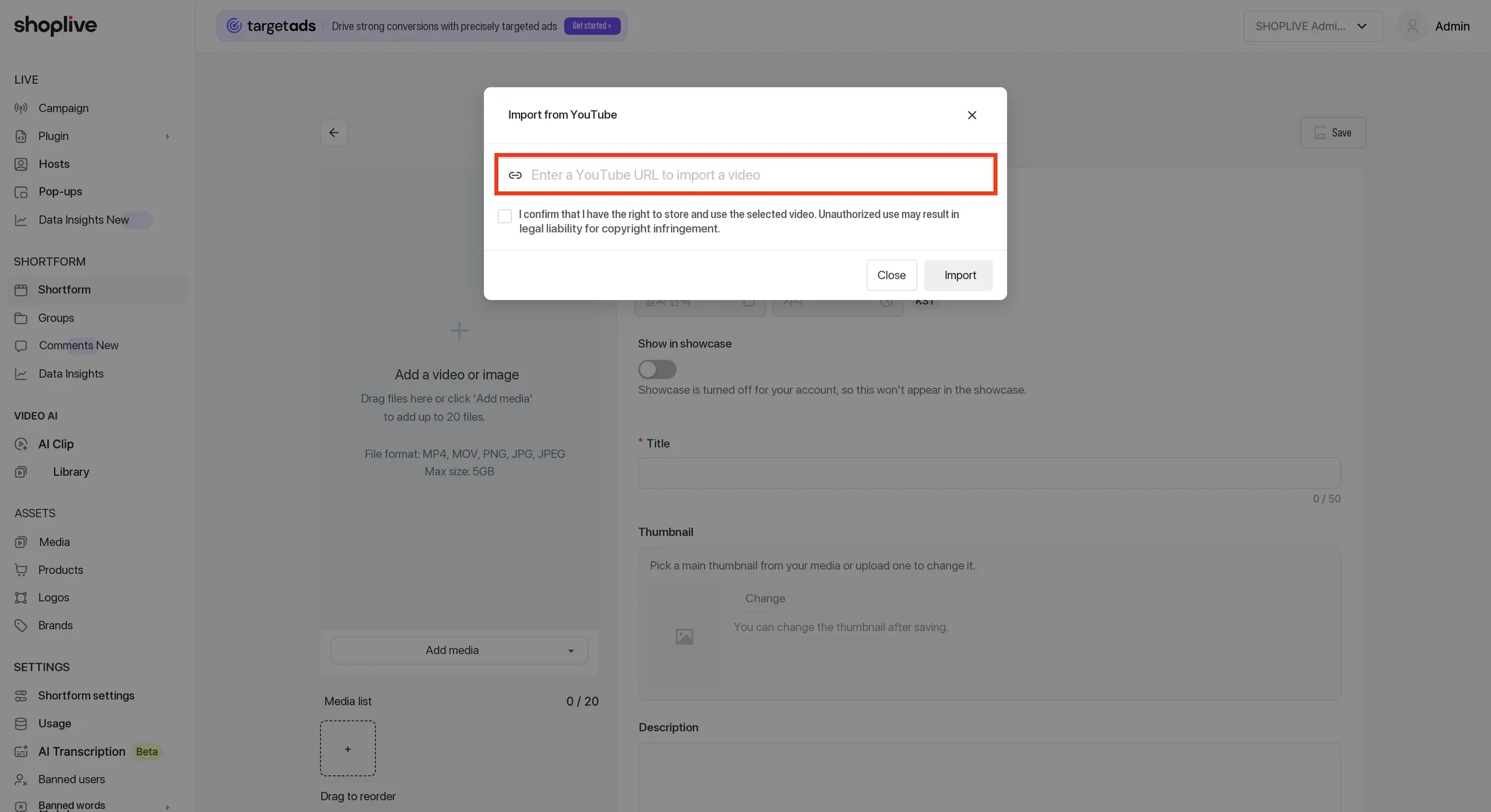
The Import button is enabled only after you agree to the checkbox with the statement I confirm that I hold the rights to store and use the selected video, and that I am legally responsible for copyright infringement if the video is used without permission.
Import an Instagram post
Use Import from Instagram in the Create shortform dropdown to import videos you posted on Instagram. It goes to a dedicated page, and if no Instagram account is linked, a login page appears.
1On the shortform list screen, choose Create shortform → Import from Instagram.
2If no Instagram account is linked, click the Log in button to link one.