Guide · 1 · Prepare Content
Edit Video Range
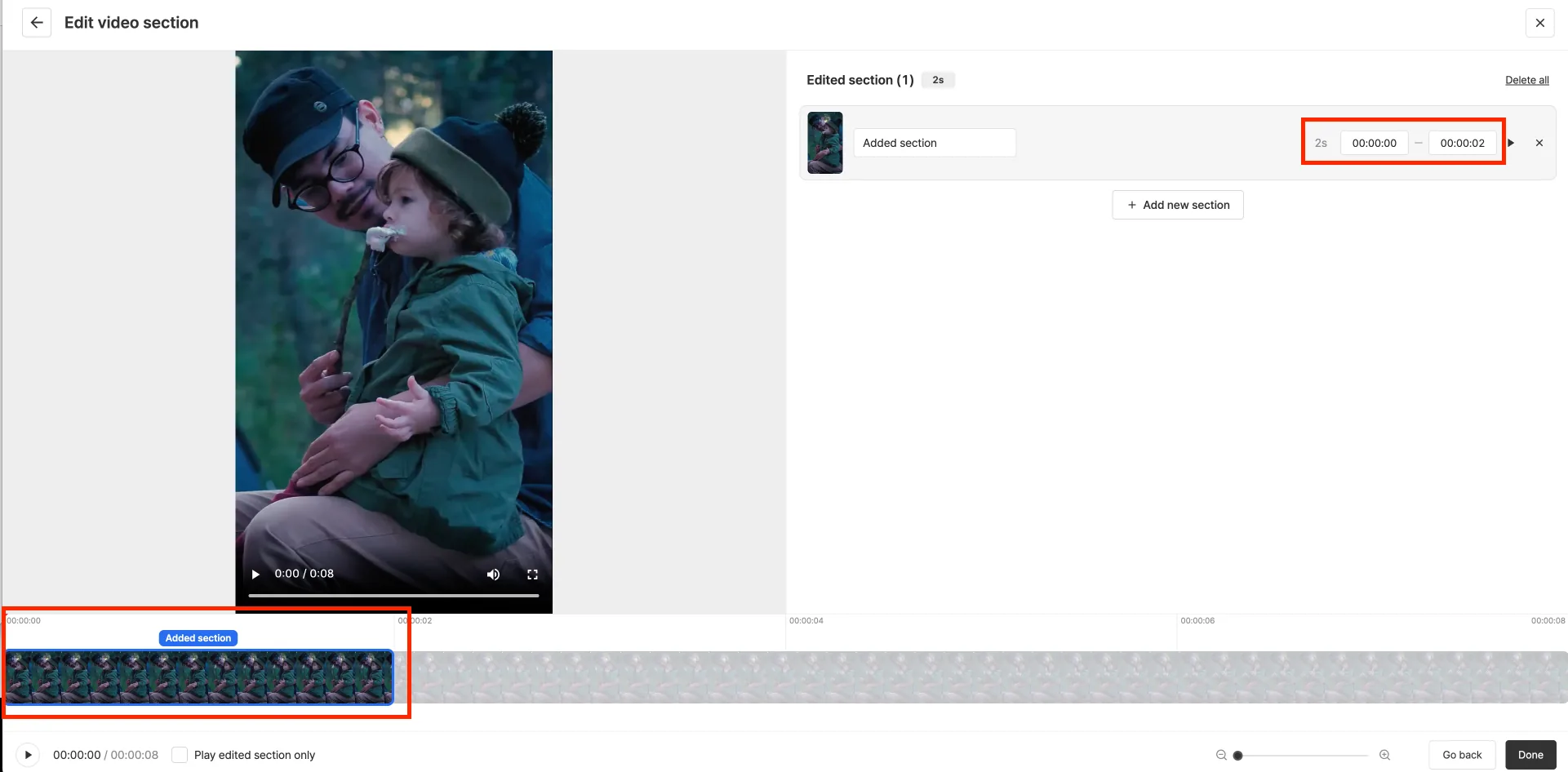
Set range
Set the range by entering times or using the time editor.
- The range must be at least 1 second.
- You can delete all ranges.
Set the range title
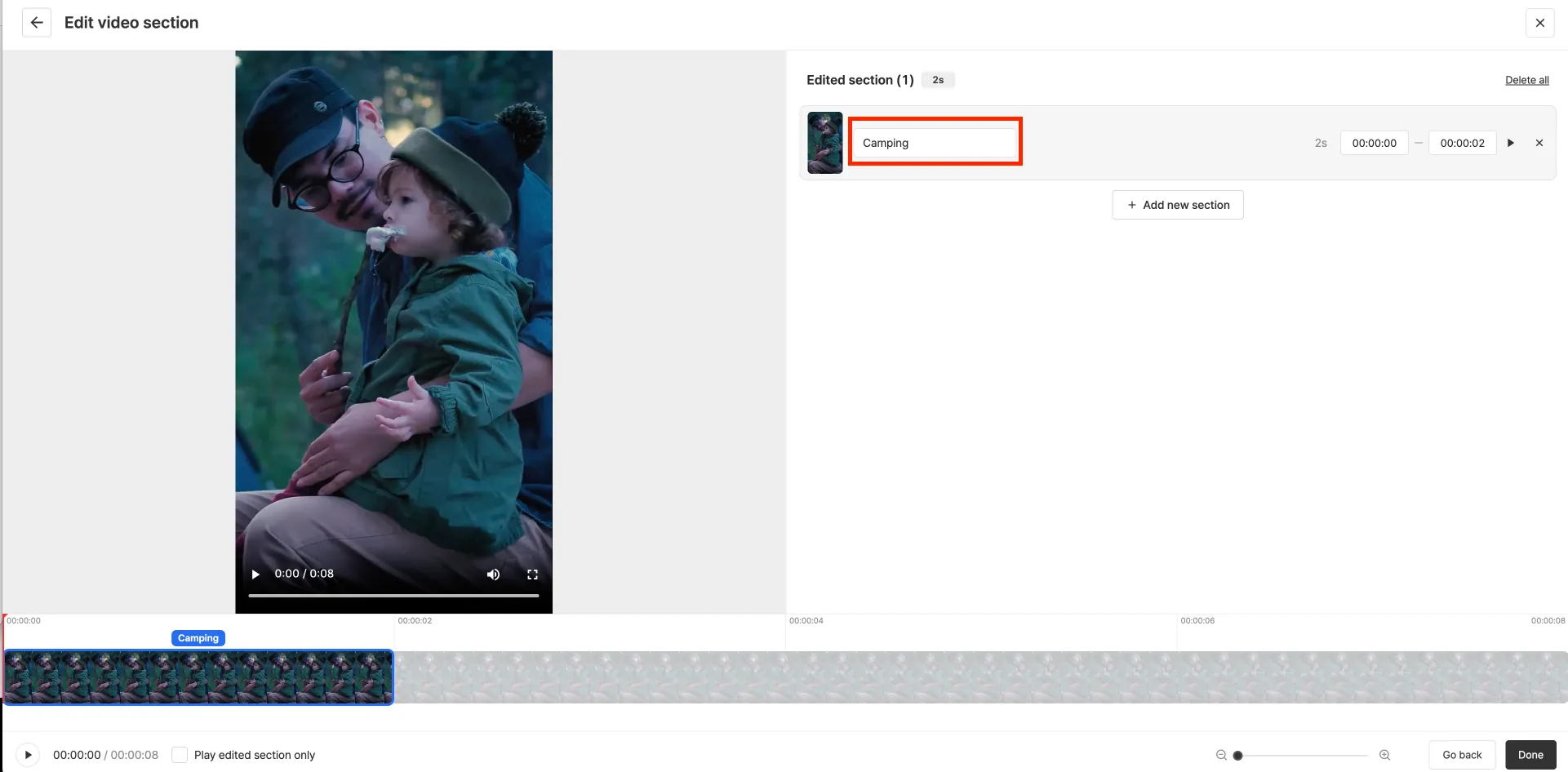
You can set a title for the selected range.
The range title can be up to 20 characters.
Add a range
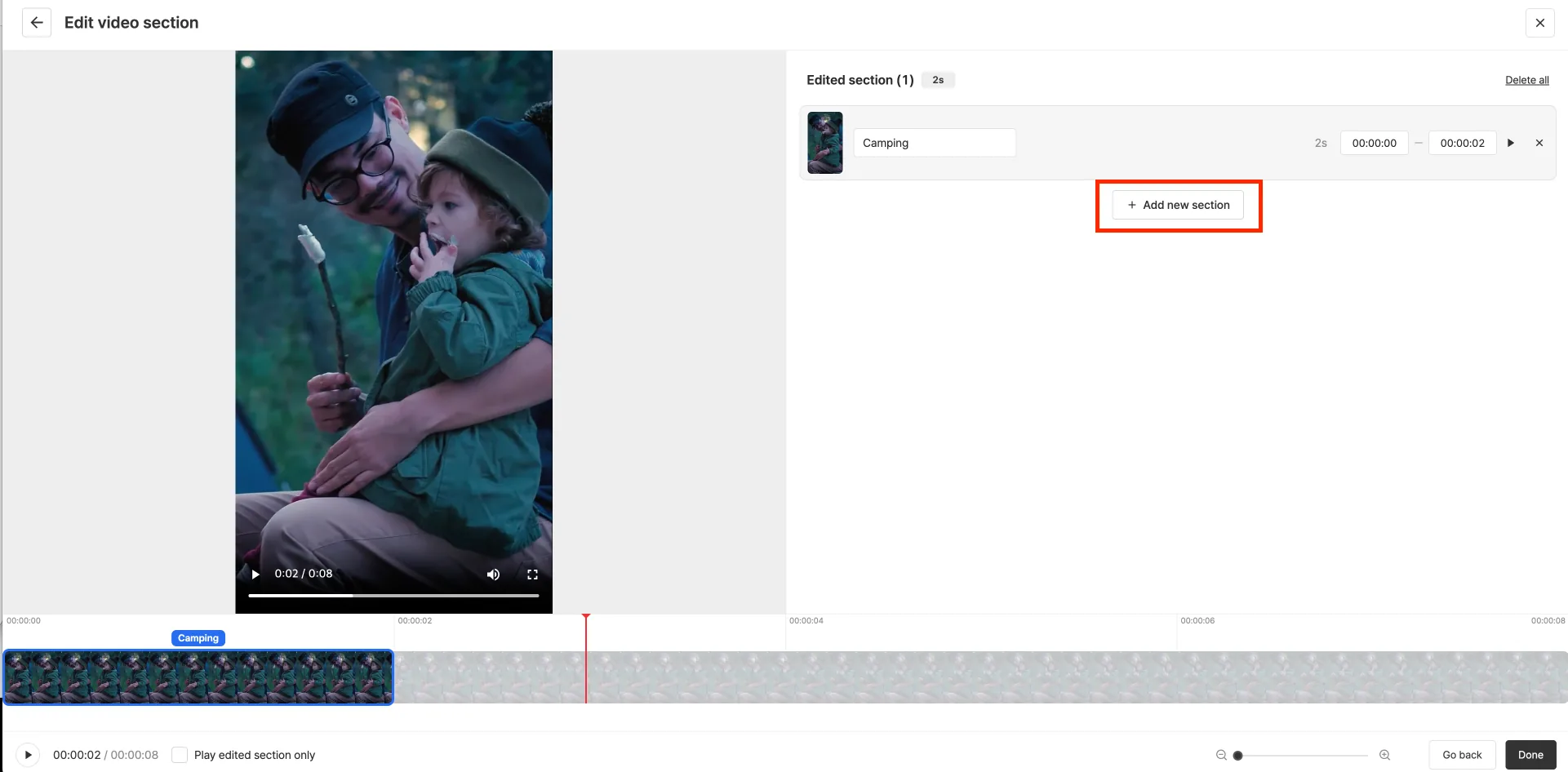
Click the Add range button to add a range.
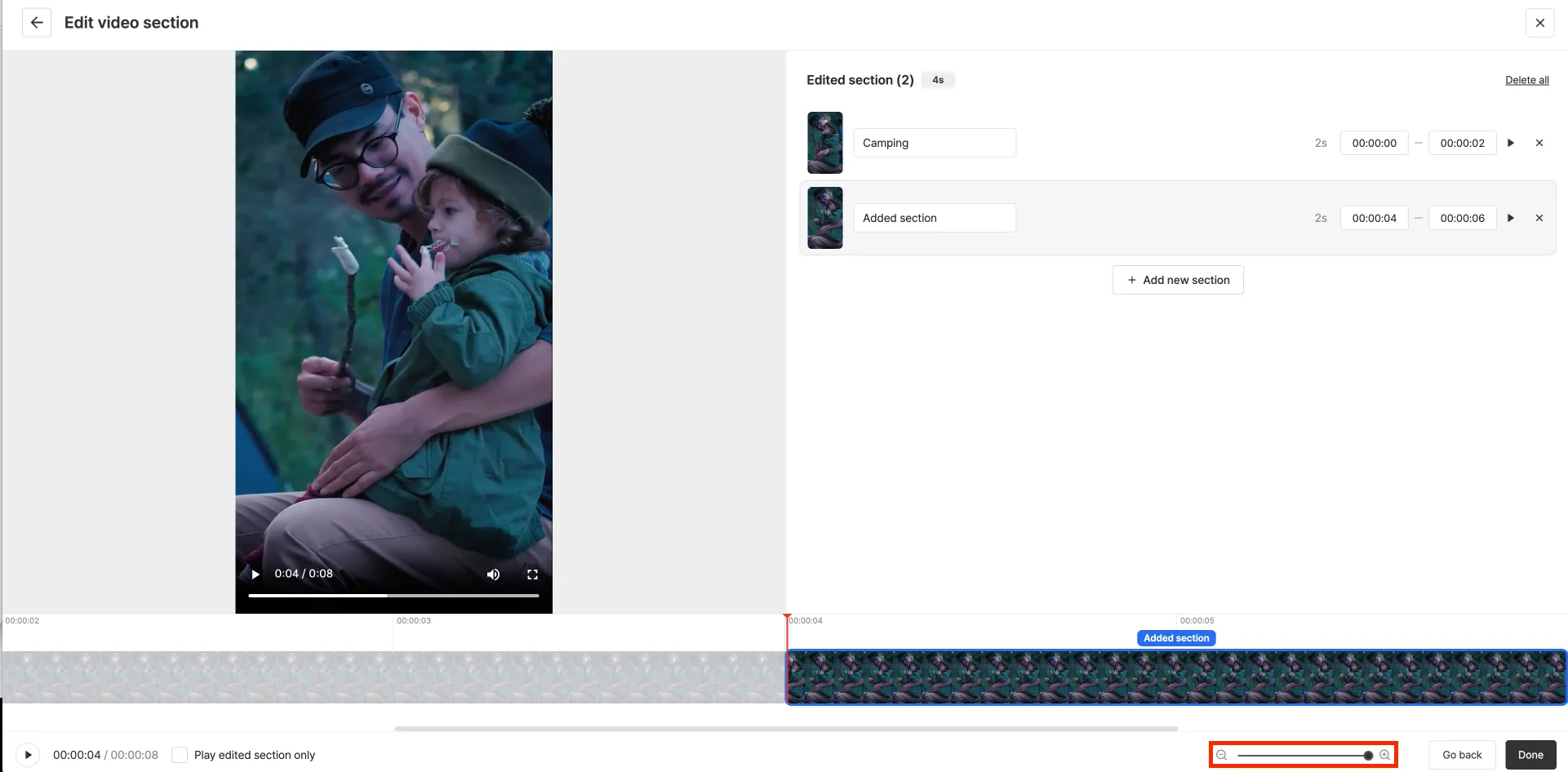
Zoom in to edit a range
Zoom in on the range to edit it in detail.
Ranges can be edited only while zoomed in.
Play the edited range
Click the Play button to check the edited range.
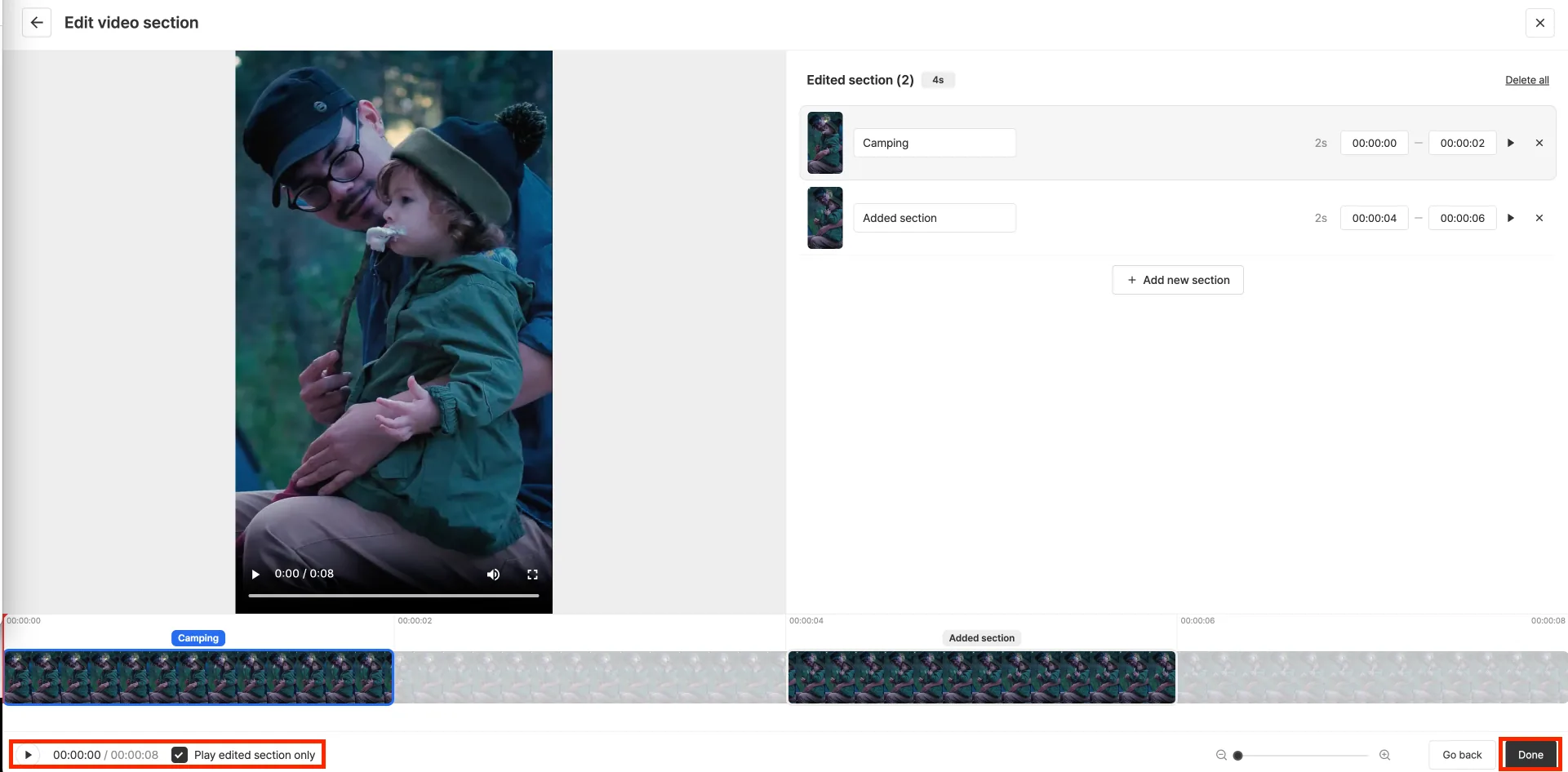
When you’re done editing, click the Done button.
Shortforms made with AI Clip can’t have their range edited or video changed.
Download the video
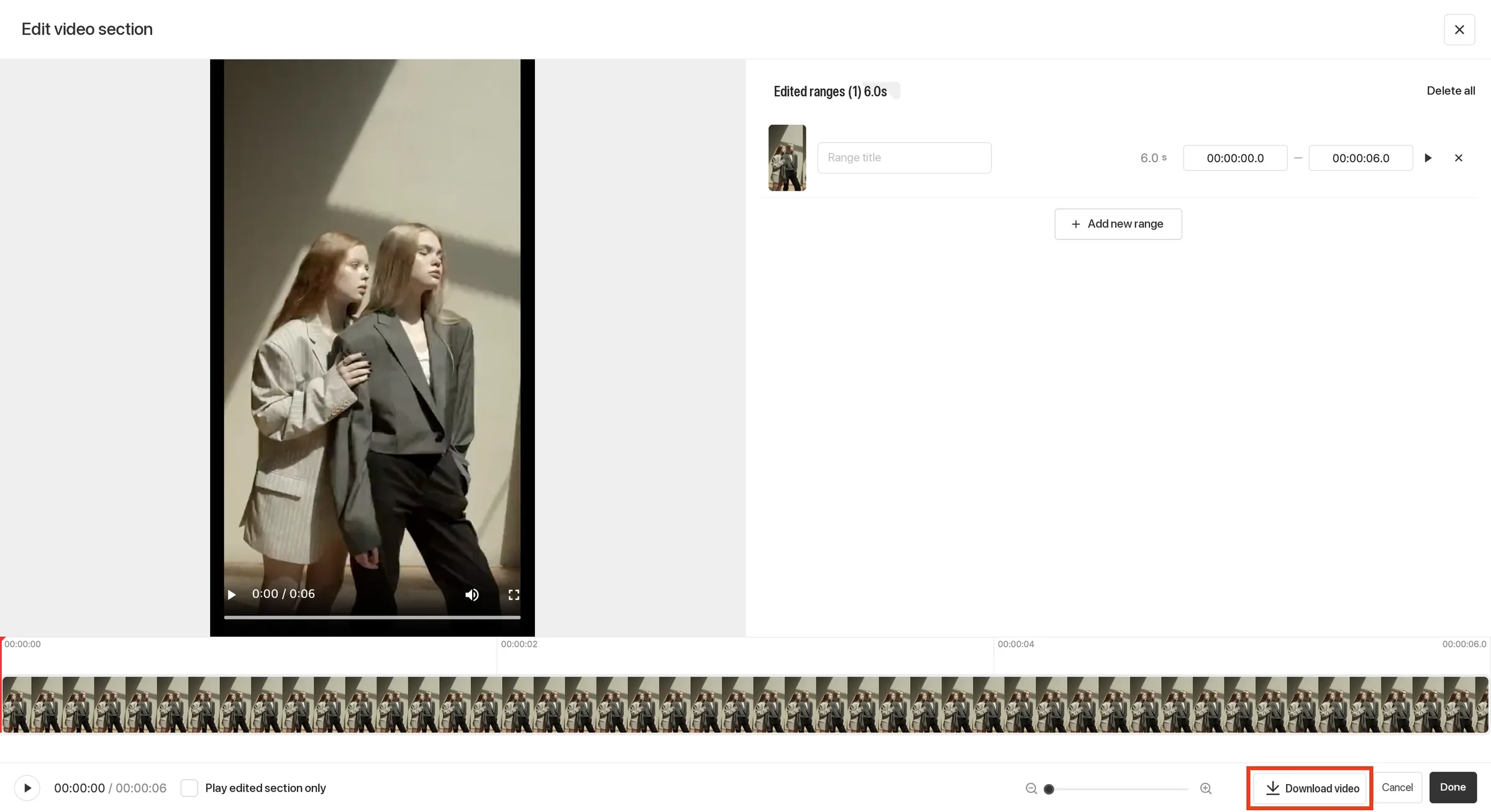
Use the Download video button at the bottom of the edit screen to download the edited range as a file. Turn on the Play edited ranges only checkbox to preview only the edited ranges in sequence on the timeline.