.png)

Streaming Mode (Enter Studio)
- Print
Streaming Mode (Enter Studio)
- Print
Article summary
Did you find this summary helpful?
Thank you for your feedback!
Overview
This is the actual streaming screen you enter by tapping Enter Studio from Campaign Detail Management. While viewing the camera preview, you can control the mic, filters, and more, and run the actual campaign through Start Streaming (server connection) and Mode switching (Rehearsal / Live).
Start/Stop Streaming and Mode (Rehearsal / Live) are different layers. Start Streaming only handles the encoder-to-server streaming connection (network); whether viewers can actually see the screen is decided by Mode. Even after you start streaming, nothing is shown to viewers until you switch Mode to "Live."
1. Streaming Standby Screen (Preparing Status)
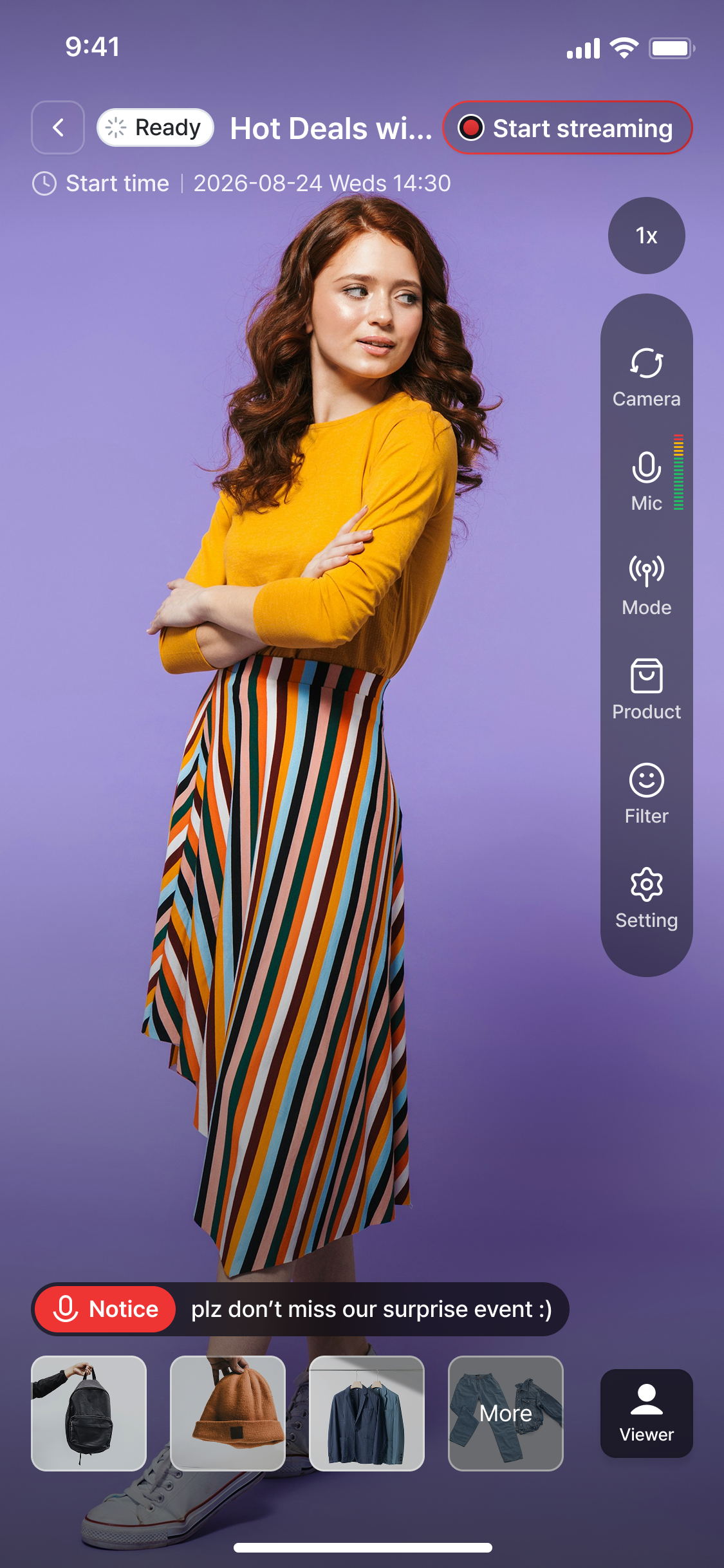
Element | Description |
|---|---|
< Back | Returns to Campaign Detail Management. |
Status badge + title | Shows the current campaign status (Preparing / Rehearsal / LIVE) and the campaign title. |
Scheduled date/time | The scheduled start date and time set when the campaign was added. |
Start Streaming button | Connects the encoder (device) to the streaming server. Unrelated to whether the campaign is visible to viewers. |
2. Sidebar Functions
Icon | Function |
|---|---|
1x (zoom) | Pinch to zoom in/out; the current zoom level is shown as a number. |
Camera | Switches between the front and rear camera. |
Mic | Turns the microphone on/off. The bar next to the icon is a level meter showing real-time input volume. |
Mode | Opens the Campaign Management bottom sheet to start a rehearsal or go live. (See item 3) |
Product | Add, remove, and reorder the products shown in the campaign. (See item 4) |
Filter | Configure beauty and filter effects. (See item 5) |
Settings | Configure camera options (shutter speed, ISO, etc.). (See item 6) |
3. Mode – Campaign Management
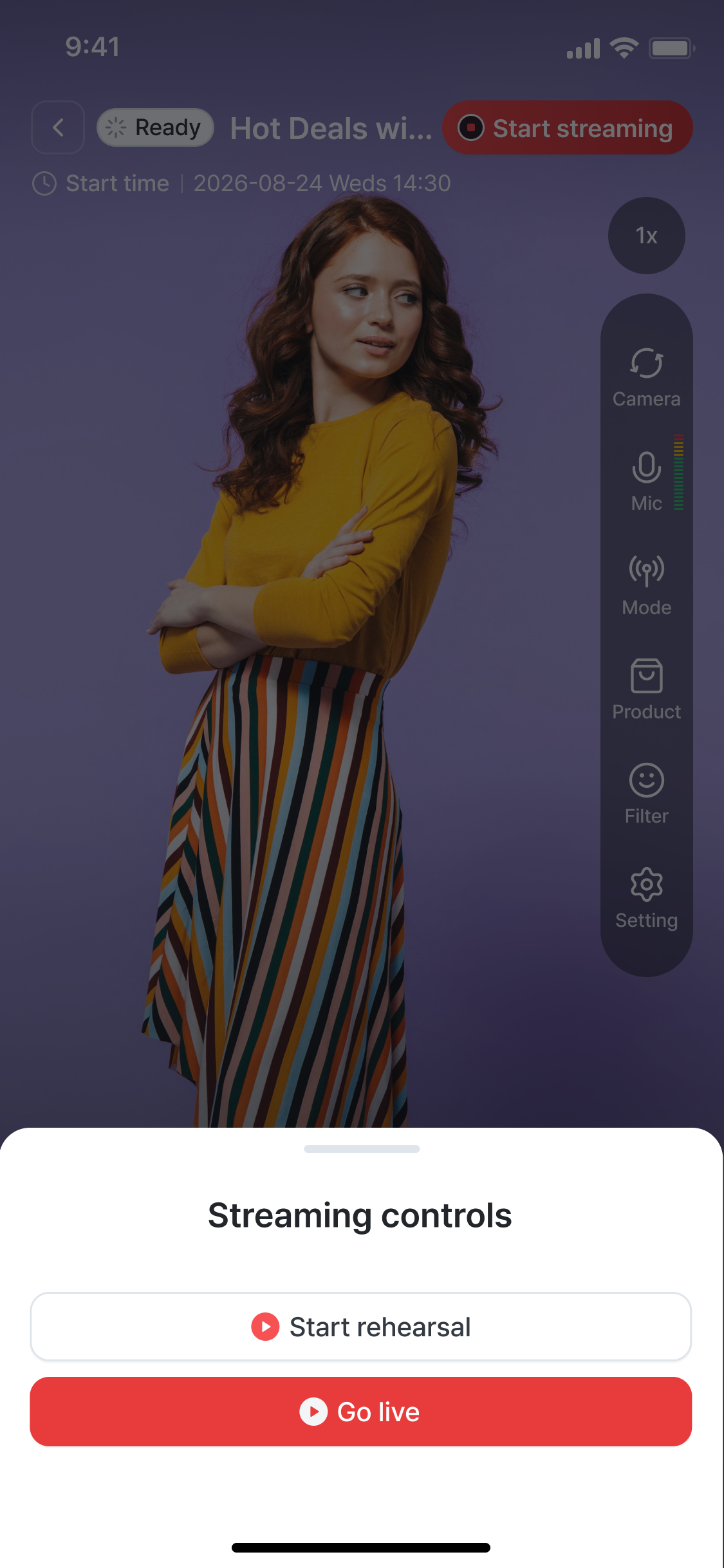
Button | Action |
|---|---|
Start Rehearsal | Switches to rehearsal mode, which isn't shown to general viewers. Only those who know the rehearsal access code can join. |
Start Live | Starts the live campaign shown to actual viewers. The status badge switches to LIVE. |
4. Product Management
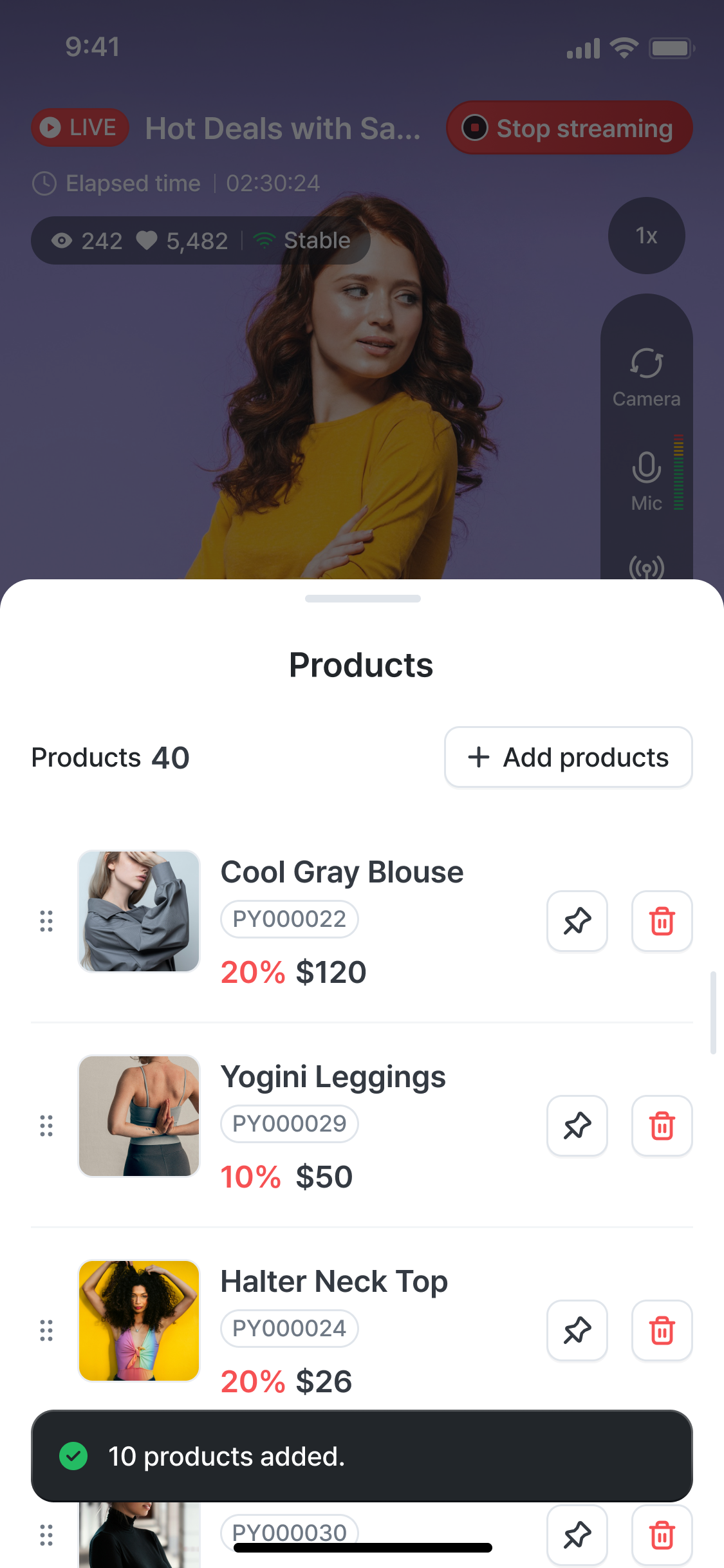
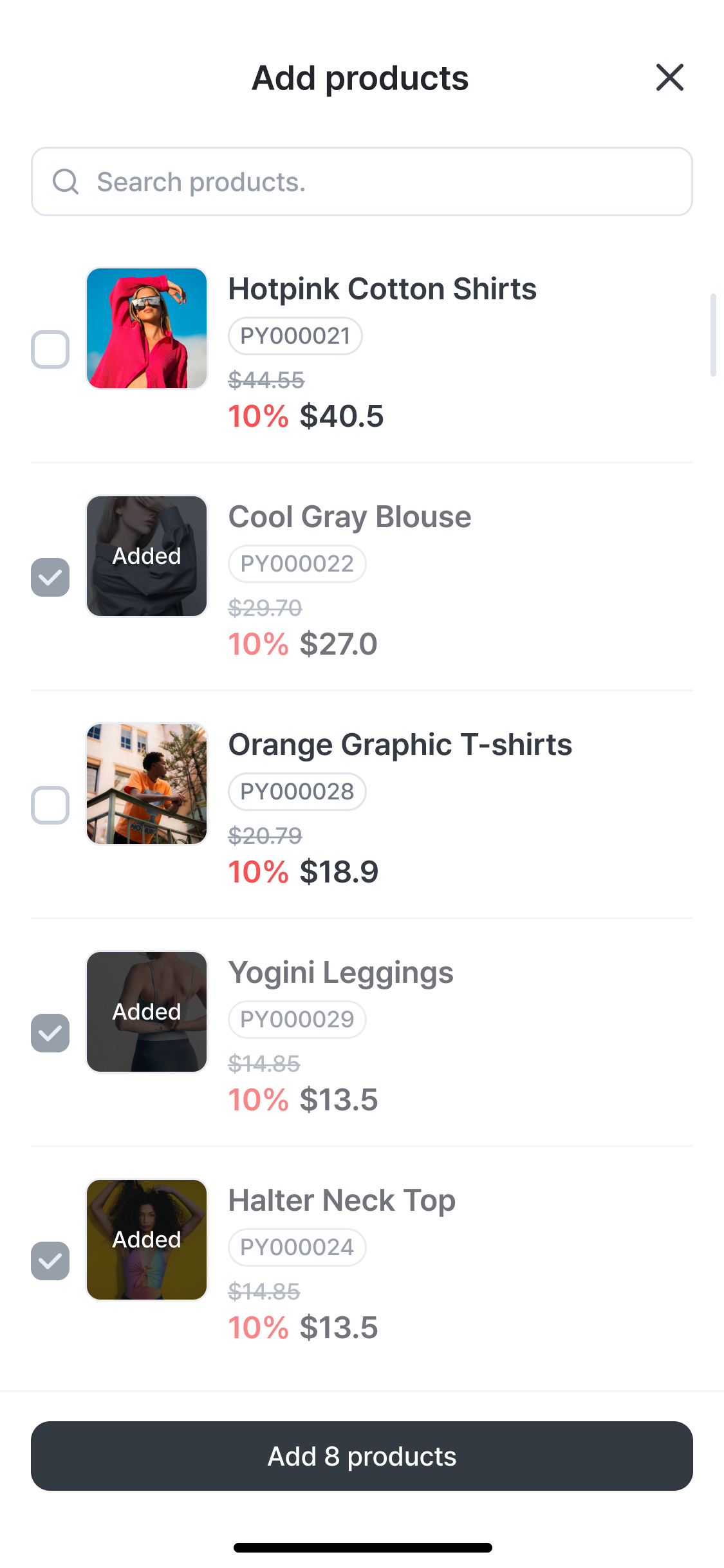
Tapping the Product icon on the sidebar opens a bottom sheet with the list of products currently shown in the campaign.
Product List
Element | Description |
|---|---|
Campaign products {nn} | The number of products currently registered to the campaign. |
+ Add Product | Opens the product search/selection screen. |
⋮⋮ Drag handle | Drag to change the display order of products. |
📌 NOW | Pins the product to the top of the display. (Same as the NOW feature) |
🗑 Delete | Removes the product from the campaign's product list. |
Add Product
Element | Description |
|---|---|
Search field | Search by product name. |
Added | Products already added to the campaign are marked Added. |
Add {n} Product(s) | Applies the selected products to the campaign's product list in bulk. On completion, a "{n} product(s) added." toast appears. |
5. Filter (Beauty · Tone)
.png)
Element | Description |
|---|---|
Beauty / Tone tabs | Switches between the Beauty retouching screen and the Filter preset screen at the bottom. |
Filter presets | Choose a filter preset from the carousel. |
Skin / Jawline / V-line / Nose / Eye size / Lips sliders | Adjust the retouching intensity for each item individually. Per-item adjustment is only available for Beauty, not for Filter presets. |
Reset | Resets all Beauty/Filter values to their defaults. |
6. Settings (Camera Options)
⚠ Access Restriction
Settings can only be accessed before streaming starts (while in Preparing status). Once streaming has started, access to Settings is disabled.
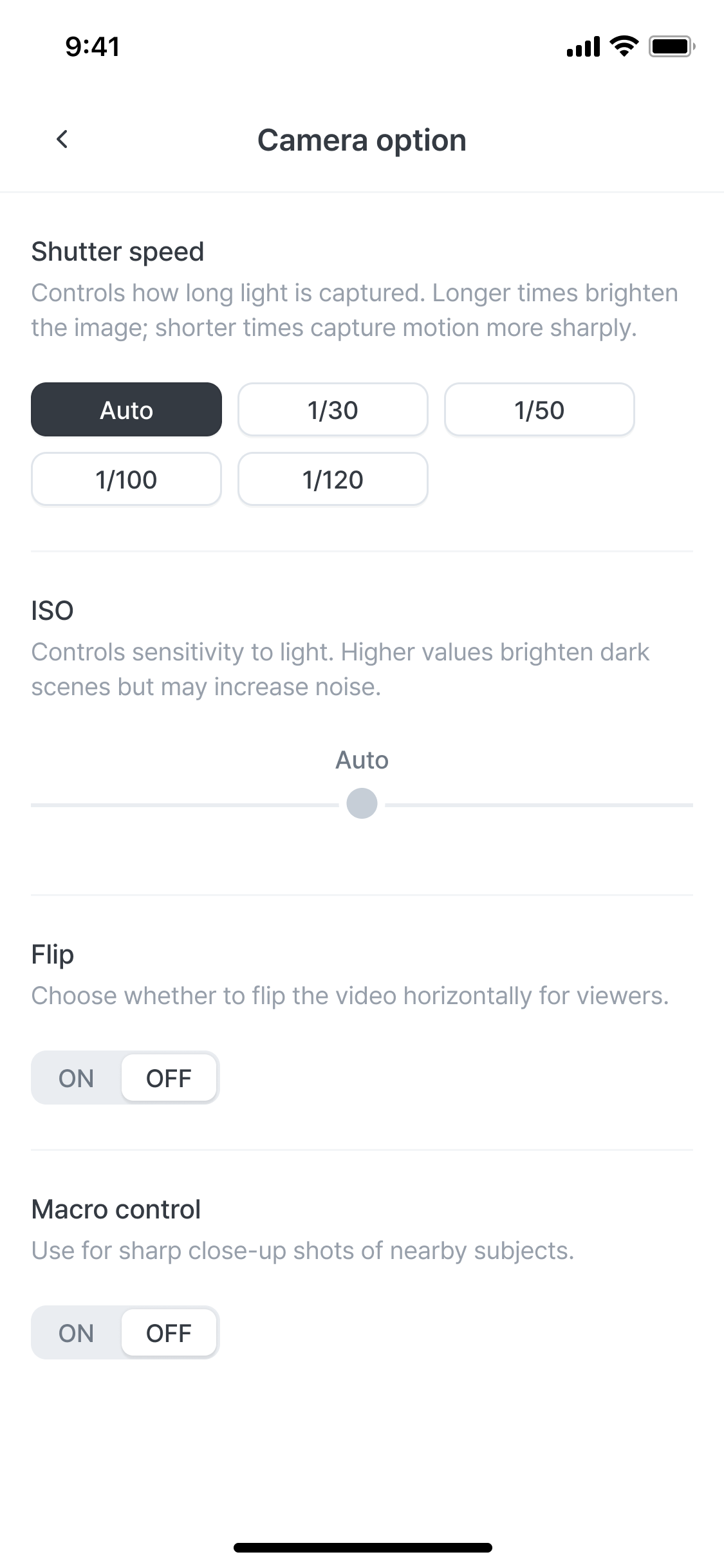
Item | Description |
|---|---|
Shutter Speed | Controls how long light is captured. Longer makes the image brighter; shorter captures motion more sharply. (Auto / 1/30 / 1/50 / 1/100 / 1/120) |
ISO | Adjusts sensitivity to light. Higher values brighten dark scenes but can increase noise. (Slider, default: Auto) |
Flip Streaming Horizontally | Sets whether the screen viewers see is mirrored. (ON/OFF) |
Macro Mode | Use this to capture close-up subjects sharply. (ON/OFF) |
Next guide: Admin Mode.