.png)

Admin Mode
- Print
Admin Mode
- Print
Article summary
Did you find this summary helpful?
Thank you for your feedback!
Overview
This is the screen you enter by tapping Admin Mode from Campaign Detail Management. Where Streaming Mode focuses on filming and streaming itself, Admin Mode is built around operational tasks — such as responding to chat and managing products — so the streamer can focus purely on the campaign. Because of this, its sidebar is simpler than Streaming Mode's, offering only Product and Chat.
Product management (add/remove/pin/reorder) works the same way as in Streaming Mode. See "4. Product Management" in the ShopLive Studio App – Streaming Mode document for details.
1. Chat Basic Interactions
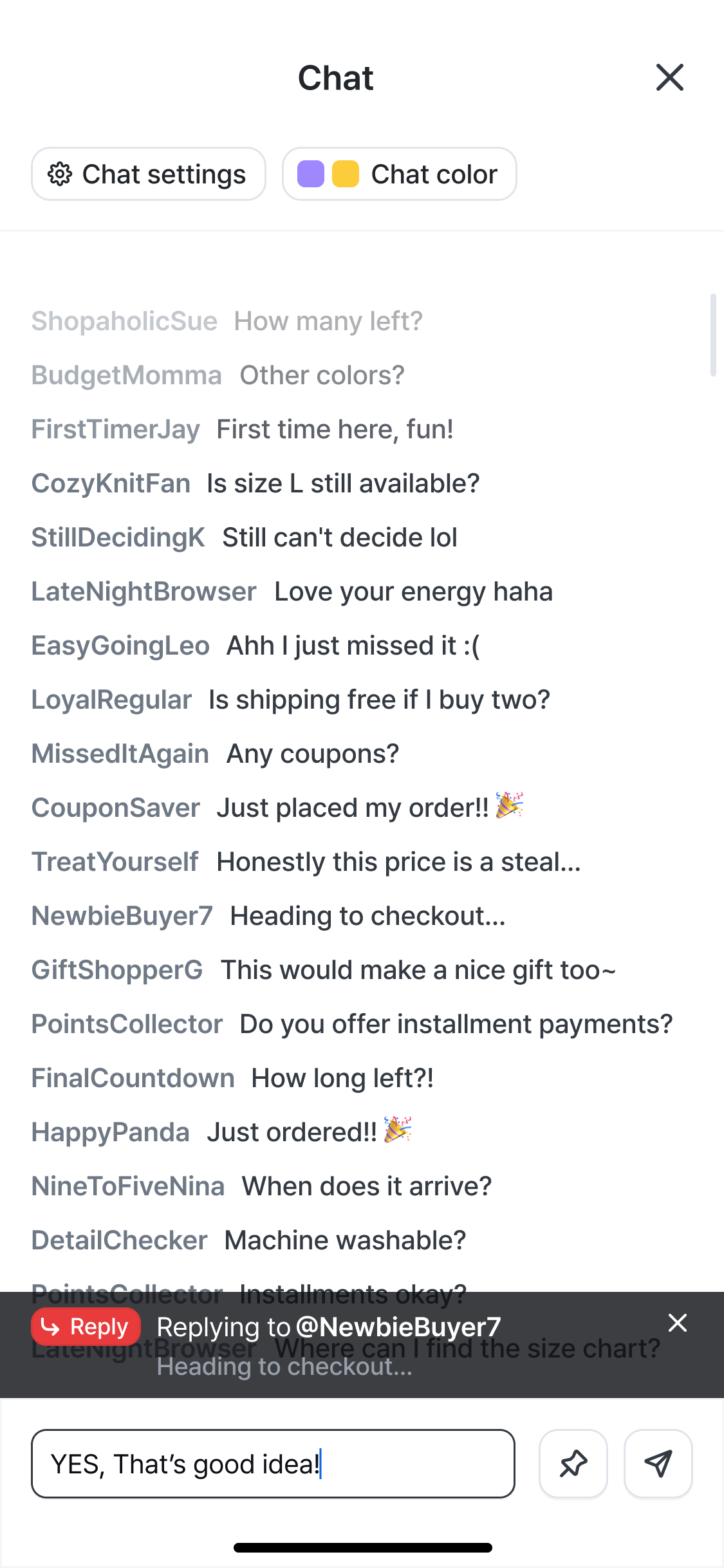
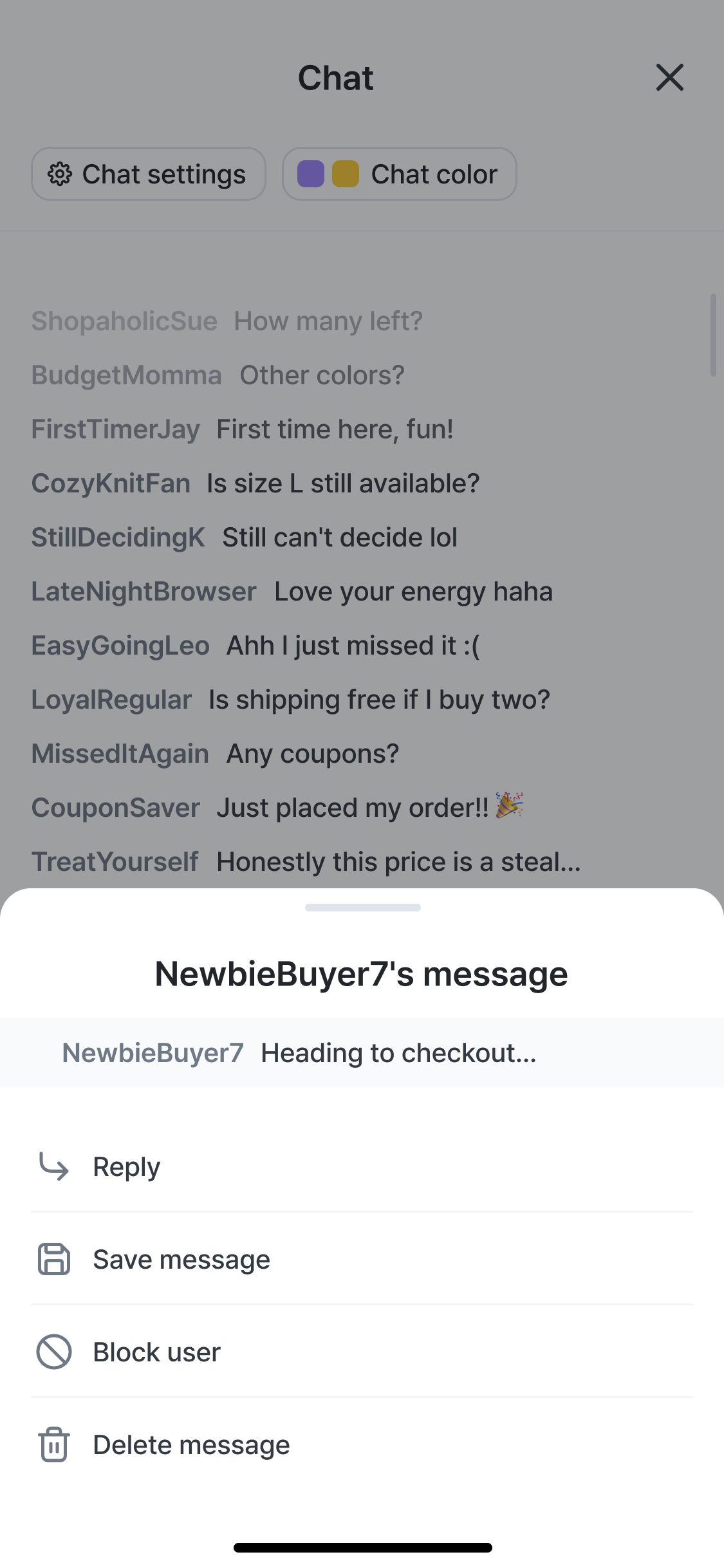
Action | Result |
|---|---|
Tap | Switches to reply-input mode so you can immediately reply to that chat message. |
Long-press | Opens an action bottom sheet for that chat message. (See table below) |
Long-press Action Bottom Sheet
Item | Description |
|---|---|
Reply to Chat | Write a reply to that chat message. |
Save Chat | Stores that chat message in Chat Management > Saved Chats. |
Block User | Blocks that user from chatting. Blocked users can be viewed and unblocked in Chat Management > Blocked Users. |
Delete Chat | Deletes that chat message. |
📌 Register Notice
The 📌 icon next to the chat input field can only be used in operator chat. Rather than pinning an existing chat message, it registers text you type directly into the input field as a notice banner at the top of the campaign screen. Only one notice can be registered at a time — registering a new one replaces the previous one.
2. Chat Management
Opened by tapping the ⚙ Chat Management button at the top of the chat window; organized into 3 tabs.
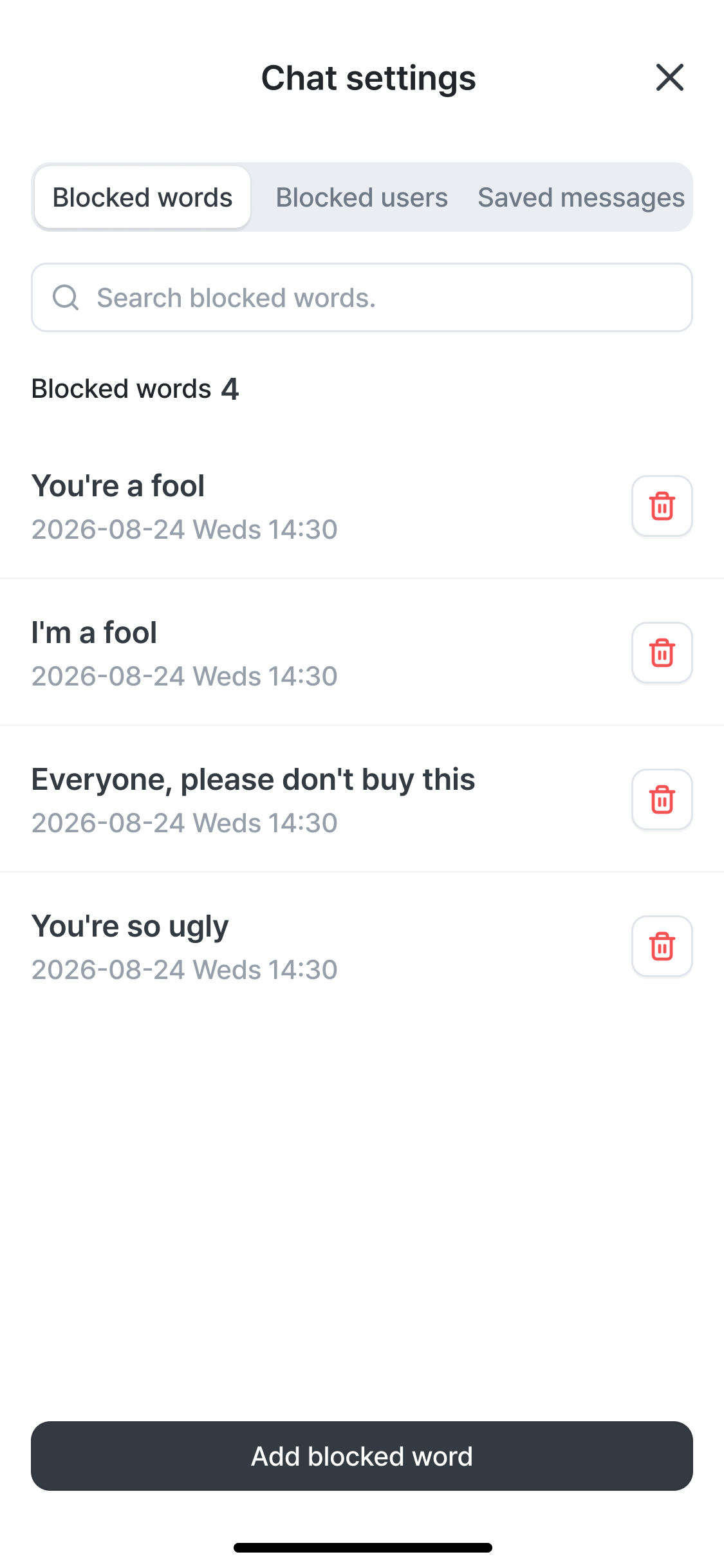
2-1. Banned Words
Element | Description |
|---|---|
Search field | Searches registered banned words. |
Registered banned word list | Shown with the registration date. Delete individual entries with the 🗑 icon. |
Add Banned Word | Registers a new banned word. Any chat message containing a registered word is automatically filtered. |
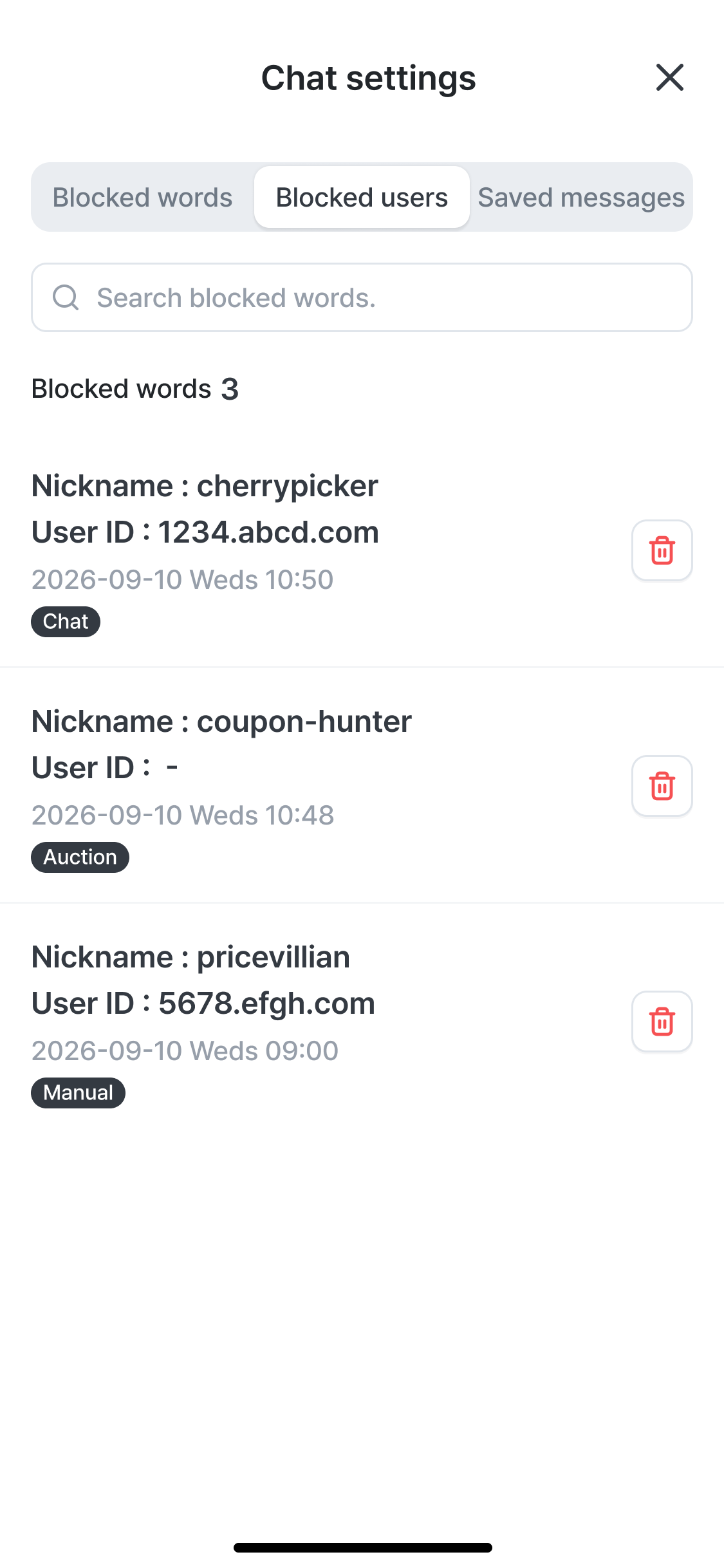
2-2. Blocked Users
Element | Description |
|---|---|
Nickname / User ID | Identifying information for the blocked user. |
Block source tag (Chat / Option / Manual) | Shows whether the user was blocked via a chat long-press, through another options menu, or by manually entering their user ID. |
🗑 icon | Unblocks the user. |
.png)
2-3. Saved Chats
Element | Description |
|---|---|
Saved chat list | Collects messages you selected Save Chat for from the long-press menu. Useful for reviewing frequently asked questions after the campaign. |
3. Chat Color
Opened by tapping the Chat Color button at the top of the chat window; lets you set different chat text colors for operators and viewers.
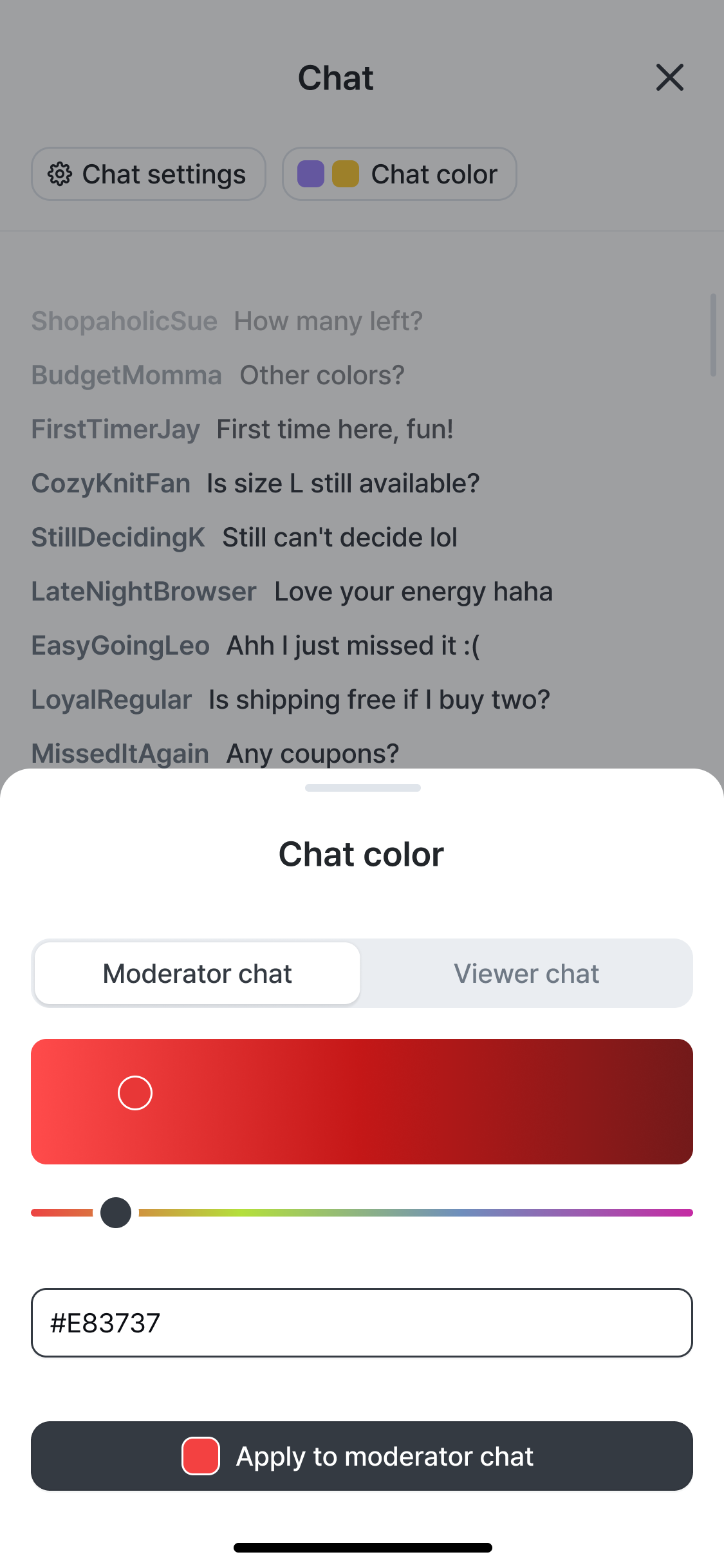
Element | Description |
|---|---|
Operator Chat / Viewer Chat tabs | Choose which target to apply the color to. Operator (host) chat and general viewer chat can each be set to a different color. |
Color slider / HEX input | Pick a color from the gradient bar, or enter a HEX code directly for a precise color value. |
Apply to Operator Chat / Apply to Viewer Chat | Applies the selected color to the actual chat shown on the campaign screen. The updated color previews in real time on the campaign screen behind the sheet. |