.png)

8-1단계 In App PIP(Picture In Picture) 설정하기
- Print
8-1단계 In App PIP(Picture In Picture) 설정하기
- Print
The content is currently unavailable in English. You are viewing the default Korean version.
Article summary
Did you find this summary helpful?
Thank you for your feedback!
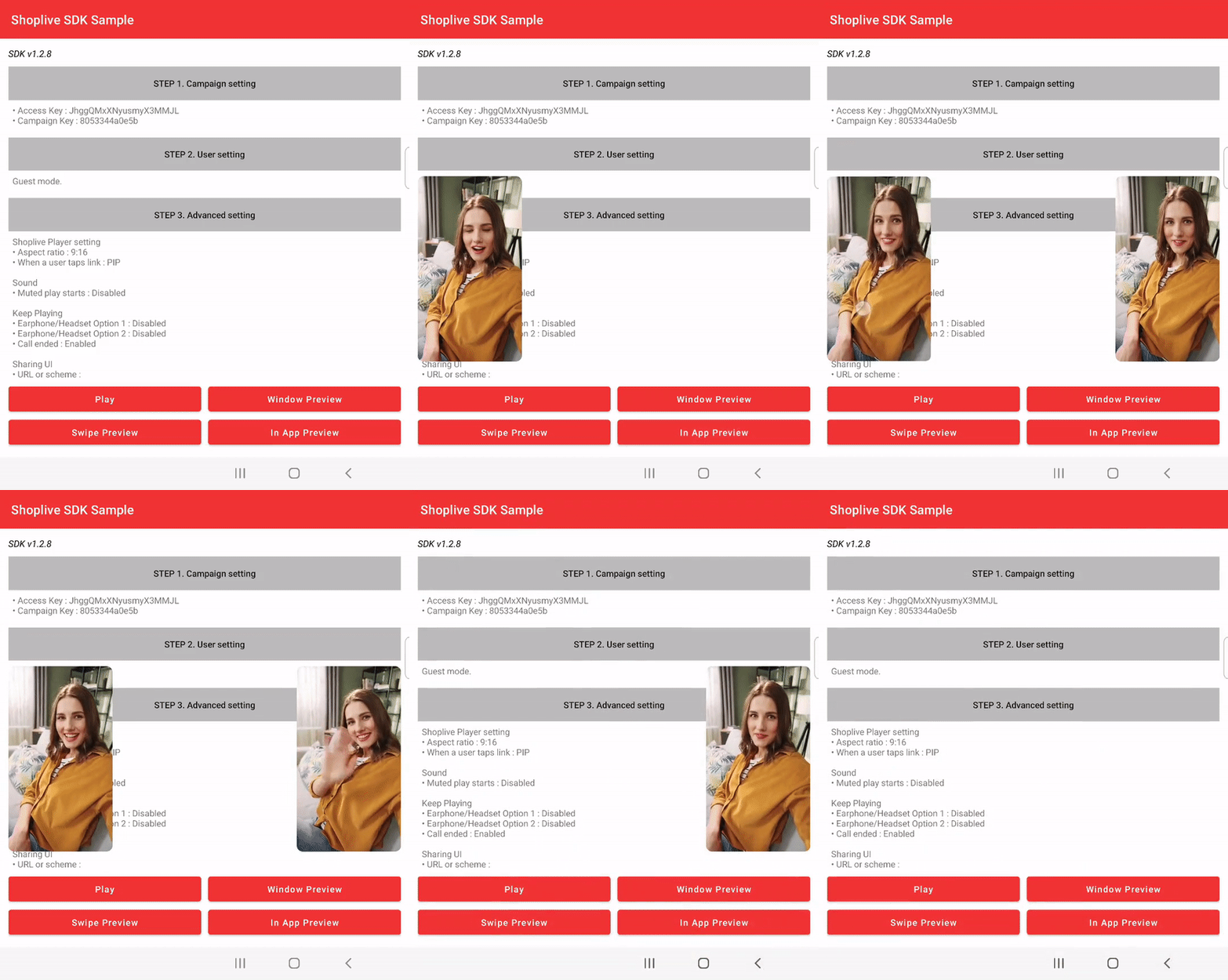
app 전역으로 살아 움직이는 In App PIP기능을 사용할 수 있습니다. os PIP와 달리, 앱과 앱 간의 이동 등 앱 생명주기를 벗어나는 부분의 PIP는 지원되지 않습니다.
기본 설정
ShopLive.setEnabledPictureInPictureMode(isEnable=true, useInAppPip=true) //default 값은 false
In App PIP 의 UI Custom
ShopLive.setPreviewOptions(
    ShopLivePreviewData(campaignKey = "your_campaign_key").apply {
      // 크기 설정
      setWidth(200)
      setHeight(360)
      // 위치 설정
      position = ShopLivePreviewPositionConfig.BOTTOM_RIGHT
      // 마진 설정
      setMarginTop(20)
      setMarginBottom(20)
      setMarginLeft(20)
      setMarginRight(20)

      // 모양 설정
      radius = 16f

      // 배경색 설정
      setBackgroundColor(Color.parseColor("#E6000000"))

      // 닫기 버튼 설정
      useCloseButton = true
      closeButtonConfig = ShopLivePreviewData.CloseButtonConfig(
           position = ShopLivePreviewCloseButtonPositionConfig.TOP_RIGHT,
           width = 32f,
           height = 32f,
           offsetX = 8f,
           offsetY = 8f,
           color = Color.WHITE,
           shadowOffsetX = 2f,
           shadowOffsetY = 2f,
           shadowBlur = 4f,
           shadowBlurStyle = BlurMaskFilter.Blur.NORMAL,
           shadowColor = Color.parseColor("#80000000")
           imageStr = "src path"
                )
            }
        )
    }
}